
DeepSeek Harness client UI: theme installs & custom skins
Two community routes to a skinned dsh web UI — one-click theme packs like Firefly, or the dsh-client-ui-custom framework with six presets, glass levels and any wallpaper. Every screenshot deep-links back to the source video.
Last updated: 2026-10-02
The stock dsh web UI is clean but bare — a dark canvas and one prompt box. Search suggest knows people want more: “dsh client ui” and “dsh client ui aqua” are real queries, and the results are almost all GitHub repos and Bilibili videos, with no walkthrough you can follow. This page is that walkthrough, in frames: install a ready-made theme skin, then tune your own with the customization framework. Every install and removal command below was re-quoted verbatim from the two GitHub READMEs on 2026-10-02.
The two routes don't overlap. A theme skin like dsh-theme-firefly reskins everything in one install — wallpapers, a boot transformation animation, sounds. A customization framework like dsh-client-ui-custom keeps the stock layout and hands you the controls: theme presets, frosted glass, wallpapers, opacity, fonts. To browse every interface plugin we track first, open the UI collection. DSH UI plugin collection
TL;DR
- ▸Three ways in: the built-in plugin market (Settings → Plugin market), pasting a GitHub repo link into the chat box, or one CLI command.
- ▸dsh-theme-firefly (Liu-ZA-81) is a complete Honkai: Star Rail Firefly skin: dynamic/static wallpapers, a boot transformation animation, music and typing sounds.
- ▸dsh-client-ui-custom (yoli-mi) is a framework: six theme presets, four glass levels, any wallpaper, opacity sliders — changes apply instantly, no restart.
- ▸Themes are mutually exclusive — the last one loaded wins. Remove with one command or comment out one patch line to get the stock UI back.
From stock dsh to a themed client UI, step by step
Part 1 · Install a ready-made theme (Firefly)
- 1
Find the theme: market search, pasted link, or one command
Open Settings → Plugins → Plugin market and search “firefly”. The dsh-theme-firefly card by Liu-ZA-81 (★7 at recording time, ★30 on GitHub as of 2026-09-21) sits under the Themes & appearance tag: character art and dynamic wallpapers, firefly-neon colors, a boot transformation animation, firefly particles, background music, typing sounds and per-message sticker easter eggs. You can also paste a GitHub repo link straight into the chat box and let dsh install it for you, or run the npm install command from the README.
$dsh plugin --profile web add dsh-theme-firefly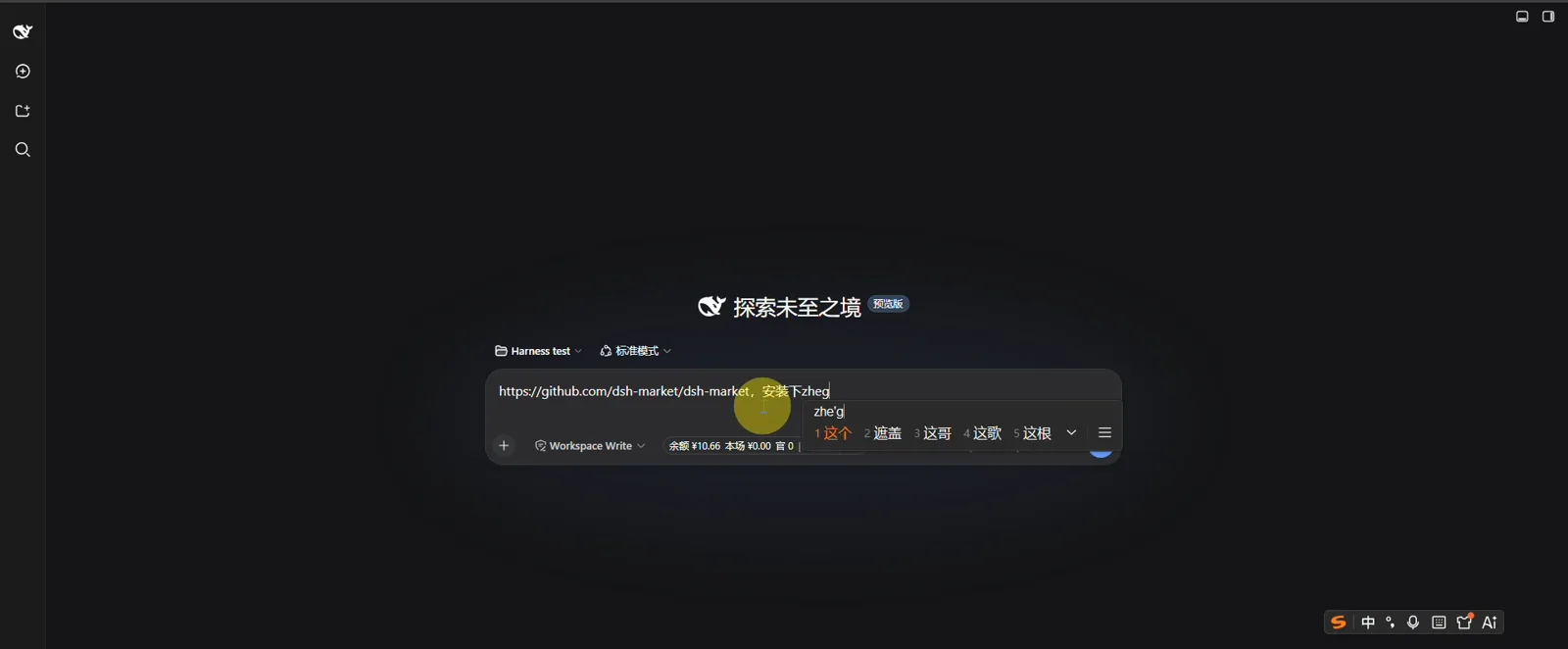
Route B: paste any plugin repo link into the chat box and dsh installs it for you. (t=20)Watch at 0:20 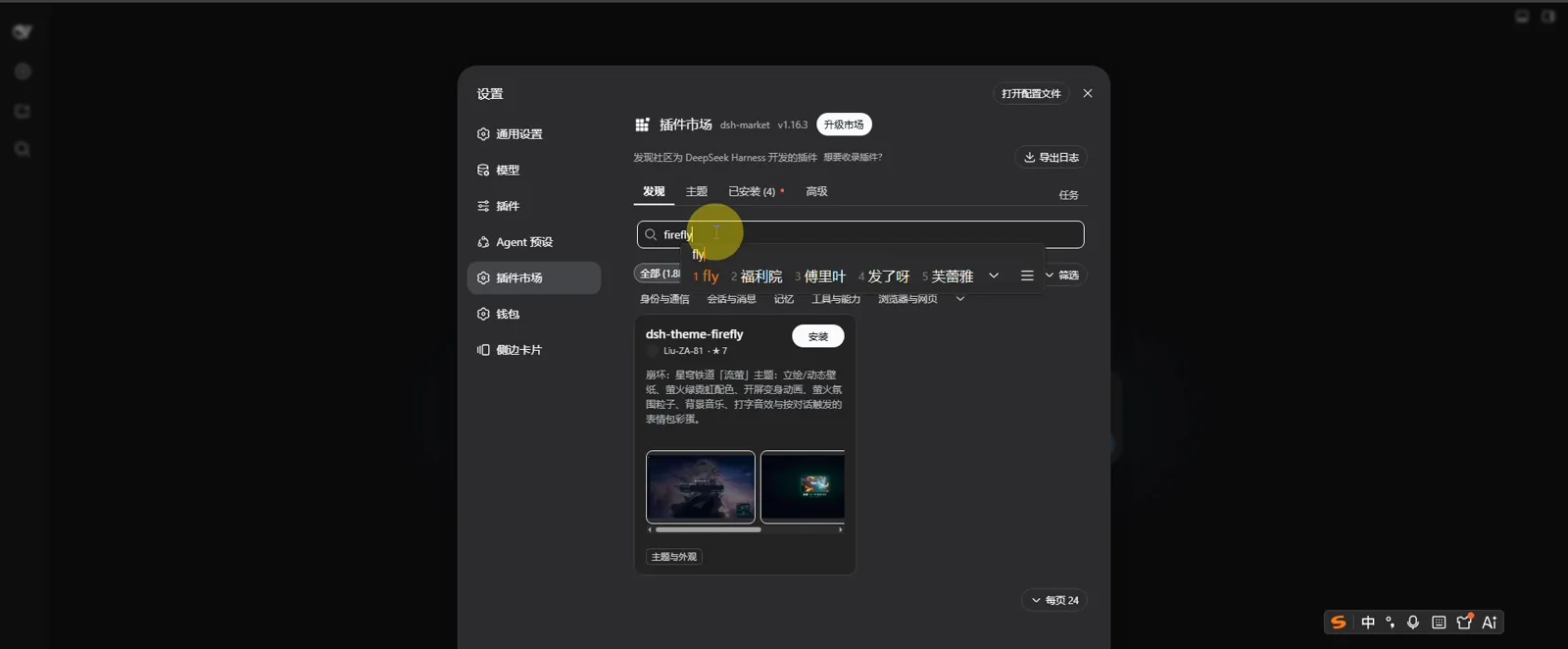
Route A: Settings → Plugin market → search “firefly” → Install on the dsh-theme-firefly card. (t=40)Watch at 0:40 - 2
Restart dsh web and catch the transformation animation
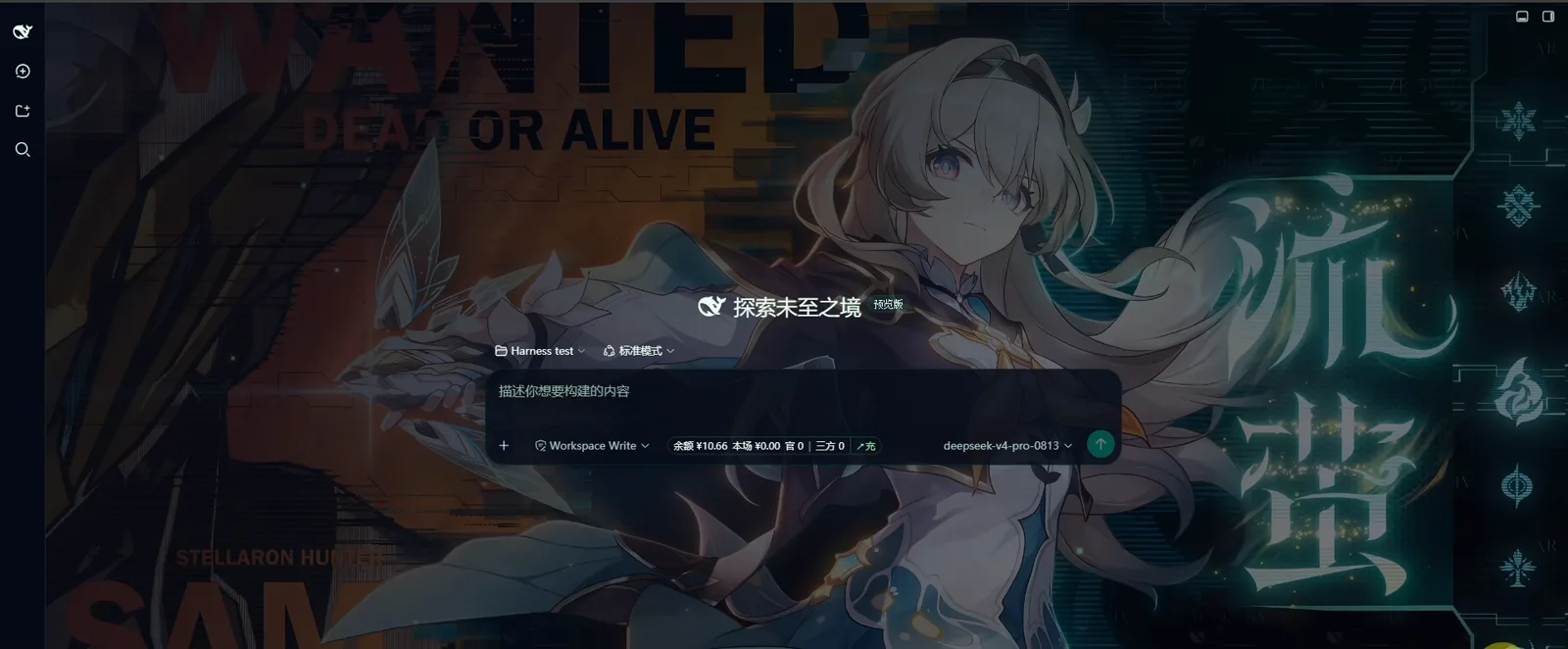
Once the install finishes, restart dsh web and reload the page: a green-glow title card — 流萤 // FIREFLY, “萤火归位 · 变身完成” — fades in over a black screen, exactly the animation the marketplace card promised. Click anywhere to skip it; per the README it replays on every refresh and is skipped automatically when your system requests reduced motion.

First reload after install: the transformation plays; click anywhere to skip. (t=60)Watch at 1:00 - 3
Live in the themed UI: wallpaper panel, chat, status bar
The Firefly artwork now sits behind the whole interface — home screen and chat view alike. The 「景」 button on the input bar opens the wallpaper panel: dynamic (mp4) and static images each remember their own current pick, you can import pictures or videos from your machine (stored server-side, so they survive restarts and browser switches), and any selection can become a random rotation pool. Nothing functional is lost: Think blocks, tool calls and the token-and-balance status line all keep working, now in firefly green.
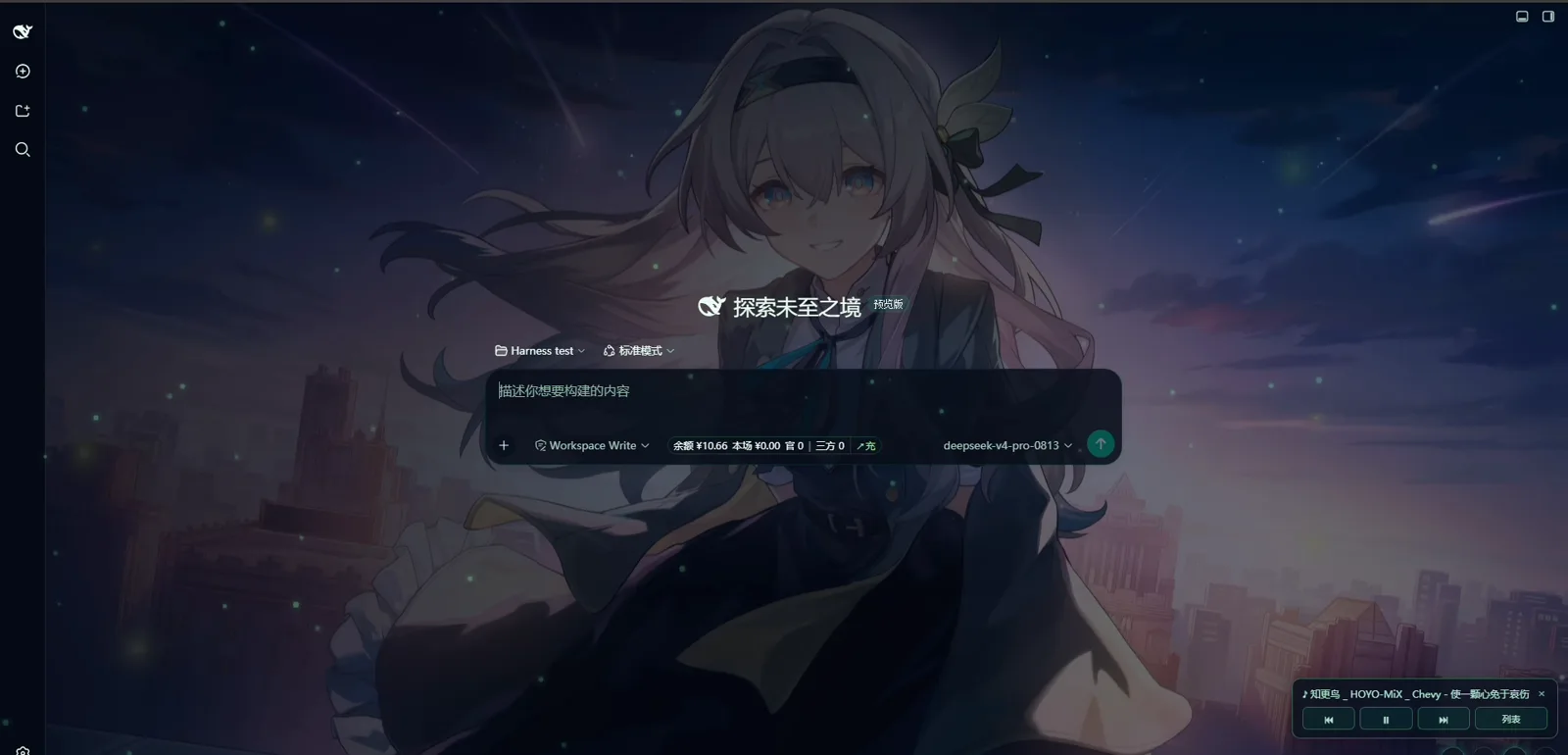
The fully themed home: Firefly art behind the prompt box, music player bottom-right. (t=290)Watch at 4:50 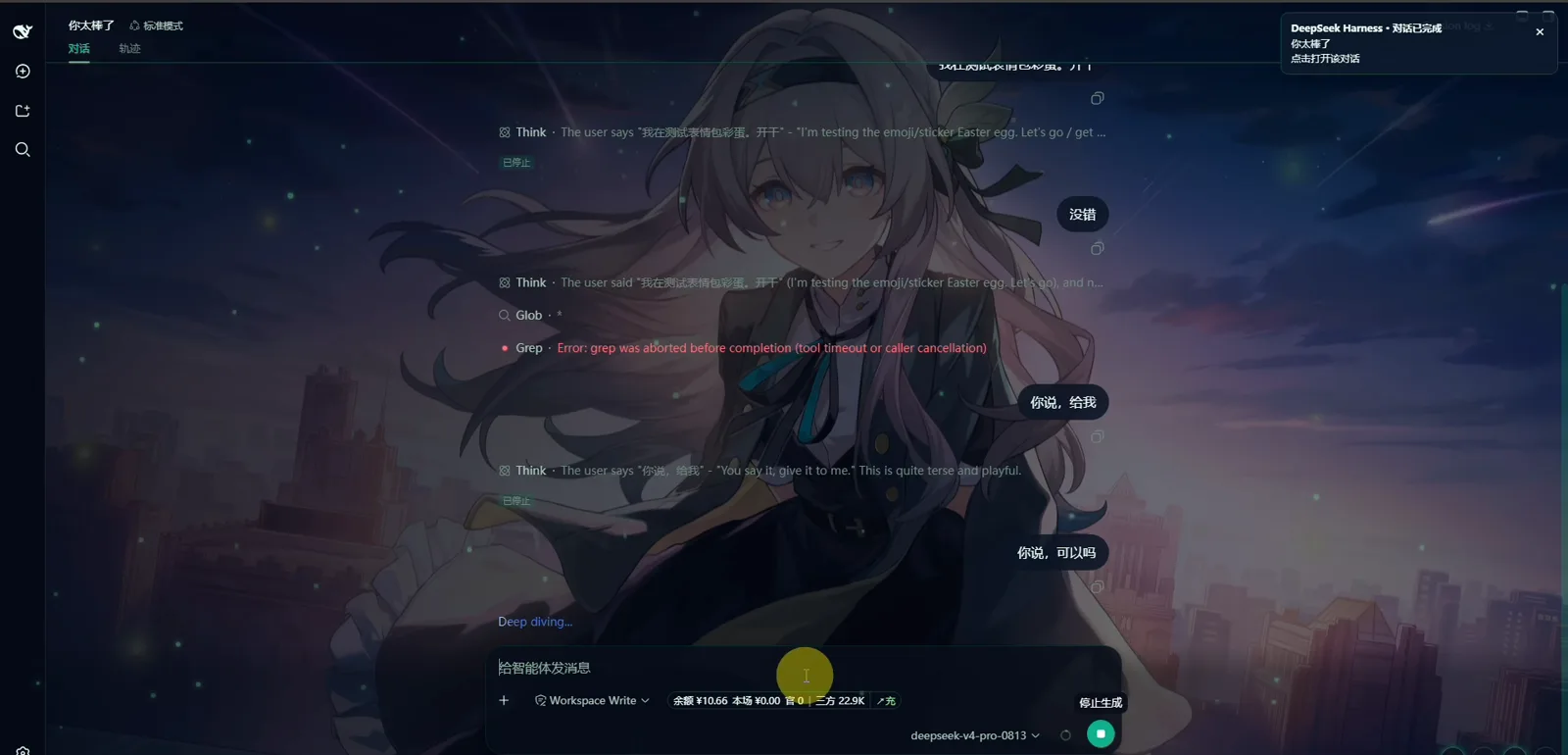
Nothing functional is lost: reasoning, tools and token accounting, all still there under the skin. (t=380)Watch at 6:20
Part 2 · Fine-tune with dsh-client-ui-custom
- 4
Install the customization framework dsh-client-ui-custom
For control beyond one fixed skin, install dsh-client-ui-custom by yoli-mi (★38 on GitHub, still updated 2026-09-28; the promo video is recorded by the plugin author himself). It ships seven independent modules: appearance, shortcuts, usage statistics, a floating history strip, user-message Markdown rendering, a plugin marketplace and motion effects. Everything is off by default — unconfigured, the UI stays exactly stock — and a features whitelist lets you install only the modules you want.
$dsh plugin --profile web add git+https://github.com/yoli-mi/dsh-client-ui-custom.git - 5
Appearance: six presets, glass levels, any wallpaper
Settings → Appearance is the core page. Six built-in presets — Ink Teal, Ink Blue, Dusty Rose (the selected one in the frame), Apricot Gold, Mist Gray and Ink Violet — restyle the whole surface at once, and your own wallpaper URL stacks on top of any preset. Below the cards: a glass level selector (off / light / frosted / mica), a CSS gradient overlay field, a dim-scrim slider (16% in the frame) and wallpaper tone. A mini preview plus a fullscreen preview (F2 to exit) show the result live, and every change applies instantly — no restart.
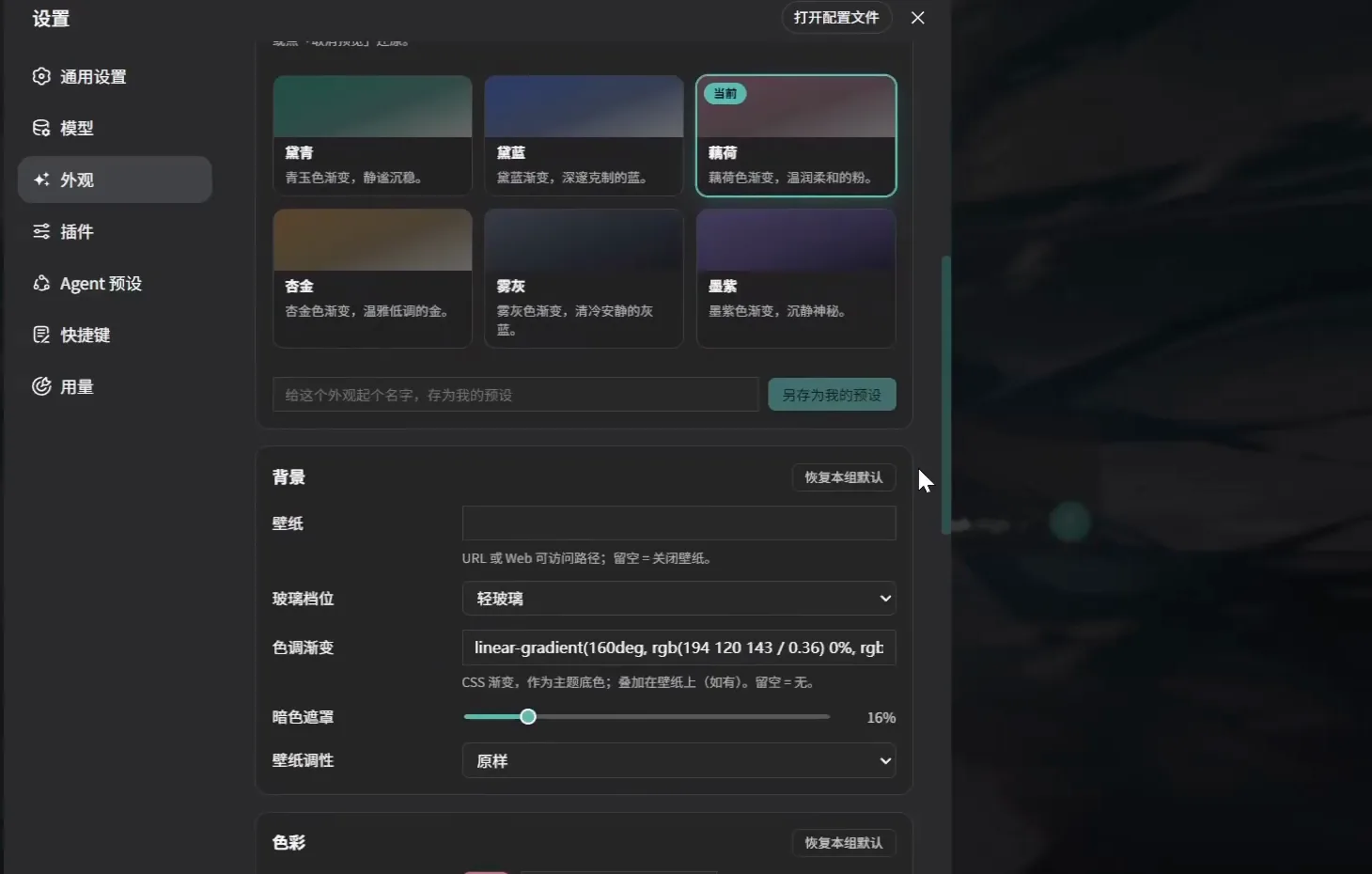
The framework's core page: preset cards on top, your own wallpaper and glass controls below — all live. (t=122, source: 九月在科普)Watch at 2:02 - 6
History strip, Markdown rendering and the other toggles
The plugin extends the stock General settings page too: a floating history strip with its own position (left side in the frame) and record count — recent 5 / 10 / 20 entries or all — plus a switch that renders your own messages as Markdown. The settings sidebar grows accordingly, with new Appearance, Shortcuts and Usage pages added by the framework's modules.
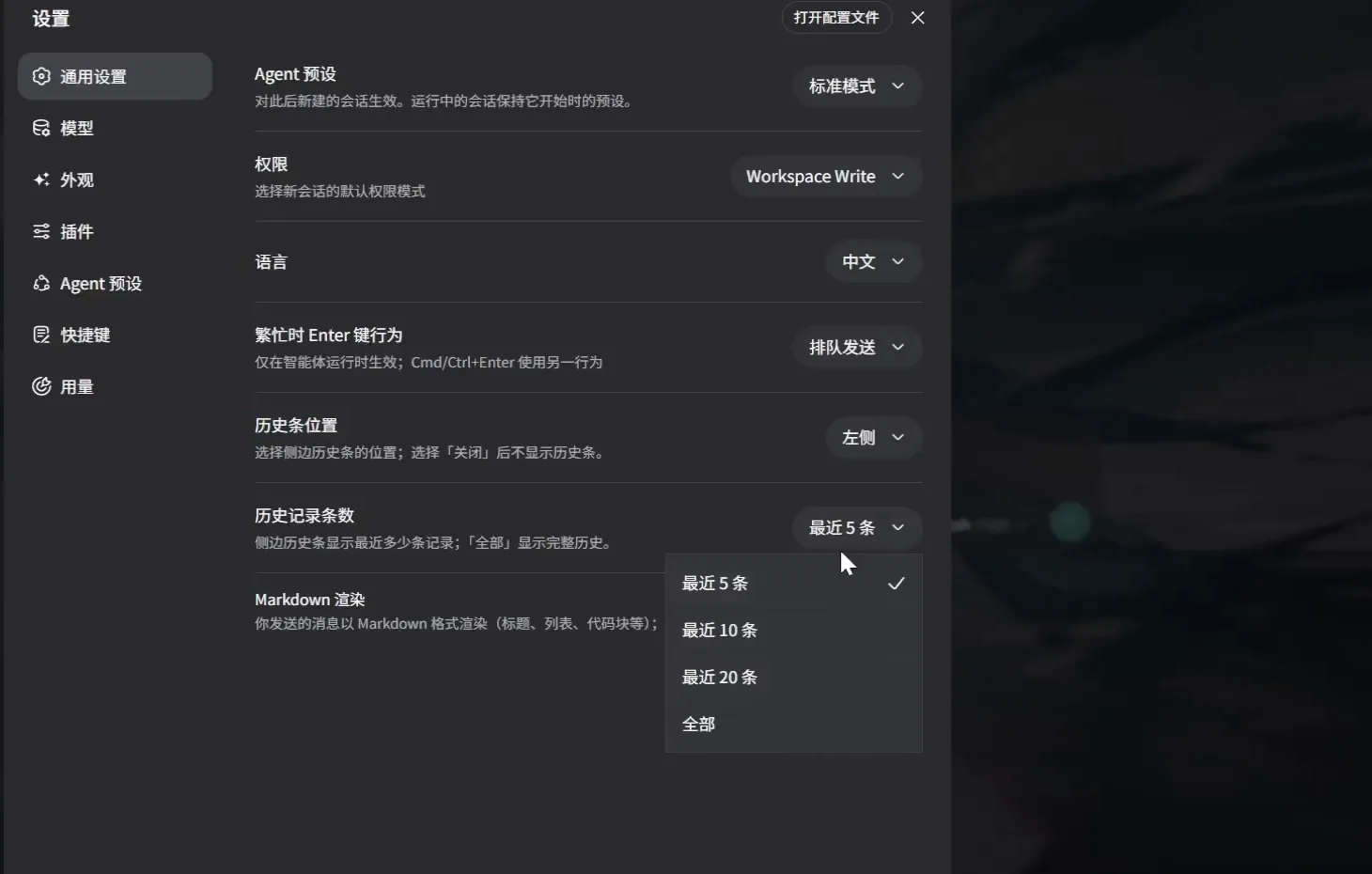
Beyond looks: the framework adds a floating history strip and Markdown rendering to stock settings. (t=70)Watch at 1:10 - 7
Its plugin market: 3,810 GitHub plugins, no restart
dsh-client-ui-custom adds a second marketplace under Settings → Plugins. It auto-discovers GitHub repos tagged dsh-plugin, sorted by stars — 3,810 in total at recording time — and marketplaceUrl accepts your own list URL. Clicking Install copies the YAML config to your clipboard; paste it into ~/.dsh/profiles/web/cordis.patch.yml and the watched file applies it immediately, no restart needed.
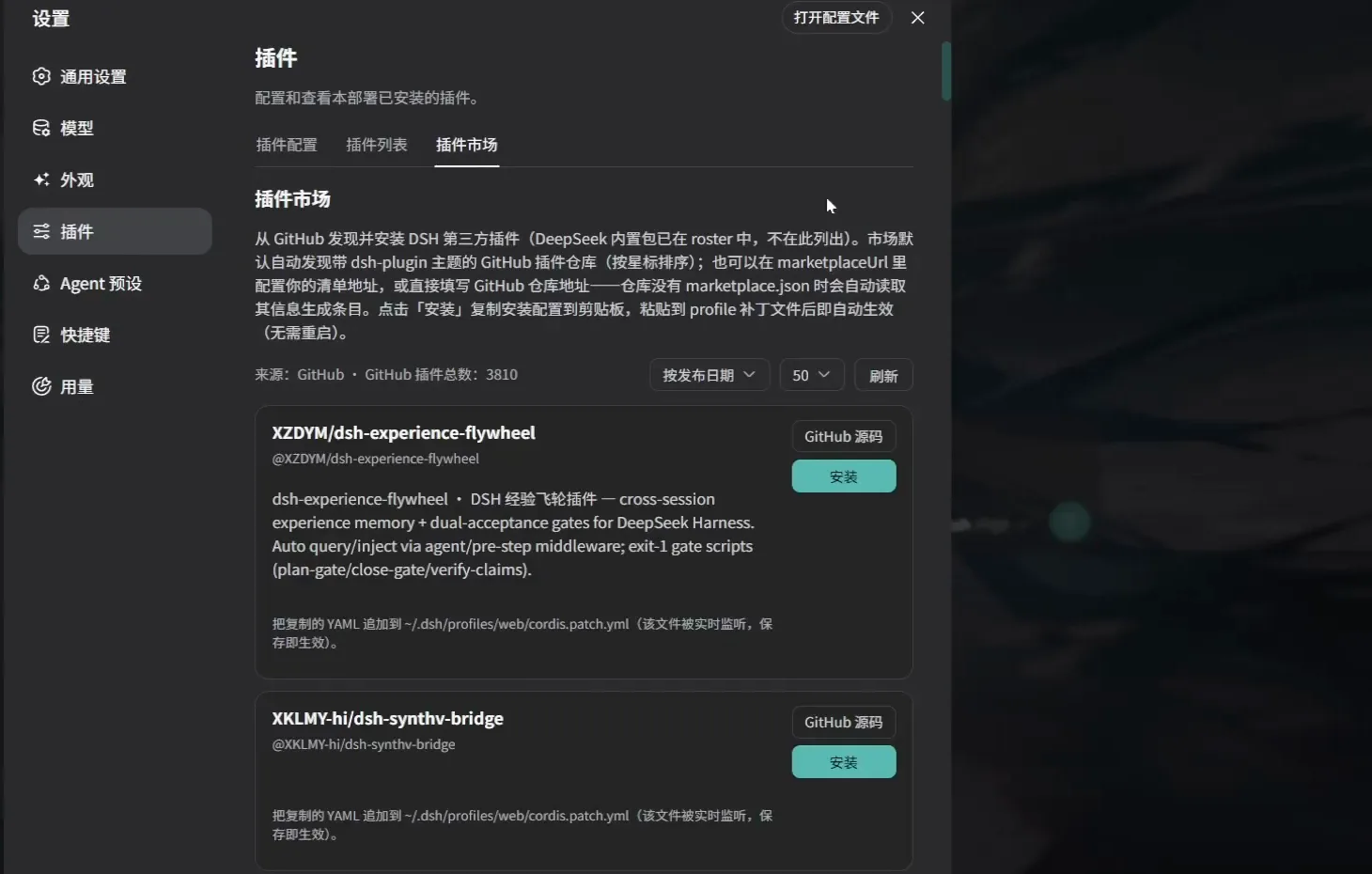
A second marketplace: GitHub discovery sorted by stars, installed via the watched cordis.patch.yml. (t=150)Watch at 2:30
Part 3 · Verify and roll back
- 8
Verify: themed home, sidebar and model switch intact
Back on the home screen, the wallpaper theme is fully applied while everything functional stays put: the workspace sidebar (demo project, PDF-word, Quiz…), the New chat button and the model selector showing DeepSeek-V4-Flash. A skin changes the face, not the app — your sessions and workspaces are untouched.
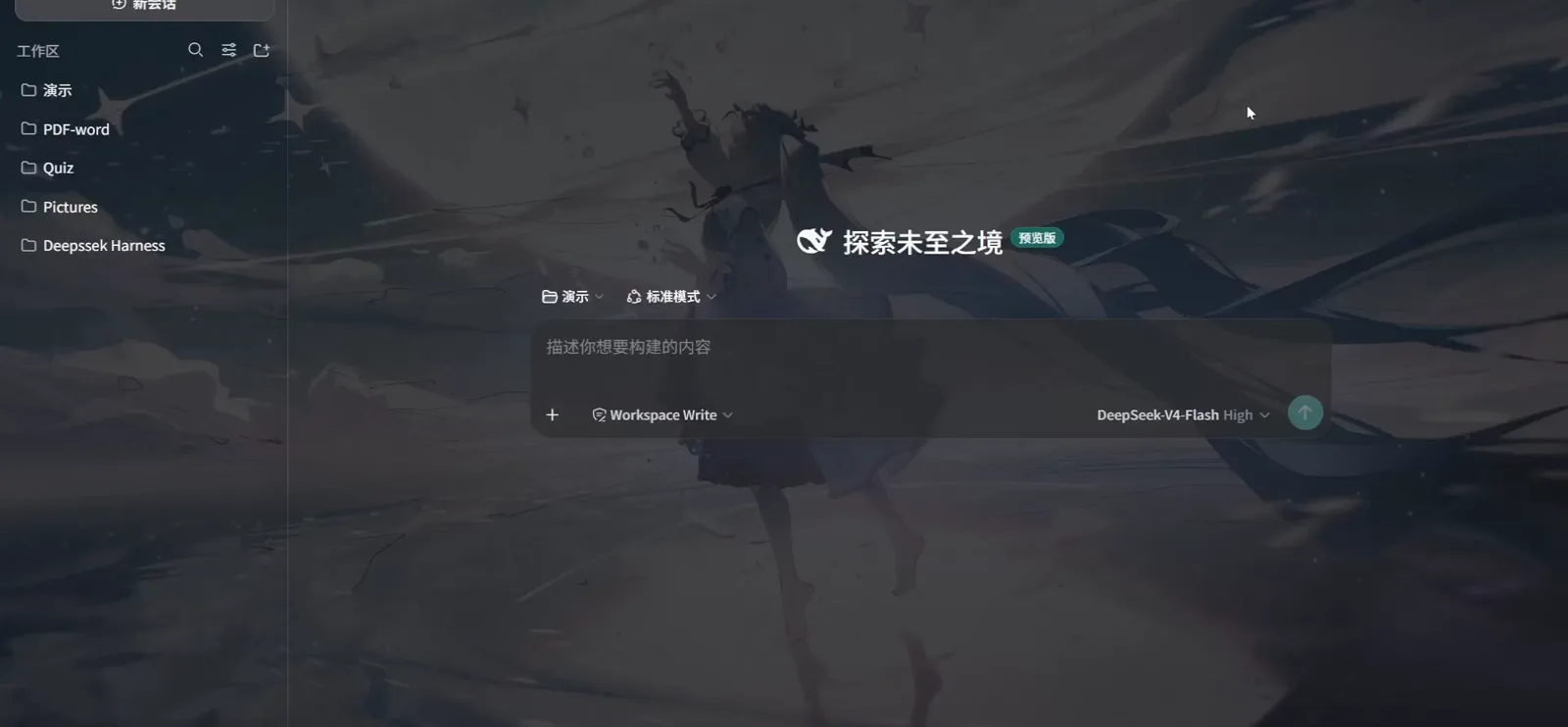
The framework's promise: your wallpaper and colors, stock layout and behavior. (t=210)Watch at 3:30 - 9
Roll back: one command, or comment out one line
Not your thing? Uninstall the firefly theme with the command below and restart dsh web. Because every theme calls dsh's setTheme and injects !important token styles, the README warns that themes are mutually exclusive — the last one loaded wins — so keep a single theme enabled and comment out the competing plugin's line in ~/.dsh/profiles/web/cordis.patch.yml to step back. dsh-client-ui-custom doesn't even need uninstalling: clear its config and the UI returns to stock.
$dsh plugin --profile web remove dsh-theme-firefly
FAQ
What people ask before installing a dsh client UI skin.
Is the dsh client UI or its skins an official DeepSeek feature?
No. The official dsh web UI ships with plain light/dark styling; every skin in this guide is a community plugin. “client-ui-*” is a community naming family, not an official namespace — the deepseek-ai GitHub organization hosts no dsh-client-ui-* repository (checked via the GitHub API on 2026-10-02). The two plugins covered here are yoli-mi/dsh-client-ui-custom and Liu-ZA-81/dsh-theme-firefly.
What is “dsh client ui aqua”? Is there an aqua theme?
It's a search suggestion, not a product we could verify: neither featured README mentions an aqua theme, and no such repository surfaced in our checks (2026-10-02). If you want an aqua-colored dsh, the practical route is dsh-client-ui-custom: set a blue-teal wallpaper, let the auto-accent option derive the palette from it, and save the result as your own preset.
I installed a theme and want the default UI back — how do I undo it?
Run dsh plugin --profile web remove dsh-theme-firefly and restart dsh web, or comment that plugin's line out in ~/.dsh/profiles/web/cordis.patch.yml. Only one theme can be active anyway (the last one loaded wins), so disabling one never breaks the other. dsh-client-ui-custom reverts to the stock interface when you clear its config, since all seven modules default to off.
Do these themes work on the phone browser too?
The skin is applied server-side to your dsh web profile, so any browser opening the same instance gets it — the firefly README notes wallpapers persist across restarts and browsers. Both videos demo desktop layouts, though; for a phone-tuned layout there are separate community mobile-adapt plugins in the same client-ui family.
Can I run two theme plugins at once — or why isn't my theme applying?
Run exactly one. Each theme calls dsh's setTheme and injects !important token styles, so with two installed the later one silently overrides the other — the firefly README says so explicitly and recommends commenting out the competing patch line. If a single theme still looks stock, check that its line actually landed in ~/.dsh/profiles/web/cordis.patch.yml and restart dsh web.
Will installing a skin touch my sessions or data?
The framework self-describes as pure front-end with zero shell edits and every feature off by default; uninstalling restores the stock UI. Installing does append lines to the web profile patch file, so back up ~/.dsh/profiles/web/cordis.patch.yml before adding themes — it's the same file you'd edit to roll back.
Related guides
The rest of the dsh UI and plugin toolkit.
DSH UI plugin collection
Every interface plugin we track — themes, skins, pets and layout tools — in one ranked catalog.
Read the guideui-presets: AI-generated theme canvas
Describe a look, let the AI paint the theme — the generation-based sibling of the manual tuning in this guide.
Read the guideDesktop pet plugins for dsh
Characters that live outside the browser — the other way to give your dsh personality.
Read the guideHow to find dsh plugins
Search the market, read GitHub topics, judge a repo before installing — the skills this page assumes.
Read the guideThe dsh web UI, from scratch
Launch dsh web and learn the stock interface first, then come back and skin it.
Read the guideSources & credits
All screenshots are frames from two Bilibili recordings, each deep-linked to its exact second; the walkthrough text is original. 九月在科普 is the dsh-client-ui-custom plugin author recording his own plugin — the burned-in watermark in his footage reads 爱偷懒的七月, his former nickname before renaming. 文刀丞's video is the demo video officially linked from the dsh-theme-firefly README. Install and removal commands are quoted verbatim from the two GitHub READMEs and were re-checked via the GitHub API on 2026-10-02; the firefly plugin shows ★7 in the 2026-08 recording and ★30 now.