
DeepSeek Harness voice input and TTS: speak, then listen
Two short Bilibili recordings, eight screenshot-verified steps: tick local transcription in the DeepSeek Harness Web UI, dictate with Ctrl+Alt+V, and let the dsh-plugin-tts plugin read replies aloud in a voice you picked.
Last updated: 2026-09-23
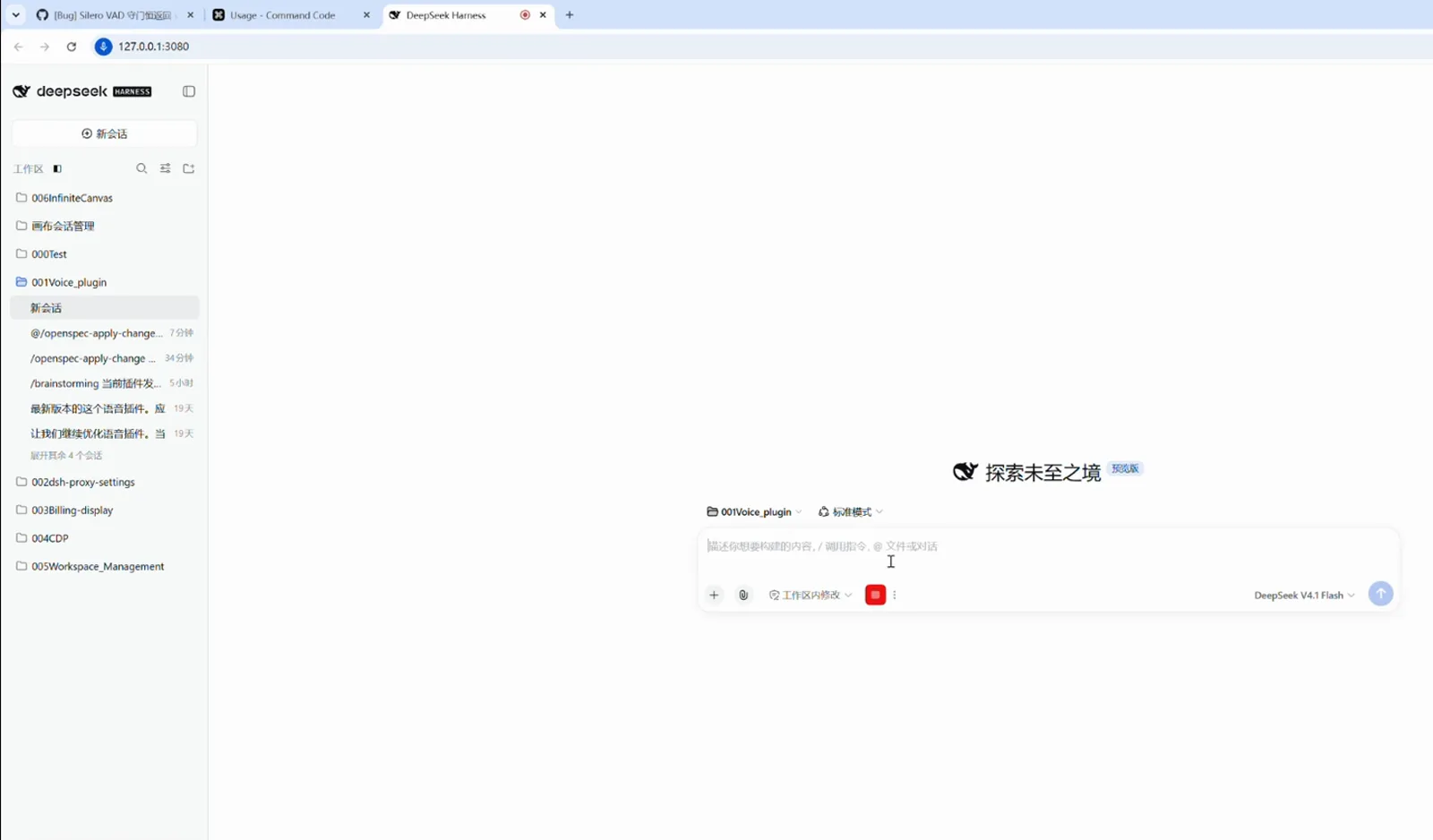
Two scenarios, two recordings. In the first, a creator talks to the DeepSeek Harness Web UI and his speech turns into text without leaving the machine; in the second, another creator has replies read aloud through dsh-plugin-tts. Neither video carries subtitles, so every quoted interface string below was read off the frames, and each step carries the original screenshot.
Everything shown runs on the local Web UI (127.0.0.1:3080 in the recording). Voice input rides on a local transcription plugin — dsh-voice-local by Real-WangLe — while playback rides on dsh-plugin-tts by 1624318455; the voice collection lists both lines and more.
The short version
- ▸Voice input is one checkbox: 语音输入(本地转写,音频不出本机) — transcription runs on your machine, audio never leaves it, and no API key is involved.
- ▸Ctrl+Alt+V is the default shortcut to start and stop dictation — custom bindings are supported, and words land in the composer while you speak.
- ▸dsh-plugin-tts reads replies aloud with free Microsoft Edge TTS voices — speed, pitch and volume are sliders, and a pink speaking badge appears during playback.
Voice in, voice out, step by step
Talk to the AI — local voice input
- 1
Open the composer's voice popover and tick local transcription
In the DeepSeek Harness Web UI, click the mic slot on the composer toolbar. The popover exposes the voice-input switch — 语音输入(本地转写,音频不出本机), local transcription with audio that never leaves this machine — plus 键盘输入自动关闭麦克风, which hands the mic back the moment you type. Both were ticked in the recording, and dictation keeps running even with the popover left open.
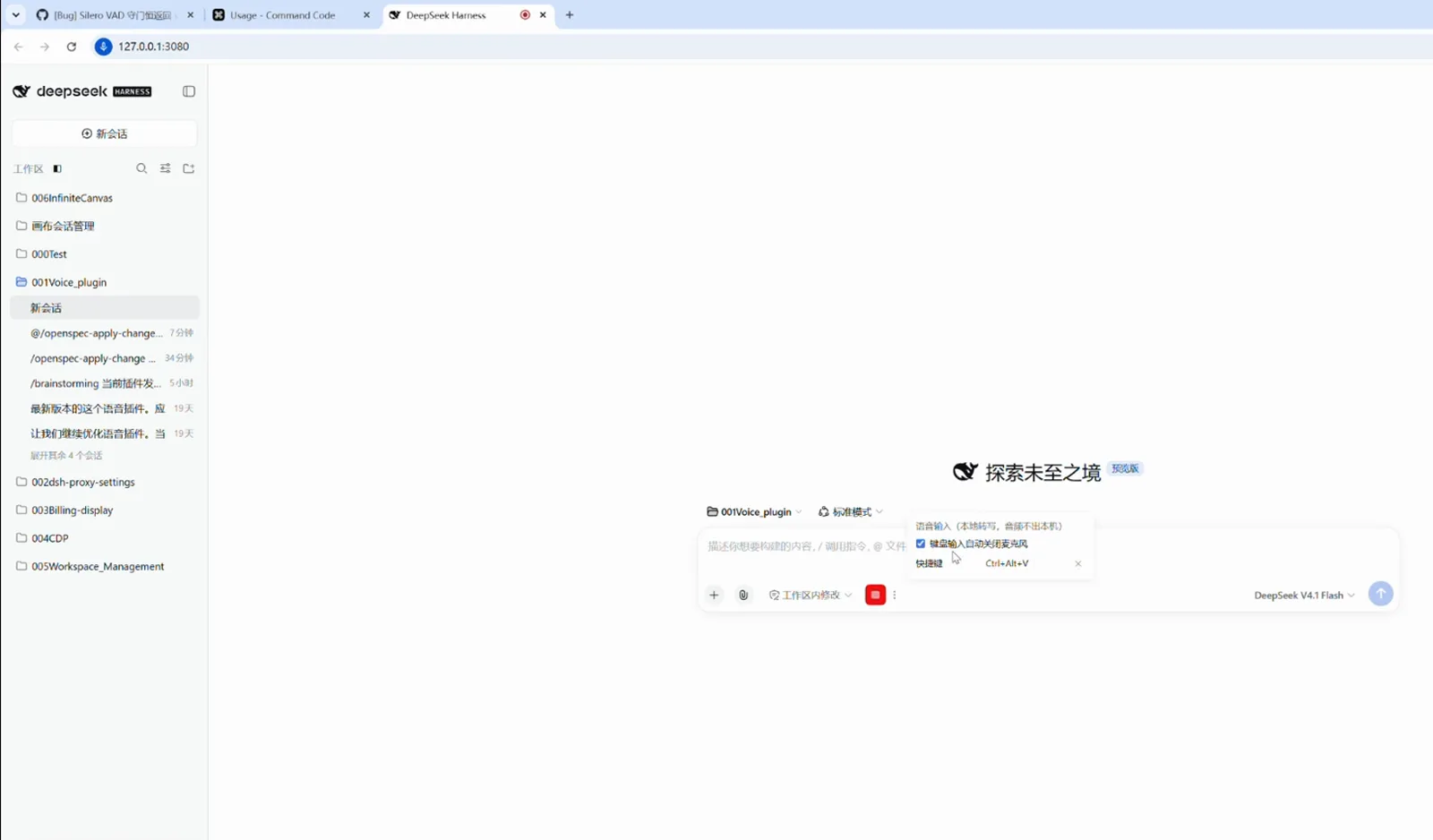
The popover up close: local transcription ticked, keyboard auto-release on, shortcut listed.Watch at 0:34 - 2
Press Ctrl+Alt+V and watch words land while you speak
The same popover shows the shortcut row: Ctrl+Alt+V by default, and the presenter says custom bindings are supported. While recording, the mic slot turns into a red button; dictated text streams into the composer sentence by sentence, and a second press stops the mic, leaving the finished paragraph ready to send or edit.
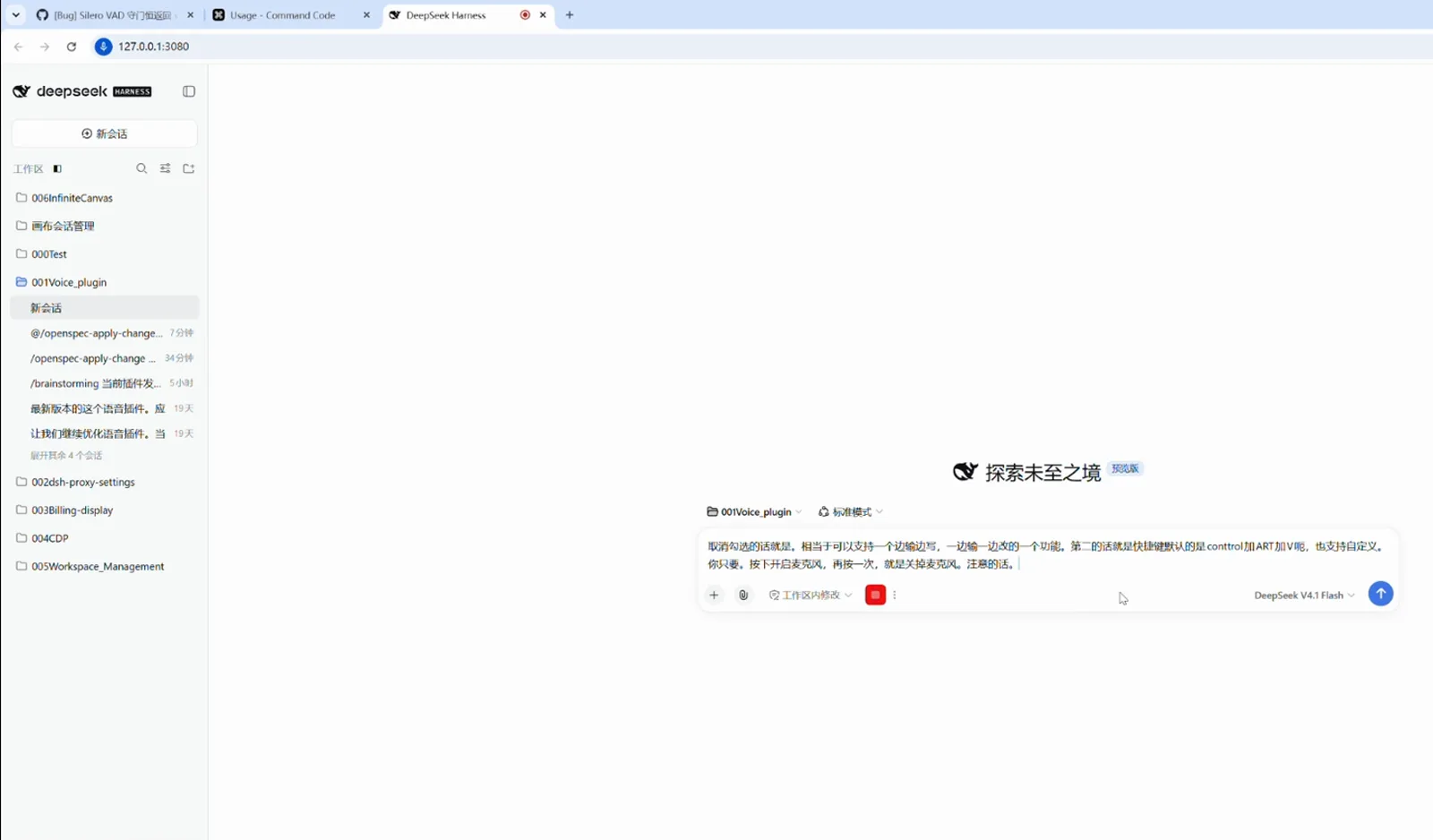
Live dictation: text lands sentence by sentence while the mic is still red.Watch at 1:24 - 3
Read the privacy fine print in the plugin README
The featured repo, Real-WangLe/dsh-voice-local, states it plainly: recording and transcription both finish locally, with no cloud API and no API key; the SenseVoice engine (CPU inference) handles Chinese with automatic punctuation plus English, Japanese, Korean and Cantonese. Install is one line — dsh plugin --profile web add dsh-voice-local — and the SenseVoice model (~230MB) downloads on first mic click.
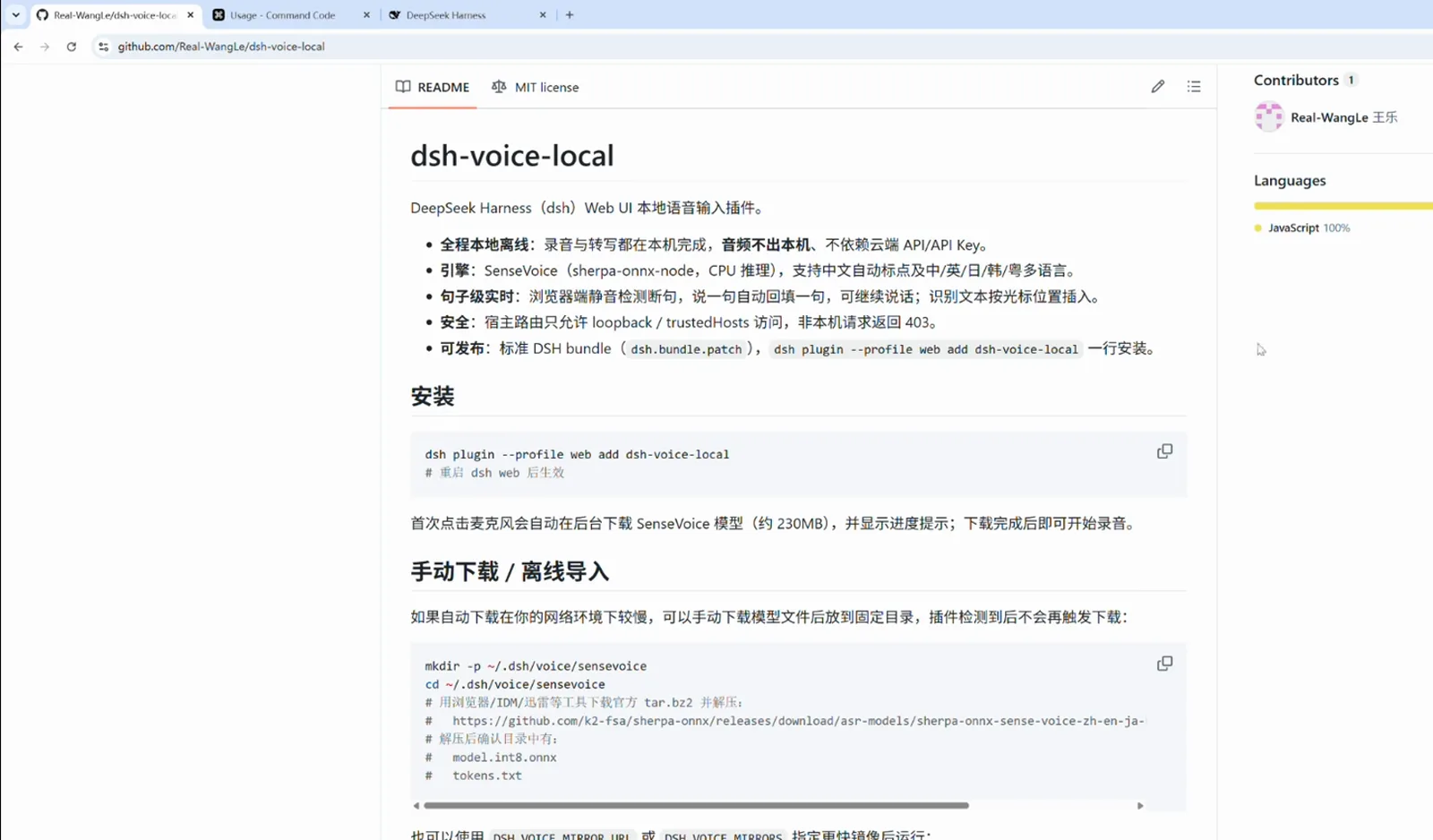
The plugin README: fully local, no API key, SenseVoice engine, one-line install.Watch at 2:02 - 4
Know the open Windows bug before you blame your mic
Issue #1 on the repo — still open when the video was recorded — documents a Windows-specific defect on v0.3.0: after Silero VAD's gate misfires, the internal speechMs counter stays at 0 and /transcribe keeps returning empty text, even though the model reports ready. The reporter's debug evidence rules out volume and threshold settings, so if Windows dictation comes back empty, check this issue first.
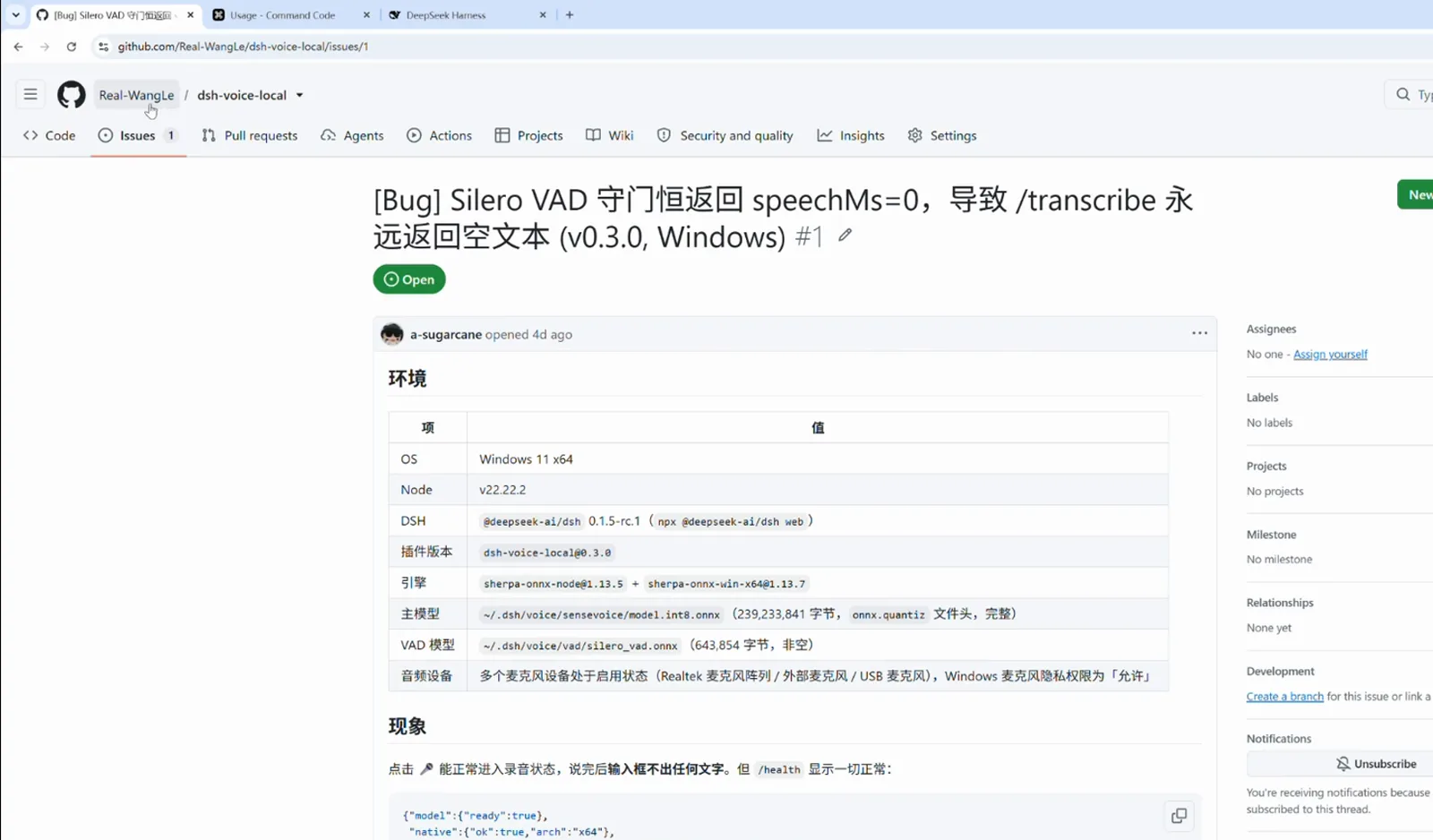
Open issue at recording time: v0.3.0 on Windows returns empty transcripts.Watch at 1:50
Let the AI talk — TTS playback
- 5
Pick a free Edge TTS voice in dsh-plugin-tts settings
In the Web UI settings under 插件 → 语音, the TTS provider dropdown offers Edge TTS: free online voices, no key, working out of the box. The recording picks 晓晓 (zh-CN-XiaoxiaoNeural); speed, pitch and volume are −50% to +50% sliders, and 运行诊断 one-click checks online synthesis, the local RVC service and loaded models.
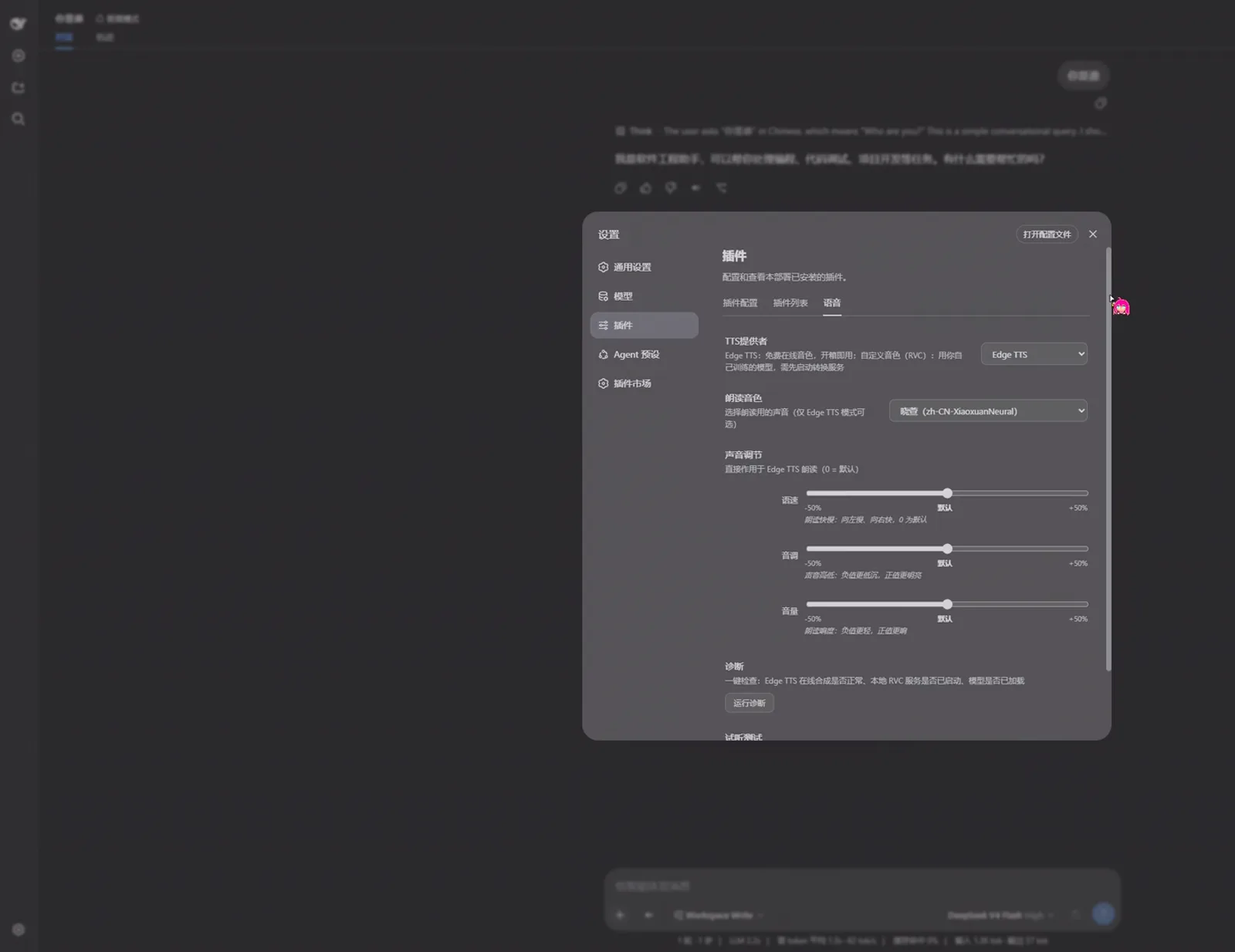
TTS provider set to Edge TTS with the free Xiaoxiao voice selected.Watch at 0:40 - 6
Route through RVC if you want your own voice
Switching the provider to 自定义音色(RVC) points the plugin at a local conversion service (default http://127.0.0.1:4892). Fill in your trained .pth model and an optional .index file, or pull a ready-made voice pack from a shared repository — the recording browses the author's own 1624318455/rvc-for-tts pack list.
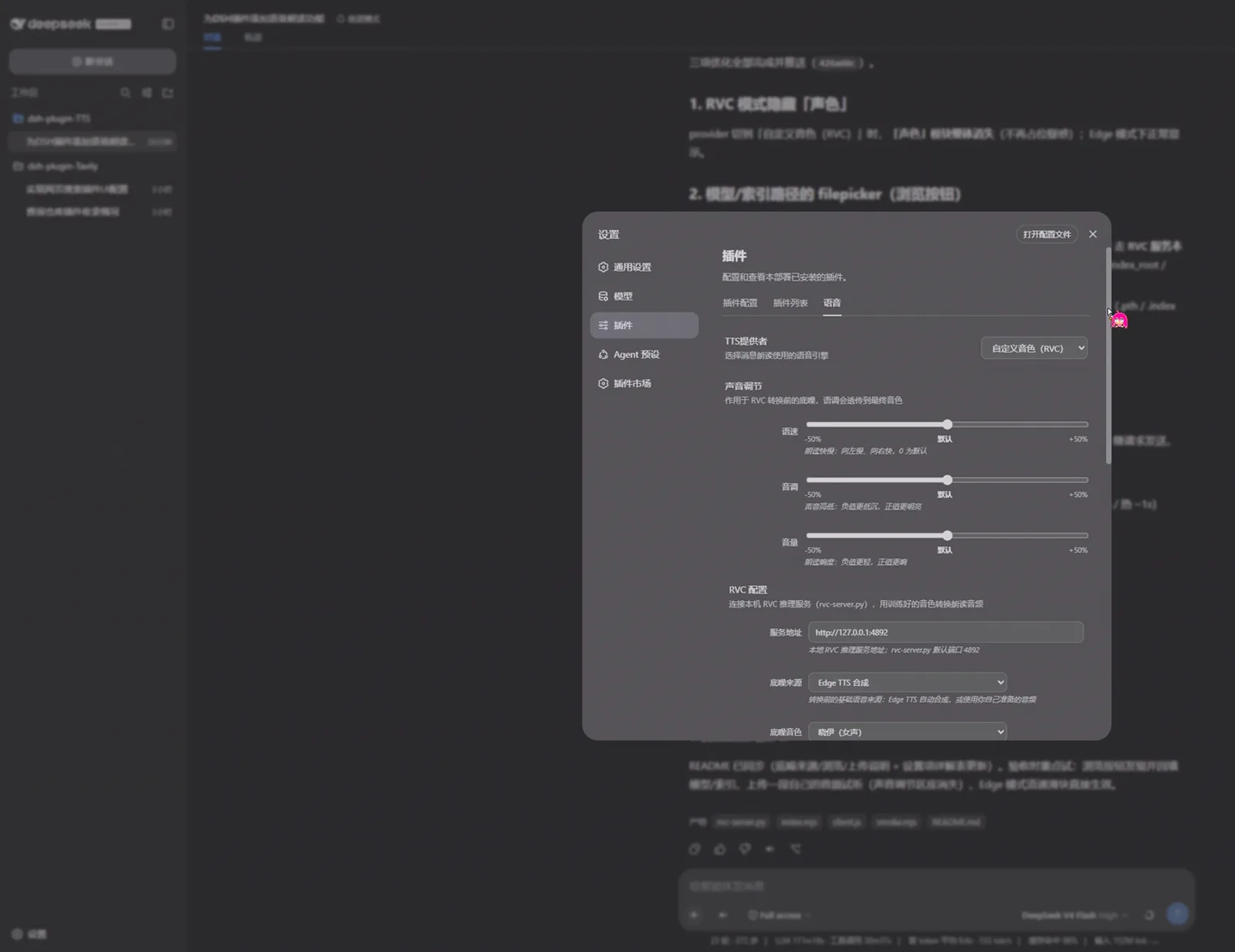
Custom voice route: local RVC service, your own .pth model or a shared pack.Watch at 0:08 - 7
Preview a line and catch the pink speaking badge
Type a test line into 试听测试 — the recording uses 你好,这是一个语音测试。 — and hit play. While it speaks, a pink 发音中 (speaking) badge floats beside the controls; the dialog footer credits node-edge-tts as the engine.
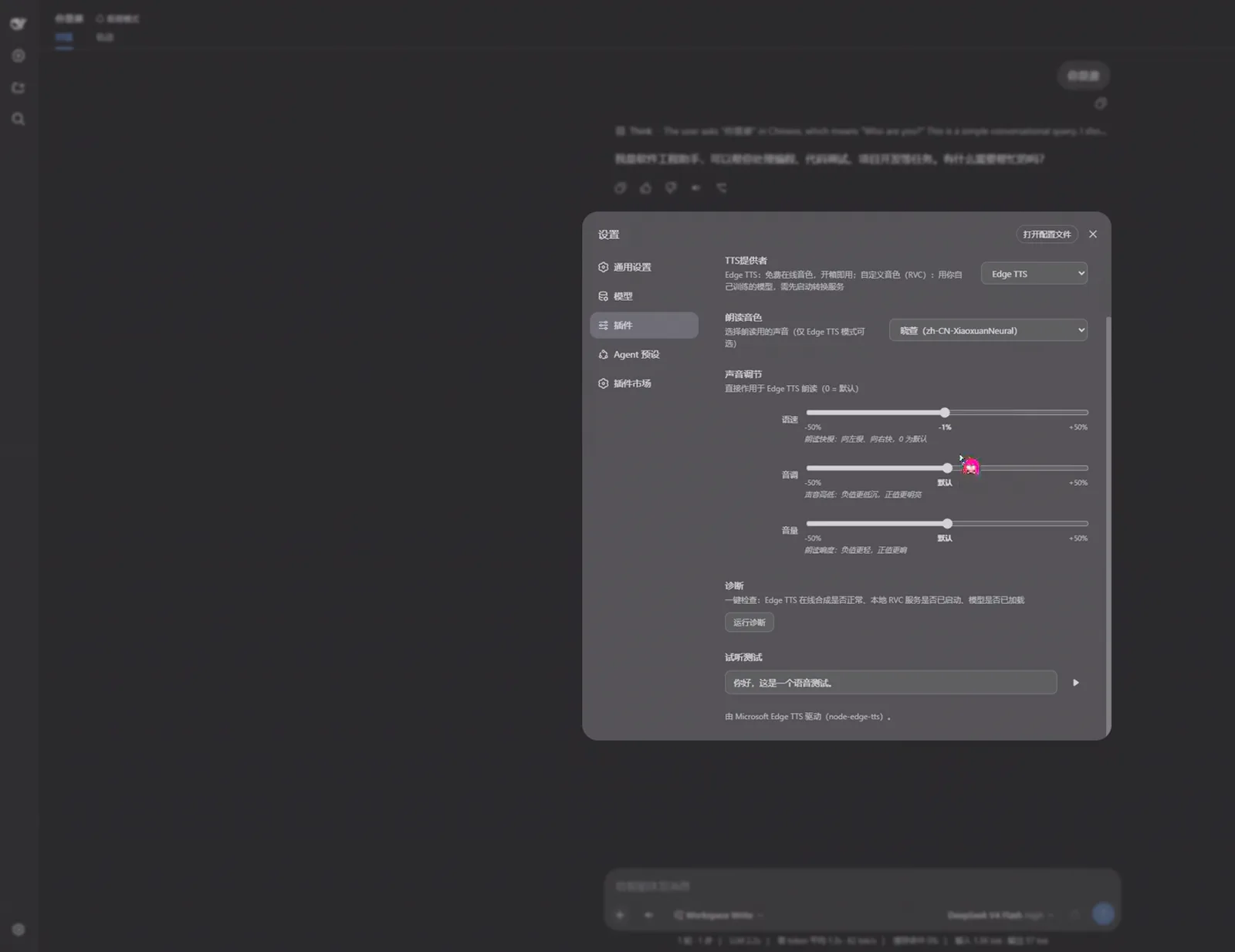
Preview test: one line, one click, and the speaking badge lights up.Watch at 0:56 - 8
Let replies read themselves aloud
Send a message and the reply comes back with its own playback state: while the answer is being read, the message toolbar shows a stop control and the pink speaking badge follows along. The question in the recording — 你是谁 — gets a spoken self-introduction seconds after the text lands.
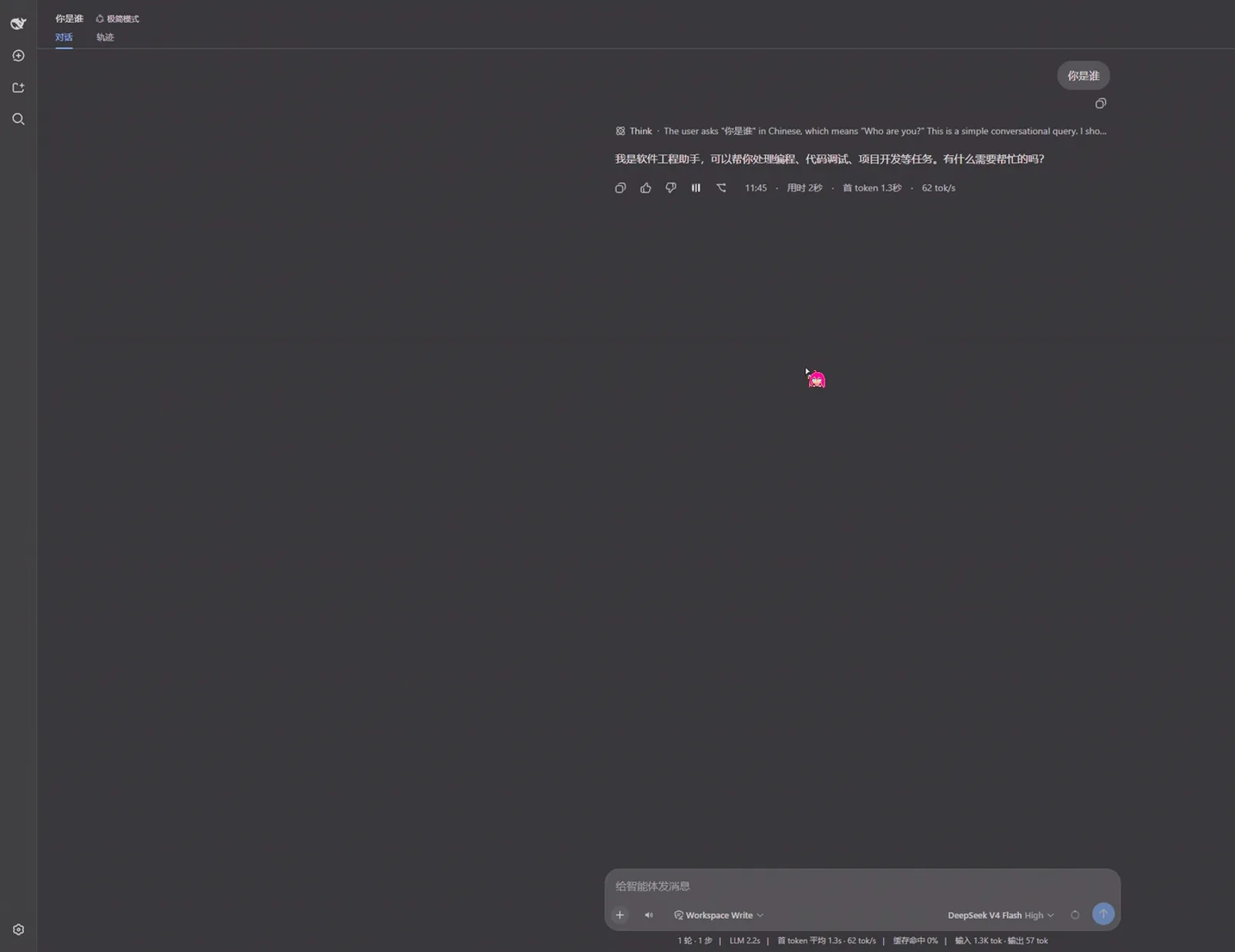
Live playback: the reply gets a stop button while Edge TTS reads it.Watch at 1:08
FAQ
Questions the frames raise but do not answer on their own.
Does voice input send my audio to the cloud?
No. The setting itself says 本地转写,音频不出本机 — local transcription, audio never leaves the machine — and the plugin README confirms recording and transcription both finish locally with no cloud API and no API key. The SenseVoice model (~230MB) downloads once and runs on CPU.
Which TTS engines can read replies aloud?
The recording uses Edge TTS: free online Microsoft voices such as Xiaoxiao, no API key, powered by node-edge-tts. For a custom voice, the provider dropdown switches to RVC, which runs a local conversion service against your own trained model — and a diagnostics button checks both paths.
Is the Windows empty-transcription bug fixed?
It was still open when the video was recorded: issue #1 reports that on v0.3.0 under Windows, Silero VAD's gate keeps speechMs at 0, so /transcribe returns empty text. Check the repo's issues page for the current status before filing a new report.
Can I change the Ctrl+Alt+V shortcut?
Yes. The popover lists Ctrl+Alt+V as the default binding, and the presenter says custom bindings are supported. One press starts the mic, a second press stops it.
Related guides
The rest of the voice track, plus the setup guides behind it.
The DeepSeek Harness voice collection
ASR input, TTS playback and duplex lines — every voice plugin curated with verified stats.
Read the guidedsh-plugin-tts in the plugin directory
Repo facts, stars and install notes for the Edge TTS reader featured in this guide.
Read the guideInstall DeepSeek Harness plugins
The dsh plugin add workflow, profiles, and how to verify a bundle before it runs.
Read the guideRun DSH on local models
Keep the whole loop on your machine — a natural pairing with local speech transcription.
Read the guideRemote access to your DSH Web UI
Reach your voice-enabled setup safely when the machine with the mic is elsewhere.
Read the guideSources and credits
Both recordings come from Bilibili — two different creators, credited separately — and every screenshot deep-links to the exact second. Want more voices to choose from? Browse the voice collection