
DSH Common Errors and How to Fix Them: Install, Crash, Update
A symptom-matched repair guide for DeepSeek Harness built from real screen recordings: the blocked npm.ps1 script, the first-run npx wait, the startup-repair dialog for conflicting plugins, and the version check that saves a broken update — every command cross-checked against official Discussions.
Last updated: 2026-09-30
This page is organized the way errors actually happen: by what you see, not by error code. Three recordings drive it — a Windows install that hits the classic npm.ps1 block, a macOS DSH Desktop that refuses to start because two plugins collide, and a Windows machine that goes sideways after an update. Each section shows the failing screen first, then the exact fix being executed.
Scope note: Windows sandbox permission errors (0xC0000142, Win32 5) are their own family and live in the dedicated handbook: Troubleshooting handbook
Symptom → first check → fix
| What you see | First check | Fix |
|---|---|---|
| Red wall of text mid-install: npm.ps1 cannot be loaded… PSSecurityException | PowerShell execution policy still at the default Restricted | Allow scripts, then verify (step 1) |
| npx @deepseek-ai/dsh web sits silent for minutes on first run | Whether it is still downloading packages, not frozen | Mirror registry plus verbose logs (step 2) |
| A startup-repair dialog says it found plugins that break launch | Which plugin and component the dialog names | Uninstall the offender in repair mode (step 4) |
| After an update, plugins misbehave in bulk or versions disagree | The version dsh --version actually reports | Pin and reinstall, then verify (step 6) |
Fixes, matched to the symptom
Symptom 1 · The install itself fails
- 1
Lift the PowerShell execution-policy block
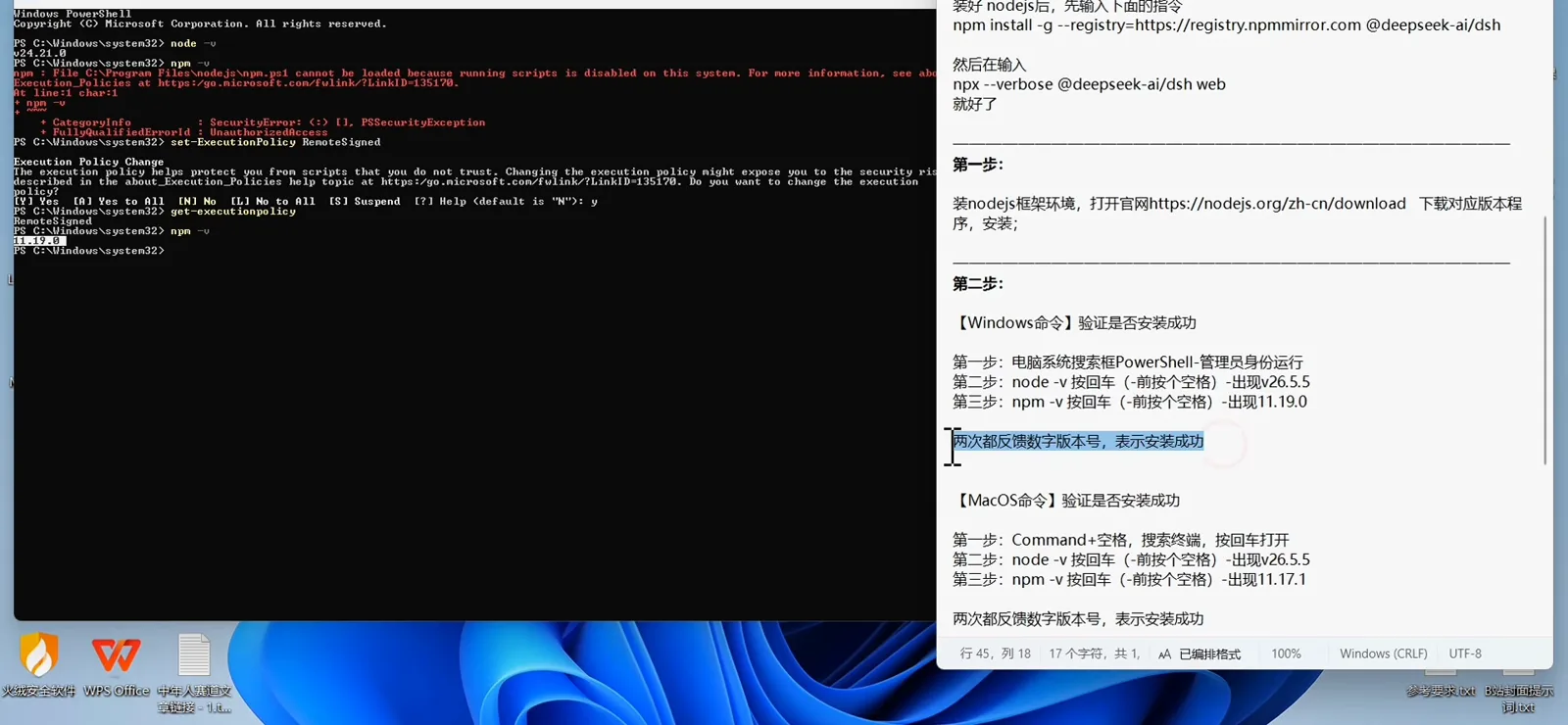
The most common red wall on a first Windows install is npm : File C:\Program Files\nodejs\npm.ps1 cannot be loaded because running scripts is disabled on this system, tagged PSSecurityException and UnauthorizedAccess. That is not DeepSeek Harness failing — it is PowerShell's default Restricted policy refusing every script. Open PowerShell as administrator, run set-ExecutionPolicy RemoteSigned, answer Y, and confirm with get-ExecutionPolicy. When node -v and npm -v each print a version number, the environment is clear.
$set-ExecutionPolicy RemoteSigned$get-ExecutionPolicy$node -v$npm -v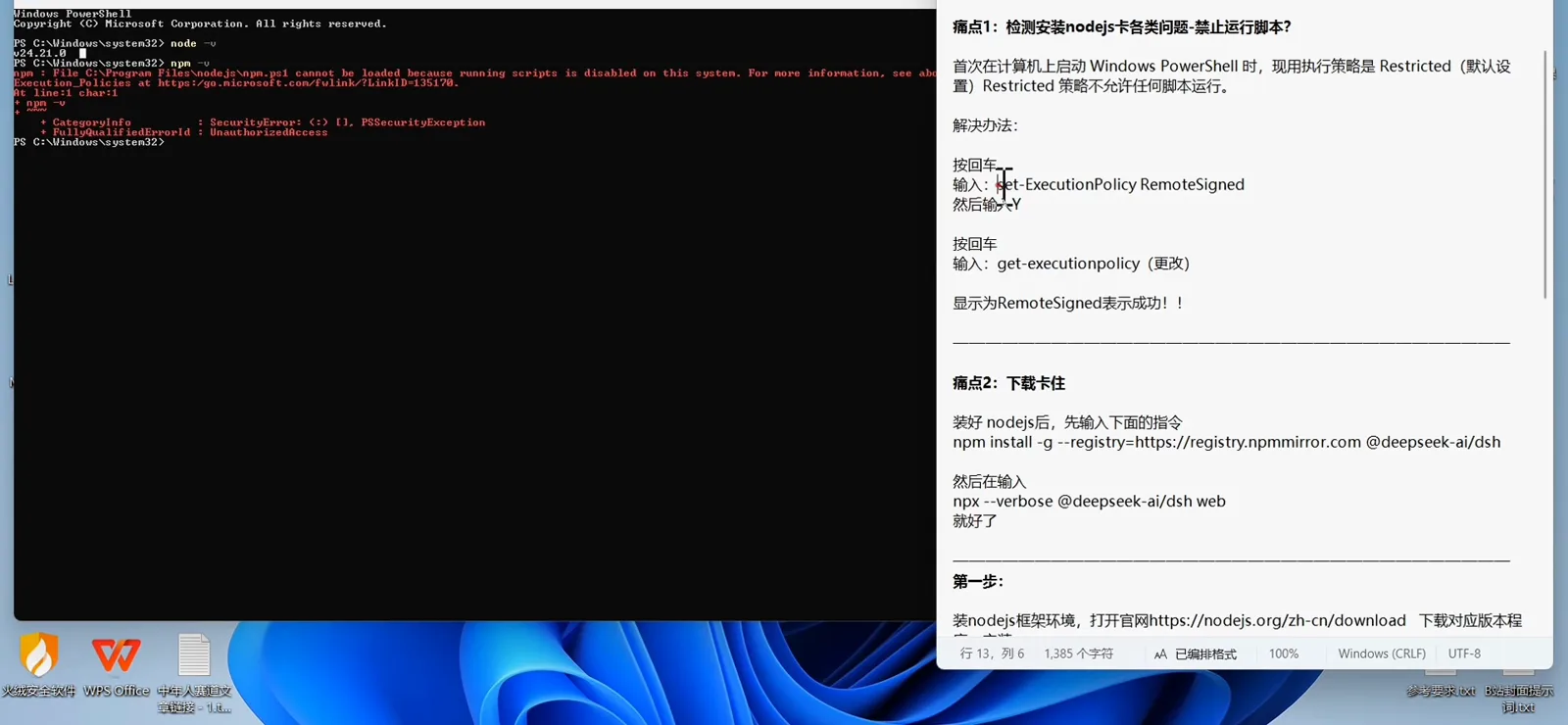
The classic blocked install: npm.ps1 is refused by the execution policy, and the Notepad tutorial names the cause and the RemoteSigned remedy.Watch at 7:00 - 2
Stalled download: switch to a mirror and turn on verbose logs
If npm install hangs on the same line after Node.js is in place, the usual cause is a slow route to the npm registry. The recording switches to the npmmirror mirror: npm install -g --registry=https://registry.npmmirror.com @deepseek-ai/dsh, then starts with npx --verbose @deepseek-ai/dsh web so the log shows every package being fetched. Official Discussions have documented first runs sitting silent for 8+ minutes on Windows (#176) — slow is not dead, so give the window time.
$npm install -g --registry=https://registry.npmmirror.com @deepseek-ai/dsh$npx --verbose @deepseek-ai/dsh web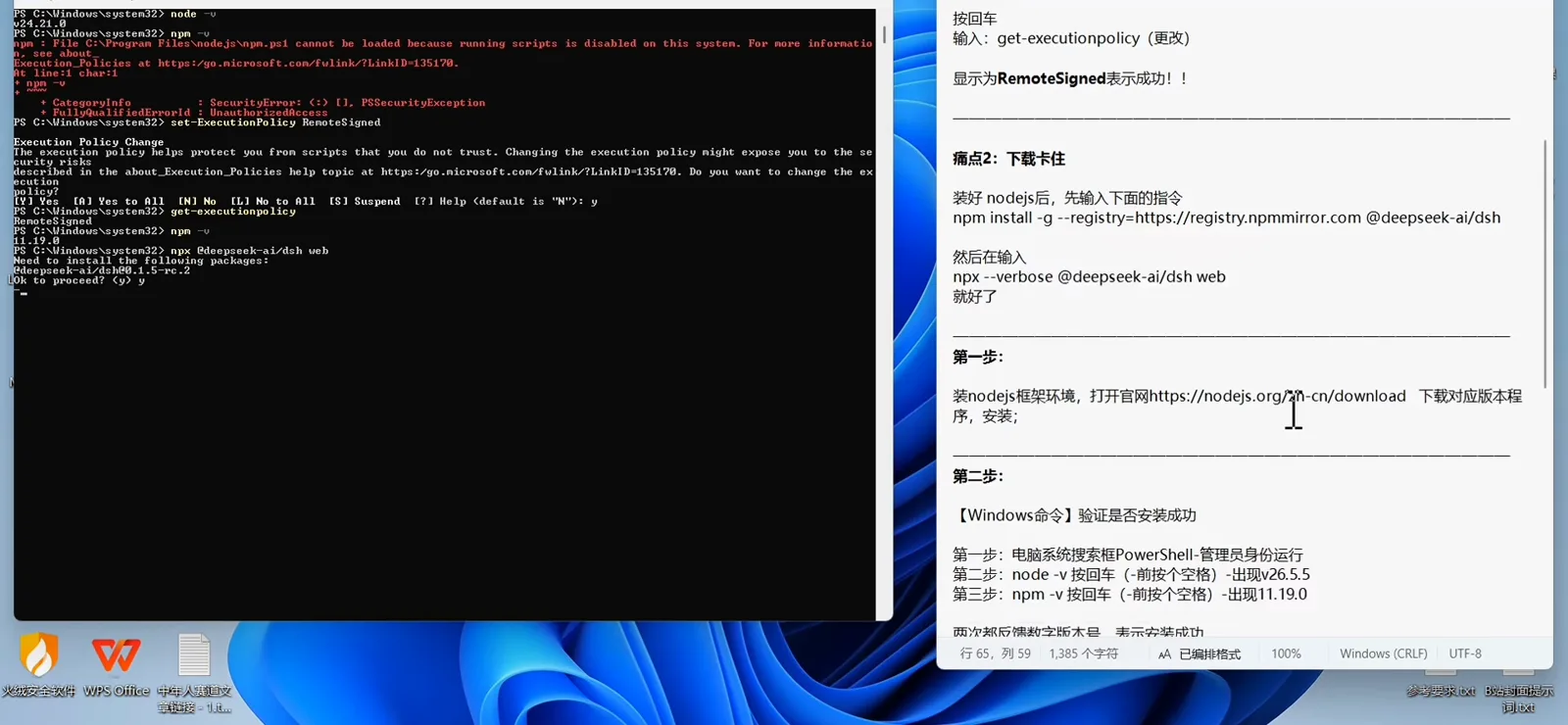
First launch asks before installing: answer y at Ok to proceed? and npx pulls the dsh package before starting the web UI.Watch at 11:40 - 3
Know what a successful launch looks like
Run npx @deepseek-ai/dsh web. On the very first run it asks Ok to proceed? (y) — type y and wait while it installs the dsh package. Launch only counts as successful once the terminal prints the dsh web: http://127.0.0.1:3080/… address with its token and notes that it is opening the default browser. If the browser does not open by itself, paste that address manually.
$npx @deepseek-ai/dsh web
Symptom 2 · It crashes at startup (plugin conflict)
- 4
Read the startup-repair dialog and claim the culprit
When DSH Desktop pops a dialog titled it found plugins that cause startup failure, a plugin is blocking the launch during registration — in the recording, a plugin registered a duplicate service component: the session-reference component was defined twice, the plugins conflict on load, and the dialog names dsh-tui. Discussions record the same shape: @deepseek-ai/dsh-session-reference failing to register after a harness upgrade leaves the web app unable to start (#7872). The uninstall-this-plugin-and-recheck button is safe — the dialog itself states that workspaces, sessions, model settings and other plugins are not deleted.
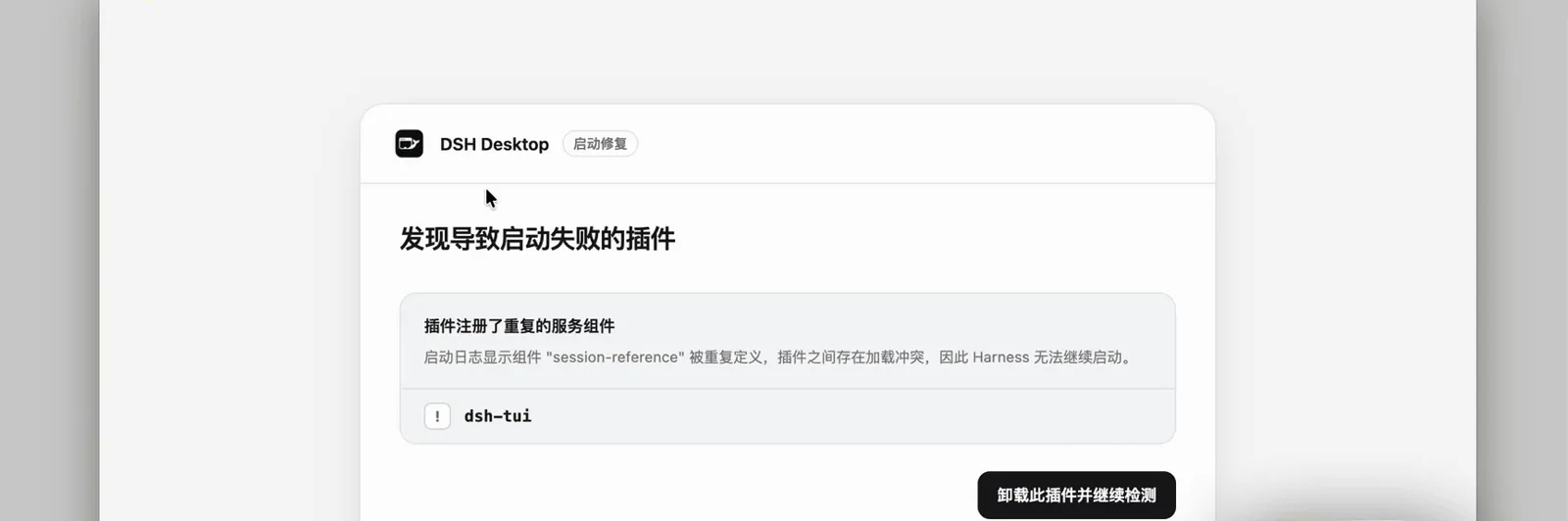
A plugin conflict stops launch cold: the repair dialog names the duplicated session-reference component and the culprit dsh-tui.Watch at 0:05 - 5
Let the recheck finish before restarting
After clicking uninstall-and-recheck, the button flips to processing and rechecking while dsh removes the conflicting plugin and rescans startup. Let the scan complete and the dialog stay gone, then restart dsh. If you still want that plugin, check the plugin market for a build that matches your harness version before reinstalling it.
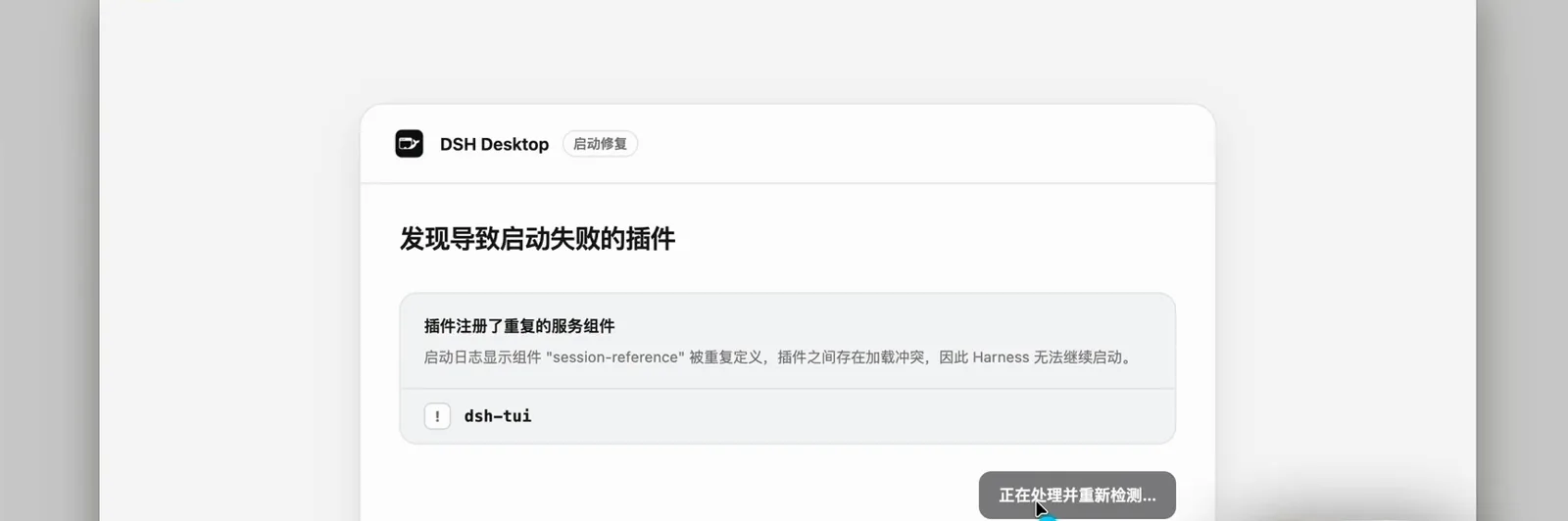
Mid-repair: after the uninstall click, the dialog switches to processing-and-rechecking until the rescan clears the conflict.Watch at 1:45
Symptom 3 · It breaks after an update
- 6
Ask for the version first, then pin the reinstall
When plugins misbehave in bulk after an update, start with dsh --version to learn what is actually installed. The community has repeatedly hit npm's latest tag pointing at a stale build (#7872, #5813), so the recording and Discussions alike reinstall a pinned version: npm install -g @deepseek-ai/dsh@<version>, exact down to the patch number, never @latest. Bulk plugin breakage right after an upgrade wave is filed as #8145, and old plugins failing format checks on a new harness as #8432 — uninstall the incompatible plugin and wait for its adapted release.
$dsh --version$npm install -g @deepseek-ai/dsh@<version>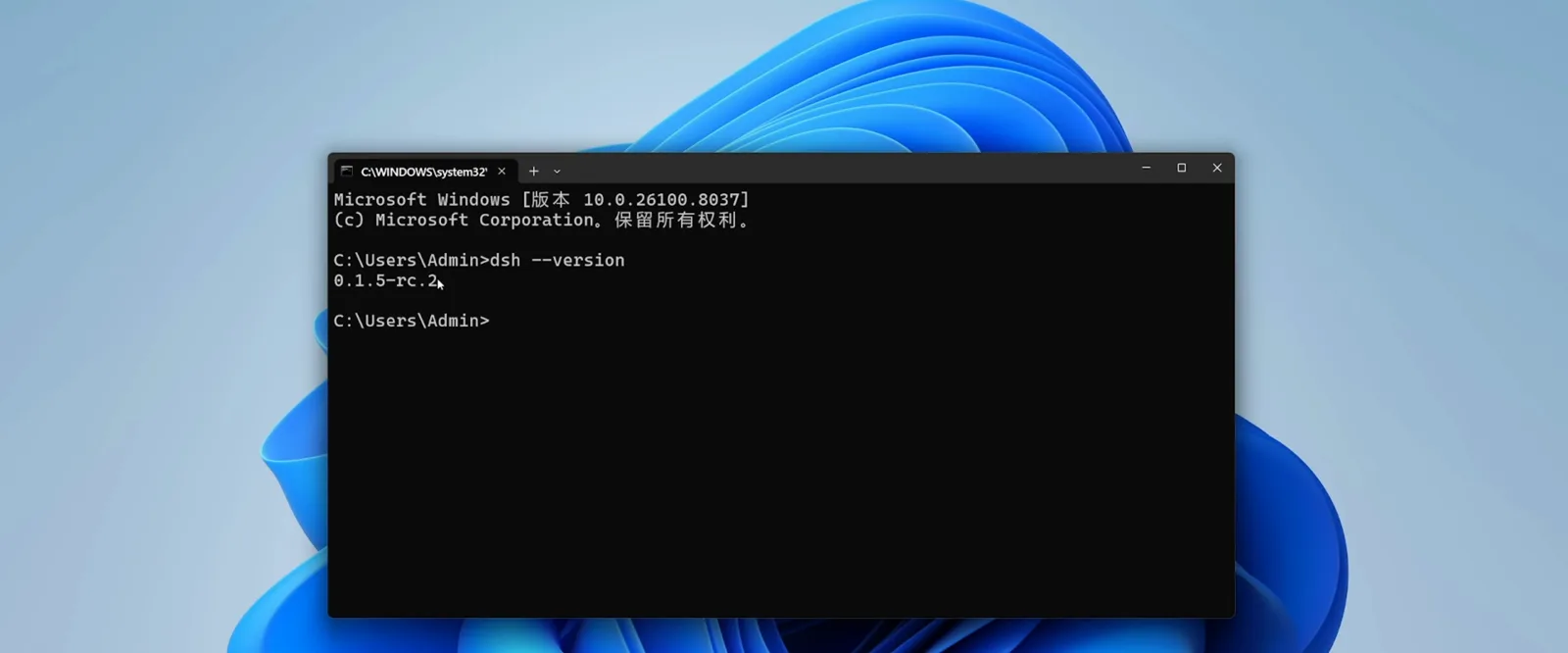
Check before you reinstall: dsh --version reports 0.1.5-rc.2, telling you which build the broken update actually left behind.Watch at 2:00 - 7
Accept the fix in the browser
After the pinned reinstall, run npx @deepseek-ai/dsh web again, wait for the fresh 127.0.0.1:3080 address, and open it: the workspace loads and the model picker shows a DeepSeek model, which closes out this round of update trouble. Before the next big upgrade, back up your dsh configuration so a bad release stays reversible — the rollback details live in the troubleshooting handbook.
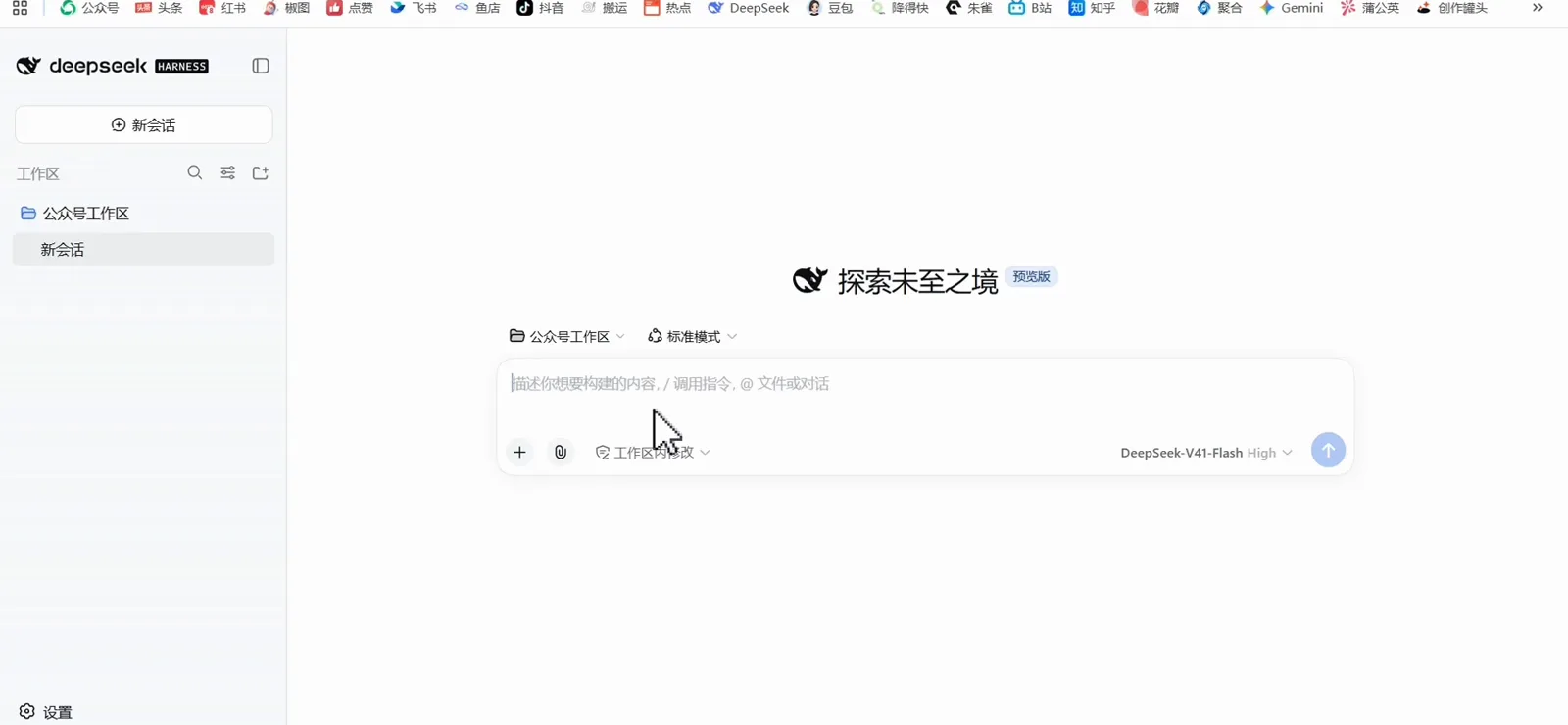
Acceptance after the fix: the Harness workspace renders with its prompt box ready and DeepSeek-V4.1-Flash attached as the model.Watch at 16:20
Frequently asked questions
Quick answers to the questions that follow these three symptoms.
Does npm.ps1 cannot be loaded mean DeepSeek Harness is broken?
No. Windows PowerShell's default Restricted execution policy blocks every script, including the npm.ps1 that ships with Node.js. Run set-ExecutionPolicy RemoteSigned once in an administrator PowerShell (step 1) and the install proceeds. RemoteSigned only requires downloaded scripts to be signed — it is the setting Microsoft documents for development machines.
npx @deepseek-ai/dsh web hangs with no output — is it dead?
Most likely it is still downloading. The first run pulls the full dsh package with its dependencies, and Discussions record first runs sitting silent for 8+ minutes on Windows (#176). Switch to the npmmirror registry and add --verbose (step 2) to watch progress. When something truly fails, the terminal prints an explicit red error — handle that message on its own terms.
Will the startup repair dialog deleting a plugin lose my sessions or settings?
No. The dialog states it plainly: workspaces, sessions, model settings and other plugins are not deleted — it removes only the plugin it named and rescans. The destructive moves are things like wiping the dsh home directory by hand; do not do those without a backup.
After an update my plugins all break — wait for a fix or roll back?
Start with dsh --version. Discussions filed bulk plugin failures after an upgrade wave (#8145) and old plugins failing format checks on a new harness (#8432), and latest has also pointed at stale builds before (#7872, #5813) — machines hit by that tag error recover immediately with a pinned reinstall. For a longer-term lock or a rollback, follow the version rollback section of the troubleshooting handbook.
Are these errors the same as the Windows sandbox permission errors (0xC0000142 / Win32 5)?
No. 0xC0000142, Access is denied and SetNamedSecurityInfoW Win32 5 belong to the sandbox-provisioning family that appeared after upgrades — a different lineage entirely, not covered here. The troubleshooting handbook's Windows sandbox section walks through those reports step by step.
Related guides
Where to go next, depending on what your error turns out to be.
Troubleshooting handbook
Sandbox permission errors, cordis.patch.yml conflicts, profiles that do not apply, and version rollback — the deep reference this page links out to.
Read the guideDSH Web UI, start to phone
Launch the web UI with dsh web, learn the 3080 workspace, slash skills and model settings, then reach it from your phone — nine verified steps
Read the guidedsh-pocket: DeepSeek Harness in your pocket
Pair your phone by scanning a QR code: the dsh-pocket plugin mirrors your computer's dsh web over LAN or a free Cloudflare tunnel, with real-time two-way control — 7 frame-checked screenshots.
Read the guideRemote & mobile collection
Every curated remote-access client — dsh-web, dsh-pocket, Agents-Anywhere, dsh-mobile — on one shelf.
Read the guideRemote access from your phone (ngrok)
Expose the same 3080 web UI through a free tunnel and drive your home agent from any outside browser.
Read the guideInstall on Windows
The full Windows path from Node.js to a running dsh web, so the environment is right before errors can start.
Read the guideInstall on macOS
Get DeepSeek Harness onto a Mac cleanly, from terminal setup to first launch.
Read the guideUpdate dsh and plugins
The upgrade rhythm — when to ride latest, when to pin — that keeps step 6's symptoms from happening.
Read the guideUninstall plugins
Remove a plugin cleanly and restore your profile — the manual twin of the startup-repair dialog in step 4.
Read the guideVideo sources
Screenshots are cropped from three public tutorial recordings; every fix shown was executed on screen by its uploader and cross-checked against the matching official Discussions reports. Deep links jump to the exact second.