
DSH work status outside the browser: the taskbar light & the done notification
Send DeepSeek Harness a long task and go do something else: a three-color light in the Windows taskbar mirrors what the agent is doing, and desktop toasts or phone push come find you when it finishes, stalls, or needs your decision — two plugins, filmed by their own authors.
Last updated: 2026-10-11
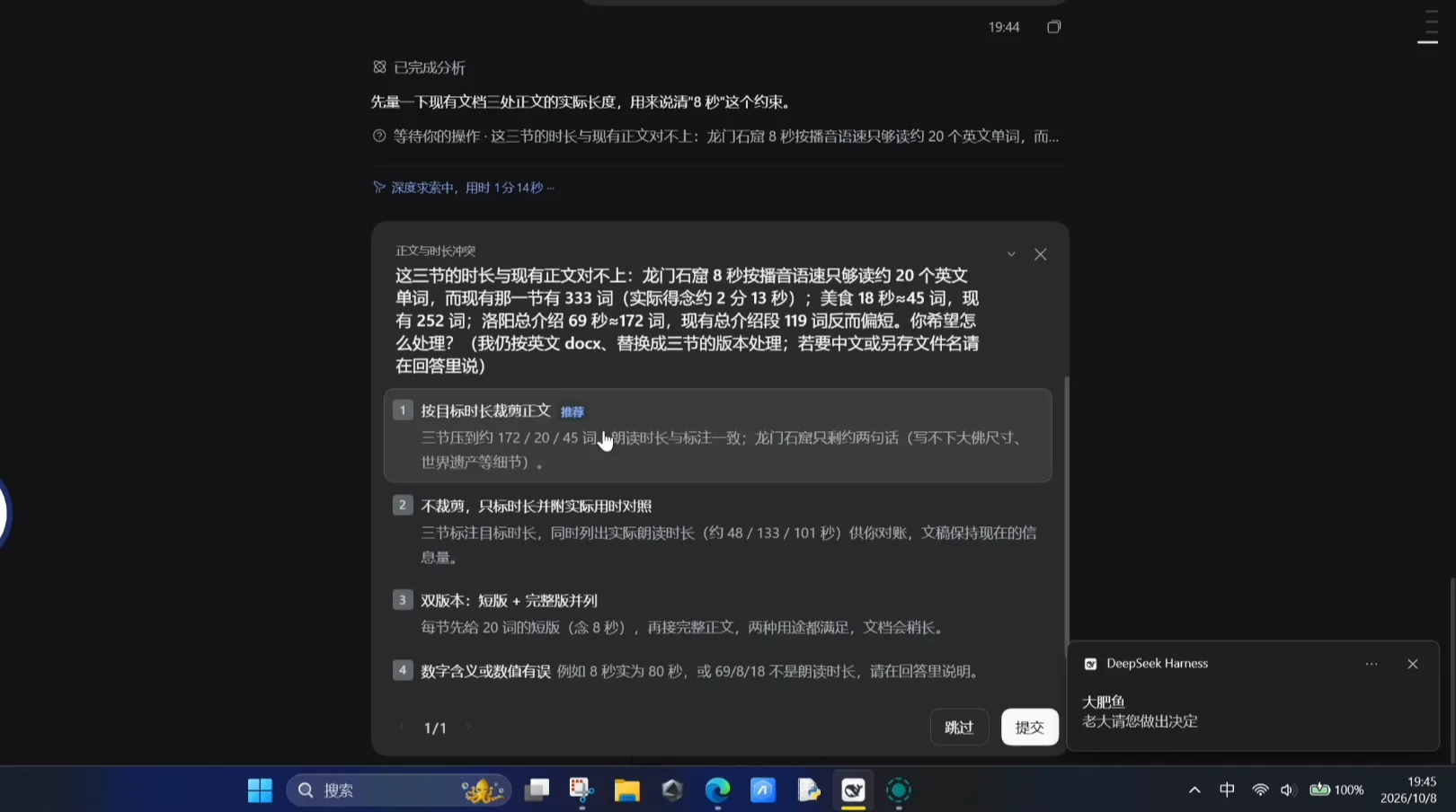
Throw a long task at DeepSeek Harness and switch windows — and the questions start: is it running, is it stuck, or is it sitting on a question that only you can answer? Without keeping that tab open you have no idea. This page collects two plugin authors' own recordings of the fix. Picked_ashi's taskbar status plugin mirrors DSH's working state as a colored light on a taskbar icon and raises a system toast when your decision or acceptance is needed; 渐行渐远的烟火's meow-smooth pushes a notification on AI questions, permission requests and finished long tasks — to the desktop and to the phone, iOS lock screen included.
If you would rather watch the work itself as cards inside the Web UI, that is the task kanban guide. This page is about everything that reaches you outside the browser — the operating system doing the watching for you. DSH task kanban: dsh-graph & cron boards
TL;DR
- ▸Picked_ashi's taskbar status plugin mirrors DSH's state on a taskbar icon: the indicator strip cycles while the agent works and holds steady yellow while it waits for your decision — and per the author's repo, red means stuck, theme color means done, with a message sent either way.
- ▸The 2.0 release makes three reminders configurable — waiting, finished-but-unaccepted, and deviation correction — each with its own editable message text and a threshold in milliseconds or minutes (0 disables).
- ▸meow-smooth raises notifications on AI questions, permission requests and long-task completion — desktop and phone, iOS lock screen proven on camera, the completion banner carrying the tool-call count.
- ▸Official automation tasks fire by the clock; these two fire by state. One answers "when should I do this", the other "what is it doing right now" — a natural pair.
The seven frame-verified steps
Part 1 · The taskbar light (Picked_ashi's v1 recording)
- 1
Send the work away, keep scrolling
In the recording, DeepSeek Harness grinds through a Luoyang travel-documentary narration task in one window while the author browses Bilibili in another. The plugin's fish icon lives in the taskbar, and while the agent works the little indicator under it keeps cycling — the uploader's own narration calls the cycling strip "working". Nothing in the browser changes; the state lives in the operating system.
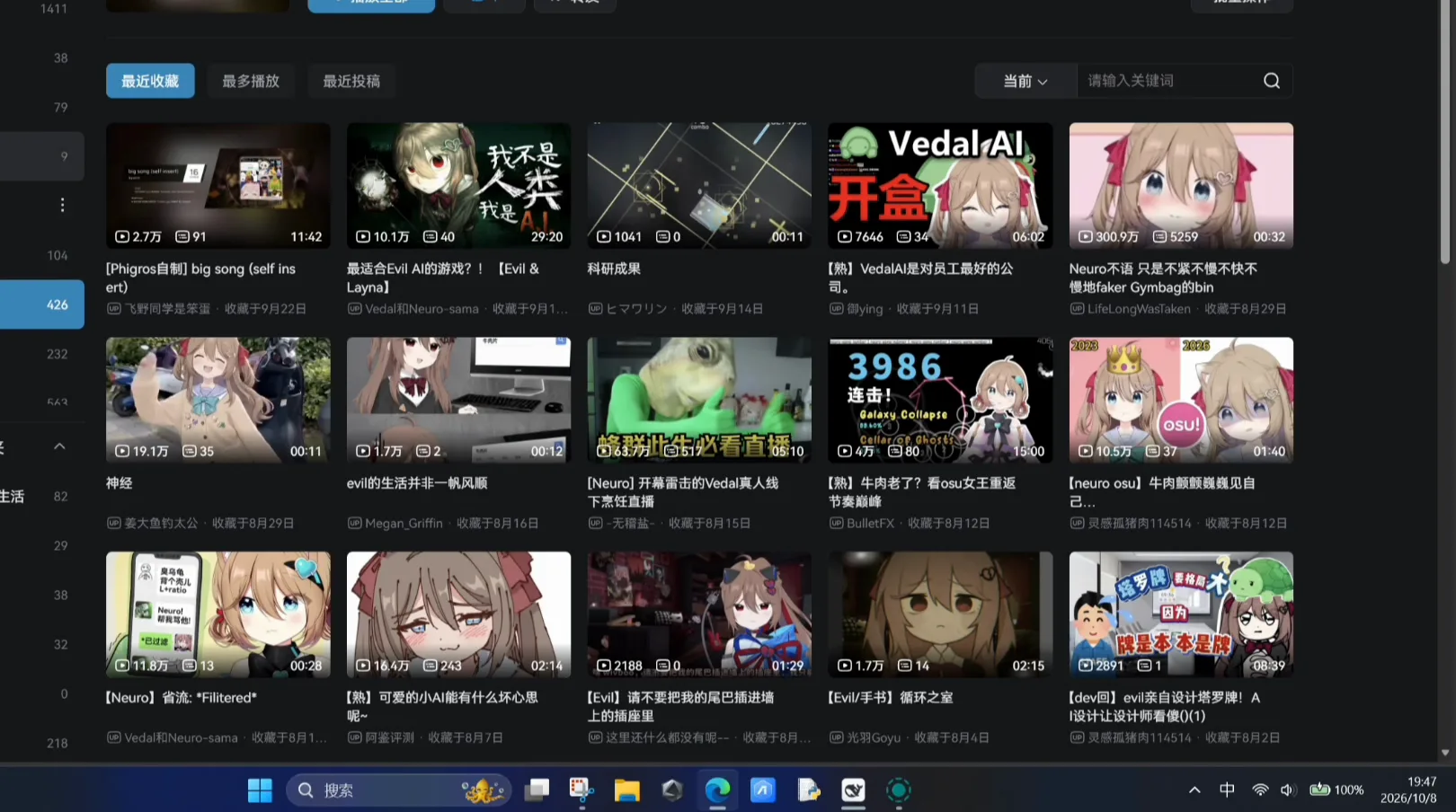
The author's own demo: the human keeps scrolling, the light does the watching.Watch at 2:42 - 2
Read the light: steady yellow means it wants you
When the agent stops and waits for a decision, the cycling settles into a steady yellow underline — the state captured in this close-up while the author is away. The author's repo description spells out the whole code: red when DSH is stuck, yellow when it is waiting for your selection, the theme color when the task is done, a notification sent either way. The recordings on this page capture the working and waiting states on camera; red never appears in them.

Yellow, held steady: the agent has a question and is not going to ask twice.Watch at 0:48
Part 2 · The official release: configurable reminders (Picked_ashi)
- 3
Teach it what to say — the 2.0 settings
The official-release recording walks the plugin's settings panel inside the DSH Web UI: a waiting reminder that fires once when your decision overshoots its threshold (default text 老大请您做出决定 — "Boss, please decide"), a finished-but-unaccepted reminder (default 老大请验收 — "Boss, please review and accept"), and a deviation-correction reminder when the agent has worked too long in one stretch (default 已经连续工作10分钟,建议检查白板是否跑偏 — "ten minutes nonstop; check the whiteboard for drift"). Each takes a threshold in milliseconds or minutes; 0 disables. In the v1 recording the uploader quotes fixed timings — a reminder 30 seconds after an unanswered question, 20 after an unaccepted completion — which 2.0 opens up.
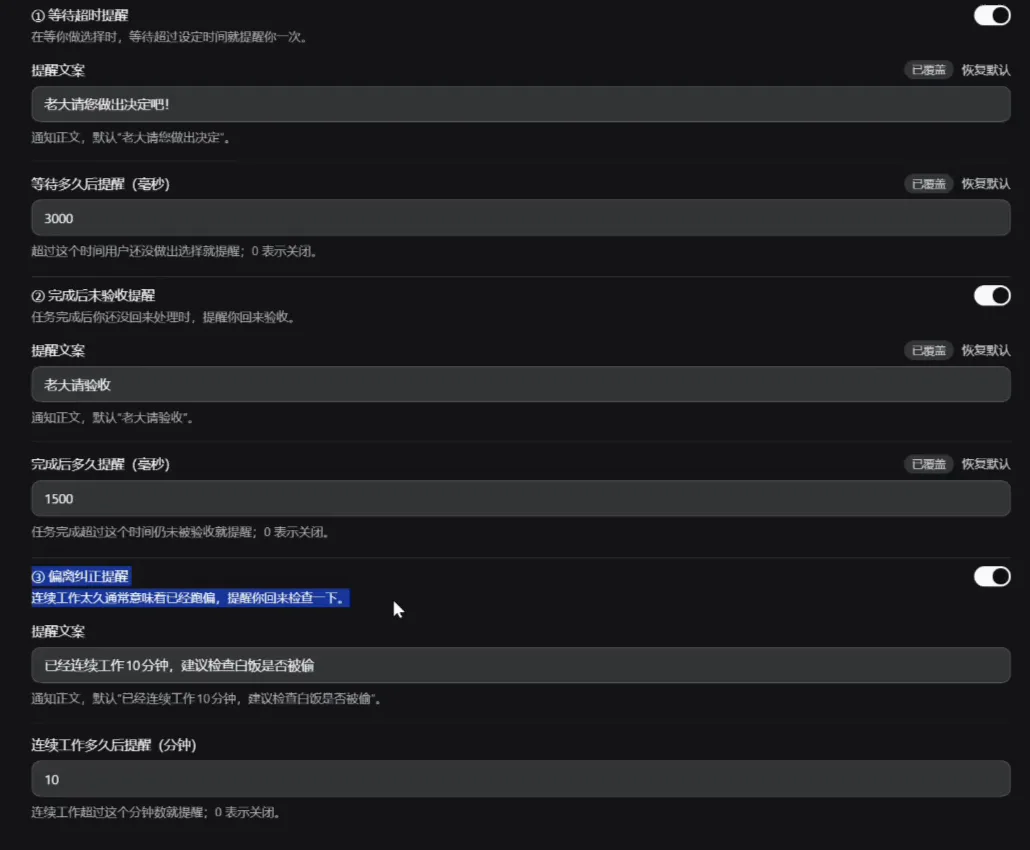
Three reminders, editable texts, numeric thresholds — the 2.0 release's selling point on one screen.Watch at 0:40 - 4
Your words come back as a Windows toast
Moments after the settings demo — with the browser parked on Bilibili — a toast slides in from DeepSeek Harness carrying exactly the configured text, sender 大肥鱼 (Big Fat Fish, DSH's mascot). The 2.0 repo's own line: "We can customize the message dsh send to your pc this version." The uploader notes the plugin works with the DSH desktop client.
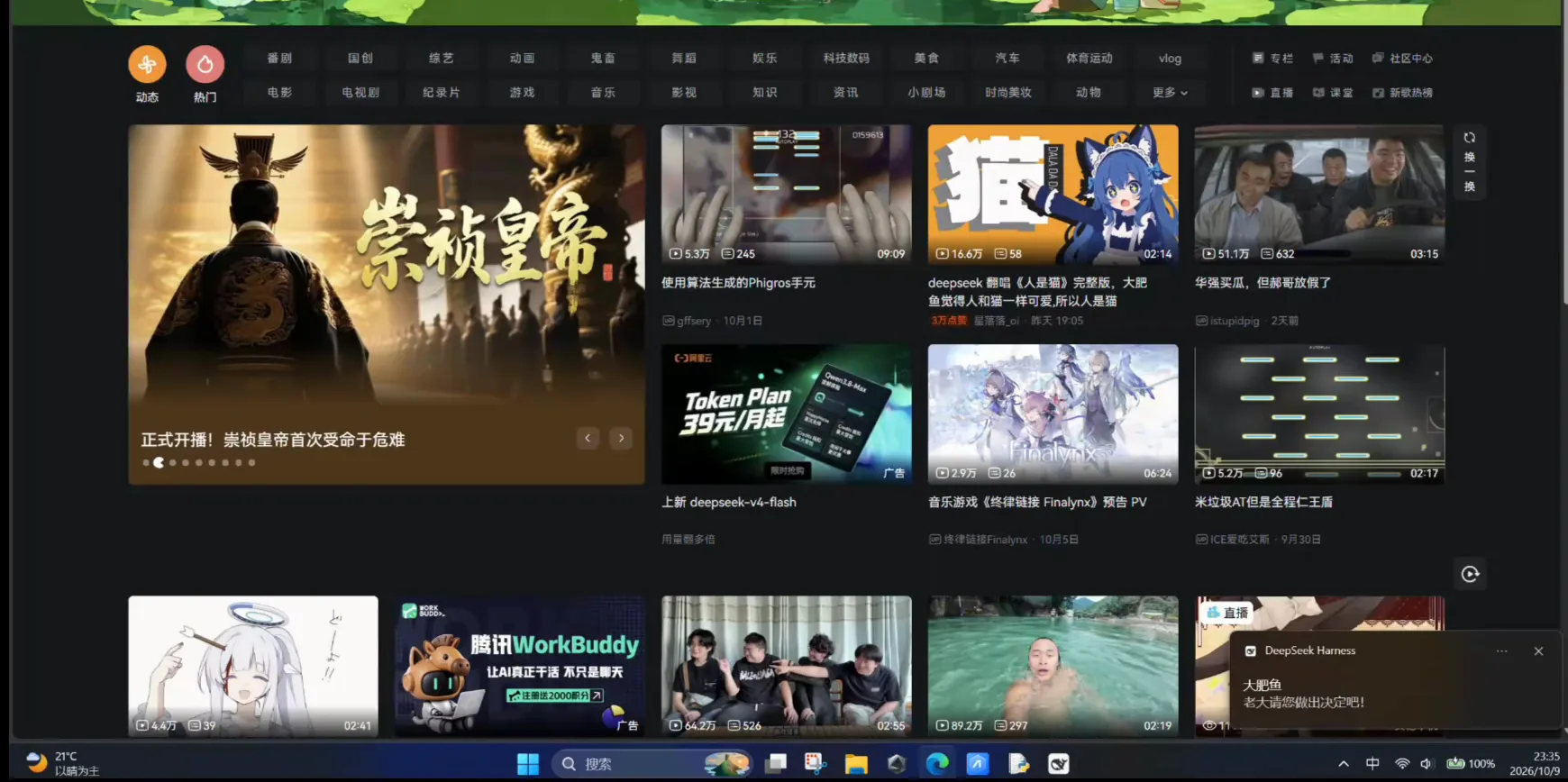
Whatever you wrote in the settings is what arrives — configured once, delivered wherever you are.Watch at 1:12
Part 3 · Notifications to desktop and phone (meow-smooth)
- 5
Completion reaches the iPhone lock screen
meow-smooth's own recording shows the other half of the deal: a task finishes after 21 tool calls and the iPhone lock screen lights up — 任务完成 (21 次工具调用),点击查看 ("task complete, 21 tool calls, tap to view"). The author says iOS notifications took real wrangling to build, but now they pop on phones and desktops alike, iOS included.
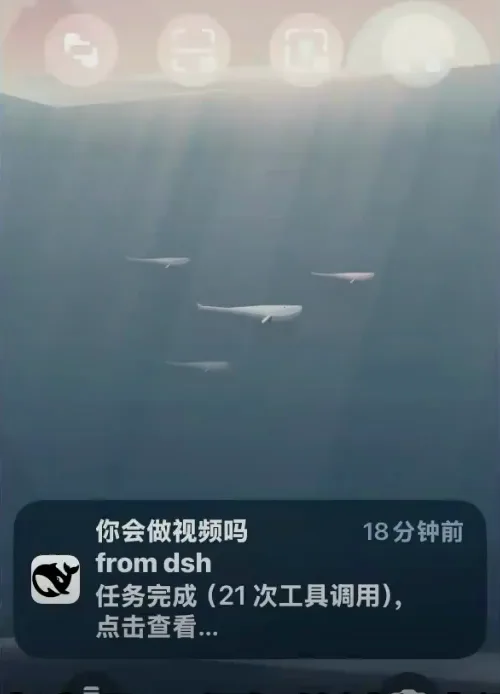
Done means done: 21 tool calls later, the lock screen is the receipt.Watch at 0:23 - 6
Any session that needs you gets a card
The multi-session fix: you are talking to one conversation while another one runs into a question — meow-smooth raises a notification card that names the session (here the dsh-femwa plugin-development session) with the note 有提问待回答,点击查看 ("a question awaits your answer, tap to view"). Triggers, per the narration: AI questions, permission requests, long-task completion.
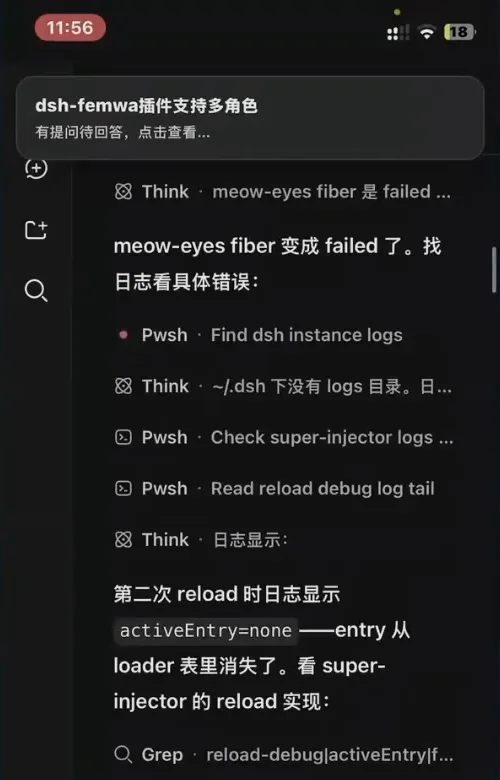
Sessions running in parallel, and the card names the one that needs you — no more hunting.Watch at 0:43 - 7
The desktop shows exactly where to answer
On the desktop at the same moment, the DSH Web UI holds the session list next to the waiting question dialog — the phone card tells you something needs you, the desktop tells you what and where. (The same video's later half demonstrates controlling DSH from the phone; that is the dsh-pocket axis, linked below.)
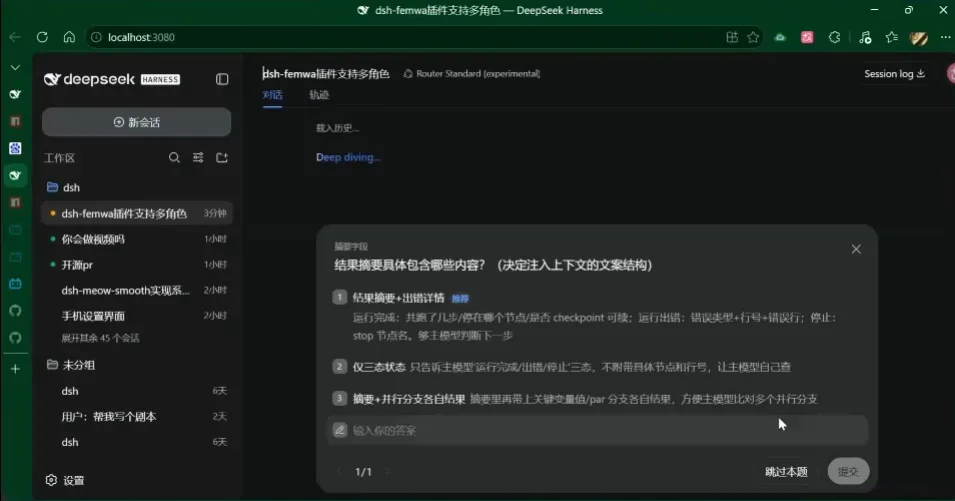
The same moment on the desktop: the list says which session, the dialog says what it wants.Watch at 0:28
FAQ
The questions this page gets asked, answered from the recordings and the plugin repos.
What do the taskbar light colors mean?
Per the author's repo description and the video: the indicator cycles while DeepSeek Harness is working, holds steady yellow while it waits for your selection, shows red when the run is stuck, and switches to the theme color when the task is done — with a notification sent on completion. The recordings behind this page capture the working and waiting states on camera; red is described but never shown, and the "done" color is quoted from the repo text rather than filmed.
How do I get notified the moment a task finishes — on desktop and phone?
Two complementary plugins. PickedAshi's taskbar status display raises Windows toasts for waiting, finished-but-unaccepted and deviation-correction situations, each with editable text and a threshold (0 disables it). Phant0Meow's meow-smooth adds notifications for AI questions, permission requests and long-task completion on the desktop and the phone — the author's video shows an iOS lock-screen banner announcing a finished task with its tool-call count. Run both and the desktop light covers you in the room while phone push covers you away from it.
How is this different from the official automation-tasks reminders?
The trigger direction. Automation tasks are time-driven: you schedule a reminder or a job and DSH pings you when the clock says so. The tools on this page are state-driven: they react to what the session is doing right now — a question raised, a permission requested, a task finished, a run drifting off course. They compose well: schedule the stand-up with automation tasks and let the taskbar light and the toasts handle everything in between.
Which repo do I install the plugin from?
Three repos, honestly labeled. PickedAshi/DSH-taskbar-status-display (★1, created 2026-10-09) is the original taskbar light; PickedAshi/DSH_taskbar_status_display_2.0 (★2, created 2026-10-10) is the official release with customizable message text — both are day-old, first-release work by a first-time publisher, so read the code before you run it. Phant0Meow/dsh-meow-smooth (★60, MIT, pushed 2026-09-23) is the notification client from the author of the meow-memory plugin. The recordings demonstrate everything already installed; for install steps, read each repo's README.
Does a taskbar watcher run all the time and eat battery? Where do the records live?
Light by design, heavy on caveats. The taskbar plugin watches the session and swaps one icon's indicator; meow-smooth self-describes as a thin client with read-only host access that changes no dsh source. Neither video documents CPU or memory numbers, so the honest answer is "the authors claim light; nothing is measured on camera". As for records: notifications land in the Windows notification center or your phone's, the completion banner carries the tool-call count, and the full run history stays in DSH's own session viewer — neither plugin ships a separate ledger panel for alerts.
Do I need to install a phone app for the push notifications?
Nothing from an app store, going by what the videos show. meow-smooth's phone screens are the dsh mobile web UI in the browser, and the lock-screen banners ride on standard notification permission — the author notes iOS was the painful platform but now pops notifications fine. If you want the phone to command DSH rather than just hear from it, that is the separate dsh-pocket pairing flow.
Related guides
Four neighbors this page draws a line against.
dsh automation tasks, hands-on
Create a scheduled reminder from a chat message, enable the built-in Automation tasks panel and read delivery records — 10 steps with timestamps
Read the guidedsh-pocket: DeepSeek Harness in your pocket
Pair your phone by scanning a QR code: the dsh-pocket plugin mirrors your computer's dsh web over LAN or a free Cloudflare tunnel, with real-time two-way control — 7 frame-checked screenshots.
Read the guideTrack dsh balance with the whale widget
Link dsh-whale-widget into the web profile and configure the corner bubble that shows your remaining DeepSeek balance, today's spend and a refresh countdown.
Read the guideDSH task kanban: dsh-graph & cron boards
Goal swimlanes with criteria-first dispatch, worktree attempts, review receipts and release gates — plus a five-column cron task board with A/B acceptance. 11 frame-verified shots.
Read the guideSources & credits
Every frame above is a still from these three creators' own recordings, deep-linked to its timestamp. Identity caveats: Picked_ashi ↔ GitHub PickedAshi and 渐行渐远的烟火 ↔ Phant0Meow (author of meow-memory) rest on the video descriptions' own links, not independent verification. View counts are Bilibili API values from the 2026-10-10 check — search pages inflate them roughly tenfold, so those numbers are never quoted here. 烟火's description line 特别提高幸福感…但如果只能留一个,我选择这个 is quoted as the uploader's own words.