
dsh balance widget: install and configure the whale-girl balance monitor
A community widget that keeps your remaining DeepSeek balance, today's spend and a refresh countdown in the corner of the dsh Web UI — linked into the web profile from a local folder in three commands.
Last updated: 2026-09-27
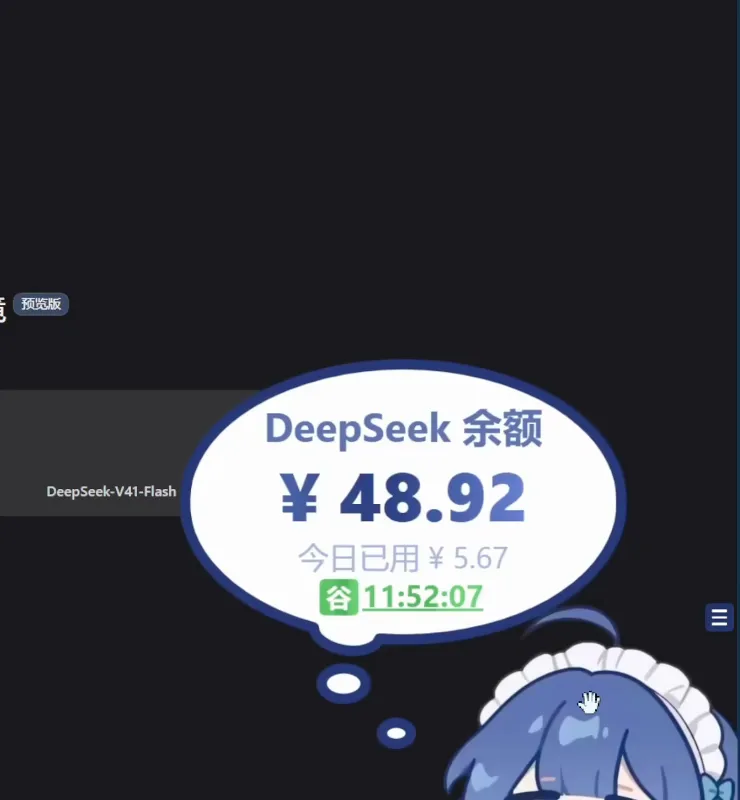
The balance widget is a community plugin for DeepSeek Harness whose whole job is to keep one number on screen: how much DeepSeek balance you have left. It ships as dsh-whale-widget, links into the web profile like any other local plugin, and then draws a speech bubble in the corner of the Web UI with the remaining balance, today's spend and a countdown to the next refresh.
This page follows two Bilibili screen recordings frame by frame: one walks the local Windows install, the other shows the widget running. Every screenshot below is a still from those videos, cropped with a fixed recipe that removes the channel watermark and the burned-in subtitle band, and each one deep-links back to the second it came from. For the wider cost picture, the usage-tracking guide covers tokens, per-request receipts and where the spend actually goes. Track token usage and cost
Quick answer
- ▸The plugin package is dsh-whale-widget; it is mounted into the web profile with dsh plugin --profile web add link:. run from inside the plugin's own folder.
- ▸Windows prerequisites, in the order the recording does them: Node.js LTS (v24.19.0 here), then a registry mirror plus npm install -g pnpm, which echoes pnpm 11.23.0.
- ▸Install the harness itself with npm install -g @deepseek-ai/dsh and start it with dsh — the video's notepad also lists dsh web as the launcher.
- ▸On screen you get remaining balance, today's spend and a refresh countdown, plus one settings menu for character art, size, sound, volume, bubble toggles, snapping and the 小鲸鱼记账 ledger.
Step by step
Set up the runtime
- 1
Install Node.js LTS on Windows
The recording starts at nodejs.org, not at dsh. Download the Windows x64 .msi for the current LTS (v24.19.0 in the video), run it and keep the defaults. There is nothing dsh-specific to decide at this step — the download page, the installer list in the browser and the wizard's completion dialog are the whole story.
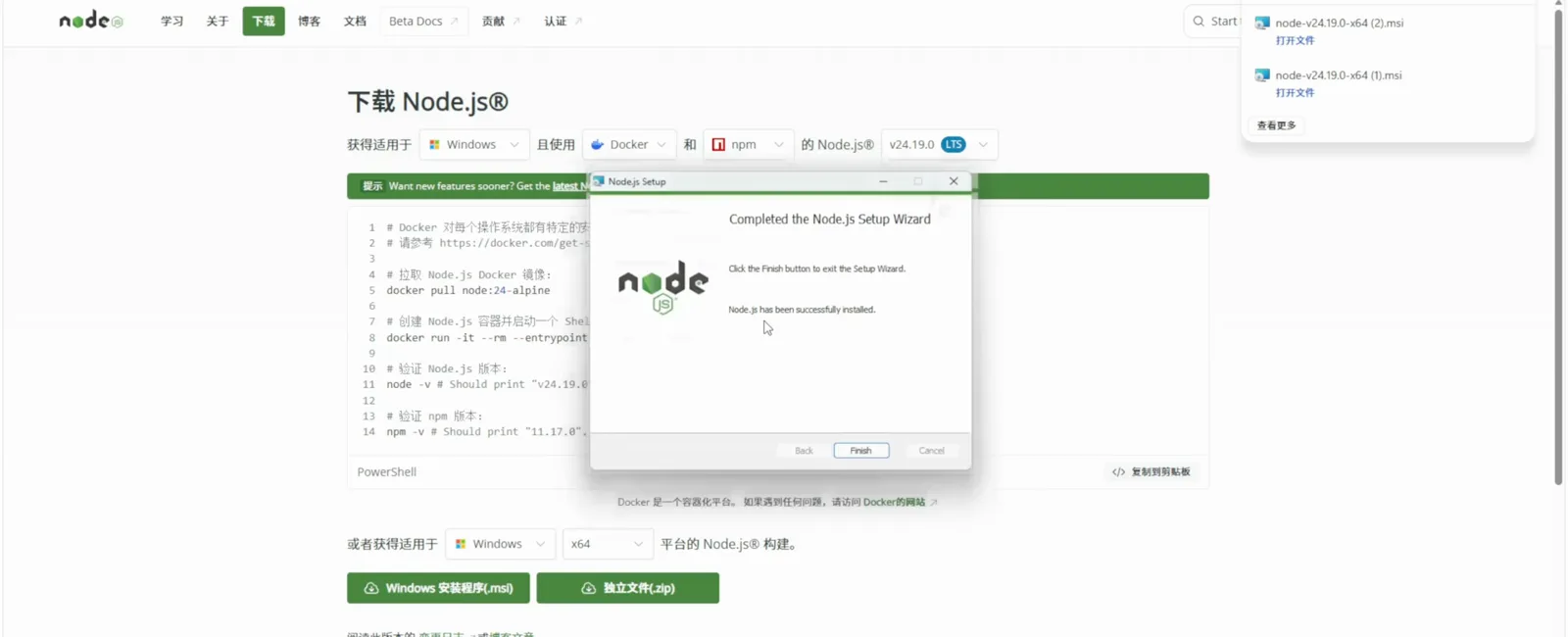
Step one is not about dsh at all — the widget runs on Node.js, so the LTS build goes in first.Watch at 1:30 - 2
Point npm at a mirror and install pnpm
In an Administrator command prompt, set the npm registry to a mirror and install pnpm globally, then confirm with pnpm -v. The recording echoes 11.23.0 — the same package manager version the plugin link reports a few steps later, which is a handy way to prove you are looking at the same toolchain.
$npm config set registry https://registry.npmmirror.com$npm install -g pnpm$pnpm -v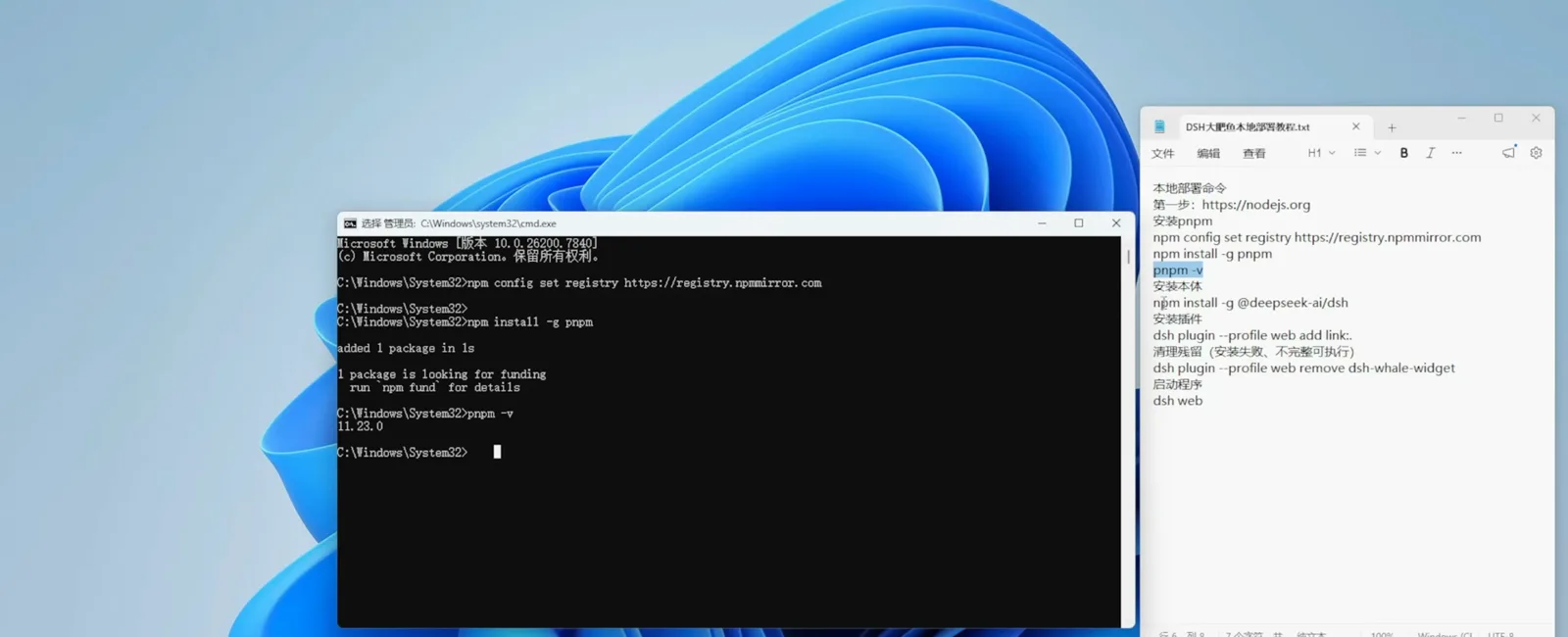
Mirror first, then pnpm — the 11.23.0 echo is what the plugin link reports later too.Watch at 2:06 - 3
Install the dsh CLI globally
One command installs the harness itself. The recording reports 62 packages changed in about two seconds and then drops back to the prompt, so there is no build step to babysit. After this, dsh is on your PATH and the plugin subcommand becomes available.
$npm install -g @deepseek-ai/dsh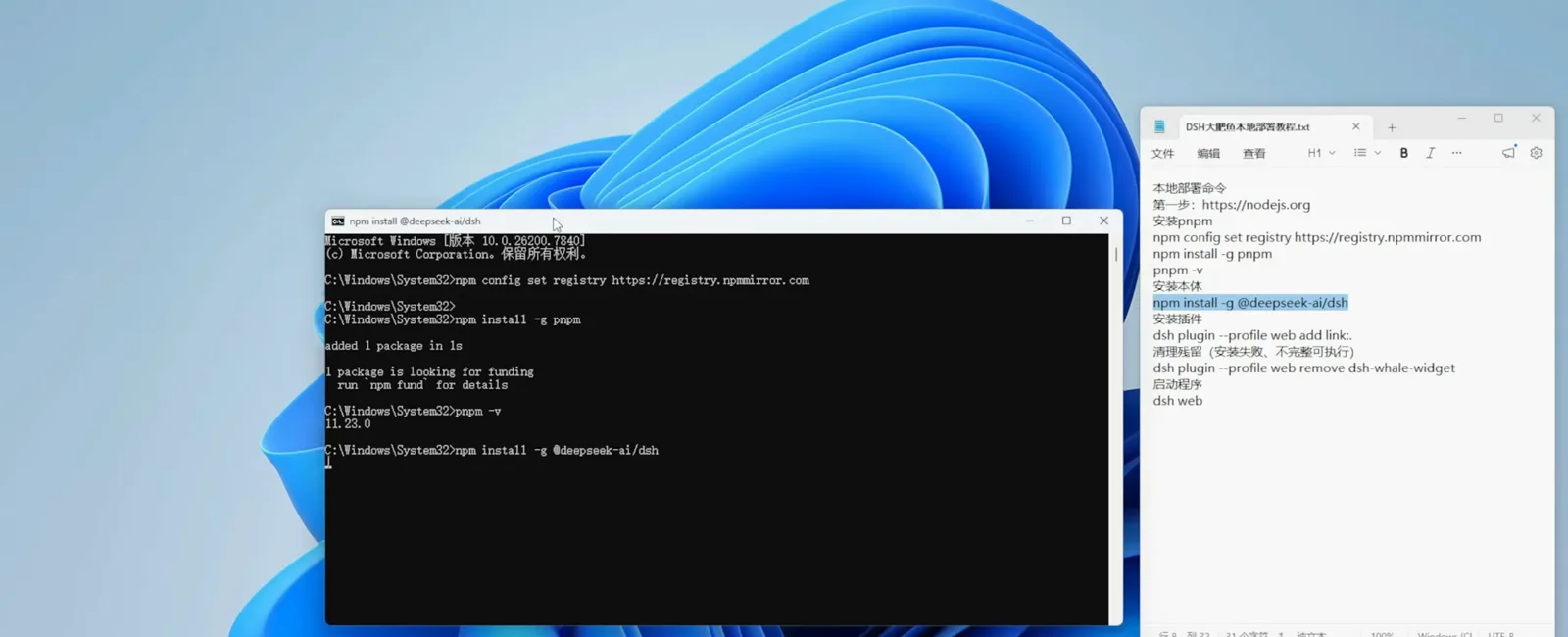
Installing the harness CLI itself: sixty-two packages, about two seconds on the recorder's machine.Watch at 2:12
Mount the widget, then tune it
- 4
Link dsh-whale-widget into the web profile
Keep the widget's source folder somewhere permanent, open a command prompt inside it and link it into the web profile. dsh first reports that it initialised the profile, then lists dsh-whale-widget under dependencies — that line, not a success banner, is the proof the plugin is registered. The same notepad column that carries the install order also carries the cleanup command, which is worth copying down now.
$dsh plugin --profile web add link:.$dsh plugin --profile web remove dsh-whale-widget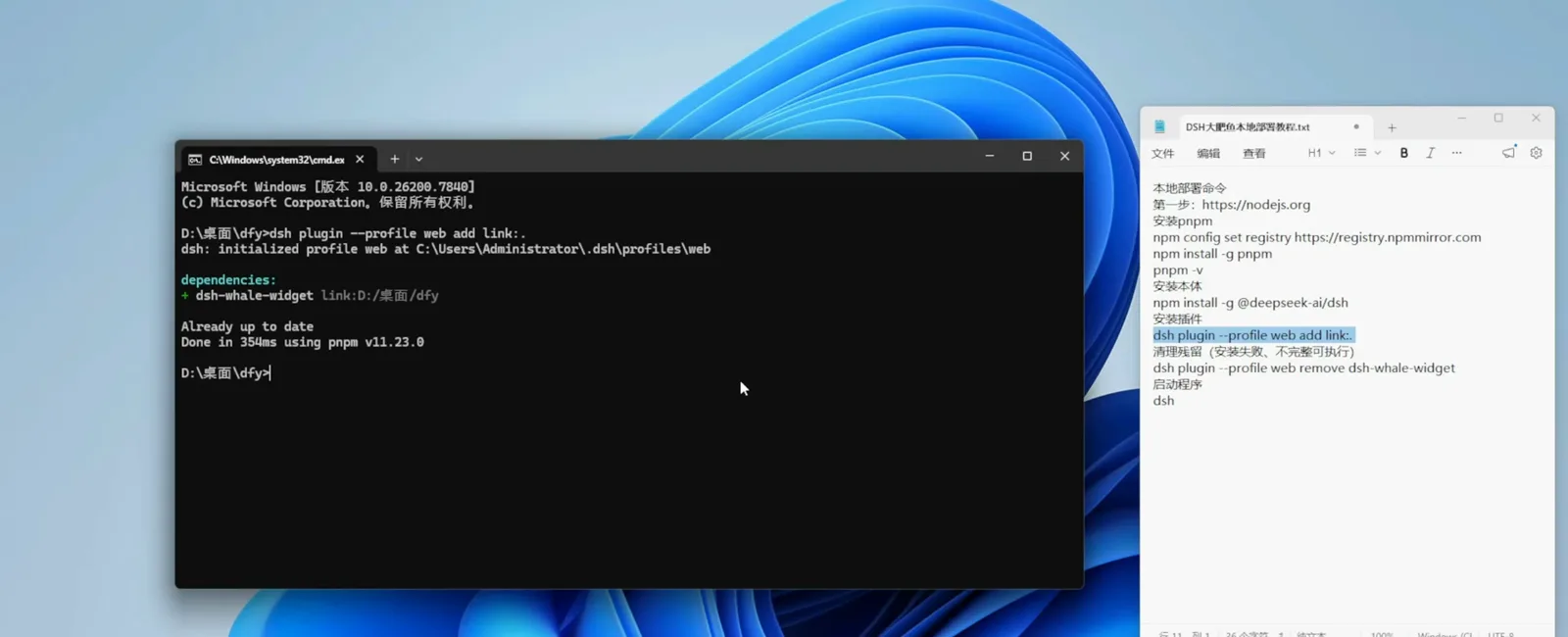
The registration step — run the plugin add command from inside the widget's folder and dsh answers with the linked package name.Watch at 2:42 - 5
Have a DeepSeek API key ready
The number in the bubble belongs to your DeepSeek account, so the widget needs a key from the open platform to read it. In the recording the author opens the API keys page immediately after the install, where a key already exists; if you do not have one, create it there. Keep it out of screenshots — the recorder's own key is masked in the table.
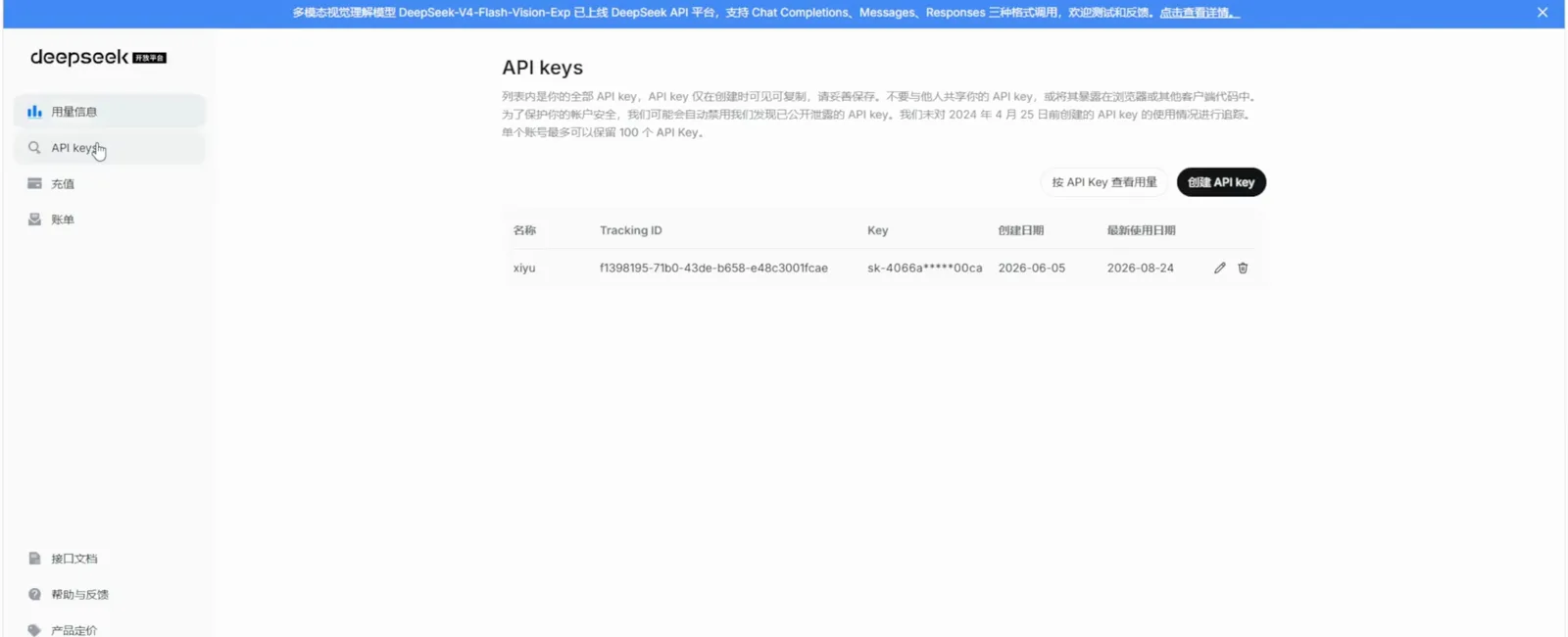
The balance figure is your account's, so the recorder drops into the open platform to grab a key right after the plugin is linked.Watch at 3:00 - 6
Tune the widget from its one settings menu
Open the widget menu and read it as a list of decisions: 角色 picks the character art, 大小 and 音量 size and level it, 音效 picks the sound, 气泡全局开关 and 每轮消耗提示 decide whether the bubble and the per-turn spend notice appear at all, 避免滚动条 keeps it clear of the scrollbar at a pixel width you set, 吸附与翻转 handles edge snapping, and 隐藏菜单按钮 decides whether the panel stays expanded. The recorder runs 小鲸鱼 at size 16, 100% volume, with both bubble switches on.
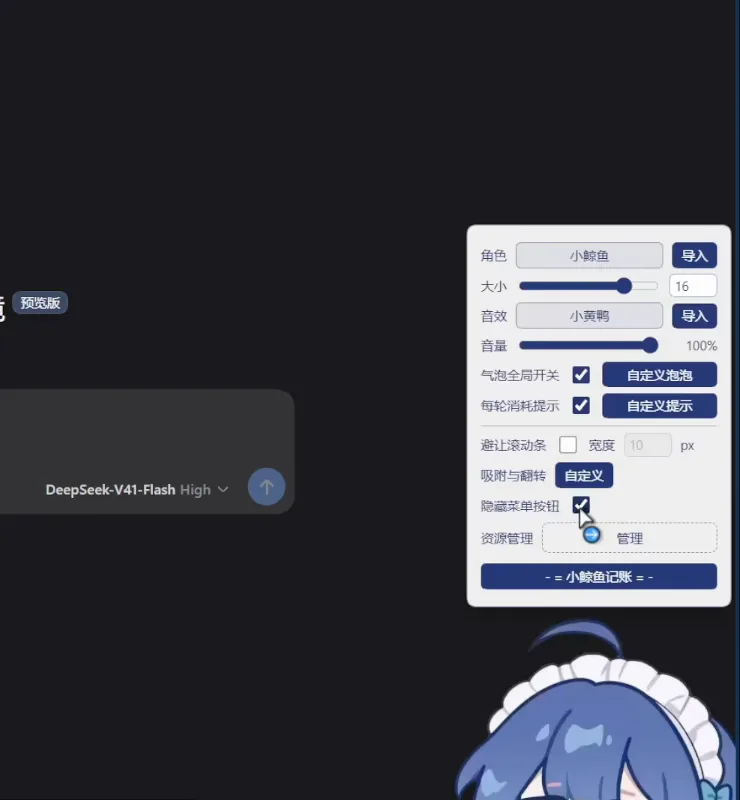
Everything the widget exposes lives in this one menu: character art, size, sound, volume, bubble switches and the ledger entry.Watch at 2:40 - 7
Open the ledger to review spend
The bottom row of the same menu opens the ledger — one line, 小鲸鱼记账, sitting under 资源管理. Handy detail from the recording: with 隐藏菜单按钮 ticked the panel collapses to a short strip so the character stops covering your conversation, and the ledger button survives the collapse. That is the setting to use if you want the balance visible but the mascot out of the way.
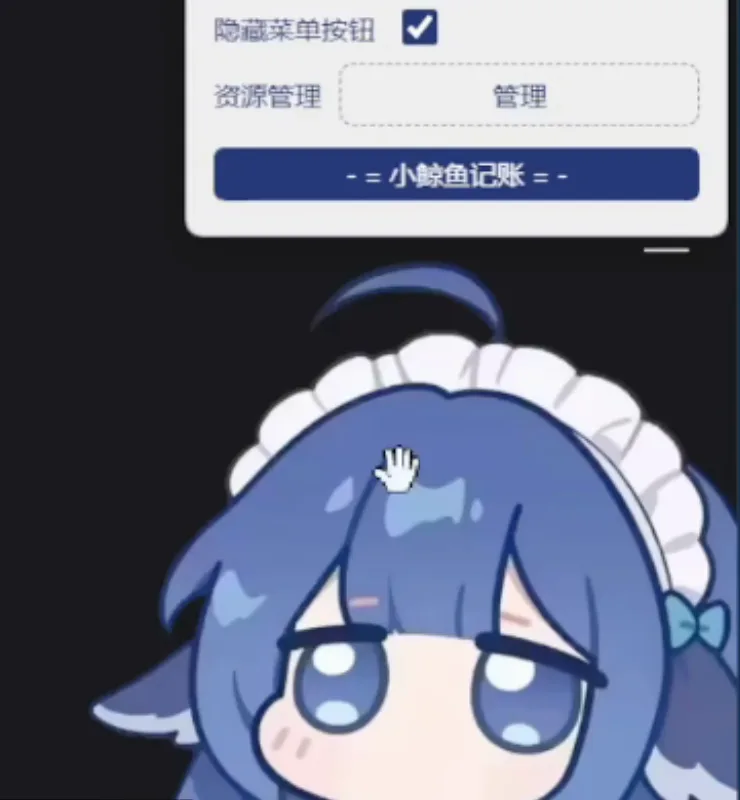
With 隐藏菜单按钮 ticked the panel folds down to a strip, and the 小鲸鱼记账 button stays right where you left it.Watch at 2:25
Balance widget FAQ
What comes up between linking the plugin and trusting the number in the bubble.
What is the dsh balance widget actually called, and where do I get it?
The package is dsh-whale-widget — the command prompt in the recording prints it as a linked dependency reading link:D:/桌面/dfy. It is a local plugin rather than a registry download: you keep the source folder on disk and link it into a profile, which is why the install command is dsh plugin --profile web add link:. run from inside that folder. There is no separate installer to download.
The bubble shows ¥0.00 or a balance I do not recognise. What should I check?
Start with whose key it is. The widget reports the balance of the account behind your API key, so a key copied from another account shows that account's figure — and a key with no balance shows zero honestly. Second, remember the figure refreshes on a countdown instead of streaming: the recording's timer runs down from 11:52:07, so after a top-up give it one cycle before deciding anything is broken.
Does the widget change how dsh spends tokens?
No. It reads a balance and draws it; the recording registers one linked dependency and nothing else, and every row in its settings menu is presentation — character art, size, sound, volume, bubble switches, snapping and the hide-menu toggle. The decisions that actually move cost (model tier, context size, how much you paste in) stay in the harness, which is what the usage-tracking guide is about.
How do I remove the widget if the install went wrong?
The recording keeps a cleanup line for exactly that case: dsh plugin --profile web remove dsh-whale-widget, labelled 清理残留(安装失败、不完整可执行). Run it to unlink the package, then repeat the add link:. command from the plugin folder. Because the plugin was linked rather than copied, removing it leaves your source folder untouched.
Related guides
Where to go once the bubble is on screen.
Track token usage and cost
The wider half of the same question: per-request receipts, Trajectory, and the levers that actually reduce spend — the balance widget only shows what is left.
Read the guideBrowse the plugin market
Find other community plugins for dsh, including the floating widgets and quota managers that sit next to this one.
Read the guideHow to install dsh plugins
The general install and link workflow this page assumes, including profiles and where linked plugins live on disk.
Read the guideConfigure DeepSeek Harness
Models, providers and API keys — the settings the widget reads its balance from.
Read the guideTroubleshooting dsh
When a command in the install chain fails: exit codes, PATH problems and how to get back to a clean profile.
Read the guideSources
Both videos are Bilibili screen recordings in Chinese and neither carries a caption track, so the steps above were written from what is on screen: the notepad command chain, the command prompt output and the widget's own UI. For the general plugin workflow, see the plugin install guide