
dsh LAN access & port guide
The default port, the --port flag, why 0.0.0.0 is refused, firewall rules and the plugin path that opens the dsh web UI to phones and other devices on your network.
Last updated: 2026-10-02
dsh web runs fine on the machine that started it — and then the first question from everyone else in the room is why http://<your-ip>:3080 will not open on their laptop or phone. This guide covers the port itself, the binding boundary behind that refusal, and the plugin route that opens LAN access properly.
Scope first: this page is about devices on the same Wi-Fi or office network. A visitor on mobile data or any outside network cannot route to your machine and needs a public tunnel instead — that is the remote access guide's territory: Remote access from your phone
TL;DR
- ▸dsh web serves http://127.0.0.1:3080 by default — port 3080, loopback only, and the URL is printed at startup.
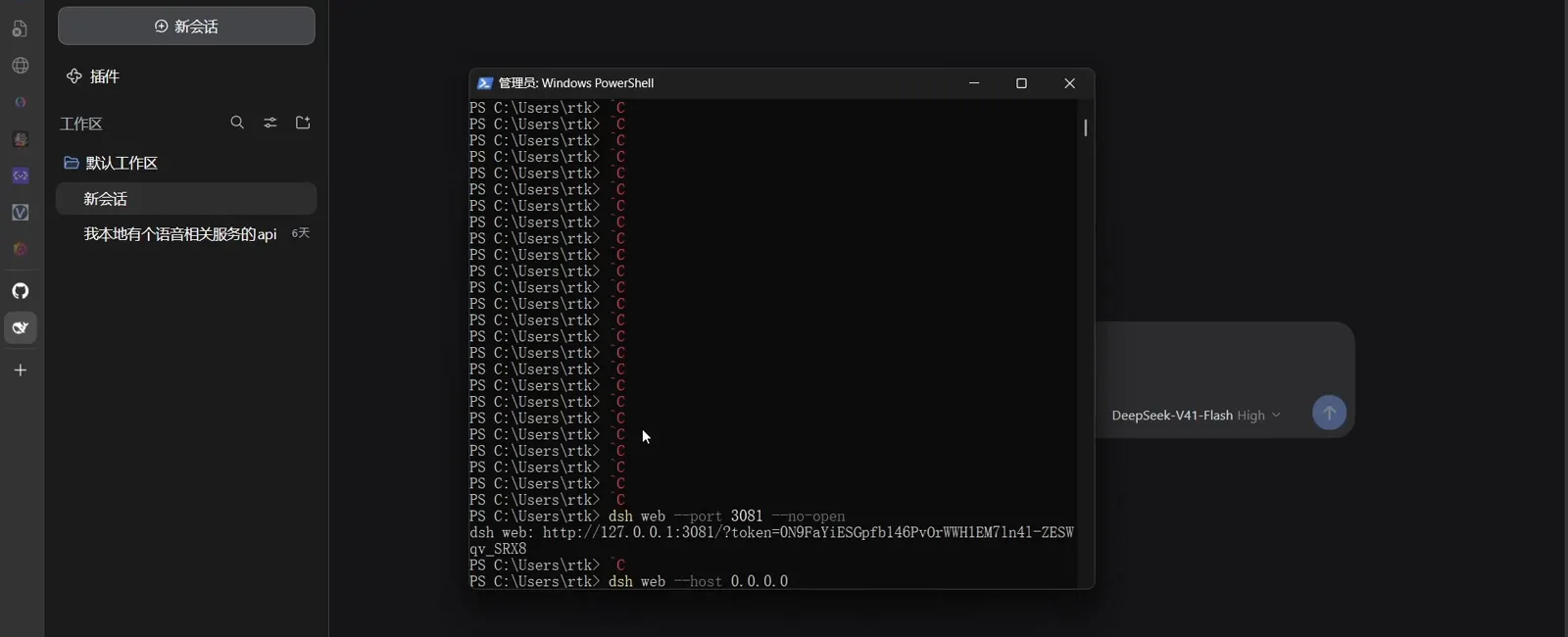
- ▸Change the port with dsh web --port 8080; the --port flag belongs to the web app, not the launcher.
- ▸The CLI intentionally refuses --host 0.0.0.0 (usage error). LAN access today means the dsh-LAN plugin or a reverse proxy — on a trusted network.
- ▸Same Wi-Fi: direct LAN-IP access. Different network: you need a tunnel — see the remote access guide.
The default port and local checks
Most "what port is dsh on" questions settle in three steps, no config files opened.
Default: port 3080 on 127.0.0.1
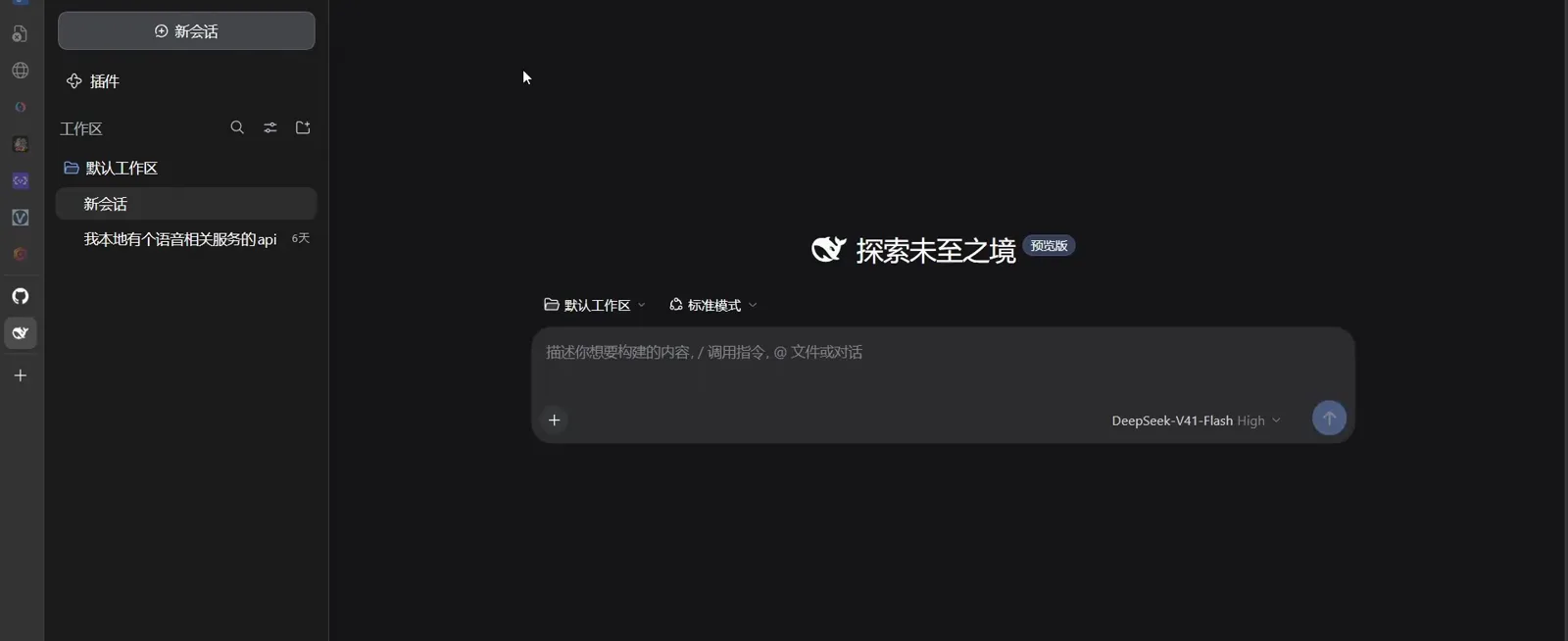
dsh web boots the Web UI at http://127.0.0.1:3080 and opens the browser; pass --no-open to keep the server headless. Either way the command prints its URL, so the startup line is the first-hand answer to the port question.
Confirm what the process is listening on
Started with a non-default flag, or just want proof? List the listening socket: netstat on Windows, lsof on macOS and Linux. The PID in the output also names the process that owns the port — exactly what you want when something fights over it.
Find your machine's LAN IP
Other devices will type this address. Windows: ipconfig and read the IPv4 Address of your active adapter. macOS: ipconfig getifaddr en0. Linux: ip a. Addresses like 192.168.x.x or 10.x.x.x are LAN addresses; 127.x.x.x is loopback and only the machine itself can reach it.
Change the port (--port)
3080 taken, or you simply prefer another port — one flag does it.
Pass --port to the web app
The launcher hands unrecognized flags to the booted profile, so --port reaches the web application — both the shorthand and the explicit profile form work. Mind the boundary: --port belongs to the web app, and the launcher's own flags end before it.
When a port change does not take effect
Flags win over config rows because the rows read the flag at runtime — but if a user patch replaces the whole config block with literal values, that runtime read disappears and the flag is silently ignored. If --port seems dead, look in your cordis.patch.yml for a patch that hard-literals the webserver config, fix it, and restart dsh web.
The binding boundary: why LAN devices can't connect
A wrong port gives "connection refused". The default binding gives something subtler — the page only exists on the machine that started dsh. That is by design.
dsh web binds 127.0.0.1 and refuses 0.0.0.0
Loopback-only is the shipped default, and the official CLI reference is explicit: the CLI intentionally does not support --host 0.0.0.0 and exits with a usage error. The web UI is a control plane for an agent that reads files and runs commands — exposing that unauthenticated to every interface is exactly what the default prevents.
The 403 fence on privileged interfaces
Even when the port becomes reachable through a proxy, settings, credentials, agent presets and model discovery answer 403 to non-loopback requests — a DNS-rebinding fence, not authentication. For hostname or reverse-proxy deployments the web app accepts a repeatable --trusted-host <host> flag that adds named authorities to that fence. Community deployment receipts (official discussion #849) document this 403 wall in detail.
Why you should not hack around it
A security test in official discussion #130 walked the full chain: an unauthenticated network client fakes a loopback Host header, passes the privileged-RPC gate, rewrites the LLM endpoint — and the next model call sends your API key and conversation to the attacker's server. Until an official remote-auth model ships, the honest routes to LAN access are the plugin and proxy paths below, on a network you trust.
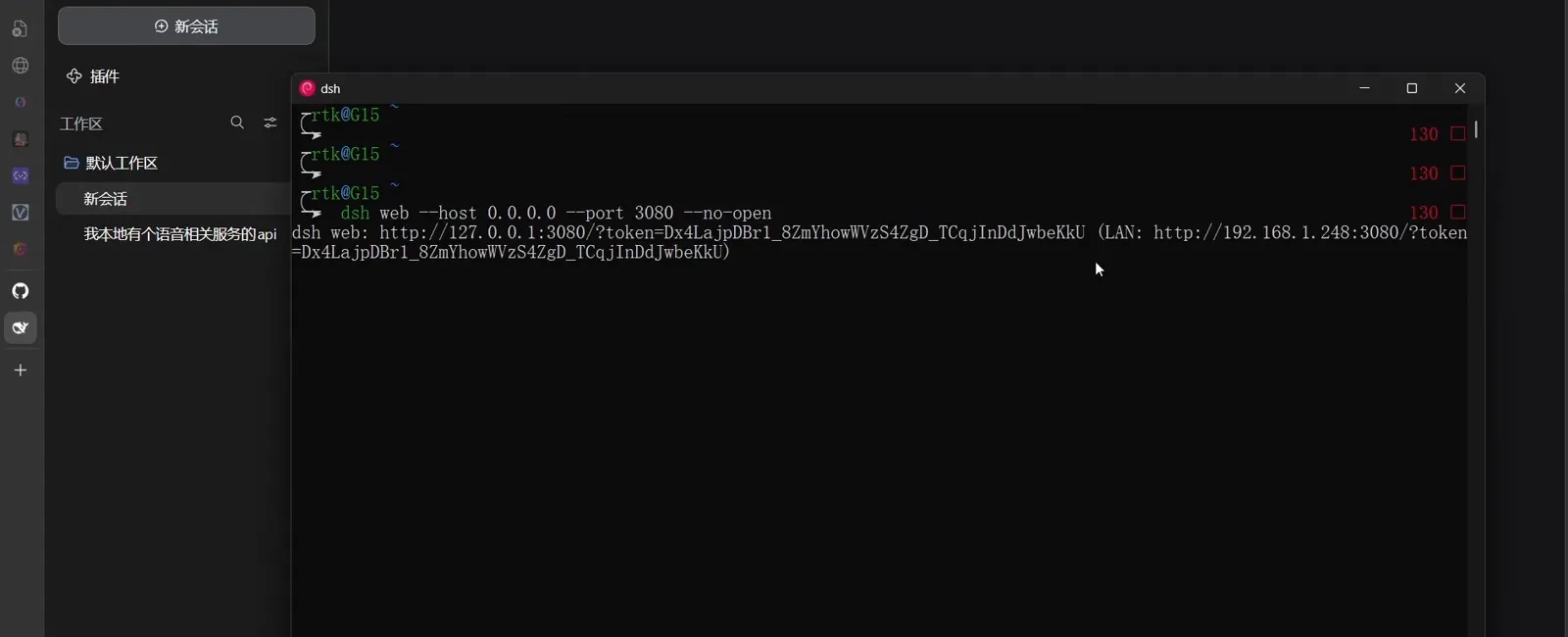
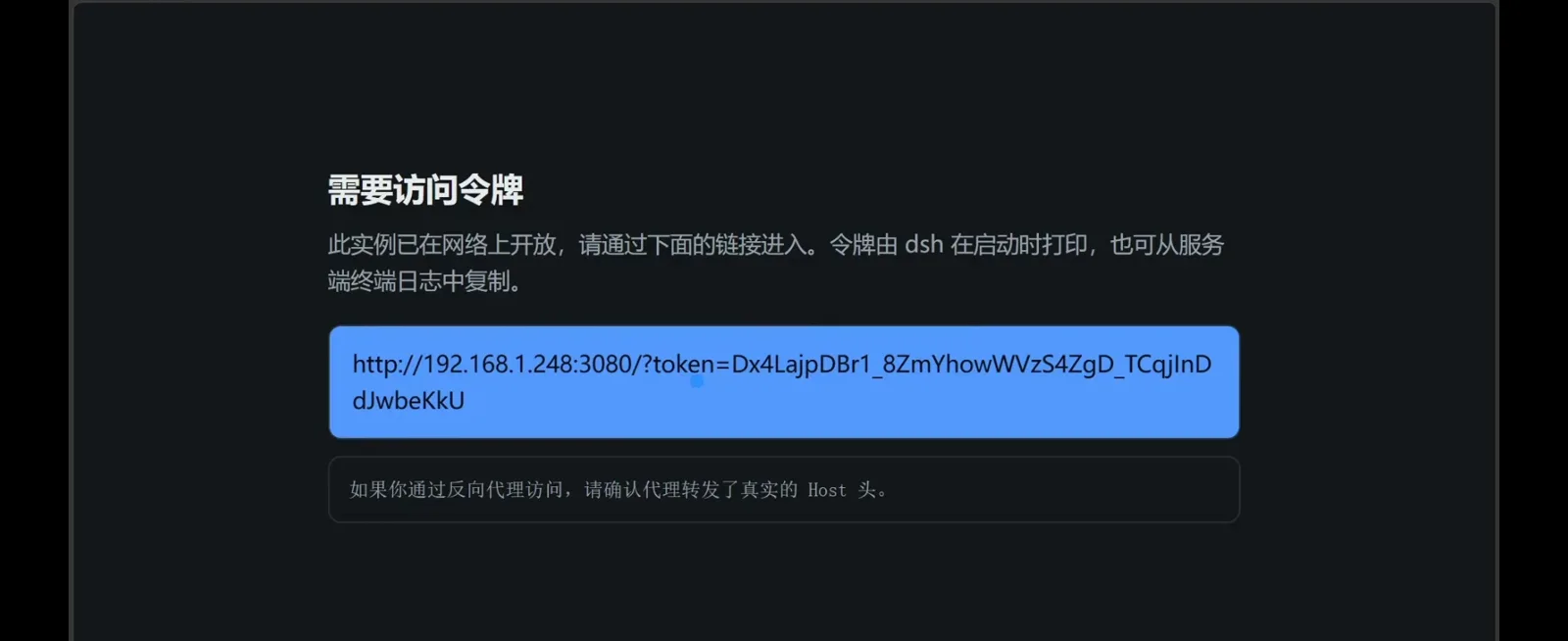
The cards above carry the official CLI reference's wording; the frames below come from a September 2026 LAN screen recording in which the recorded build starts fine with dsh web --host 0.0.0.0 --port 3080 --no-open and echoes loopback and LAN URLs — token attached — on one line. The two sources disagree on 0.0.0.0, so trust your own build's actual startup output. Under either behavior, treat the echoed token as the only gate your LAN traffic has, and do this on a trusted network only.
Firewall: allow inbound port 3080
Binding solved, the OS firewall is the second gate. Until inbound 3080 is allowed, phones see timeouts instead of pages.
Windows
Windows Defender Firewall blocks unsolicited inbound connections on private and public networks. One elevated command allows TCP 3080, or create the inbound rule through Windows Security > Firewall & network protection > Advanced settings.
macOS
The built-in firewall is off by default. If you enabled it, it blocks per application — allow node (or your dsh runtime) under System Settings > Network > Firewall; the signed-app prompt usually offers to do it on first network access.
Linux
Depends on your firewall stack: ufw allows the port with one command; on firewalld add the port permanently and reload; iptables users add an ACCEPT rule for TCP 3080. The dsh-LAN plugin below maintains these rules automatically across Windows, firewalld, ufw and iptables.
Phone and tablet access
The typical LAN scenario: dsh runs on your desktop, the device in your hand is a phone — same Wi-Fi, nothing installed on the phone.
Open http://<LAN IP>:3080
On any device in the same network, type the machine's LAN IP from step 3 into the browser — the full address including the port. With the bind and firewall sorted you get the same web UI as the host: one server process holds every session state, so phone and desktop see the identical conversation and stay in sync in real time.
If the page will not load
Walk the checklist in order: the binding is still loopback-only (no plugin or proxy in place yet — the firewall is not even the limiting factor at this stage), the host firewall rule, and whether phone and host are truly on the same subnet — many routers ship with AP isolation, which hides devices from each other on one Wi-Fi. Also type the address in full with http:// and the port; mobile browsers love guessing.
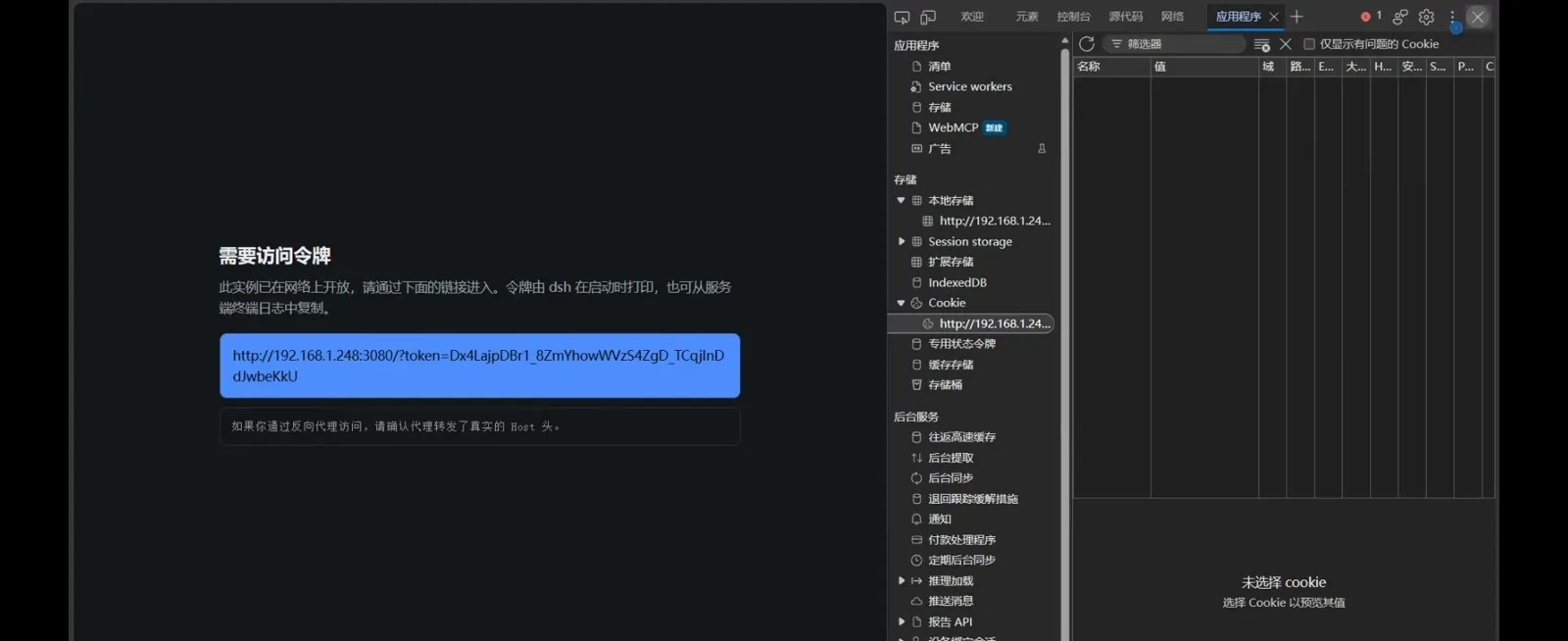
If the instance was started networked (the startup line contains a LAN: entry), the first thing a device meets when opening the address is not the workspace but dsh's native token gate:
To push the phone experience further — third-party clients and companion apps — browse the remote & mobile collection: Remote & mobile collection
The dsh-LAN plugin: the one-switch LAN path
MrMu666/dsh-LAN is the dedicated LAN-access plugin for the dsh web GUI — MIT-licensed, 10 stars at our 2026-10-02 check. One install solves the binding, the firewall and a passcode gate in the same move.
What it does
After install the web GUI binds 0.0.0.0 (all interfaces) by default, and the host firewall is opened for the port automatically (Windows Defender Domain + Private profiles; Linux tries firewalld, then ufw, then iptables). Any device that opens http://<machine IP>:3080 first sees a full-screen passcode gate; on phones in portrait the plugin injects touch adaptation into the official UI — large touch targets, 16px input font, safe-area padding. Note the README states support for DSH 0.1.2-rc.1 and newer, verified through 0.1.5-rc.1; it does not claim the current 0.2.0-rc.2, so confirm compatibility in the repo before installing.
Install it
The README's own "simplest install": tell dsh to install the dsh-LAN plugin, and the agent performs the setup. The scripted route clones the repo and runs one script per platform — a patch-path install that hot-reloads into the running profile, no restart needed. The bundle path adds it like any plugin from a local directory and needs a dsh web restart.
Use it
On the host, open Settings > General > the LAN access card: flip the switch, set a passcode (at least 4 characters), check the firewall status line. Other devices enter the passcode at the gate; "remember passcode" keeps it in that device's browser. The privileged settings/credential methods that upstream locks to loopback come back through the plugin's passcode-proxied /lanapi channel. Turning the switch off reverts the binding to 127.0.0.1 — the most fundamental off switch.
Know its security boundary
The README is explicit: the gate is UI-level protection, with server-side enforcement on privileged operations; non-privileged APIs (session read/write) remain open at the API level to the LAN. That is a fair trade on a home or office intranet and a bad one on a shared network — keep it on trusted Wi-Fi and switch it off when you leave. It is not a substitute for real authentication.
Another plugin route: several people, one dsh
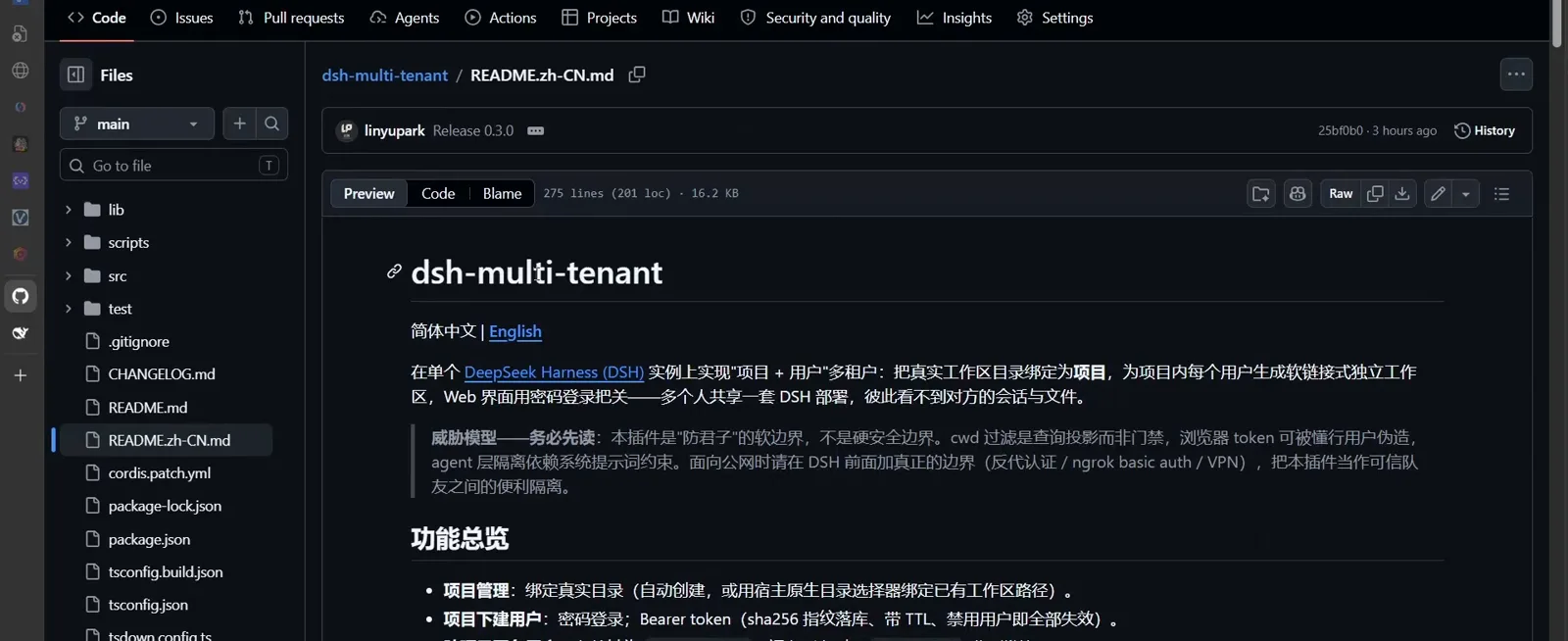
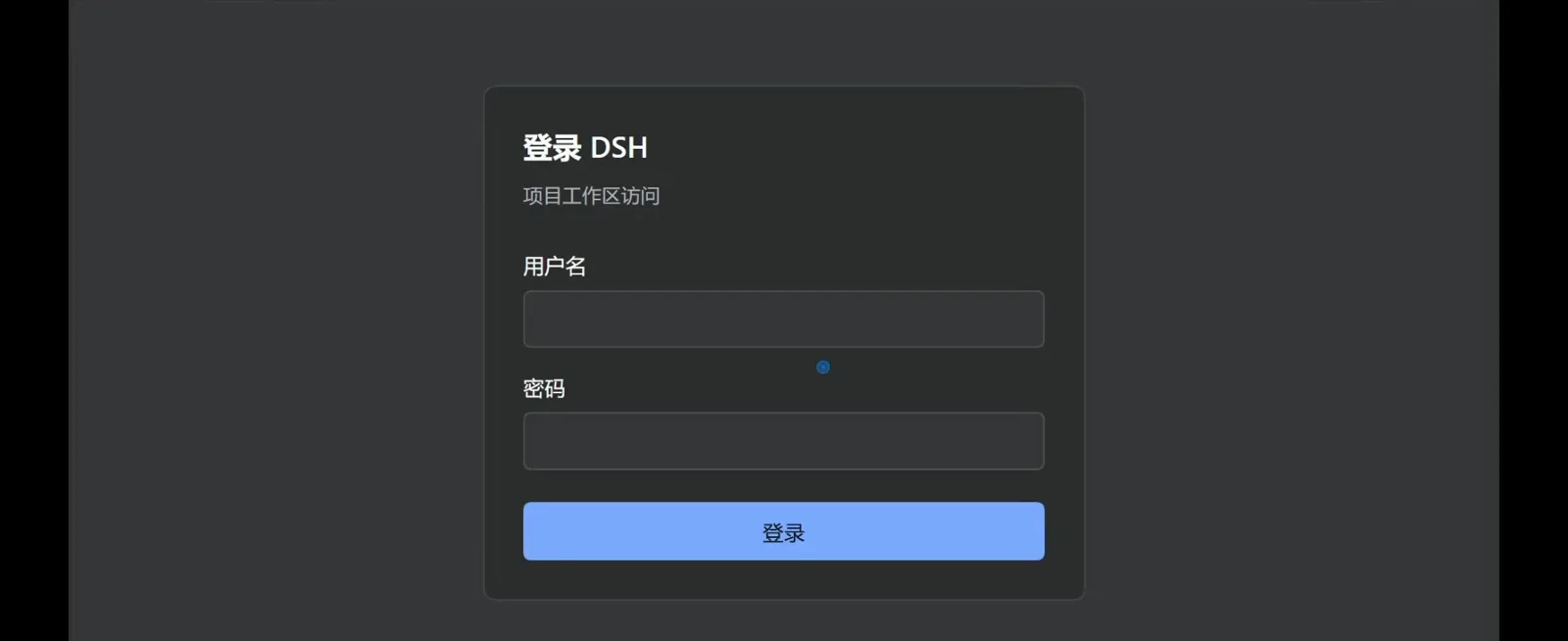
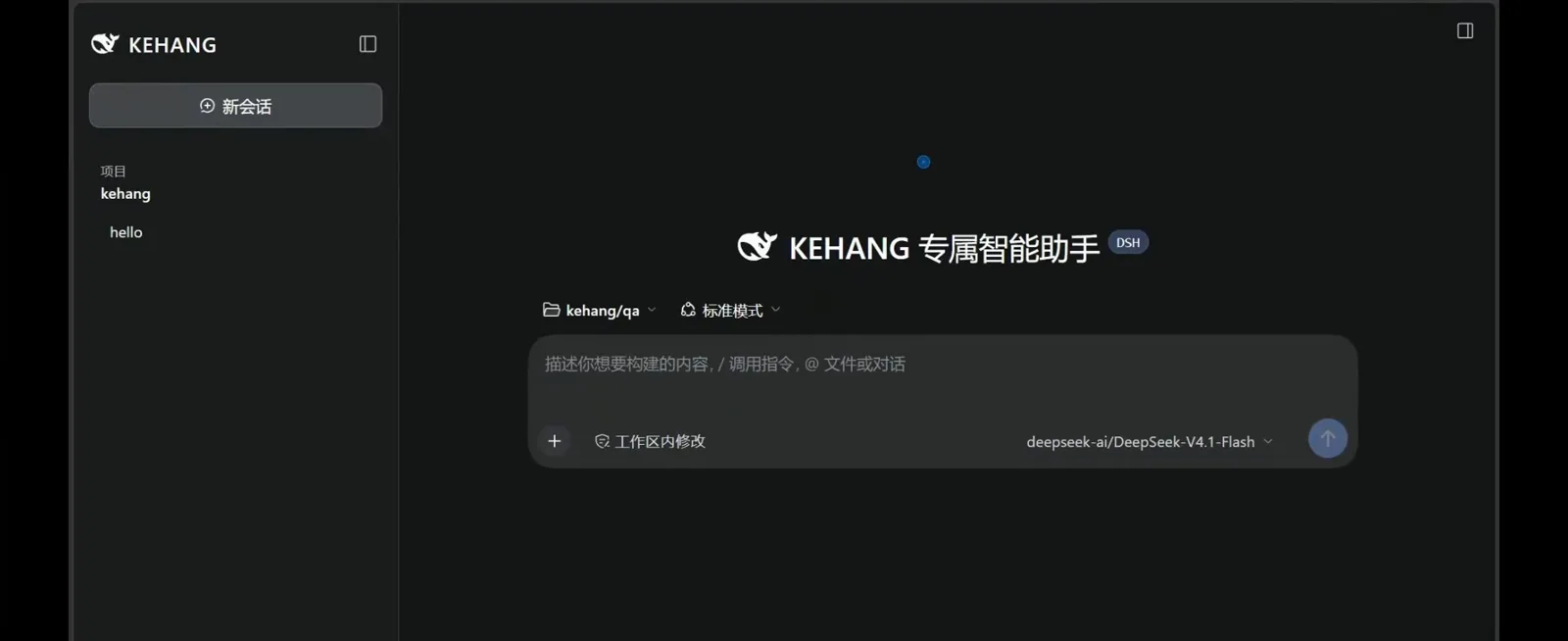
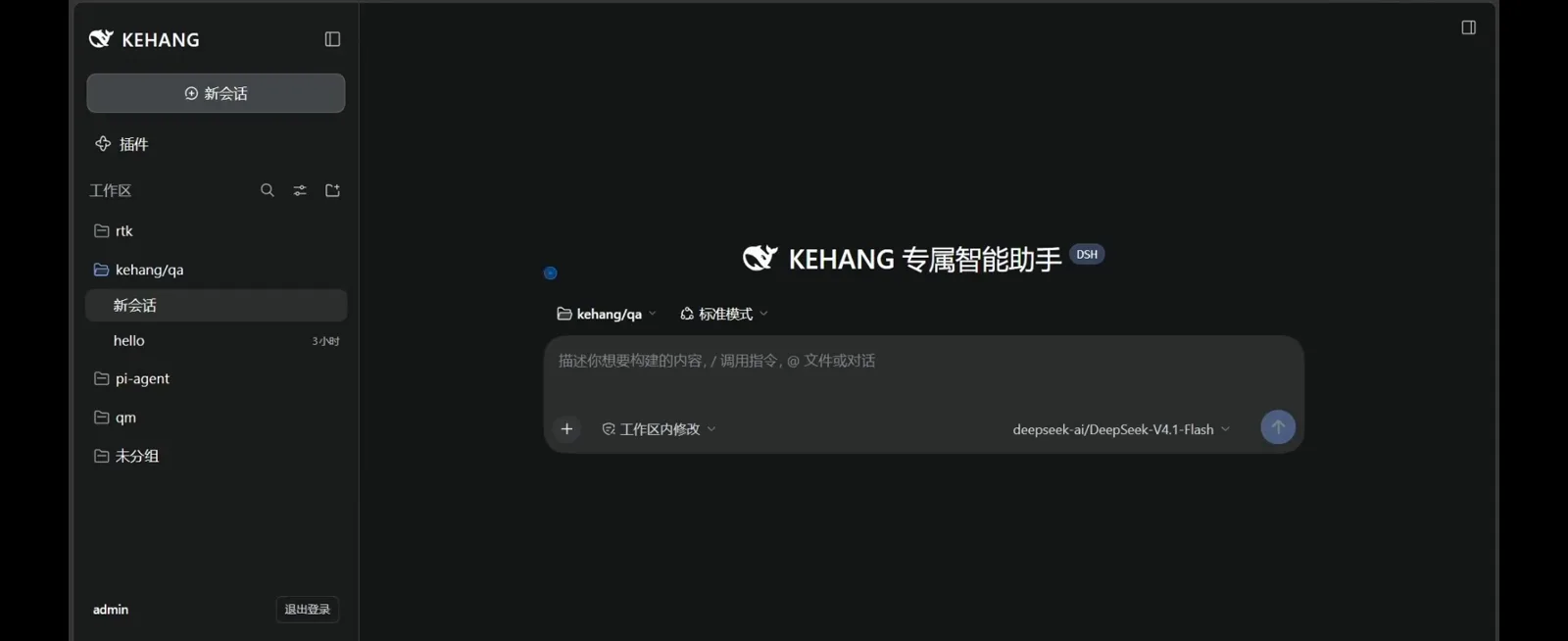
Beyond dsh-LAN, the community also ships a third-party plugin aimed at sharing one dsh among several people: linyupark/dsh-multi-tenant (a brand-new repo at our 2026-10-02 check, Release 0.3.0) implements per-project, per-user multi-tenancy on a single dsh instance — real workspace directories are bound as projects, each user gets a symlinked isolated workspace, and the web UI is gated by password login. The README's threat-model section is blunt: it is a soft, keep-the-honest-people-honest boundary, and a public deployment needs a real boundary (reverse-proxy auth / ngrok basic auth / VPN) in front of dsh. The four frames below, from the same LAN recording, show the full chain from login to per-user workspaces:
Installing a plugin assumes you know how plugins install — if the dsh plugin commands are new to you, start with the plugin install guide: Installing plugins you can trust
Two more paths: reverse proxy or SSH forwarding
If you would rather not touch dsh's own binding at all, both of these leave the dsh process exactly as it is.
dsh-proxy: a Basic Auth front door on :3081
smanx/dsh-proxy (24 stars) is an HTTP + WebSocket reverse proxy plugin: it installs into the web profile, starts and stops with dsh web, forwards to 127.0.0.1:3080, and can put browser Basic Auth in front. After install and a dsh web restart, http://<LAN IP>:3081 pops the auth dialog; password login only enables when both username and password are set. Its Host rewrite and origin alignment also keep the WebSocket from tripping the 403 fence described above. A related project, GDWhisper/dsh-web-startup-auth (50 stars), ships an auth module so a 0.0.0.0 start is not blocked, per its author's post in discussion #3132.
SSH local forwarding: zero plugins, encrypted
From the device that wants access, forward a local port to the host's loopback: run the command below on the visiting machine, then open http://localhost:3080 there. Nothing on the dsh side changes and the traffic is encrypted — a good fit for one trusted colleague's laptop. A phone with an SSH client can do it too, but at that point you are in tunnel territory: once the visitor leaves your network entirely, the remote access guide is the right tool.
Common errors, decoded
The four failure modes this topic actually produces, and the cause behind each.
Startup fails / port already in use
Another process owns 3080. The listening checks in the first section name the owner by PID — stop that process, or start dsh web with --port on a free port.
HTTP 403 on settings or presets from a LAN device
Expected behavior, not a misconfiguration: the /api trust fence refuses privileged methods (settings, credentials, agent presets, model discovery) from non-loopback authorities. The dsh-LAN plugin re-exposes those methods through its passcode channel; the proxy path keeps unauthenticated LAN devices on the public pages only. Do not patch the check out of the source — see the binding section for why.
Changed the port but the old one still answers
Two usual suspects: a config patch hard-literaled the webserver row, so the --port runtime read is gone (see change-the-port), or the browser tab is a stale cached page. Restart dsh web after config edits and hard-reload the tab.
Phone cannot reach the address at all
Work the phone checklist top to bottom: binding still on loopback (plugin/proxy needed first), firewall inbound rule missing, phone on a different subnet or behind AP isolation, address typed without the port. If every box checks out and it still fails, the troubleshooting guide picks up from there.
None of these match your symptom? Keep going in the troubleshooting guide: Troubleshooting & error encyclopedia
dsh LAN access FAQ
The port and binding questions readers actually ask, answered from the official docs and public discussions.
What is dsh's default port?
3080. dsh web serves the Web UI at http://127.0.0.1:3080 by default and prints the URL at startup. The address is loopback-only: the port answers on the machine that started dsh, not on the LAN. Change it with dsh web --port <port>.
Why can't my phone or another computer open http://<my-ip>:3080?
Because dsh web binds 127.0.0.1 by default, and the CLI intentionally refuses --host 0.0.0.0 with a usage error — the web UI controls an agent that reads files and runs commands, so the default keeps it off the network on purpose. To serve the LAN today, use the dsh-LAN plugin or a reverse proxy such as dsh-proxy, and keep it on a trusted network.
How do I change the dsh web port?
Pass --port to the web app: dsh web --port 8080, or dsh --profile web --port 8080. If the flag seems ignored, look for a user patch that replaced the whole config with literals — that removes the runtime read that lets flags win — then restart dsh web.
Is LAN access safe? Can my API key leak?
Treat the web UI as a control plane, not a website. A documented attack chain shows an unauthenticated LAN client passing the privileged gate with a faked Host header and redirecting the next model call — taking your API key and prompts with it. The dsh-LAN passcode gate is UI-level protection, and its own README notes non-privileged APIs stay open to the LAN. Practical rules: trusted home/office Wi-Fi only, set the passcode, switch LAN access off when you leave, and never expose the port to the internet.
What is the dsh-LAN plugin and how do I install it?
A dedicated, MIT-licensed community plugin (MrMu666/dsh-LAN) that binds the web GUI to all interfaces, opens the host firewall, adds a full-screen passcode gate and adapts the official UI for phone touch. Simplest install per its README: tell dsh to install the dsh-LAN plugin. Scripted: run install.ps1 (Windows) or ./install.sh (macOS/Linux) from the cloned repo — a hot-reloading patch install. The README verifies DSH 0.1.2-rc.1 through 0.1.5-rc.1, so confirm current-version compatibility in the repo first.
LAN access or a tunnel — which one do I need?
Same Wi-Fi or office network: direct — the device routes to the machine's LAN IP, no tunnel needed, and this page covers the setup end to end. Anywhere else (mobile data, another network): nothing routes to your machine, so you need a public tunnel such as ngrok — that is the remote access guide's territory.
Related guides
The rest of the access trilogy and the pages this one leans on.
DSH Web UI, start to phone
Launch the web UI with dsh web, learn the 3080 workspace, slash skills and model settings, then reach it from your phone — nine verified steps
Read the guideRemote access from your phone
Expose the dsh web UI with a free ngrok tunnel and drive your home agent from any outside browser — no companion app, eight verified steps.
Read the guideRemote & mobile collection
Every curated remote-access client — dsh-web, dsh-pocket, Agents-Anywhere, dsh-mobile — on one shelf.
Read the guideInstalling plugins you can trust
How plugin installation actually works in dsh, plus a checklist for vetting third-party code.
Read the guideTroubleshooting & error encyclopedia
Symptom → cause → fix: install failures, pnpm workspace allowlist errors, cordis.patch.yml conflicts, bundle format errors, and profiles that won't apply.
Read the guideSources & credits
All screenshots on this page are frames from a dsh LAN-access screen recording by Bilibili uploader 是属鼠我, each deep-linked to its exact second; the uploader's camera bubble and the burned-in caption band were removed by cropping. The LAN URL echo and the token gate are dsh's own behavior; the multi-user login, project-workspace and threat-model frames come from the third-party plugin linyupark/dsh-multi-tenant (a brand-new repo — mind its maturity when citing); the dedicated LAN plugin route is MrMu666/dsh-LAN. Both repos are quoted from their GitHub READMEs; the text conclusions are our own.