
Essential dsh plugins, hands-on: the market, the manage panel and the core set
From one npx command to a searchable plugin market inside the manage panel — then vision, sidebar and background-task plugins at work. Seven steps, every screenshot a verified still that links back to its second in the source video.
Last updated: 2026-09-28
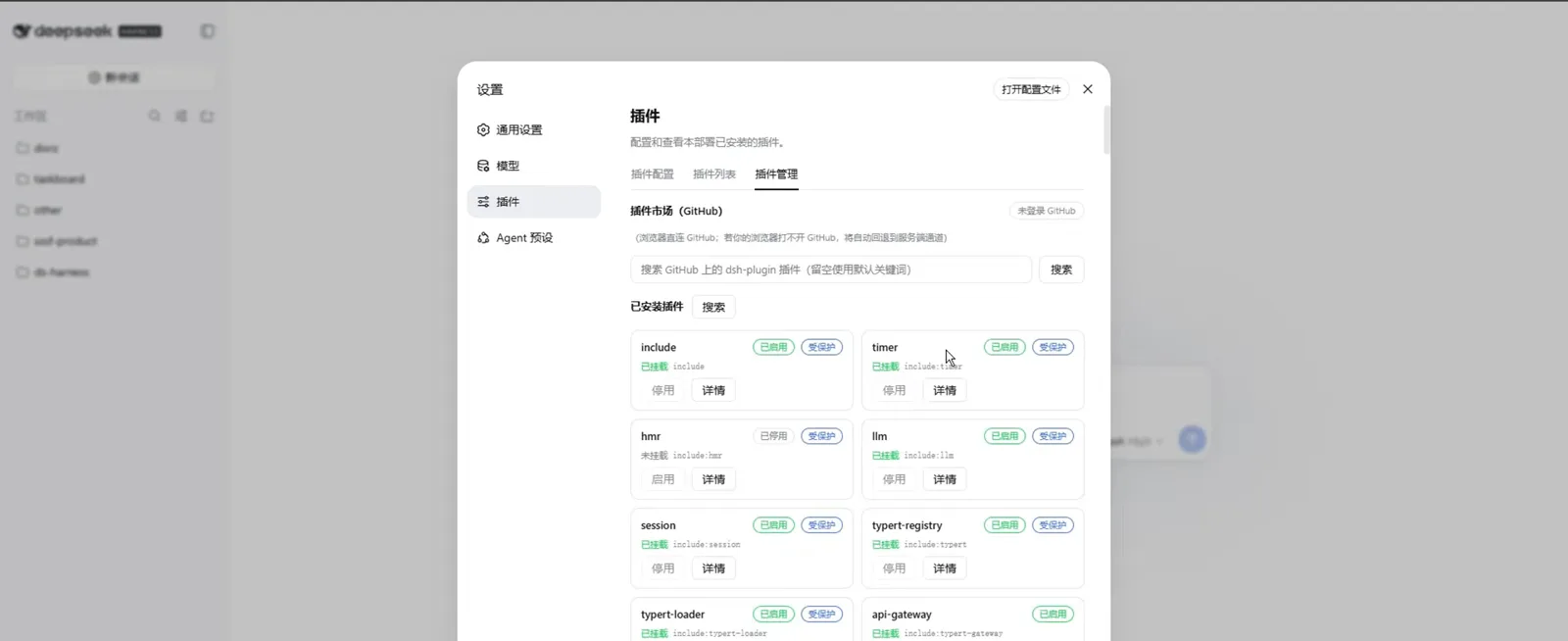
Asking which dsh plugins to install first is really two questions: how do you browse and vet what is out there, and what does a well-rounded setup look like once the defaults feel thin. This page answers both with one screen recording — a Windows user starting from npx, adding a plugin market, searching it, then putting vision, sidebar and background-task plugins to work — and every screenshot below is a verified still from that video, deep-linked to its second.
The source is 野码AI's DeepSeek Harness 10大核心插件玩法 on YouTube — burned-in Chinese captions, no separate track, so the steps here are written from what is on screen rather than the narration. For finding plugins beyond this one video, start from the find-plugins guide: How to find dsh plugins (illustrated)
Quick answer
- ▸The market is itself a plugin: dsh plugin --profile web add github:Noob-stupid/dsh-plugin-hub (repo since renamed dsh-plugin-gating-hub) puts a searchable GitHub marketplace inside 设置 → 插件 → 插件管理.
- ▸The manage panel is the home base: one card per installed plugin with 已启用/已停用 and 受保护 badges, plus 停用 and 详情 controls — that is the hero image above.
- ▸Judge before you add: market results show star counts and descriptions, and the video's best habit is auditing an installer script before running it — a five-step checklist ending in an idempotent cordis.patch.yml cleanup.
- ▸Core picks shown hands-on: dsh-vision for image recognition when the default model refuses pictures, DSH-better-sidebar for a file/terminal/Git sidebar, and background tasks on the danger-full-access preset for long unattended runs.
Step by step
Put the plugin market on dsh
- 1
Run dsh first — one command, no global install
The recording opens in a Windows PowerShell: npx @deepseek-ai/dsh web makes npm fetch the CLI on the fly — the capture shows @deepseek-ai/dsh@0.1.0-rc.6, the version current when the video was shot — and asks Ok to proceed? (y) before installing. Confirm and the Web UI comes up on 127.0.0.1:3080. If you would rather install once, npm i -g @deepseek-ai/dsh does the same job permanently.
$npx @deepseek-ai/dsh web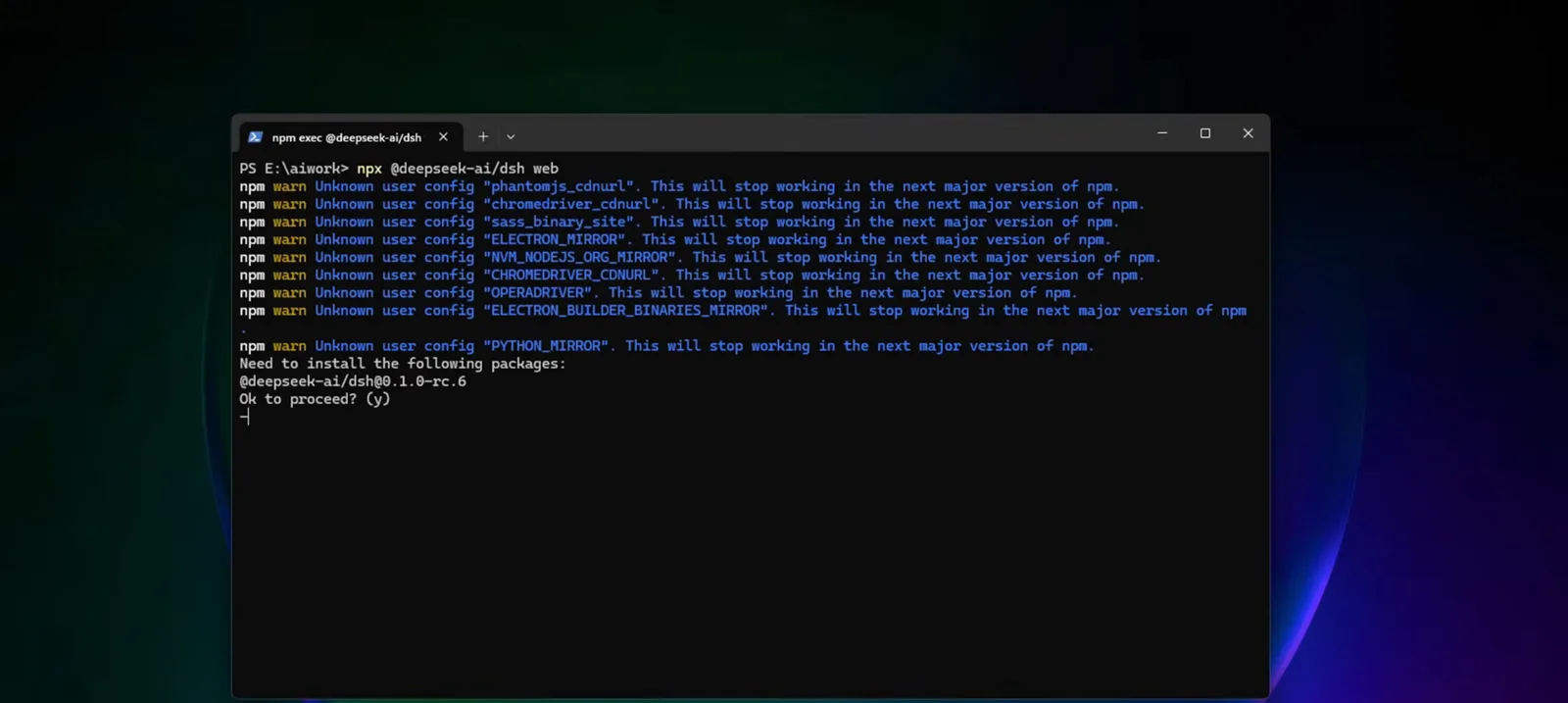
One command is all dsh needs: npx fetches the CLI on first run — rc.6 is what this recording captured.Watch at 0:40 - 2
Add the plugin market itself as a plugin
dsh ships without a market. The video adds one from the terminal — the command is in the block below. Three things in that line matter: --profile web pins the plugin to the Web UI profile, the github: prefix installs straight from a repository, and the repo behind it (verified on GitHub; since renamed dsh-plugin-gating-hub) is a marketplace front-end listing hundreds of community plugins and skills. Everything after this step happens in the panel it lands you in: 设置 → 插件 → 插件管理.
$dsh plugin --profile web add github:Noob-stupid/dsh-plugin-hub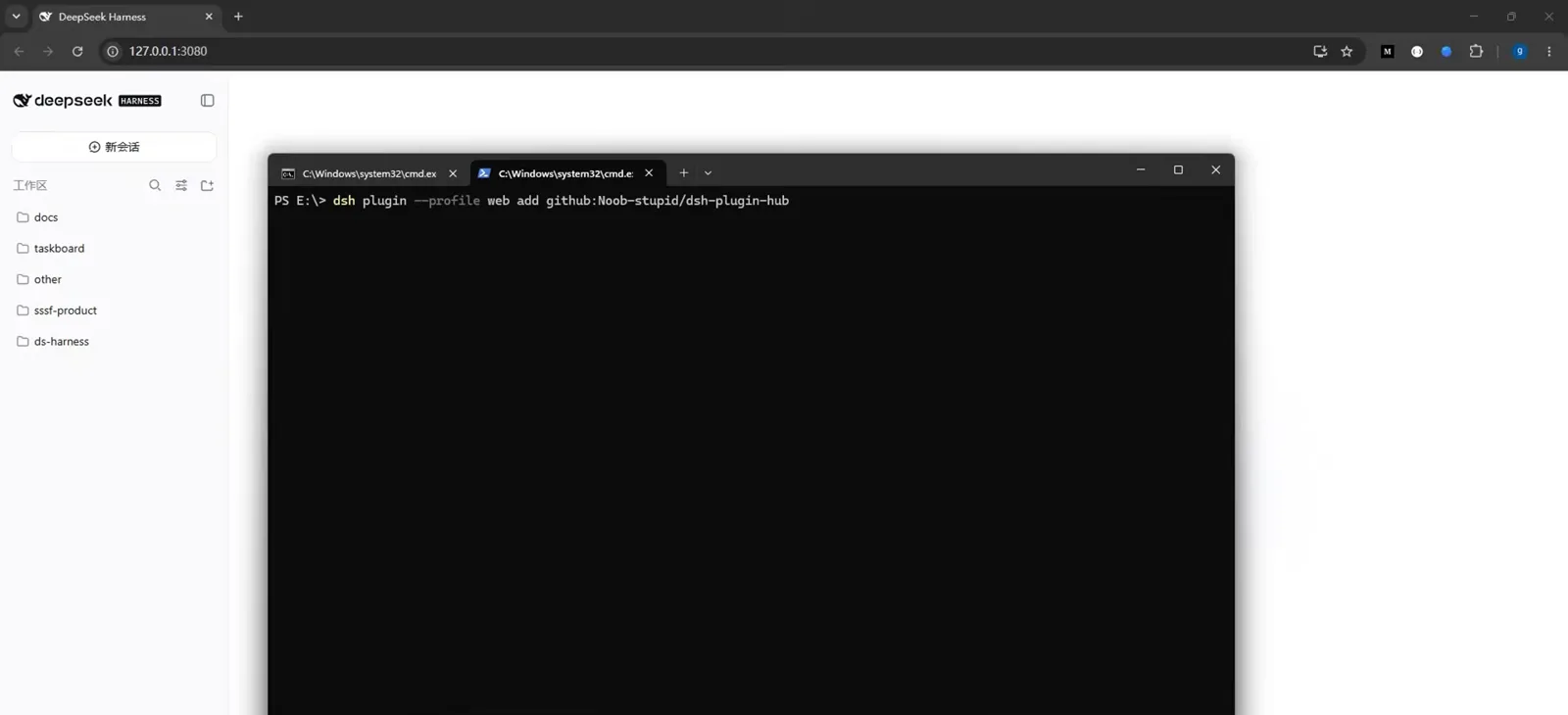
The market rides in as an ordinary plugin: one --profile web add line from any terminal.Watch at 1:20 - 3
Search the market without leaving the panel
Back in the manage panel, the 插件市场(GitHub) box searches GitHub directly — the fine print says it goes browser-direct and falls back to a server channel when GitHub is unreachable, which is also what the 未登录 GitHub badge is about. The capture searches dsh-task-board and gets four repositories back, each with a star count, an expandable description and two actions: 查看 opens the repo, 添加到本地 installs it. Stars first, then add — the whole vetting workflow in one row of buttons.
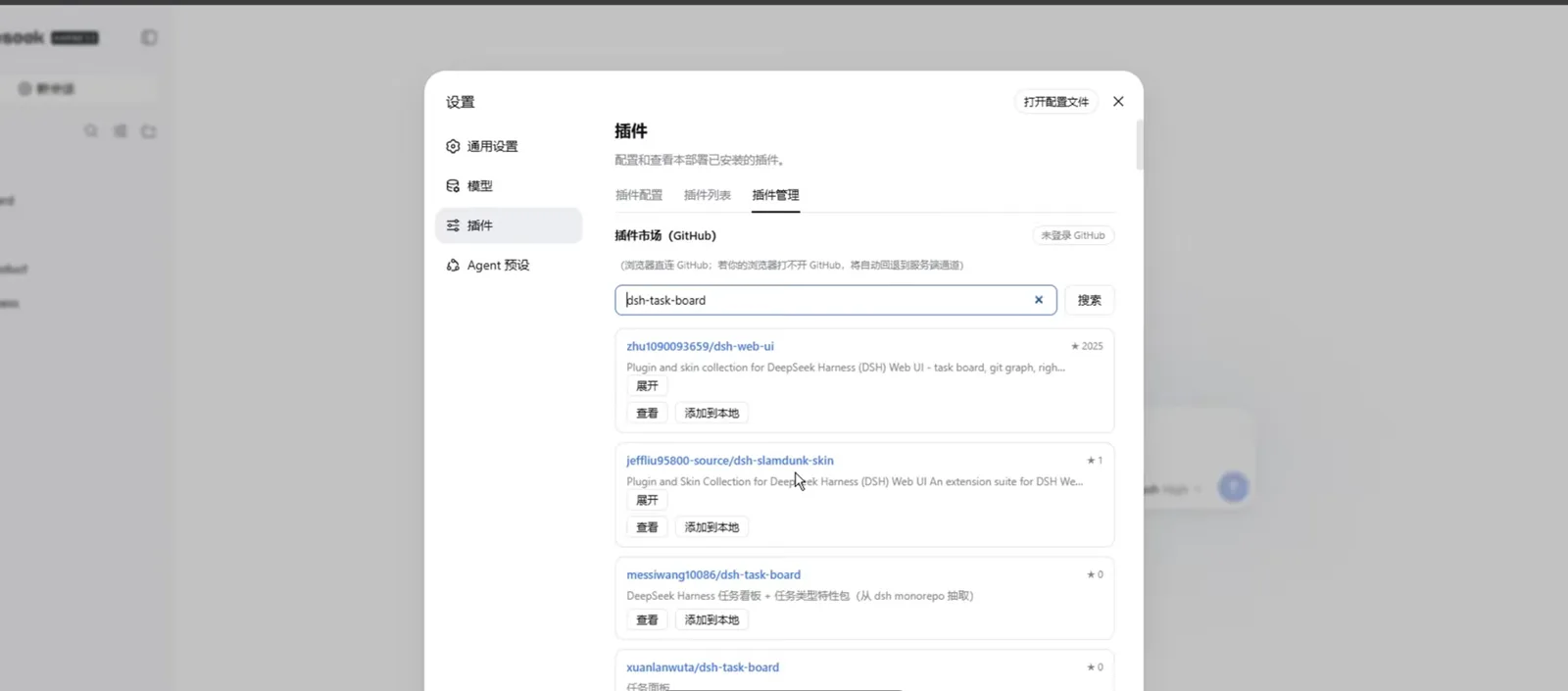
Stars are visible before anything lands locally — read them, then add.Watch at 1:40
Core plugins, hands-on
- 4
Let long work run in the background
The heaviest session in the video is a plugin-audit job in 创造模式: the header counts 1 个后台任务运行中 while the trajectory scrolls through Think, Read, Grep and 上下文注入 @deepseek-ai/dsh-system-prompt steps, and a 任务 panel tracks 1 进行中 · 6 待处理. The line that lets it run unattended is permission · preset danger-full-access — full file access, approvals off. Grant that preset only to work you have already scoped, and keep user approval for everything else.
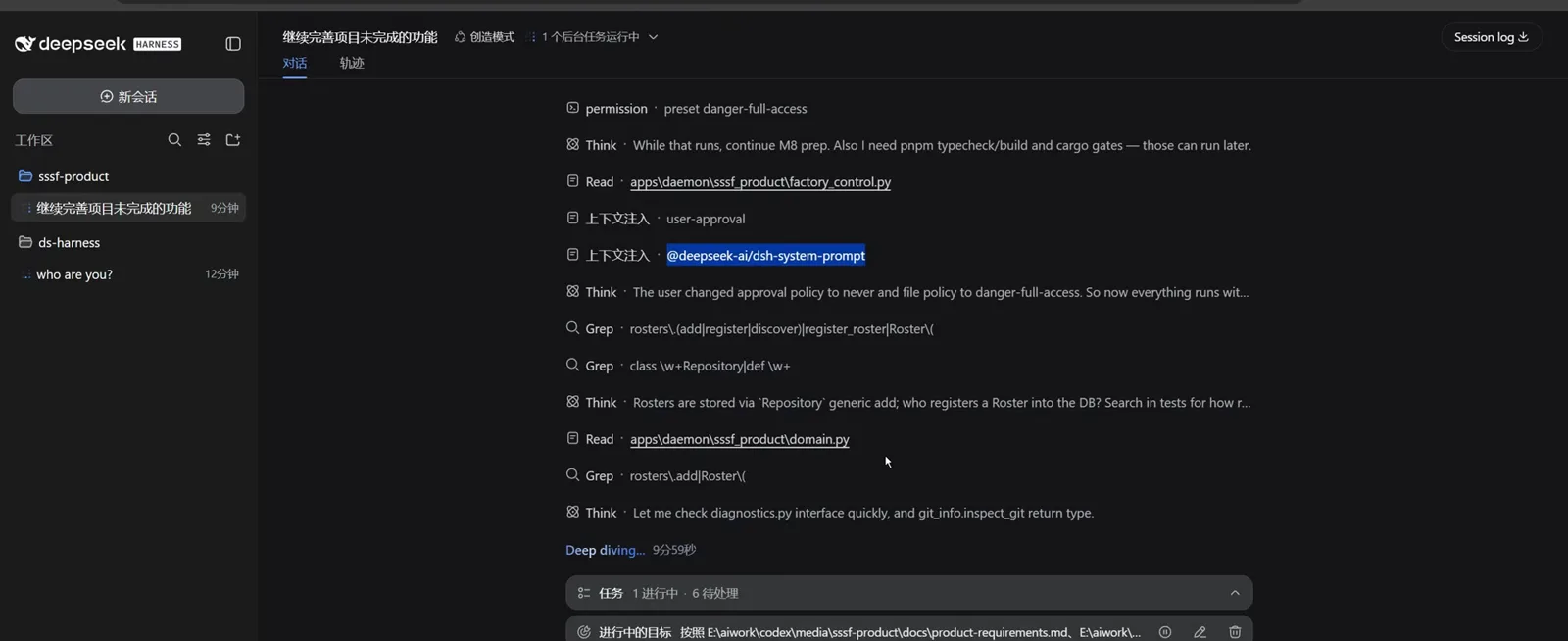
A long unattended run: the task keeps working in the background while the trajectory fills up.Watch at 2:00 - 5
Recognize images with dsh-vision
The default model in the recording cannot read pictures, so the author installs dsh-vision and retries: an image sits in the composer next to 这张图讲的是…, Workspace Write and the model picker stay untouched, and the sidebar keeps 识别图片中的模型 and 安装GitHub插件dsh-vision sessions from earlier attempts. The pattern generalizes: when a capability is missing, the fix is a plugin, not a different app.
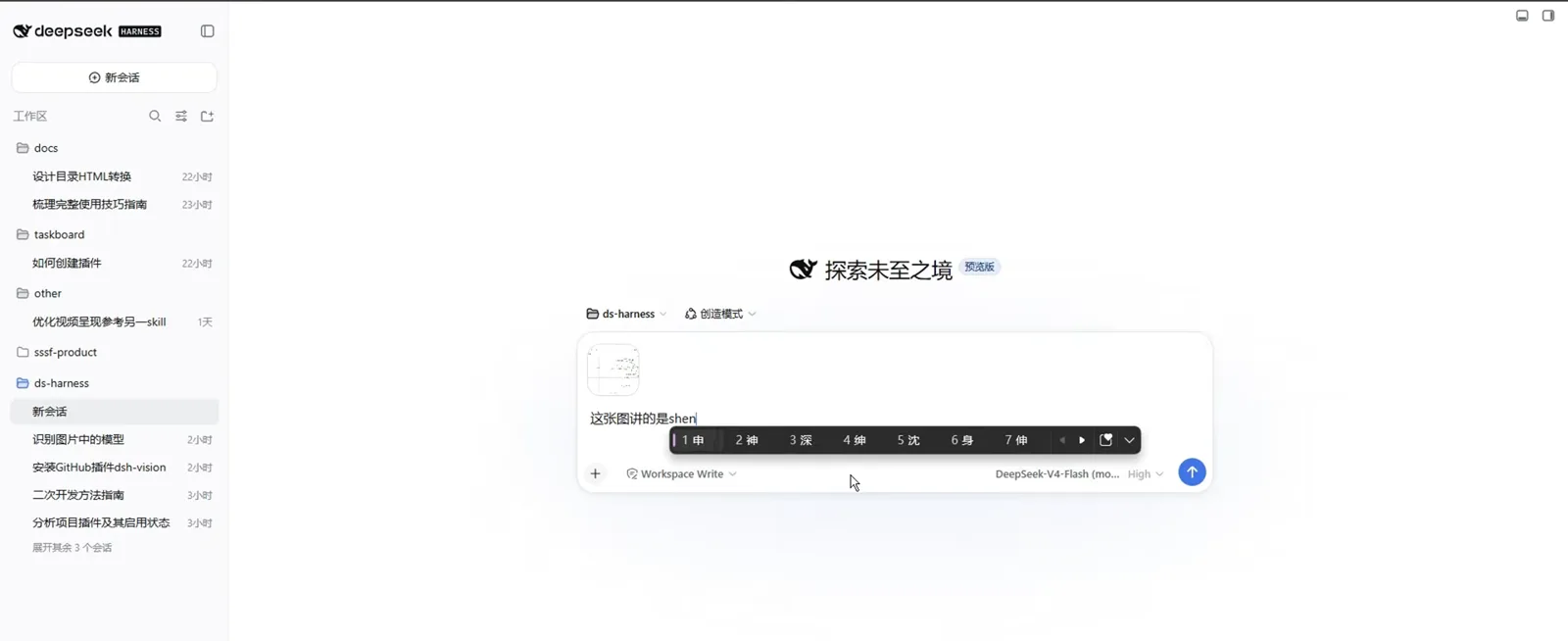
Ask about a picture in plain language: a vision plugin covers what the default model cannot.Watch at 3:20 - 6
Install DSH-better-sidebar through an audited script
The most copyable moment of the video: instead of piping a one-click installer straight into PowerShell, the author has dsh download it as a job, inspect it locally (audit step), and only then run it. The verdict — Script is clean — comes with a five-step list: verify node and the profile dir; patch pnpm-workspace.yaml (allowBuilds + minimumReleaseAgeExclude); run dsh plugin --profile web add dsh-better-sidebar@latest; verify dsh.profile.bundles contains the package; idempotently remove any old manual better-sidebar mount from cordis.patch.yml. The repo is omdsh-dev/DSH-better-sidebar — an open sidebar foundation with file editing, terminal, side chat, Git and sub-agent pages.
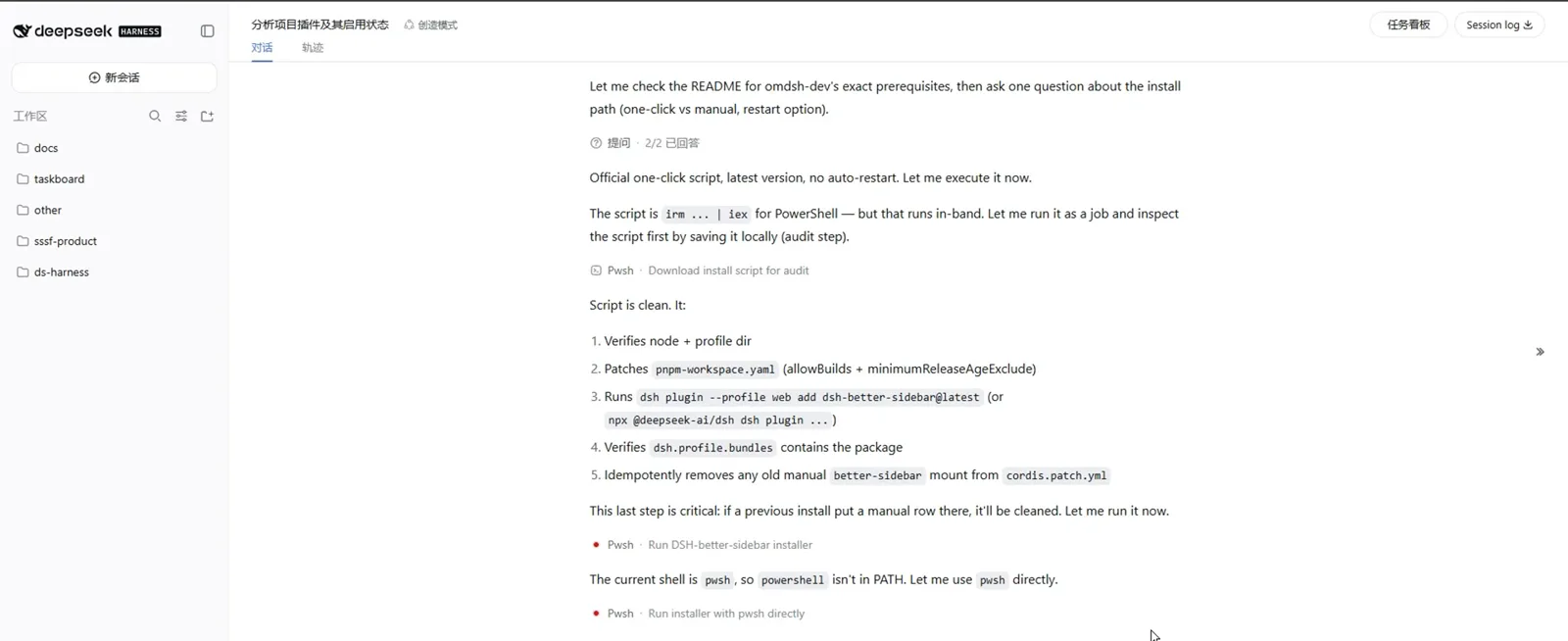
Download as a job, read locally, then run — the audit habit that keeps one-click installers honest.Watch at 4:40
Everyday mode: permissions and workspaces
- 7
Settle into everyday mode
The closing frame is the home screen you end up on: 探索未至之境, workspace ds-harness, a composer wearing the Full access badge with MiniMax-M3 Default in the model slot — the video also flashes Kimi K3, and model lineups move fast, so read both as that week's pick — and a sidebar listing your recent sessions. From here the loop is the one this page walked: search the market, read the audit, 添加到本地, keep working.
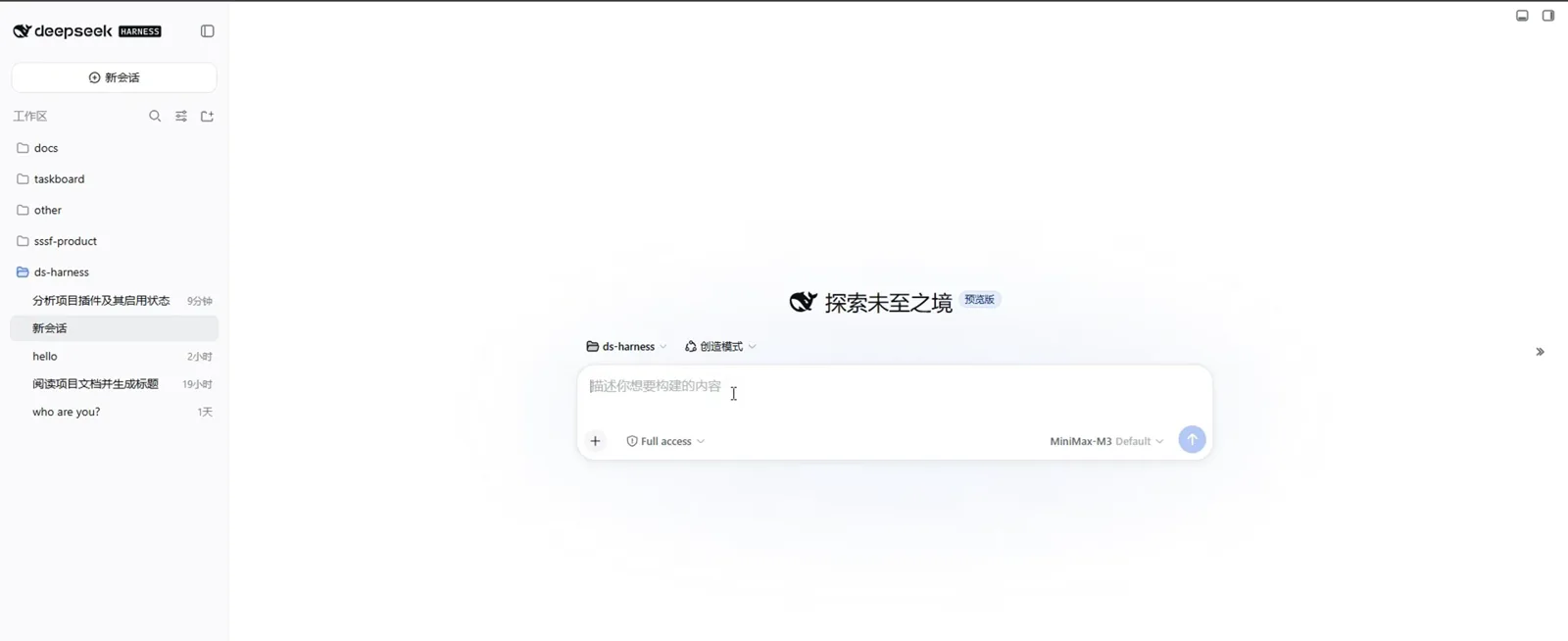
Daily driving: Full access where you type, recent sessions one glance away.Watch at 6:00
Essential-plugins FAQ
The questions that come up between watching the video and trusting your own setup to it.
Which plugins does the video actually install?
Two, on screen and end to end: the plugin market — installed with dsh plugin --profile web add github:Noob-stupid/dsh-plugin-hub, a repository verified on GitHub that has since been renamed dsh-plugin-gating-hub — and DSH-better-sidebar (omdsh-dev/DSH-better-sidebar), added through the audited one-click script. dsh-vision only appears as already-installed sessions (安装GitHub插件dsh-vision), so take its install line from the plugin's own README. The manage-panel grid also shows what ships with dsh itself: include, timer, hmr, llm, session, typert-registry, typert-loader and api-gateway.
Is the danger-full-access preset safe?
It is what the video switches on for one long unattended run: the trajectory shows permission · preset danger-full-access while a background task pushes through a 40-step session (1 轮 · 40 步 on the status line). Full access means approvals never interrupt the work — and nothing stops a bad step either. The safe reading: grant it to scoped work you understand, keep user approval everywhere else. The 受保护 badge in the manage panel is unrelated — it marks dsh's built-in plugins so cleanup cannot touch them.
What do the 已启用 and 受保护 badges mean in the manage panel?
Two per-plugin state flags. 已启用/已停用 says whether the plugin is mounted right now — in the capture hmr sits at 已停用 with an 启用 button while the rest are live — and 停用/详情 toggle or inspect each card. 受保护 marks the plugins that ship inside dsh itself; the 已搭载 include:… line on each card names the bundle they come from, which is why uninstalling a third-party plugin never touches them.
The video shows dsh 0.1.0-rc.6 and models like Kimi K3 — will I see the same?
Treat those as the recording's timestamp, not a checklist. What transfers is the mechanics: the market search, the add command's shape, the manage panel, the audit flow. What will have moved on is versions and the model picker — the video cycles through Kimi K3 Default, MiniMax-M3 Default and DeepSeek-V4-Flash. If an install line fails, check the plugin repo's README for the current command before retrying.
Related guides
Where to go next once the core set is on your machine.
How to find dsh plugins (illustrated)
Three finding paths — the in-app market, awesome lists and the official manager — verified frame by frame.
Read the guideInstalling plugins you can trust
How plugin installation actually works in dsh, plus the checklist for vetting third-party code.
Read the guideInstall skills the right way
Skills are the other half of the ecosystem: from mkdir to a catalog-injection receipt, no restart needed.
Read the guideTrack dsh token usage & costs
Plugins add capability and tokens alike — read the per-request receipt and keep spend visible.
Read the guideSource
All eight screenshots come from one YouTube hands-on — thanks to 野码AI for the recording. It is a Chinese-language video with burned-in captions and no separate track, so the steps above were written from what is on screen: the terminal commands, the settings-dialog labels and the agent's own transcripts. The market repo (Noob-stupid/dsh-plugin-hub, since renamed dsh-plugin-gating-hub) and DSH-better-sidebar (omdsh-dev) were both verified on GitHub. For the general plugin workflow, see the plugin install guide