
dsh-design-mode
Maintenance: Activekaichencurry/dsh-design-mode
Visual execution layer for DeepSeek Harness—guided intent, infinite canvas, contextual image tools, and chat-native comments.
$ dsh plugin add dsh-design-modeInstall
dsh has no central install command — add this plugin’s entry (documented in its README) to your profile or patch config, then restart.
How installs work16
stars
0
forks
TypeScript
Language
MIT
License
2026-08-22
Created
2026-09-01
Last push
README
DSH Design Mode
English | 中文
Turn one idea into a visual result you can keep refining—inside DeepSeek Harness.
DSH Design Mode connects guided intent clarification, image generation, an infinite canvas, contextual image tools, and location-aware comments to the native DSH conversation.
Watch the workflow · Quick start · Product PDF




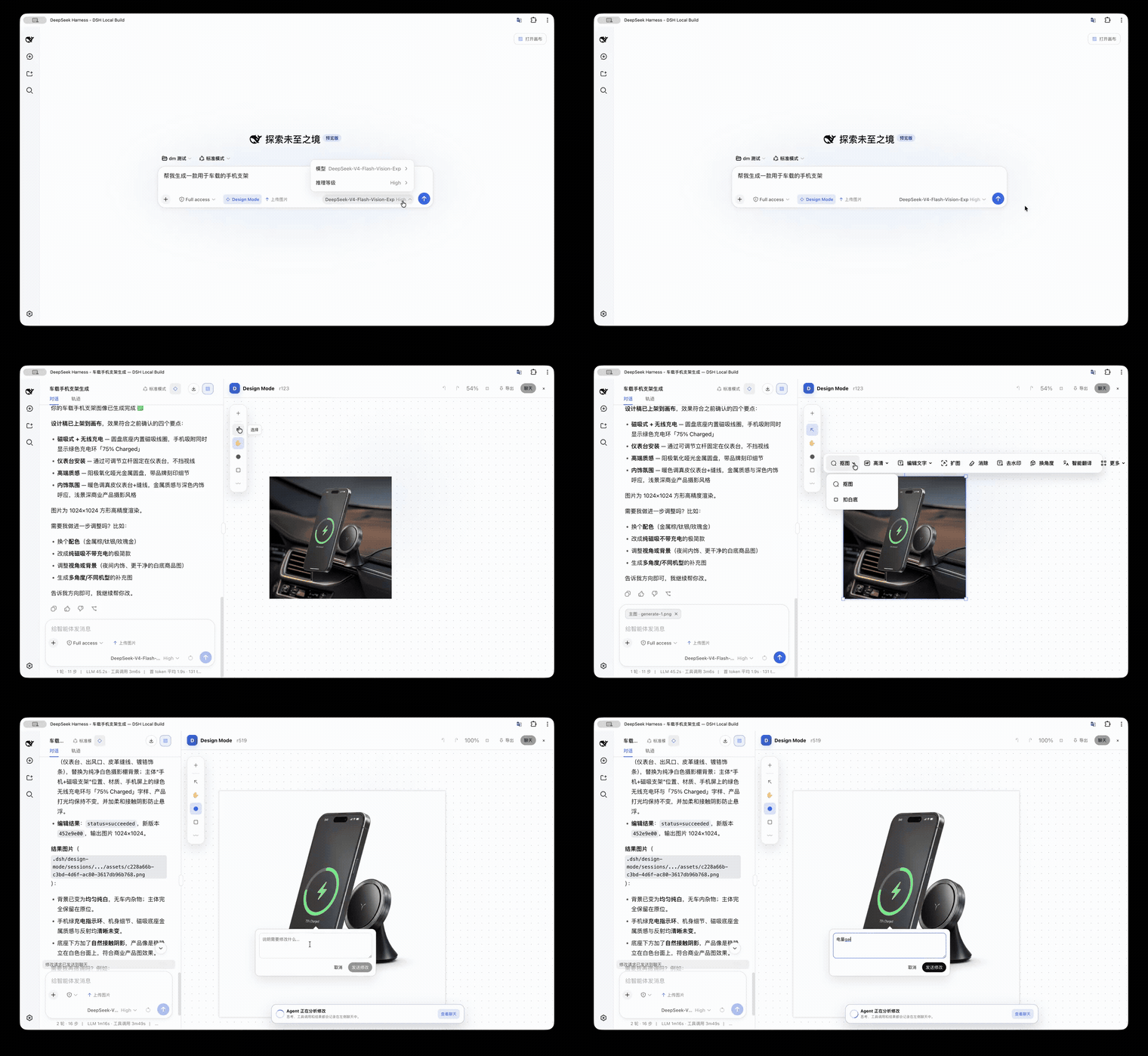
One conversation. One canvas. Every edit stays traceable.
Developer preview based on
dsh-v0.1.1-rc.2. This independent community project is listed under the GitHubdsh-plugintopic and is not an official DeepSeek release.
Why Design Mode exists
Image models can already produce impressive pixels. The surrounding workflow still asks the user to behave like a product manager: translate an idea into a production prompt, choose the correct tool, move context between panels, and reconstruct why each revision exists.
DSH Design Mode makes that coordination part of the Agent session. A user can begin with ordinary language, clarify only the decisions that materially affect the result, generate or import an image, select the object to edit, and send precise visual comments back through the same conversation.
| Without a continuous workflow | With DSH Design Mode |
|---|---|
| A blank canvas or a wall of tools appears before the brief is clear. | Design Mode stays armed but opens the canvas only after text, an image, or both create real visual work. |
| The user must know how to write a production prompt. | ask_user converts an ambiguous request into 3–5 focused decisions before generation. |
| Editing tools are detached from the selected image and its history. | Tools appear for the selected object and write their results back to the current canvas. |
| Comments live in a separate review panel. | Point, rectangle, and brush comments return to chat and are processed in order. |
The product in one minute
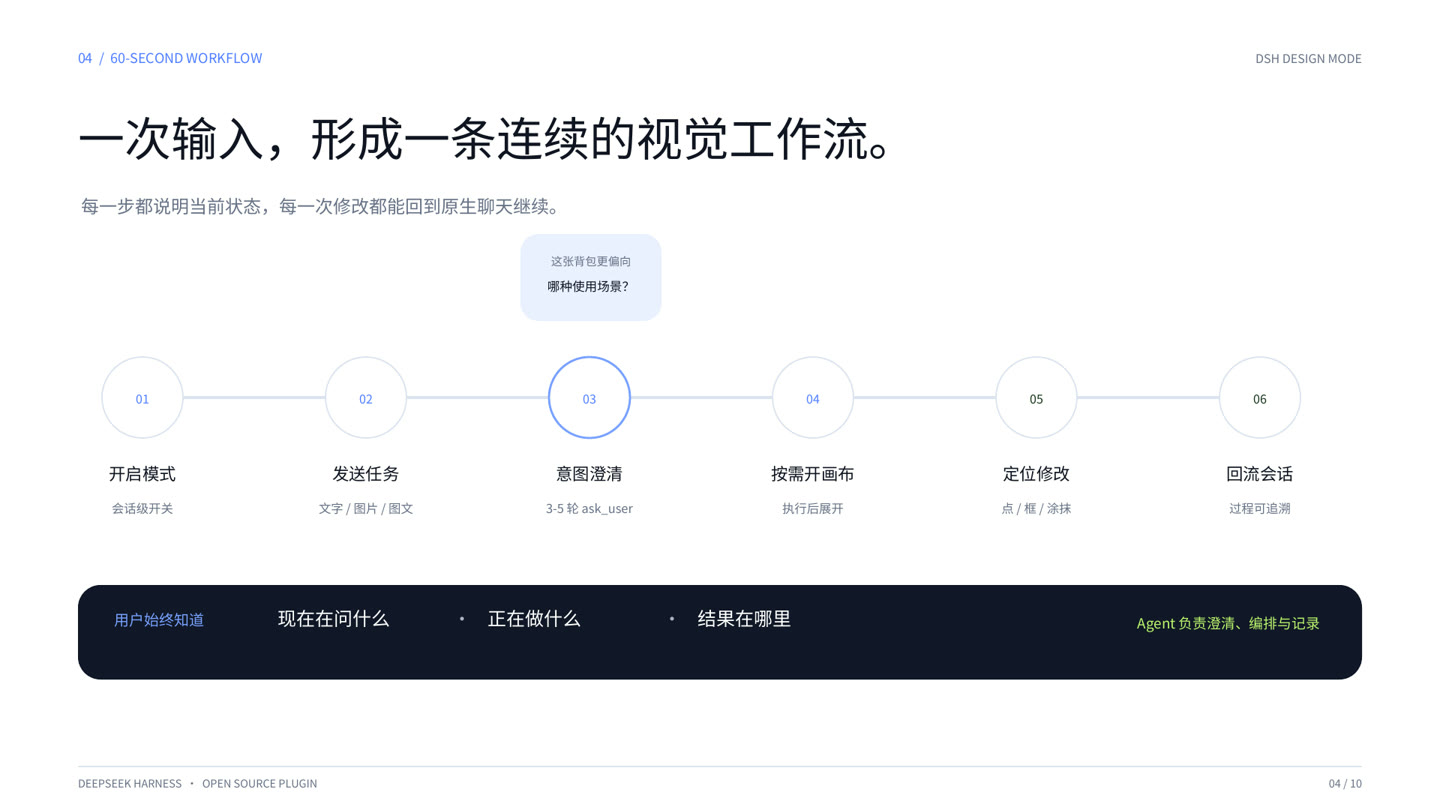
- Arm Design Mode. The mode is explicit and reversible; an empty canvas does not interrupt the conversation.
- Send text, an image, or both. The native Composer remains the single entry point.
- Clarify material ambiguity. The Agent asks one focused question per round, with three recommendations and a UI-owned “Other” input.
- Generate or import. The canvas opens when there is an image to inspect, compare, or edit.
- Edit in context. Selecting an image reveals the capabilities relevant to that object and task.
- Comment and continue. Location-aware requests return to the native conversation, preserving the visible reasoning and modification record.
Watch the real workflow
These recordings come from the working DSH build. Select a card to play the full MP4.
More in Design, Media & Vision
dsh-image-gen
by shanliuling
Adds in-chat multimodal image generation via a `generate_image` tool with multi-provider support (Gemini/OpenAI/Seedream), interactive preview, copy/download, and session-attached results.
dsh-vision-router
by ysr666
Eyes for text-only DeepSeek Harness agents: built-in free vision chain (no key) + pixel-level vision tools (Q&A, grounding, crop, pixel diff, colors, OCR, SVG trace, cutout, screenshots). One-command install, no Python, image turns work like ordinary tool-calling turns.
dsh-vision-toolkit
by anionex
为纯文本 DSH Agent 提供 10 个结构化视觉工具:意图感知图片问答、长截图 OCR、原始像素 grounding、UI 还原、像素 diff 等
dsh-see-now
by saos-3624
Captures screen, OBS, or webcam frames, filters by visual change, packs them into image sheets, and delivers them to DSH sessions.