
DeepSeek Harness on WSL: the Recorded Install and the Plugin Route
A live Kali WSL screen recording shows route A — apt mirror, nvm, npm mirror, first launch — while the dsh-wsl-workspace plugin (★69) is route B: one command, nothing installed inside WSL.
Last updated: 2026-10-06
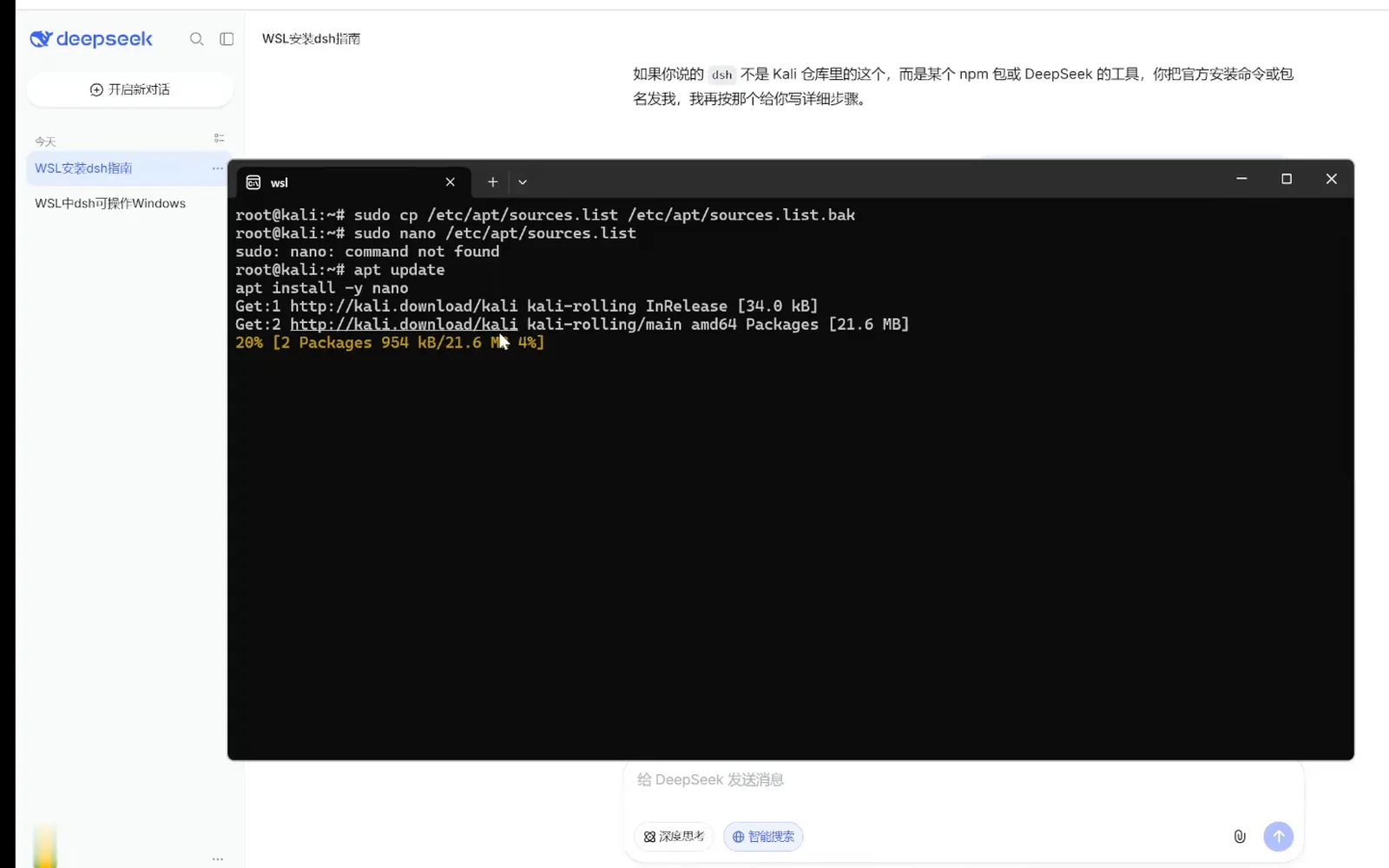
There are two honest answers to "can my Windows dsh use Linux tools". Route A installs DeepSeek Harness (dsh) inside a WSL distribution — the route this page follows frame by frame through a live screen recording: rewriting the apt sources, installing Node 24 through nvm, switching the npm registry to a mirror, surviving the first slow launch, and ending at the running web UI. Route B installs nothing inside WSL at all: the dsh-wsl-workspace plugin teaches your existing Windows dsh to open WSL workspaces straight from the GUI.
The ten frames below come from one single screen recording, so every screenshot links back to the exact second it was taken. If Windows is not part of your picture at all, dsh also installs natively on Linux — the same pipeline without WSL is covered step by step in Install DeepSeek Harness on Linux
TL;DR
- ▸Pick your route first: dsh already on Windows → route B, the dsh-wsl-workspace plugin (one command, then a W button adds a WSL workspace). Fresh setup or a Linux-native dsh → route A, the recorded walkthrough below.
- ▸Route A name trap: in Kali's repository apt install dsh is dancer's shell, a different program. DeepSeek Harness comes from npm as @deepseek-ai/dsh, on top of Node.js 24 installed through nvm.
- ▸Three mirror swaps carry the recording: the apt sources.list, NVM_NODEJS_ORG_MIRROR for node downloads, and npm config set registry for packages — all pointed at npmmirror or Tsinghua.
- ▸The first npx -y @deepseek-ai/dsh web downloads tens of megabytes — a spinner for one to five minutes is normal. Your first check is npm config get registry.
Route A: install dsh inside WSL, step by step
Route A — prep: the plan, the apt mirror, the dsh name trap
- 1
Start from a written plan, not a blank shell
The recording opens in a DeepSeek chat session titled "WSL安装dsh指南" (guide to installing dsh in WSL) that writes out the whole route before any terminal work: because dsh installs through npm, the WSL distribution needs its build tools and Node.js first — sudo apt update, install build-essential and python3, then Node 24 through nvm, verified with node -v and npm -v. Whether you regenerate such a plan with an AI or write your own, having it on screen gives every later step a checklist to diff against.
$sudo apt update$sudo apt install -y build-essential python3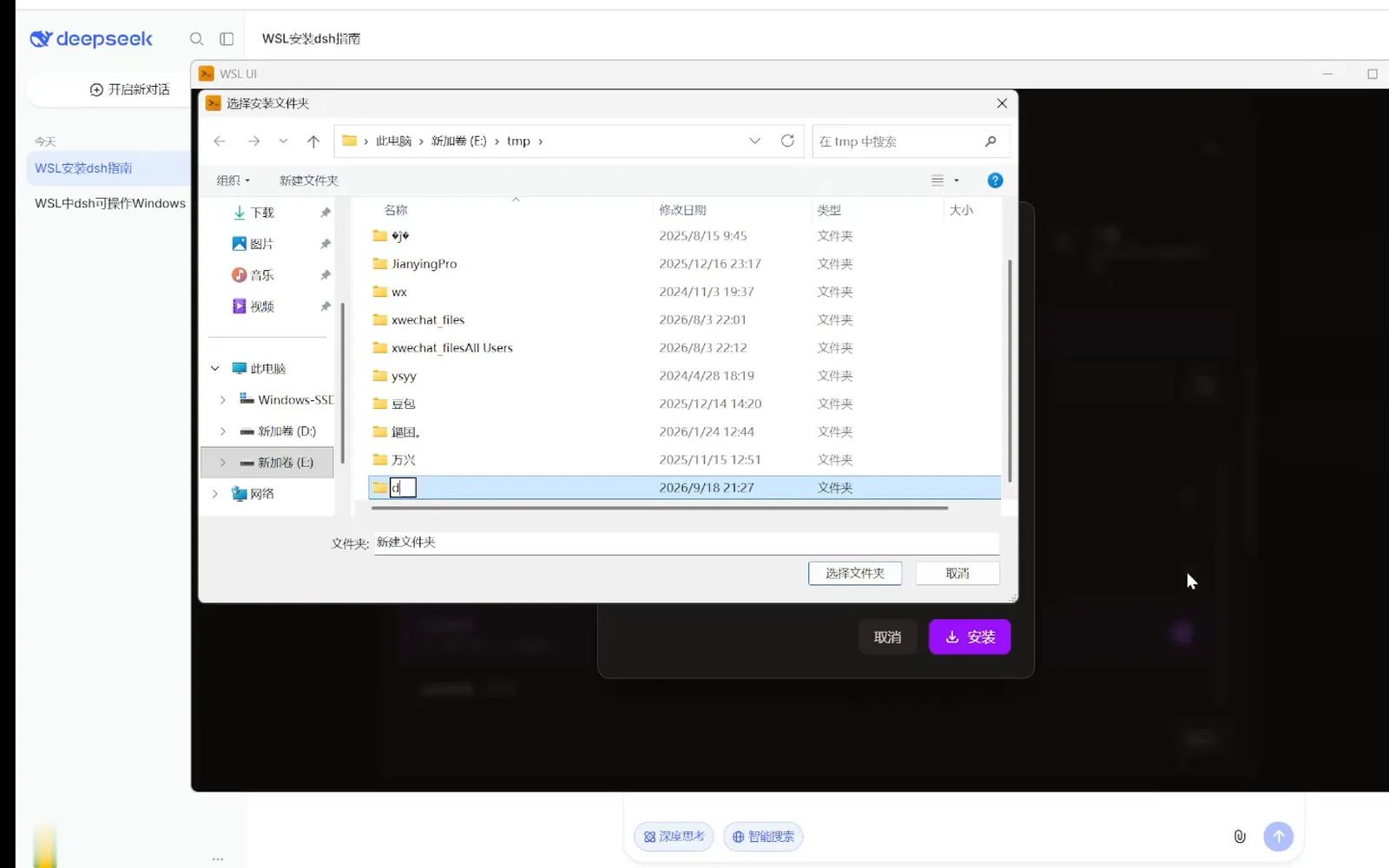
The whole route written out before a single command runs — prerequisites first, Node 24 via nvm.Watch at 1:00 - 2
Back up the apt sources, swap the mirror, apt update
The first terminal act happens in Kali (kali-rolling) inside Windows Terminal: back up /etc/apt/sources.list to sources.list.bak, replace the mirror line — the chat guide supplies a one-line overwrite so no editor is needed — then run apt update. The frame catches the real output: kali-rolling InRelease and 21.6 MB of Packages downloading. Small warning from the same recording: this minimal Kali image had no nano, so the first sudo nano died with "command not found" until apt install -y nano.
$sudo cp /etc/apt/sources.list /etc/apt/sources.list.bak$sudo nano /etc/apt/sources.list$apt update$apt install -y nanoBack up first, then edit — and if nano is missing, apt install -y nano.Watch at 5:10 - 3
The name trap: Kali's dsh is dancer's shell
Mid-recording, the guide session dropped its most useful warning: running apt install -y dsh on Kali installs dancer's shell — a distributed-shell utility with options like -m and an /etc/dsh/machines.list file, visible in the options table on screen. It is a completely different program that merely shares the name. Whatever else you do here, the DeepSeek Harness is not in the distribution repository; from this frame's content only apt update belongs to your dsh preparation.
$apt update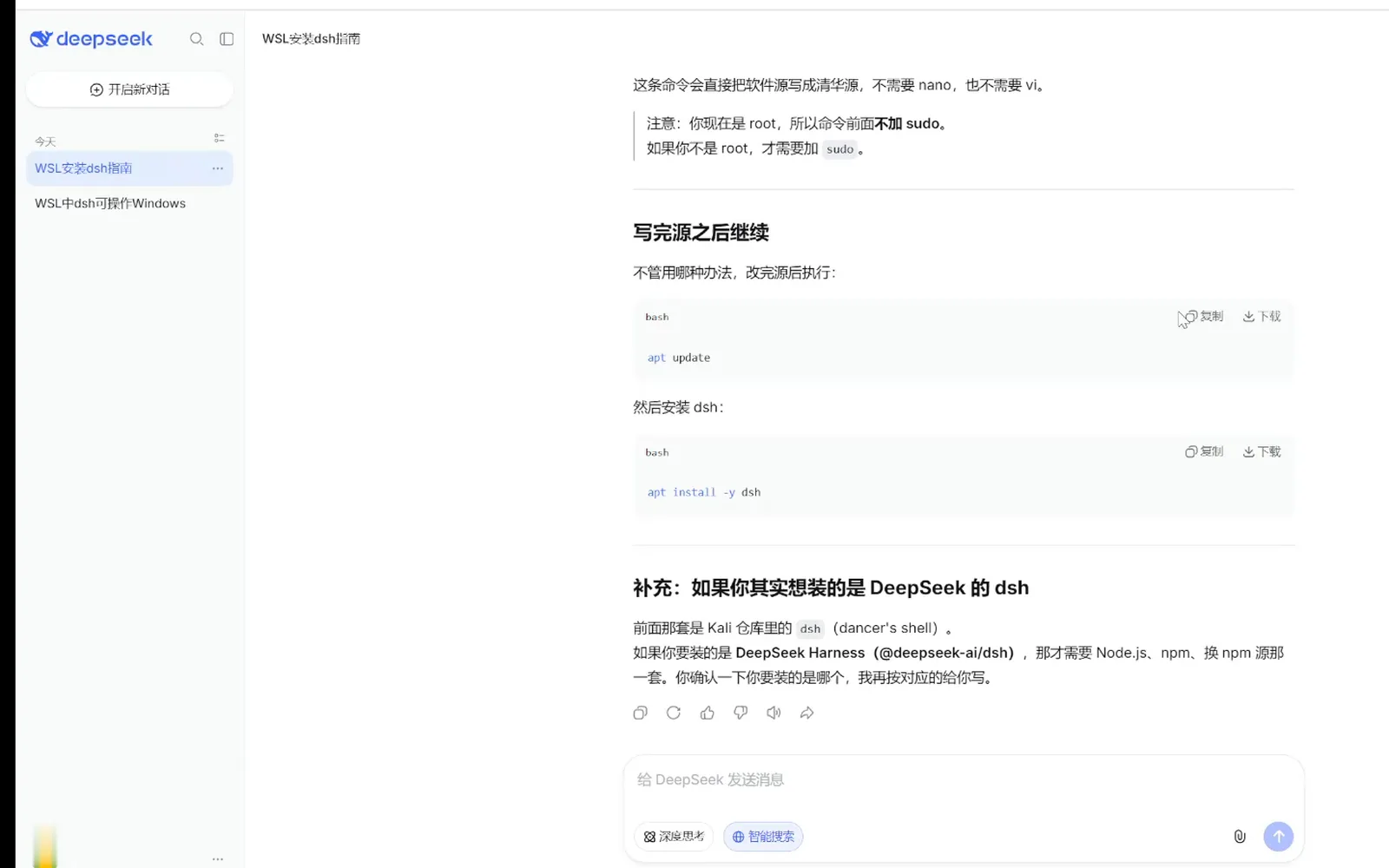
The recording's most valuable warning: that apt dsh is a different program.Watch at 7:00 - 4
Uninstall the wrong dsh, commit to the npm route
The guide's follow-up makes the fix explicit: remove the accidentally installed package with apt remove -y dsh, then follow the Node.js + npm route for @deepseek-ai/dsh. The same message also names the launcher you will eventually run — dsh web, DeepSeek Harness's web service — to keep it clearly separate from the impostor. From here on, every command in the recording targets the npm package.
$apt remove -y dsh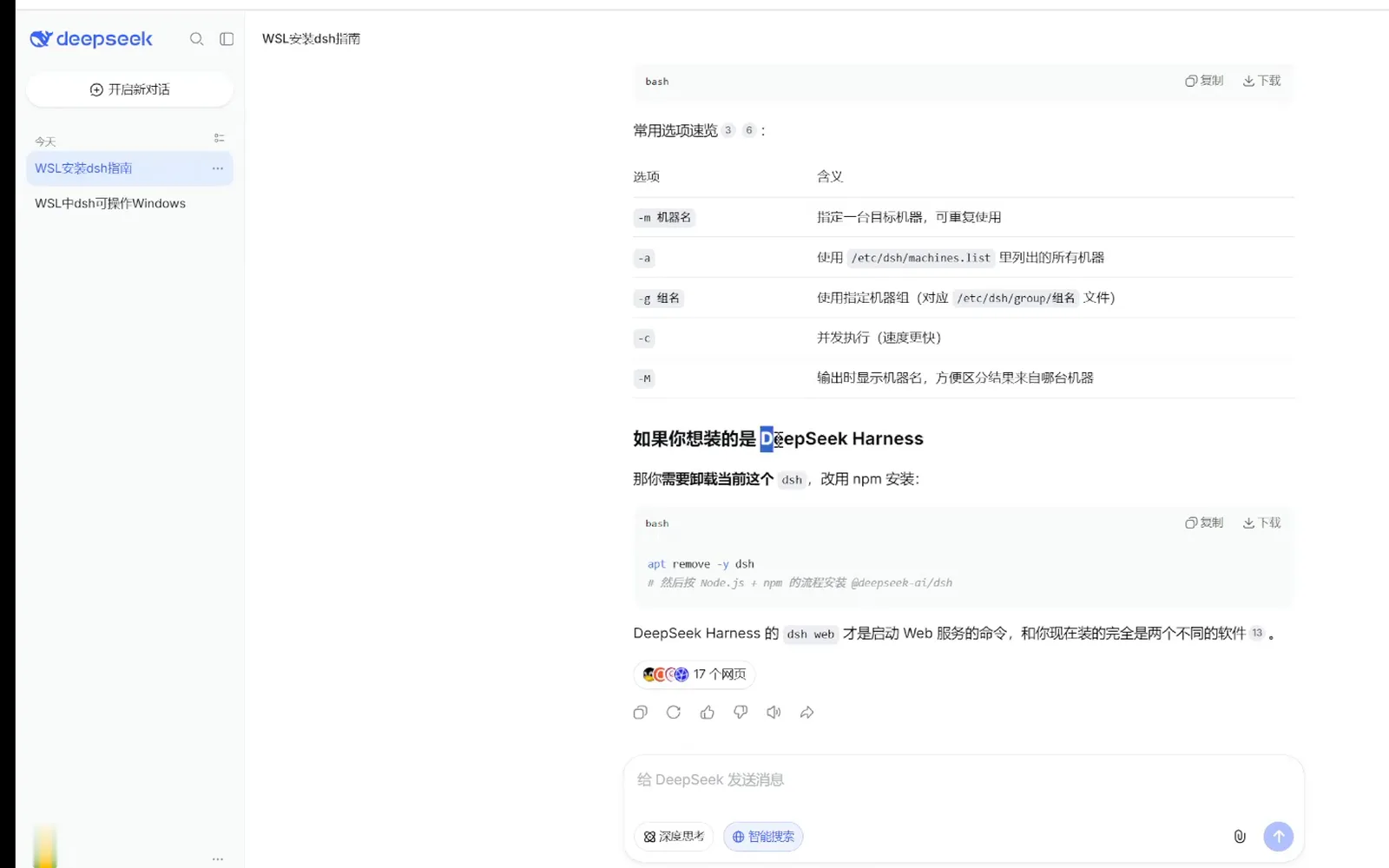
One uninstall later, the plan commits to the npm route — and names dsh web as the launcher.Watch at 8:40
Route A — Node 24 through nvm, npm mirror, launch command
- 5
Install nvm — and watch a mirror fail live
With curl in place, the recording installs nvm by piping the v0.39.7 install script into bash. The GitHub run succeeded — "Downloading nvm as script to '/root/.nvm'" — but an immediate retry through a gitee mirror in the same frame returned "No such file or directory": mirror availability changes by the hour, so having a fallback is not optional. source ~/.bashrc loads nvm into the current shell, and nvm -v should print 0.39.7.
$curl -o- https://raw.githubusercontent.com/nvm-sh/nvm/v0.39.7/install.sh | bash$source ~/.bashrc$nvm -v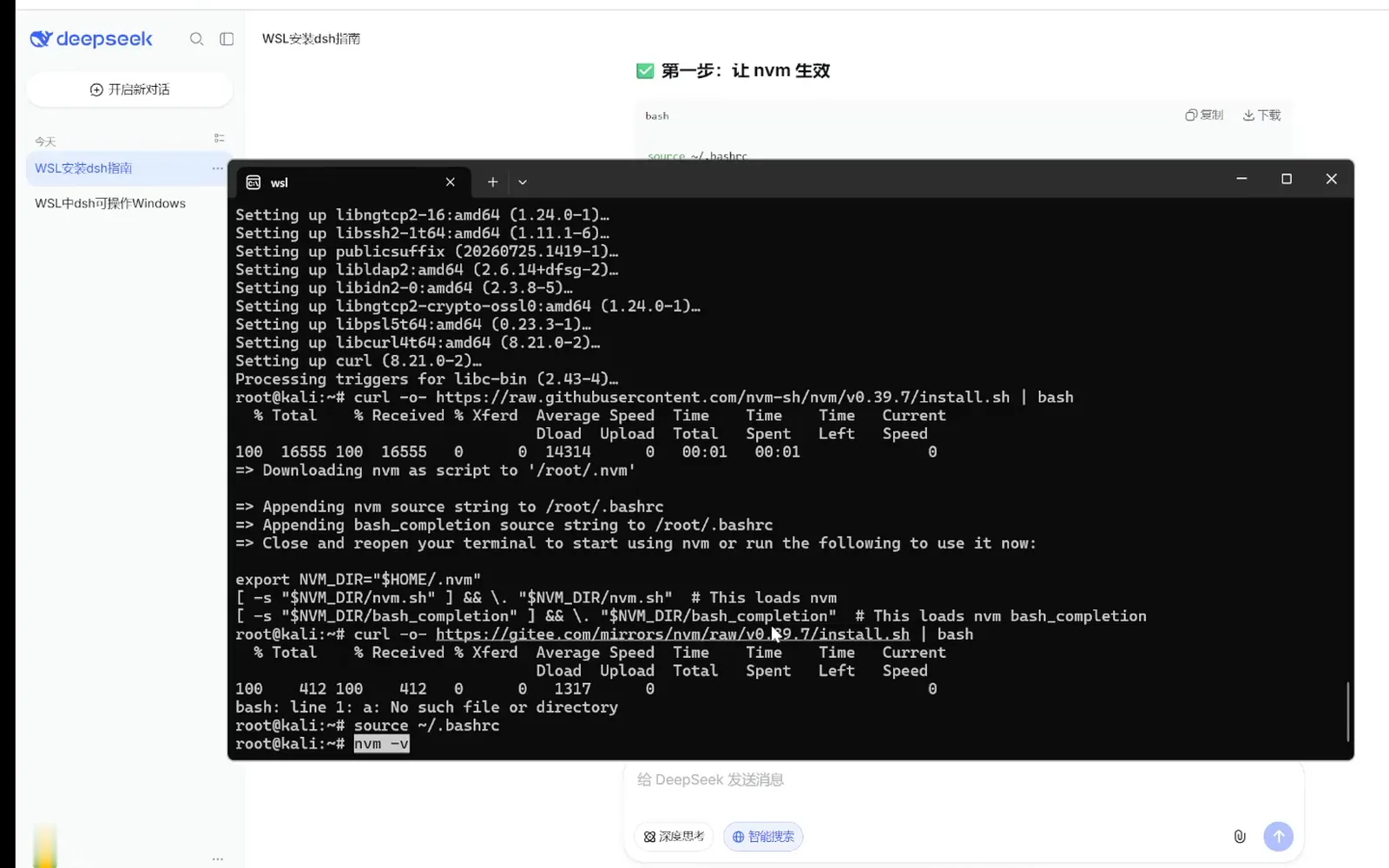
Real recording, real mirror flake: GitHub worked, gitee didn't.Watch at 10:20 - 6
nvm install 24 — with the node mirror swapped in
nvm install 24 first headed to nodejs.org and crawled at one to two percent before Ctrl+C, leaving nvm's warning that "Version '24' does not exist" because the alias had nothing to point at yet. The fix shown next: export NVM_NODEJS_ORG_MIRROR=https://npmmirror.com/mirrors/node, then install again — the frame even catches nvm purging a checksum-mismatched cache file before re-downloading cleanly from npmmirror. Finish with nvm alias default 24 so new shells land on Node 24.
$nvm install 24$export NVM_NODEJS_ORG_MIRROR=https://npmmirror.com/mirrors/node$nvm alias default 24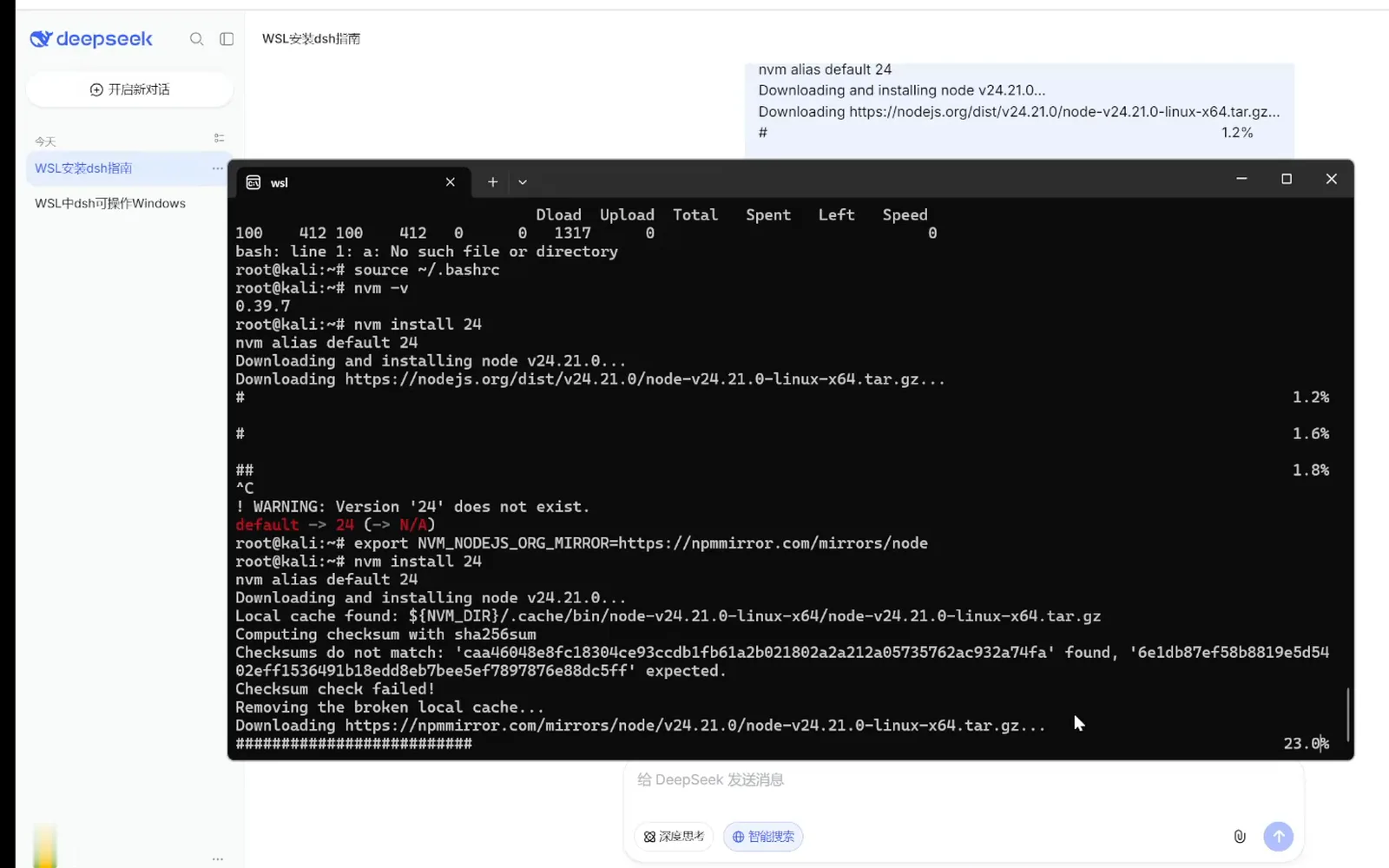
Slow nodejs.org, Ctrl+C, export the npmmirror mirror — then it flies.Watch at 11:40 - 7
Verify Node, set the npm registry, launch
The guide's step five and six close the loop: node -v should now print v24.x.x (npm -v alongside), point npm at the package mirror with npm config set registry https://registry.npmmirror.com, and start the service with npx -y @deepseek-ai/dsh web. The guide also offers a Tsinghua mirror for the node downloads and says the honest thing about mirrors: use whichever is faster for your network.
$node -v$npm -v$npm config set registry https://registry.npmmirror.com$npx -y @deepseek-ai/dsh web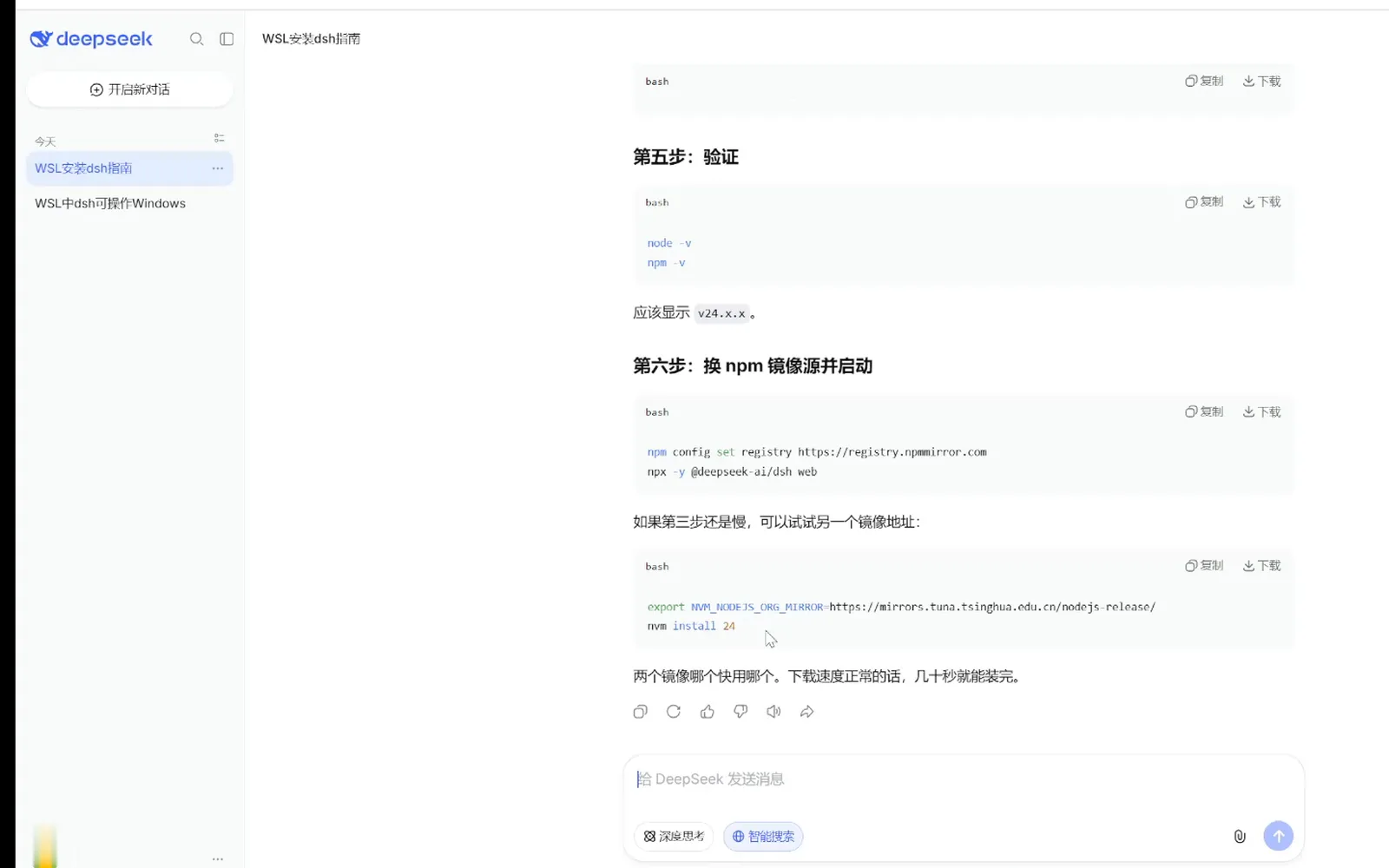
Verify, switch the npm registry, and the launch is one npx line.Watch at 13:00
First launch, troubleshooting, the running UI
- 8
First launch: a spinner for minutes is normal
npx downloads the @deepseek-ai/dsh package and its dependencies on first run — tens of megabytes or more — so when the recording's operator typed "should I wait?", the guide's answer was yes, and quantified: a spinner with no error for one to five minutes is normal; past five minutes without movement, Ctrl+C and troubleshoot. First check: in a new terminal, npm config get registry must print the npmmirror URL — if not, set it again.
$npm config get registry$npm config set registry https://registry.npmmirror.com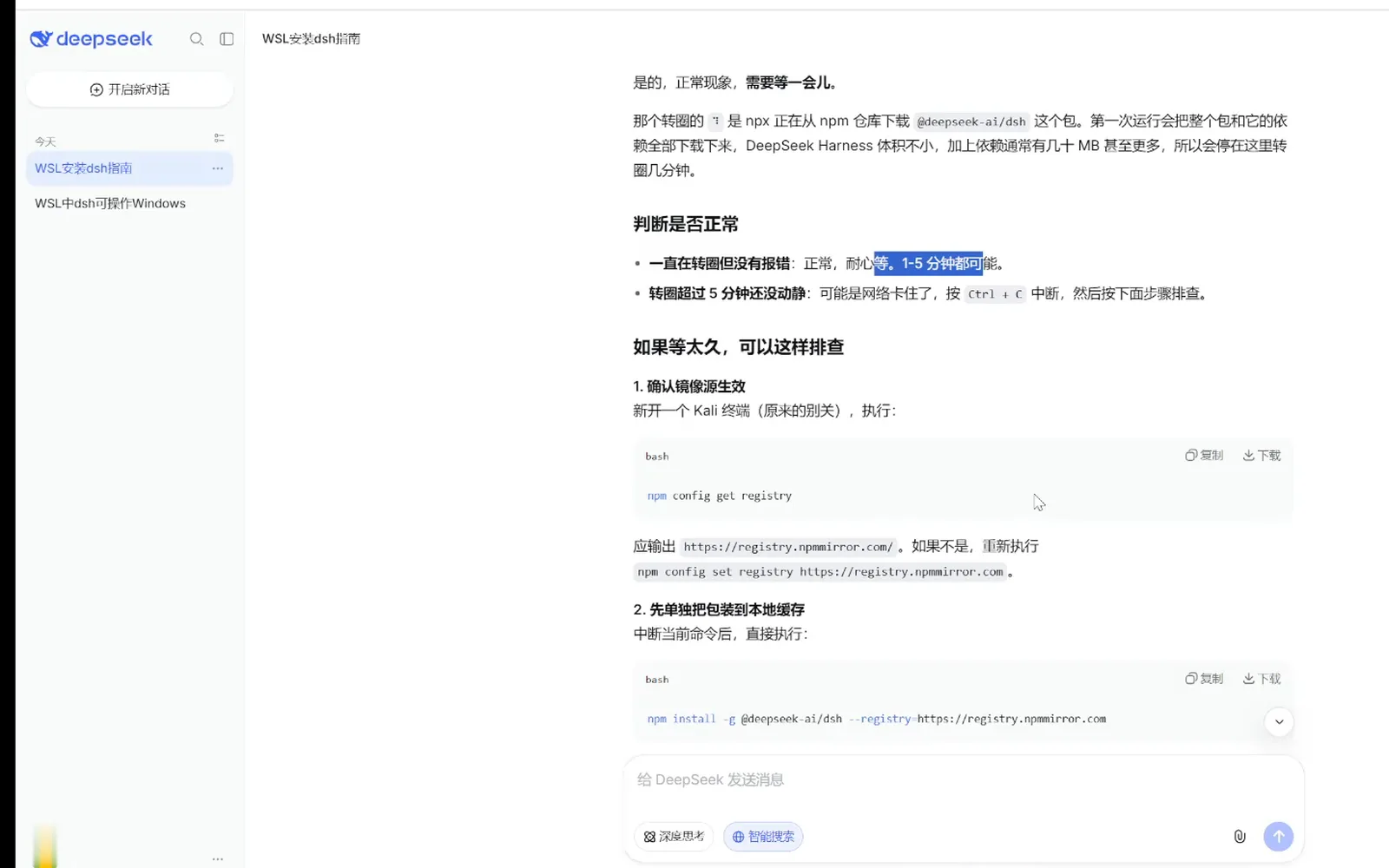
Waiting is a step — with a time budget and a first check.Watch at 13:35 - 9
Install globally, then dsh web
The guide's sturdier alternative to watching npx spin: npm install -g @deepseek-ai/dsh --registry=https://registry.npmmirror.com puts a real progress bar on the same download, and once it finishes you start the service with the bare dsh web. If one dependency stalls, the guide's last resort is adding --verbose for the detailed log.
$npm install -g @deepseek-ai/dsh --registry=https://registry.npmmirror.com$dsh web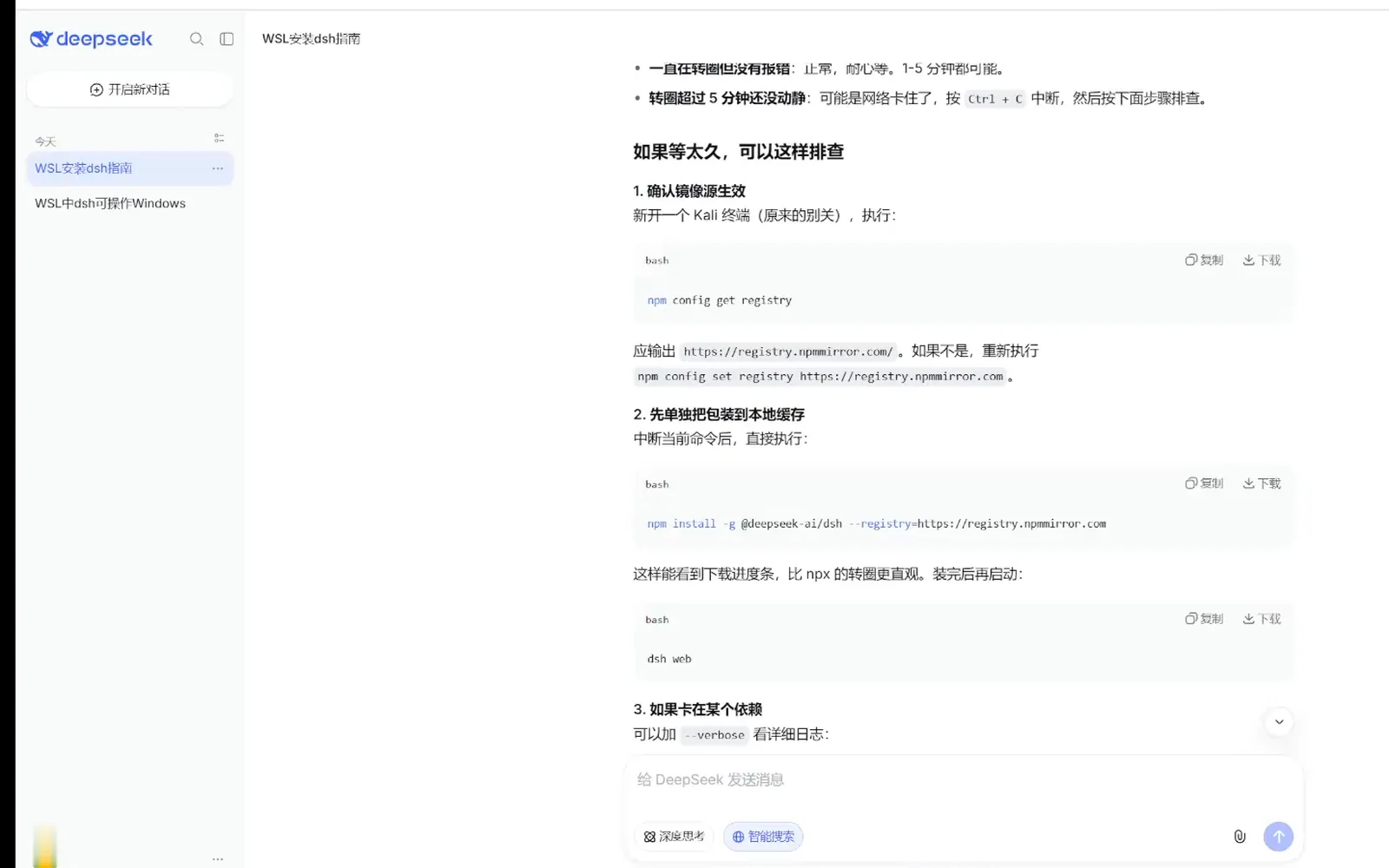
A real progress bar beats a spinner: install globally, then dsh web.Watch at 14:10 - 10
The web UI is up — dsh now lives in WSL
The recording ends where you want to end: the DeepSeek Harness web UI rendering in the browser — workspaces in the sidebar, Standard mode, DeepSeek-V41-Flash selected. From here, sessions execute inside the WSL distribution with real Linux paths, and the full Linux toolchain sits behind the same chat box you already know.
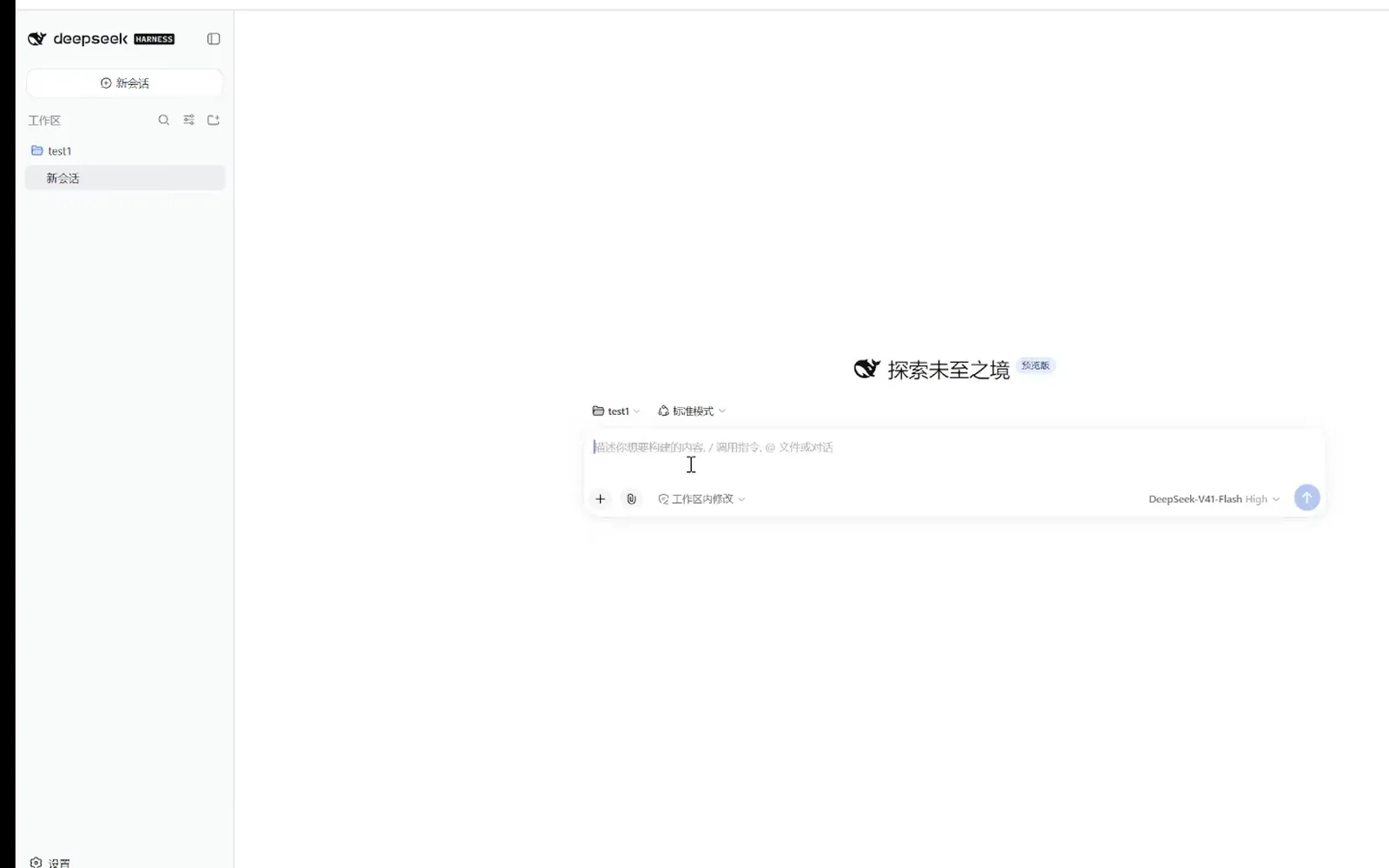
The finish line: dsh's own web UI, now living inside WSL.Watch at 15:00
Route B: the dsh-wsl-workspace plugin — no dsh inside WSL
If dsh already runs on Windows, the community plugin dsh-wsl-workspace (★69, MIT, verified 2026-10-06) is the shorter road: its README promises "a seamless WSL workspace experience without needing to install dsh inside WSL". Pick one of the three commands below, run it, then restart dsh web — nothing gets installed inside your WSL distributions.
After the restart a W button appears beside Settings at the sidebar foot. It opens the "Add WSL workspace" dialog: pick one of your installed distributions, browse or type an absolute Linux path (the Check button verifies it), optionally name a Linux user, then Create & open. In the new session the bash tool executes inside the distribution while Windows files stay reachable under /mnt/<drive> — and WSL itself is the isolation boundary, since the Windows ACL sandbox cannot wrap wsl.exe.
Which route, then? Route B when a working Windows dsh exists and Linux tools are the only missing piece — one command versus the whole recorded pipeline. Route A when the machine is fresh, or you want dsh itself living in Linux with nothing on the Windows side. A third variant exists for preset users: yukitakasama/dsh-wsl-preset (★2) installs a "wsl" agent preset instead of a workspace provider.
dsh on WSL: FAQ
The questions people actually ask when Windows meets Linux under dsh.
How do I install dsh inside WSL?
The recorded route: prepare build tools (sudo apt update, then sudo apt install -y build-essential python3), install Node 24 through nvm with NVM_NODEJS_ORG_MIRROR pointed at a fast mirror, set npm config set registry https://registry.npmmirror.com, then launch with npx -y @deepseek-ai/dsh web — or install globally with npm install -g @deepseek-ai/dsh and run dsh web. And remember the name trap: on Kali, apt install dsh is dancer's shell, not DeepSeek Harness.
Does dsh need WSL at all?
No. On Windows, dsh runs natively — Node.js, npm and the web UI on port 3080, all inside PowerShell, as our Windows install walkthrough shows. WSL earns its keep only when you want a real Linux toolchain — bash, apt, Linux paths — behind your agent sessions. And when that is the goal, the plugin route B can deliver it without a second dsh inside WSL.
Which Linux distribution should I install in WSL?
The recording uses Kali (kali-rolling) and reaches the running UI with it; the guide text it follows uses Ubuntu as its example, and either works — what matters is an apt-based distribution plus Node.js 24 for route A. For route B the question is even smaller: the dsh-wsl-workspace dialog lists the distributions you already have and you pick one. No official recommendation exists; this is what the recording used, stated as such.
What does the dsh-wsl-workspace plugin do?
It adds WSL workspaces to your existing Windows dsh, so sessions run bash inside a distribution and read Linux paths without any dsh inside WSL (repository description, verified 2026-10-06; ★69, MIT). After installing and restarting dsh web, a W button beside Settings opens the Add-WSL-workspace dialog: choose the distribution, verify a Linux path, optionally set a Linux username, and Create & open. Windows files stay reachable at /mnt/<drive> inside the same session.
How do Windows and WSL reach each other's files?
From inside WSL, the Windows drives are mounted at /mnt/<drive> — /mnt/c/Users/... works in both routes, and the plugin README documents the same for its sessions. From Windows, the distribution's files are reachable through the \wsl.localhost\<distro> network share. One habit from both sources: keep builds inside the filesystem they target, because crossing the boundary repeatedly is the slow path.
Why not simply apt install dsh?
Because in Kali's repository that name belongs to dancer's shell — the distributed-shell utility with the -m/-a options and machines.list that the recording's guide table shows. The recording hit this mid-stream and fixed it with apt remove -y dsh before switching to the npm package @deepseek-ai/dsh. Distros that carry the same dancer's shell package share the collision, so it pays to check what a package actually installs before trusting a familiar name.
Related guides
The other sides of the same Windows–Linux decision.
Install DeepSeek Harness on Windows
A 10-step, screenshot-by-screenshot Windows walkthrough: Node.js, npm install, the Web UI on port 3080, your API key.
Read the guideInstall DeepSeek Harness on Linux
A frame-verified Linux walkthrough: Node.js, one npx command, provider setup — plus a WSL section for Windows users.
Read the guideInstalling plugins you can trust
How plugin installation actually works in dsh, plus a checklist for vetting third-party code.
Read the guideRemote access from your phone
Expose the dsh web UI with a free ngrok tunnel and drive your home agent from any outside browser — no companion app, eight verified steps.
Read the guideSources & credits
All ten frames come from the single screen recording above, cropped to remove the live-chat panel, browser chrome and taskbar, with the streamer's corner avatar blurred out. Route B quotes the dsh-wsl-workspace README verbatim, and every repository fact was checked against the GitHub API on 2026-10-06.