
dsh-tui Walkthrough: DeepSeek Harness in Your Terminal
Ten verified frames from two Bilibili recordings: launch, panels, profiles, skills, themes, structured questions and the background-job flow of the dsh-tui plugin.
Last updated: 2026-09-23
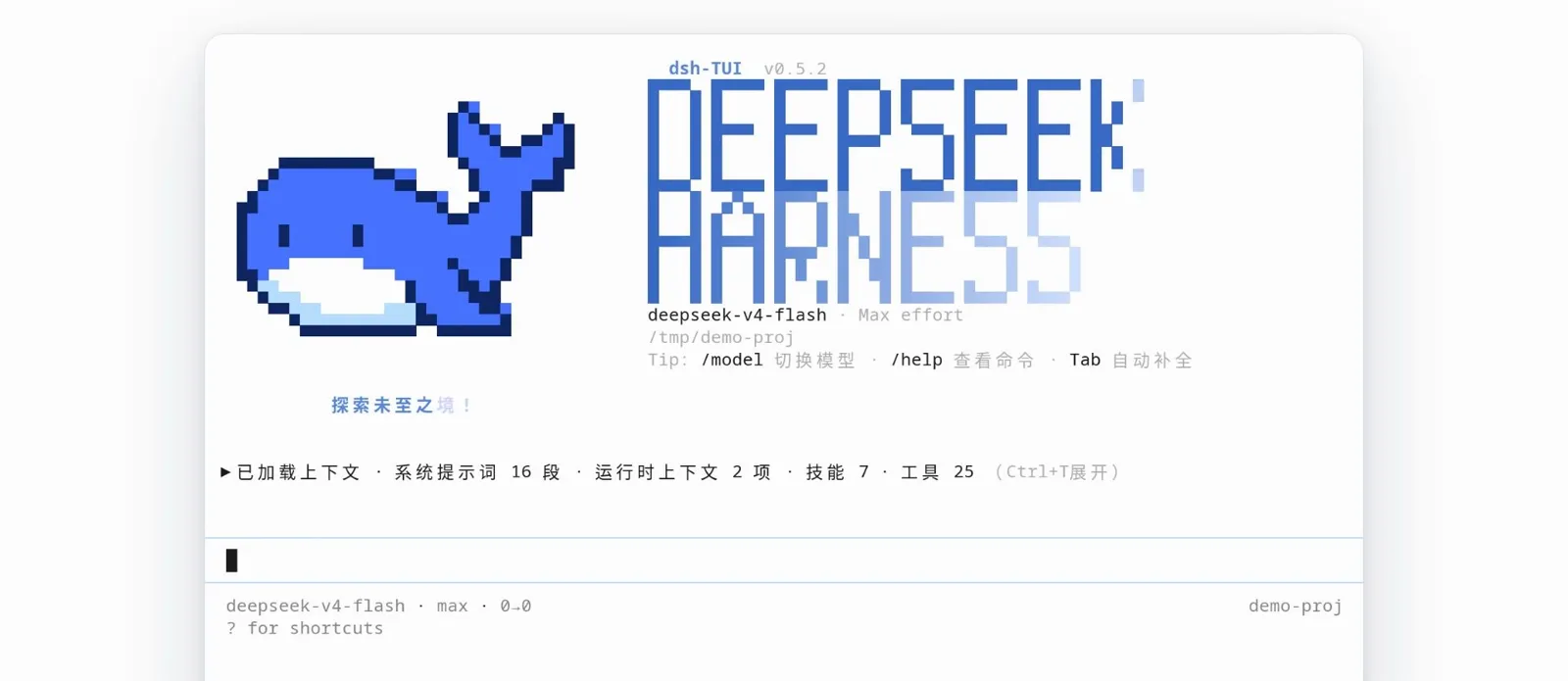
dsh-tui (GitHub: ccch1mneyyy/dsh-TUI, 3,152 stars as of September 2026) turns the DeepSeek Harness agent runtime into a full-screen terminal experience: pixel whale header, always-on status bar, and every panel reachable from slash commands. It is a community plugin — the official 0.1.7-rc.1 release in the next channel already ships a sidebar-integrated terminal, while dsh-tui is the fuller, terminal-native take.
Every screenshot below is a real frame from two Bilibili videos. The main walkthrough was recorded by aiwayDS, the author of the @aiwayds plugins visible in the plugin tree — treat it as a personal setup tour, not a neutral review. The splash and the feature board come from a short demo by 这真是神了.
TL;DR
- ▸dsh --profile tui boots a full-screen TUI: DSH pixel whale logo, plugin tree and a live status bar (mcp 2 · skills 82/115 · plugins 15 in the recording).
- ▸/model, /agents, /profile-switch and /skills are the four panels that matter — model favorites, custom subagents, work/personal profiles and a 115-skill manager.
- ▸/theme hot-switches light and dark, ask_user_question renders structured multi-select prompts, and long jobs keep running in the background (next channel, 0.1.7-rc.1).
The walkthrough, step by step
Launch and the three panels
- 1
Launch the tui profile
Start dsh with the tui profile and the pixel whale DSH logo fills the screen while the plugin tree loads. The recording shows the author's own setup — 15 @aiwayds plugins plus dsh-base — with the summary line mcp 2 · skills 82/115 · plugins 15 and a shortcuts bar (Esc ×2 stop, Ctrl+G subagents, Tab preset).
dsh --profile tuimcp 2 · skills 82/115 · plugins 15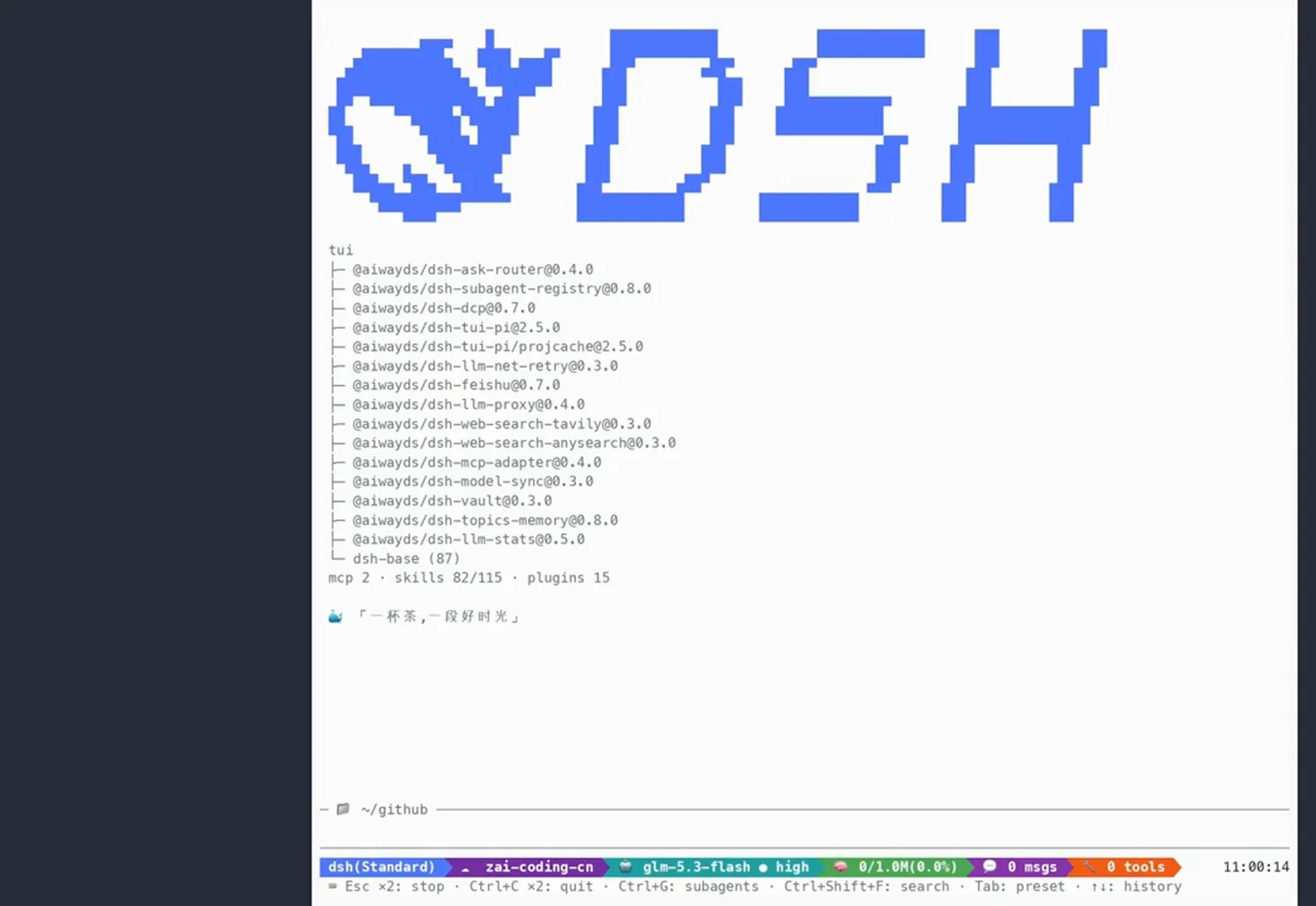
First paint after dsh --profile tui — the whole runtime lives in one terminal.Watch at 1:04 - 2
Pick models in the /model panel
/model opens a scrollable table of 124 model and provider combinations (footer: 13/124). Press f to favorite, h to hide, / to filter and Enter to select — the recording has glm-5.3-flash via ark-agent-plan starred and selected.
f favorite · h hide · / filterEsc back (13/124)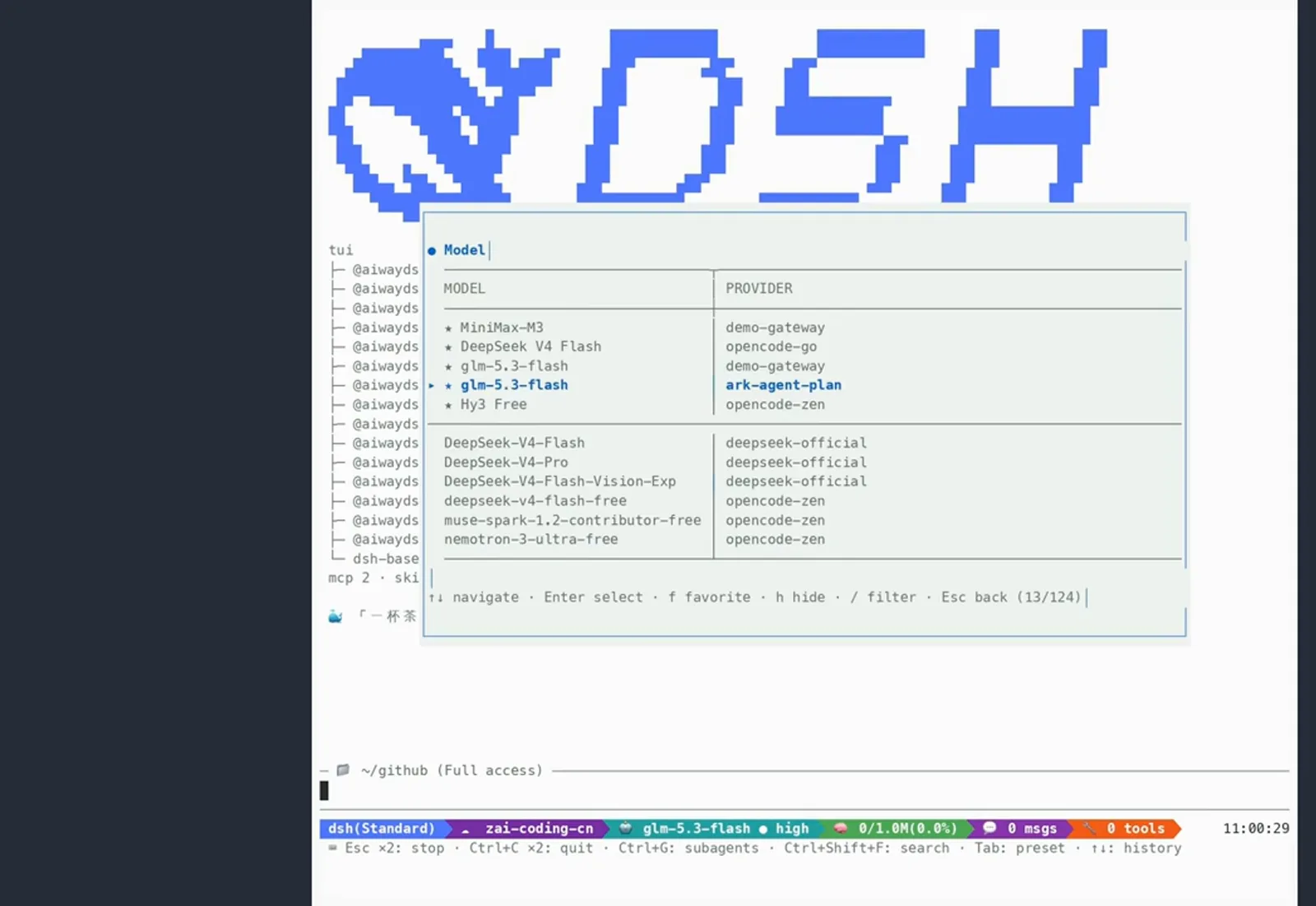
124 combinations, f to favorite, / to filter.Watch at 1:20 - 3
Meet your subagents in /agents
/agents lists your custom subagents as a table — name, model, spawn depth (DEEP) and description. The author runs four persona agents (小狮妹, 老法师, 小黄鸭, 牛马狗) on MiniMax and GLM models; Enter opens one, l shows limits.
Enter open · Esc back · l limits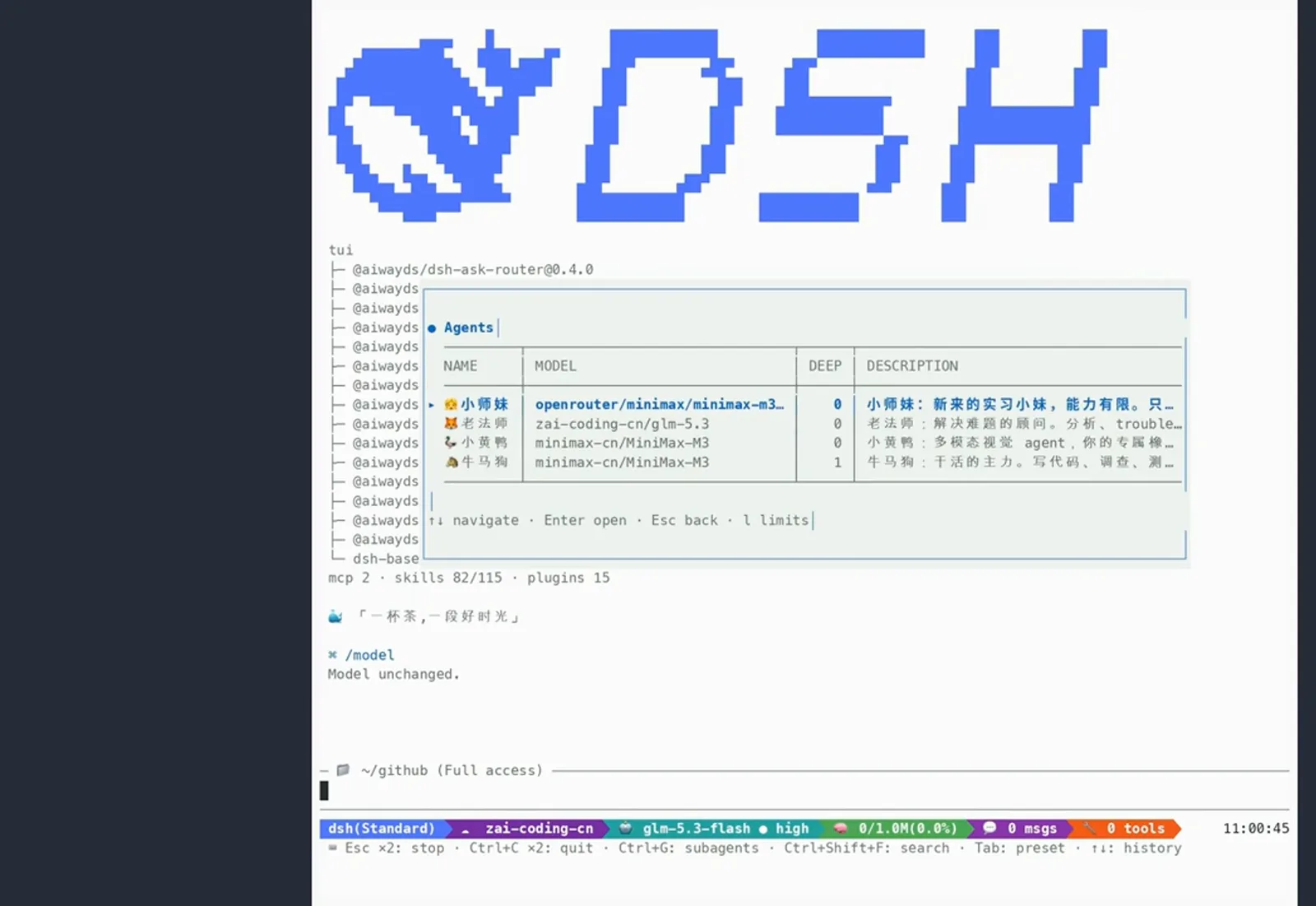
Four persona agents, one row each — Enter to open, l for limits.Watch at 1:32
Profiles and skills
- 4
Switch work and personal profiles
/profile-switch swaps the whole model profile of the current workspace. The transcript shows Profile → other (think max) and Profile → personal (think high), each pinned to the directory tree via .dsh-profile — agent values compose per-workspace at spawn. The same screen lists /agents, /resume, /new and /topics in the command palette.
/profile-switchpinned this tree (.dsh-profile)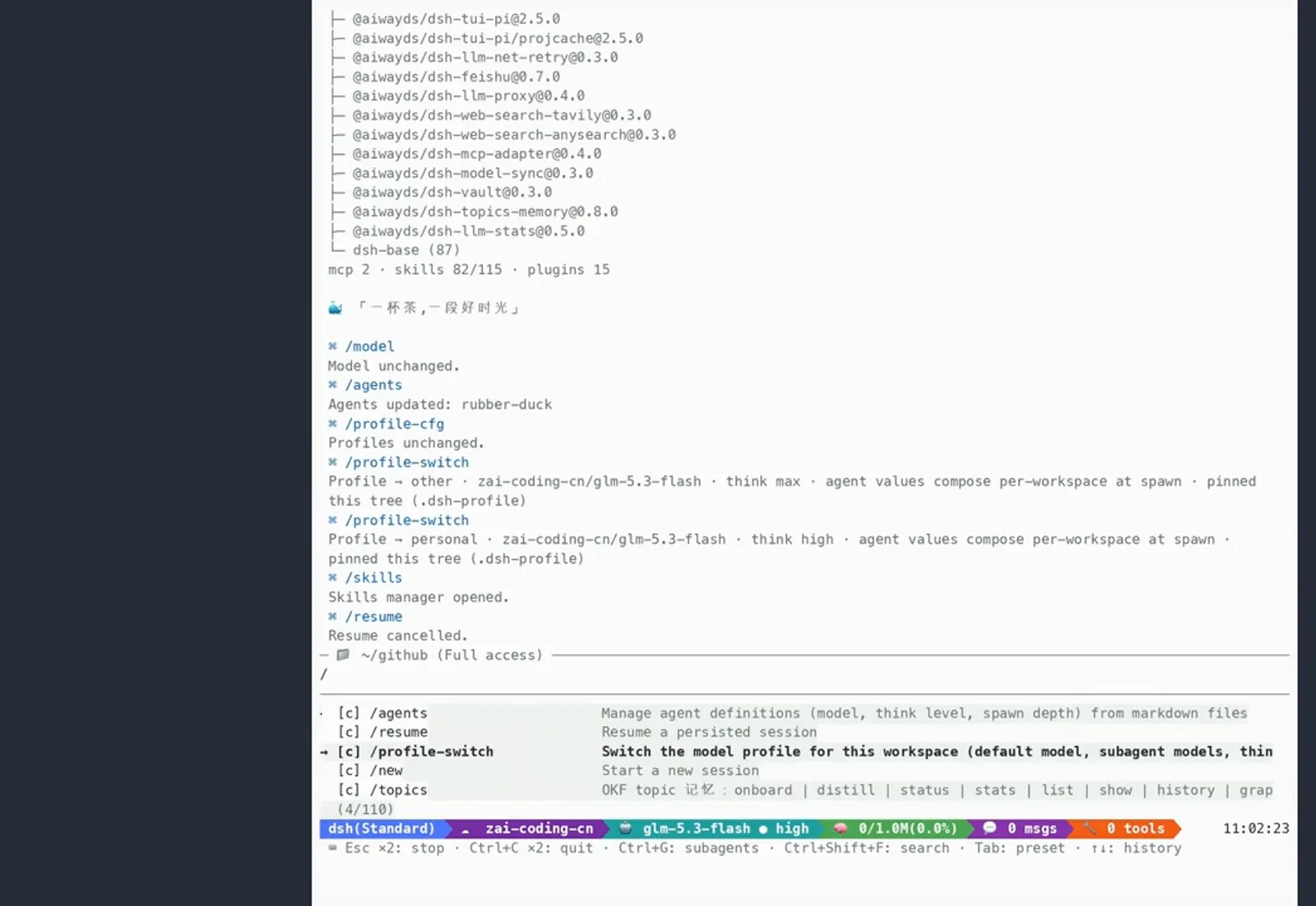
One command between work and personal setups — pinned per directory.Watch at 2:40 - 5
Toggle 115 skills in the Skills Manager
/skills opens the Skills Manager: an ON/SKILL list where Space toggles, Enter applies and PgUp/PgDn pages through all 115 entries (82 enabled in the recording). A skill disabled here keeps its prompt out of the context window.
Space toggle · Enter applyEsc back (4/115)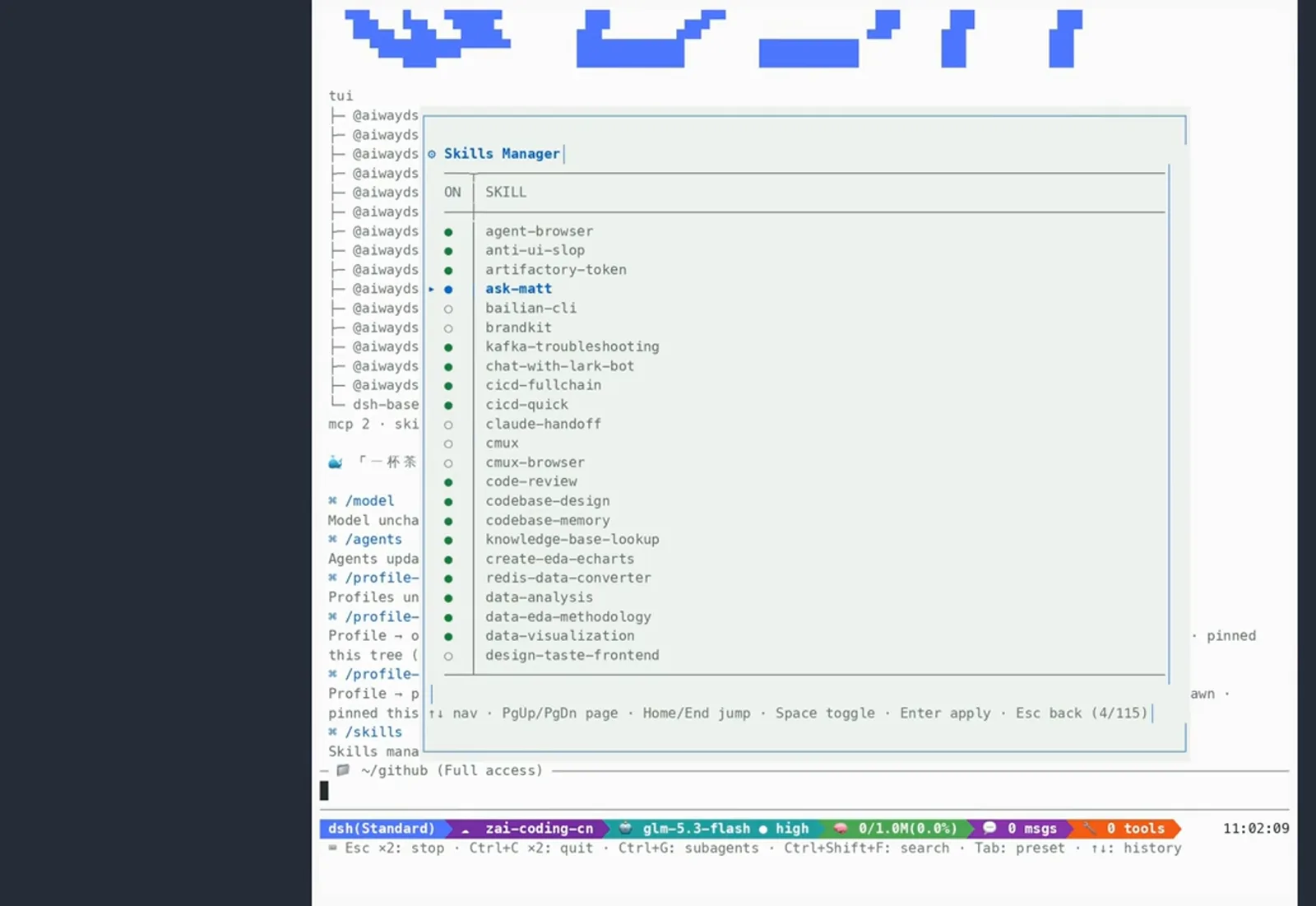
Space to toggle, Enter to apply — 115 skills, 82 on.Watch at 2:33
Themes, questions and background jobs
- 6
Hot-swap the theme with /theme
/theme offers auto (follow the terminal light/dark signal), light and dark — GitHub palettes for both. Pick dark and the interface repaints instantly: Theme: dark — applied.
/themeTheme: dark — applied.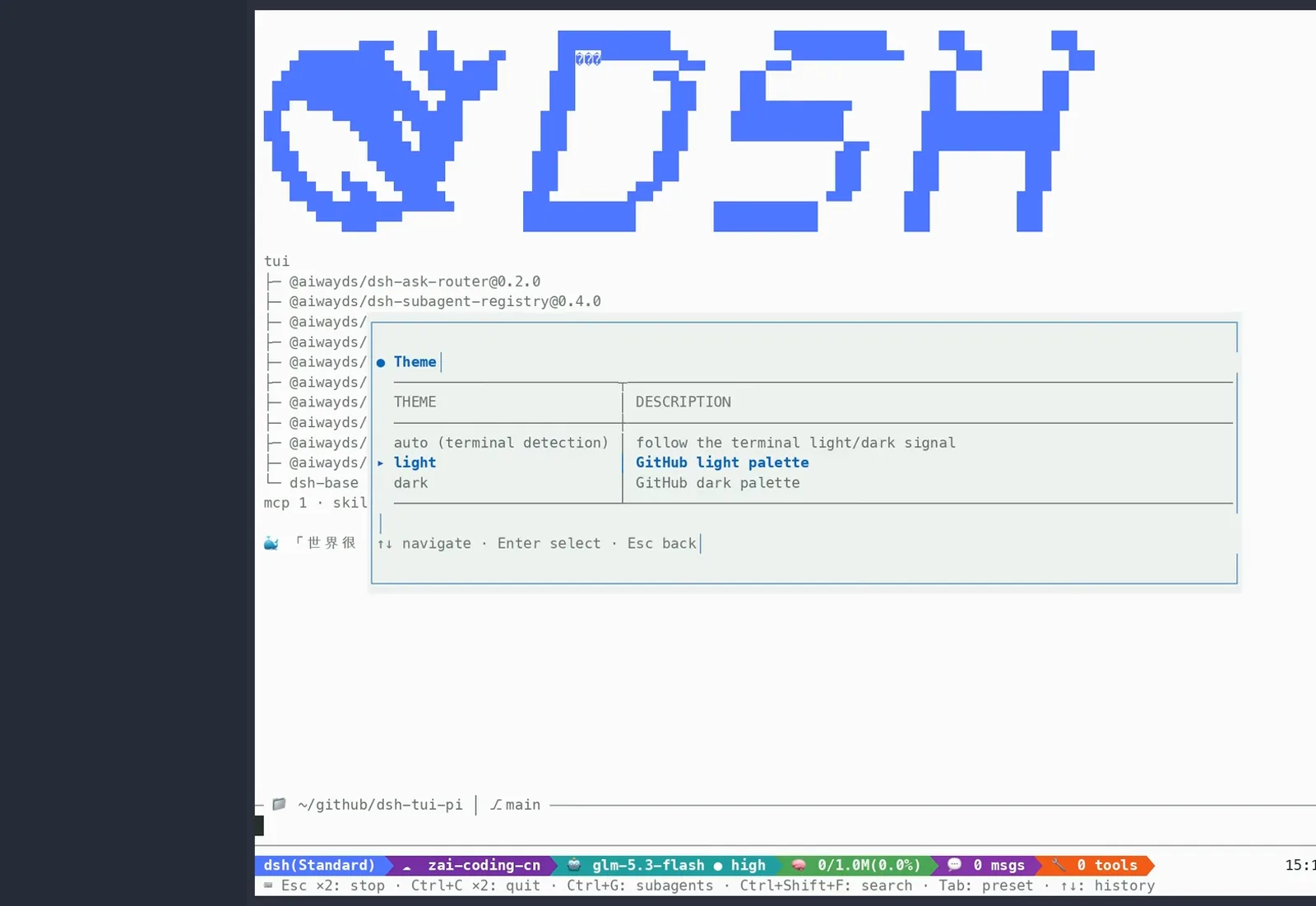
Auto follows the terminal signal; light and dark are GitHub palettes.Watch at 3:02 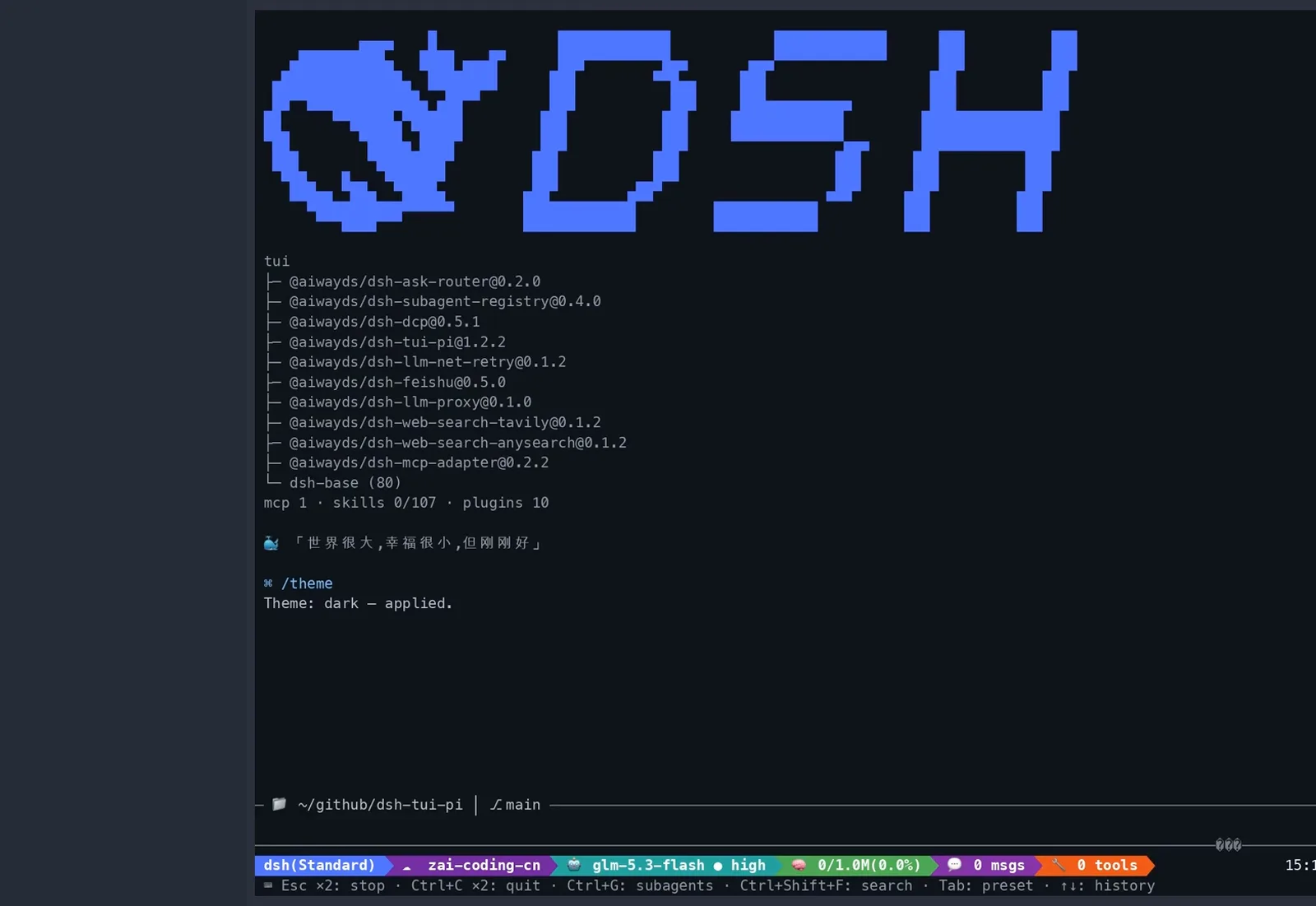
Dark repaints in place — no restart, no reload.Watch at 3:03 - 7
Answer structured questions while jobs run
ask_user_question renders options as a pickable list — recommended choice first, multi-select with 1-9, Ctrl+T to fold, Esc to decline. In the recording the agent starts a background job and shows the multi-select question while it runs; the same pattern returns in the next channel (0.1.7-rc.1) when a long command times out into the background.
ask_user_question1-9 pick · Ctrl+T fold · Esc decline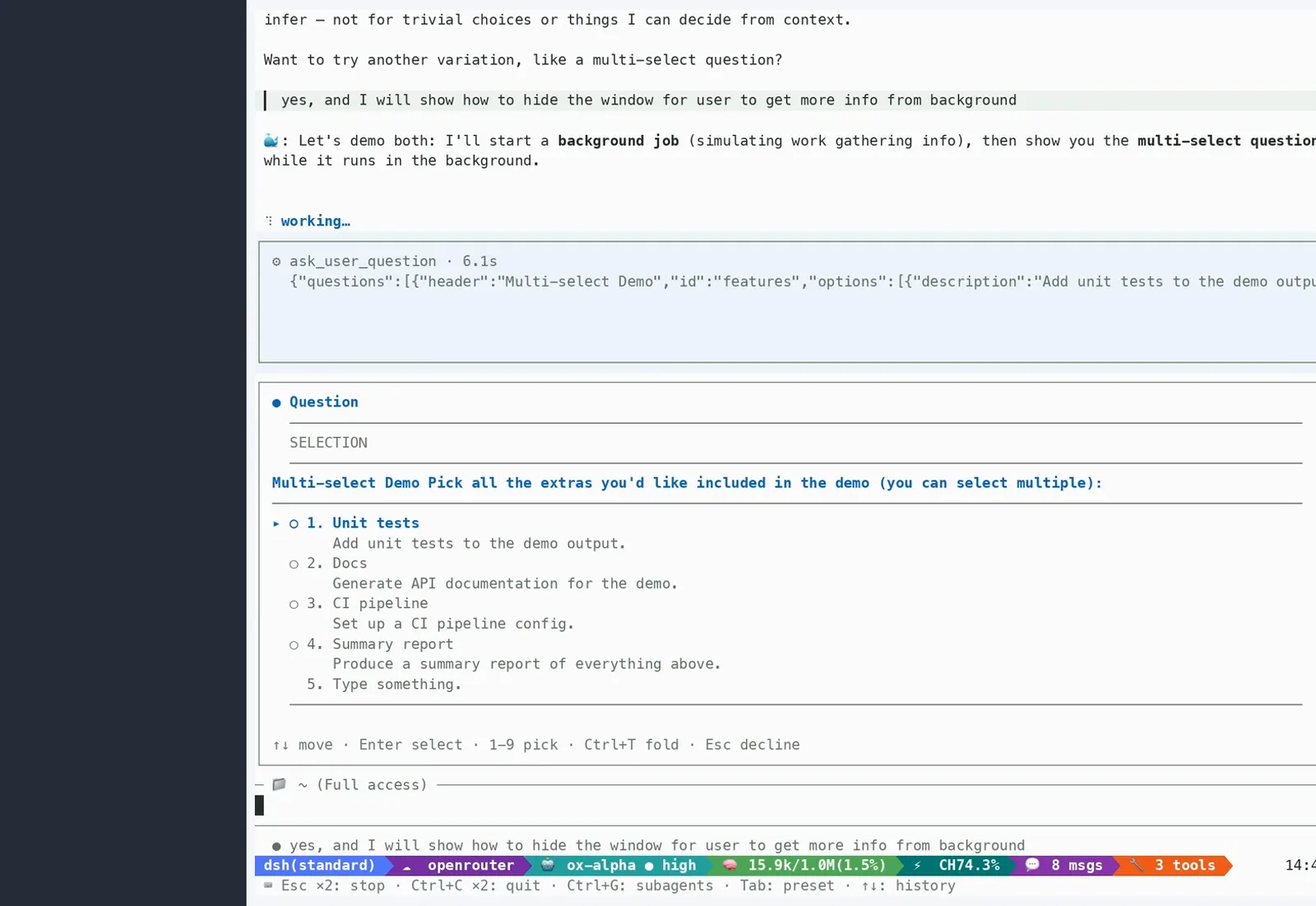
Structured multi-select on top, background job still running below.Watch at 3:30 - 8
The whole feature board at a glance
The second video closes with a 12-cell board: pixel whale header, dual-stream large type, streaming thoughts, double-Esc time rewind, @ file-reference completion, /resume · /compact · /export, theme hot-switch, /lang interface toggle, Skills · MCP · subagents, virtualized long-session rendering, select-to-copy with the mouse, and zero core changes — pure plugin.
双击 Esc 时间回溯/resume · /compact · /export零核心改动 · 纯插件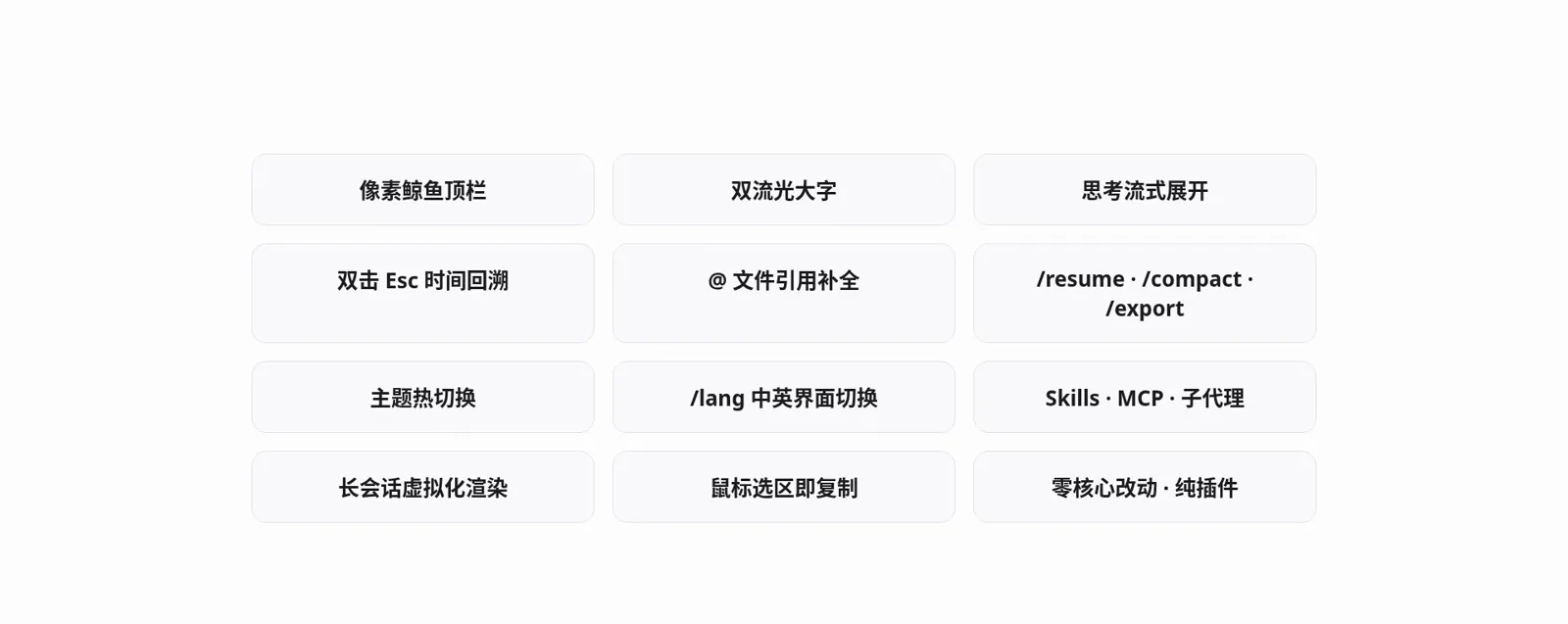
Twelve cells, zero core changes — everything above is plugin-scope.Watch at 1:10
Frequently asked questions
Quick answers about installing and choosing dsh-tui.
How do I install dsh-tui?
dsh-tui is a dsh plugin bundle (ccch1mneyyy/dsh-TUI on GitHub) that installs with npm — see our plugin installation guide for the exact steps. After installing, launch dsh with the tui profile as shown in step 1.
How is it different from the built-in terminal?
DeepSeek Harness 0.1.7-rc.1 (next channel) already ships a sidebar-integrated terminal in the web UI, handy for quick edits. dsh-tui is the community's fuller full-screen take: whale header, /model, /agents, /profile-switch and /skills panels, themes and a background-job flow — all mounted as a pure plugin with zero core changes. Heavy terminal users can keep both.
What is a profile in dsh-tui?
A profile bundles the default model, subagent models and think level for a workspace. /profile-switch moves the current tree between profiles (work vs personal in the video) and pins the choice in .dsh-profile, so every session in that directory starts with the same setup.
Does everything in the video come with dsh-tui?
No. The plugin tree in the launch frame is the recorder's own setup — 15 @aiwayds plugins he wrote himself. dsh-tui provides the terminal shell; the extra plugins (ask-router, subagent-registry, topics-memory and so on) are separate installs.
Related guides
Installation, the plugin model and the panels behind this walkthrough.
Plugin installation
Market, npm and manual installs, plus how to verify a plugin loaded.
Read the guideWhat are DSH plugins?
The plugin model behind the TUI: profiles, skills, MCP and zero core changes.
Read the guideSwitching models
/model favorites and provider combos, in both the web UI and the TUI.
Read the guideSubagents guide
Custom agents like the four personas in the /agents panel.
Read the guideTroubleshooting
When a panel or plugin misbehaves, start here.
Read the guideContext compaction
What the harness does at the 80% threshold — pruning, checkpoints and replay.
Read the guideSources and credits
All frames are captured from Bilibili videos; channel watermarks and burned-in label cards were cropped out or avoided. aiwayDS, the author of the main walkthrough, also builds the @aiwayds plugins for dsh-tui — his video is a personal tour, not a neutral review. Start with Plugin installation