
Install DSH Desktop: DeepSeek Harness Desktop Client, Step by Step
A screenshot walkthrough of one specific community client — DSH Desktop — from the download link to the first screen, on Windows and macOS.
Last updated: 2026-09-22
The install guides on this site put the harness on your machine and open its Web UI in a browser — which means a browser window and an address bar every time you want to work. If that feels like a step too many, the desktop client is the shortcut: double-click, and the same interface opens in its own window.
This page walks through one named client rather than “the dsh desktop app” in the abstract: DSH Desktop, an MIT-licensed community project published from dshdesktop.cn and the largest of the desktop clients we track. Every screen below comes from a recording of it installing on Windows and on macOS, and the installer's own words — file name, version string, wizard page titles — are on screen so you can compare them with what you downloaded.
What you end up with
- ▸Nothing to pre-install. The course handout states that the current installers cover Windows x64 and Apple-silicon macOS, and that ordinary users do not need Node.js, pnpm or DSH on their own first.
- ▸macOS is a drag install: a 278.5 MB universal DMG, DSH Desktop.app copied into Applications, and macOS verifying the app the first time you open it.
- ▸Windows is a standard NSIS wizard: a 140 MB DSH-Desktop-2.0.0-x64-Setup-public.exe, install for your account only, leave the folder default, and tick 运行 DSH Desktop on the last page.
The twelve steps
First: which client, from where
- 1
Start from the download table, not a search result
The handout's desktop section names the project and then prints a 平台 / 下载 / 安装方式 table: Windows x64 gets “run the NSIS installer and follow the prompts”, macOS Apple Silicon gets “open the DMG, drag DSH Desktop into Applications”. The line above it is the one people ask about: the current installers support Windows x64 and Apple-silicon macOS, and ordinary users do not need to install Node.js, pnpm or DSH separately.
https://www.dshdesktop.cn/api/downloads/windowshttps://www.dshdesktop.cn/api/downloads/mac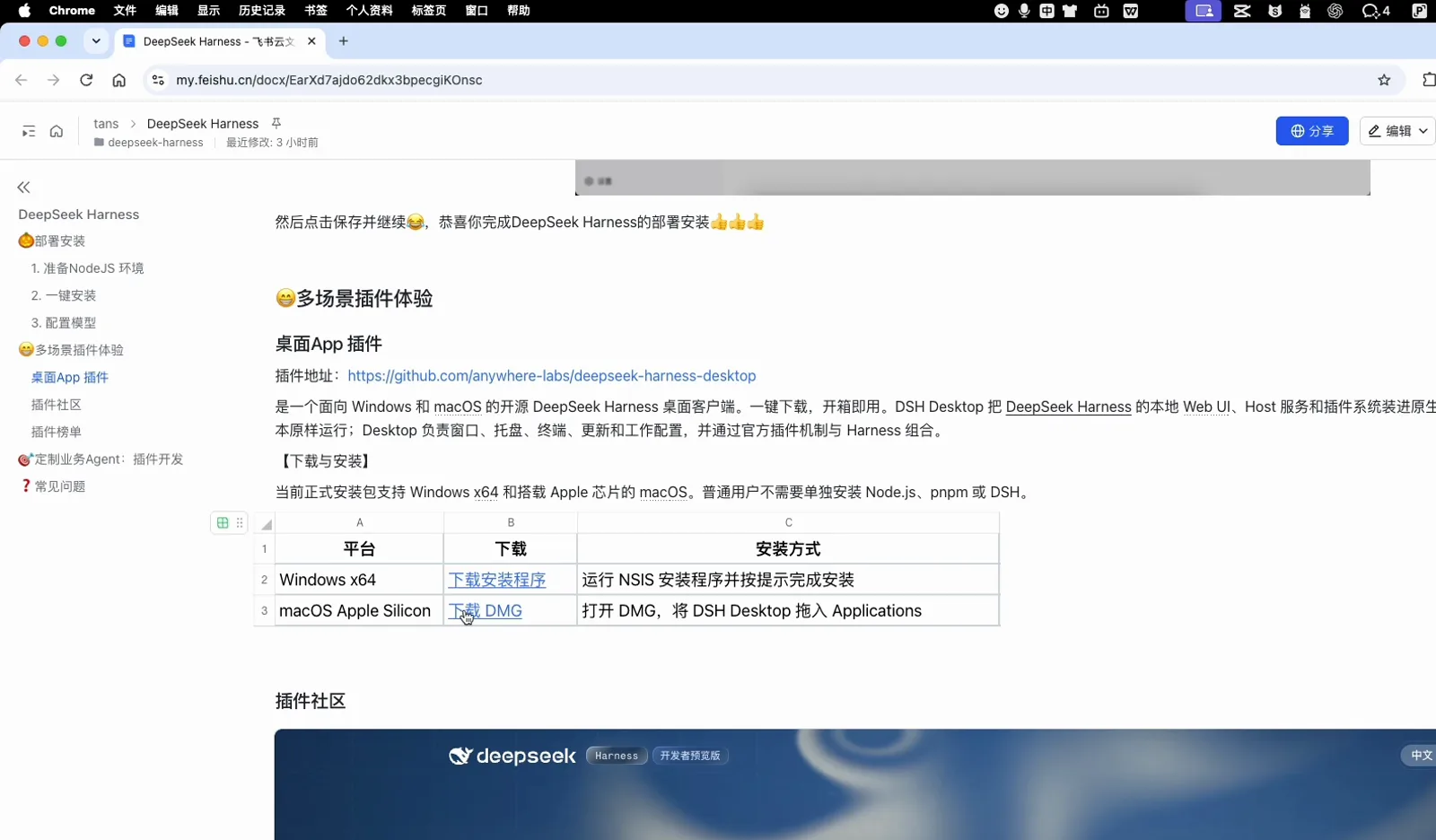
The handout names the repo and the two install paths before any download happens.Watch at 1:02 - 2
Read the “leaving Feishu” page before you download
The handout is a Feishu document, so every external link stops on an interstitial that prints the real destination in plain text. For the macOS build it reads https://www.dshdesktop.cn/api/downloads/mac. That line is the cheapest authenticity check you will ever get: if the host it names is not the project's own site or its GitHub releases, close the tab.
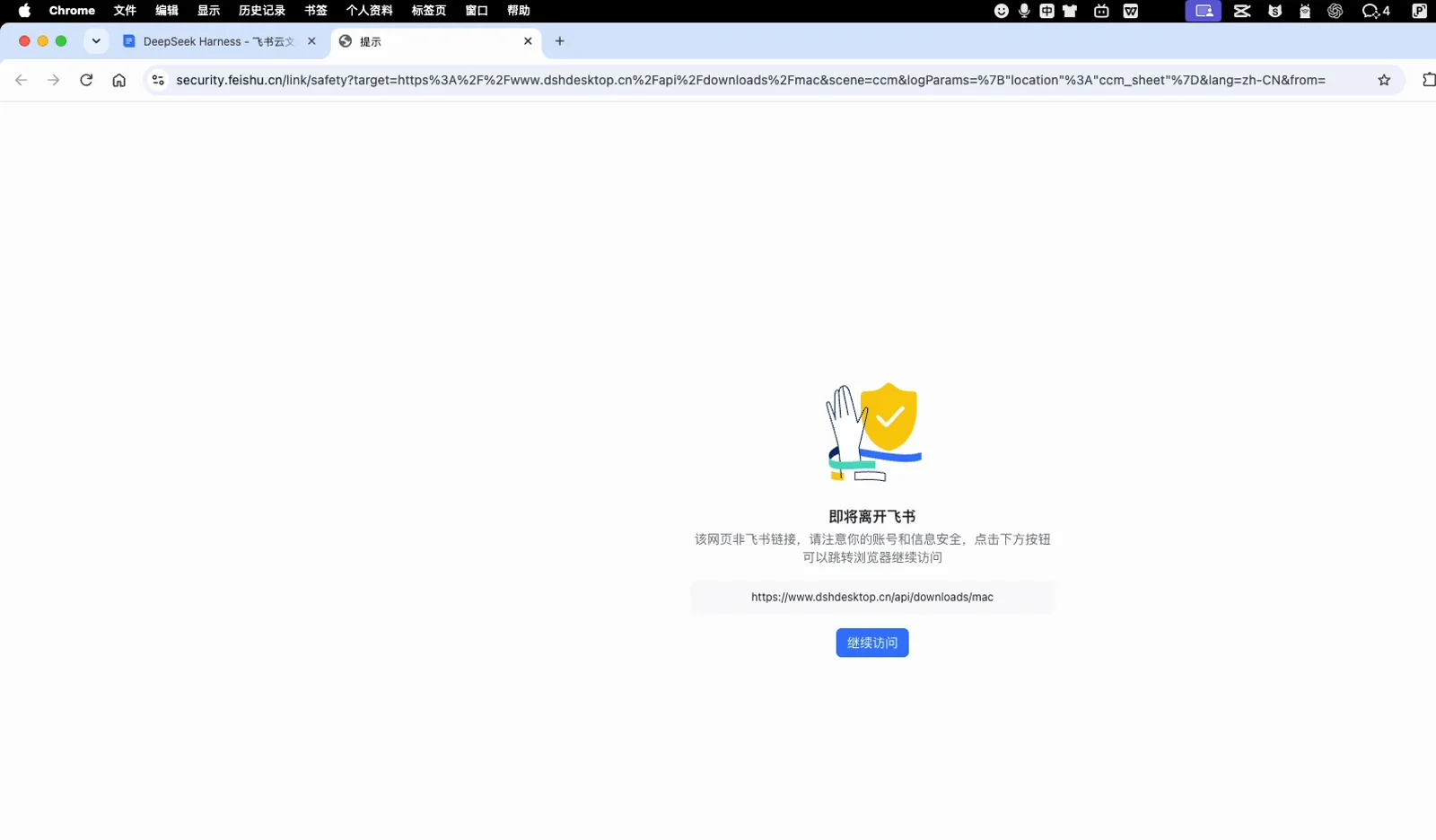
The interstitial prints the real destination — read it before you click 继续访问.Watch at 1:08
macOS — drag it into Applications
- 3
Check what actually landed in Downloads
The macOS file is DSH Desktop-2.0.1-universal.dmg — 278.5 MB, type 磁盘映像. The version number in the file name is the release you are about to install, so write it down: the recording is on 2.0.1 for macOS and 2.0.0 for Windows, and the project ships new patch releases regularly. A .zip, an .exe or a much smaller file in that slot is not the macOS build.
DSH Desktop-2.0.1-universal.dmg · 278.5 MB · 磁盘映像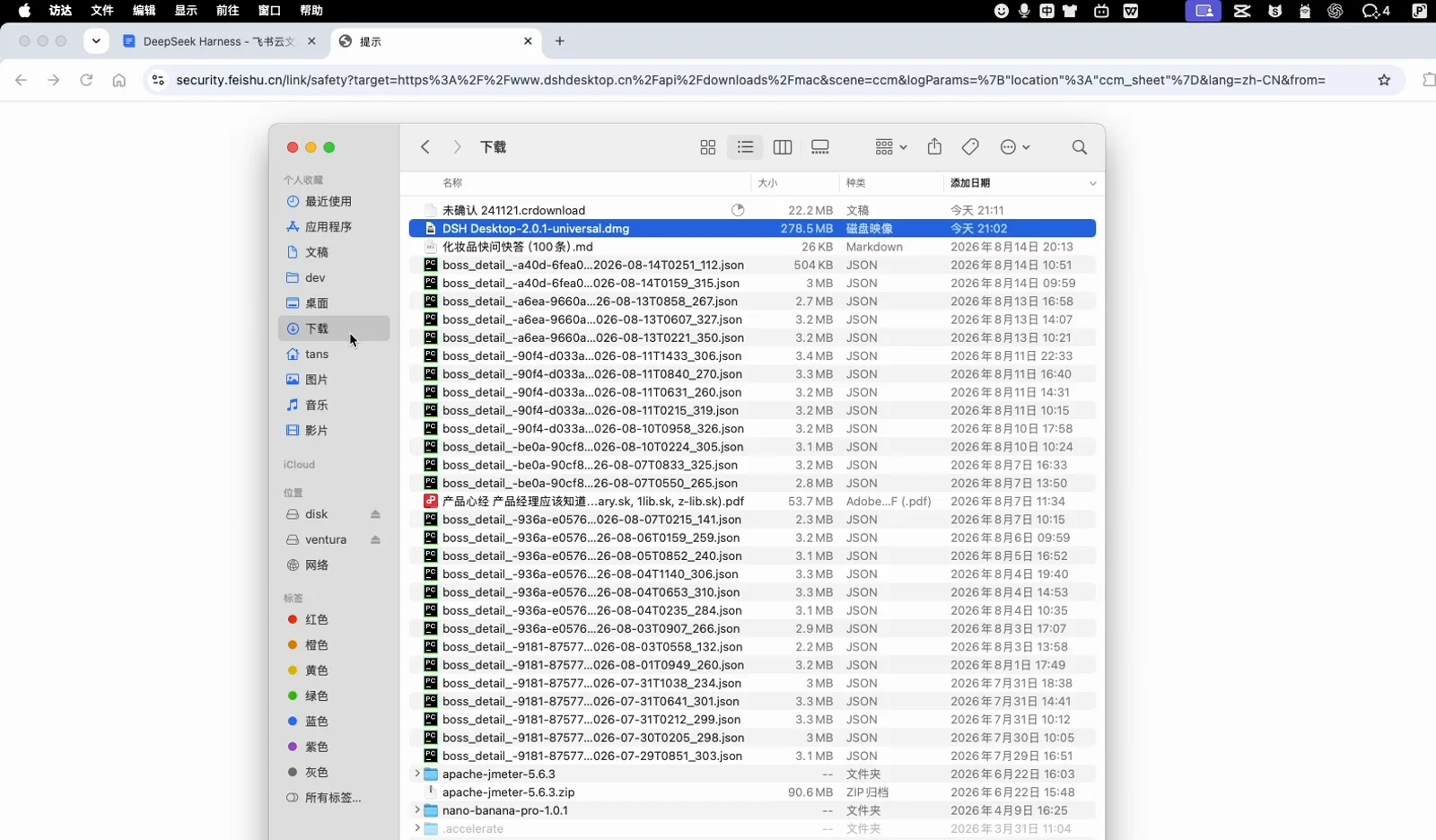
Name, size and type all say this is the universal macOS build.Watch at 1:10 - 4
Mount the DMG and drag DSH Desktop.app to Applications
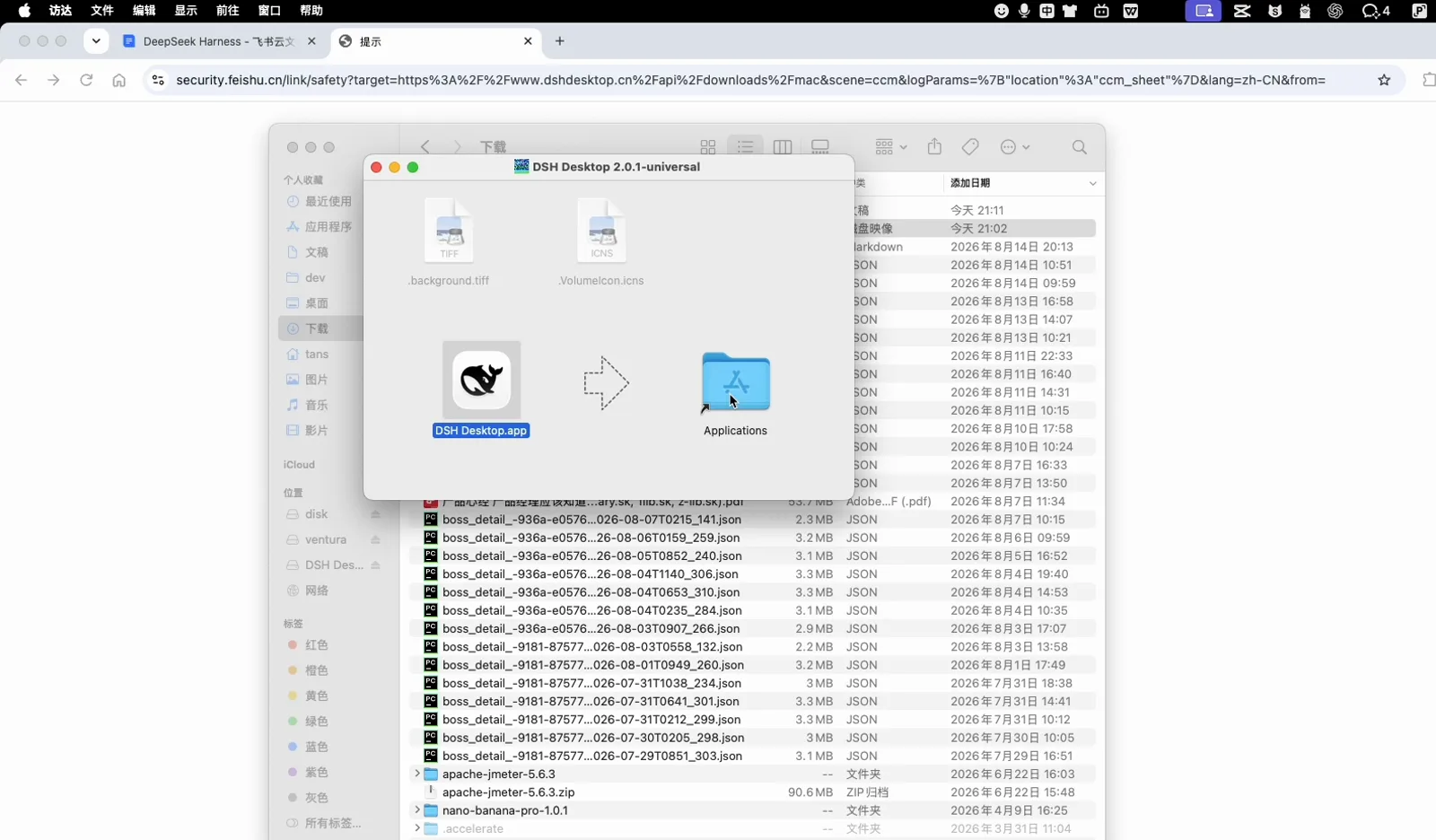
Double-clicking mounts a volume titled DSH Desktop 2.0.1-universal with the usual drag layout: the app on the left, an Applications shortcut on the right. Dragging it produces the copy dialog 正在将“DSH Desktop”拷贝到“应用程序”, which runs to 725.4 MB — the uncompressed app is bigger than the DMG, which is normal.
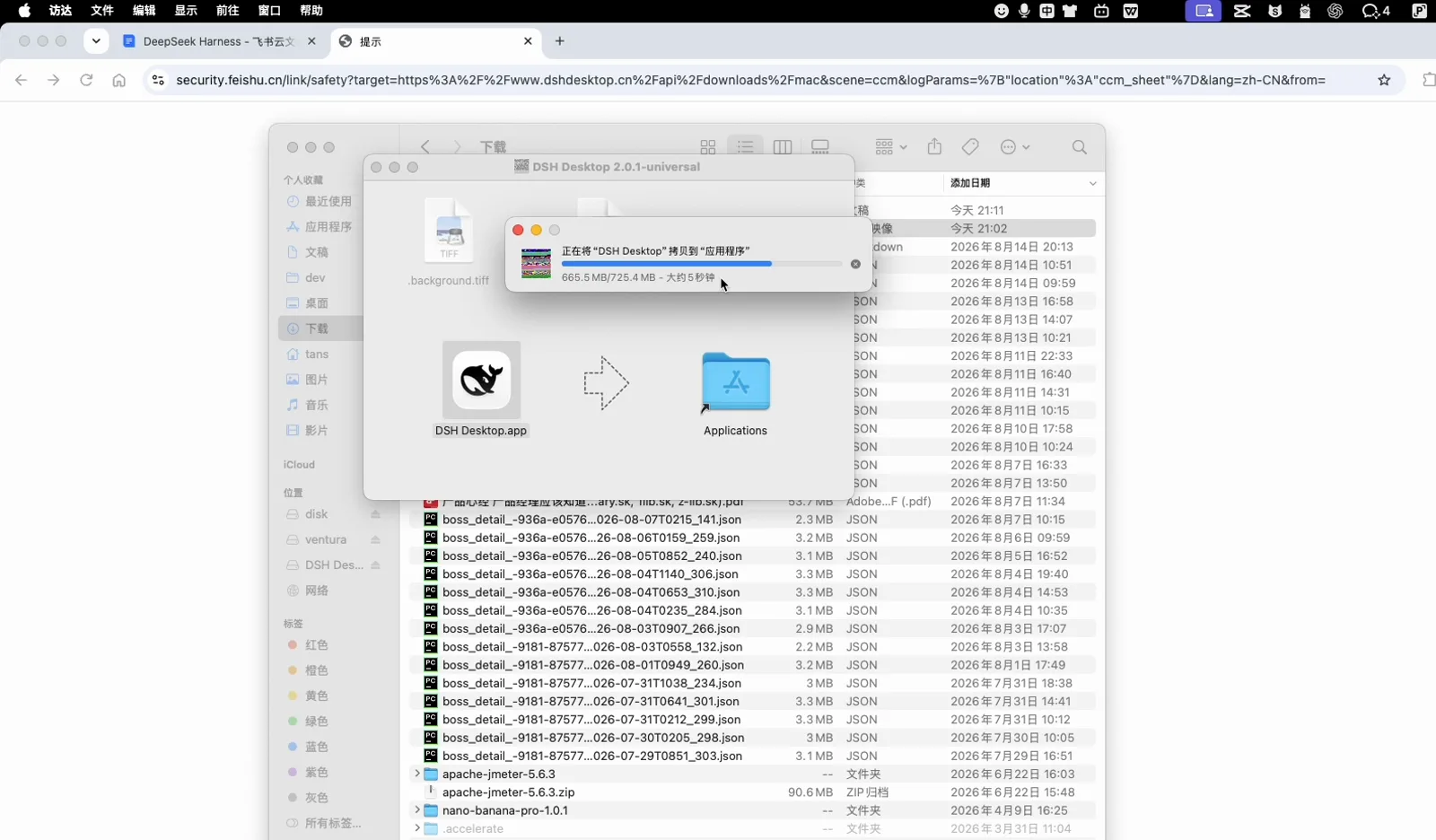
The copy runs to 725.4 MB — larger than the DMG, as expected.Watch at 1:26 - 5
Confirm the installed name in Launchpad
Launchpad lists it as DSH Desktop. That is the name to use in Spotlight and the name the DMG, the copy dialog and the Windows wizard all agree on, so if what you installed shows up as something else, you installed something else.
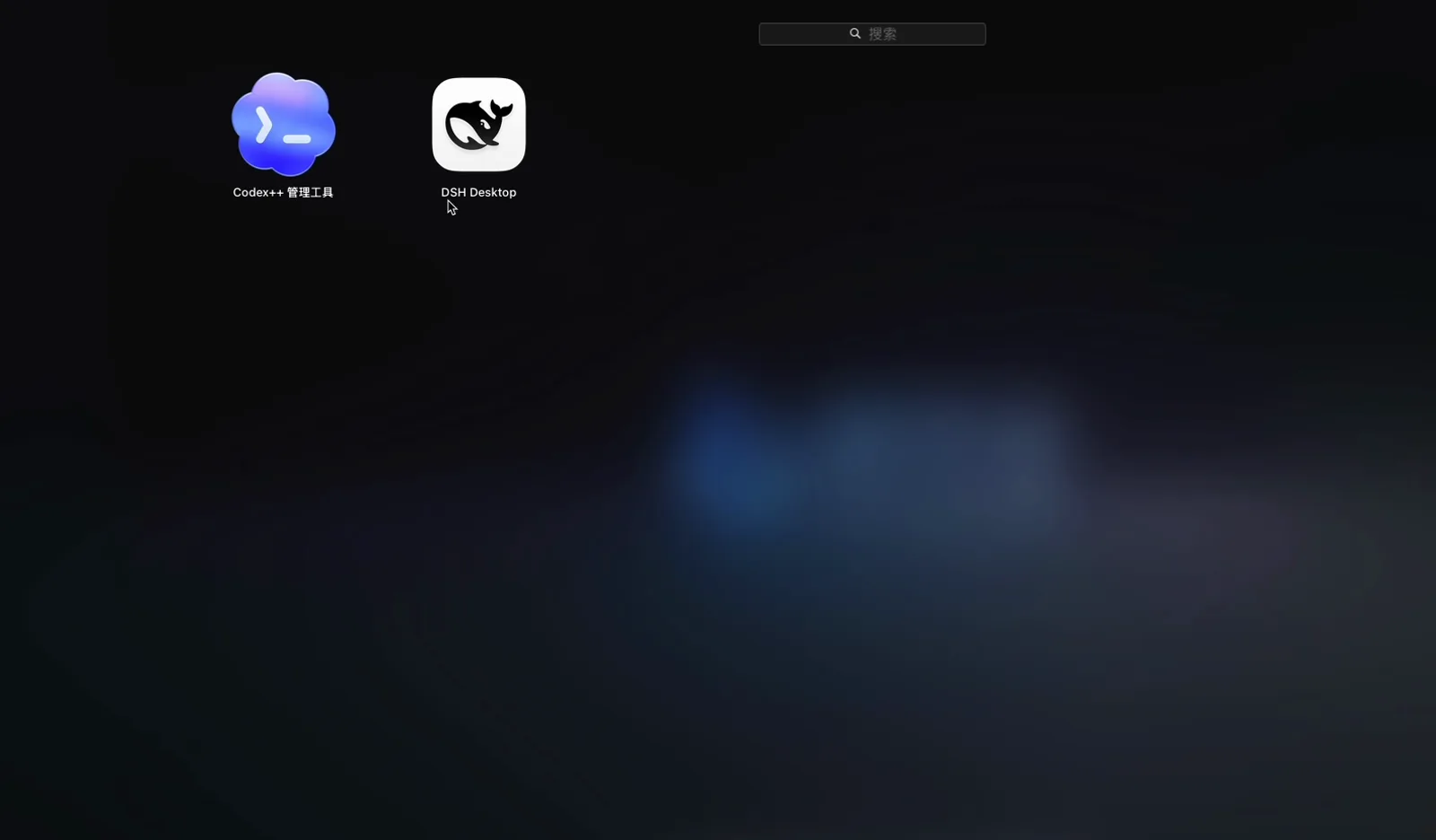
Installed name: DSH Desktop. That is what Spotlight will find.Watch at 1:38 - 6
Let macOS verify the app on first open
The first launch does not open the window immediately: macOS puts up 正在验证 “DSH Desktop.app” … first, checking where the file came from before it will run it. Wait for it to finish and click 打开. This is the operating system doing the part of the check you cannot do by eye.
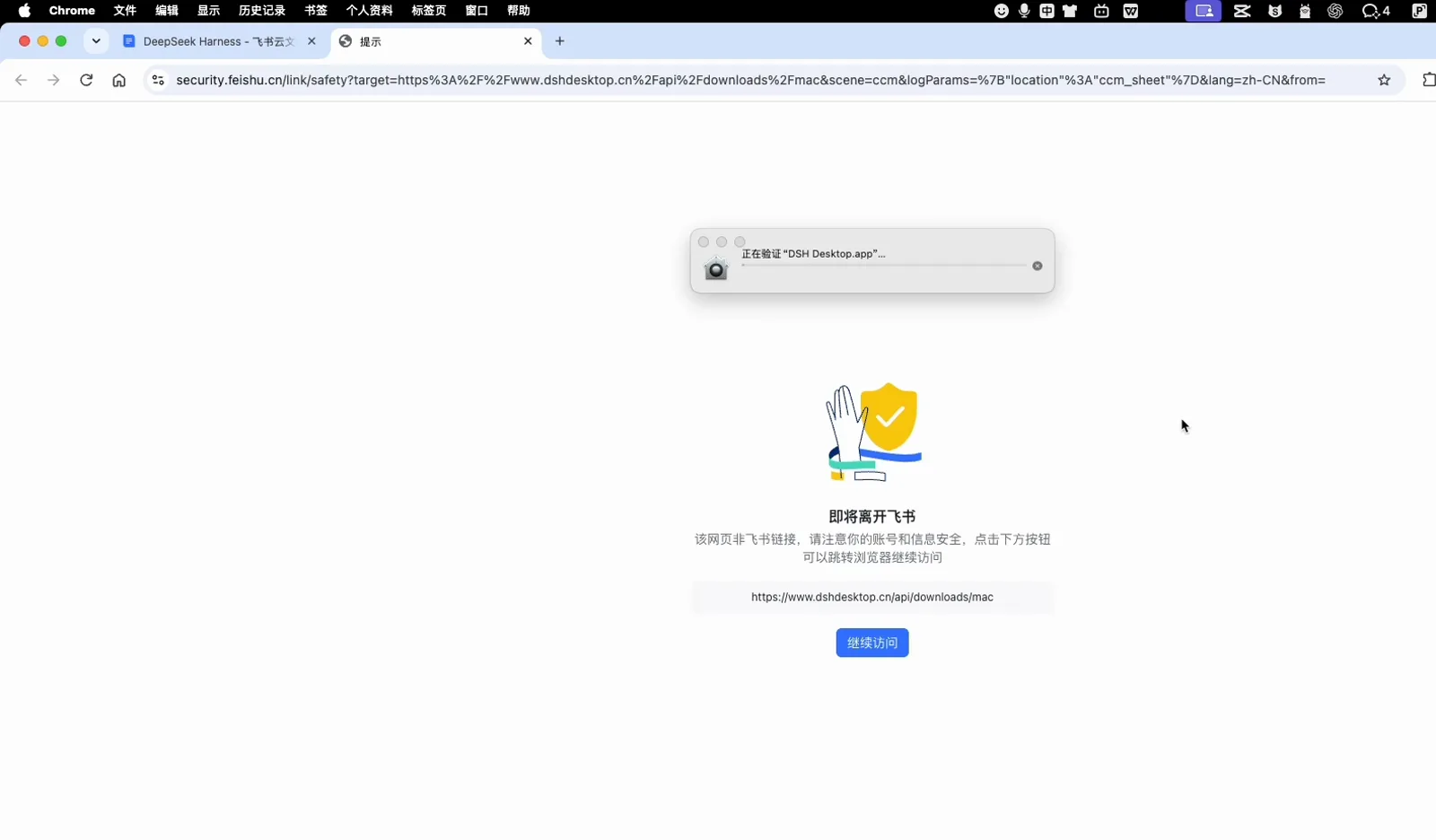
First open is checked by macOS before the window appears.Watch at 1:44
Windows — the NSIS wizard
- 7
On Windows, check the file name and description as you save
The save dialog names the file DSH-Desktop-2.0.0-x64-Setup-public.exe, and hovering it gives you three more facts without opening anything: 文件说明 “DSH Desktop: an Electron shell composed as a DeepSeek Harness Cordis plugin”, 文件版本 2.0.0.0, 大小 140 MB. The redirect page behind it prints the Windows endpoint, https://www.dshdesktop.cn/api/downloads/windows.
DSH-Desktop-2.0.0-x64-Setup-public.exe · 140 MB · 文件版本 2.0.0.0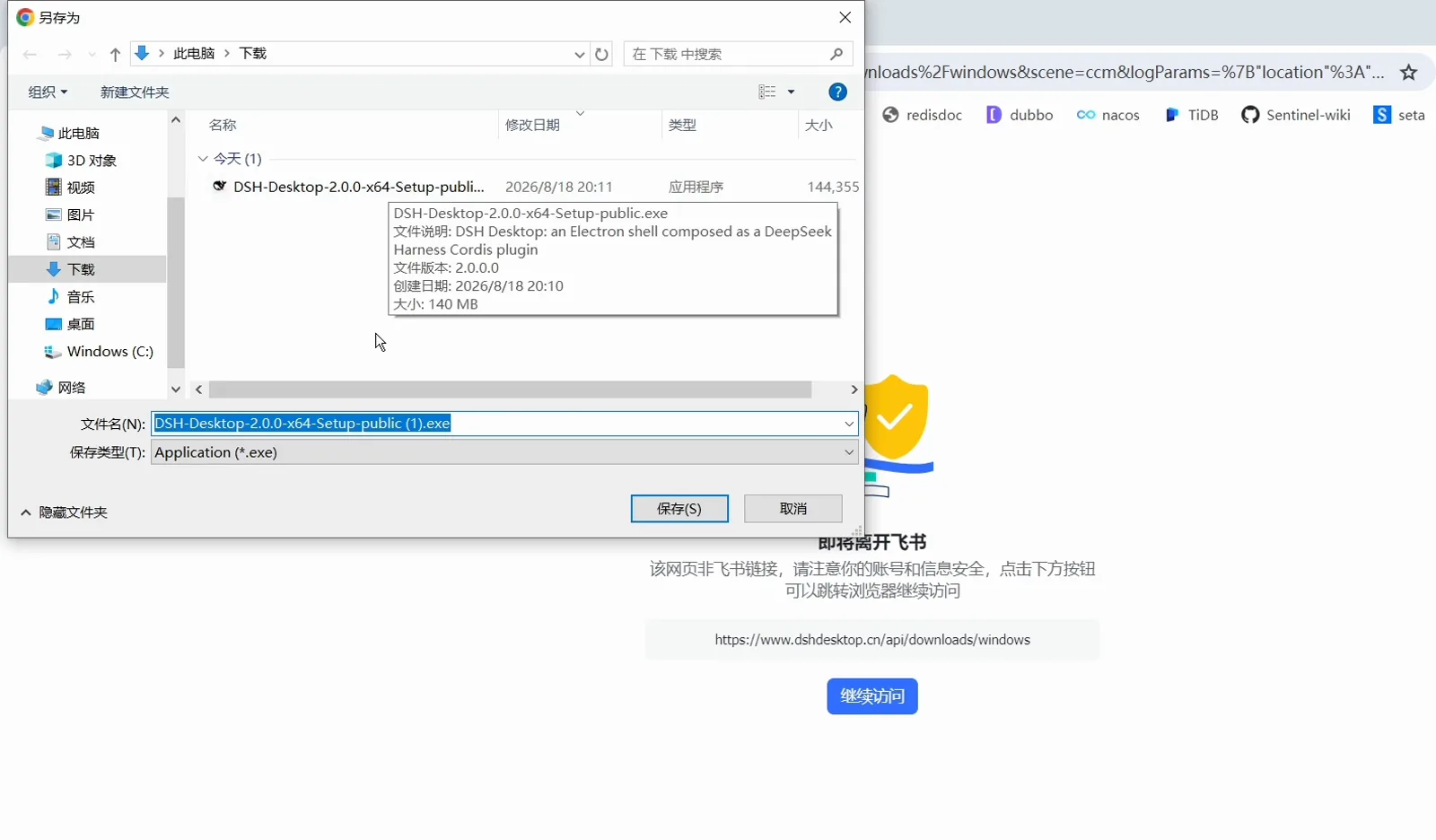
Three identity facts — file name, version, description — without running anything.Watch at 2:20 - 8
Run the setup and choose “only for me”
Double-clicking opens a wizard titled DSH Desktop 安装 whose first real page is 安装选项 / 为哪位用户安装该应用?. Pick 仅为我安装 — the recording shows 仅为我安装(22863)selected — unless several people genuinely use this account. The course also warns that 360 or 电脑管家 (Tencent PC Manager) can block the installer; the presenter had already quit it, and the advice if you have not is to push the install through deliberately rather than let a security suite decide silently.
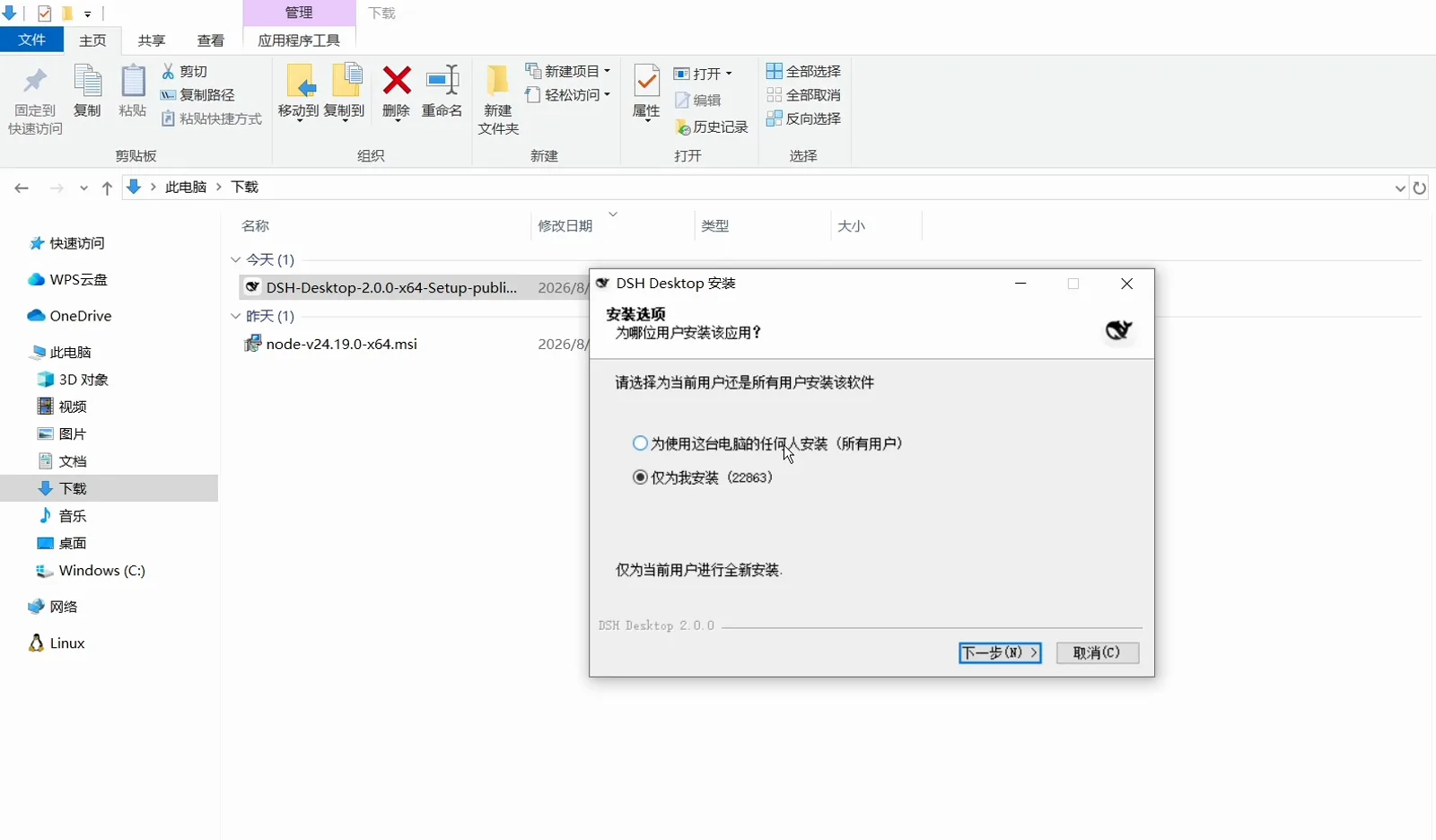
Choose 仅为我安装 unless the machine really is shared.Watch at 2:32 - 9
Leave the target folder alone and install
The folder page needs nothing from you, so click 安装 and wait: 正在安装 / DSH Desktop 正在安装,请稍候。 with a green bar. The footer of every wizard page stamps the build you are installing — DSH Desktop 2.0.0 — which is the second place to read the version, after the file properties.
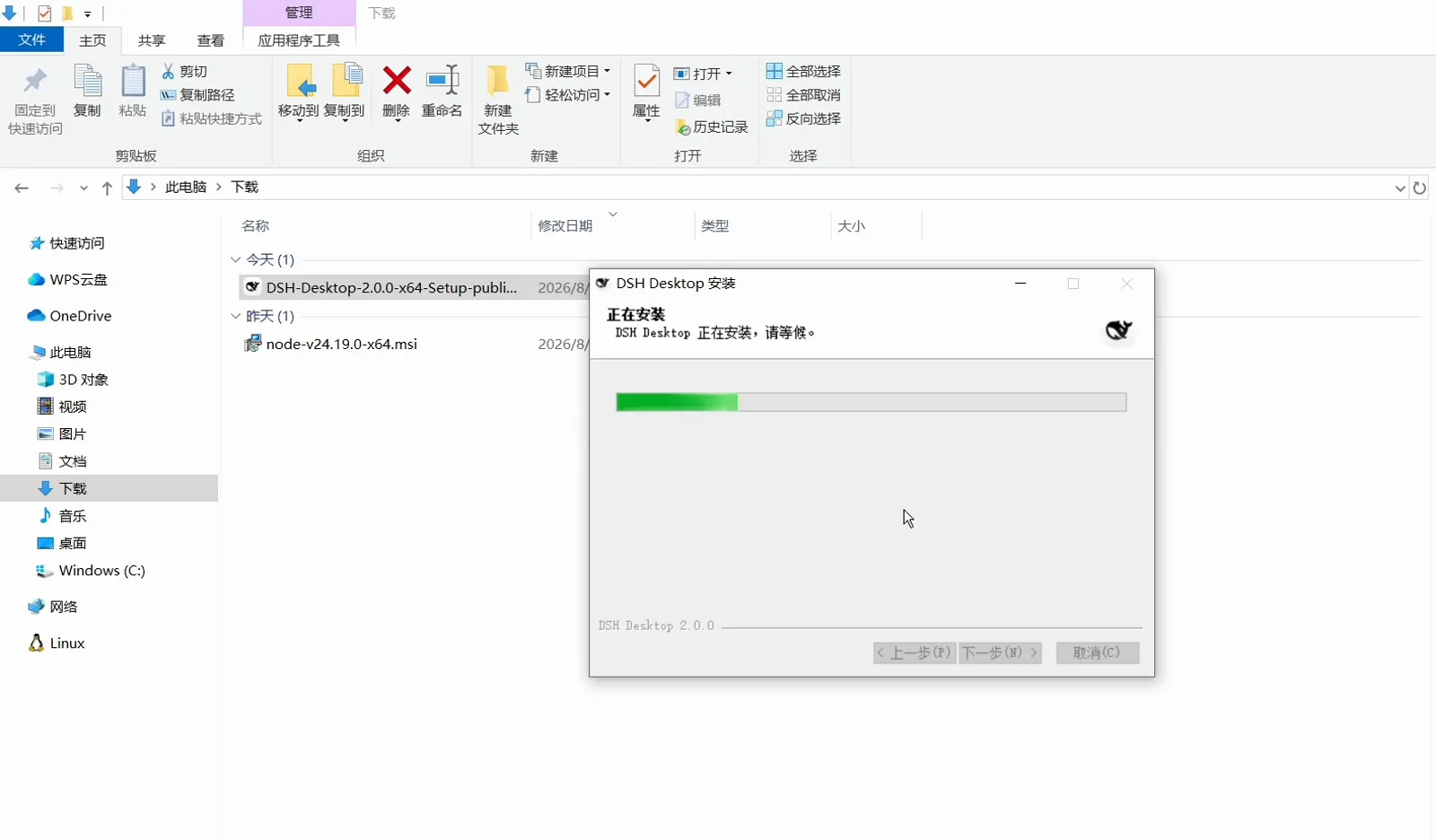
The footer repeats the version on every page of the wizard.Watch at 2:56 - 10
Tick 运行 DSH Desktop and finish
The last page reads 正在完成 DSH Desktop 安装向导 / DSH Desktop 已安装在你的系统 with 运行 DSH Desktop already checked. Click 完成 and the client starts immediately, so you can confirm the install in the same sitting.
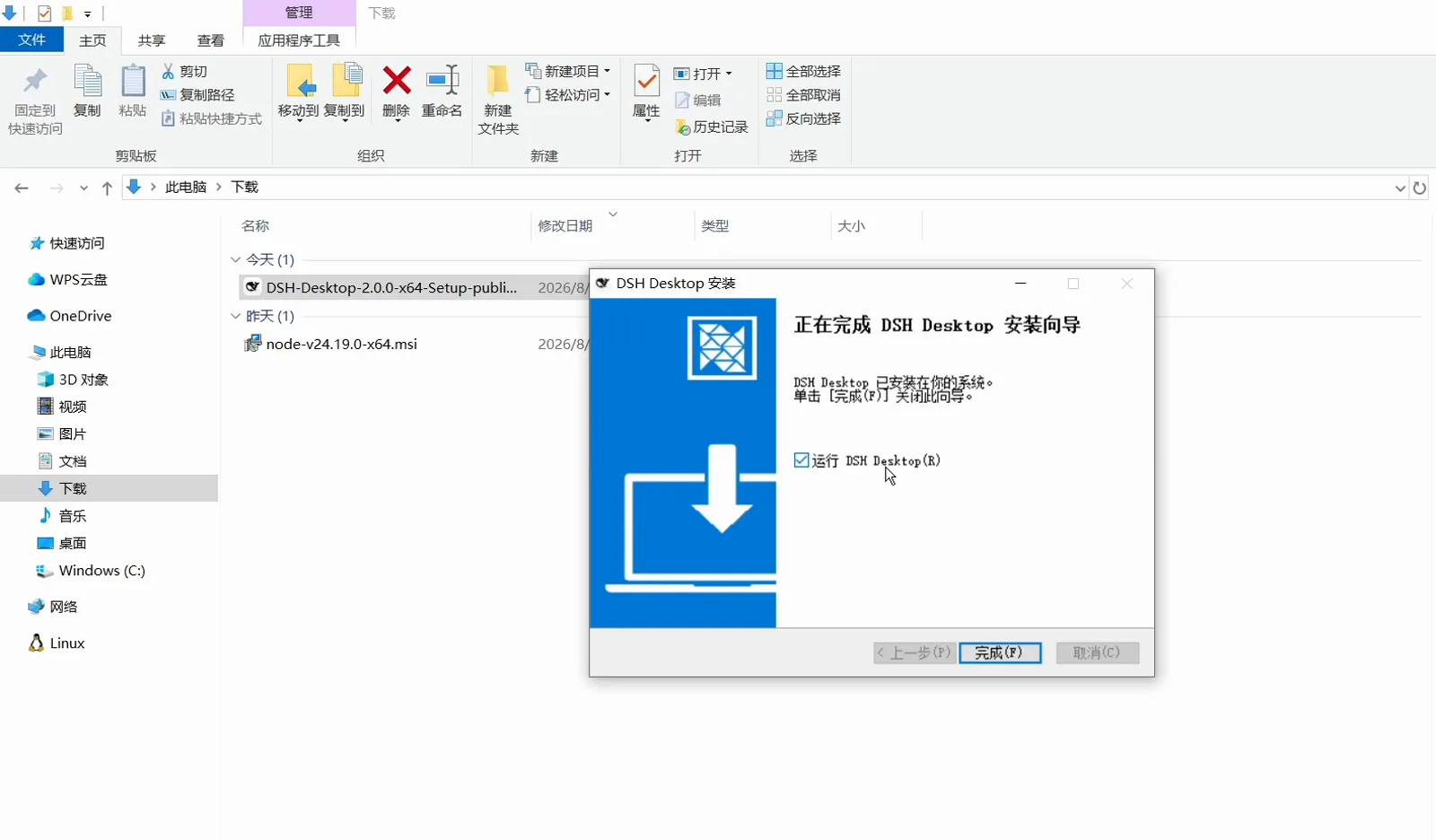
Leave the run box ticked and the client starts as the wizard closes.Watch at 3:04
First run
- 11
If you configured the Web UI already, you land straight in the workspace
On macOS the window opens directly on the session screen — 新会话, a 工作区 list, 插件市场 and 设置 down the left, and an empty-state prompt 选择一个工作区开始 in the middle, with DSH Desktop in the macOS menu bar. The recording explains why there was no setup step: an API key had already been entered while using the Web UI, and the desktop client picks up the same local configuration.
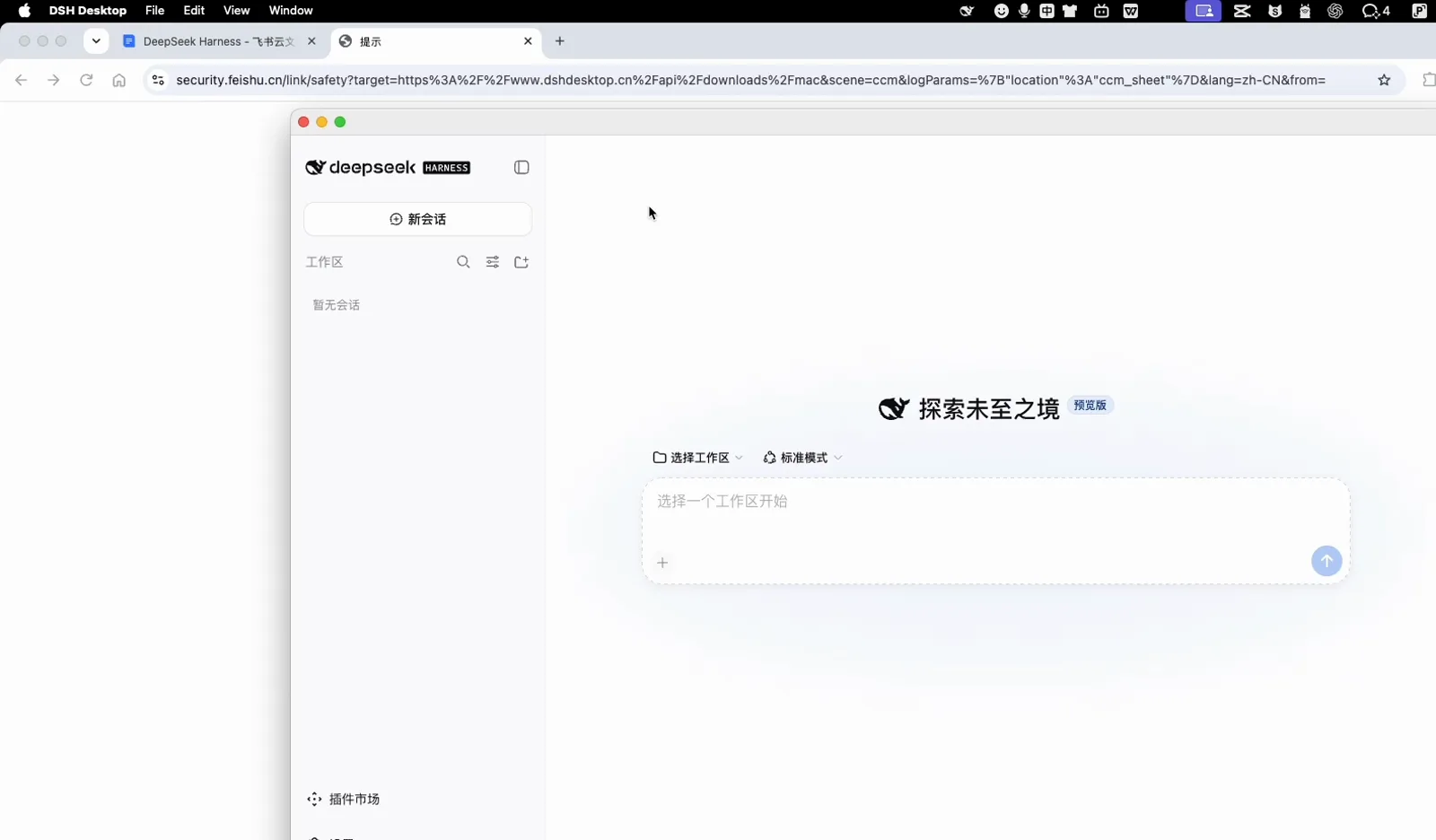
Already configured in the Web UI? The desktop client opens on the same session screen.Watch at 1:52 - 12
Otherwise, add an API key on the first screen
On the Windows pass the previous configuration had been deleted, so the app opened on 添加一个 API Key 开始使用 / 配置 DeepSeek 官方模型,即可开始使用。 with a single API 密钥 field and two buttons, 稍后配置 and 保存并继续. Paste the key from your provider's console here — this is the moment the safety checklist matters, because a client that asks for a key you never configured is doing something the official harness does not need to.
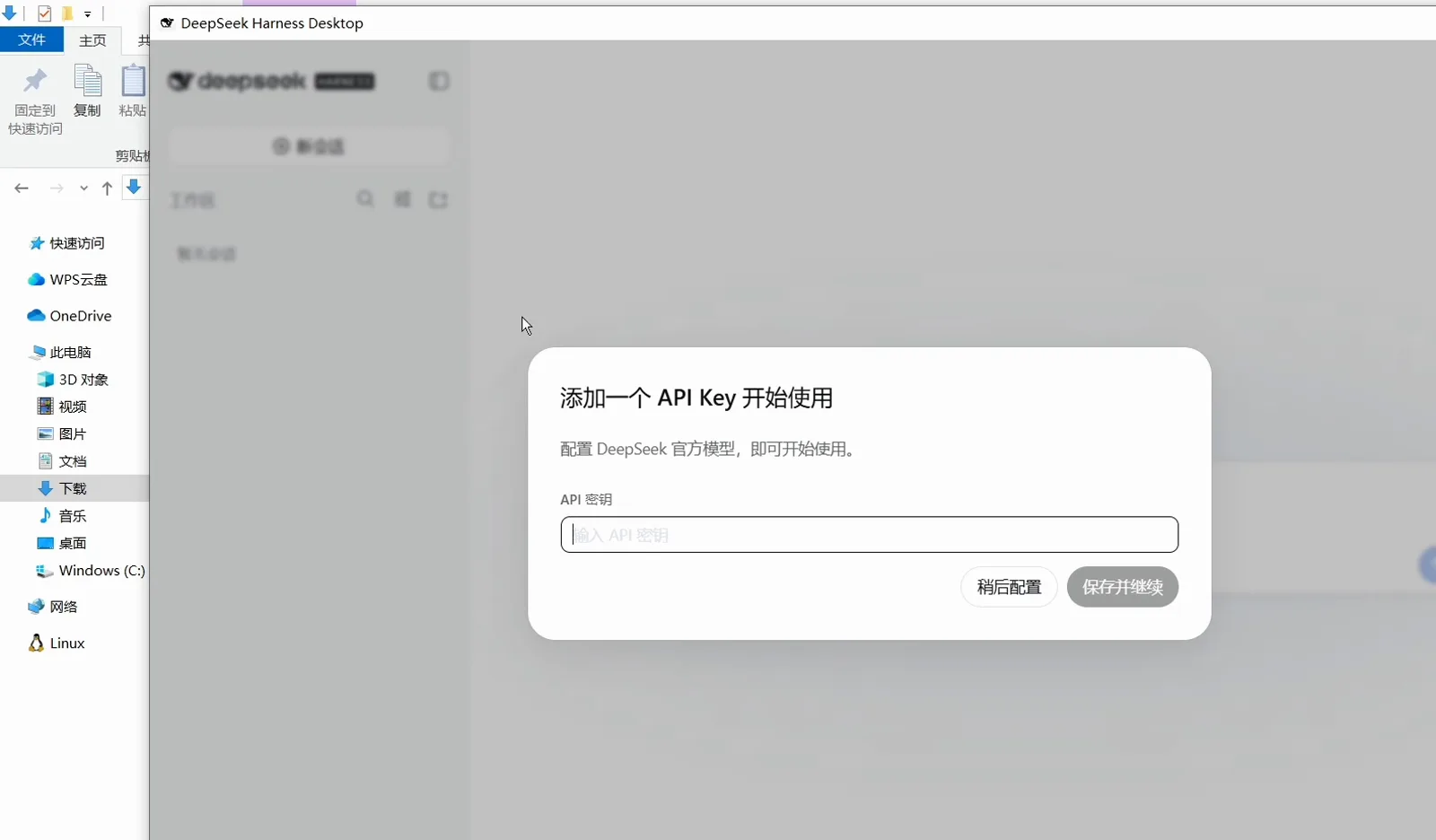
A fresh install asks for one key; the window title bar reads DeepSeek Harness Desktop.Watch at 3:24
How to check you downloaded the real thing
A desktop client gets your file system and your model API key — the exact combination fake installers are built around. Four checks, all of them visible in the screenshots above, take under a minute.
Where the link actually lands
The project's own download endpoints are https://www.dshdesktop.cn/api/downloads/windows and https://www.dshdesktop.cn/api/downloads/mac, and dshdesktop.cn is the homepage recorded against anywhere-labs/dsh-desktop in our catalog. GitHub releases on that repository are the other source we would accept. A cloud-drive mirror, a “fast download” button or a file passed around in a group chat is not the project speaking, whatever the page says.
File name, version and description
Windows: DSH-Desktop-<version>-x64-Setup-public.exe — the recording's copy reported 文件版本 2.0.0.0 and 大小 140 MB, with 文件说明 “DSH Desktop: an Electron shell composed as a DeepSeek Harness Cordis plugin”. macOS: DSH Desktop-<version>-universal.dmg at 278.5 MB. Both strings cost nothing to read and are very hard for a re-packaged installer to match.
Let the operating system do its check
macOS verifies DSH Desktop.app before it will open it. On Windows, SmartScreen or a security suite may flag an unfamiliar publisher, and the course specifically notes that 360 and 电脑管家 can block the install. Either way, decide deliberately: read what the prompt says, confirm the file came from the endpoints above, then continue or throw it away.
What the project itself claims
The DSH Desktop README describes it as an independent community open-source project with no affiliation, cooperation, authorisation or endorsement from DeepSeek, running a pinned upstream Harness unmodified with the desktop shell attached through the plugin system. Any page that presents a dsh desktop client as an official DeepSeek release is describing a different product — including the paid Microsoft Store listing we call out on the comparison page.
Not sure this is the client you want? The comparison page covers every community desktop client we could verify, with the same download-safety checklist: DeepSeek Harness desktop apps: official vs community
DSH Desktop installation FAQ
What people ask right before they run the installer.
Is DSH Desktop the official DeepSeek Harness desktop app?
No. The course this walkthrough follows says it out loud: the desktop program is not provided by the official team, it comes from community third-party developers. The project's own README repeats the same disclaimer. The official graphical interface for dsh is still the Web UI you start with dsh --profile web.
Do I need Node.js, pnpm or the dsh CLI installed first?
No. The handout states that ordinary users do not need to install Node.js, pnpm or DSH separately — the installers carry what the client runs. That is the difference between this page and our CLI install guides, where you install the runtime yourself.
Why does the download link stop on a “leaving Feishu” page?
Because the course handout is a Feishu document, and Feishu puts an interstitial in front of every external link. It is actually useful: the page prints the full target URL in text, so you can see you are going to www.dshdesktop.cn before anything downloads.
macOS says it is verifying the app and nothing opens. Is that a problem?
That is the expected first-open behaviour for an app downloaded from the internet: the recording shows 正在验证 “DSH Desktop.app” … before the window appears. Wait for it, then click 打开. If macOS refuses outright, stop and re-check where the file came from rather than forcing it past the warning.
360 or 电脑管家 blocked the Windows installer. What should I do?
The course raises this itself: security suites on a Chinese Windows desktop can interrupt the install. The presenter had quit it beforehand, and the advice if you have not is to keep the install going deliberately — after you have confirmed the file name and the download endpoint — instead of letting a suite decide in silence. Choose 仅为我安装 and leave the default folder while you are in there.
Will the desktop client reuse what I already set up in the Web UI?
In the recording, yes. On macOS the app opened straight onto the session screen because an API key had already been entered while using the Web version; on Windows, after that earlier configuration had been deleted, the same build opened on the add-an-API-key dialog instead. Expect one local configuration shared by both surfaces, not a separate desktop account.
Related guides
Pick a client, install the CLI path instead, or keep going after the first window opens.
Desktop apps: official vs community
Which community clients exist, what each one ships, and the download-safety checklist this walkthrough applies.
Read the guideInstall DeepSeek Harness on Windows
The npm route: Node.js, the CLI and the Web UI in your browser, no wrapper app.
Read the guideInstall DeepSeek Harness on macOS
The same CLI path on Apple silicon and Intel, for when you would rather not add an app.
Read the guideQuickstart: your first session
Pick a workspace, choose a model, send the first prompt — identical inside the desktop window.
Read the guideInstall and manage dsh plugins
The Plugin Market (插件市场) entry in the sidebar is the same plugin system the CLI drives.
Read the guideSource video and credits
Screenshots are frames from the linked lesson, cropped to drop the burned-in subtitle band and the channel watermark; the words inside each window are the installer's own. Narration is summarised, not transcribed, and version numbers, endpoints and licence facts were checked against the project repository. DSH Desktop is a community project and is not an official DeepSeek product; the licence, release and homepage facts used above are kept in its catalog record: DSH Desktop in our catalog