
Connect DeepSeek Harness to WeChat and Feishu: QR-Code Messaging Channels, Step by Step
A 12-screenshot walkthrough of the dsh-im plugin: install, scan a WeChat QR, confirm on your phone, create the Feishu bot — then run your home DeepSeek Harness from your phone.
Last updated: 2026-09-17
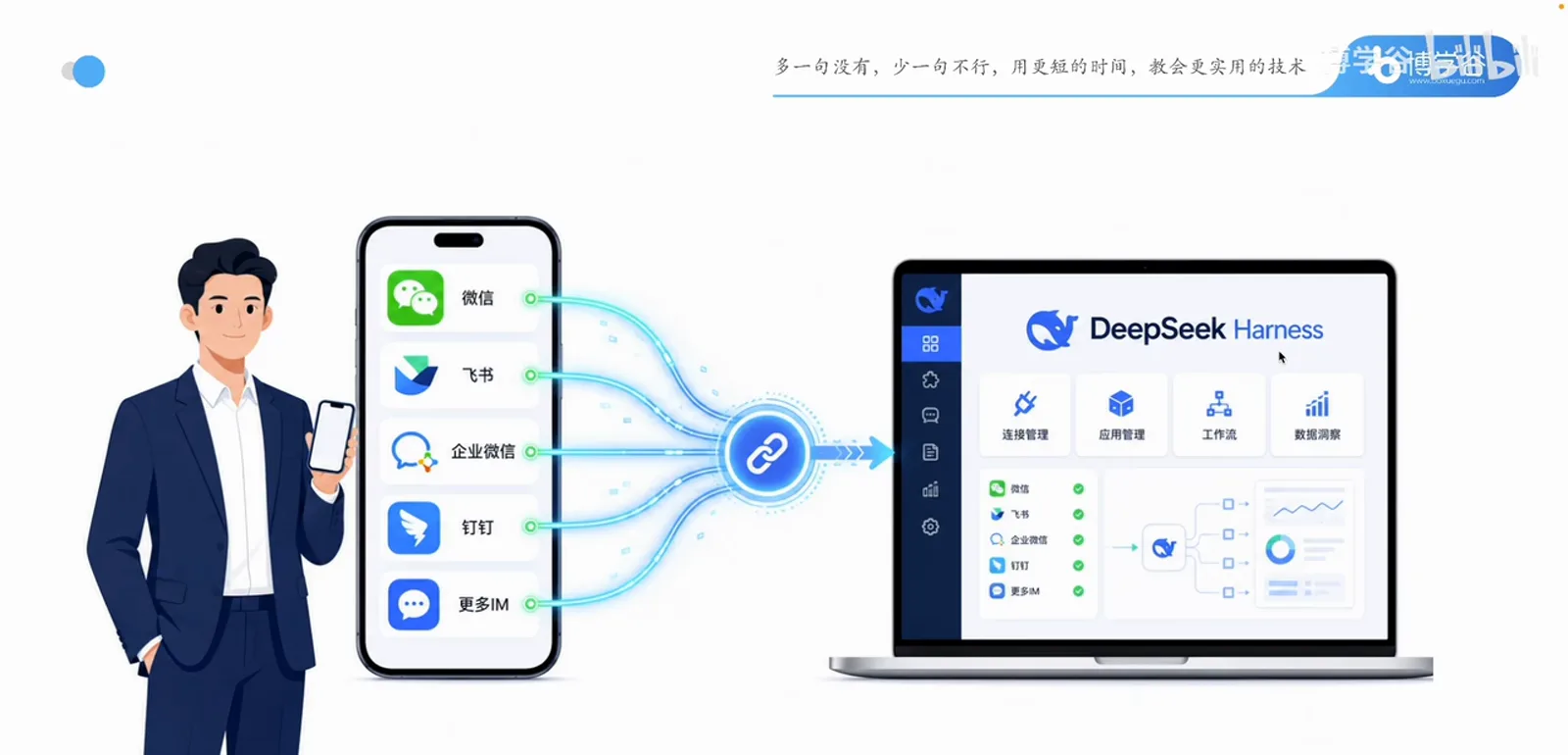
DeepSeek Harness lives on your own computer — which also means you have to be sitting at that computer to command it. This episode's fix: wire your phone's chat apps into the loop, so WeChat or Feishu becomes a remote control for the DeepSeek Harness running back home.
Boxuegu's DeepSeek Harness course (episode 9, credited below) demonstrates two full paths: WeChat, where scanning a QR code is all it takes, and Feishu, where you scan and then create a named bot. The same panel lists nine channels in total — DingTalk, WeCom, QQ, Slack, Telegram, Discord and WhatsApp share the same framework. Every screenshot below comes from that screencast, and each one links back to the exact moment in the video.
TL;DR
- ▸One plugin does it: install dsh-im from the marketplace and refresh the page — no restart.
- ▸WeChat is the fast path: generate a QR (valid ~4 minutes), scan it, confirm on the phone — connected.
- ▸Feishu adds one step: scan, then name and create your bot (QR valid only 60 seconds); DingTalk and the rest of the nine share the same framework.
Wire DeepSeek Harness into WeChat and Feishu in ten steps
- 1
Find dsh-im in the plugin marketplace
Open Settings → Plugin marketplace and look under the Notifications & integrations category for dsh-im: it hooks chat channels into DeepSeek Harness via QR codes or bot credentials, supporting nine apps — Feishu, WeChat, DingTalk, WeCom, QQ, Slack, Telegram, Discord and WhatsApp.
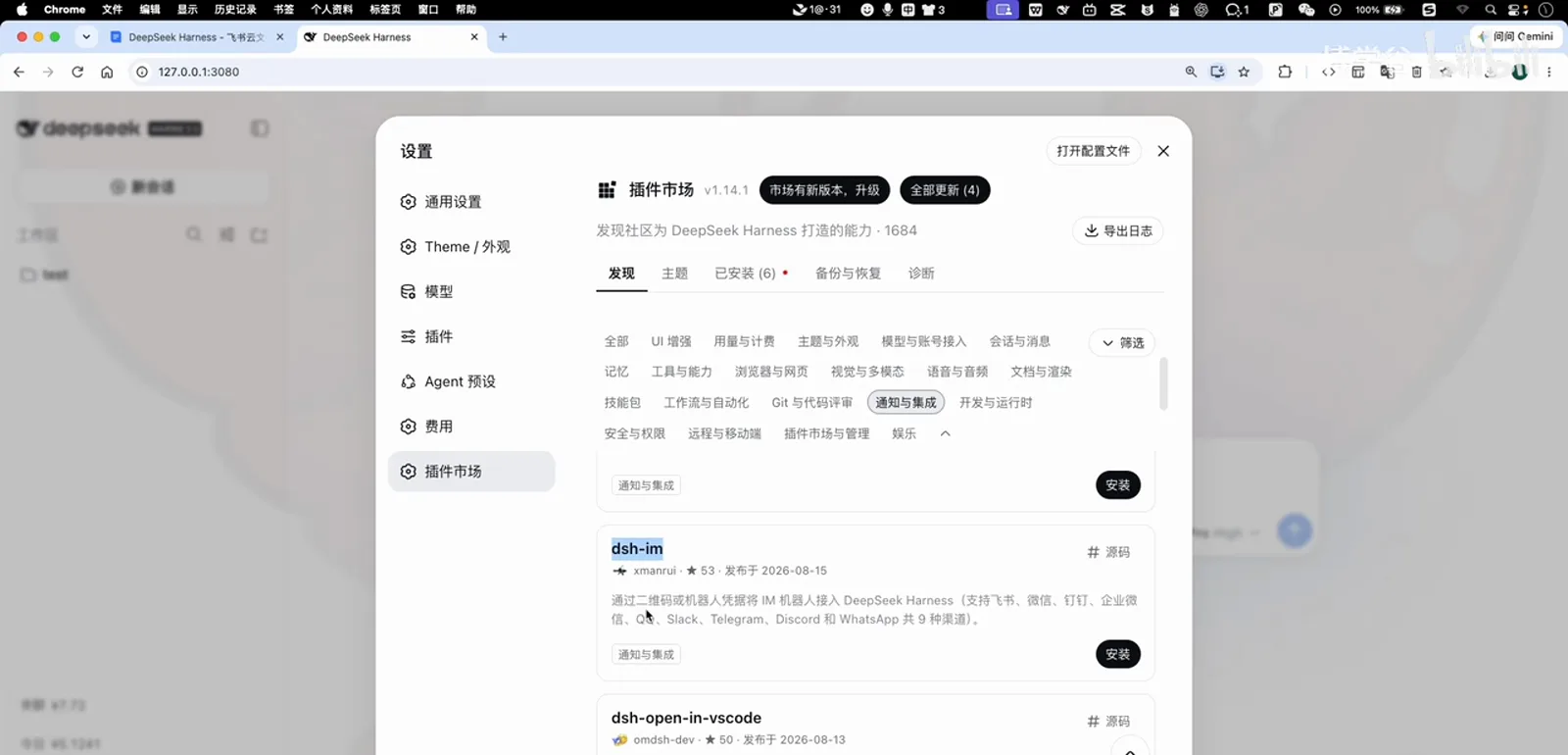
The one to install: dsh-im, the bridge between chat apps and DeepSeek Harness.Watch at 0:50 - 2
Install, then just refresh
Hit Install — it lands in seconds, and new plugins no longer need a restart. A banner says a new plugin is ready and a page refresh is all it takes. Click refresh.
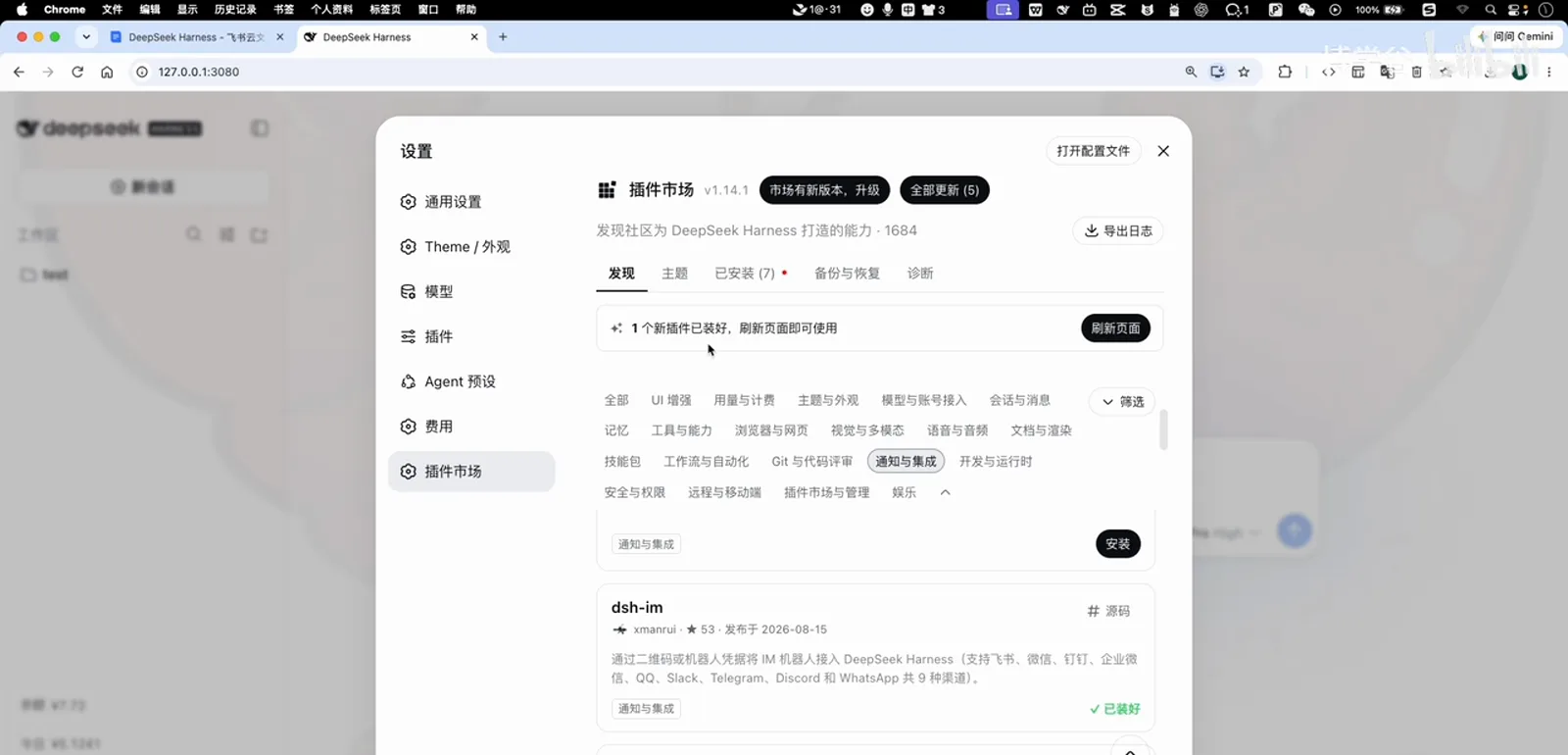
No restart needed — one page refresh and the plugin is live.Watch at 1:15 - 3
Open the IM Bot panel and pick WeChat
After the refresh, go to Settings → Plugins → IM Bots, where all nine channels are listed. The video wires up WeChat first: select it and the right side offers "Scan once to use Harness in WeChat" plus a generate-QR-code button.
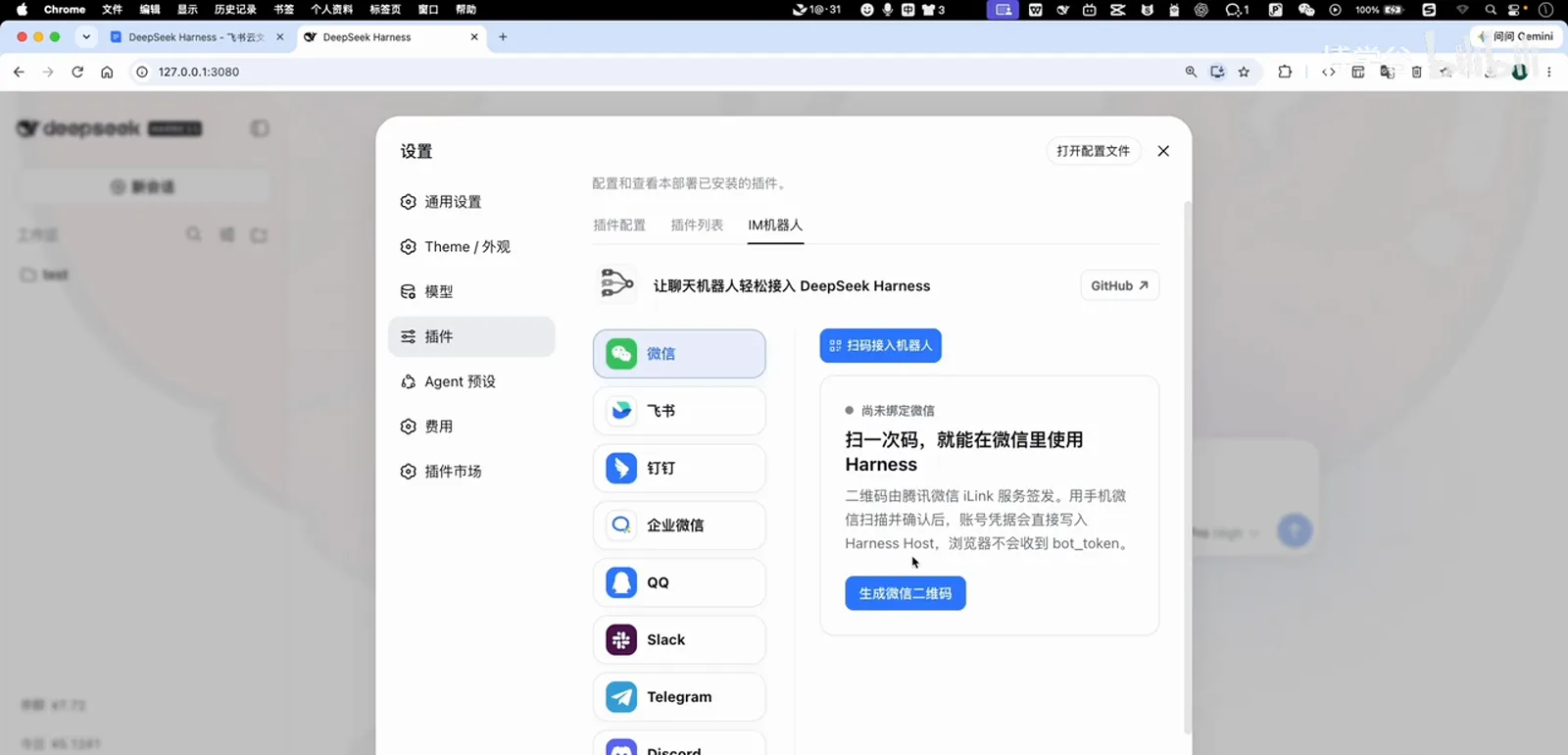
The new IM Bots entry after the refresh: pick a chat app and the integration starts.Watch at 1:40 - 4
Generate the WeChat QR code (valid ~4 minutes)
Click Generate QR code and a WeChat QR appears, valid for roughly four minutes. The panel spells out the flow: scan with your phone's WeChat, verify and confirm the authorization on the phone; some channels then show an extra pairing number to type in. If a code misbehaves, hit Switch to a new QR code.
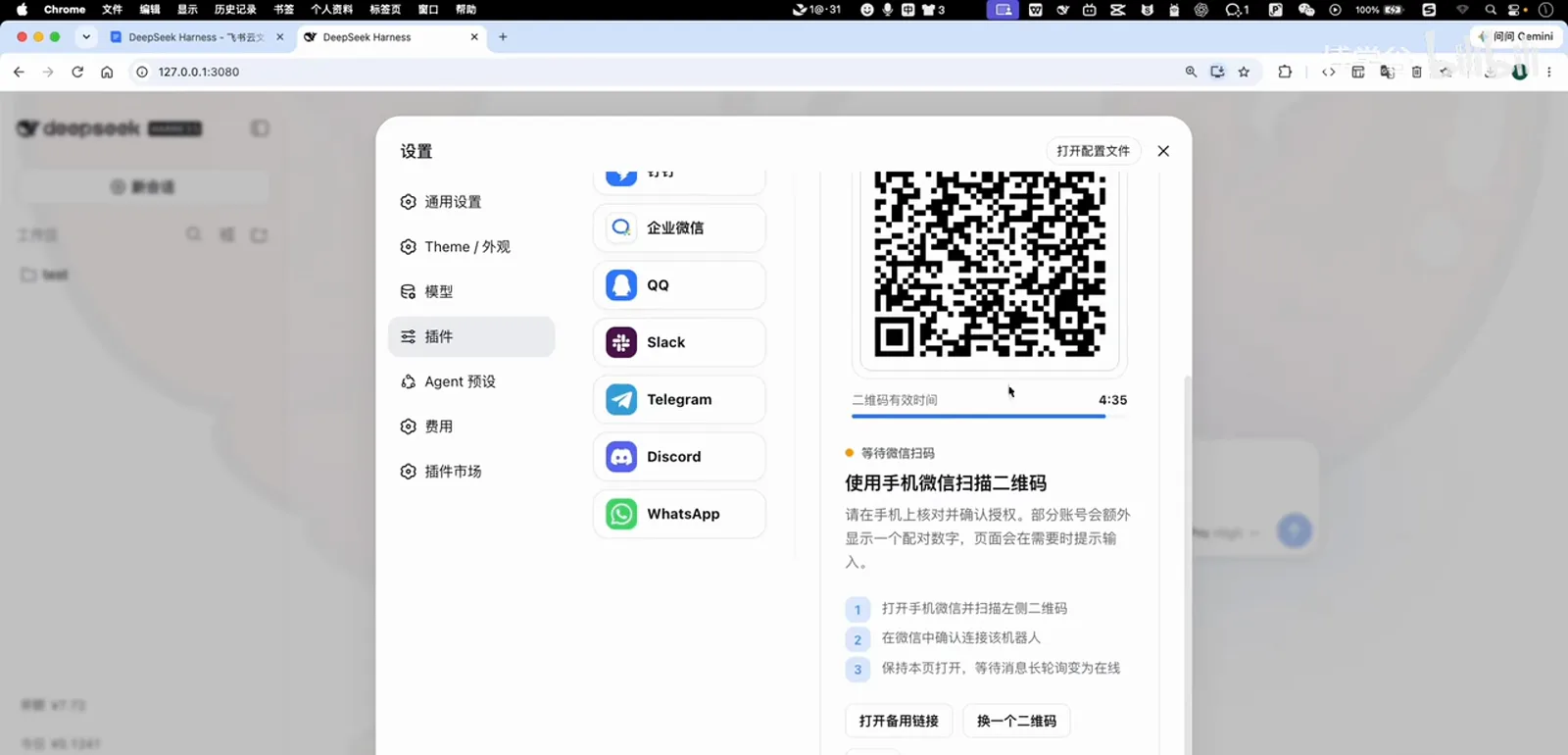
The WeChat QR lasts a little over four minutes; expired, one click regenerates it.Watch at 2:10 - 5
On the phone: update WeChat, scan, confirm
Before scanning, bring WeChat up to date (Me → Settings → About WeChat → Check for Updates) — the plugin ships a built-in WeChat setup guide covering exactly this. Then scan the QR with WeChat; a confirmation screen appears on the phone, and one tap on Connect completes the pairing.
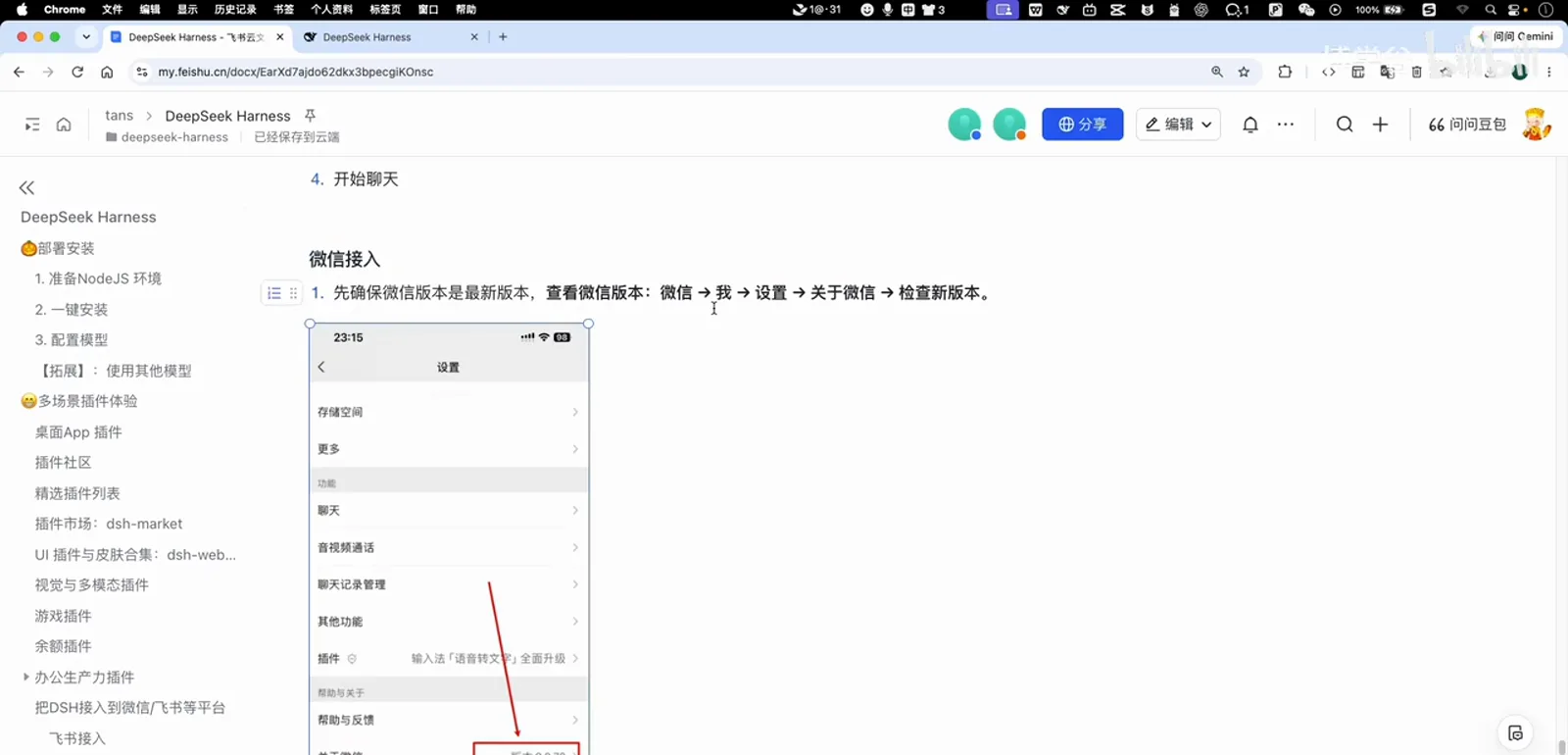
Before scanning, the video follows this guide to get WeChat current.Watch at 2:30 - 6
Connected — visible and manageable
Once the phone confirms, the IM Bot panel shows a connected WeChat account card: the bot's avatar sits online, with Check connection and Remove within reach.
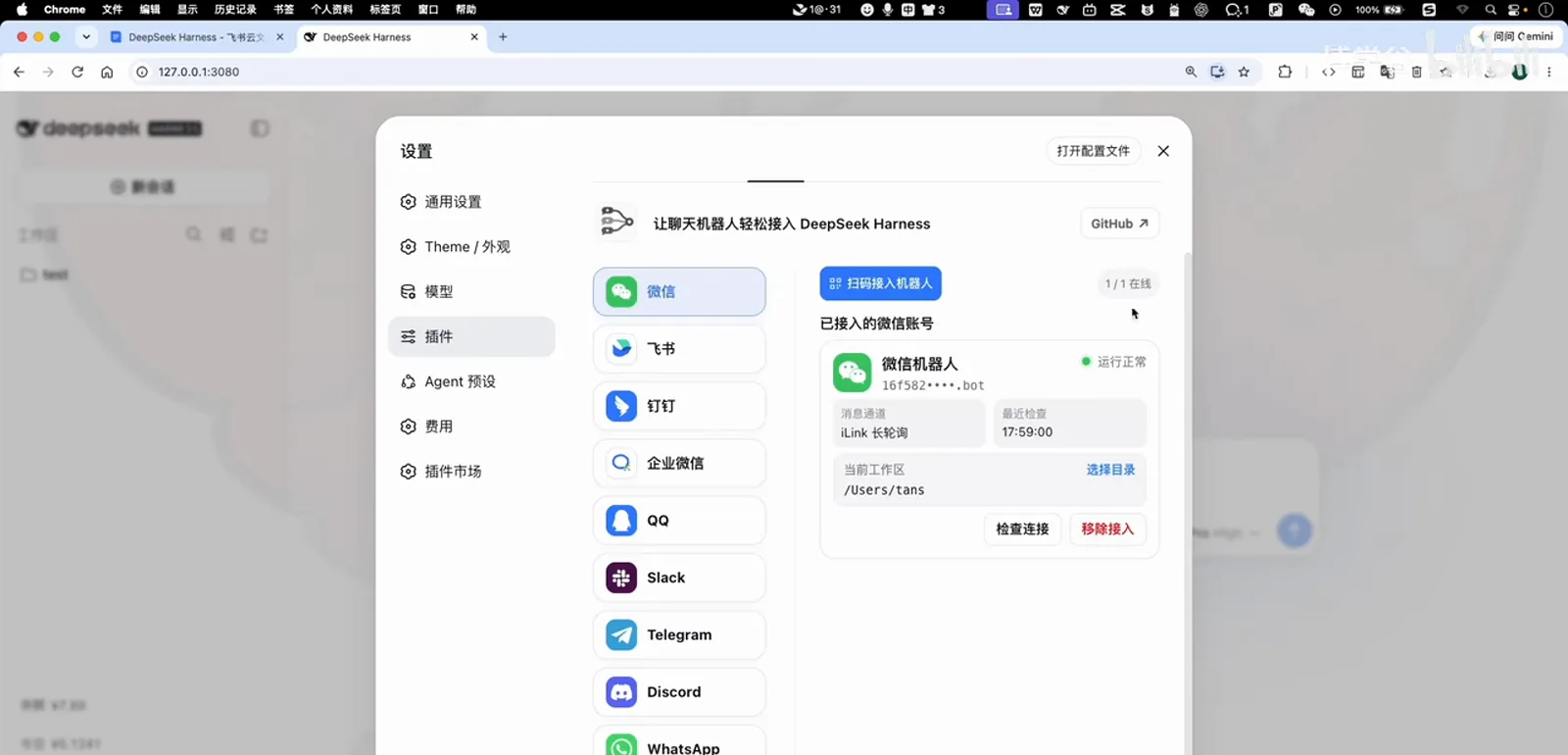
Proof of success: the WeChat bot sits in the panel, removable at any time.Watch at 3:15 - 7
Text it from your phone, watch the web UI respond
Send the bot a "Hello, who are you?" from WeChat: a new session pops up in the DeepSeek Harness web UI, the agent replies with an introduction and a capability list, and the same answer lands back in your WeChat. WeChat integration: done.
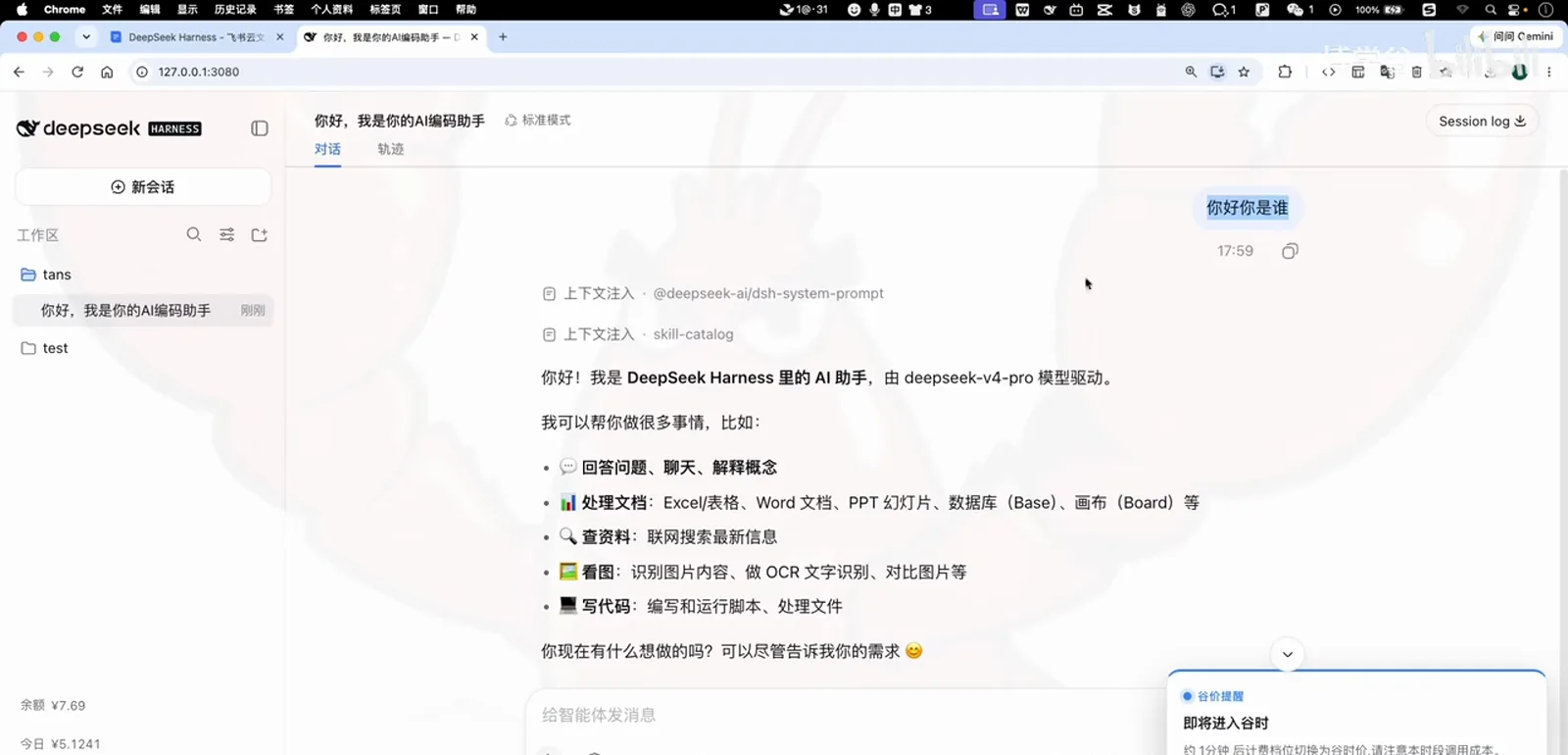
A phone message becomes a web session; the reply travels back to WeChat.Watch at 3:35 - 8
Feishu: generate the QR and scan within 60 seconds
Feishu follows the same framework: register a Feishu account, select Feishu in the panel, and click Generate Feishu QR code. Mind the clock — the Feishu QR is only valid for 60 seconds, so scan promptly; if it lapses, just generate a fresh one.
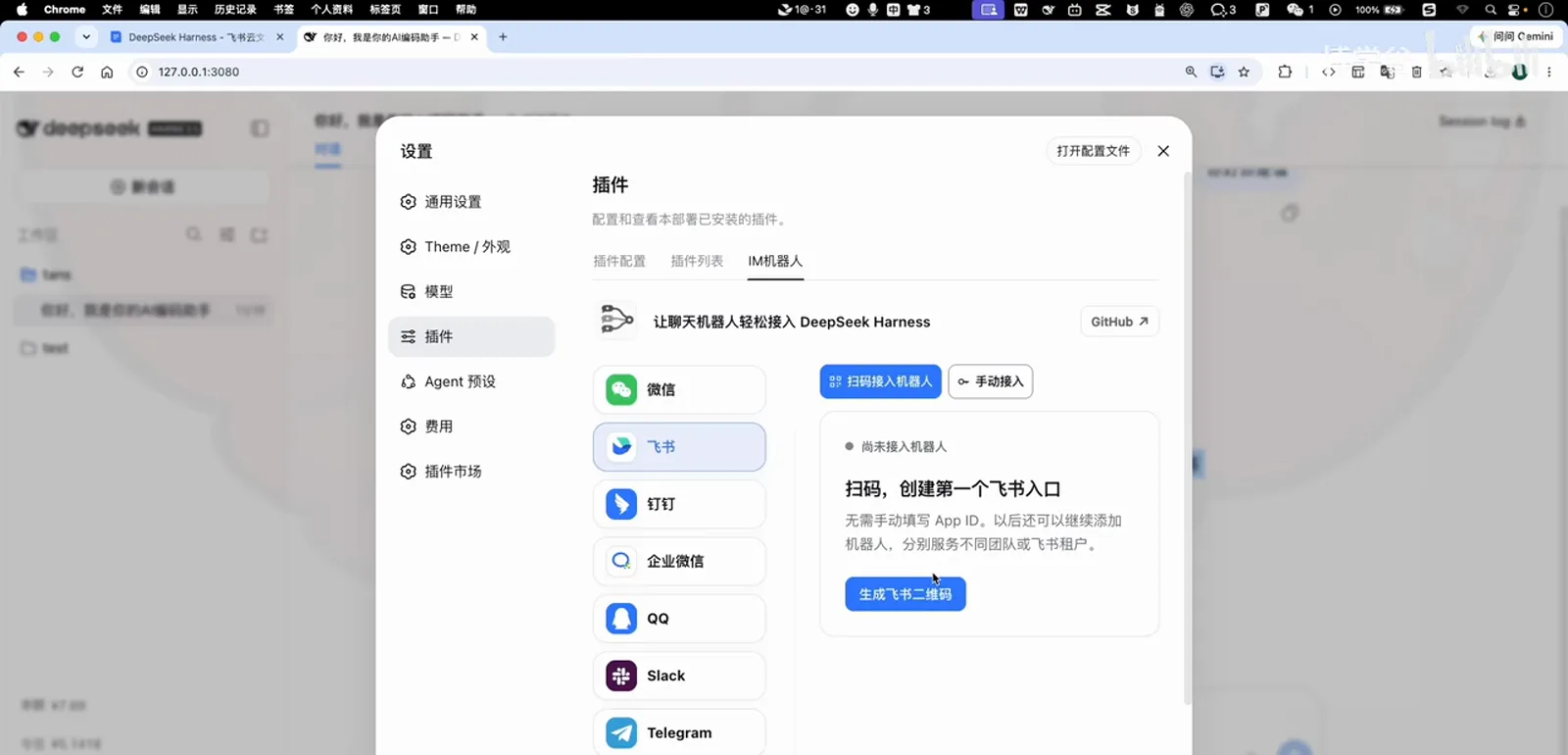
Feishu is its own flow: start by generating a Feishu QR in the panel.Watch at 4:50 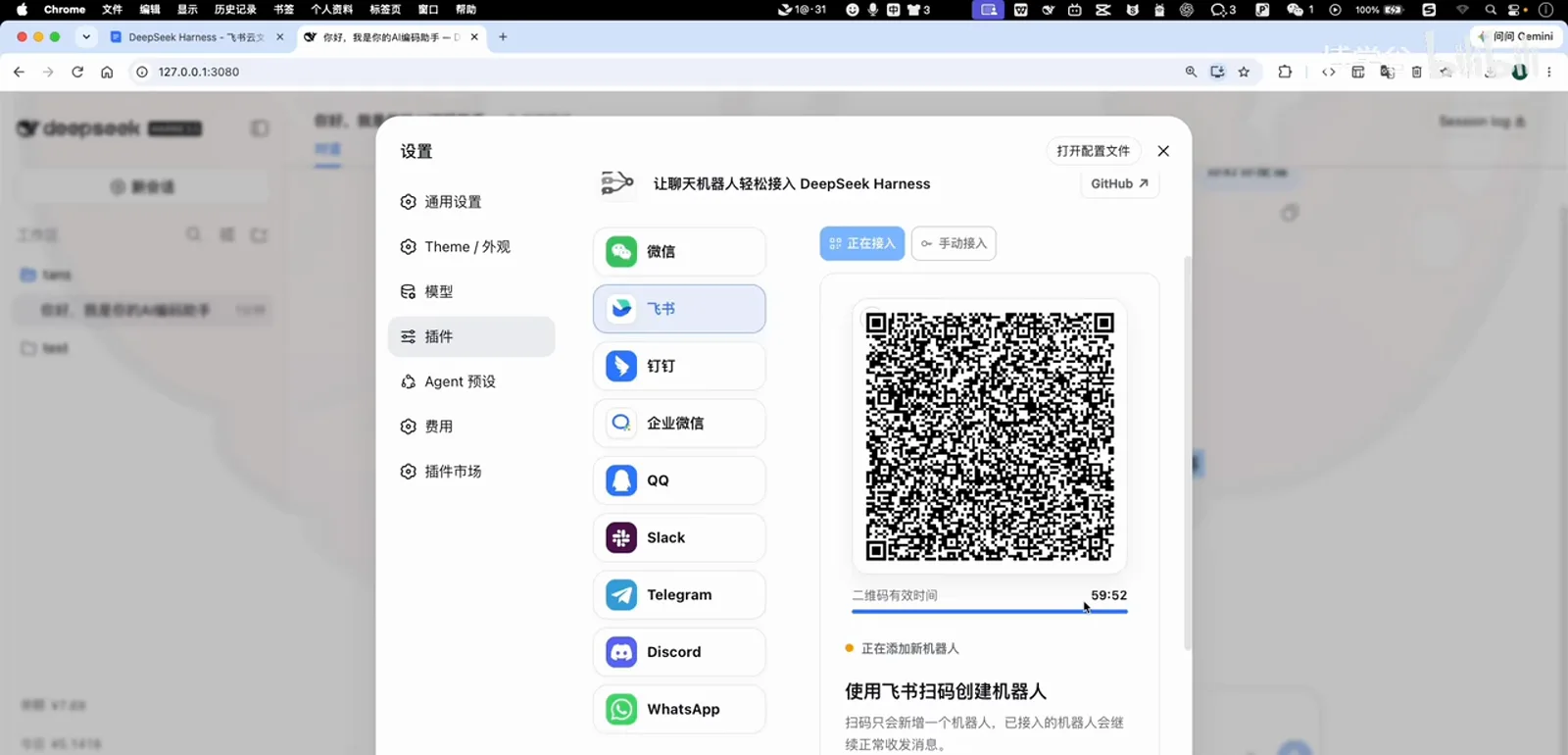
Feishu QR codes live for only 60 seconds — be quick; regenerating takes one click.Watch at 5:00 - 9
Feishu: name the bot and confirm creation
After Feishu scans the code, the first screen asks you to name the bot — the name is fully yours to choose; the video renames it to its DSH assistant. Tap Create now, an operation safety notice pops up, confirm and tap Continue creating, then Create. Once it succeeds, open the app and start chatting.
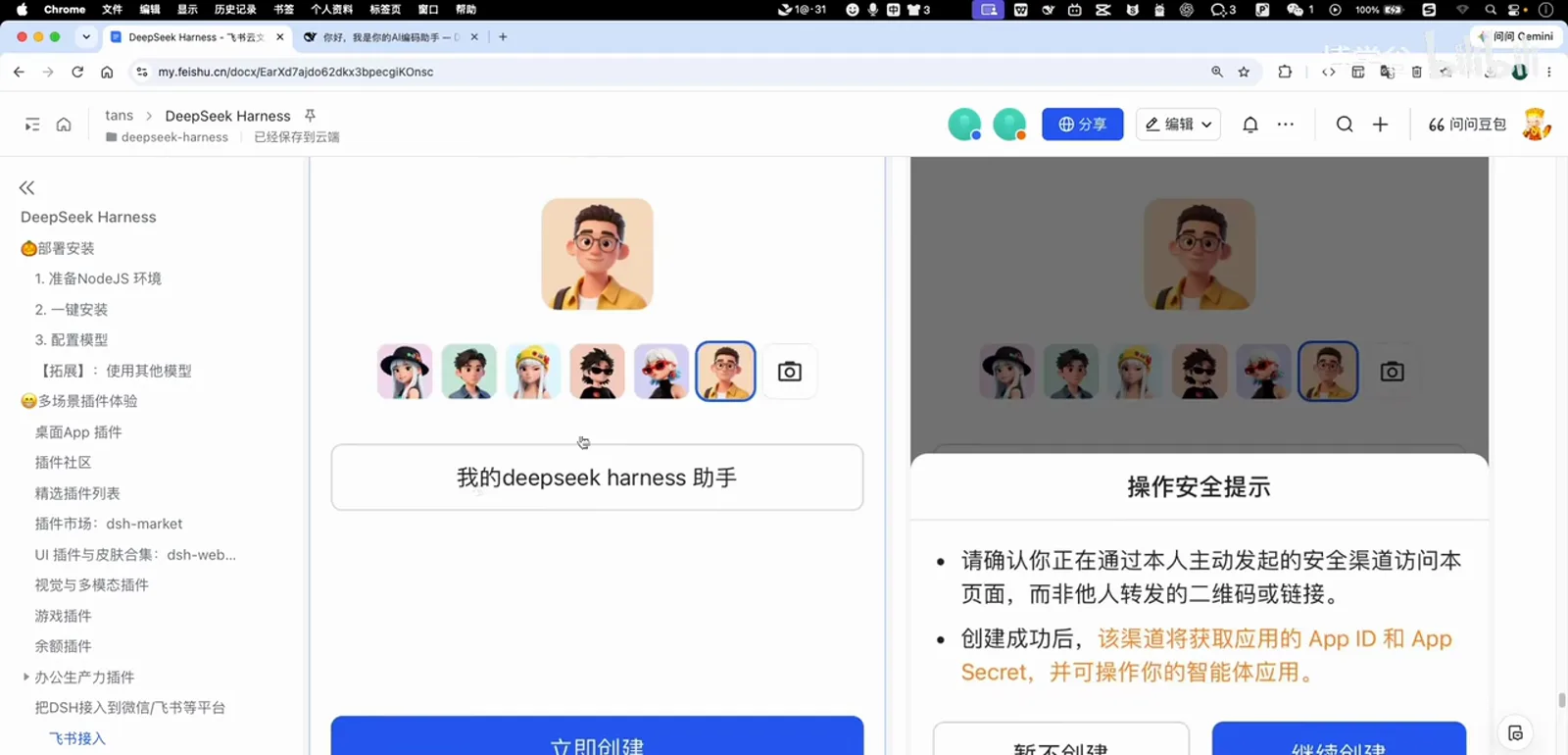
Name the bot — the video renames it to its DSH assistant — then continue past the safety notice.Watch at 4:18 - 10
Talk to it: phone commands, computer works
Ask "Who are you?" in Feishu and the DSH assistant replies, noting it runs on the deepseek-v4-pro model; refresh the web UI and that Feishu session is right there. WeChat and Feishu keep separate sessions that never mix — from now on, the DeepSeek Harness on your computer takes orders from your phone.
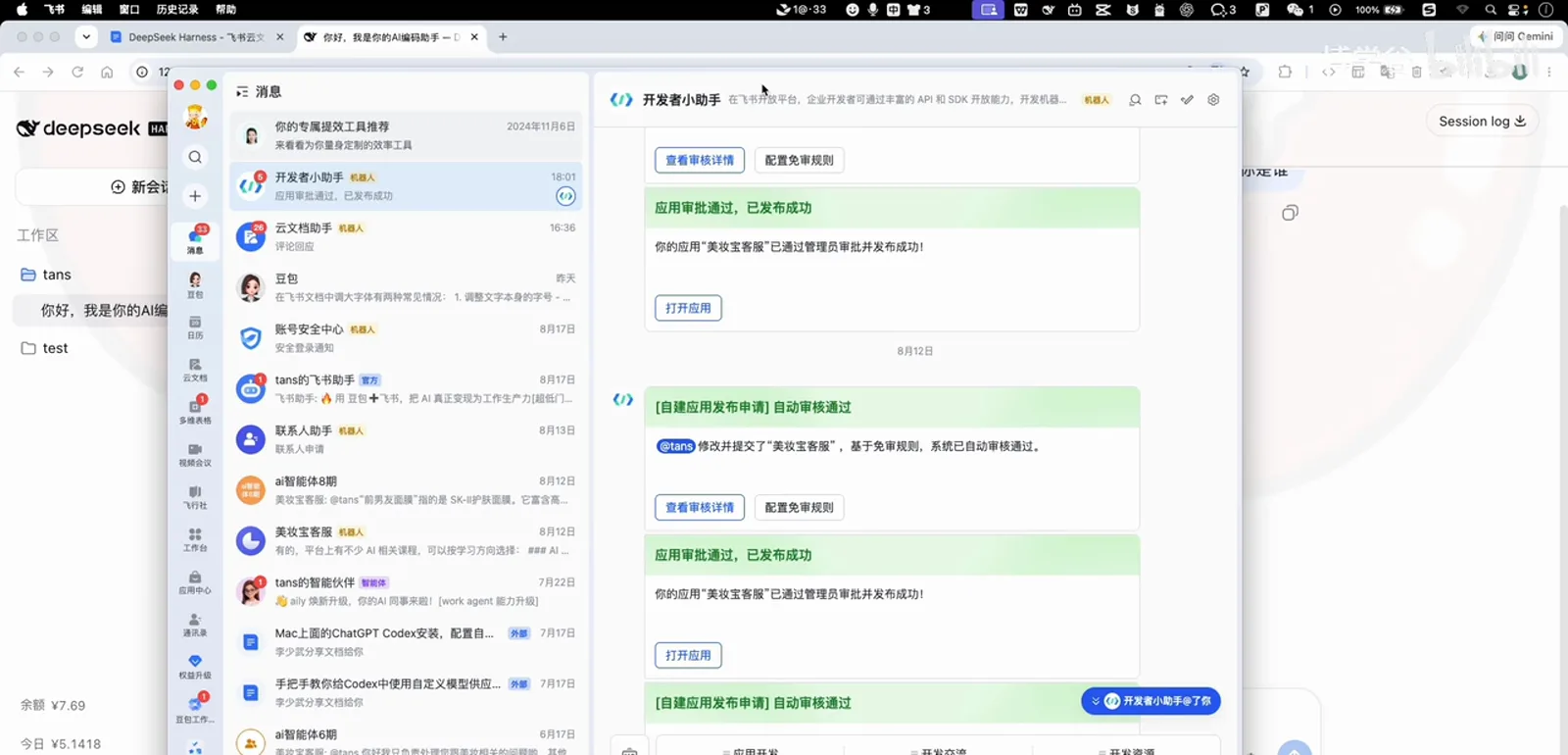
The presenter keeps a desktop Feishu open: phone in, answer back, live.Watch at 5:50 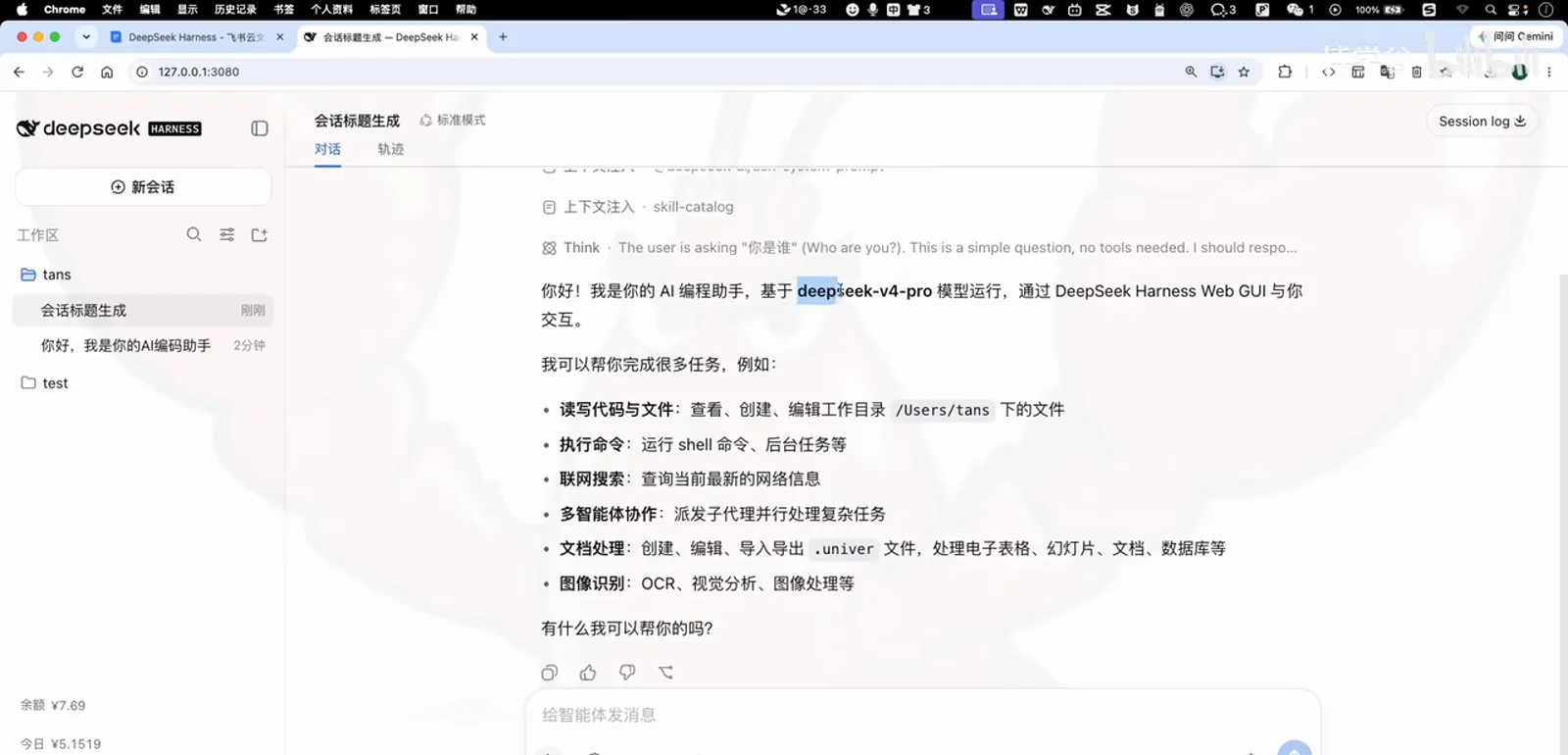
The web UI mirrors it all — and Feishu sessions stay separate from WeChat ones.Watch at 6:15
WeChat & Feishu integration FAQ
Quick answers about QR validity, authorizations, channel coverage and sessions.
How long do the QR codes stay valid, and what if one expires?
The two channels differ: the WeChat QR lasts about four minutes, while the Feishu QR is valid for only 60 seconds, so scan it promptly. Neither is a problem if it lapses — click Switch QR code on WeChat, or regenerate on Feishu.
What exactly am I confirming — the phone authorization and Feishu's safety notice?
After scanning the WeChat QR you verify and confirm the authorization on your phone; some channels then display an extra pairing number to enter as prompted. On Feishu, creating the bot raises an operation safety notice: confirm it is really you performing the action and that the created bot will use your App ID / App Secret, then tap Continue creating. In both cases the authorization connects your own chat account to the DeepSeek Harness on your own computer.
What about DingTalk, QQ and the channels the video doesn't demo?
The panel lists nine channels: WeChat, Feishu, DingTalk, WeCom, QQ, Slack, Telegram, Discord and WhatsApp. The video walks through WeChat and Feishu end to end; the rest use the same QR/credential approach in the panel but are not demonstrated step by step — check the official docs for channel-specific details.
Does group chat work? And do WeChat and Feishu sessions mix?
The video only demonstrates one-on-one chats; group-chat support isn't shown, so treat the official docs as the source of truth. Sessions are nothing to worry about: WeChat and Feishu each get their own independent session in the web UI, and Feishu lets you add more bots later to serve different teams or Feishu accounts.
Related DeepSeek Harness guides
Keep going: remote access, task notifications, and the plugin and config basics behind this integration.
Remote access from your phone
The sibling scenario for when you leave your desk: tunneling into your own machine, step by step.
Read the guideTask notification collection
When a job finishes, your phone should be the first to know — curated resources for task notifications.
Read the guideThe complete guide to installing plugins
dsh-im is one of many: how discovery, installation and management work across the marketplace.
Read the guideDeepSeek Harness configuration basics
Installing the plugin is half the job: get models, keys and the workspace right.
Read the guideSources & credits
Frames in this guide are captured from the screencast below (Boxuegu · Bilibili) and remain the property of its creator — each image links back to the exact moment it was taken. Panel and button names follow the on-screen UI.