
Switch Models in DeepSeek Harness
Wire up NVIDIA NIM, Anthropic or a local Ollama as a custom provider, then switch models mid-session — every step screenshot-checked from two full video walkthroughs.
Last updated: 2026-09-11
Out of the box, DeepSeek Harness talks to the official DeepSeek API — but the Models panel is deliberately provider-agnostic. Built-in entries cover Amazon Bedrock, Anthropic, Azure OpenAI, Cloudflare, DeepSeek, Fireworks, GitHub Copilot, Google, Groq, HuggingFace, Kimi, MiniMax and more, while the custom-provider form accepts any OpenAI-compatible endpoint: an NVIDIA NIM key, a corporate gateway, or Ollama on your own machine.
This guide follows two complete walkthroughs: Leon van Zyl registers Ollama (http://localhost:11434/v1) as a custom provider, pairs it with a purpose-built Local Models preset, and verifies with qwen3.8:latest; Vassity generates an NVIDIA NIM API key, points the Base URL at integrate.api.nvidia.com/v1, adds MiniMax 3, and pulls gemma4:12b locally. Twelve frames, seven steps, every command shown.
Switch models in seven steps
- 1
Open Settings → Models: two ways to add a provider
The Models panel is the control room. The DeepSeek entry shows a green dot once its API key is accepted, and every connected provider gets its own card. Built-in providers live in the Provider dropdown — amazon-bedrock, anthropic, azure-openai-responses, cerebras, cloudflare-ai-gateway, deepseek, fireworks, github-copilot, google, groq, huggingface, kimi-coding, minimax and more. Anything not on that list goes through the Custom provider form right below: a lowercase Provider ID, a display name, a Base URL, a protocol and an API key.
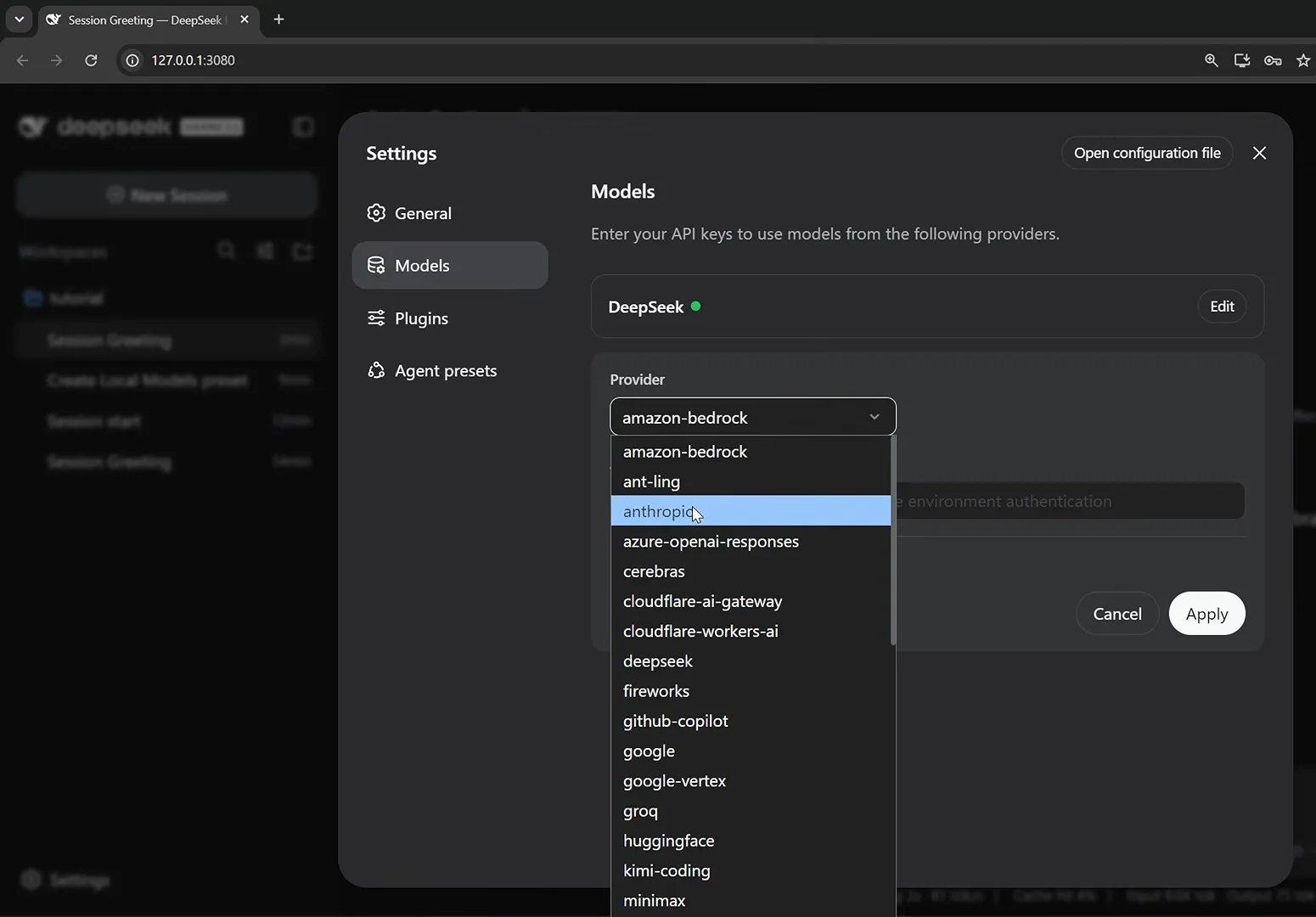
Two doors into the Models panel: the built-in provider dropdown, and the custom form below it.Watch at 10:50 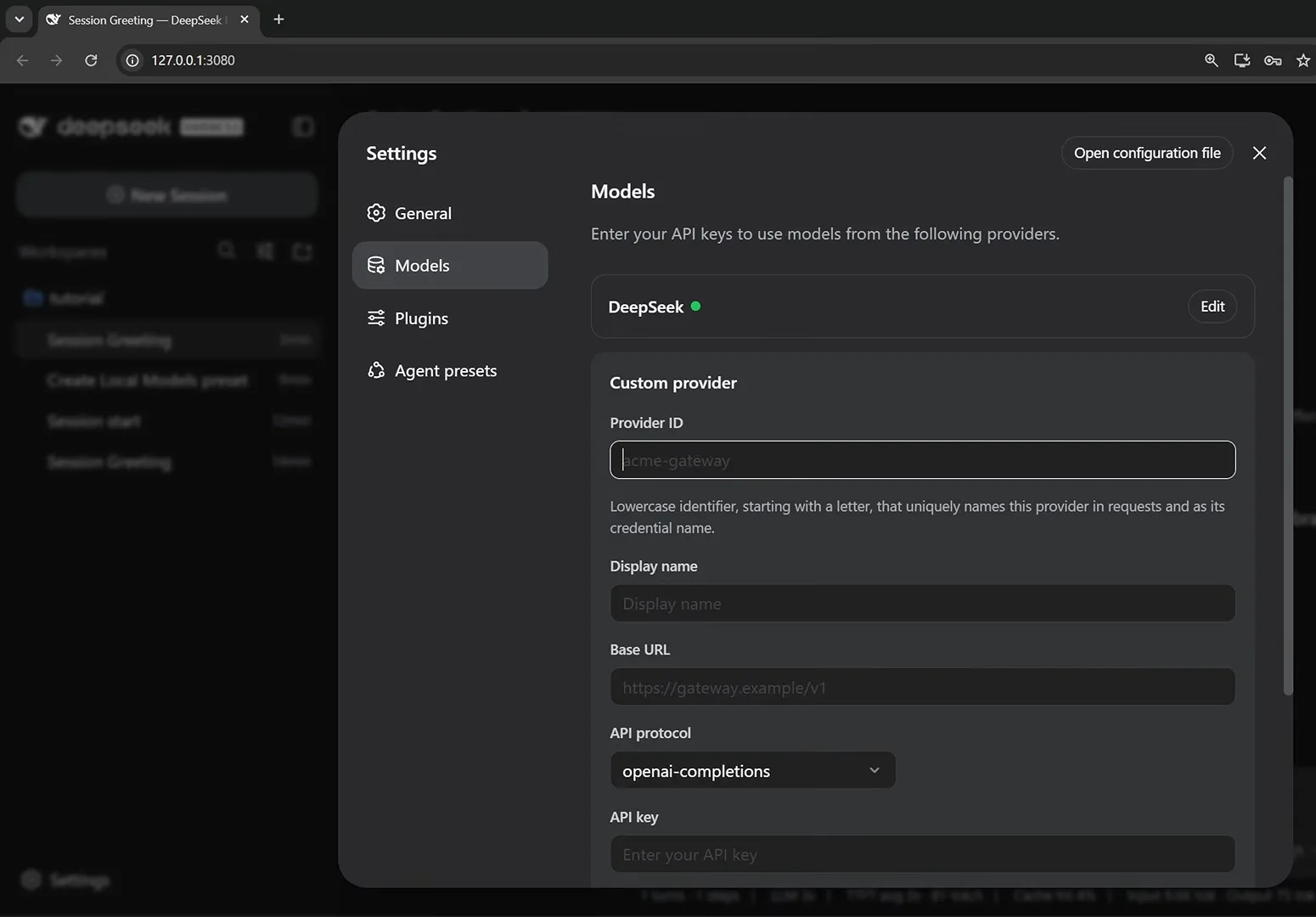
Nothing configured yet — every field you need sits on this one screen.Watch at 11:00 - 2
Connect a built-in provider with an API key
Pick a provider from the dropdown, paste its key, press Apply — the field's placeholder even notes that it can be left blank to use environment authentication instead. Keys come from the provider's own console: Vassity generates his NVIDIA NIM key on the account's API-key page, names it, sets a 12-month expiry and copies it immediately, because the page never shows it again. Customize settings stays collapsed unless you need to override defaults.
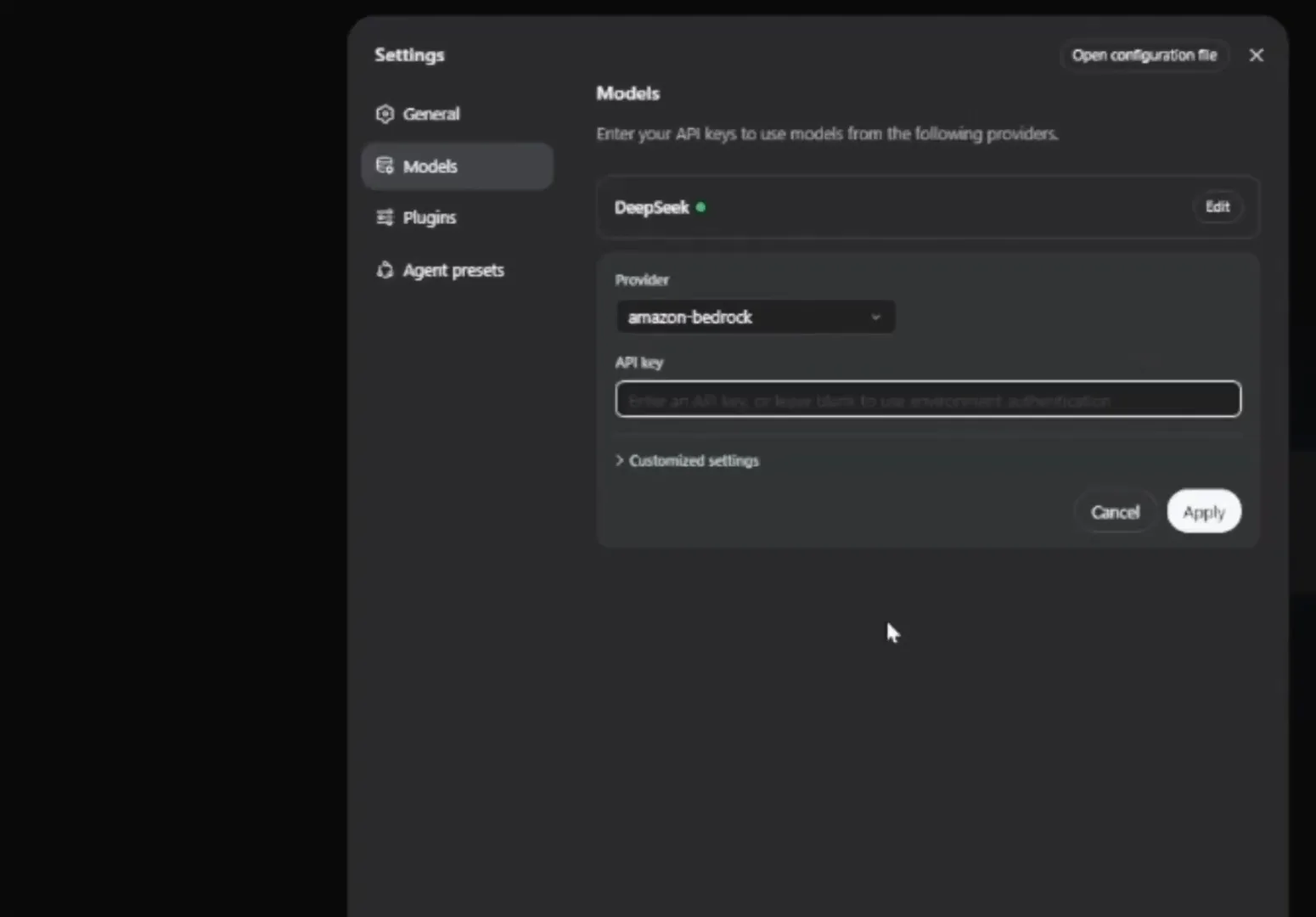
One key covers every model on that provider — no per-model setup.Watch at 4:20 - 3
Point the provider at any OpenAI-compatible endpoint
Expand Customized settings and the Base URL field turns the panel into a universal adapter. For NVIDIA NIM it's https://integrate.api.nvidia.com/v1 — any service speaking the OpenAI chat-completions dialect works the same way. Below, the customized model catalog takes Model ID + Display name pairs: Vassity copies MiniMax 3's ID straight off NVIDIA's model list, gives it a display name and presses Apply. Empty rows raise "Model ID is required" until you fill them in or remove them.
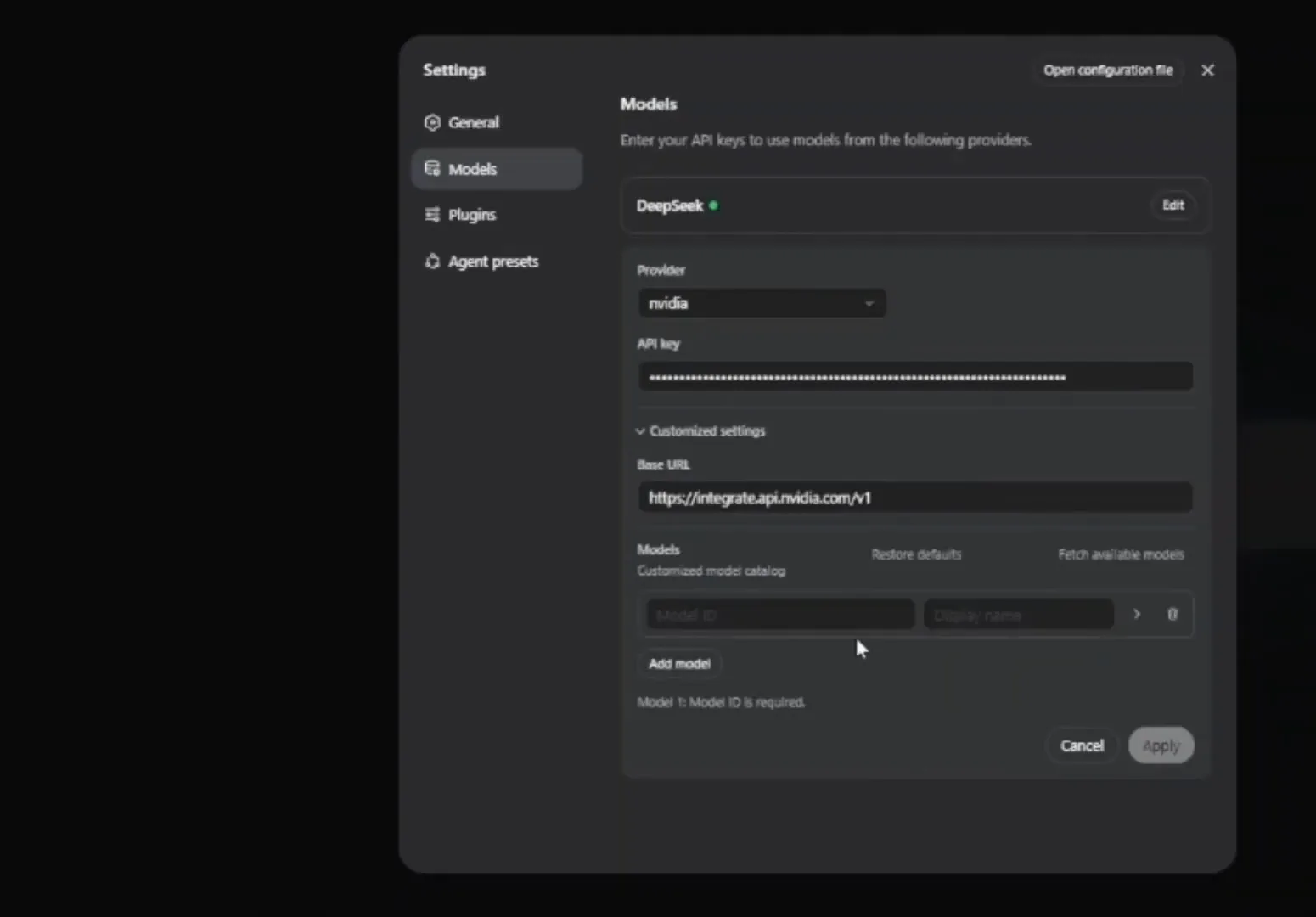
The Base URL is the whole trick: any OpenAI-compatible endpoint fits the same form.Watch at 4:40 - 4
Local Ollama is just another custom provider
Install Ollama from ollama.com, then pull the model that fits your hardware — Leon runs qwen3.8 (budget about 16 GB of VRAM), Vassity grabs gemma4:12b from the ollama.com library, and both confirm with ollama list. Back in DeepSeek Harness, fill the Custom provider form: the Provider ID must be lowercase (the form rejects "Oll" with "Start with a lowercase letter…"), the Display name can be anything — Ollama — the Base URL is http://localhost:11434/v1, the API protocol stays on openai-completions, and the API key just needs any placeholder string: type ollama.
$ollama pull qwen3.8$ollama list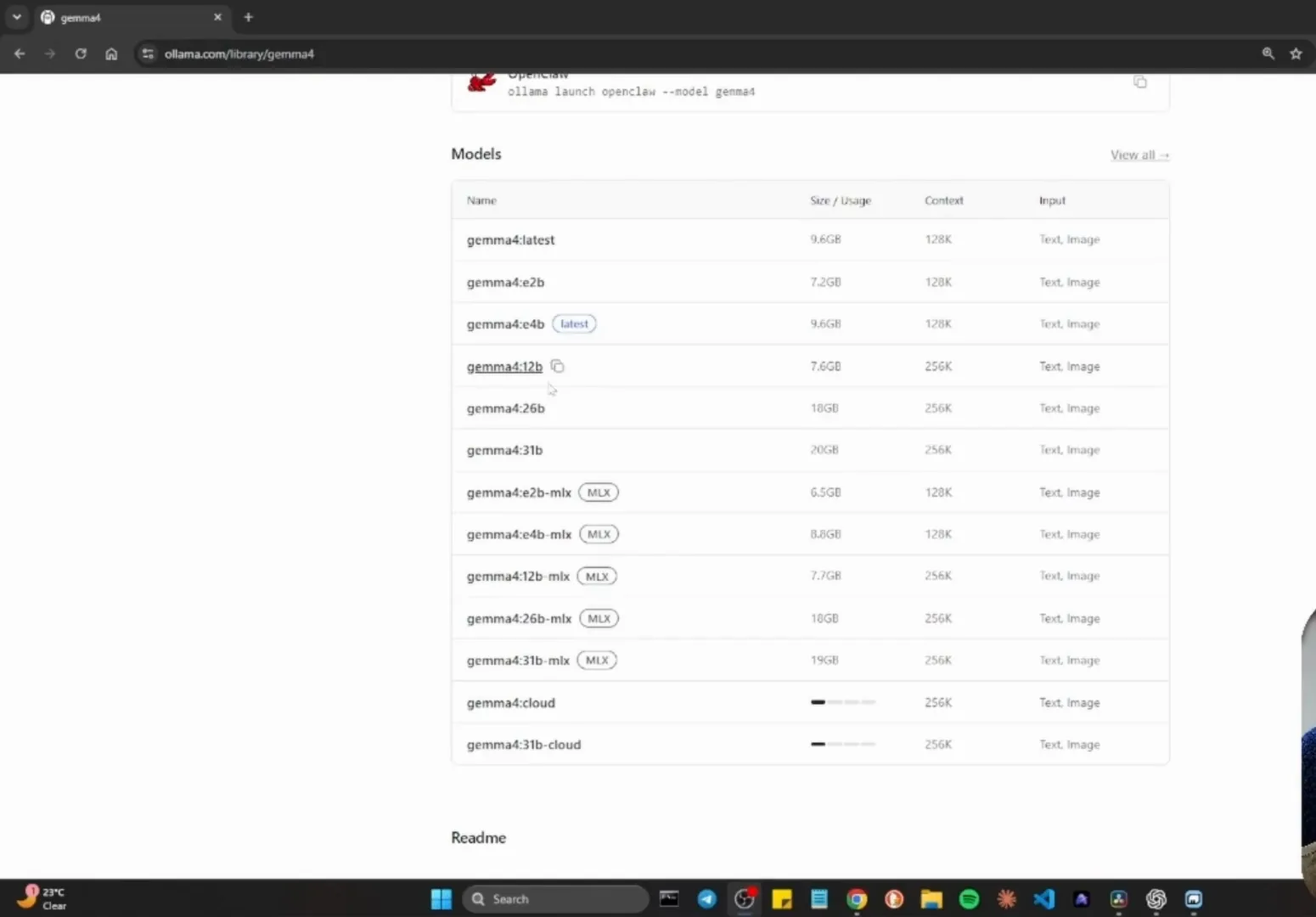
Pick a tag your hardware can actually run, then copy it for the pull command.Watch at 11:30 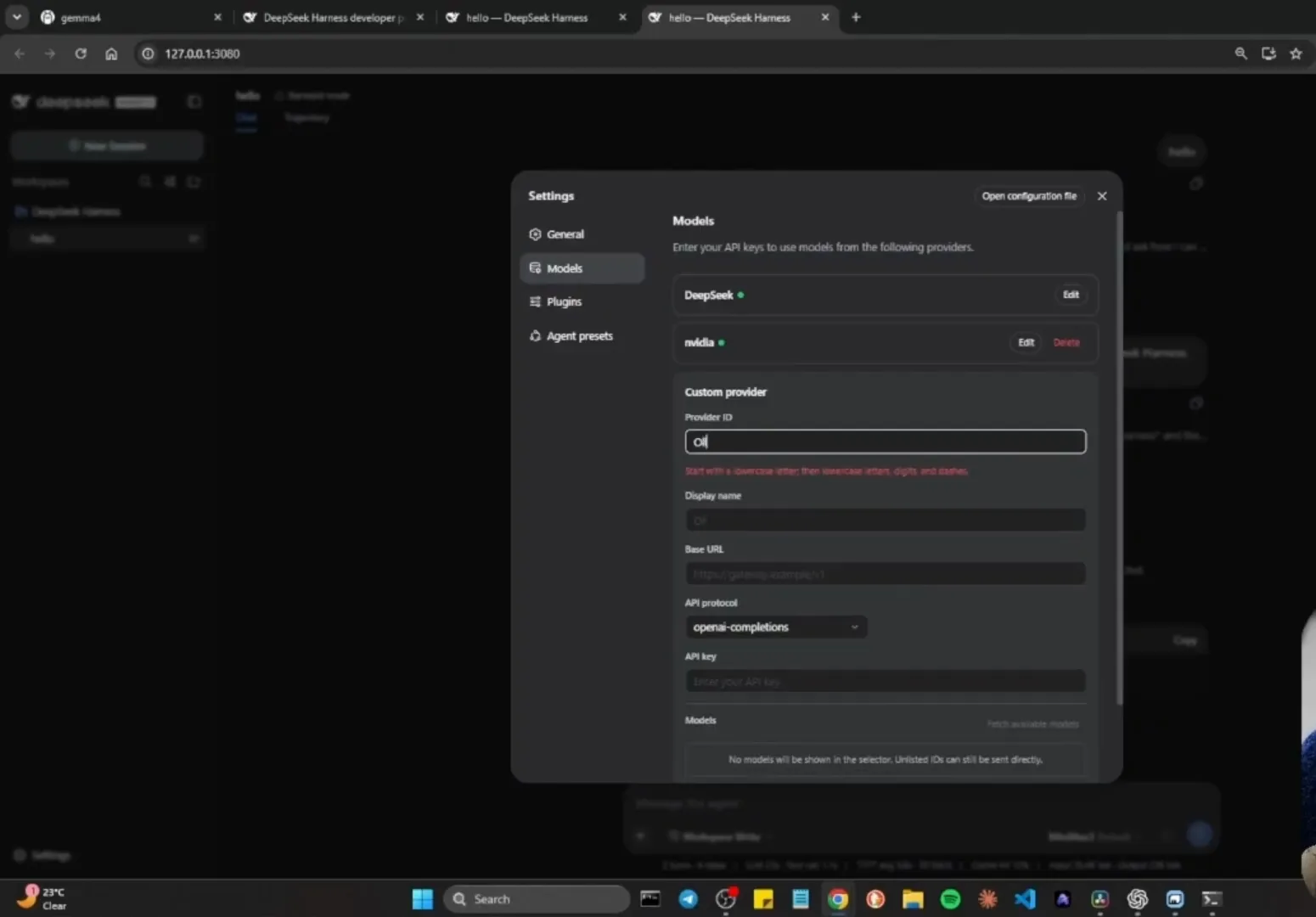
The form catches an invalid ID before it can break anything downstream.Watch at 11:52 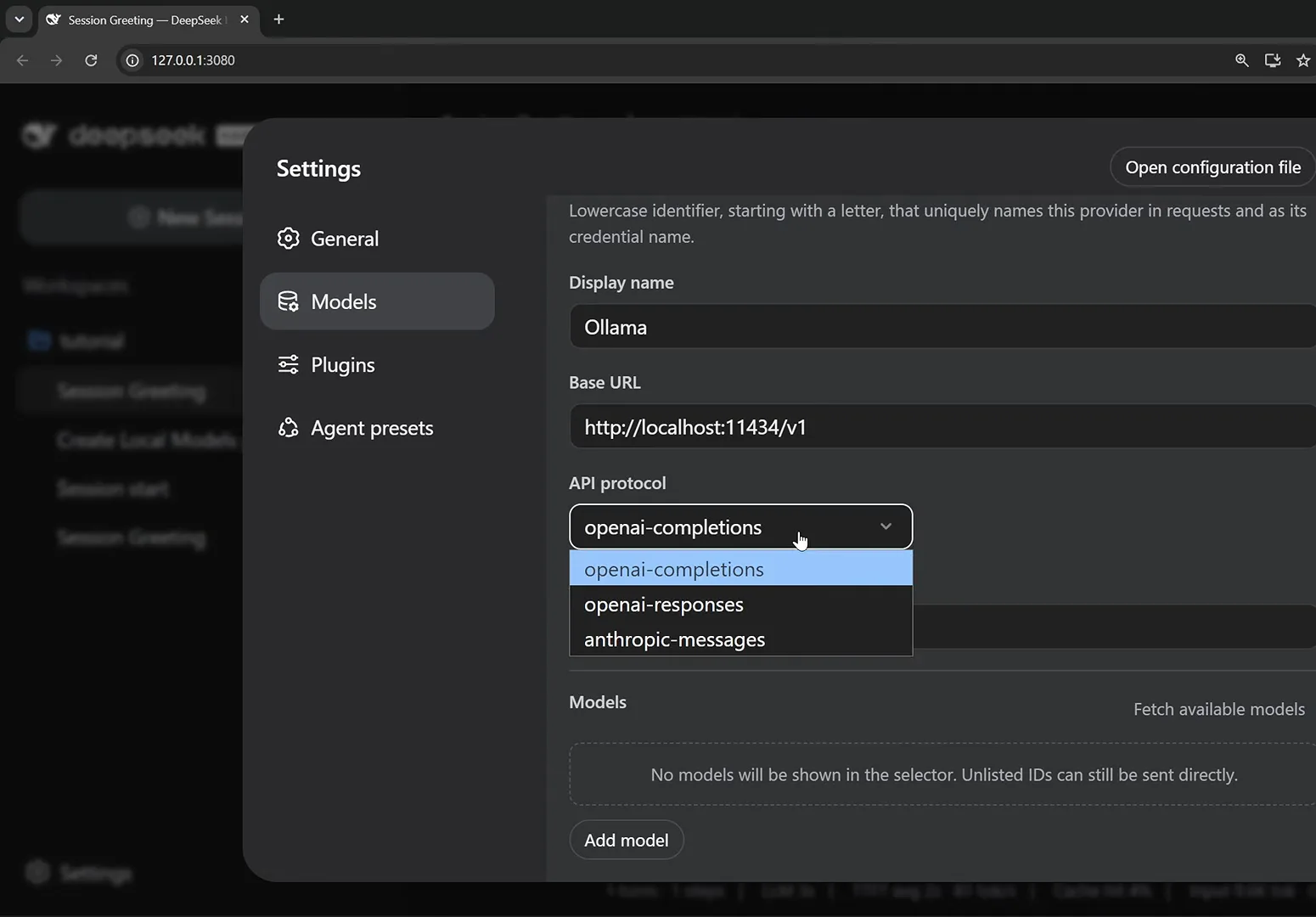
Ollama speaks the OpenAI dialect — leave the protocol on its default.Watch at 11:20 - 5
Fetch available models and choose what to expose
Click Fetch available models and the harness queries the endpoint for everything you've downloaded — Vassity's fetch returns qwen3.8 and gemma4, and add selected pulls the ones you want into the catalog. Display names are free-form: stack several models and call them agent one, agent two, agent three if you like. Create provider saves the card, and the green dot next to it confirms the connection is live.
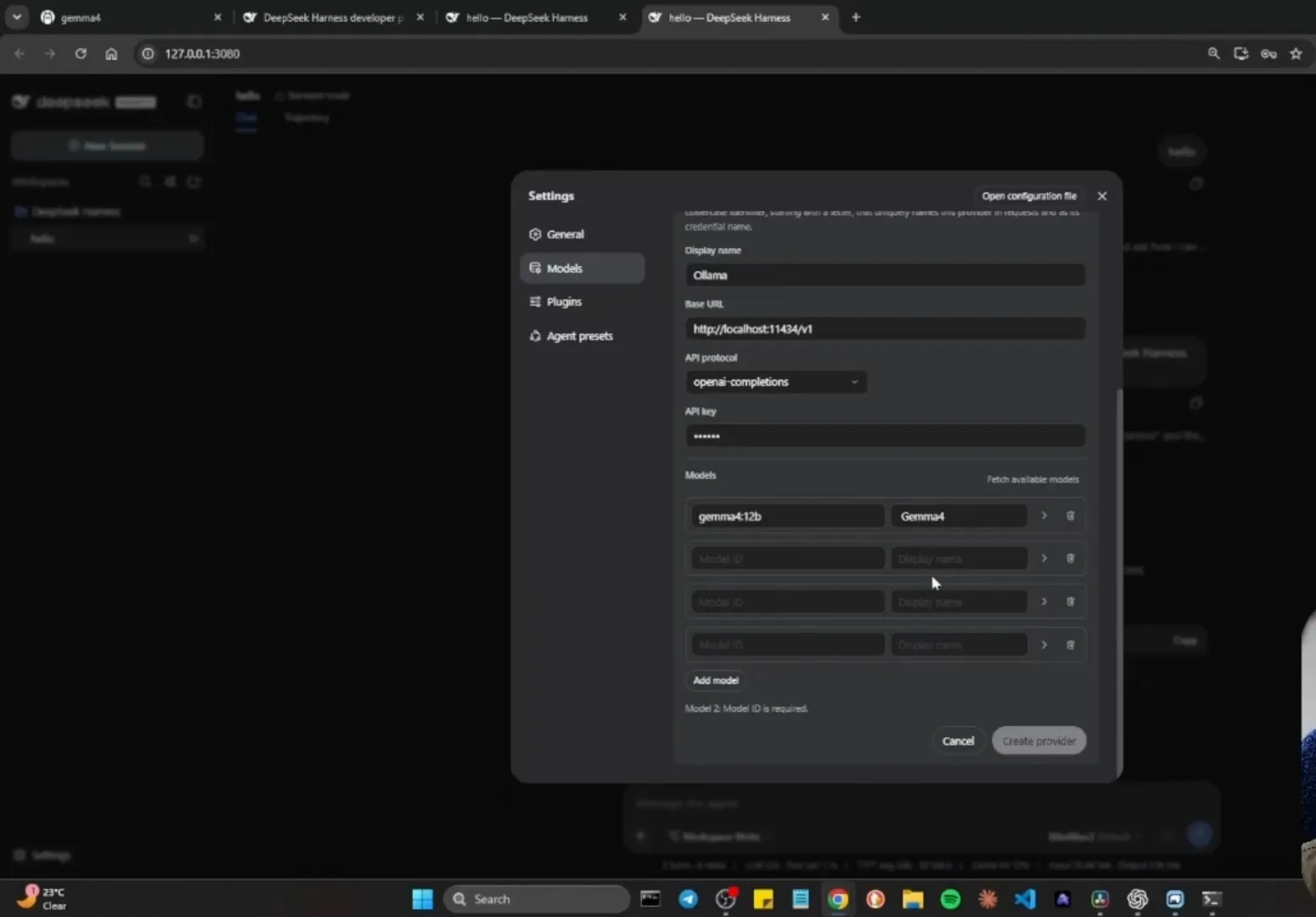
Fetched models land in this list — name them, then create the provider.Watch at 12:50 - 6
Switch models mid-session
No restart, no new session: the picker at the composer's lower-right lists every configured model grouped by provider — DeepSeek, nvidia, Ollama — and you can jump between cloud and local mid-conversation. The plus button's command menu reaches the same picker from the keyboard via /model. Models and modes are independent dials, too: Leon starts a session on his Local Models preset — built in creator mode with the Ralph loop and sub-agents plugins disabled — then picks qwen3.8 from the same dropdown.
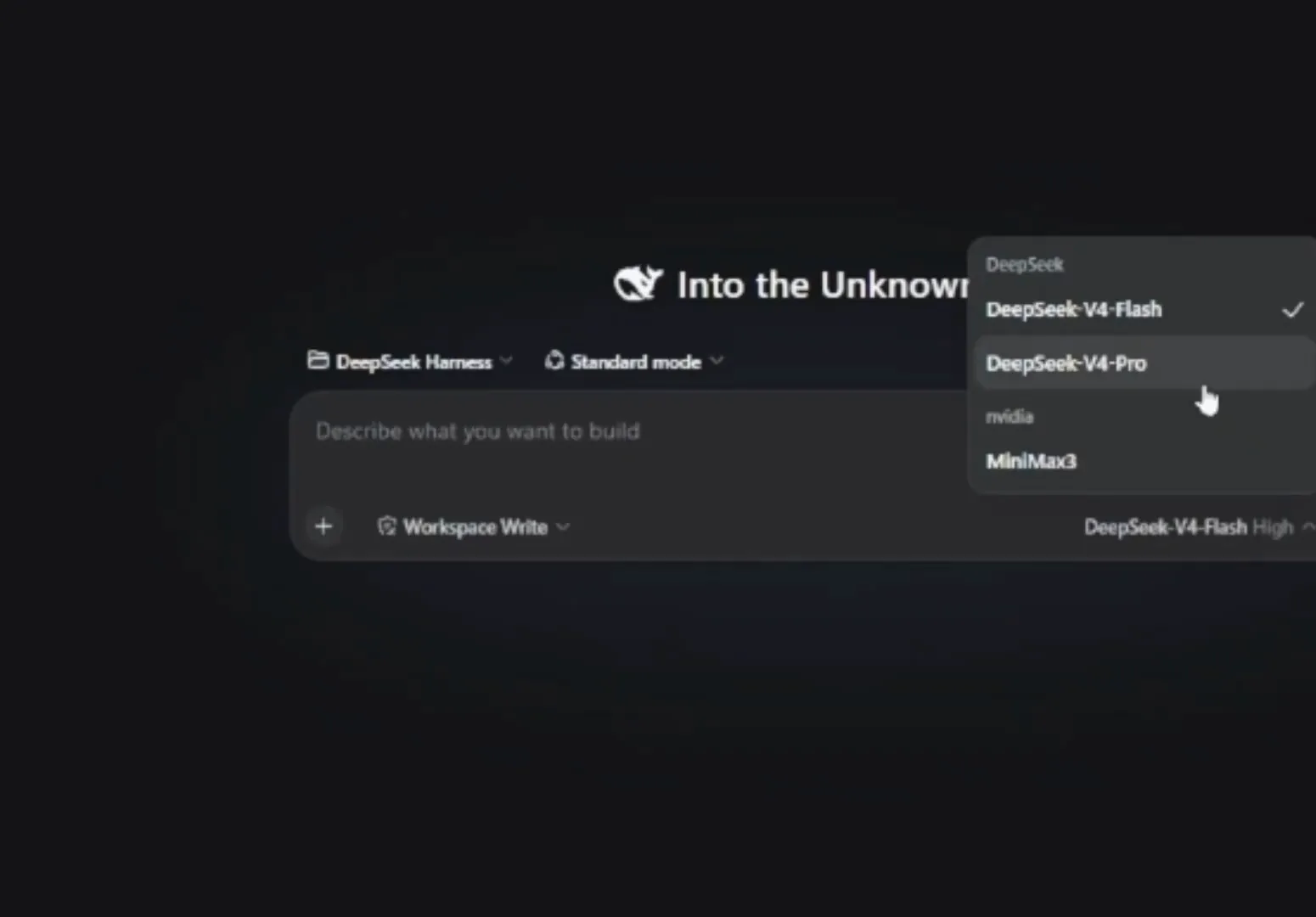
Groups follow your providers — the checkmark marks the model in use.Watch at 7:20 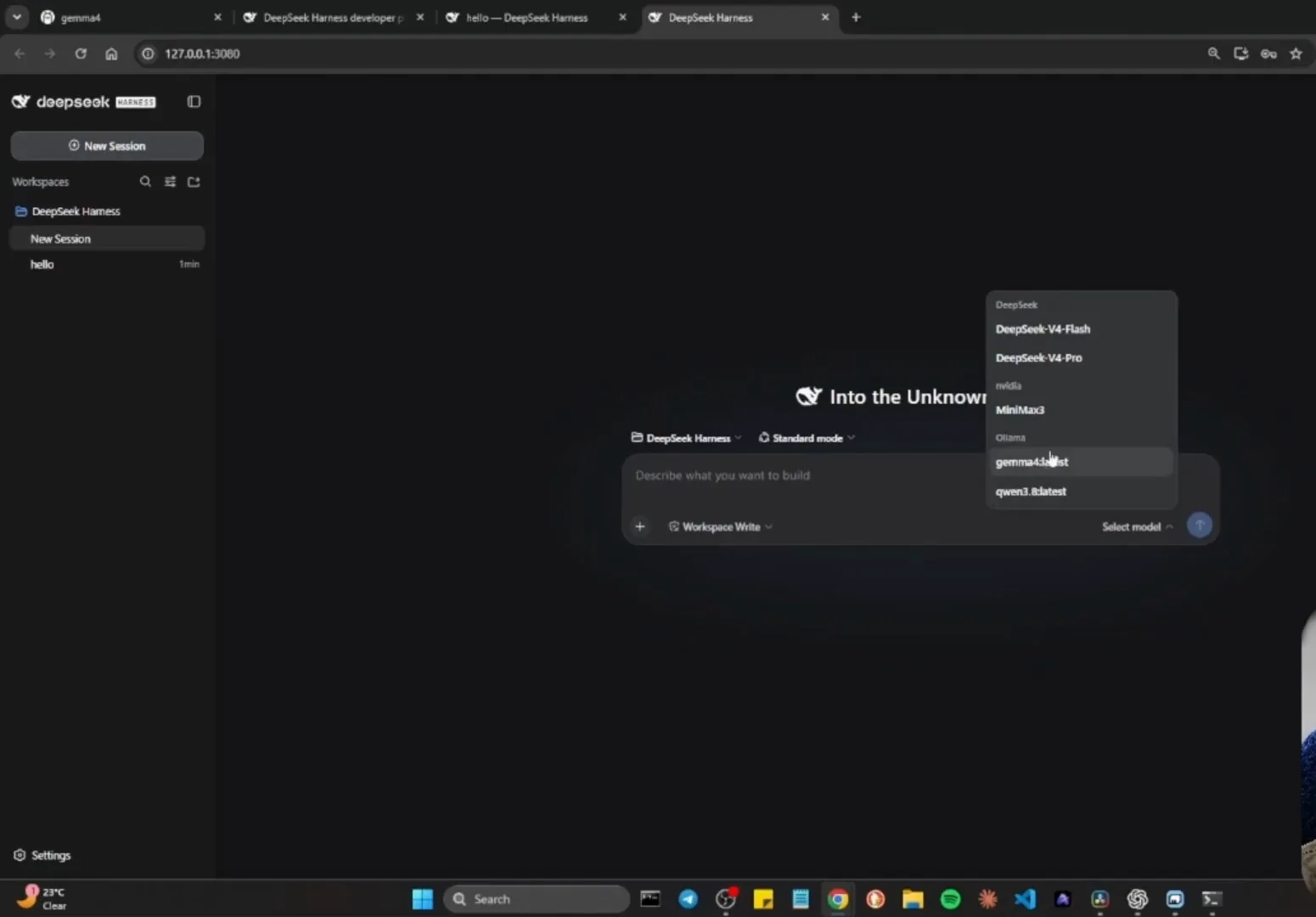
Local pulls appear next to cloud models with no restart required.Watch at 13:30 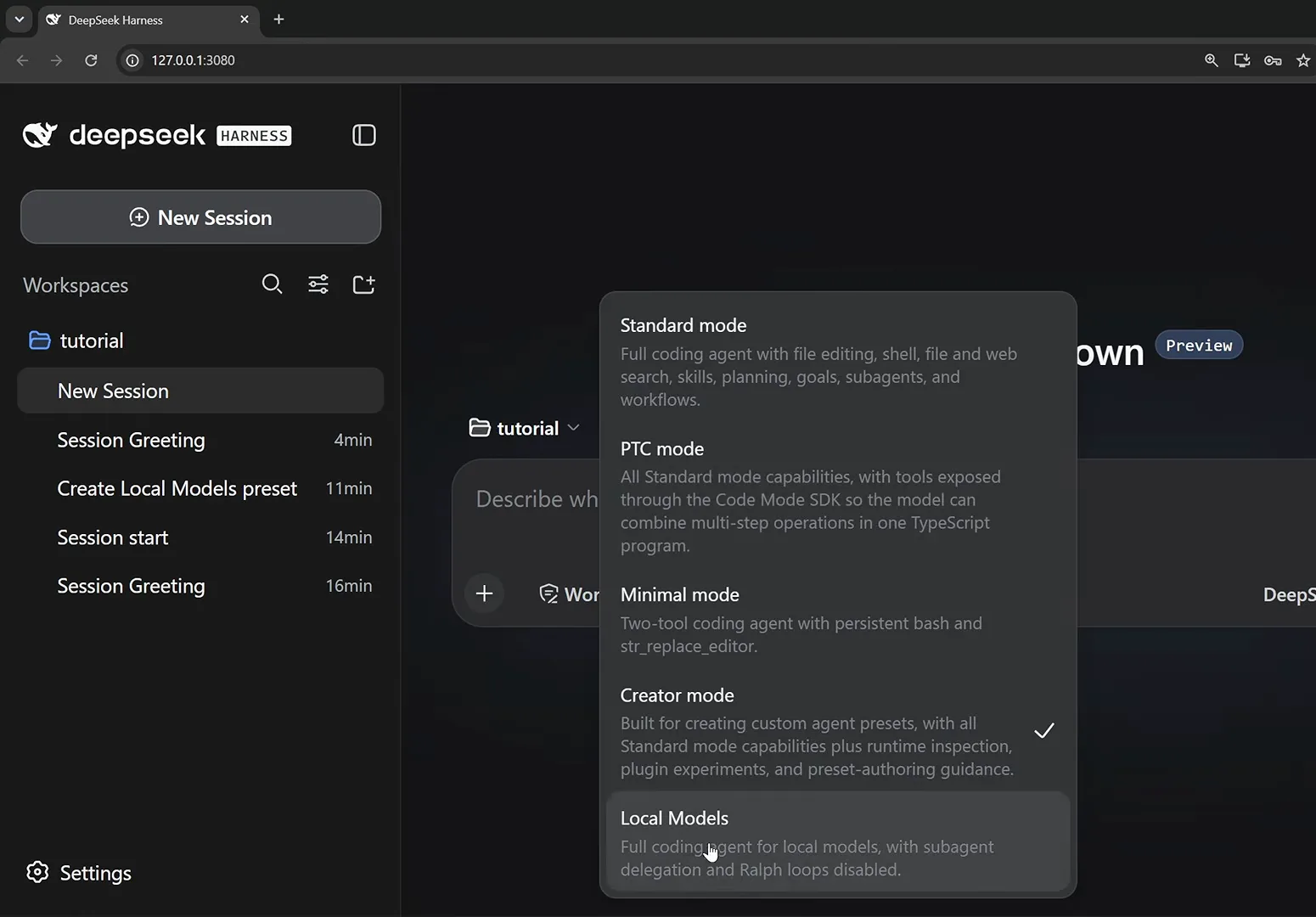
Pair local models with the preset that trims their tool list.Watch at 11:40 - 7
Verify the switch and set reasoning effort
The cheapest smoke test is asking the agent what it is: Leon's local model replies "I'm qwen3.8:latest — a coding agent running inside DeepSeek Harness (DSH)". The session header carries the active preset badge (Local Models) and the composer shows the active model name. Before your first message you can also set reasoning effort from low to max — Leon leaves his on high.
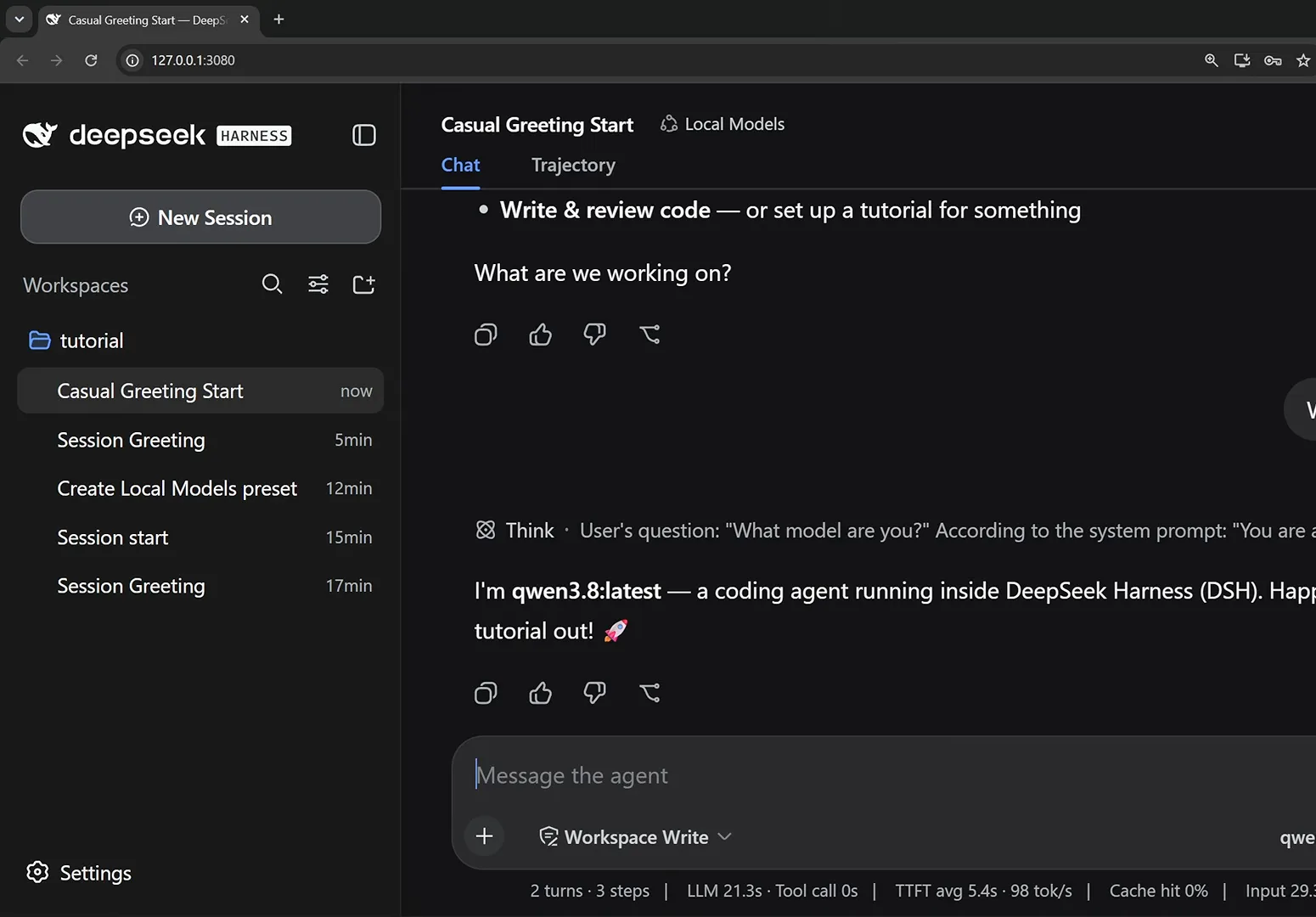
The agent introduces itself — the cheapest possible smoke test.Watch at 12:00
Switching models FAQ
Short answers on providers, API keys and mid-session switching in DeepSeek Harness.
Do I need a separate API key for every model?
No — one key per provider, not per model. Paste it once on the provider's card and every model on that provider (MiniMax 3 through NVIDIA NIM, for example) becomes selectable. Ollama needs no real key at all: any placeholder string such as ollama satisfies the field.
What's the difference between a built-in provider and a custom provider?
Built-in providers appear in the dropdown and only need an API key — DeepSeek, Anthropic, Google, Groq and the rest. A custom provider is for anything else: you supply a lowercase provider ID, a Base URL and an API protocol, which is exactly how NVIDIA NIM, OpenAI-compatible gateways and local Ollama get wired in.
Why won't my custom provider save?
Check the Provider ID first. It must start with a lowercase letter and contain only lowercase letters, digits and dashes — the form rejects an uppercase ID outright, and the harness also uses it as the credential name. Display names, meanwhile, are free-form.
Can I keep cloud and local models configured at the same time?
Yes. Both walkthroughs run DeepSeek, NVIDIA NIM and Ollama side by side; the session picker groups models by provider, so moving from DeepSeek-V4-Pro to gemma4:latest is one click, mid-conversation.
Which API protocol should I pick for Ollama?
Leave it on openai-completions — that's the dialect Ollama's /v1 endpoint speaks. The same dropdown also offers openai-responses and anthropic-messages for endpoints built on those APIs.
Can I change the model or reasoning effort after a session starts?
The model, yes — the picker (or the /model command) switches it mid-conversation. Reasoning effort is set alongside the model, anywhere from low to max; Leon leaves his on high. Presets apply to new sessions — pick one from the same dropdown before you send your first message.
Related guides
More DeepSeek Harness walkthroughs
Ollama & free models
Point DeepSeek Harness at OpenRouter free models or a local Ollama server and run sessions without a paid API key.
Read the guideThe four modes: Standard, PTC, Minimal, Creator
What each agent preset includes, when it wins, and how to build a preset of your own in Creator mode.
Read the guideInstalling plugins you can trust
How plugin installation actually works in dsh, plus a checklist for vetting third-party code.
Read the guidedsh vs Claude Code
An honest side-by-side: openness, pricing, model freedom, and extensibility.
Read the guideSources & credits
All screenshots in this guide come from these two public walkthroughs. Every image links back to the exact moment in its video — worth a watch for the full narration.