
Make DeepSeek Harness see images: multimodal models vs the vision plugin
Paste a screenshot into stock DeepSeek and you only get an error — its models are text-only. Two real fixes, rebuilt frame by frame from a Bilibili course: connect Z.ai's GLM vision model, or install the Vision Router plugin that ships free vision models.
Last updated: 2026-09-17
Paste an image into a fresh DeepSeek Harness chat and the reply comes back fast — and negative: the current model does not support images. That is not a settings bug. DeepSeek's own models are text models that accept written input only, so screenshots, photos and diagrams all hit the same wall.
This guide rebuilds the vision-and-multimodal episode of 博学谷's Bilibili course frame by frame. The presenter demos two independent fixes — connecting a multimodal model from another provider, and installing a vision plugin — and we kept a screenshot of every step, each linking back to the exact second of the source video.
The 30-second version
Two ways to make DSH process images. Way 1: swap the model — add a provider under Settings → Models; the demo picks Z.ai (Zhipu GLM), a fresh account's free resource pack covers it, and the image goes to a vision model like GLM-5V-Turbo. Way 2: install a plugin — dsh-vision-router from the plugin market ships free vision models, so you keep your DeepSeek text model and the plugin does the seeing.
Both routes end the same way: the header screenshot that was rejected before comes back fully described — DeepSeek's fish-shaped logo on the left, the 探索未至之境 wordmark in the middle, a preview tag on the right. A plugin is not magic: behind the scenes it also calls a multimodal model.
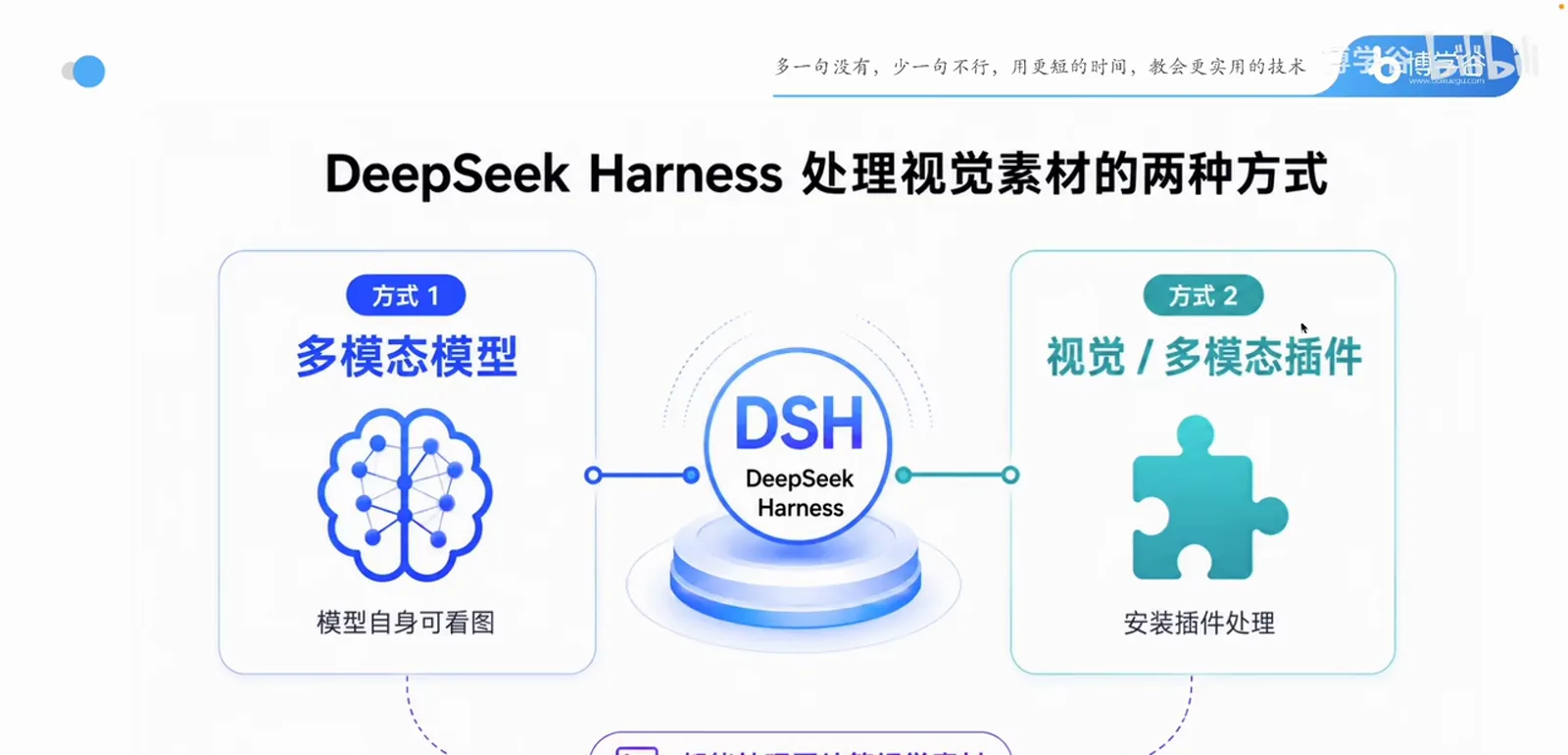
Give DSH eyes, two ways, seven steps
- 1
Paste an image into stock DSH and watch it bounce
The demo screenshots DSH's own header — logo left, 探索未至之境 wordmark center — pastes it into the composer, and asks what's in the picture with DeepSeek-V4-Pro selected. The reply is an error toast: the current model does not support images. DeepSeek's two built-in models are text models that accept written input only, so switching between them changes nothing.
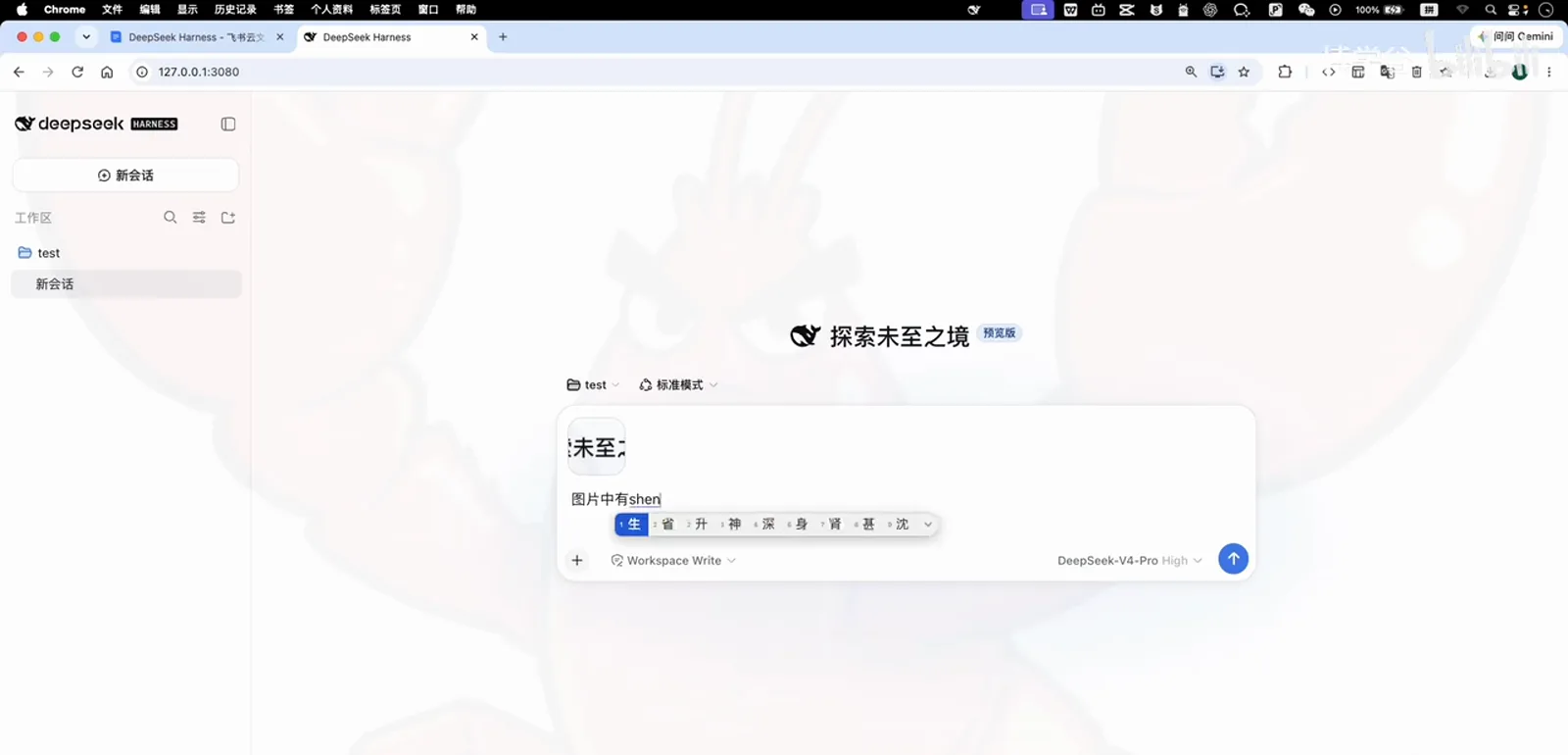
First try: the header screenshot goes in with a plain what-do-you-see question.Watch at 0:23 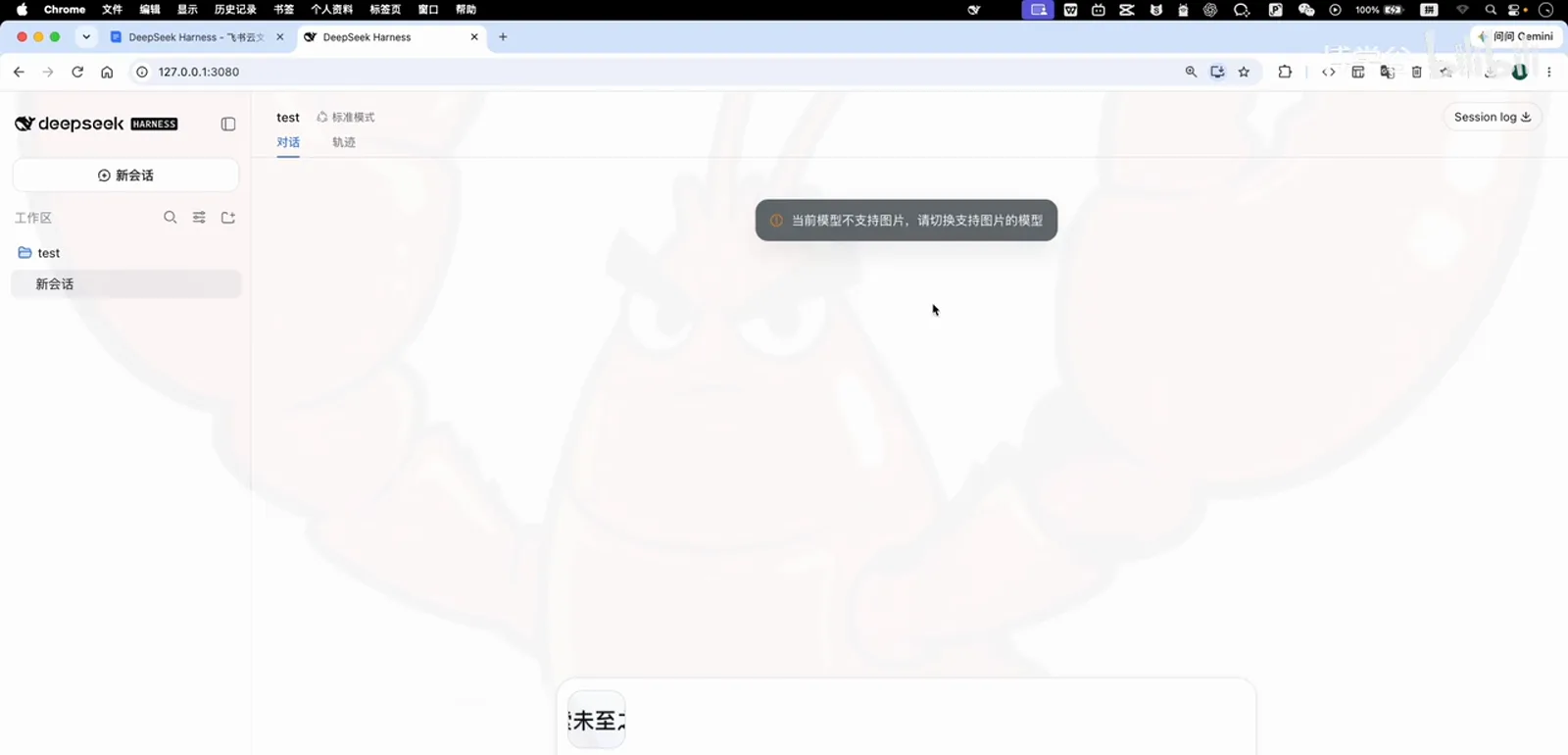
Stock DeepSeek models only take text — the image is never even processed.Watch at 0:33 - 2
Open Settings → Models and add a provider that sees
From the gear at the bottom left, open Settings → Models. Next to the built-in DeepSeek entry sits an add-provider catalog: amazon-bedrock, openai, google, minimax and many more. The episode picks z-ai — Zhipu's Z.ai, home of the GLM models — which wants either its TokenPlan package or a fresh account's free credits.
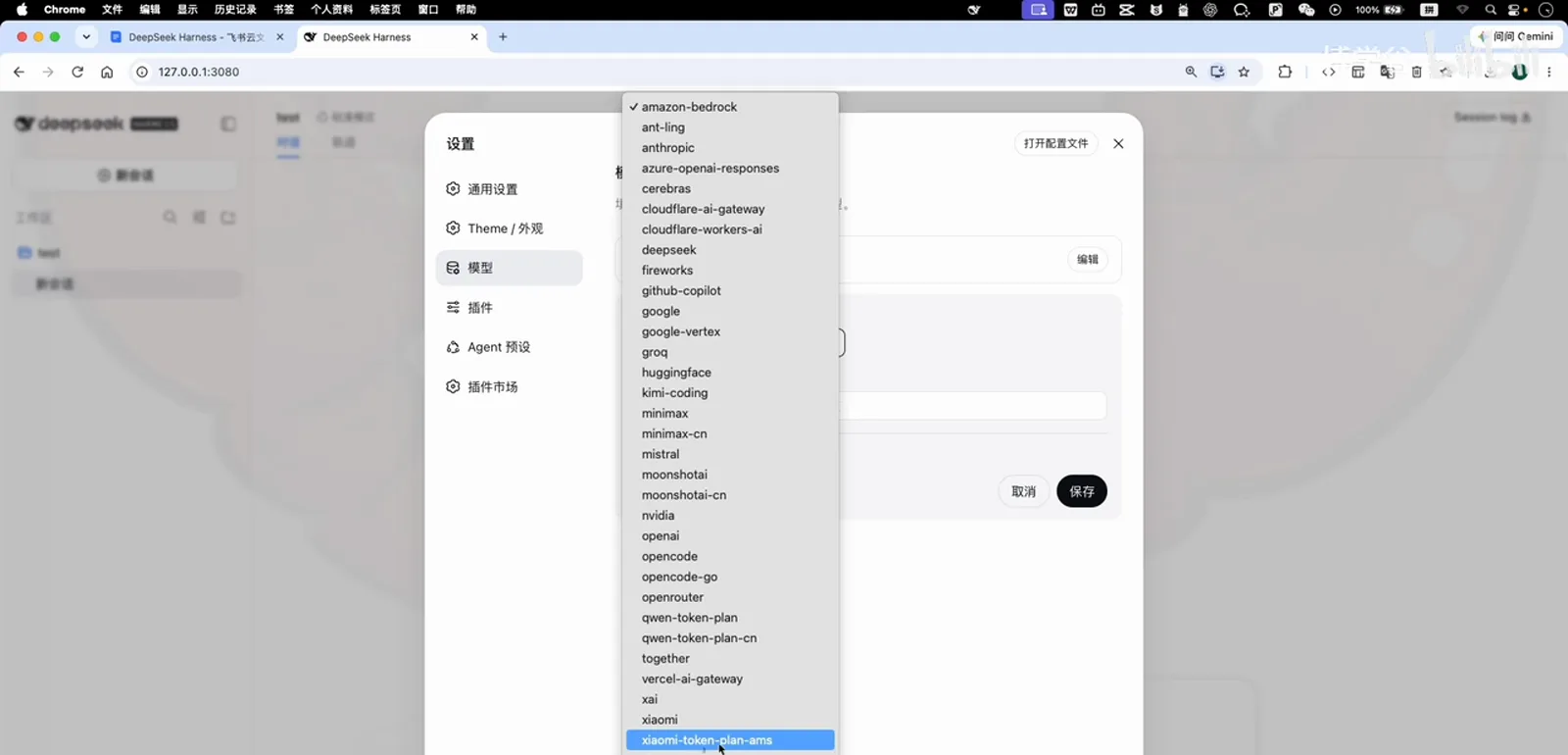
The catalog is long; this episode scrolls to the bottom and picks z-ai (Zhipu GLM).Watch at 1:41 - 3
Grab a free API key and paste it into DSH
The course notes link straight to BigModel, Zhipu's console: registering with a new phone number grants free resource packs (check Finance → Resource packs — enough to experiment). On the API Key page, create a key — any name works — then copy it into DSH's ZAI provider form and hit save. Z.ai's models unlock immediately.
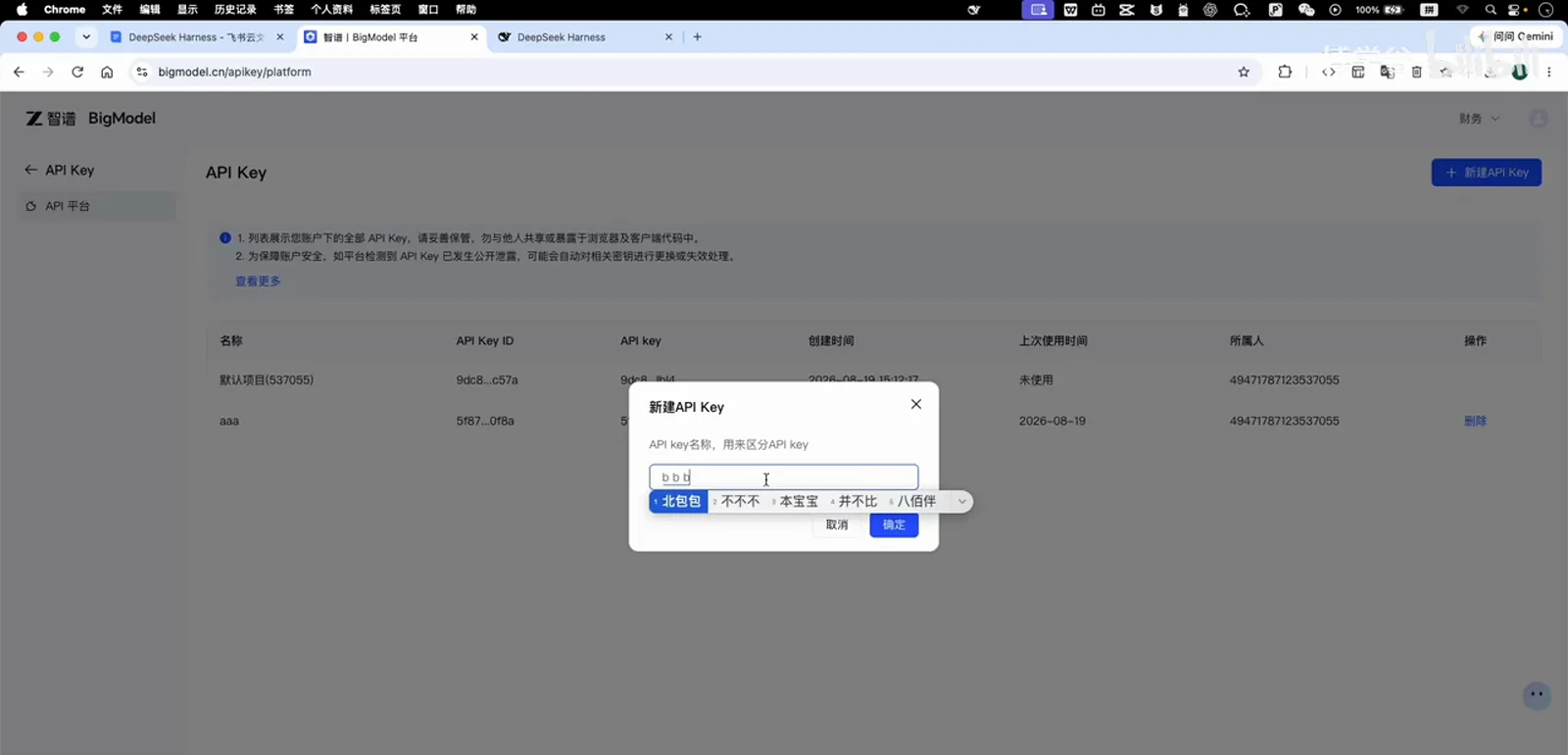
A new phone number gets free resource packs; the API key itself is one dialog away.Watch at 3:01 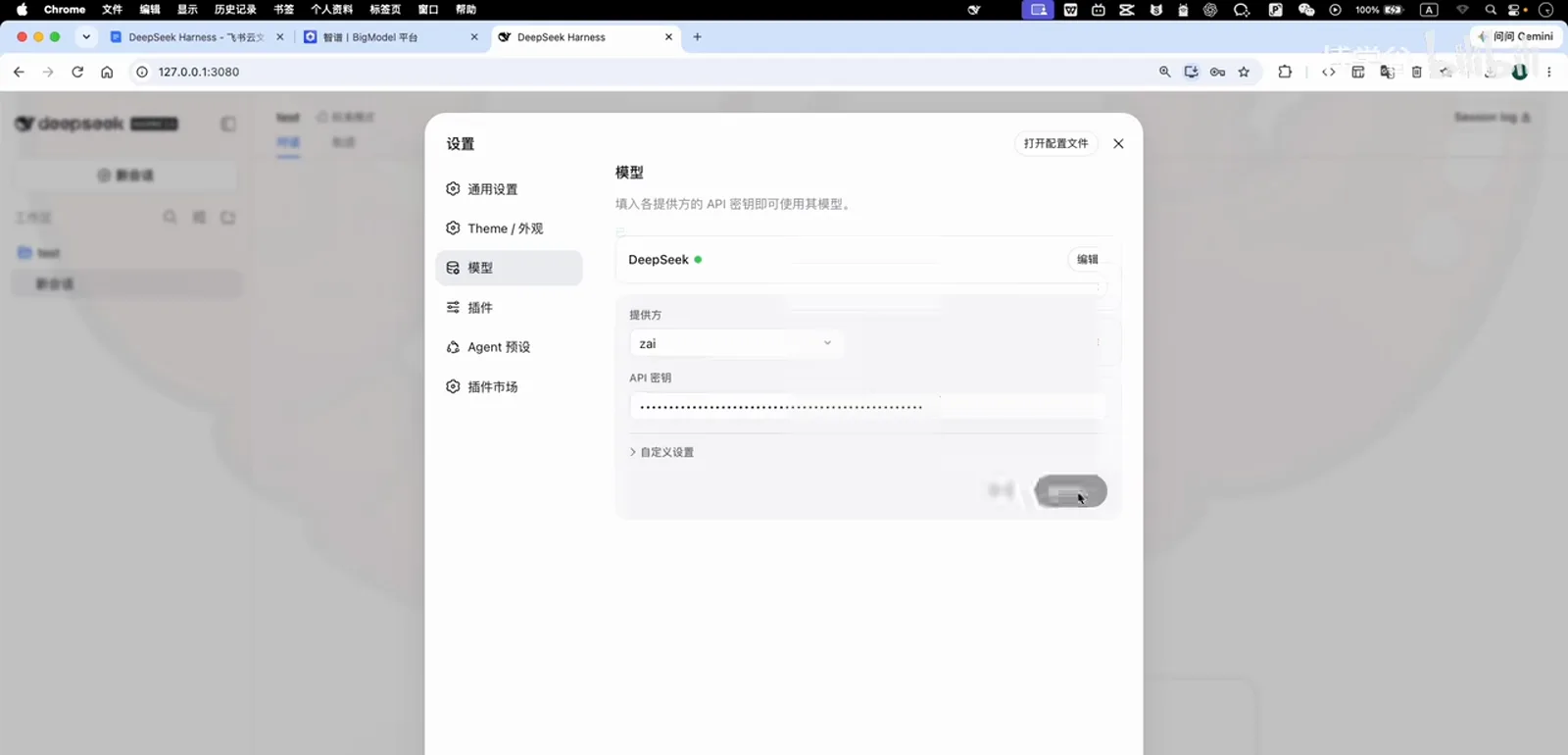
Paste, save, done — that is the whole handshake.Watch at 3:13 - 4
Switch to a GLM vision model and send the image again
Reopen the model picker: a z-ai group now sits under the stock DeepSeek entries. Vision belongs to single models, not to the provider — the demo first tries GLM-5.2 and gets the same not-supported toast, then moves to GLM-5V-Turbo, which accepts the upload. The answer reads the screenshot element by element: black fish-shaped logo left, 探索未至之境 text center, preview tag right.
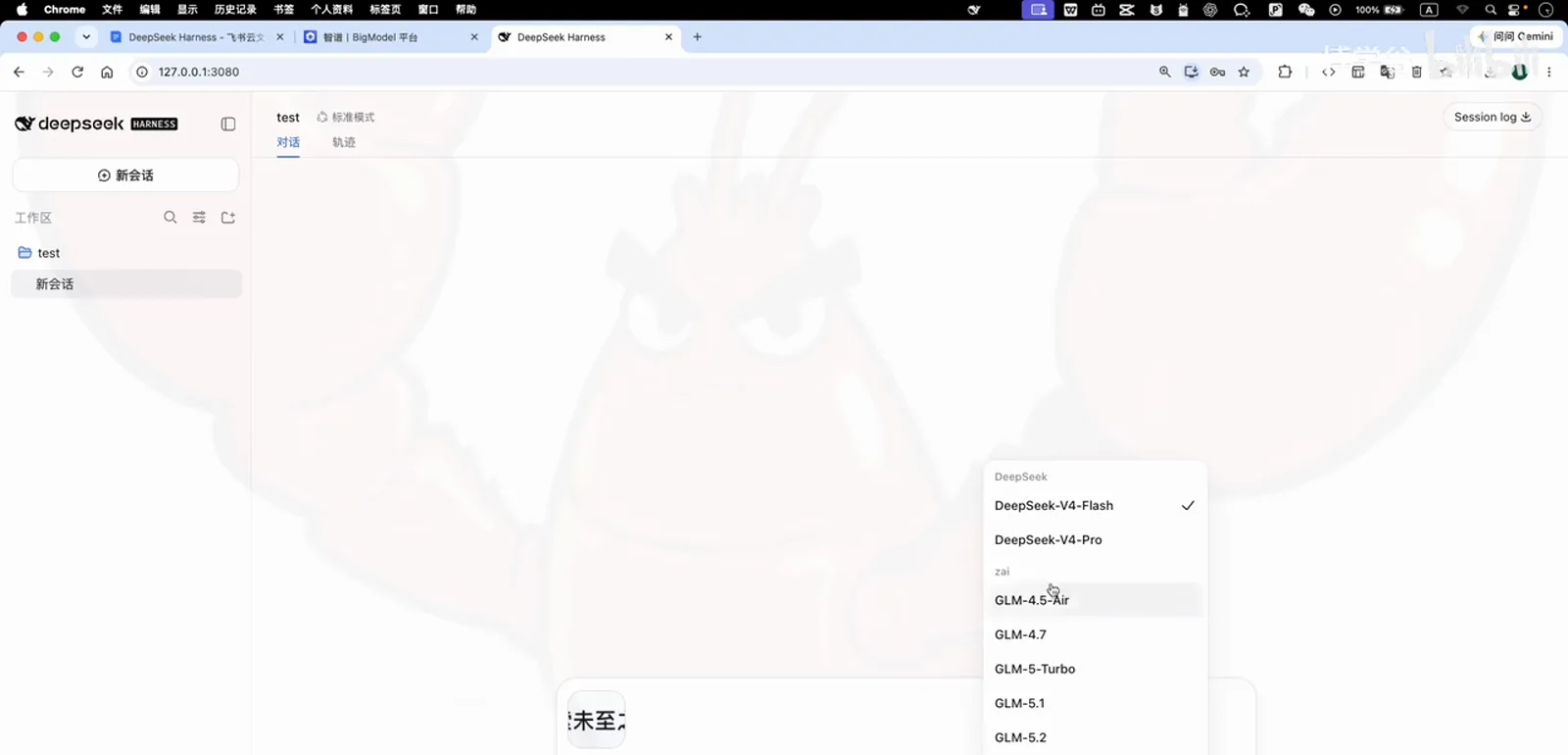
The provider is in — now pick carefully, because not every GLM model sees.Watch at 3:23 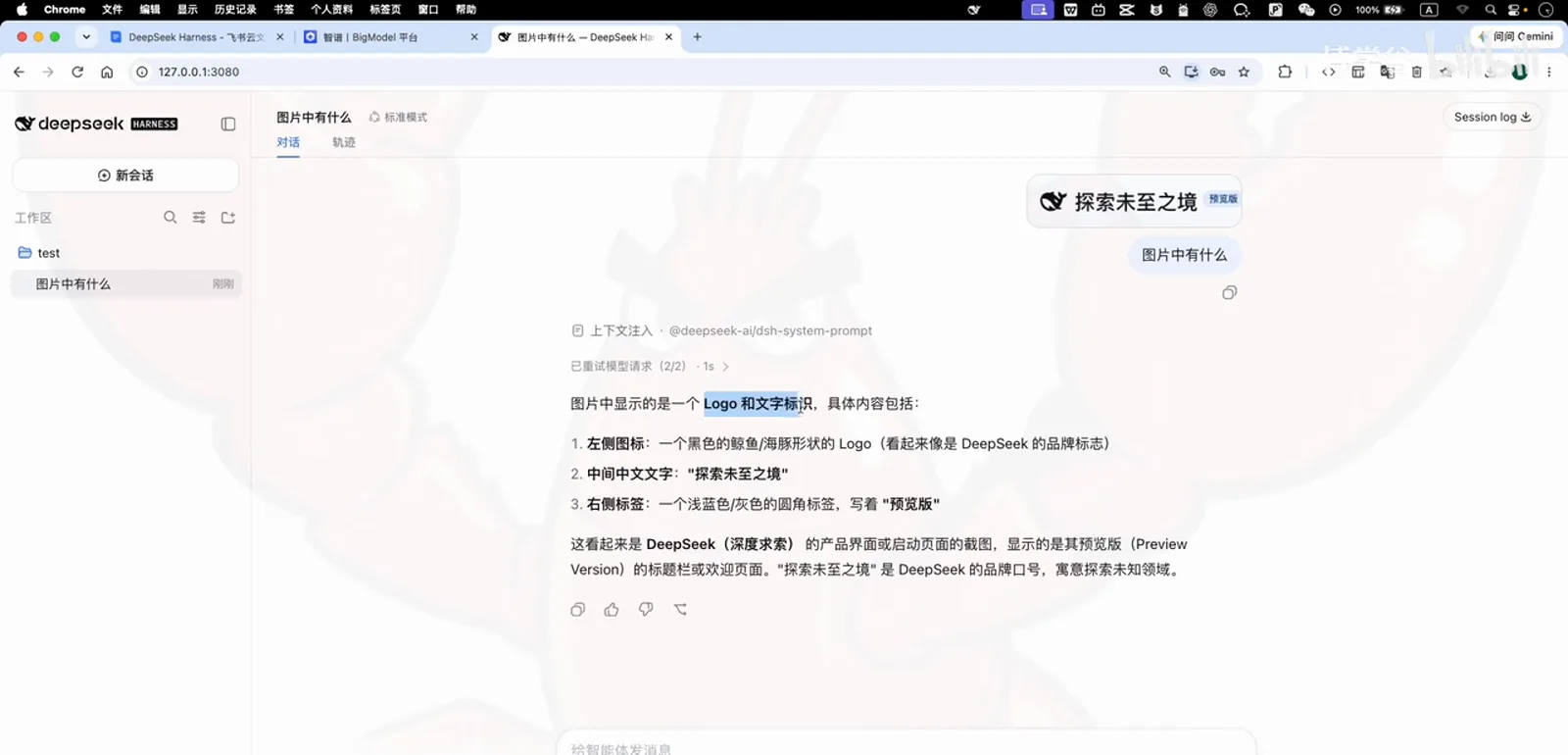
Way 1 works: the vision model narrates logo, wordmark and tag in one pass.Watch at 4:00 - 5
Install the Vision Router plugin from the market
Way 2 keeps your text model. Open Settings → Plugin market and pick the vision-and-multimodal category. The episode installs dsh-vision-router: it gives DSH image understanding and — the decisive part — bundles free vision models, so no extra API key on any platform is needed. Click install, then confirm.
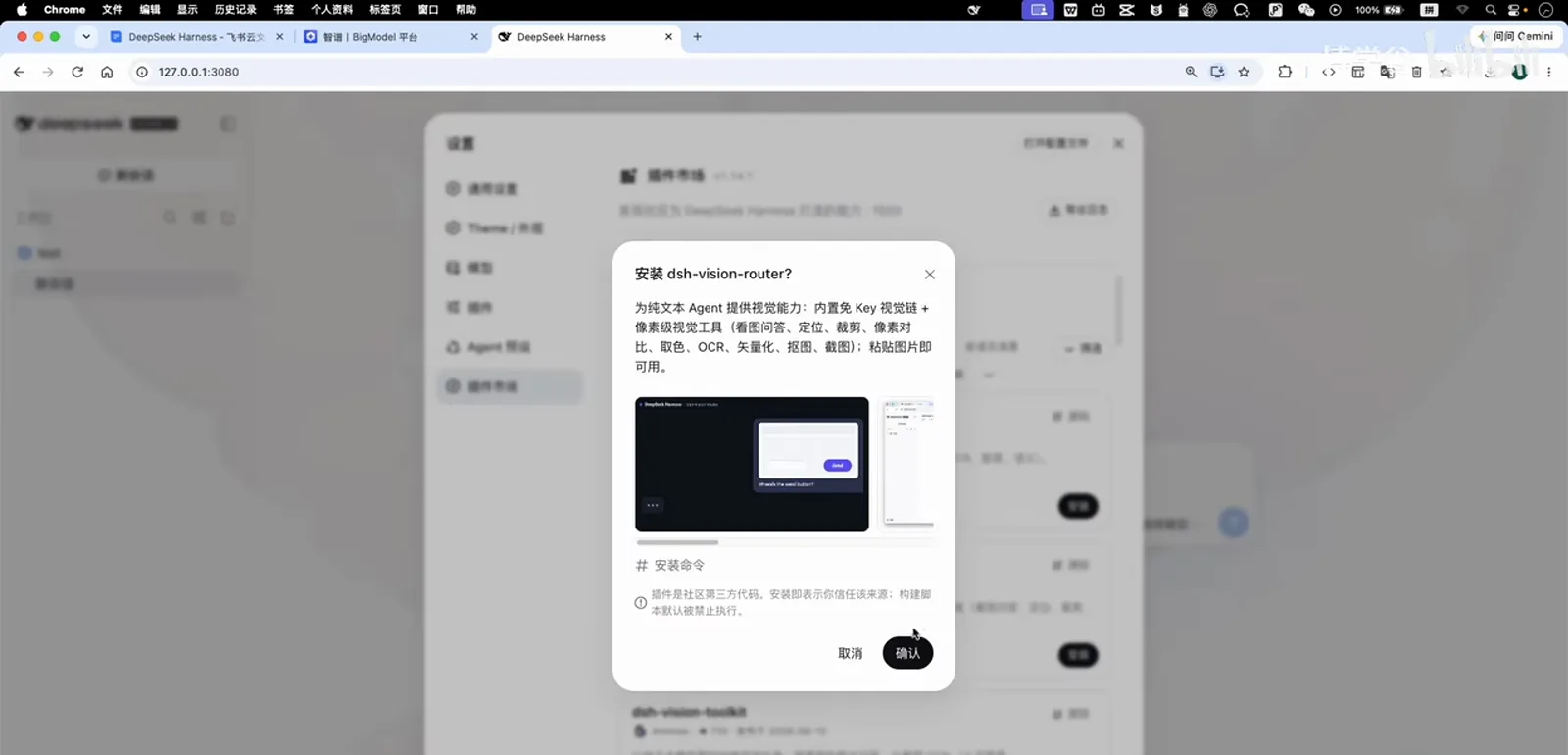
dsh-vision-router is the pick: free built-in vision models, zero extra keys.Watch at 5:13 - 6
Restart DSH, then check the plugin's vision settings
The installer asks for a restart. The presenter skips the restart button — it has misbehaved on his setup before — and instead stops the process with Ctrl+C in the terminal, re-runs the start command, and refreshes the browser. Settings → Plugins now lists Vision Router (image recognition), where you can assign the vision model it should call; built-in free fallback models and a usage limit keep casual use free.
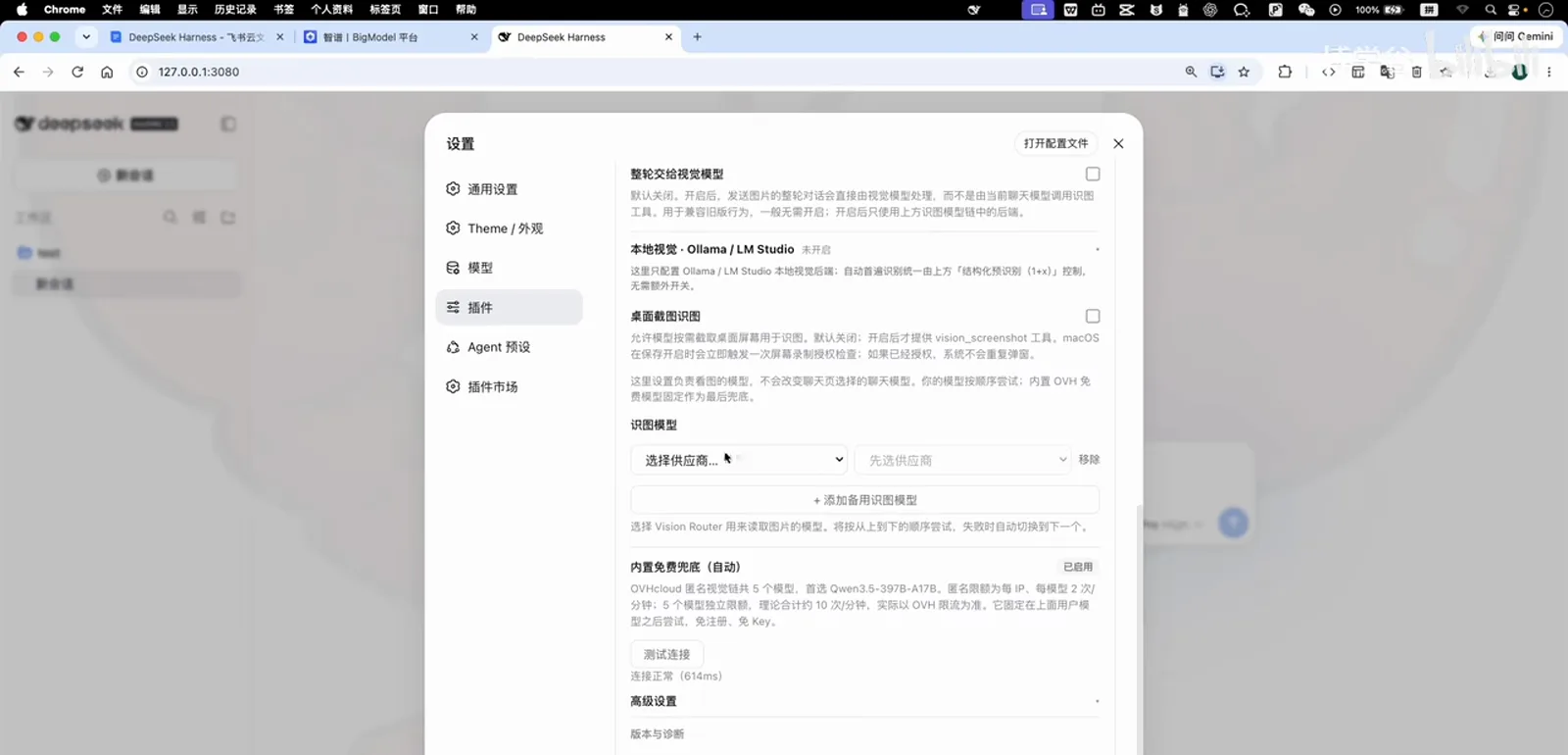
After the restart the plugin shows up in settings — free fallback models included, no key required.Watch at 6:10 - 7
Pick the vision-tagged model variant and ask again
Still on text-only DeepSeek-V4-Pro, open the model picker: the plugin added a second DeepSeek group whose entries carry a vision badge — same models, plus automatic image recognition. Choose the variant, paste the same header screenshot, and ask what's in the picture again. This time the answer dissects the image into three blocks: fish-shaped logo left, wordmark center, preview tag right. DSH can see.
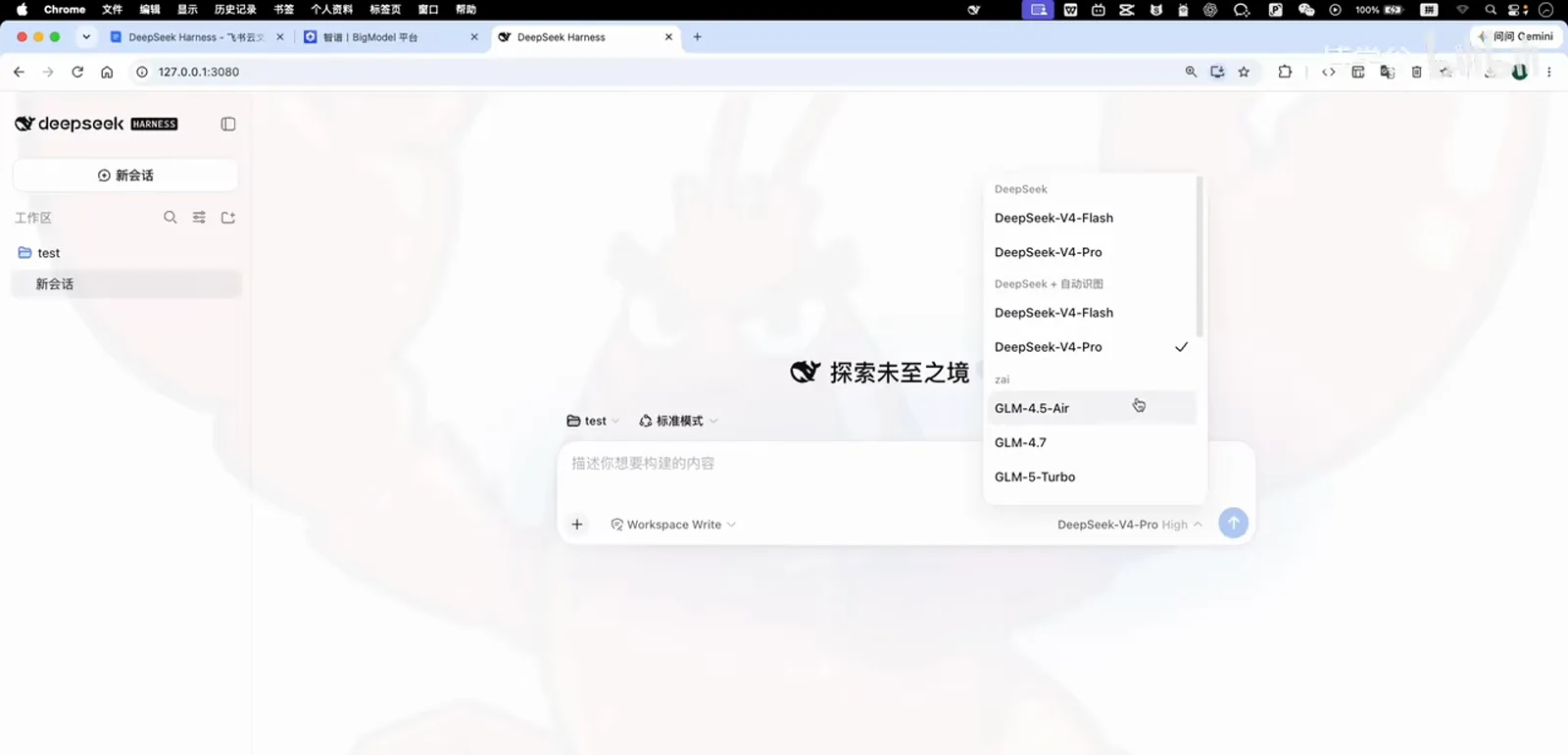
Same names, new sense: the plugin's variants bolt image recognition onto DeepSeek-V4-Pro.Watch at 6:45 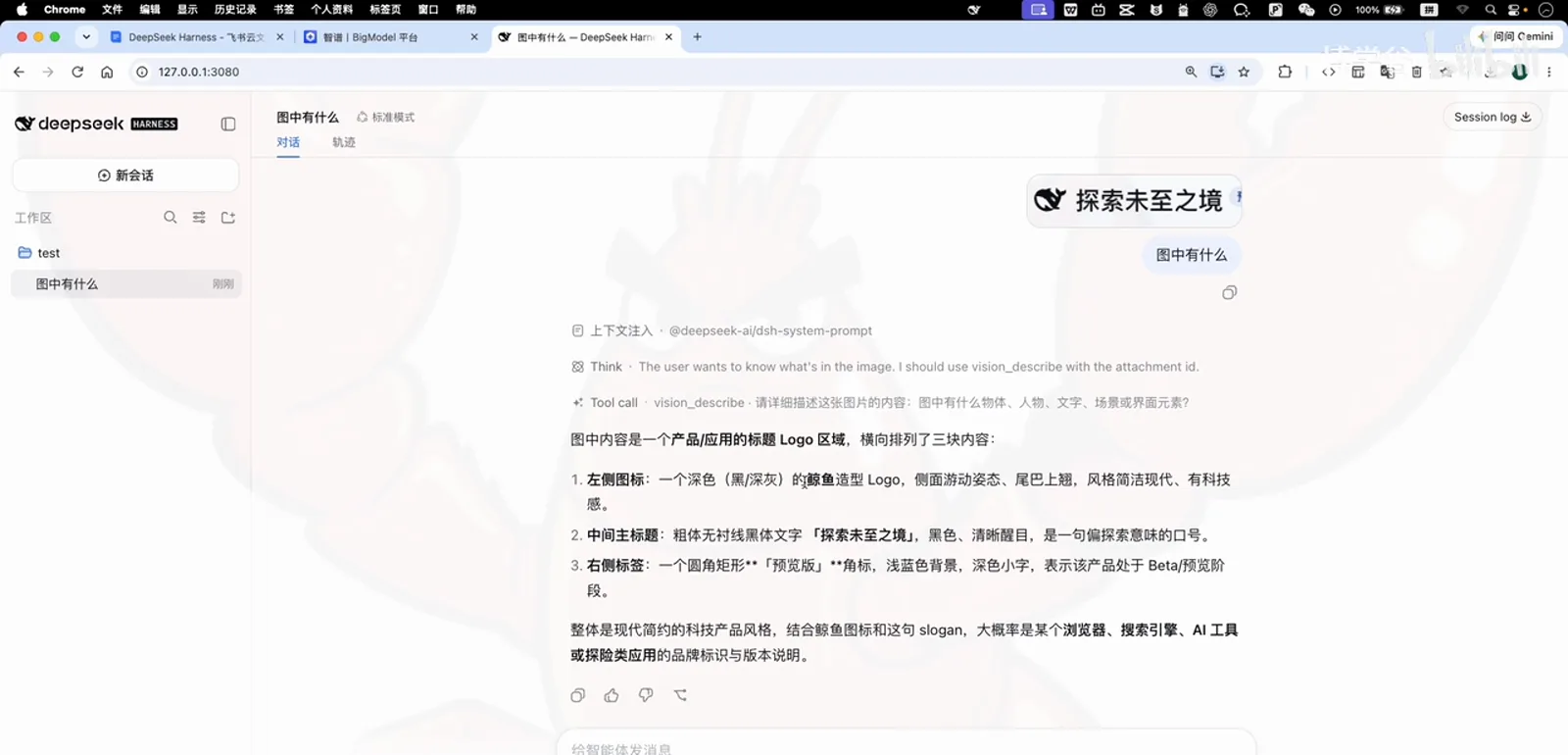
Way 2 works too — the text model stayed, the plugin's vision model did the reading.Watch at 7:18
Image recognition in DSH: quick answers
Models, keys, costs and restarts — the questions this episode actually answers.
Does DeepSeek Harness support vision models?
Not out of the box — the built-in DeepSeek models are text-only, as the error toast in step one shows. You add vision in one of two ways: connect a provider whose models are multimodal (the demo uses Z.ai and sends to GLM-5V-Turbo), or install the Vision Router plugin, which routes images to vision models — including free built-in ones — while you keep chatting with your text model.
Do I have to pay for the GLM key or the vision plugin?
No. Registering BigModel, Zhipu's console, with a fresh phone number grants free resource packs — the demo checks Finance → Resource packs and finds enough to experiment. The Vision Router plugin itself ships free vision models, so its fallback path costs nothing either. Heavy use is where the TokenPlan package or your own key comes in.
Why did GLM-5.2 still refuse my image when GLM-5V-Turbo worked?
Because vision belongs to individual models, not to the provider. Z.ai's catalog mixes text models (GLM-4.7, GLM-5.1, GLM-5.2…) with the GLM-5V vision family. Pick a text model and you get the same image-not-supported toast; pick GLM-5V-Turbo and the composer accepts the image immediately.
The plugin asks to restart — should I click its Restart button?
You can, but the presenter avoids it: restarts have glitched on his setup before. His route: Ctrl+C in the terminal to stop dsh, run the start command again, refresh the browser — the plugin then appears under Settings → Plugins. If you do use the button and something breaks, ask DSH itself to fix it.
Related DeepSeek Harness guides
From picking the vision plugin to swapping models — the adjacent reads.
dsh-vision-router plugin details
The free-vision plugin installed in way two — repo, stars and the install command on one page.
Read the guideSwitch AI models in DSH
The full provider-and-key manual behind way one of this guide.
Read the guideInstall DSH plugins the right way
Marketplaces, profiles and one-command installs — the general case of step five.
Read the guideWhat are DSH plugins?
The mental model: what a plugin adds to the harness and how it differs from skills.
Read the guideSources & credits
Frames in this guide are captured from the Bilibili course below and remain the property of its creator — each image links back to the exact second it was taken.