
dsh-tui-vscode
Maintenance: Activebaobaolaodie/dsh-tui-vscode
VS Code companion extension for dsh-TUI — an experience almost identical to the official Claude Code VS Code extension
$ dsh plugin add dsh-tui-vscodeInstall
dsh has no central install command — add this plugin’s entry (documented in its README below) to your profile or patch config, then restart.
How installs work16
stars
2
forks
TypeScript
Language
MIT
License
2026-08-15
Created
2026-10-16
Last push
README
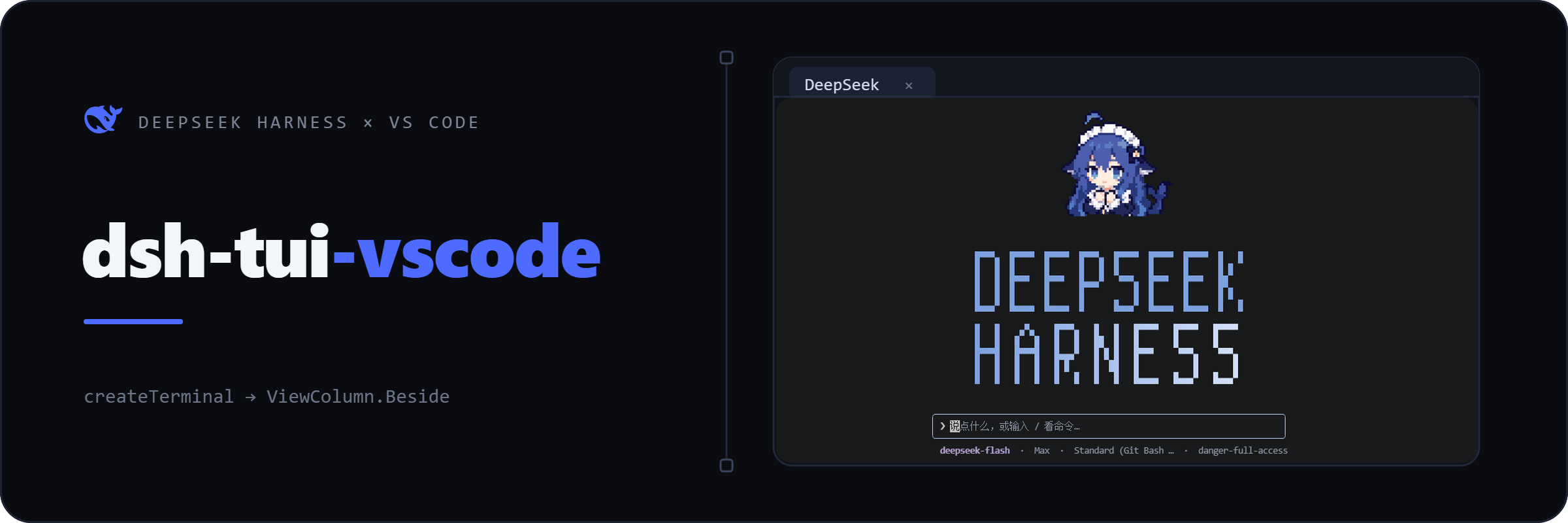







dsh-tui-vscode runs dsh-tui inside a real VS Code integrated terminal — the same shape as the terminal mode of the official Claude Code VS Code extension (createTerminal plus running the CLI inside it). No webview, no xterm emulation: just your shell, your fonts, and the full TUI.
One click opens a new column beside your editor. Click again and you get another concurrent session; the first one keeps running. The sidebar lists the sessions of the workspace you have open, and clicking one resumes exactly that session.
What it looks like
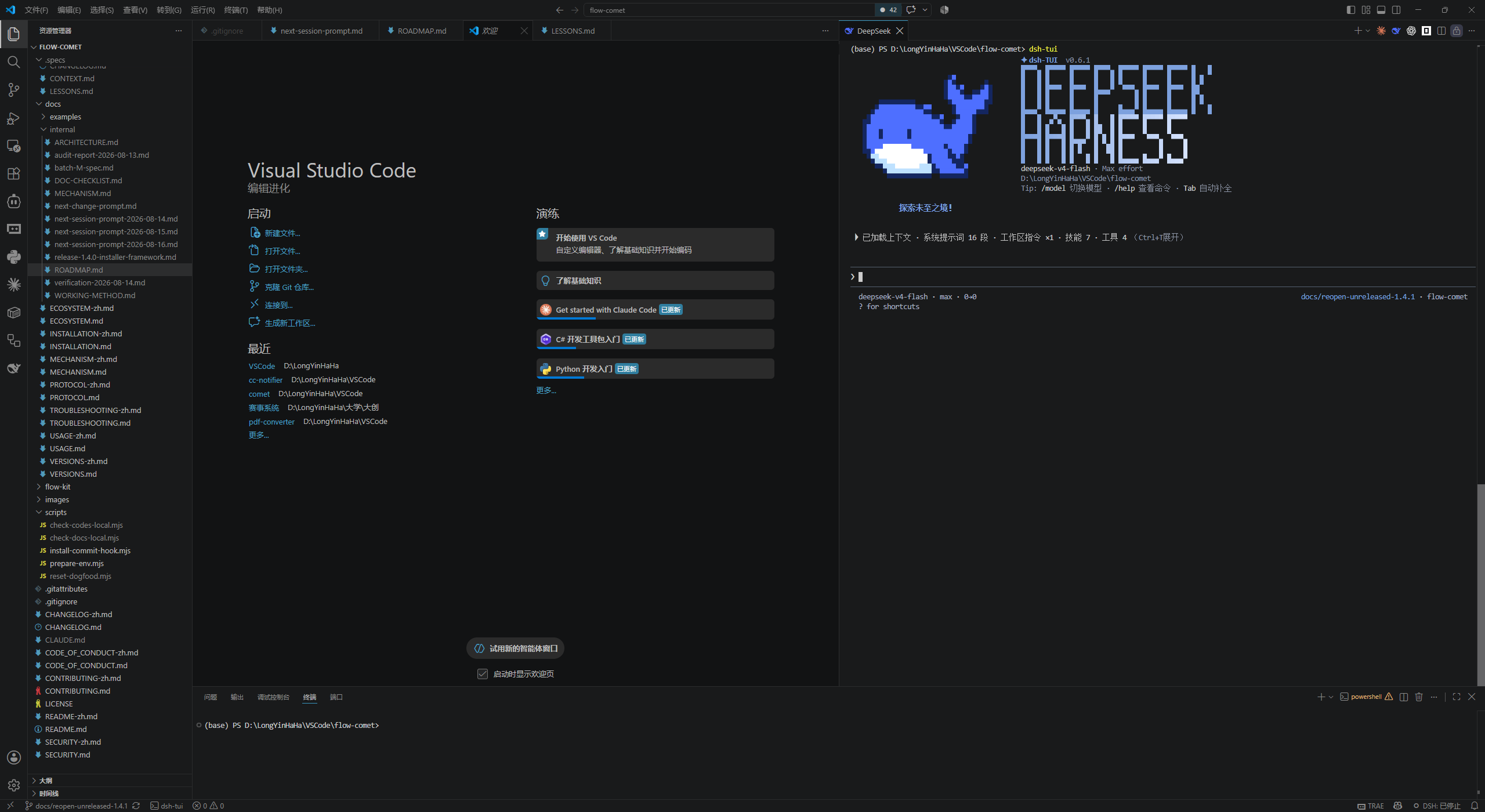
Click the whale in the editor title bar and a DeepSeek terminal opens on the Beside column, running dsh-tui in your shell — a real terminal, a real shell, the full TUI:
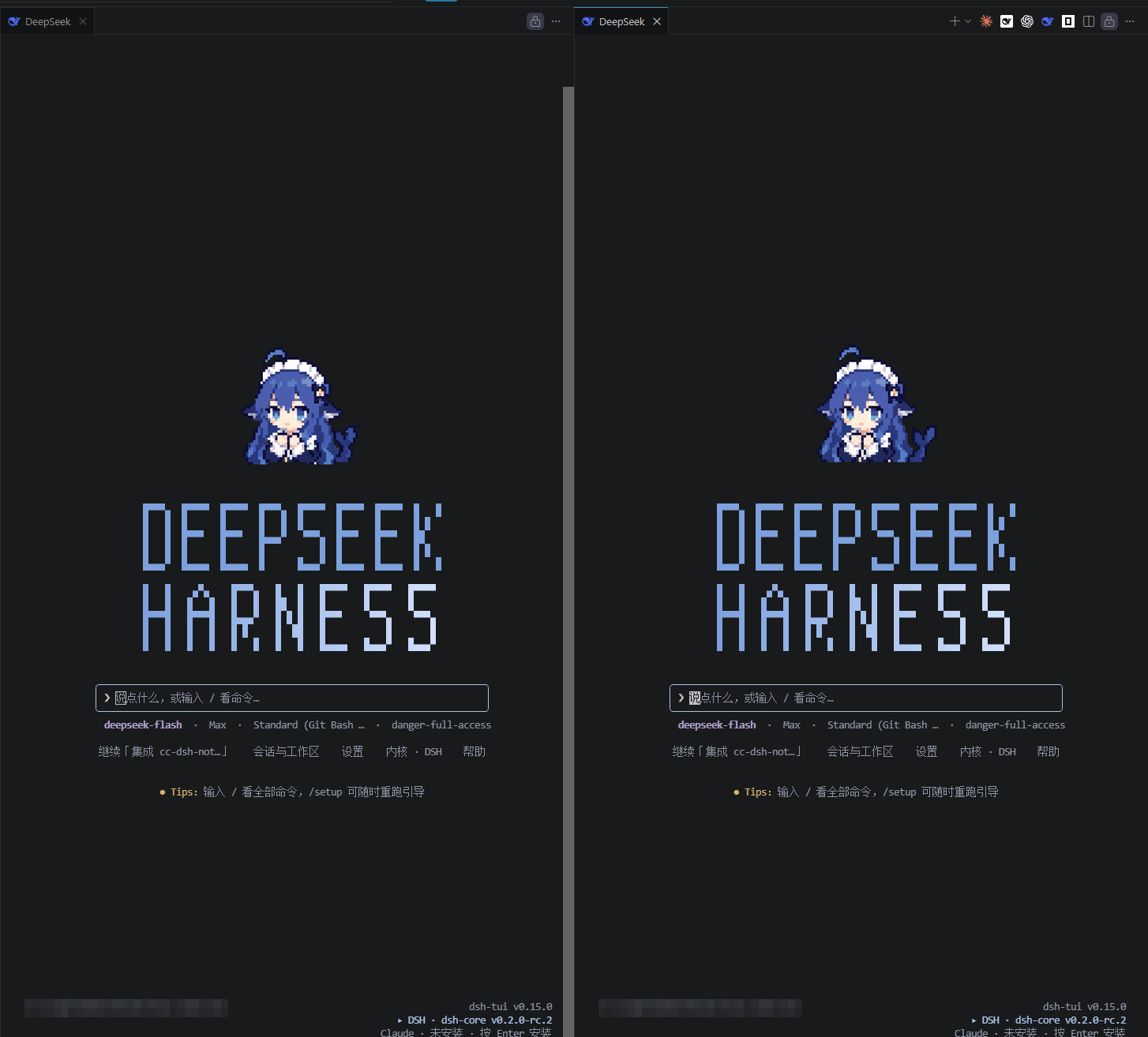
Click again and you get another session in its own column; nothing is reused and nothing is killed for you. Here two of them run side by side, both showing dsh-tui v0.15.0:
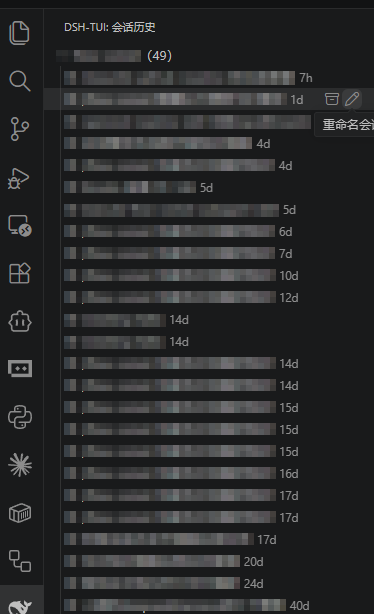
The sidebar lists the sessions of the workspace you have open, with titles and relative times. One click resumes that session; hovering offers archive and rename, and right-click deletes permanently. (The session titles in this capture are pixelated — they name real work.)
And selecting code in the editor reaches the running session without copy-paste. Here the editor reports a selection in VS Code's status bar, and the TUI answers with the line count it received:

Install
1 — Install the CLI and the TUI. Both are npm packages; the first launch bootstraps the dsh-tui profile and needs pnpm on PATH:
npm install -g pnpm
npm install -g @deepseek-ai/dsh @deepseek-harness-tui/dsh-tui
Node ^22.19 or >= 24 is required.
2 — Install the extension. Search dsh-tui in the Extensions view (Ctrl+Shift+X) and install dsh-tui (VS Code), or open the Marketplace listing. To build from source instead you need the code CLI on PATH:
git clone https://github.com/baobaolaodie/dsh-tui-vscode.git
cd dsh-tui-vscode
npm install
npm run install:local
3 — Give it a model. Either export DEEPSEEK_API_KEY before launching VS Code, or sign in from inside the TUI with /auth login deepseek-account (DSH 0.2.0-rc.1 and newer); other providers are reachable through /provider or /auth.
Features
- A real terminal, not an emulation — sessions run in the VS Code integrated terminal with your default shell, so shell integration, Ctrl+C, copy/paste, fonts and theme all behave natively.
- Beside by default — a new column next to the one you are working in (
ViewColumn.Beside), never on top of it.dsh-tui-vscode.terminalLocationswitches to the current column (active) or the bottom panel (panel). - As many concurrent sessions as you want — each start opens a new terminal; nothing is reused and nothing is killed for you.
- A session sidebar that knows your workspace — titles, relative times, and one click to resume; hover to archive or rename, right-click to delete permanently.
- Your selection, without copy-paste — select code and it reaches the running TUI over the IDE selection channel, or press
Ctrl+Alt+Kto insert an explicit@relative/path#L12-14reference. - Start, resume, stop — resume the last session or any session from the sidebar, and close a tab to end just that one.
Compatibility
The extension is a thin companion; the features below live in dsh-tui itself, so each one has a minimum version there.
| Capability | Requires |
|---|---|
| The extension as a whole | VS Code ≥ 1.90.0, dsh CLI and dsh-tui installed globally |
@path#L12-14 line ranges in mentions |
dsh-tui ≥ 0.9.1 — older builds report the file as missing |
Raster images in the terminal (sixel, none) |
dsh-tui ≥ 0.10.0; see terminal images |
| Automatic selection context (IDE selection channel, protocol v2) | dsh-tui ≥ 0.11.0 |
| The extension side of the above | dsh-tui-vscode ≥ 0.7.0 for the selection channel, ≥ 0.7.5 for the image protocol variable |
Beyond its minimum, dsh-tui is free to move: these two interfaces were re-checked against 0.15.0 and had not changed since the versions above.
How it works
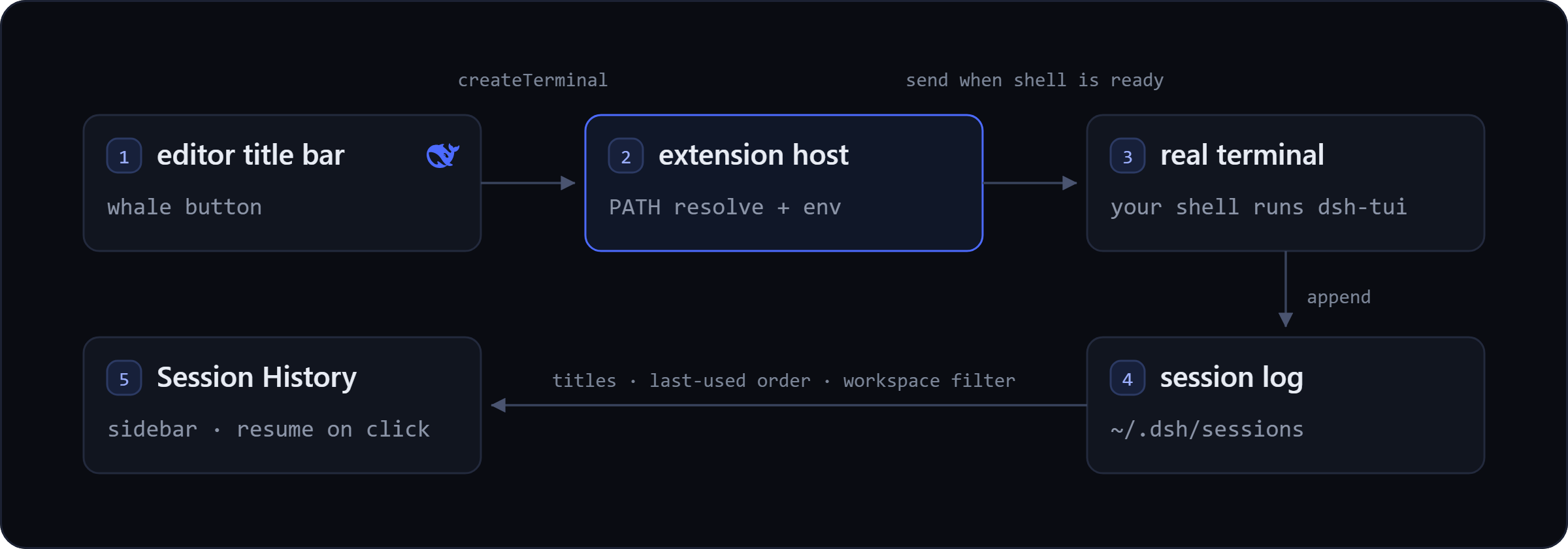
- Session = real terminal. The extension only calls
createTerminaland sends the launch command; the process, its signals, its scrollback and its clipboard are all the terminal's. The launch command is resolved to an absolute path against the extension host's PATH, because a login shell rebuildsPATHand cannot be trusted. - Specific-session resume goes through the environment. The session id is exported as
DSH_TUI_RESUME_SESSIONand read at boot by the profile'scordis.patch.yml.--resumeis deliberately not passed on that path — a bare--resumemakes the launcher overwrite the variable from~/.dsh-tui/resume.txt. - The sidebar reads the logs, tolerantly. Session logs are concatenated multi-frame zstd; the extension decodes them frame by frame from a bounded 64 KB head and 128 KB tail, and falls back through the log's
session/titleevent, the dsh storage ledger, the first human prompt, and finally the working directory name.
Commands
Command Palette entries are grouped under dsh-tui. Titles follow your VS Code display language.
| Command | What it does |
|---|---|
dsh-tui: Start new session |
Opens a new terminal and runs dsh-tui in it |
dsh-tui: Resume last session |
Runs dsh-tui with --resume (reads ~/.dsh-tui/resume.txt) |
dsh-tui: Open dsh-TUI |
The editor-title-bar button; same as starting a session |
dsh-tui: Focus session panel |
Brings the most recent session terminal to the front, starting one if there is none |
dsh-tui: Resume session |
Resumes the session selected in the sidebar |
dsh-tui: Insert @-mention |
Types the current file or selection into the session terminal — or copies it, if there is no session terminal |
dsh-tui: Terminate session |
Sends Ctrl+C to the most recent session terminal |
dsh-tui: Rename session / Archive session / Delete session permanently |
Session sidebar actions |
dsh-tui: Manage archived sessions |
Restores or permanently deletes archived sessions |
dsh-tui: Refresh sessions |
Re-reads the session list |
Inserting a reference. With editor focus, press Ctrl+Alt+K (Cmd+Alt+K on macOS) or use the editor context menu. You get @relative/path#L12 for one line, @relative/path#L12-14 for a range, and a bare relative path when nothing is selected; paths outside the workspace fall back to absolute ones. With no session terminal to type into, the reference goes to your clipboard instead; a session terminal that outlives dsh-tui still receives it. dsh-TUI slices the attachment to the line range at submit time rather than reading the whole file.
Settings
| Setting | Default | Description |
|---|---|---|
dsh-tui-vscode.command |
dsh-tui |
Launch command. Resolved against the extension host's PATH when possible; an unresolvable name is sent as typed. |
dsh-tui-vscode.extraArgs |
[] |
Extra CLI arguments, e.g. ["--lang","en"] |
dsh-tui-vscode.terminalLocation |
editor |
editor (new column beside the active one) / active (current column) / panel (bottom panel) |
dsh-tui-vscode.lang |
"" |
"" / zh / en, exported as DSH_TUI_LANG |
dsh-tui-vscode.imageProtocol |
sixel |
What to export as DSH_TUI_IMAGE_PROTOCOL: sixel, none, or auto (removes the variable). See terminal images. |
dsh-tui-vscode.injectEditor |
true |
Export $VISUAL when neither $VISUAL nor $EDITOR is set in the environment the extension host sees |
dsh-tui-vscode.editorCommand |
code -w |
The value exported as $VISUAL |
dsh-tui-vscode.dshHome |
"" |
Override $DSH_HOME for sessions (empty inherits it) |
dsh-tui-vscode.autoInsertMention |
true |
Push the editor selection to the running TUI (300 ms debounce) |
Sessions get more than these: DSH_TUI_IMAGE_PROTOCOL unless imageProtocol is auto (which removes it), DSH_TUI_IDE_PORT and DSH_TUI_IDE_TOKEN while the selection channel is up, and DSH_TUI_RESUME_SESSION (plus DSH_CC_RESUME_SESSION) when resuming a specific session.
Terminal images
The mascot artwork and image previews render as real raster images only when all of these hold:
terminal.integrated.enableImagesistrue(VS Code defaults tofalse). The extension offers a one-click "enable and reload" the first time a session starts without it — unless you choseimageProtocol: none, orgpuAccelerationrules the WebGL renderer out, since neither can be fixed by turning this on. It never edits your settings without asking, and if your workspace or folder settings pin the value it does not fight them: you get manual instructions instead.terminal.integrated.gpuAccelerationleaves the WebGL renderer possible — leave it atauto(the default) or set it toon. The image addon only attaches to the WebGL renderer, sooffdisables images no matter what else you change.- dsh-tui is 0.10.0 or newer, which is where
DSH_TUI_IMAGE_PROTOCOLis understood. Older builds ignore the variable silently. On Windows, VS Code's own description adds that image protocols need ConPTY v2 or newer, which ships with Windows itself.
Enabling enableImages only affects a window that is reloaded afterwards, so reload the window after turning it on: the extension reads the value the window started with and keeps exporting none until then, which shows half-block character art instead of a blank image slot. While that is the case, each session start reminds you to reload.
dsh-tui-vscode.imageProtocol decides what is exported:
| Value | Exported | Behavior |
|---|---|---|
sixel (default) |
sixel |
Real raster images when the conditions above hold, half-block character art otherwise |
none |
none |
Always half-block character art; the setup prompt is suppressed too |
auto |
(removed) | The variable is removed from the session environment and dsh-TUI decides for itself |
auto removes the variable rather than merely not setting it, because VS Code overlays this environment onto the one the terminal would otherwise inherit — a value from your shell profile would still reach dsh-tui and silently pin the protocol.
Verified combination: Windows 11 (10.0.26200) + VS Code 1.140.0 + dsh-TUI 0.15.0 — the extension's real-extension-host e2e suite passes here, including the guarded test that resumes a real dsh-tui session, alongside the terminal-launch, environment-injection, image-gate and IDE-channel assertions. Other platforms, remote setups and other VS Code versions are unverified; the character-art fallback keeps the worst case visible rather than blank. The long version of this — including why the gate is conservative and what remains unsolved — is in docs/terminal-images.md.
Troubleshooting
| Symptom | What to do |
|---|---|
dsh-tui is not found |
It must be installed globally. Check npm ls -g --depth=0; set dsh-tui-vscode.command to an absolute path if your shell finds it but VS Code does not. |
| The TUI renders greyscale | Something exported NO_COLOR or TERM=dumb into the terminal environment. Launch VS Code from a normal shell. |
Ctrl+Alt+K does nothing |
opencode uses the same default. Rebind it in Keyboard Shortcuts (Ctrl+K Ctrl+S) by searching dsh-tui or insertAtMention; the context-menu and palette entries keep working either way. |
@ mentions say the file is missing |
dsh-TUI is older than 0.9.1 and cannot parse #L ranges. Upgrade it. |
| Images show as block characters | enableImages is off, or the window was not reloaded after turning it on, or gpuAcceleration is off. See terminal images. |
| The sidebar is empty | Every session belongs to another workspace. Open the folder the sessions were started in. |
| The sidebar lists sessions from everywhere | No folder is open, so there is nothing to scope the list to. Open a folder. |
| The title did not change after renaming | A running TUI does not see a new title until it re-reads the log; reopen the session. |
| A session I deleted is still on disk | Deleting removes the session directory. Archived sessions keep their logs; restore them with dsh-tui: Manage archived sessions. |
UI language
The extension's own UI — command titles, view names, setting descriptions and runtime messages — follows your VS Code display language through the standard package.nls*.json plus vscode.l10n pipeline, with English as the default and an automatic fallback. For a Chinese UI, install the Chinese (Simplified) Language Pack and restart VS Code.
That is separate from dsh-tui-vscode.lang, which sets DSH_TUI_LANG and only affects the TUI's language.
Development
npm run compile       # tsc -> out/
npm run typecheck     # tsc --noEmit
npm test              # node:test unit tests over the data layer
npm run test:e2e      # real extension host (@vscode/test-electron)
npm run package       # build the .vsix
TypeScript 5.6 compiled to CommonJS, with two runtime dependencies: @bokuweb/zstd-wasm for session-log decompression and ws for the loopback IDE channel server. CI runs the unit tests on Linux and Windows across Node 22 and 24, and the real extension host on Linux under xvfb.
See CONTRIBUTING.md for the layout of the source tree, what CI enforces, and the release checklist.
License
MIT © 2026 baobaolaodie. dsh-tui itself is ccch1mneyyy/dsh-TUI, also MIT.
More in CLI & Terminal
deepseek-reasonix
by esengine
A reliable coding agent for complex software engineering tasks.
mnemon
by mnemon-dev
LLM-supervised persistent memory for AI agents — graph-based recall, cross-session knowledge, single binary. Works with DeepSeek Harness, Claude Code, OpenClaw, and any agent runtime.
phi
by pulseaiclub
A fast coding agent, rpc plugin, sub-agents, hashline edits, and mcp
sivtr
by ariestar
A unified memory workspace for agents and people, making terminal output and AI session context searchable and reusable across local workspaces.