
dsh-vps-manager
Maintenance: Activeaicivilization/dsh-vps-manager
Use a VPS from DeepSeek Harness like an SSH session, with zero-token commands and risk-tiered confirmation for AI-driven server operations.
$ dsh plugin add dsh-vps-managerInstall
dsh has no central install command — add this plugin’s entry (documented in its README below) to your profile or patch config, then restart.
How installs work6
stars
2
forks
JavaScript
Language
MIT
License
2026-09-16
Created
2026-10-16
Last push
README

dsh-vps-manager
Use your VPS inside DeepSeek Harness as seamlessly as over SSH: curated zero-token commands, plus the AI in the conversation can operate the server.
在 DSH 中和 SSH 一样无感地使用 VPS,除了精选的部分常用命令之外,使用时还能让对话中的大模型对 VPS 进行操作。










English · 简体中文
Overview
Install: search for dsh-vps-manager in the DSH plugin market and click install; or quit DSH completely and run the line below in a terminal (for command-line dsh web, replace desktop with web; see Install). Then open DSH and add a machine under Settings → VPS Manager.
dsh plugin --profile desktop add dsh-vps-manager
Manage your VPS from DeepSeek Harness (DSH): check server status with commands that skip the model and cost no tokens, tell the AI what to do and let it work on the server, see how the server is doing on one page, open a real terminal or move files in the conversation when you want to do it yourself, and handle common installs and maintenance with recipes.
It works with DSH on Windows, macOS and Linux, in both DSH Desktop and command-line dsh web, and several computers (home, office) can manage the same server at the same time.
You enter the password once when adding a machine; from then on everything uses SSH key login and shares one execution mechanism: operations that change things run as remote tasks and keep going if the connection drops; changes on the same machine run one at a time; config files are backed up before they are edited; an automatic restore is set up on the server before firewall or SSH changes; and every run is written to an audit log.
Want DSH itself running on your VPS? See the sister project dsh-vps: one command on the VPS installs stock DSH behind a login page with automatic HTTPS, reachable from any browser, with settings, API keys and the plugin market all working, and new DSH releases upgraded with one click in the page. The two work together: install this plugin in the DSH on your VPS and manage that server right from the conversation.
At a glance
| Capability | What it does |
|---|---|
| Zero-token commands | 22 /vps- commands: check status, install software, reboot and wait for the machine to come back, without touching the model |
| VPS mode | One click in the conversation header and that conversation operates the server; each conversation has its own binding, so one window can work on the server while another keeps working on local code |
| Real connection state | Header squares: grey not selected · yellow connecting · green connected · red unreachable, with the reason and a retry button |
| Terminal in the conversation | A real terminal (xterm.js over ssh -tt) where menu scripts, top and vim work; red / yellow / green buttons to end, minimize and maximize; nothing lost when you minimize or switch conversations, and it reconnects after a drop |
| Status in the conversation | One page for how the server is doing: rule-judged "needs attention" items first (failed services, full disks, expiring certificates, pending security updates), then ring meters, disks, services, containers, ports, firewall and more; click Interpret for a few sentences from DSH's default model. Expand it into DSH's right sidebar to keep it open beside the chat, refreshing every minute while visible, and pick any of your machines to look at |
| Files in the conversation | A file browser for the server: drag in to upload, right-click to download, double-click to edit, deletes go to a trash you can restore from; backups before overwriting or editing; right-click "let the AI look at this file" |
| AI on the server | 5 tools with risk-tiered confirmation: read-only runs automatically, changes ask you, dangerous commands ask again; levels can be set per machine, group or globally |
| Three safeguards | Files are backed up before editing and restored if validation fails; a connectivity safety net before firewall and SSH changes; long operations run as remote tasks that survive disconnects |
| Commands that fit the system | A health check finds the OS, package manager, init system, privilege, running services and containers, and the model is told to write commands for that machine |
| Recipe library | 29 repeatable recipes (7 install · 6 configure · 16 query); anything the AI gets working can be saved as a recipe in one sentence |
| Settings page | Add a machine with one form (enter the password once, the key is put in place for you, the password is not stored), import from ~/.ssh/config, baseline configuration, terminal settings, uninstall |
| Three platforms, both kinds of DSH | Windows, macOS, Linux; DSH Desktop and dsh web. Terminal connections pass DSH's sign-in check, a same-origin check and the plugin token, and open only on the local computer by default |
| Several computers, one server | Each computer has its own key; changes queue on the server and say which computer is making them; trash, backups and task records are shared; uninstalling revokes only that computer's key |
| English / 中文 | The interface follows the language set in DSH and switches instantly, without a reload; server messages, /vps- command output and recipe names follow too |
| Light install | No native modules (no node-pty to compile); the only runtime dependencies are ws and yaml |
Screenshots

Three screenshots take turns here (1 → 2 → 3); click to step through them on the project page. Full size: 1 · 2 · 3
1 Settings → VPS Manager: the numbered machines · 2 Files below the conversation, VPS status kept in the right sidebar · 3 Where the main controls are
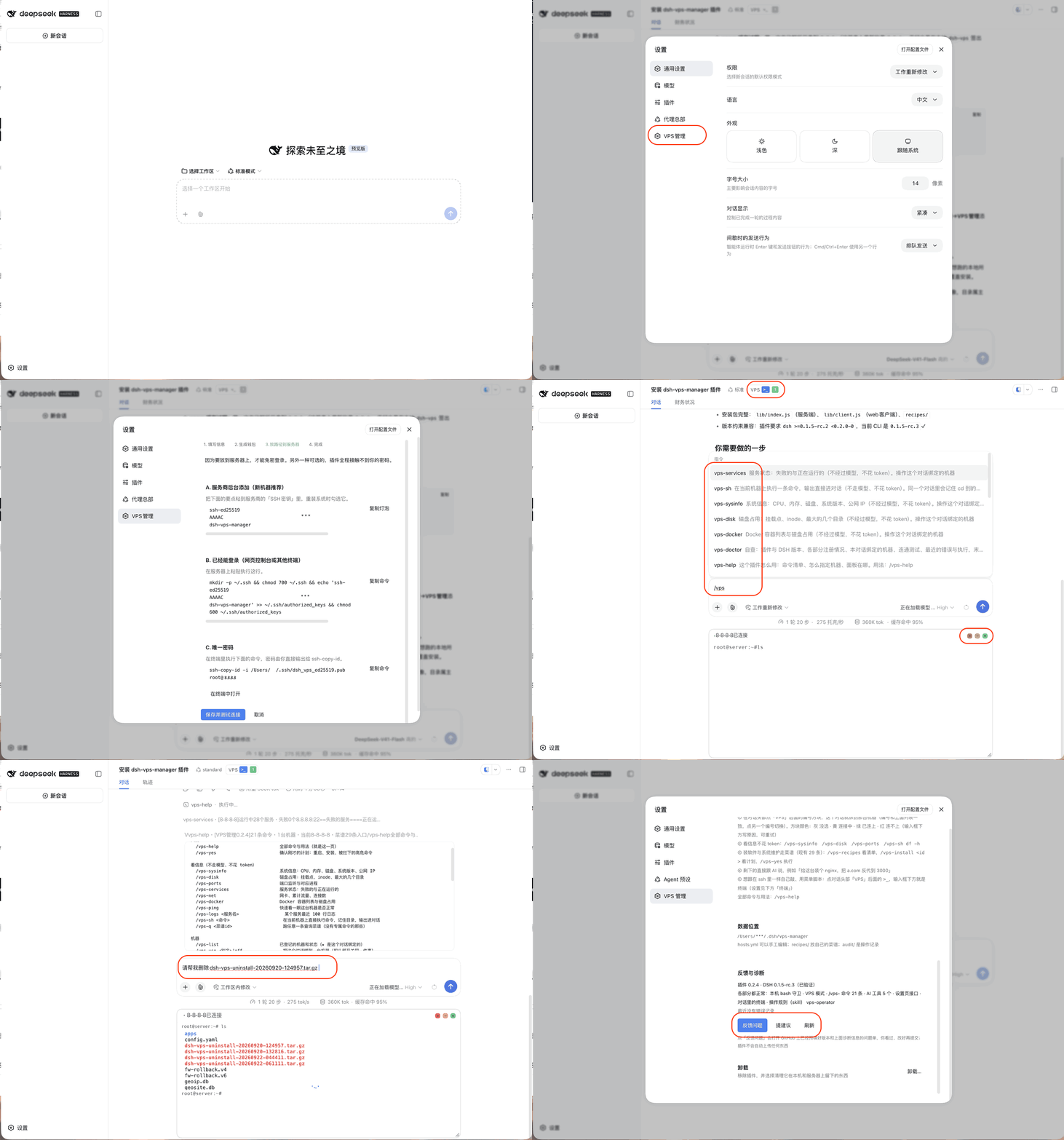
From installing the plugin to reaching the first machine (the address and user name in the recording are blacked out)
Contents
- Three ways to use it · Requirements · Platforms · Install · Adding a machine · Several computers, one server
- Choosing a machine in a conversation · Terminal in the conversation · Files in the conversation · Status in the conversation · Commands · Talking to the AI
- Recipes · Settings page · How it works · What it does not protect against
- Where data lives · Feedback and suggestions · Repository layout · Development
Three ways to use it
| Look things up | Talk to the AI | Install and maintain with recipes | |
|---|---|---|---|
| How | Commands like /vps-sysinfo |
"Install nginx on this machine and reverse-proxy a.com to port 3000" | /vps-install <recipe id> shows the plan, /vps-yes runs it |
| Uses the model | No | Yes | No |
| Cost | Zero tokens | Normal token use | Zero tokens |
| Scope | Fixed read-only queries | Anything SSH can do, with confirmations by risk level | 29 recipes that are safe to run again |
Requirements
- DeepSeek Harness 0.1.5-rc.2 or later (up to 0.2.x), DSH Desktop or
dsh web - Windows, macOS or Linux (see Platforms below)
- Node.js >= 22.13
- Everyday logins use an SSH key. A password is used only once, when adding a machine, to put the key in place.
sudothat asks for a password is not supported - Operations that change the system need the remote user to be
rootor to have passwordlesssudo; read-only queries do not
Platforms
| Windows | macOS | Linux | |
|---|---|---|---|
| SSH client | The built-in "OpenSSH Client". Usually already installed on Windows 10 / 11; otherwise add it under Settings → System → Optional features | Built in | Built in; otherwise install openssh-client |
| Speed | The Windows build of OpenSSH has no connection sharing, so each command opens its own connection, a fraction of a second more | One shared connection, tens of milliseconds | One shared connection, tens of milliseconds |
| Copying in the terminal | Select text, then Ctrl+C (with nothing selected, Ctrl+C interrupts) | ⌘C | Select text, then Ctrl+C |
~ in data locations |
Your user folder, C:\Users\yourname |
Home directory | Home directory |
| How it is verified | On every push, GitHub's Windows 2022 and 2025 machines go through the full flow against a real server | The author's daily machine | On every push, the full flow against a real server; every 6 hours, a compatibility check against the latest DSH |
Everything works the same on all three: commands, the AI, the terminal, the Files page, recipes, the settings page and uninstall.
Interface language follows DSH: pick English or 中文 under DSH Settings → General → Language, and the plugin's settings page, conversation header, terminal and Files panel switch at once; server errors and hints, /vps- command output, and recipe names and plans use the same language. Those are the two languages DSH ships today; with another language pack installed, the plugin shows English or Chinese according to the pack's declared fallback.
Install
Plugin market: search for dsh-vps-manager in DSH's plugin market (dshmarket) and click install. Works in both DSH Desktop and dsh web.
Command line: quit DSH completely first, then run the line for your DSH:
# Official DeepSeek Harness desktop app
dsh plugin --profile desktop add dsh-vps-manager
# Command-line dsh web
dsh plugin --profile web add dsh-vps-manager
- The desktop app needs its own
dshcommand: install it from the app menu, "Manage dsh command…". Adshinstalled from npm cannot change the desktop app's plugins. --profilemust come beforeadd. Since DSH 0.2.0, leaving it out fails withrequired option '--profile <name>' not specified.
For the latest code on GitHub (possibly newer than the release on npm), use github:AIcivilization/dsh-vps-manager as the package name instead.
Open DSH afterwards. Plugins are loaded when DSH starts. What changed in each version is listed under Releases.
To uninstall, open DSH Settings → VPS Manager, scroll to the bottom and click "Uninstall…" (see Settings page). You can also quit DSH completely, run dsh plugin --profile desktop remove dsh-vps-manager in a terminal (--profile web for dsh web) and reopen DSH; that removes only the plugin and keeps the machine list, keys, SSH configuration and audit log.
Adding a machine
Open DSH Settings → VPS Manager → "+ Add machine". It is one form:
- Server: IP or domain, SSH port, user, password
- What to call it (optional): alias (derived from the address if left empty), group, note
Click Save and connect:
- The plugin generates a dedicated key
~/.ssh/dsh_vps_ed25519(your existing keys are left alone) - It logs in once with the password you entered and adds that key's public half to
~/.ssh/authorized_keyson the server (skipped if it is already there) - The connection settings go into
~/.ssh/config.d/dsh-vps.conf, oneIncludeline is added at the very top of~/.ssh/config(backed up first to~/.ssh/config.dsh-bak), and the machine is reached with the key and gets a health check - You see the result and the host fingerprint (recorded on first contact; if it ever changes the connection is refused, so nobody can pose as your server)
The password is used once and never stored: it goes only into the environment of that single ssh process and reaches ssh through SSH_ASKPASS. It is not written to any file, log or audit record, and every later connection uses the key. Adding with a password only works on the computer running DSH, so the password never crosses the network.
A wrong password, a server that refuses password logins, or a changed fingerprint is explained right in the form. For a key-only server, expand "No password?" under the form: paste the public key into your provider's "SSH keys" page, or run a one-line command on a server you can already log in to, then click "The public key is in place, connect".
Machines already defined in ~/.ssh/config can be taken over with "Import from ~/.ssh/config". The plugin never rewrites what you wrote in ~/.ssh/config.
On Windows the paths are the same, with ~ meaning your user folder (for example C:\Users\yourname).
Several computers, one server
DSH on Windows, a Mac and Linux can each have the plugin installed and manage the same server at the same time:
- Each computer has its own key, so add the machine once on each computer (entering the password each time). The server's
authorized_keysgets one line per computer, commenteddsh-vps-manager@computer-name, so you can tell them apart - Changes queue up on the server: while one computer's change task is running, a change started from another computer is told "another change task is running", along with which computer started it. Queries, the terminal and browsing files are not affected
- Task records, backups taken before editing files, and the Files page trash are shared on the server: something moved to the trash from the Mac can be restored from Windows
- Two computers editing the same file: the one that saves second is told the file has changed, instead of silently overwriting it
- Uninstalling on one computer revokes only that computer's key; while other computers still use the server, the shared folder on it is kept
Choosing a machine in a conversation
The conversation header has a VPS switch: the word VPS, then the terminal button >_, then one small square per machine. Each square shows its number (1 for the first machine, 2 for the second, and so on), matching the numbers on the settings page.
-
A square's colour is the real connection state, not just whether it is selected:
- Grey: this conversation has not selected that machine
- Yellow (pulsing): selected, connecting
- Green: selected, and just checked to be reachable
- Red: selected, but unreachable. The reason is shown below the input box (for example "the SSH configuration has no entry for this machine") with a retry button; hovering the square shows it too
A live check runs when you turn the switch on, open the conversation, or come back to the DSH window (tens of milliseconds over the shared connection, a fraction of a second on Windows). Every command, AI tool call and terminal connection also records whether it reached the server, and the square follows
-
Click a square: this conversation enters VPS mode. From then on
/vps-commands act on that machine, and the plugin tells the model which machine this conversation operates on, what system it runs (package manager, init system, privilege), which program holds ports 80/443, which services and containers are running, plus a few rules it must follow (never guess names, handle systemd services only through systemctl, never turn a failed lookup into a restart or reinstall). The model writes commands for that system, and knows what you mean by "this machine" or "the server" -
In VPS mode the model cannot use local bash: a call is refused with a pointer to the VPS tools, so the model does not investigate server problems on your own computer. Reading files, searching and similar tools are unaffected
-
Click it again: VPS mode ends, the square turns grey, and local bash is available again. With nothing bound there is no default machine at all: commands do not run, and the AI must name the machine it operates on
-
Each conversation can be bound to one machine at a time. A binding only applies to its own conversation: one window can operate the server in VPS mode while another keeps working on local code, without affecting each other
-
The same from the keyboard:
/vps-use <alias>binds,/vps-use offunbinds -
A machine that has never had a health check gets one in the background when the switch is turned on, so the model receives its system details
Nothing is shown below the input box, except a single line in three cases: a task is running on the machine, the machine is unreachable, or its disk is at least 85% full.
Terminal in the conversation
The >_ button right after VPS in the conversation header is the terminal. Once a machine is bound, click it and a real terminal opens below the input box, working just like an SSH session (with only one machine you can click it before binding, and it binds that machine for you):
- Menu scripts,
top,htop,vim,docker exec -it,mysqland other programs that need keystrokes all work, as do Ctrl+C, arrow keys and CJK text. To copy: ⌘C on a Mac; on Windows and Linux, select text and press Ctrl+C (with nothing selected, Ctrl+C interrupts as usual) - Three round buttons at the top right of the terminal:
- Red ×: end this terminal; the shell on the server and anything running in it end too
- Yellow −: minimize to a bar below the input box ("terminal running in the background · open N minutes"); the terminal keeps running, and clicking the bar brings it back
- Green: maximize; the terminal fills the conversation area and the input box moves to the top. Click again (or double-click the title bar) to restore
- The
>_button in the header is still a switch: not open → open; open → minimize; minimized → restore. While minimized it shows a small green dot - Minimizing, switching to another conversation and coming back keeps the terminal and everything on it
- Reloading the page or losing the network: the server keeps the terminal for a while (10 minutes by default, adjustable in settings). Come back within that time and it reconnects automatically, replaying the output you missed; only after that does it end
- At normal size, drag the bottom-right corner to change the height; full-screen programs redraw at the new size, and the height is remembered
- Turning the VPS switch off or moving to another machine ends that conversation's terminal
- What you type and see here does not go to the AI; run a command with
/vps-shwhen you want the AI to see its output - Opening and ending are recorded in the audit log (keystrokes are not)
Settings (DSH Settings → VPS Manager → 界面 / Interface): colour scheme (follow system / dark / light, where follow system matches DSH's appearance), font size (11–20), how long to keep the terminal after a disconnect (5 minutes / 10 minutes / 30 minutes / 1 hour), and whether other devices may open it.
It works in both DSH Desktop and dsh web: the connection follows the page address (an https page automatically uses an encrypted connection). Every connection must pass three checks: DSH's own sign-in check, an origin that is the DSH page itself, and the plugin token embedded in that page. On top of that, by default the terminal only opens on the computer running DSH: when you reach dsh web through a LAN address or a reverse proxy, first tick "允许从其他设备打开 VPS 终端" (allow opening the VPS terminal from other devices) under DSH Settings → VPS Manager → Interface. The terminal is full control of the server, so only turn this on for access paths you trust.
No native module has to be compiled on your machine: the pseudo-terminal on the server is requested with ssh -tt, and window-size changes are applied over a second SSH connection. The terminal display is xterm.js (MIT licensed, bundled with the plugin and loaded the first time you open a terminal).
Files in the conversation
The terminal panel's title bar has a Terminal | Files | Status switch. Files is a file browser for the server this conversation is bound to:
More in CLI & Terminal
deepseek-reasonix
by esengine
A reliable coding agent for complex software engineering tasks.
mnemon
by mnemon-dev
LLM-supervised persistent memory for AI agents — graph-based recall, cross-session knowledge, single binary. Works with DeepSeek Harness, Claude Code, OpenClaw, and any agent runtime.
phi
by pulseaiclub
A fast coding agent, rpc plugin, sub-agents, hashline edits, and mcp
sivtr
by ariestar
A unified memory workspace for agents and people, making terminal output and AI session context searchable and reusable across local workspaces.