
How to Update DeepSeek Harness & Plugins (dsh)
Check your version, upgrade the dsh CLI, update plugins from the terminal or the Web UI market, and pin or roll back when a new build misbehaves.
Last updated: 2026-09-09
DeepSeek Harness is a developer preview that iterates fast — fifteen npm releases of @deepseek-ai/dsh landed in its first month, and the README warns in capital letters that compatibility-breaking changes will happen. Updating regularly is how your setup keeps working, and knowing how to roll back is how you stay safe when a release fights back.
Every command below was checked against the official deepseek-ai/deepseek-harness repository and the @deepseek-ai/dsh package on npm, in the same style as our plugin installation guide. The screenshots come from two real walkthroughs — one in English, one in Chinese — so you can see the commands land in a real terminal and a real Web UI.
Update DSH and its plugins in six steps
- 1
Check what you are running
Start from facts, not memory. In any terminal, dsh --version (short form dsh -V) prints the version of the @deepseek-ai/dsh package on your PATH. For the plugin side, open Settings → Plugins in the Web UI and skim the list — every bundle your Web profile loads shows an Enabled or Disabled badge. Note what you have now, because after updating you will want to compare.
$dsh --version$dsh plugin --profile web list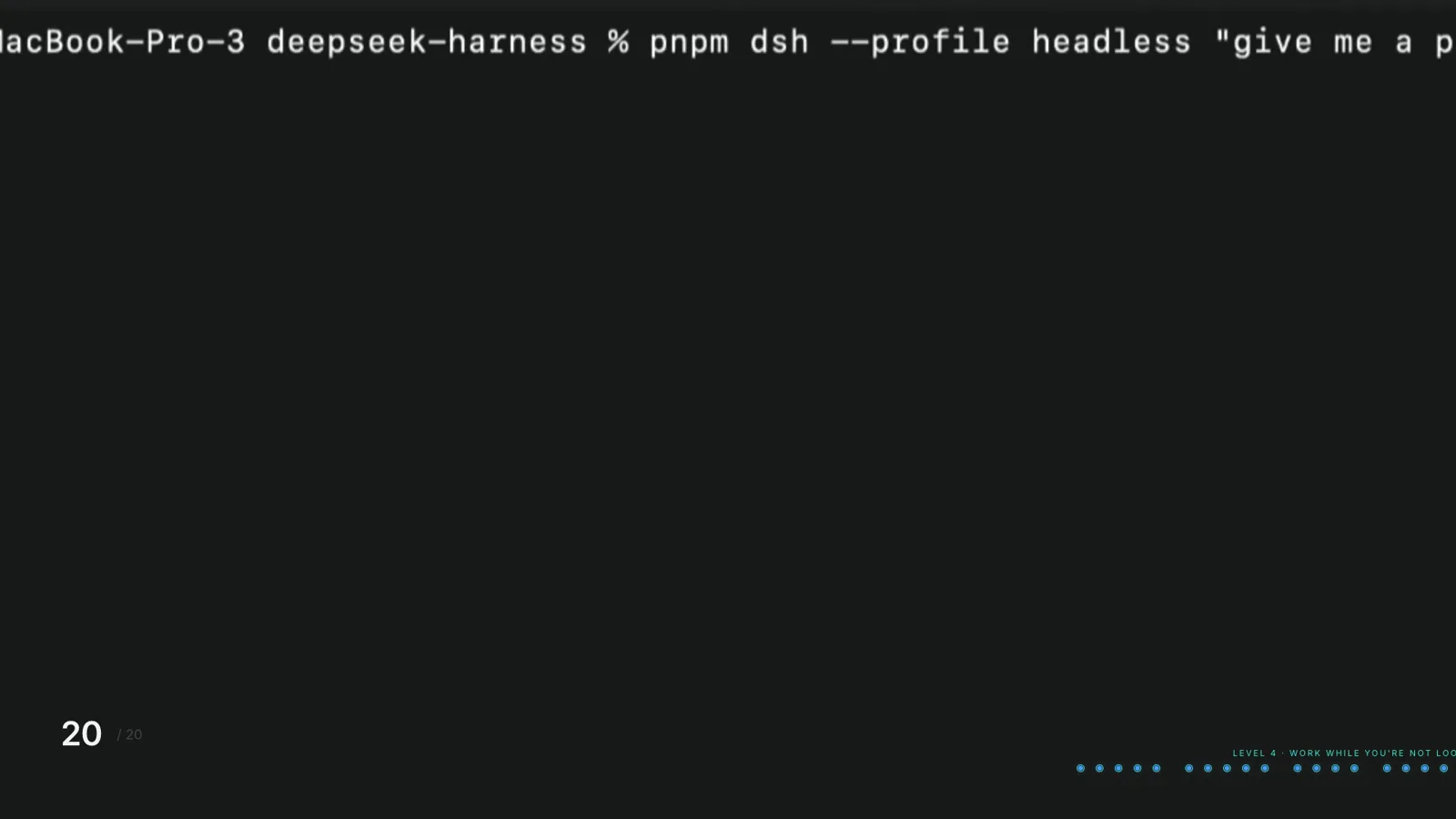
Every dsh command — version checks included — starts from this same command line.Watch at 13:31 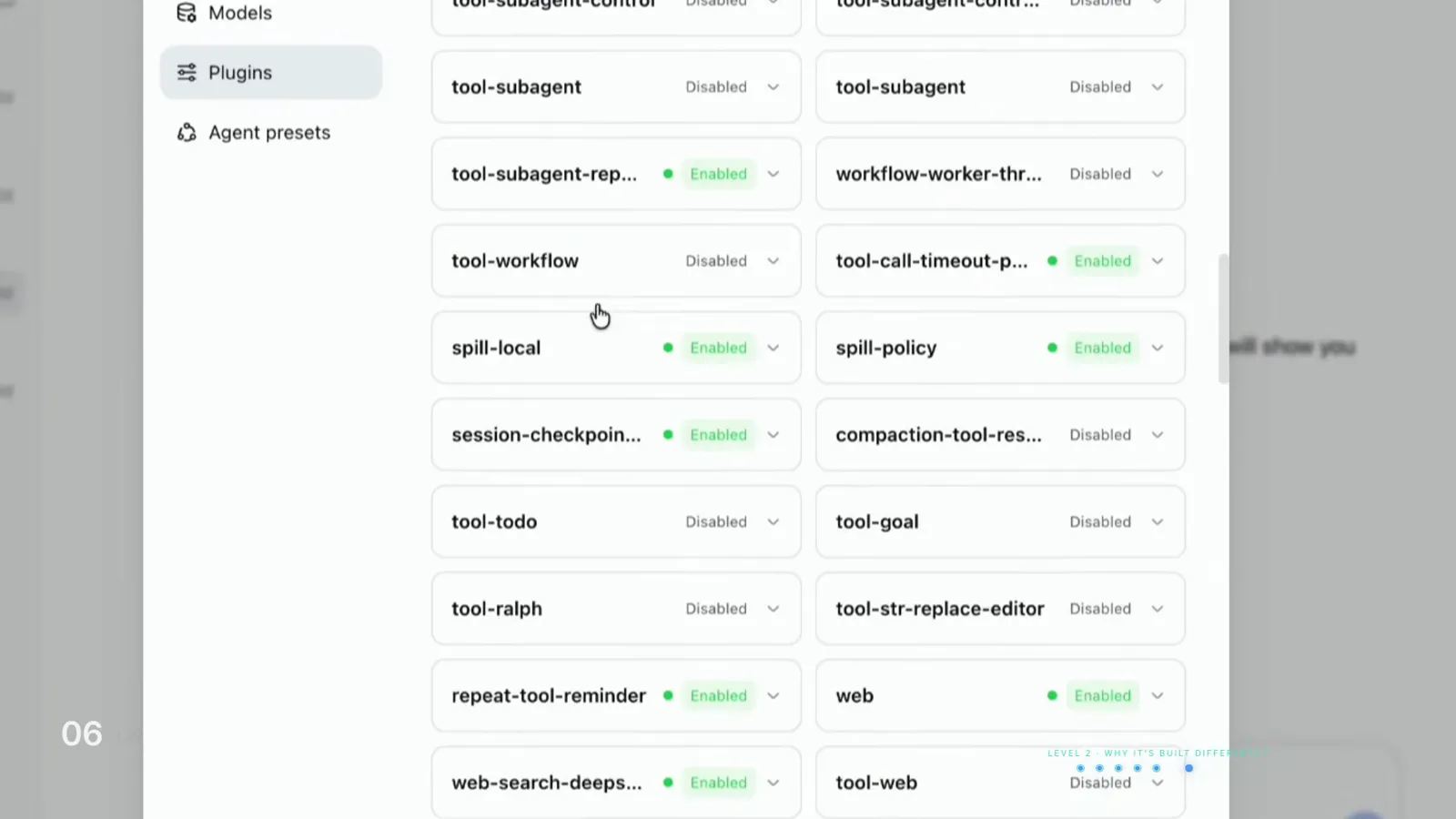
The Plugins panel is the fastest visual inventory of what your Web profile actually loads.Watch at 4:30 - 2
Update the dsh CLI itself
How you refresh depends on how you installed. Global npm install: re-run the install with the latest dist-tag and npm replaces the old build. npx launcher: add @latest so npx fetches the newest package instead of reusing its cache. Git clone: pull the repository and rebuild exactly like the first install. Commands have been known to change between releases, so the official get-started page is the tiebreaker whenever something errors.
$npm install -g @deepseek-ai/dsh@latest$npx @deepseek-ai/dsh@latest web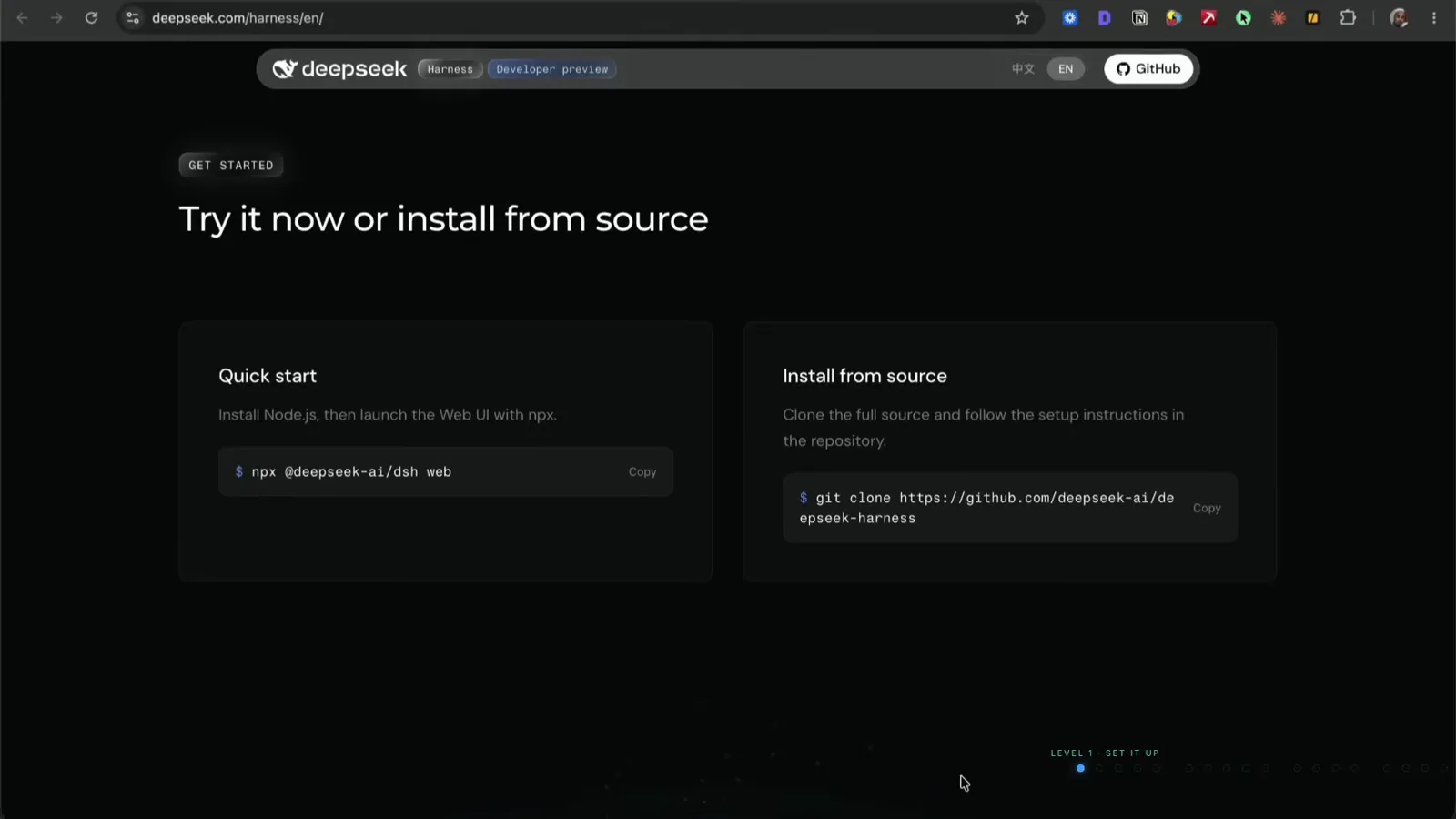
Two official install paths — and both are how you fetch a newer build later.Watch at 1:15 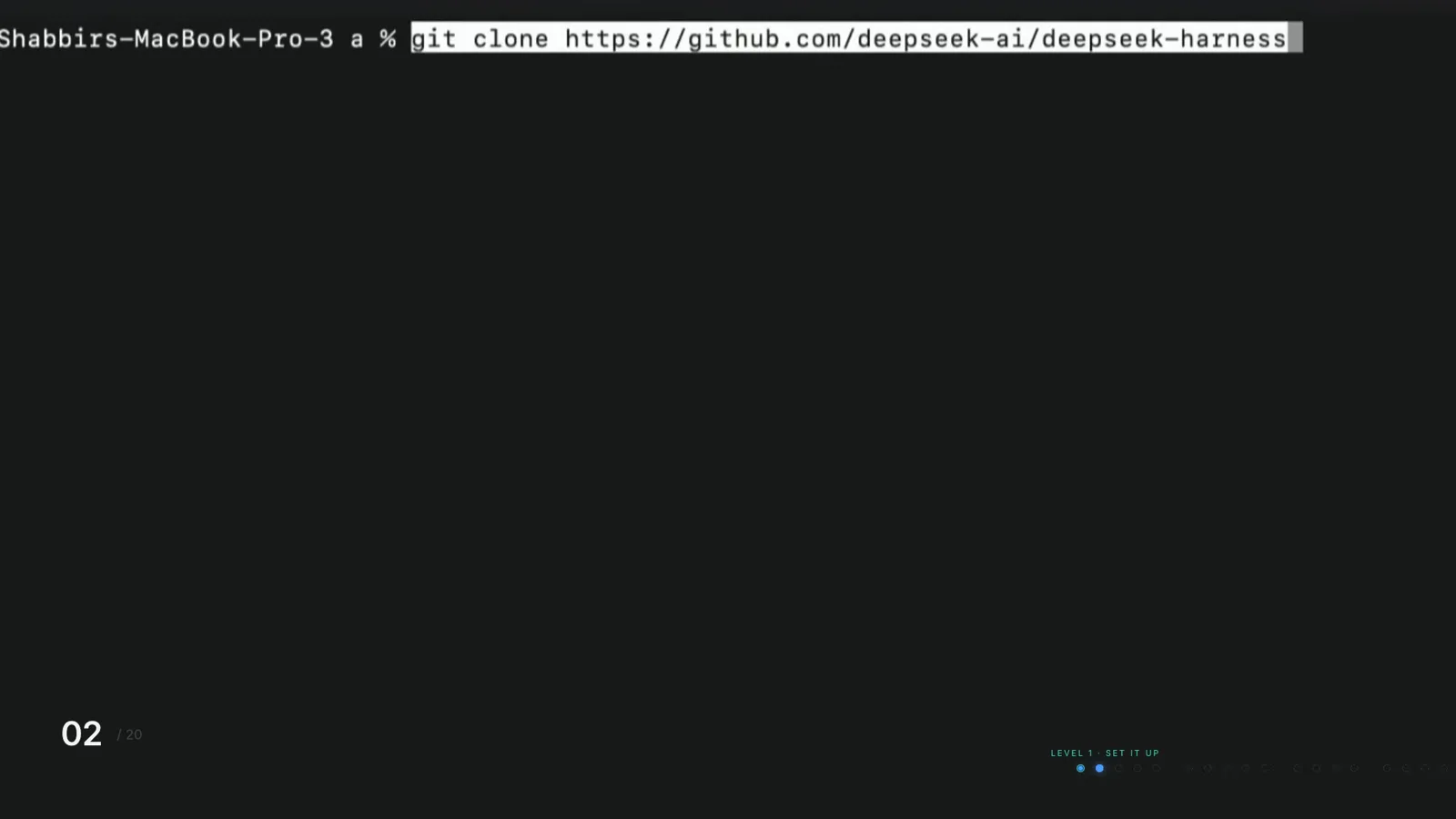
Source installs upgrade the same way they were born: pull, rebuild, relaunch.Watch at 1:25 - 3
Update a plugin: reinstall over the top
Plugins have no separate upgrade universe — updating is installing again. dsh plugin forwards your arguments to pnpm inside the profile directory, so re-running add fetches the newest matching release and repoints the profile at it. update also works: it refreshes packages within the version ranges your profile already allows. The Chinese walkthrough below installs the dshmarket plugin into the web profile — the identical command, re-run later, pulls whatever is new. One requirement: pnpm must be on your PATH, because dsh plugin calls it.
$dsh plugin --profile web add dshmarket$dsh plugin --profile web update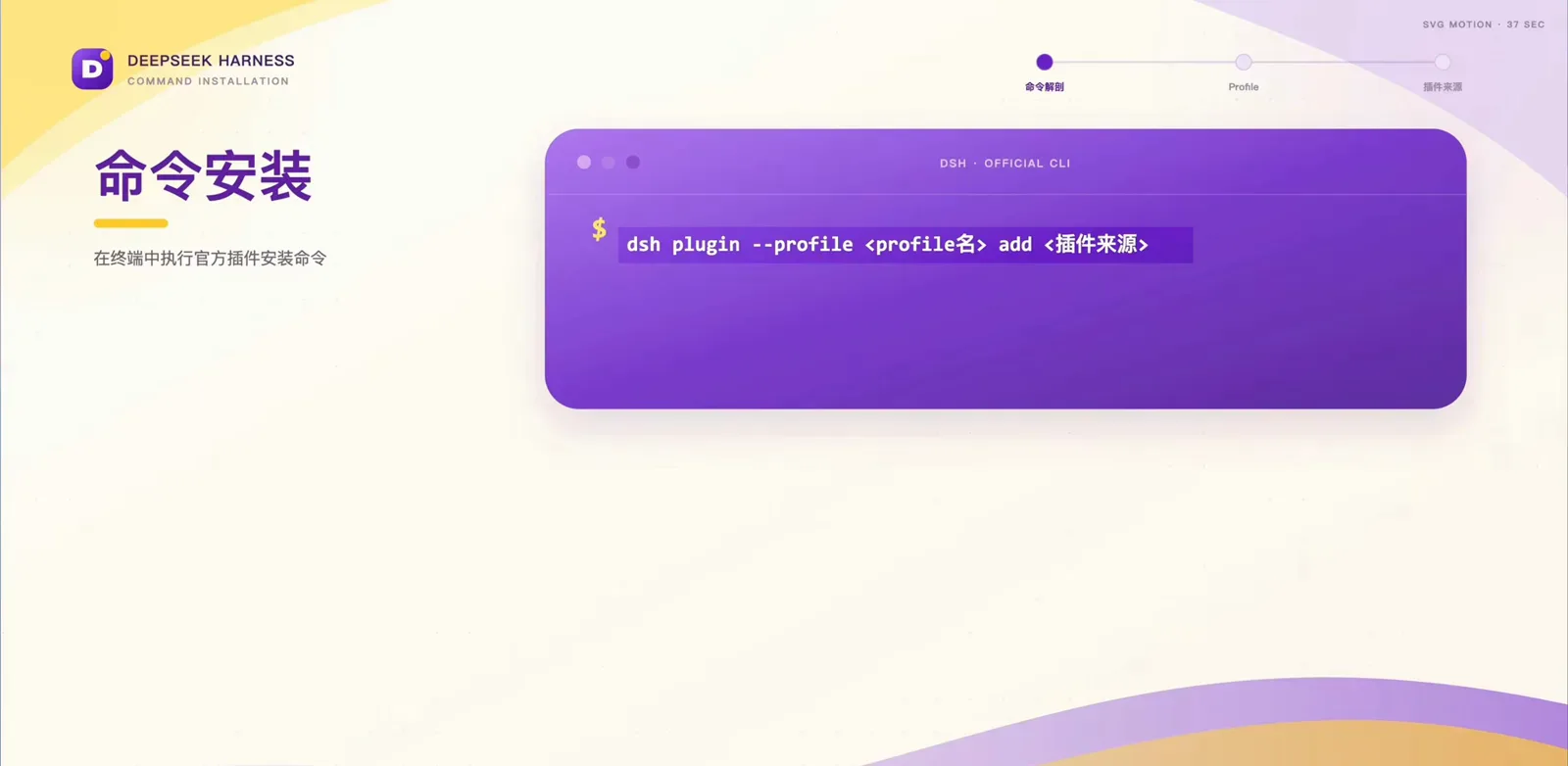
The update command is the install command — same shape, newer package (Chinese interface).Watch at 2:45 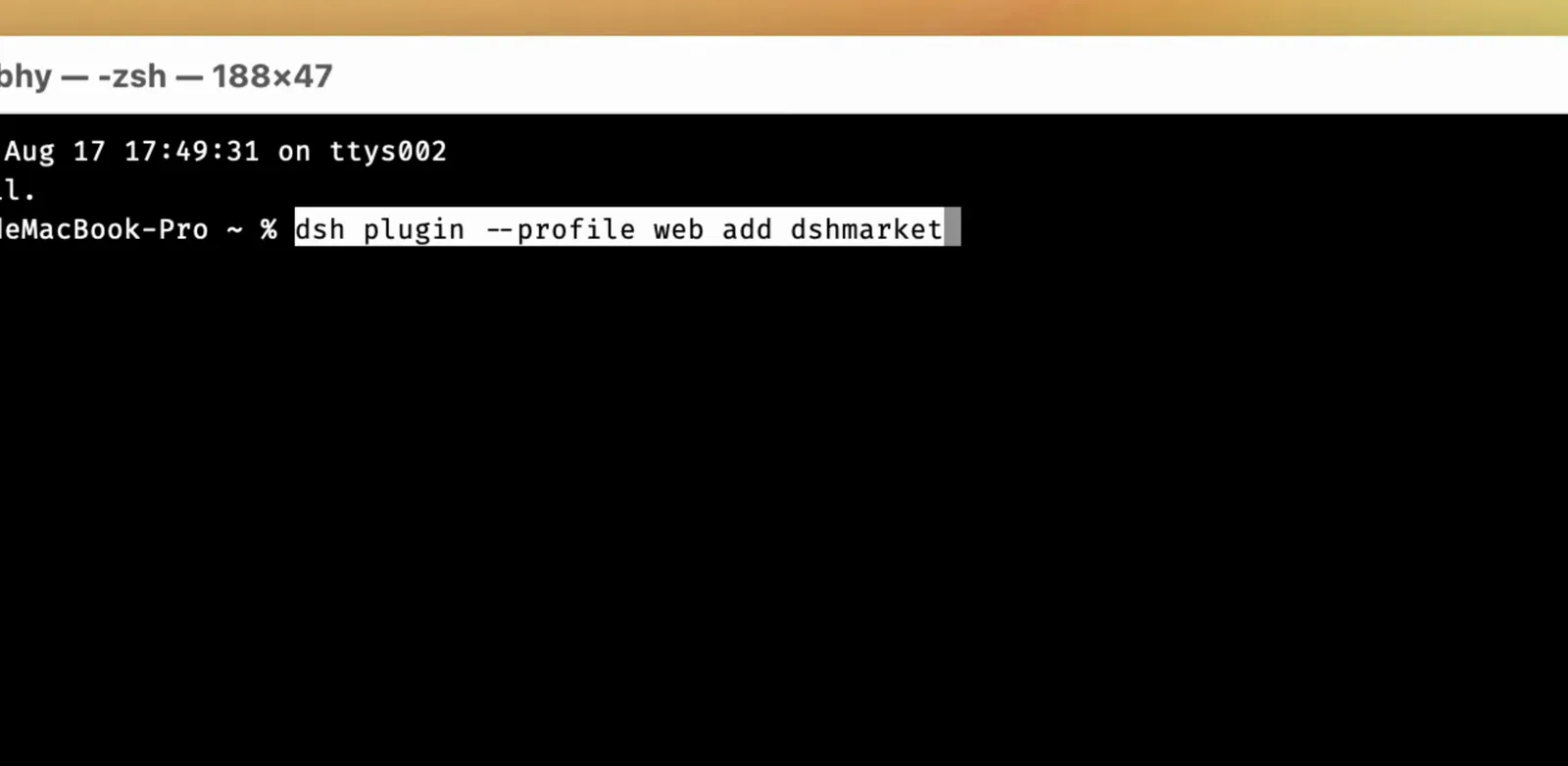
Re-running the add command pulls the newest release — the same motion as a first install (Chinese interface).Watch at 5:30 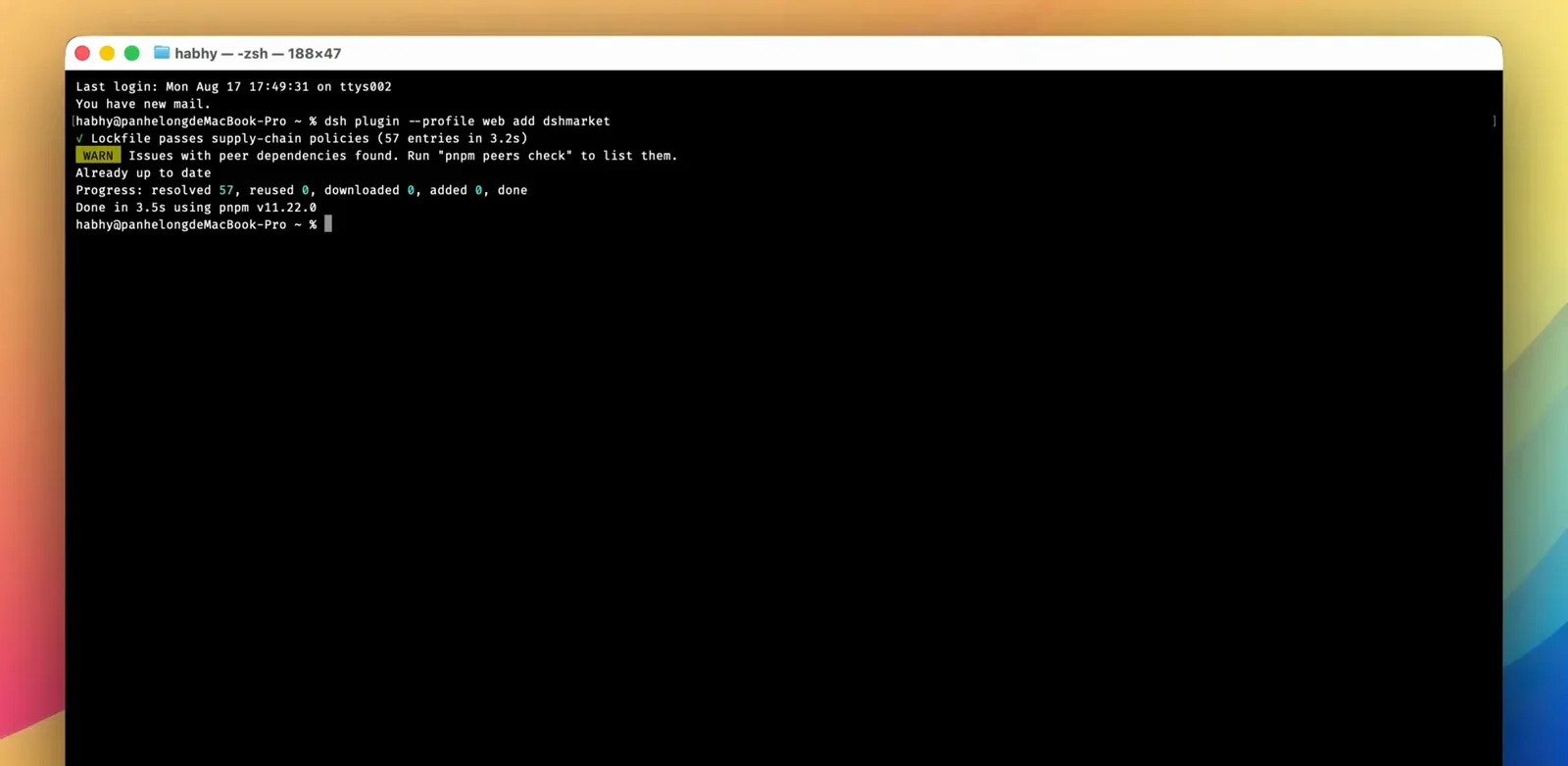
pnpm reports exactly what changed — or confirms you were already current (Chinese interface).Watch at 5:35 - 4
Or update from the Web UI plugin market
Prefer clicks over shells? Settings has a Plugin Market (插件市场) entry. Discover lists what is available, Installed shows what your profile already has, and an Install button on a card reinstalls that plugin — the market path and the CLI path end in the same profile. The market even flags new versions of itself with an upgrade banner, as the Chinese screenshot shows.
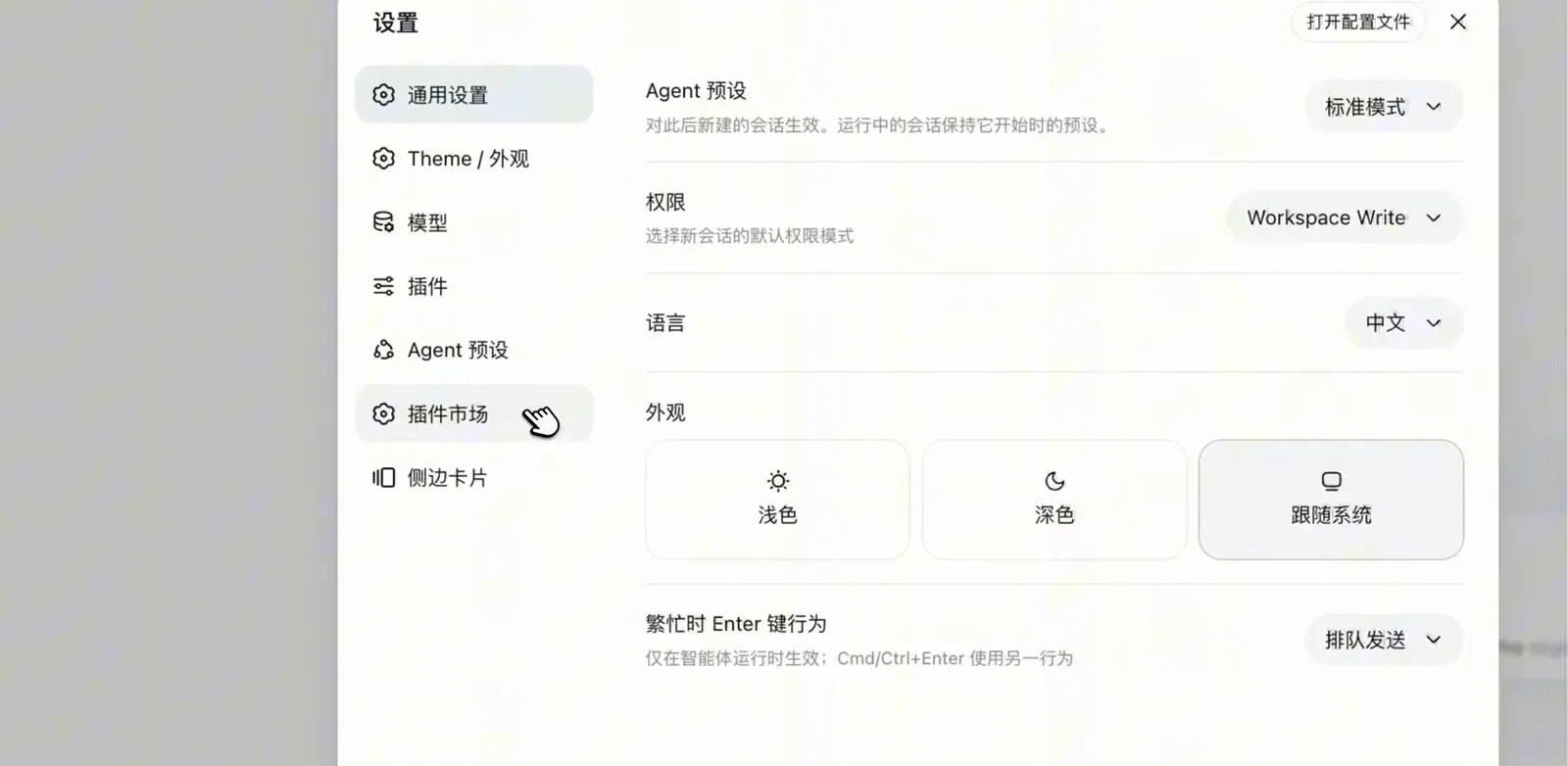
The Web UI ships its own plugin market under Settings (Chinese interface).Watch at 5:40 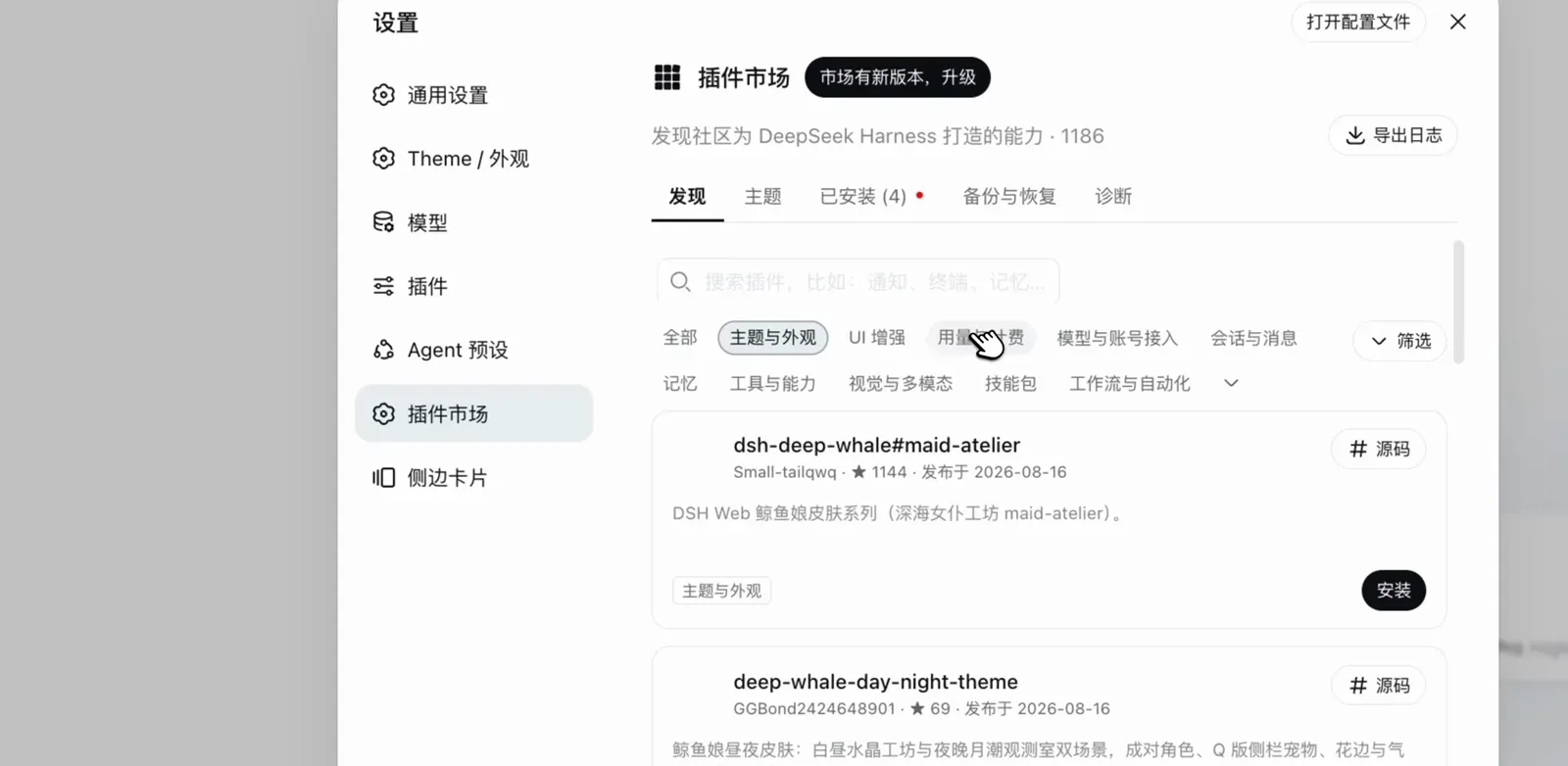
The market flags its own updates; the Installed tab lists what you already have (Chinese interface).Watch at 5:45 - 5
Restart, then verify
The plugin tree is assembled at startup, so nothing changes until you restart. Stop the old process, run dsh web, and wait for the local address to print. Then look: the Plugins panel should show your updated set with nothing half-registered, and a small throwaway task proves the stack actually runs. The Chinese walkthrough's rule is the right habit — read the latest README before installing, restart after, only then trust it.
$dsh web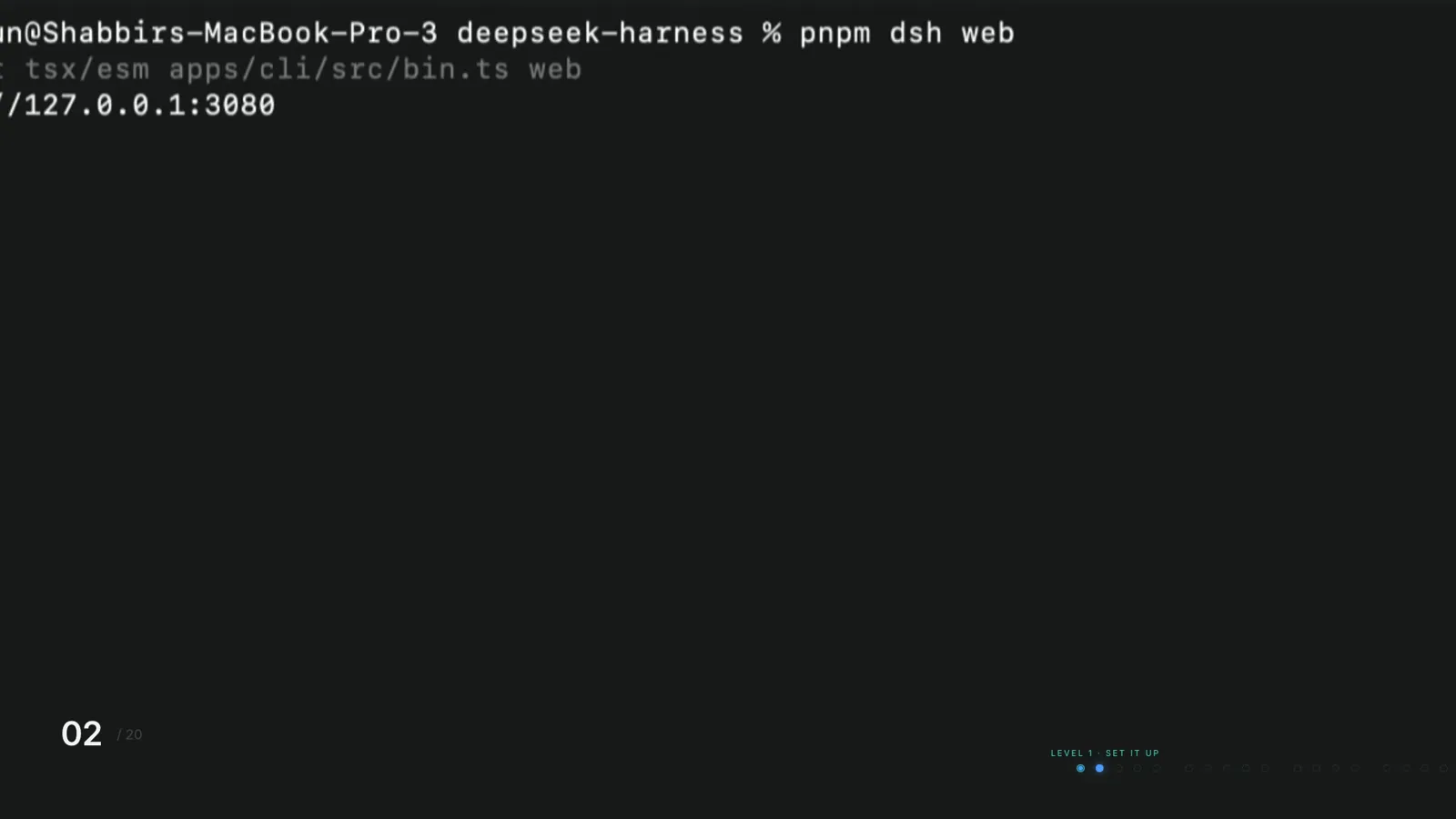
A successful restart lands you back on the familiar local URL.Watch at 1:40 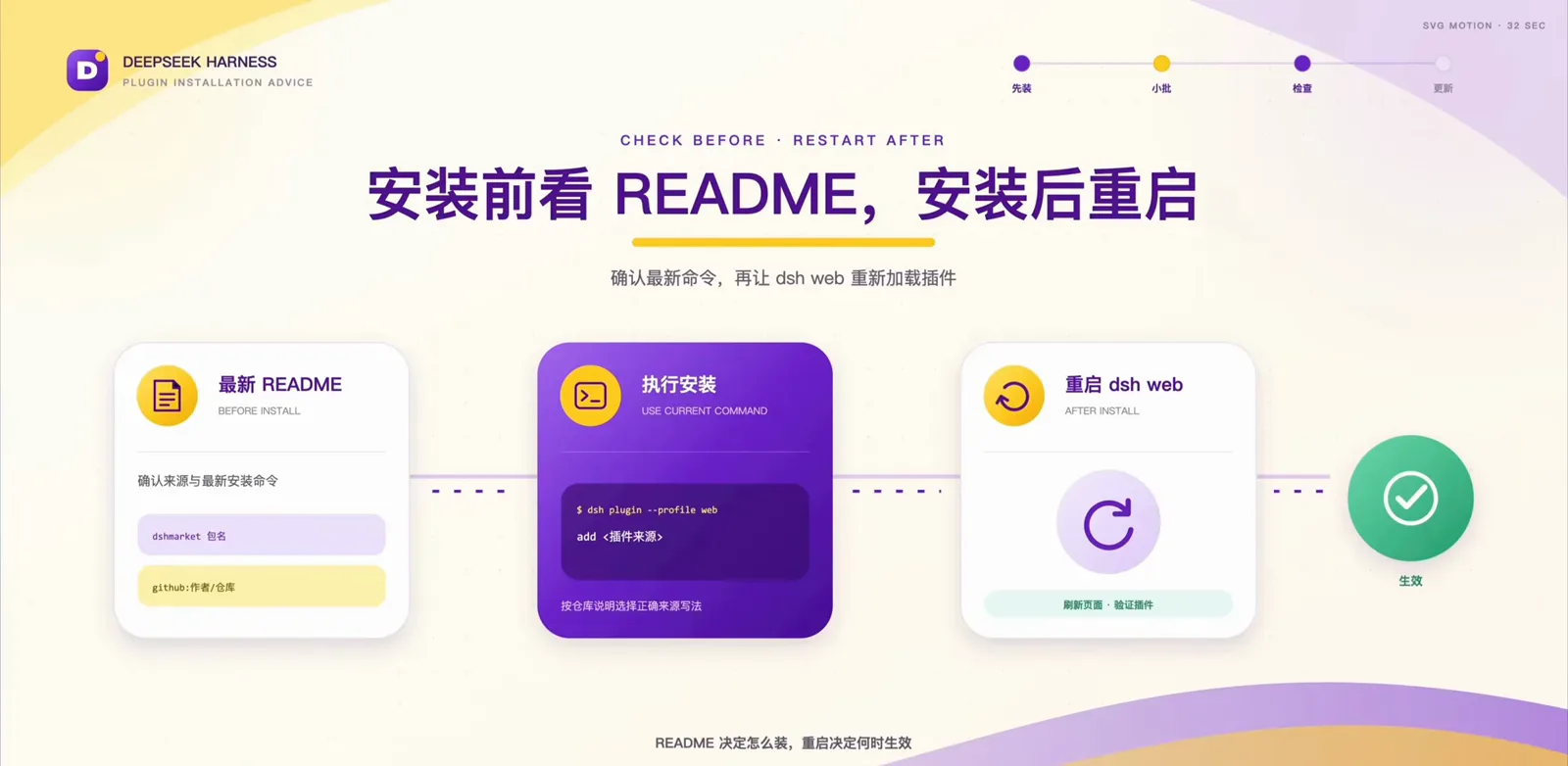
Check the README, install, restart — the whole update loop in three cards (Chinese interface).Watch at 16:30 - 6
When a new version misbehaves: pin, isolate, roll back
Breaking changes are officially expected, so know your exits before you need them. Pin an exact version by appending @version to the package — the same syntax our installation guide shows with dsh plugin add dsh-mnemon@^1.2.0. Test risky upgrades in a throwaway profile: the CLI initializes a fresh profile on first use, and --from-default-profile web seeds it from the shipped web template. Roll back by reinstalling the old version number, or remove the plugin and wait for a fix. Community repos under the dsh-plugin topic show last-update timestamps at a glance.
$dsh plugin --profile web add <package>@<version>$dsh --profile test --from-default-profile web$dsh plugin --profile test add <package>$dsh plugin --profile web remove <package>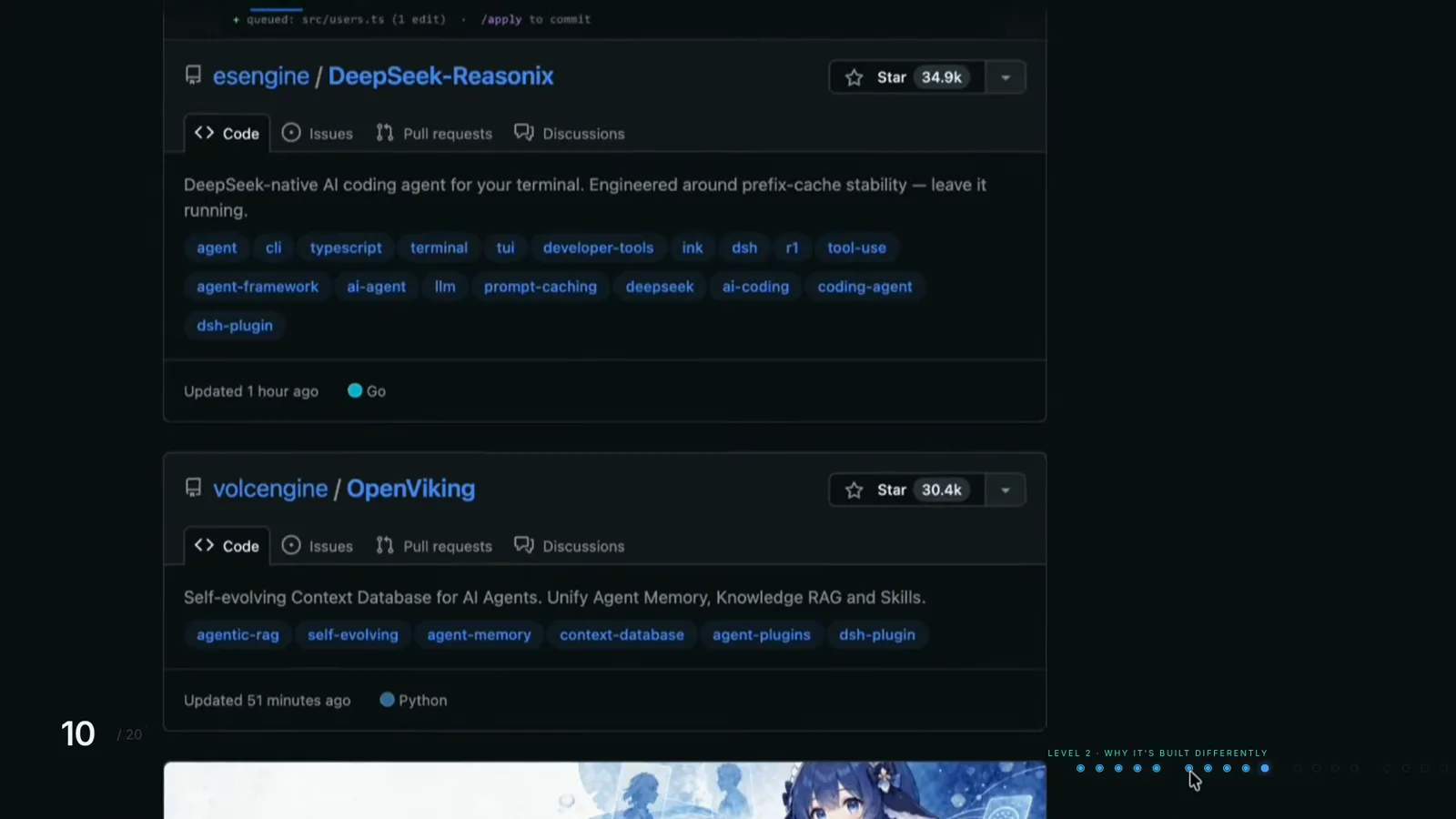
Repo cards show when a plugin last moved — your first hint a new release is waiting.Watch at 7:02
Updating DSH: FAQ
The questions that come up the first time an upgrade bites.
Do DeepSeek Harness plugins update automatically?
No. An installed plugin is a dependency recorded in your profile, and dsh keeps it exactly as installed until you act. Re-running dsh plugin add fetches the newest release, dsh plugin update refreshes packages within their allowed version ranges, and the Web UI market waits for you to click Install. Nothing updates behind your back — and, by the same coin, nothing fixes itself.
Will updating wipe my configuration or sessions?
Updating swaps package dependencies, not your settings. Profile overrides live in the profile's cordis.patch.yml user layer — the mechanism covered in our plugin installation guide — and sessions are stored separately from plugins, so a restarted harness reassembles itself from your config. The real risk is semantic: a breaking release can change what an option means. Read the changelog or README of anything you upgrade, and keep the notes from step one so you can tell an update problem from a config problem.
How do I roll back to an older plugin version?
Install the old version on top of the new one: dsh plugin --profile web add <package>@<version>. That repoints the profile at the exact release — our installation guide shows the same syntax with a range, dsh plugin add dsh-mnemon@^1.2.0. Confirm what is actually installed with dsh plugin --profile web why <package>, one of the pnpm verbs the dsh help text explicitly lists.
Can I test a new version without touching my main setup?
Yes — profiles exist for exactly this. dsh --profile test --from-default-profile web creates a profile named test from the shipped web template, and dsh plugin --profile test add <package> installs the candidate build there, initializing the profile on first use. Your main web profile keeps running the old version until you decide. One boundary: the desktop profile is managed exclusively by the Electron application and rejects manual plugin commands.
The harness updated and now a plugin is broken. What now?
This is the documented cost of a developer preview — the README states plainly there will be compatibility-breaking changes. Check the plugin's repository for a newer release first: most community plugins carry the dsh-plugin topic, and repo cards show when they were last updated. Then either re-add the plugin to pick up its fix, pin back to a working version, or remove it with dsh plugin --profile web remove <package> until the two sides sync up.
How do I check the newest available version?
Compare two numbers. Your installed one comes from dsh --version; the latest published one is on the @deepseek-ai/dsh page at npmjs.com, or from npm view @deepseek-ai/dsh version in any terminal. The GitHub releases page lists every tagged release with its date — also the quickest way to see how fast the project is moving before you commit to an upgrade.
Related guides
The pages this guide leans on, and where to go next.
Installing plugins you can trust
How plugin installation actually works in dsh, plus a checklist for vetting third-party code.
Read the guideTroubleshooting & error encyclopedia
Symptom → cause → fix: install failures, pnpm workspace allowlist errors, cordis.patch.yml conflicts, bundle format errors, and profiles that won't apply.
Read the guideInstall DeepSeek Harness on Windows
A 10-step, screenshot-by-screenshot Windows walkthrough: Node.js, npm install, the Web UI on port 3080, your API key.
Read the guideDeepSeek Harness desktop app: official vs community
The official Web UI, community clients like DSHDesktop, and a safe-download checklist.
Read the guideAwesome DeepSeek Harness
The awesome DeepSeek Harness list — as a live, browsable directory with GitHub stars and maintenance data.
Read the guideSources & credits
Commands verified in September 2026 against the official deepseek-ai/deepseek-harness repository (README and CLI source), the @deepseek-ai/dsh package on npm, and DeepSeek's get-started page. Frames are captured from two community walkthroughs on YouTube — some screenshots above show a Chinese-language interface.