
Uninstall DeepSeek Harness Plugins
Five screenshot-verified steps to remove a single plugin, uninstall the dsh package, and wipe every leftover data folder for good.
Last updated: 2026-09-13
Everything in DeepSeek Harness is a plugin, and uninstalling follows the same logic: a profile keeps the dependency entry, the CLI removes it, and a restart makes the running session let go. Do those three things in order and nothing is left behind.
The walkthrough covers all three levels — removing one plugin, uninstalling the harness itself, and deleting the ~/.dsh data directory — with screenshots captured from public screen recordings and credited at the foot of this page.
Uninstall DeepSeek Harness plugins in five steps
- 1
Confirm what is actually installed
Open Settings → Plugins in the dashboard and search for the plugin's name — the list shows every plugin installed in this deployment with an Enabled badge. Then run the list command: it prints the profile's dependency entries plus the profile's private home under ~/.dsh. Note the exact package name; you need it in the next step.
$dsh plugin --profile web list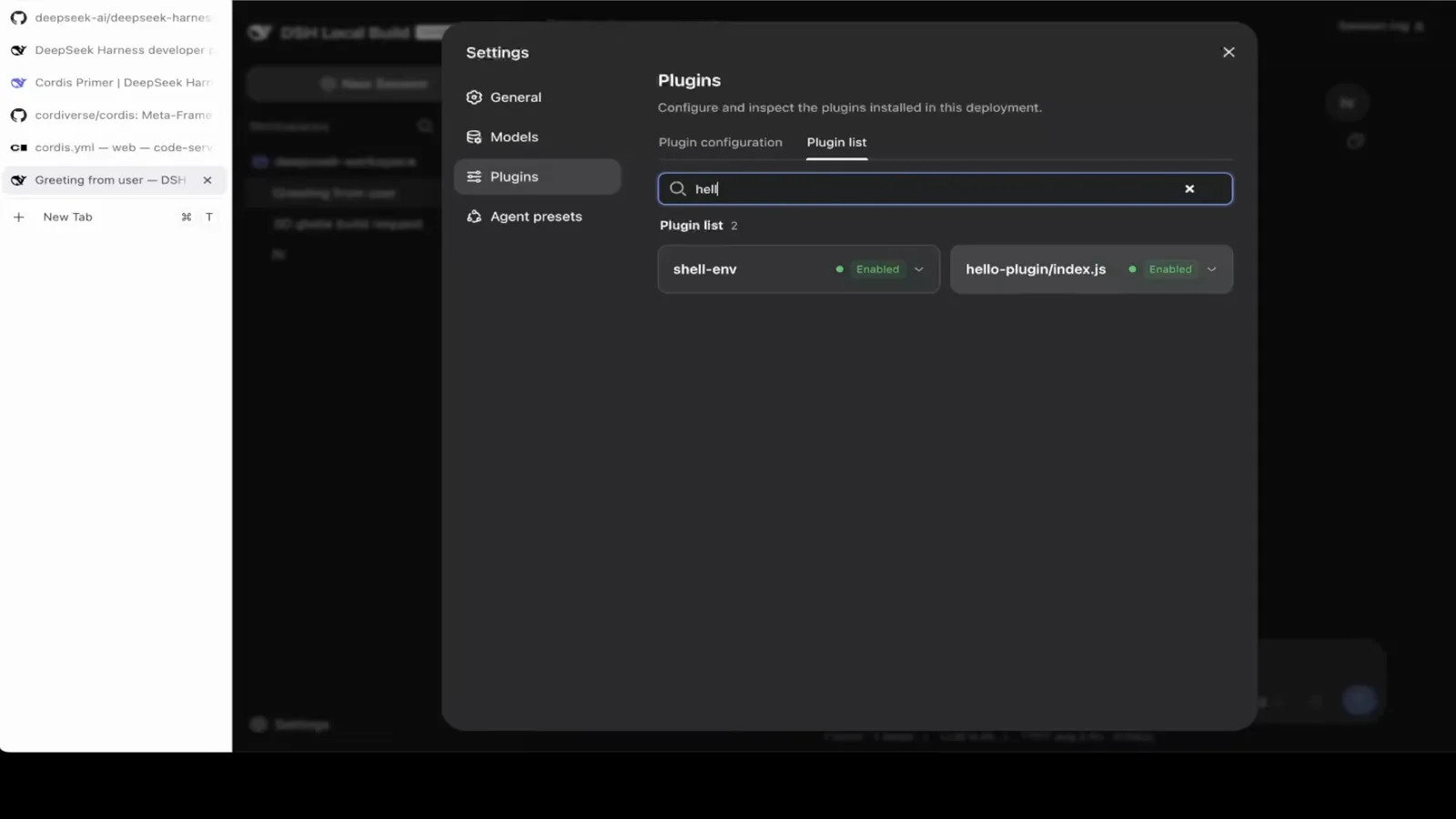
Before touching anything, confirm the plugin really shows as enabled in Settings → Plugins.Watch at 6:26 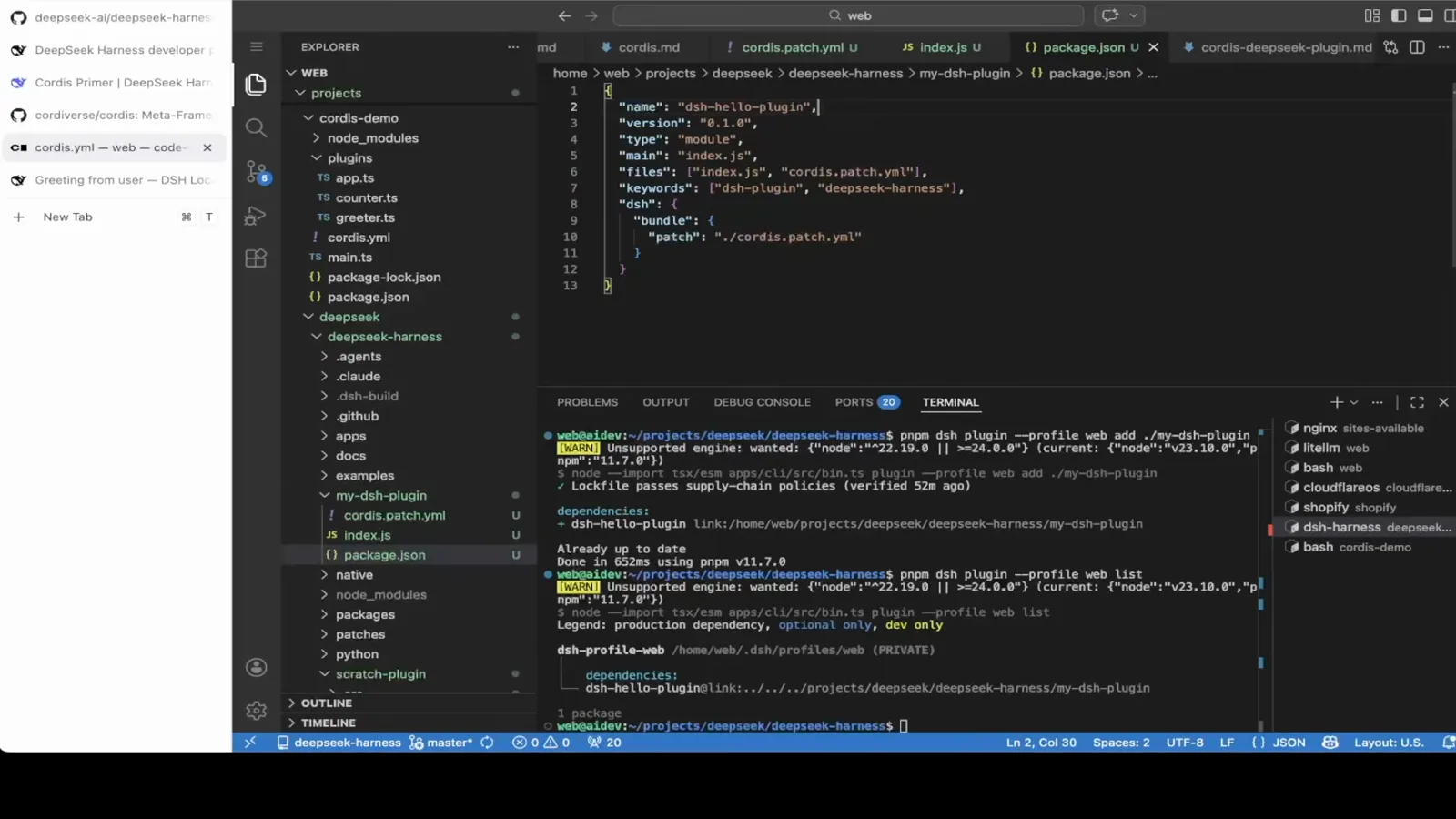
The list command also prints the profile's private home under ~/.dsh — that is where the dependency entry lives.Watch at 5:46 - 2
Remove the plugin from its profile
One command takes the plugin out: dsh plugin --profile web remove <package> deletes the dependency entry from the web profile. The terminal prints a diff whose minus line is the removed dependency, confirmed in under a second. Installed the plugin into a different profile? Run the remove command against that same profile.
$dsh plugin --profile web remove <package>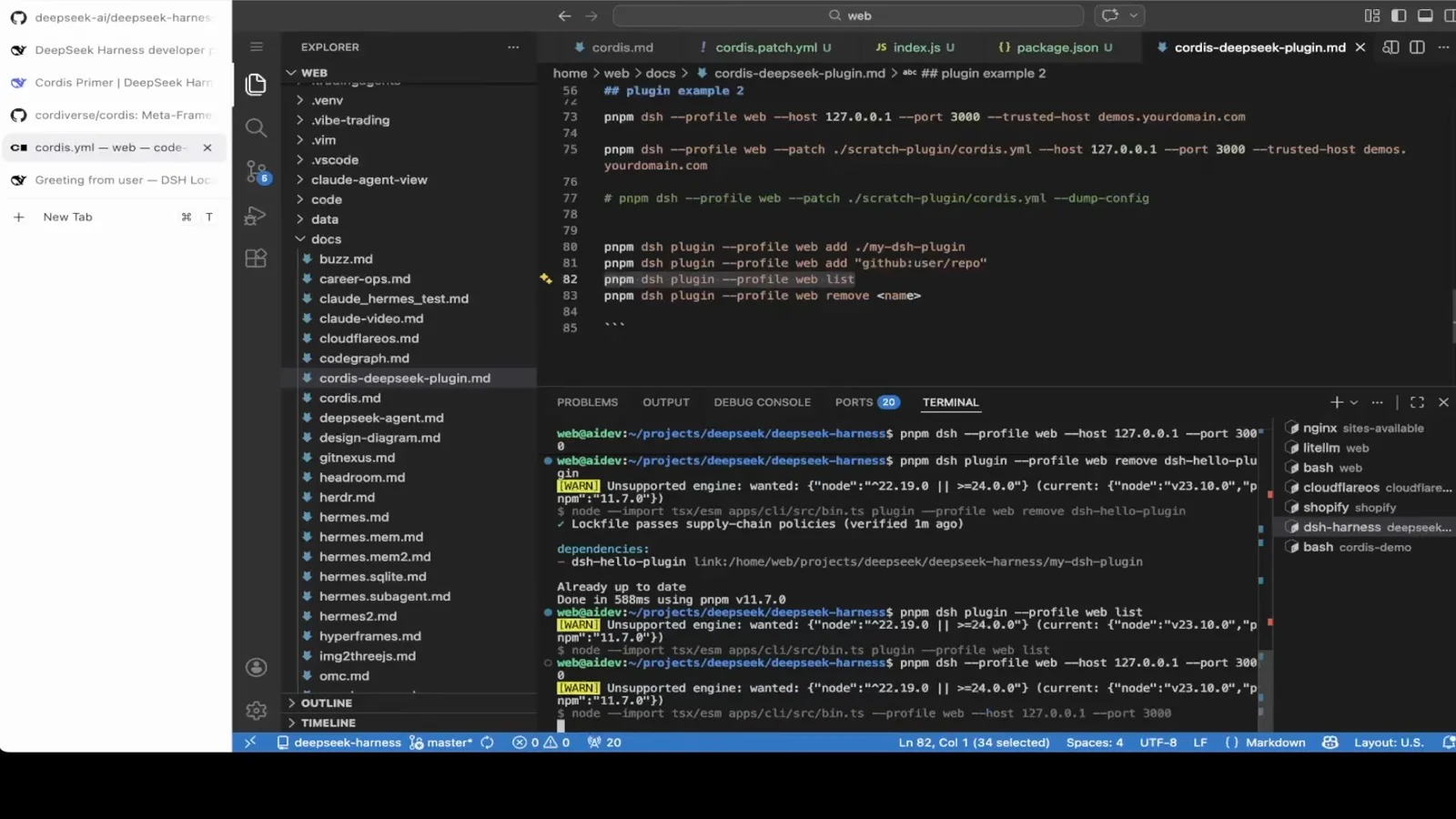
One command takes the plugin out of the profile — the minus line is the dependency being dropped.Watch at 7:32 - 3
Restart, then verify it is gone
A running session keeps the plugin composition it started with, so quit the harness and start it again before you trust the removal. Re-run the list command — the entry is gone — and search the Plugins list in the web UI: the same query that matched your plugin before now only returns built-ins.
$dsh plugin --profile web list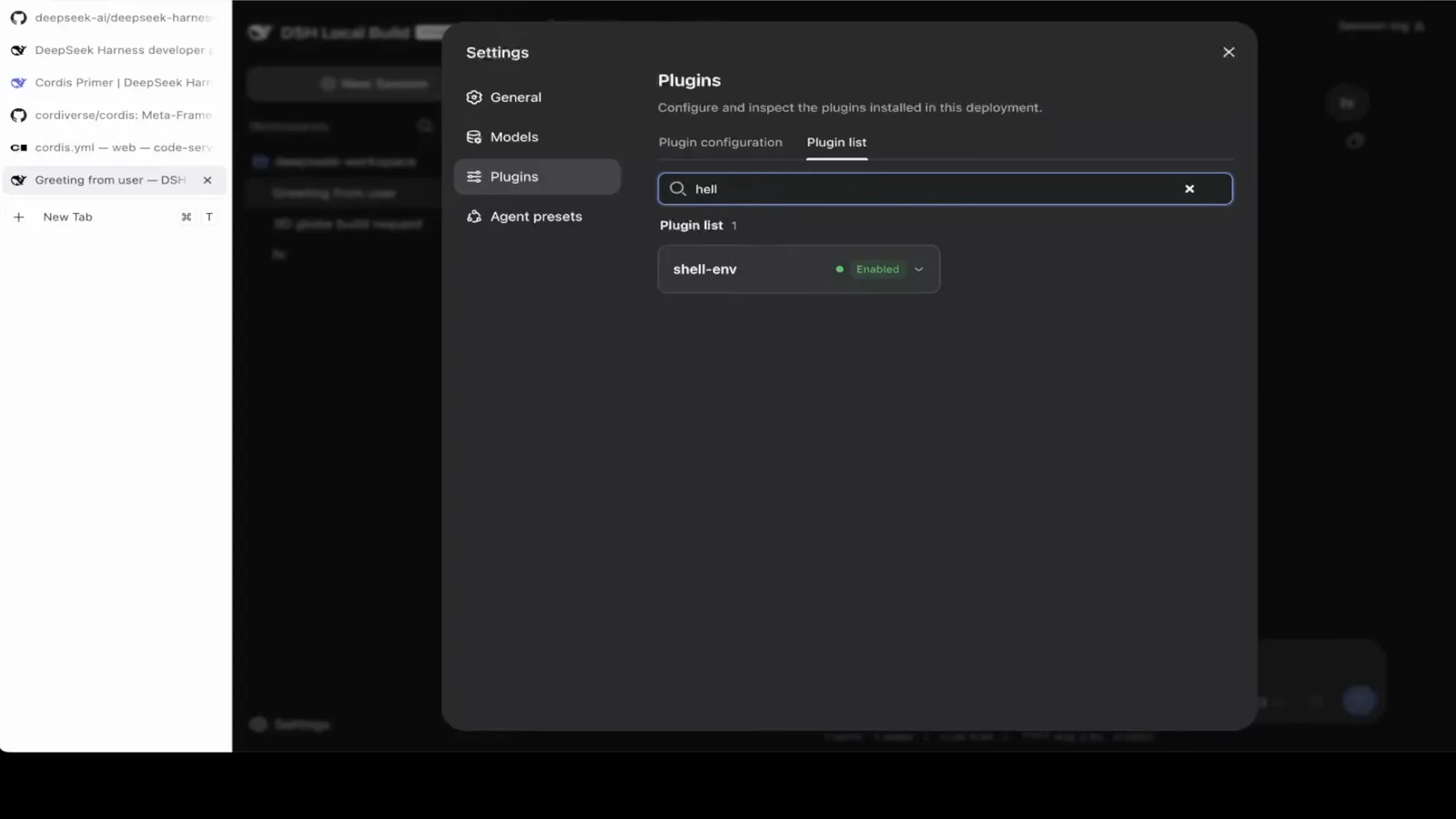
Same query, same list: only the built-in shell-env matches now. Restart first if yours still shows up.Watch at 7:46 - 4
Uninstalling the harness itself
Leaving entirely? Stop the dashboard with Ctrl+C in its terminal first. If you installed the package globally with npm install -g @deepseek-ai/dsh, the mirror command npm uninstall uninstalls it; npx-only users can simply stop launching the cached package. This removes the program — your data is the next step.
$npm uninstall -g @deepseek-ai/dsh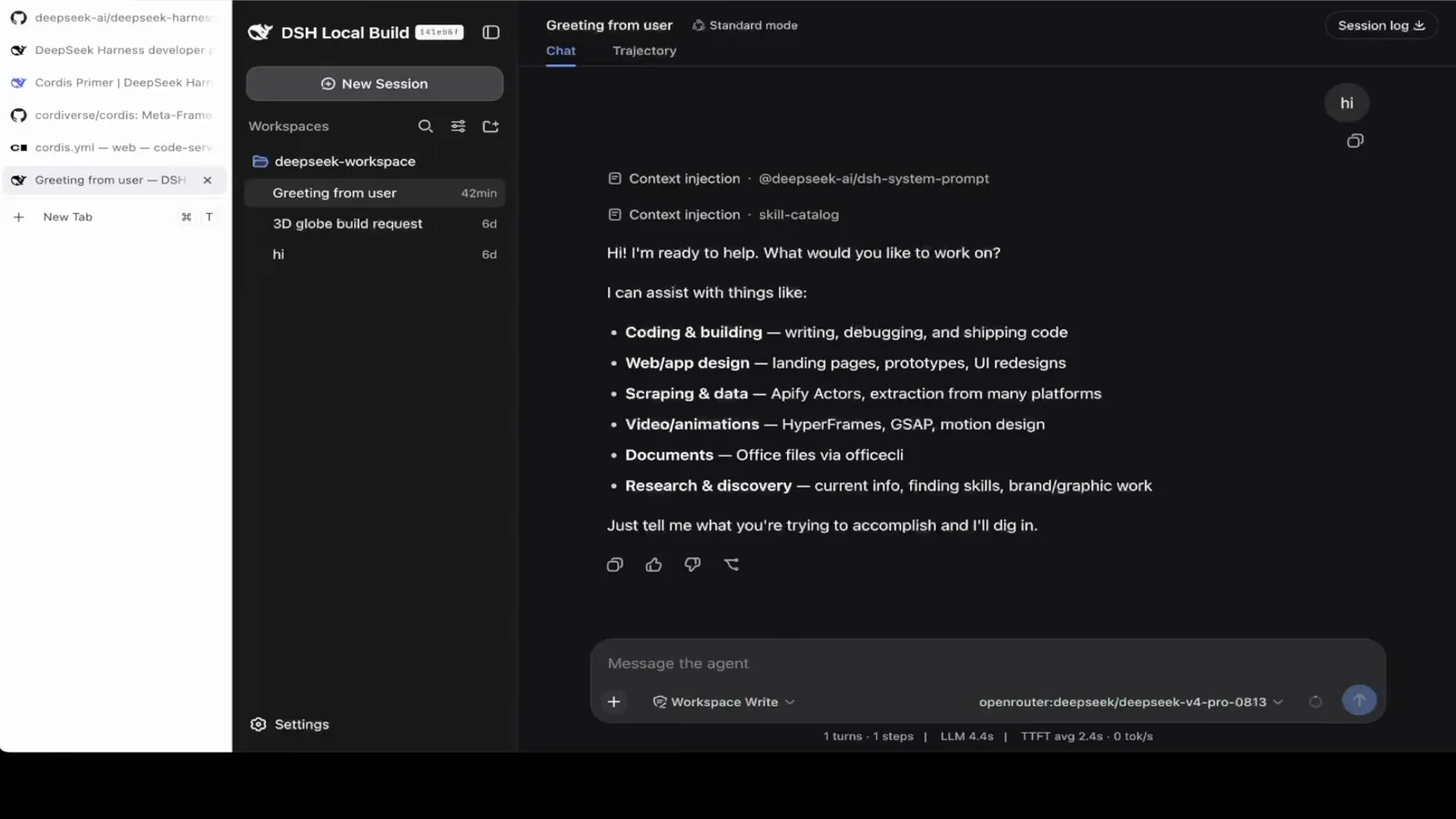
Shut this down with Ctrl+C in the terminal before you uninstall anything.Watch at 1:00 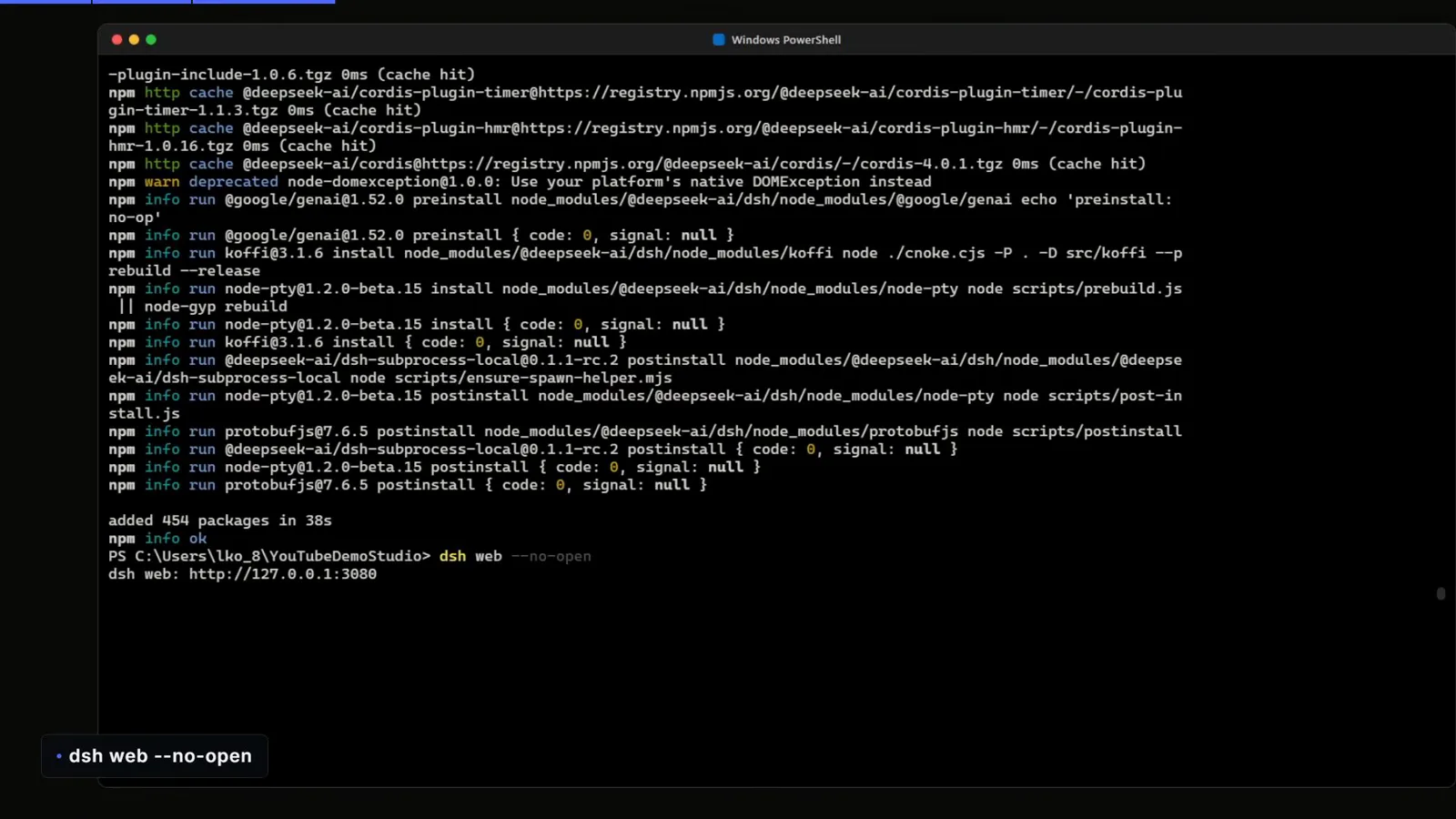
Installed globally with npm? Then npm uninstall -g is the exact mirror of this step.Watch at 2:22 - 5
Wipe the data directory and start clean
The harness keeps profiles, sessions, configuration and keys under ~/.dsh (Windows: %USERPROFILE%\.dsh) — deleting it is the full reset. Plugin folders you added by hand are plain directories in your project, so remove those too. Run dsh web afterwards and you land on a fresh dashboard with an empty workspace.
$rm -rf ~/.dsh$Remove-Item -Recurse -Force "$env:USERPROFILE\.dsh"$dsh web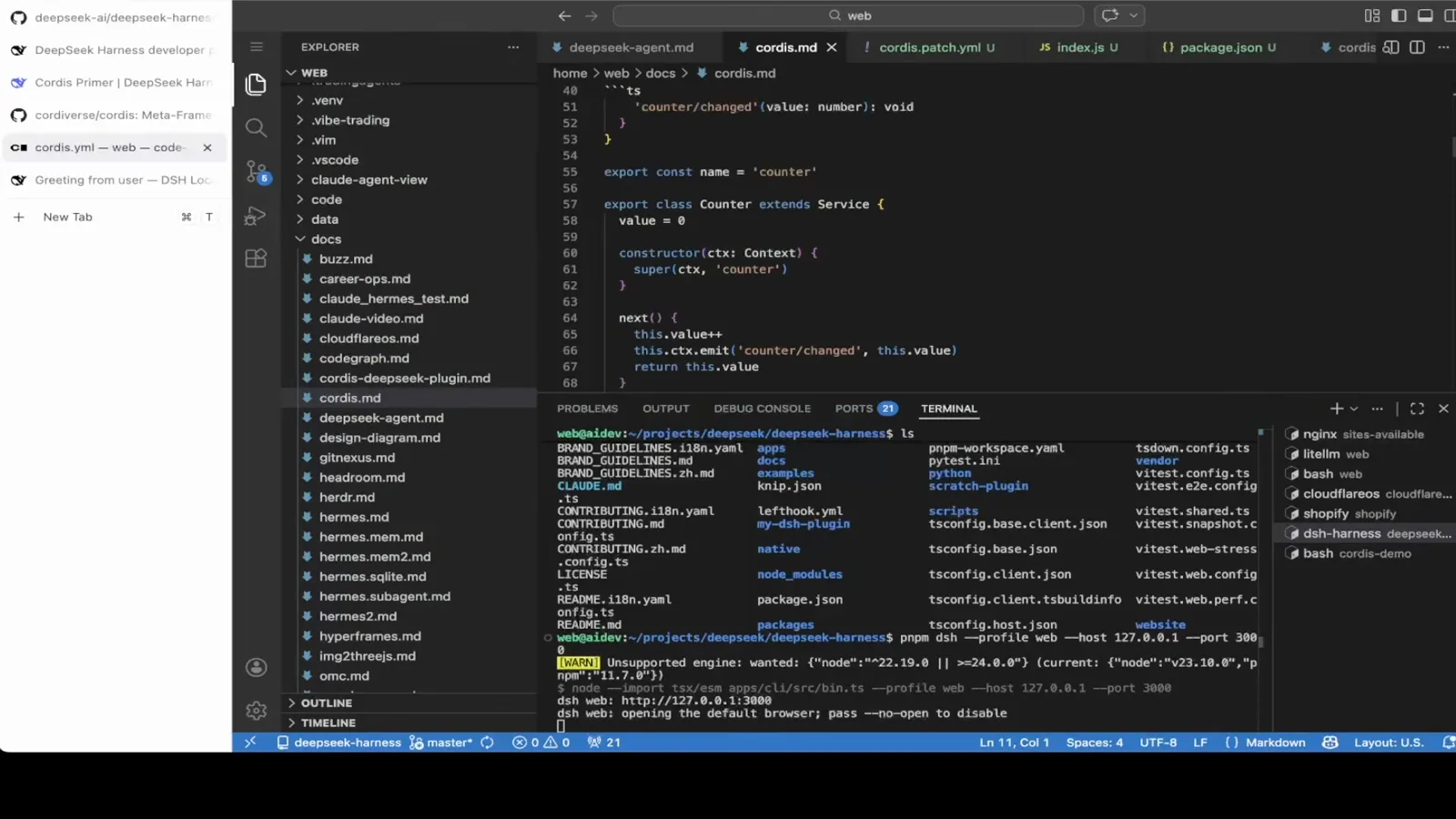
Plugins you added by hand are plain folders — the remove command never touches those files.Watch at 4:00
Uninstalling DeepSeek Harness plugins: FAQ
What users ask before running the remove command.
How do I remove a single DeepSeek Harness plugin?
Run dsh plugin --profile web remove <package> with the exact package name from dsh plugin --profile web list, then restart the harness. The remove command deletes the plugin's dependency entry and its capability layer from that profile; a running session only lets go after the restart.
Does removing a plugin delete my sessions and settings?
No. Removing a plugin only rewrites the profile — your sessions, workspace files and configuration under ~/.dsh stay untouched. The reverse is also true: uninstalling a plugin cannot reverse files or external state the plugin already changed, so review those effects separately.
Why is the plugin still active after I removed it?
Because the running session loaded its composition at startup. Harness only reads the profile when a session starts, so the fix is always: remove, restart, verify. If it is still listed after a restart, the remove command ran against a different profile than the one you are using.
How do I completely uninstall DeepSeek Harness?
Three moves: stop the server, run npm uninstall -g @deepseek-ai/dsh (if you installed it globally), and delete the ~/.dsh data directory — %USERPROFILE%\.dsh on Windows. That removes both the program and every profile, session and key it stored.
Where does DeepSeek Harness keep its data?
Under ~/.dsh in your home folder. Each profile lives in its own subdirectory — the list command prints it as dsh-profile-web ~/.dsh/profiles/web (PRIVATE). Sessions, configuration and keys all live there, which is why deleting the folder is the definitive clean uninstall.
Can I reinstall a plugin after uninstalling it?
Yes — removal is reversible. dsh plugin --profile web add <package> restores it, and community plugins from GitHub reinstall the same way (dsh plugin --profile web add "github:user/repo"). Our install guide walks through both commands with screenshots.
Related guides
The rest of the plugin lifecycle, from first install to daily updates.
How to Install DeepSeek Harness Plugins
Find community plugins, add them from npm or GitHub, and verify they load.
Read the guideInstall DeepSeek Harness on Windows
PowerShell setup for a fresh Windows machine, from Node.js to the dashboard.
Read the guideInstall DeepSeek Harness on Mac
Terminal-first macOS walkthrough, including how to handle the API-key dialog.
Read the guideInstall DeepSeek Harness on Linux
Ubuntu and friends: run the harness headless or with the web UI.
Read the guideUpdate DeepSeek Harness Plugins
Reinstall over the top, pin versions, and roll back a bad release.
Read the guideSources & credits
Screenshots come from these public screen recordings; the plugin-lifecycle facts are cross-checked against the official documentation. Every image deep-links back to the exact moment in its source video.