
DeepSeek Harness Tutorial: From Install to Headless
Ten screenshot-verified steps from a fresh install to agent presets, creator-mode plugins and headless runs — the complete guided tour of DSH.
Last updated: 2026-09-14
DeepSeek Harness (DSH) is the open-source agent harness behind 169,000 GitHub stars in its first week — workspaces, plugins, tools, subagents, swappable models, and an interface you can rebuild. This guide turns the best full walkthrough of it into ten screenshot-verified steps: from a fresh clone to presets, plugins, sandboxing and headless runs.
It's the complete tour on one page. Every step deep-links back to the exact moment in the source video, and the deep dives — installing plugins, switching models, agent presets — each have a guide of their own linked at the bottom.
The full DSH tour, in ten steps
- 1
Install the harness and launch the dashboard
DeepSeek Harness (DSH) is the open-source harness that gives a model hands: file tools, shell, memory, permissions. Install it either way the docs offer — the npx one-liner or a full clone; the video clones the repository. Then one command starts the web UI and prints a local URL (127.0.0.1:3080 in the video) — open it and the dashboard is running. First launch pops a dialog asking for a DeepSeek API key.
$git clone https://github.com/deepseek-ai/deepseek-harness$pnpm dsh web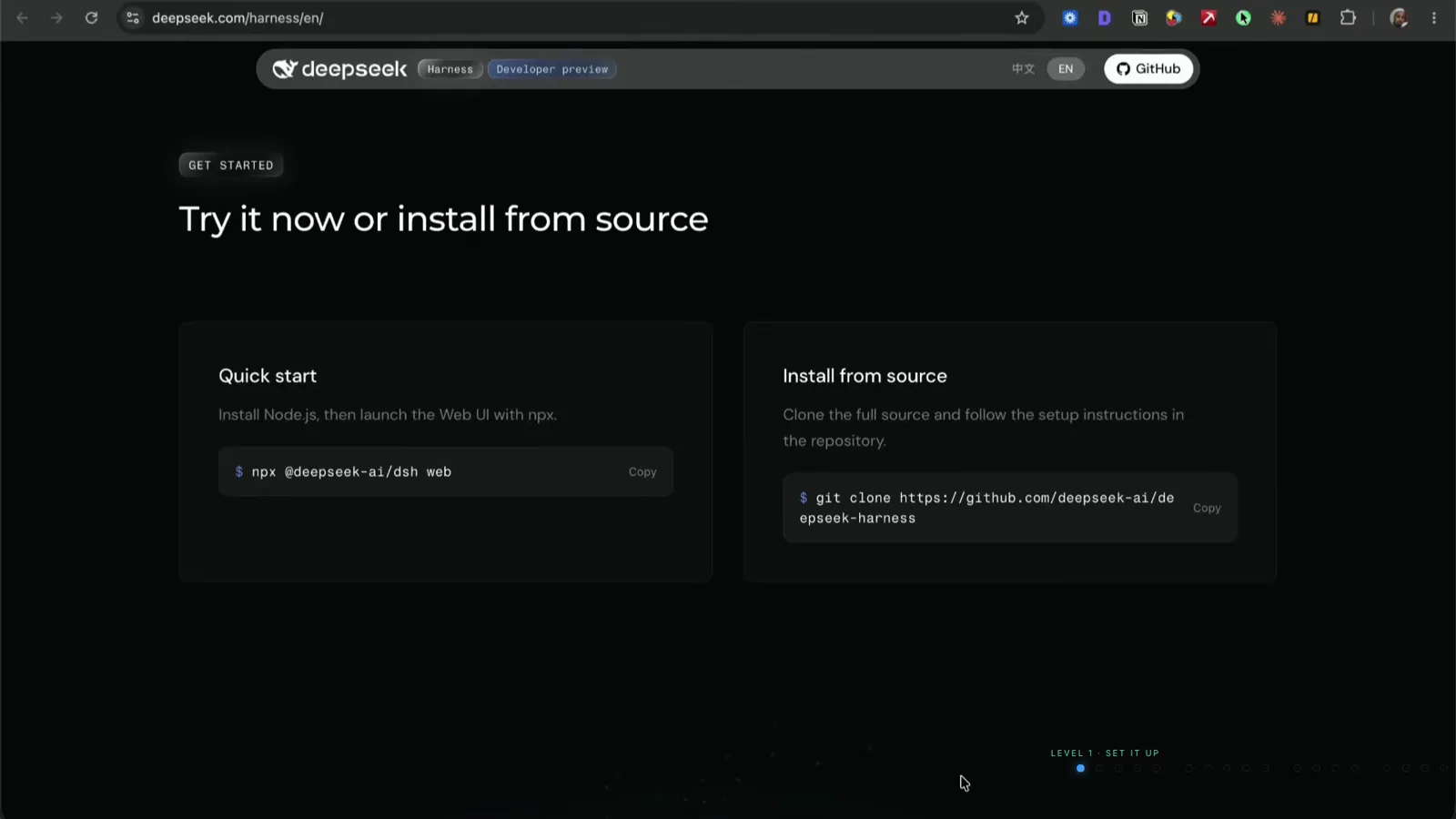
Two installs: the npx one-liner or cloning the repo — the video takes the clone route.Watch at 1:15 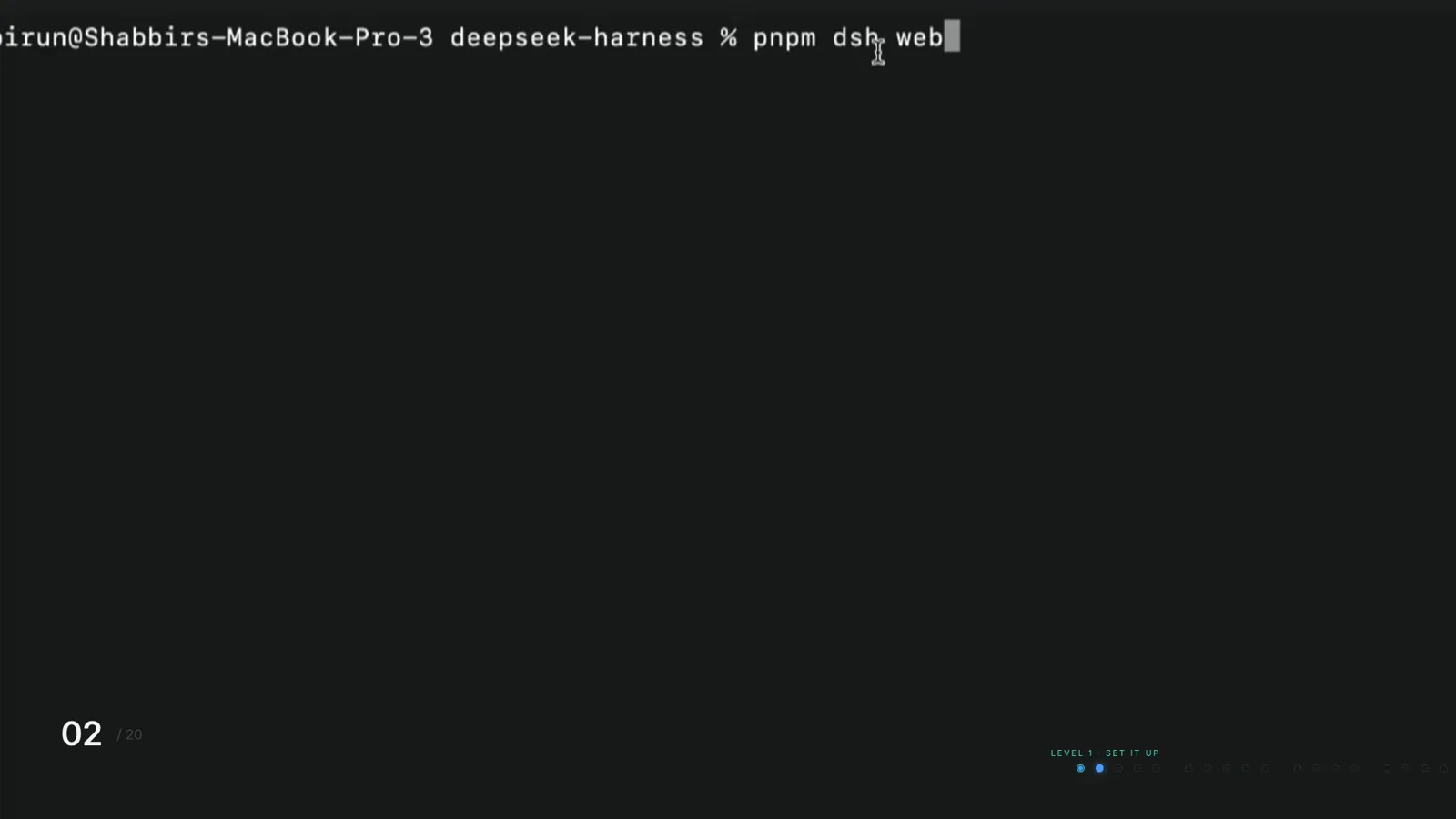
One command launches the web UI — it prints a local URL when it's up.Watch at 1:38 - 2
Connect any model provider — not just DeepSeek
The brain doesn't have to be DeepSeek. Open Settings → Models, click Add provider, choose from the list (the dropdown runs from amazon-bedrock to groq), paste your API key and hit Apply. The video's author wires up OpenRouter so he can test which model works best and switch easily between models for different kinds of tasks — every model the provider exposes then appears in the composer's model selector.
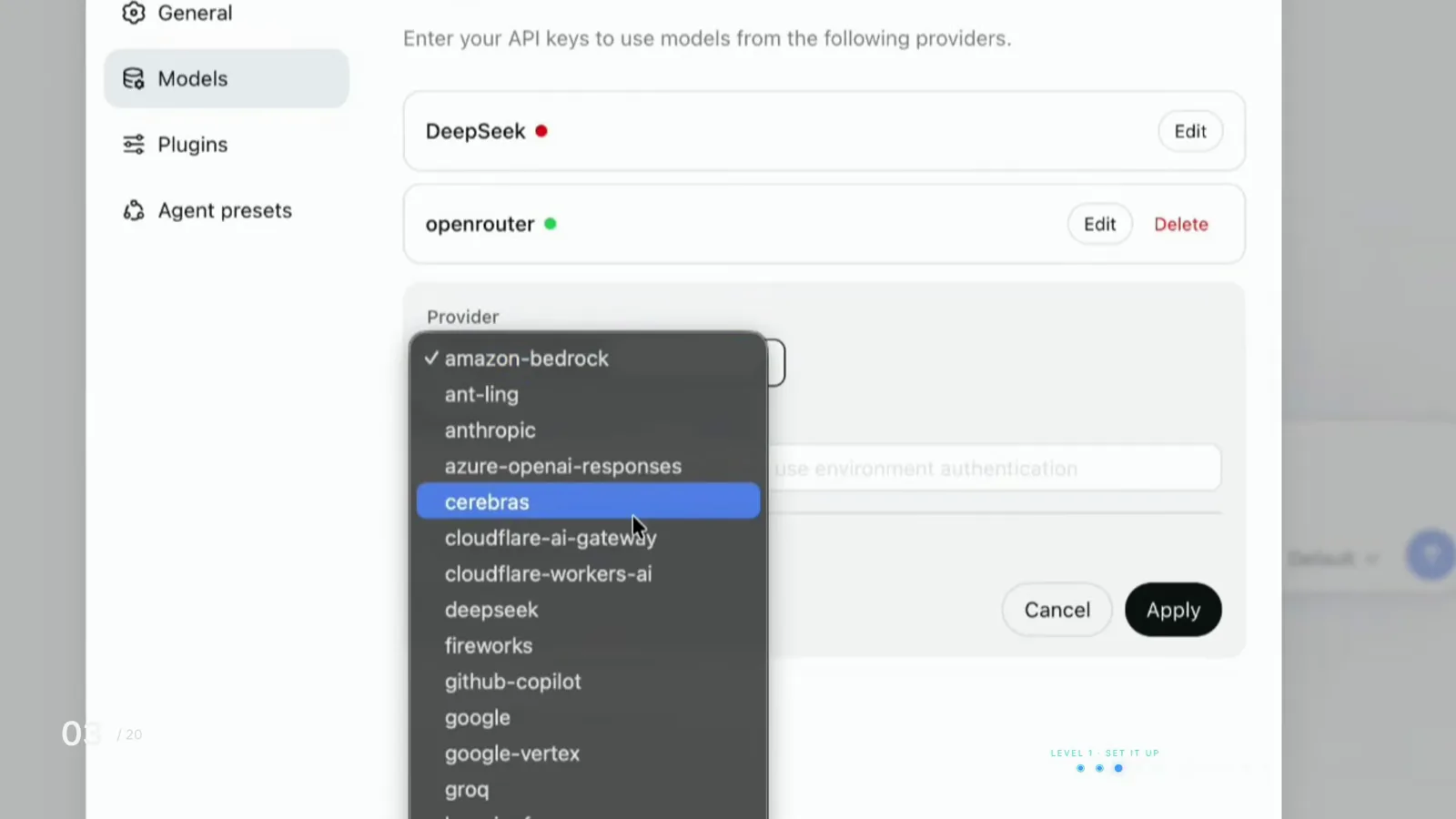
Add provider, pick from the list, paste your key, hit Apply — done once.Watch at 2:05 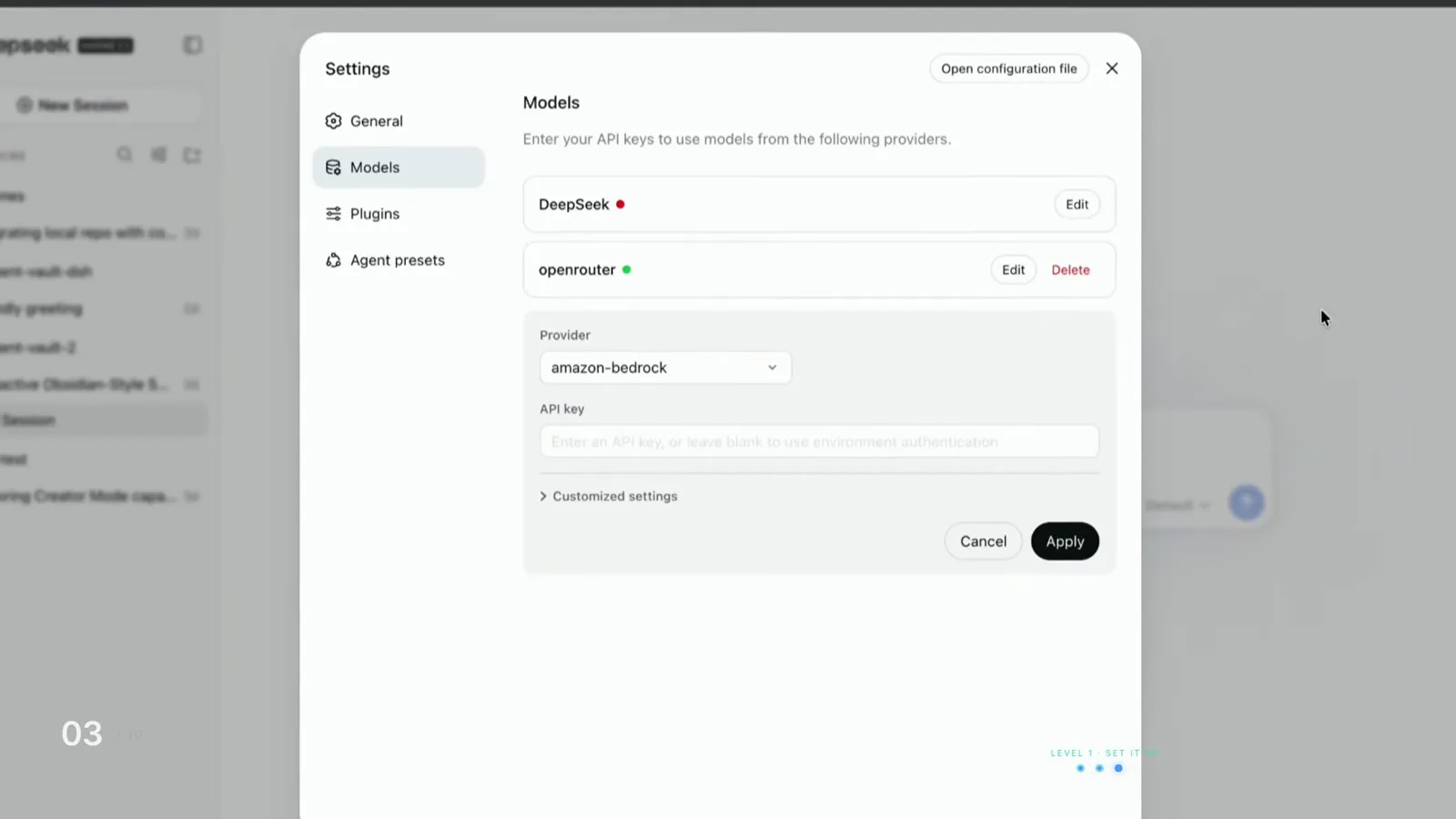
With a provider connected, every model it exposes shows up right in the composer.Watch at 2:13 - 3
Add a workspace before you ask for anything
The only way to take meaningful action in DSH is inside a folder. Add one from the sidebar's Add workspace button or from the chat composer's workspace dropdown. Every agent session is scoped to that folder — that's the difference between working on a particular job and letting the agent loose on your entire computer. Sessions are persistent too: close DSH and reopen it tomorrow, and your previous work is still there to continue.
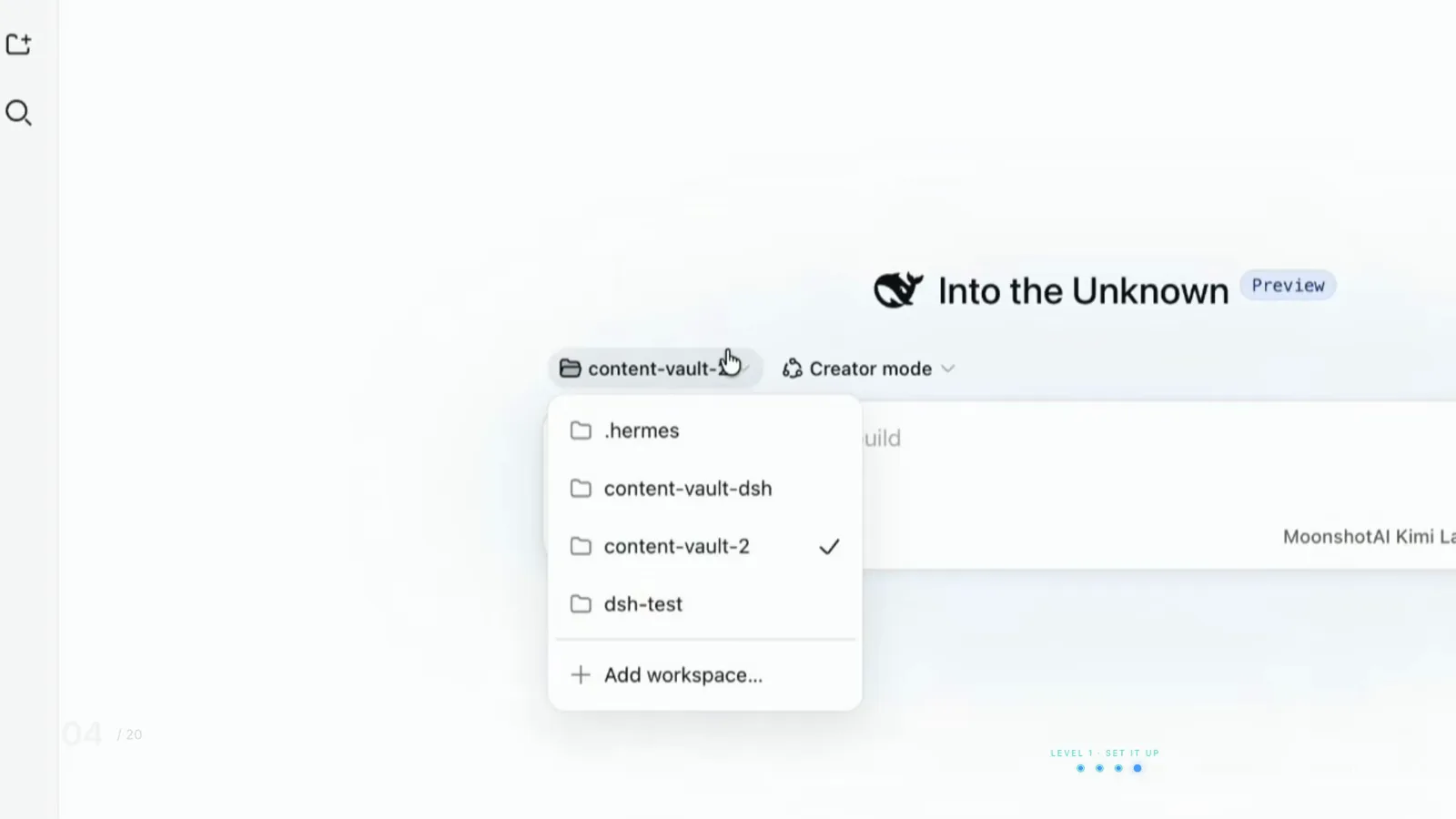
Pick the folder first — every session is scoped to it.Watch at 2:30 - 4
Everything is a plugin — even the parts you'd call core
This is the sentence DeepSeek leads with: the thing that talks to the model, the list of tools, the log of what happened, even the loop that makes the agent take its next step — all plugins. There is no protected core, so nothing in DSH is permanent and nothing can trap you. Open Settings → Plugins and you'll see it: storage, sessions, approval, even the web server are plugins with Enabled badges. The ecosystem is already shipping connectors, but DSH is a developer preview and the readme warns things will break — check the plugin directory before you build, and treat what you build as a prototype.
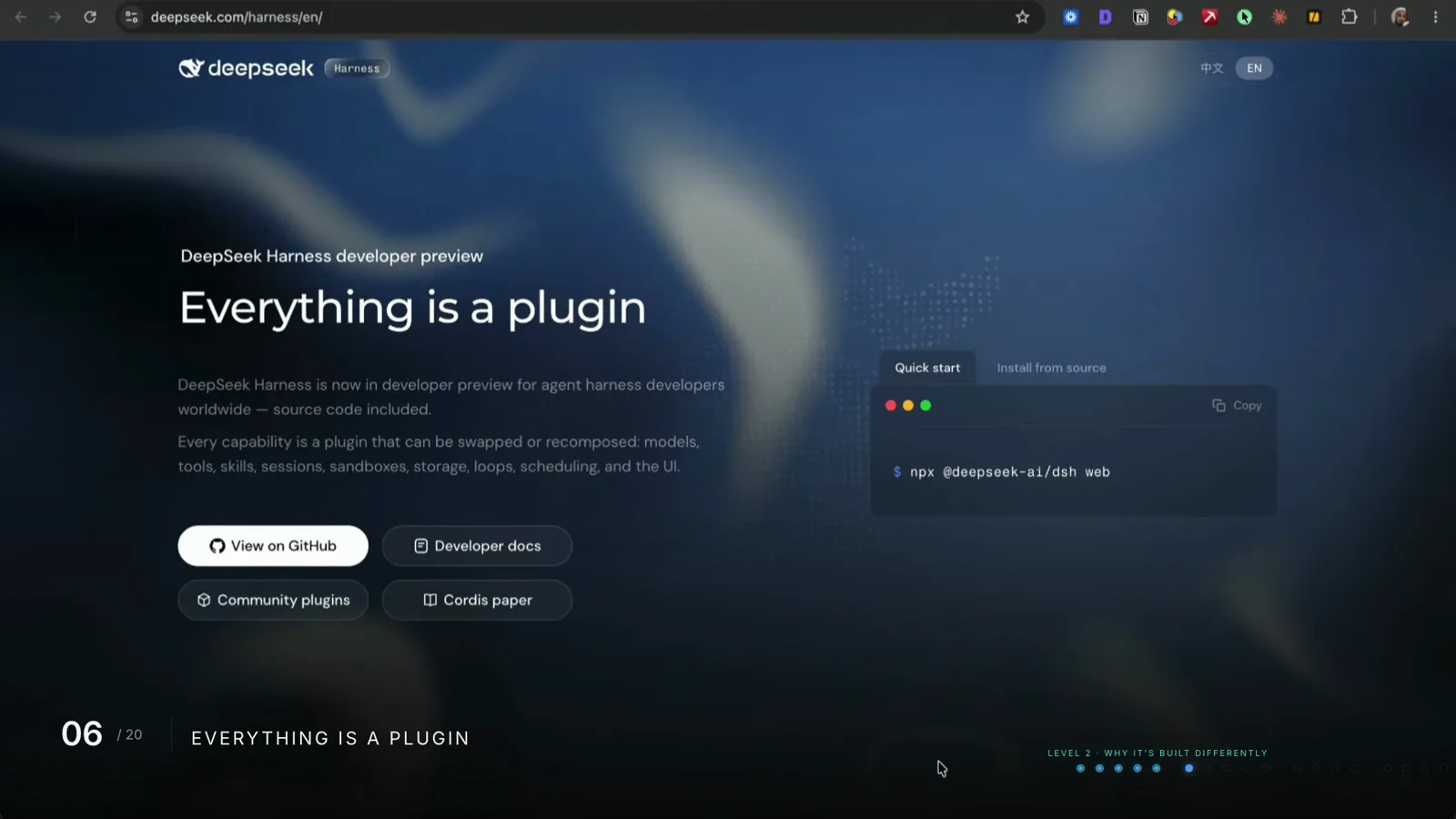
DeepSeek's own thesis: no part of DSH is permanent.Watch at 4:15 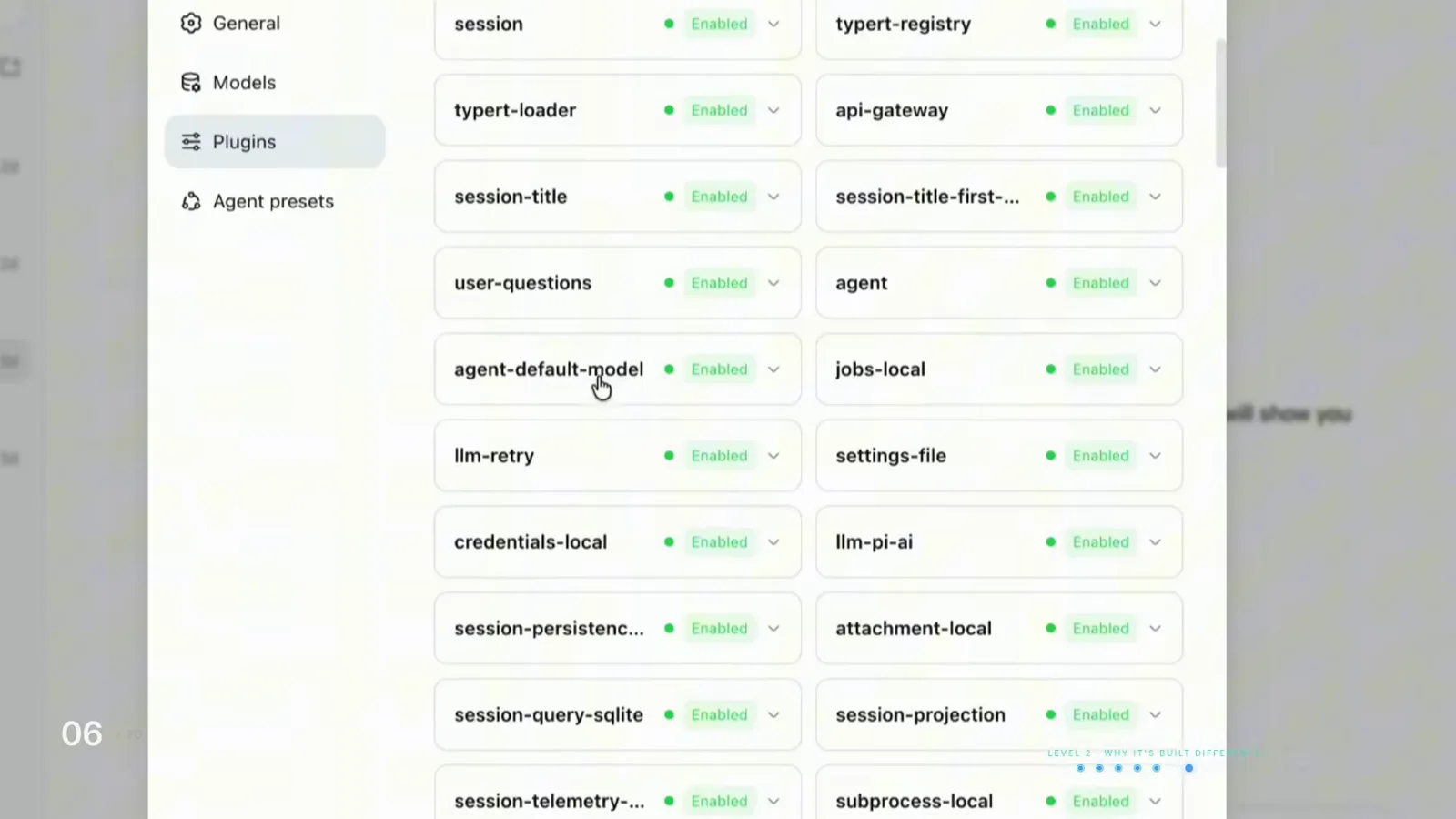
Storage, approval, the web server — all just plugins on this list.Watch at 4:25 - 5
Pick the runtime mode that matches the job
Settings → Agent presets lists the built-in recompositions. Standard mode is the full kit: file editing, search, shell, skills, planning, subagents. Code mode exposes the same tools but lets the model write one program that chains them together instead of calling them one at a time. Minimal mode strips it to two tools — a terminal and a file editor. The video benchmarks one identical task, renaming 200 files: 30 round trips on Standard mode, 3 on Code mode. Same tool, three costs — pick the cheapest mode that finishes the job.
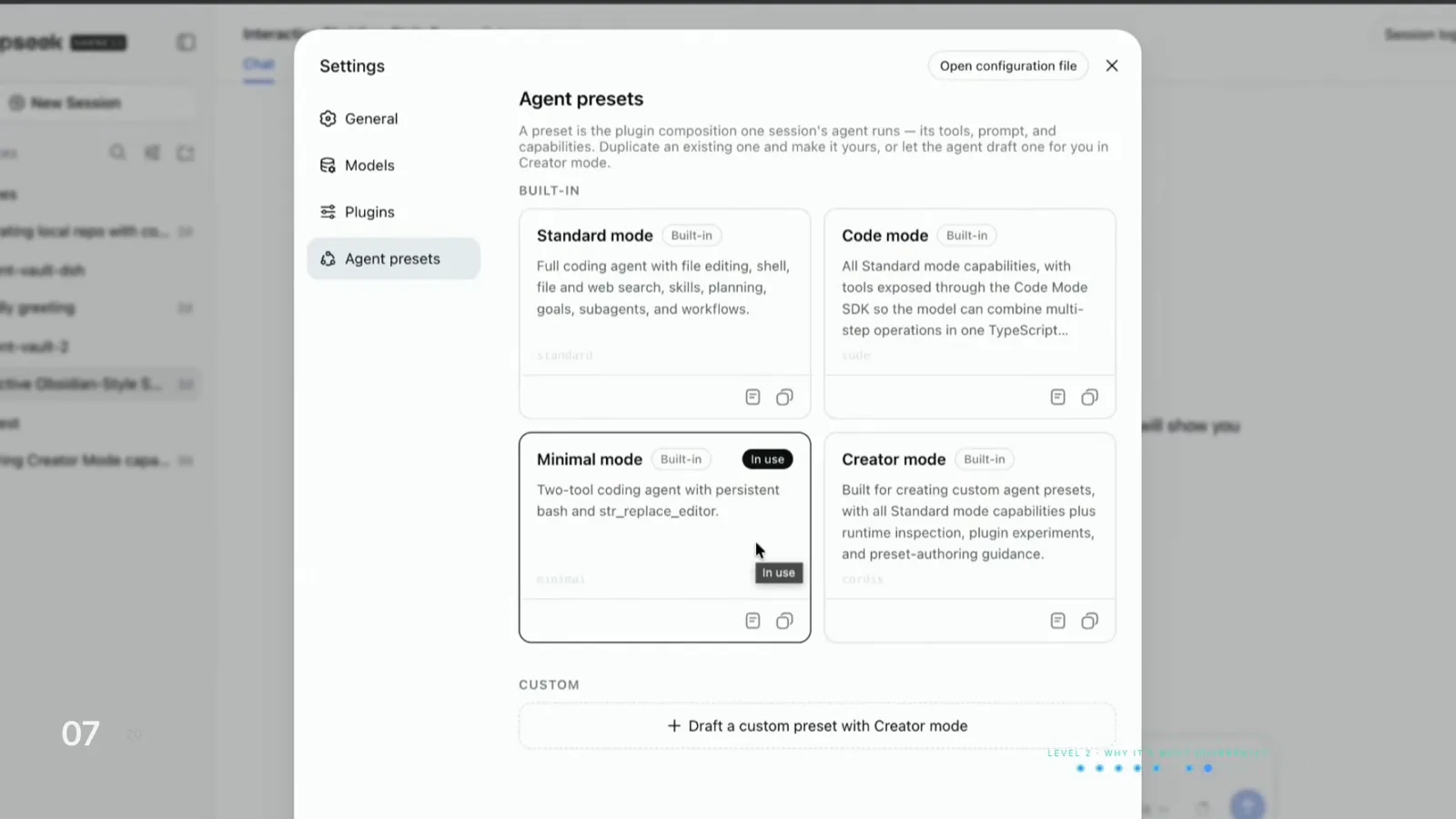
Four built-in presets — duplicate one, or let creator mode draft a custom.Watch at 5:22 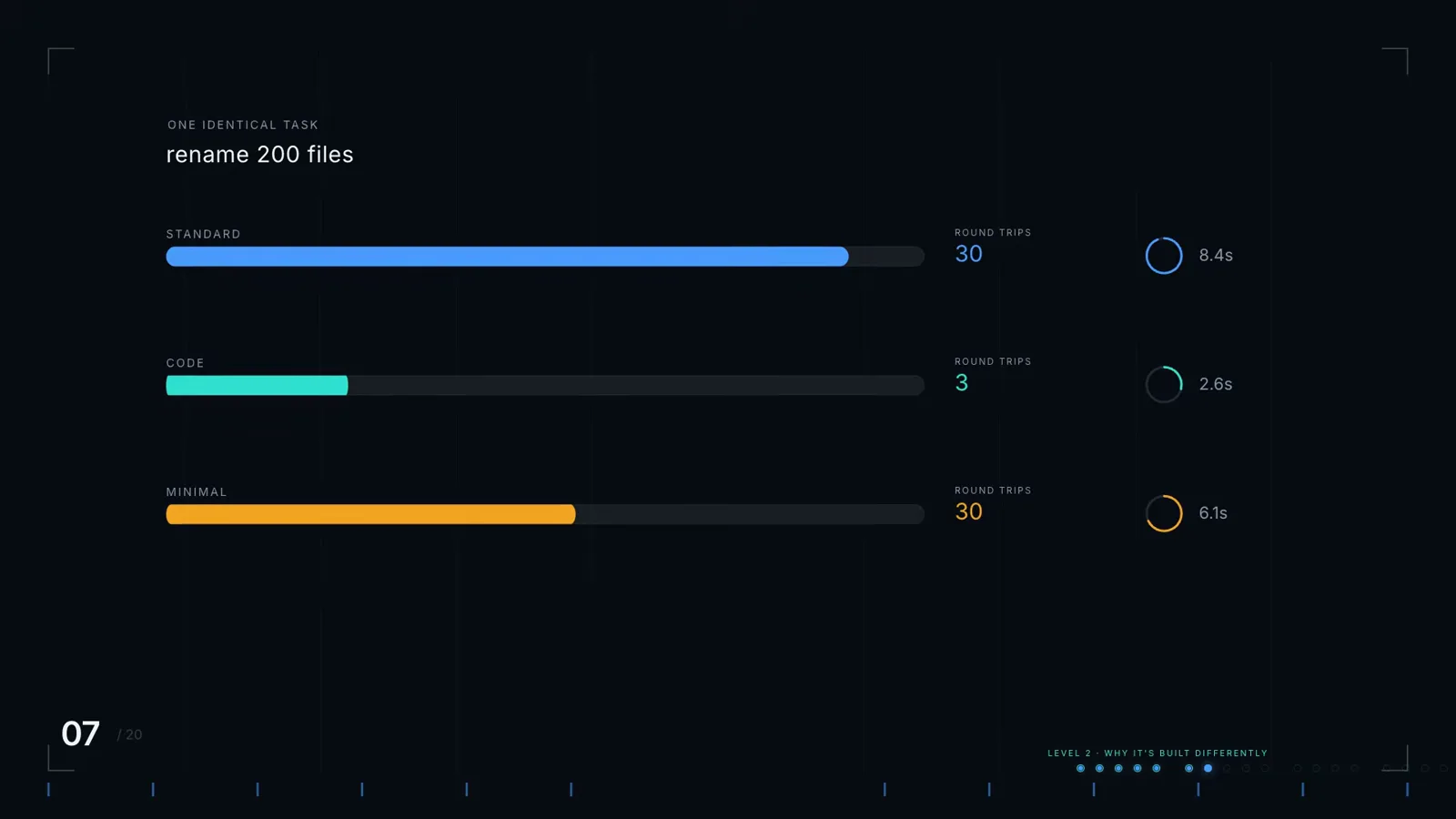
Same 200-file rename: 30 round trips on Standard, 3 on Code mode.Watch at 5:32 - 6
Describe a plugin and creator mode builds it
Creator mode can look at its own running setup, test new pieces in memory, and build you a capability while you describe it in plain English. The demo prompt is one sentence: build me a pong-style game inside the agent itself. DSH specs the controls, defines the plugin package, and the game renders as a floating window in the chat while your tool calls grind away — no code written by the human. Customizing DSH is a conversation, not a project.
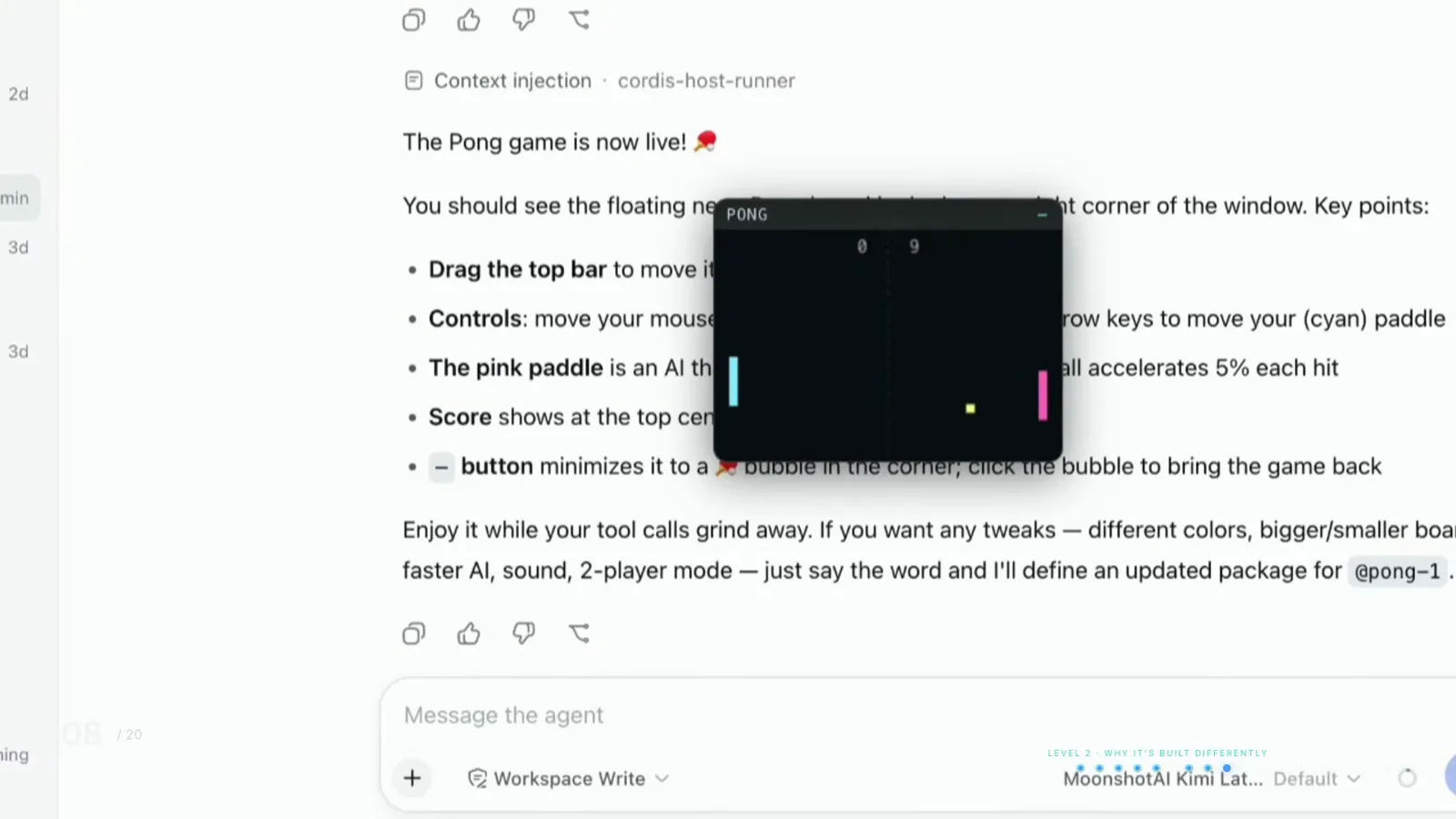
Described in one sentence, running in a floating window — no code written.Watch at 6:05 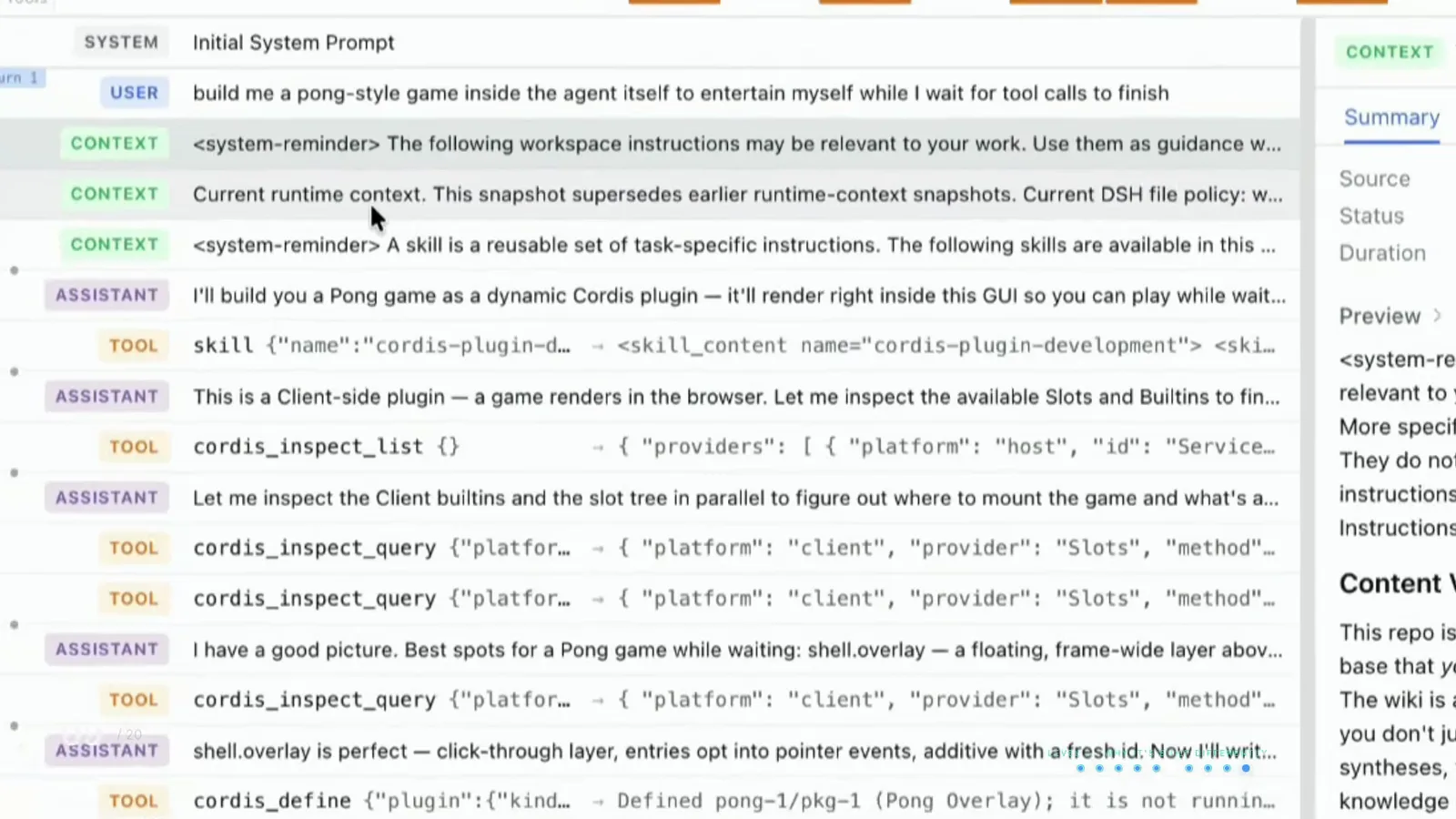
The receipt: plugin defined, request timed, tokens counted.Watch at 6:25 - 7
Read the trajectory receipt as you go
Everything the model saw and did is written to an append-only log, and the Trajectory tab reads it back: system prompt, context injections, reasoning, every tool call and every result. When it does something wrong, you can see exactly what it was told. The same view doubles as the tool inventory — bash, skill and the rest are the whole surface area, and if it's not in the tool list, it can't happen (creator mode can add more).
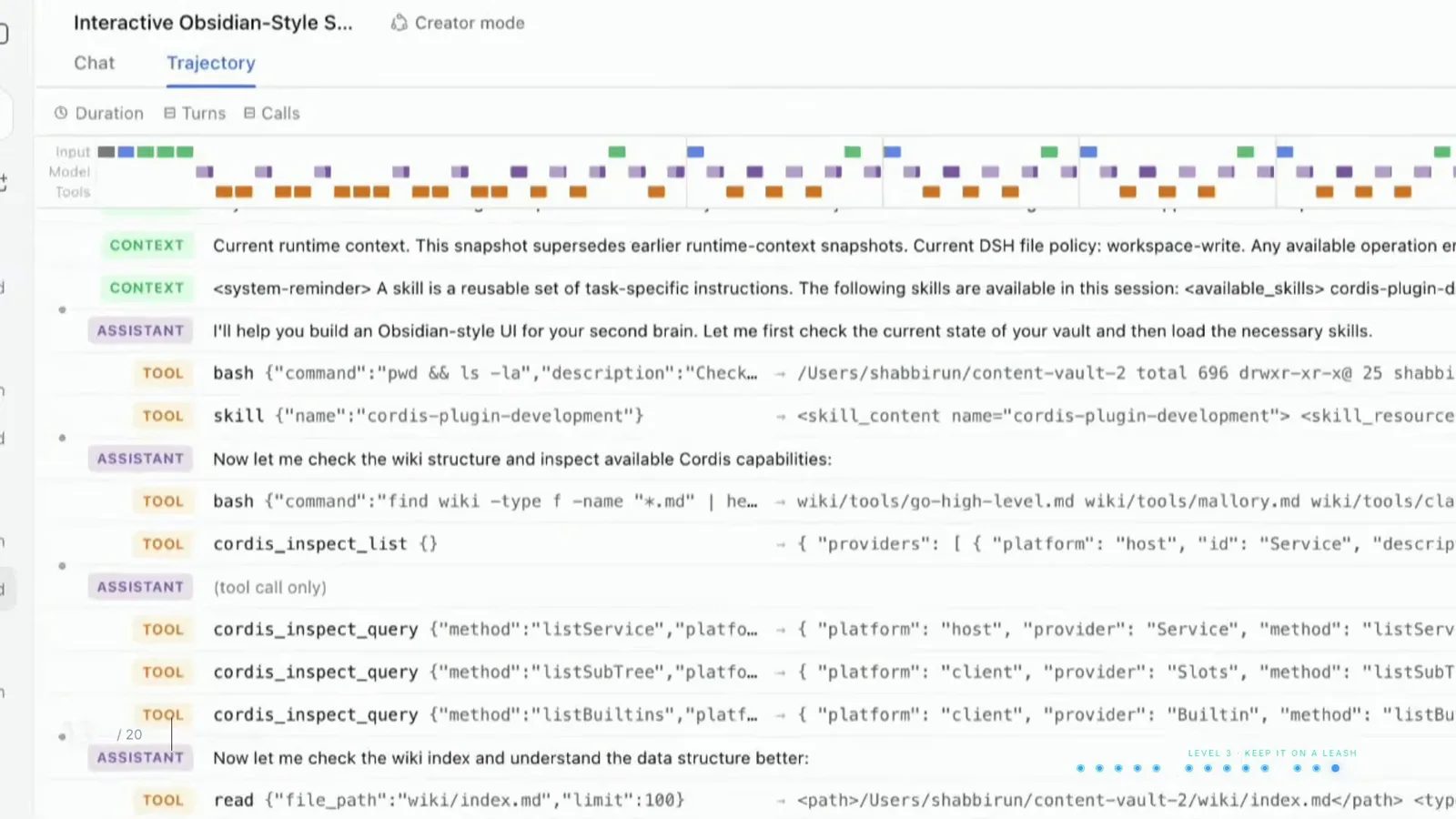
System prompt, context injections, tool calls — the whole receipt, append-only.Watch at 9:28 - 8
Keep it on a leash: sandbox levels and approvals
Three sandbox settings govern every session: read-only means it can look and not touch; workspace write means it can change things inside your project folder and nowhere else; full access is exactly what it sounds like, enforced by your operating system underneath. In the video, a read-only session refused to copy index.md until explicitly approved — and the author rejected it. There is no always-allow option; full access reduces confirmation steps and is switched on deliberately through a warning dialog. Default to workspace write and use full access with extreme caution.
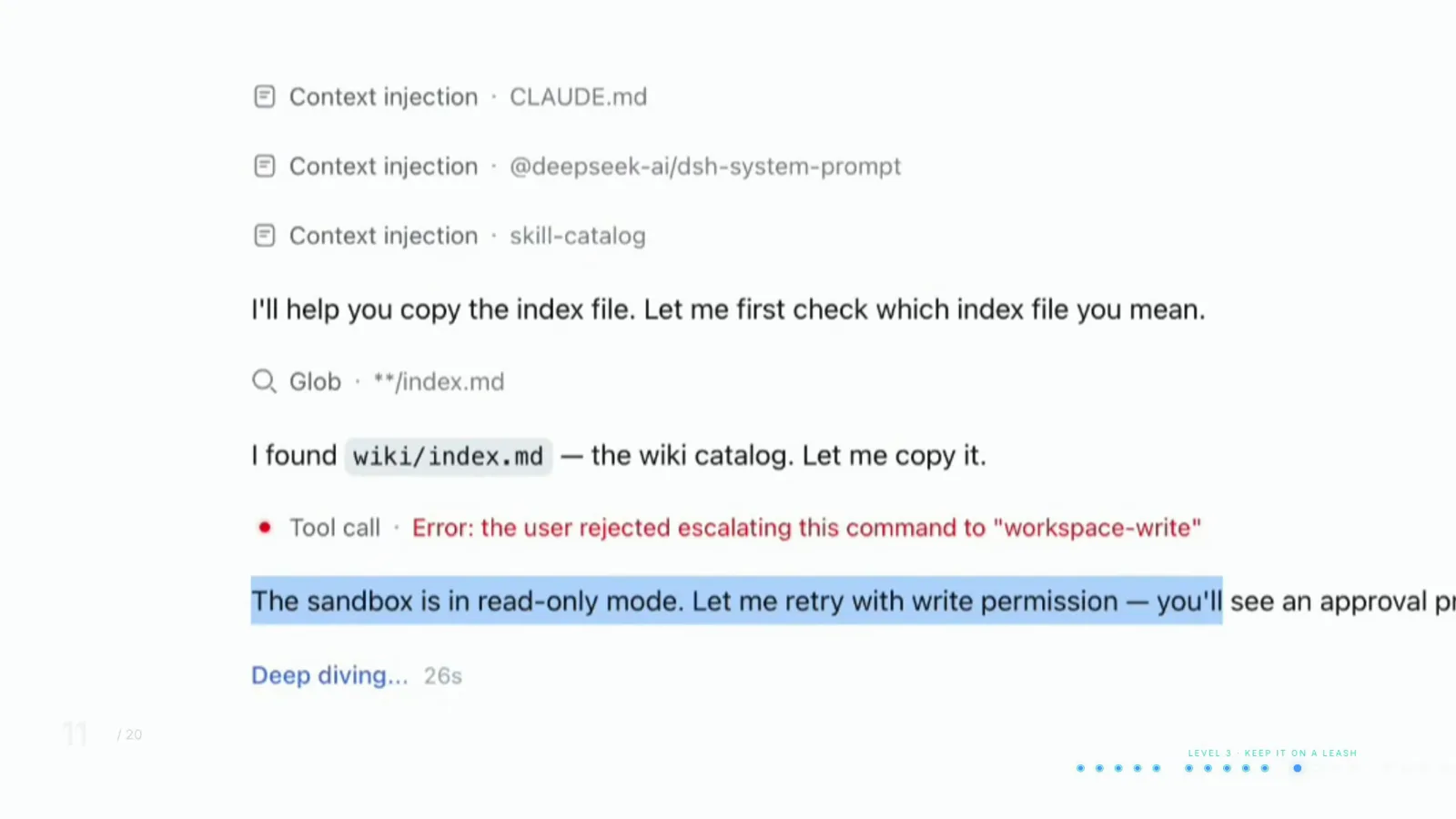
Read-only means look, don't touch: the copy never happened.Watch at 8:06 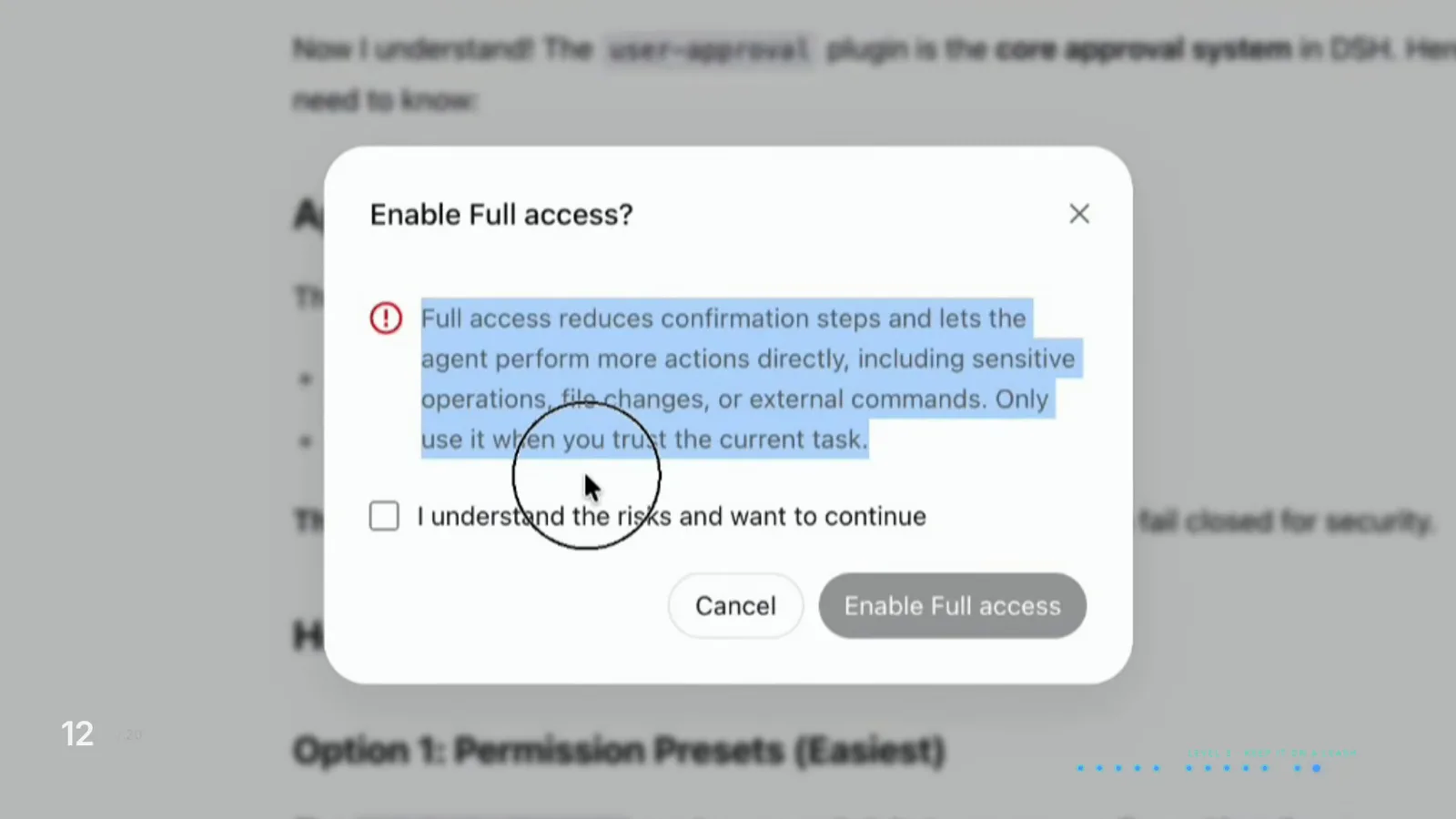
Full access is deliberate: a warning, a checkbox, and no take-backs.Watch at 9:05 - 9
Make it show its plan before it touches anything
Plan mode makes DSH state what it's about to do before it does any of it — type /plan in the composer and describe the task, read the plan, then release it. Reading a plan takes less than a minute; undoing 40 wrong file edits can take weeks. Anything touching more than a couple of files deserves a plan first.
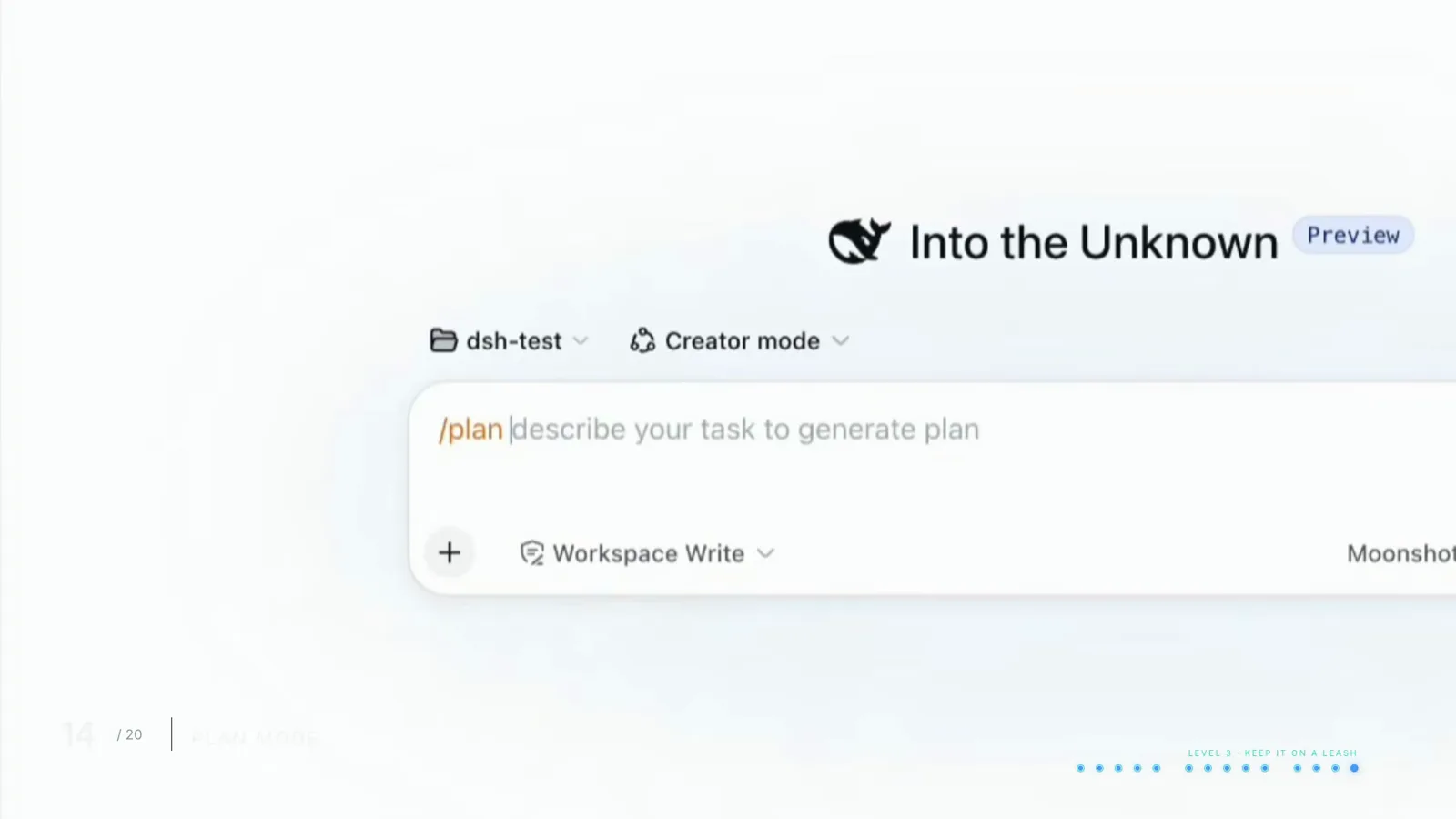
Read the plan, then release the agent.Watch at 9:55 - 10
Teach it, delegate to it, then run it headless
Skills are instruction files you drop into a project or install globally — the video's global Claude Code skills were pulled in automatically. A goal (/goal) attaches a finish line to a session so it keeps going until the outcome is achieved; make outcomes specific so it knows when to stop. There's no built-in scheduler, but creator mode will draft a recurring-task plugin — it just stops the moment the session closes. Long jobs get handed to subagents, each with its own clean context, or the agent writes a throwaway workflow program that chases an outcome. Finally, headless mode runs a single command that prints the answer and exits — no window, no port. Anything that can run a command can now run an agent.
$pnpm dsh --profile headless "<one-off task>"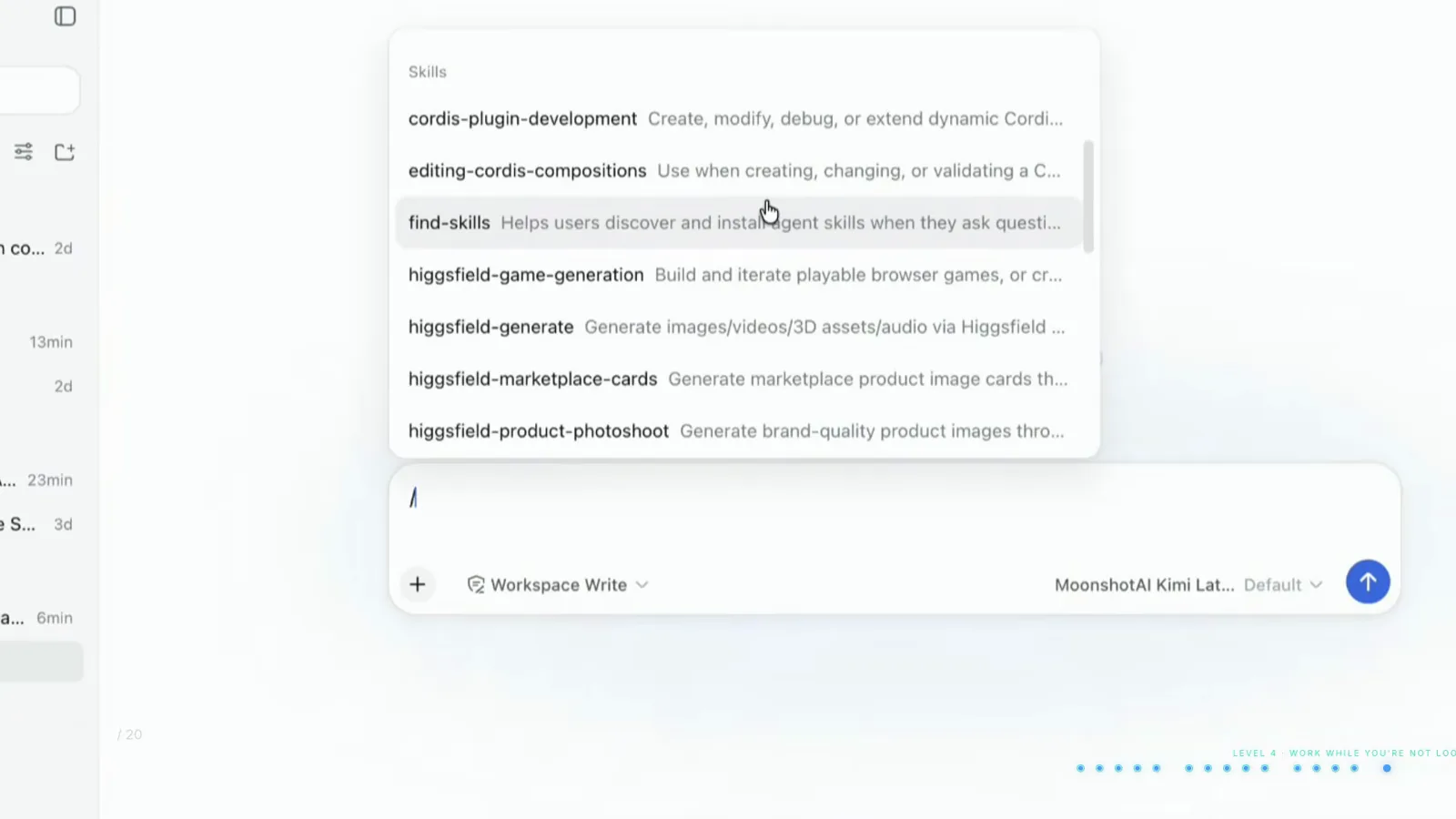
Skills are instructions written once — project-scoped or global.Watch at 10:35 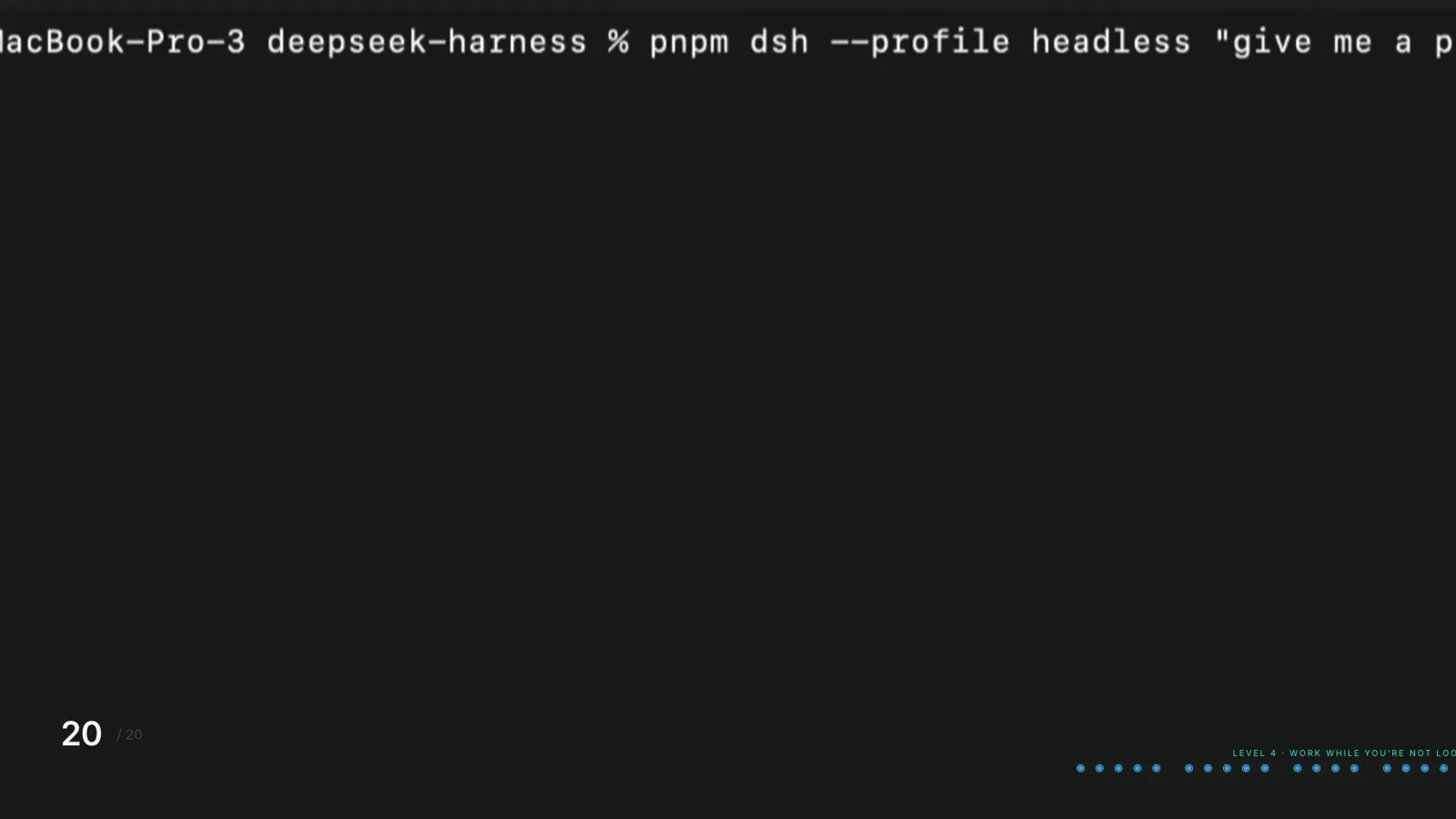
No window, no port: one command in, one answer out.Watch at 13:30
DeepSeek Harness tutorial: FAQ
The questions this walkthrough most often answers.
What is the quickest way to install DeepSeek Harness?
The official docs offer two routes: an npx one-liner that launches the web UI, or cloning the git repository the way the video does. Either way, one command — pnpm dsh web in the cloned repo — starts the dashboard at a local URL (127.0.0.1:3080 in the walkthrough), and first launch asks for an API key.
Do I need a DeepSeek API key to use DSH?
No. The first-run popup asks for one, but Settings → Models → Add provider accepts a key from any provider on its list. The walkthrough uses OpenRouter, so every model it exposes can be tested and switched per task right from the composer's model selector.
Which runtime mode should I start with?
Standard mode — it's the full kit with file editing, search, shell, skills, planning and subagents. Switch to Minimal mode for cheap repeatable work, or to Code mode when a task would otherwise take dozens of round trips: in the video's 200-file rename benchmark, Code mode finished in 3 round trips against Standard's 30.
How does DeepSeek Harness stop the agent from damaging my files?
Sandbox settings are enforced by the operating system, not by a prompt: read-only can look but not touch, workspace write can change things inside the project folder and nowhere else, and full access does everything. In the walkthrough a read-only session refused to copy a file until explicitly approved. There is no always-allow option — full access is enabled through a warning dialog and shouldn't be your default.
Can DSH really build its own plugins?
Yes — that's creator mode. You describe the capability in plain English; it inspects its own running setup, tests pieces in memory and defines the plugin package. The video builds a working Pong game that renders inside the chat from one sentence, and later has creator mode draft a scheduled-task plugin — which only runs while the session is live.
Can I run DeepSeek Harness without the web UI?
Headless mode runs a single command with your task, prints the answer and exits — no window, no port, nothing listening. That's what lets scripts, scheduled tasks and other agent tools call DSH from a terminal: anything that can run a command can run an agent.
Related guides
Go deeper on the pieces of this tour.
DeepSeek Harness Quick Start
The bare 5-minute install-and-first-run path, written out step by step.
Read the guideHow to Install DeepSeek Harness Plugins
Find community plugins, add them from npm or GitHub, and verify they load.
Read the guideDeepSeek Harness Agent Presets, Explained
Standard, Code, Minimal and Creator mode in depth, plus drafting a custom preset.
Read the guideHow to Switch Models in DeepSeek Harness
Add providers, compare models, and switch per task from the composer.
Read the guideMust-Have DeepSeek Harness Plugins
The community plugins worth installing first, and what each one adds.
Read the guideDeepSeek Harness subagents: run agent teams in parallel
Spawn a five-subagent squad, monitor each child from the header, read completion reports and pin models per subagent — frame-verified steps
Read the guideSources & credits
Every screenshot on this page comes from the public screen recording below, and each image deep-links back to the exact moment it was captured. The walkthrough's facts are cross-checked against the official documentation.