
Consolidate Excel Reports with DeepSeek Harness
Three department expense sheets, 1,800 rows, one prompt: DeepSeek Harness filters, calculates, sorts and merges them into a reviewed summary workbook — no plugin, no formulas, no VBA.
Last updated: 2026-09-20

Finance work has a classic shape: several sheets of the same kind of records, a pile of conditions for what may be merged, a few calculations, a sort order — and a deadline. This guide walks through a real recorded case in which three department expense sheets (marketing, teaching-research, R&D) with roughly 1,800 rows become one summary workbook with a detail sheet and a stats dashboard.
The lesson up front: you don't need an Excel plugin or a single formula. What moves the quality needle is writing your business rules down before you talk to the agent — the harness reads your files and writes the code itself.
TL;DR
- ▸1,800 raw rows across three sheets in — 600 verified rows out, merged into a workbook with a detail sheet and a stats dashboard.
- ▸No Excel plugin required: standard mode is enough, because the agent reads the sheets and writes the merge code itself.
- ▸The quality lever is your rules list — filters, field mapping, calculations, sort/dedup and acceptance criteria, written down before the prompt.
From messy sheets to a reviewed summary
- 1
Write your business rules down first
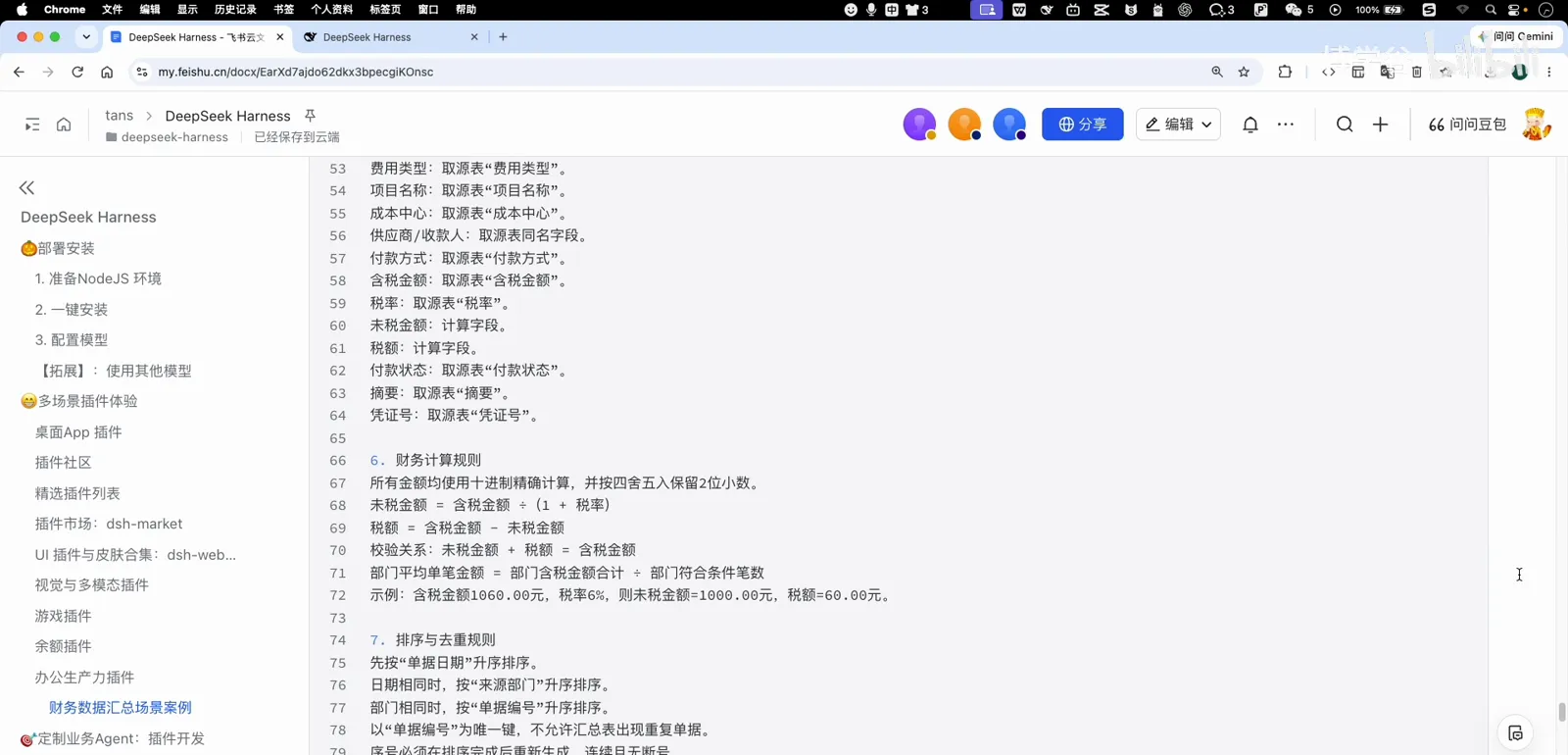
Before touching the AI, the course handout spells out the merge rules as a checklist: which rows qualify (document date, amount, invoice status, approval status, payment status — every condition must hold), and anything that fails stays out of the summary. If you can't write this list, the agent can't get the merge right either.
Rules first: the handout defines which rows may enter the summary.Watch at 1:20 - 2
Map every summary field to its source
Next the handout maps each column of the summary table back to the column it comes from in the source sheets, adds the calculation rules for amounts, and defines how ties are sorted and duplicates dropped. Ambiguity here is where merges go wrong, so spell out every field.

Field mapping: every summary column traces back to a source column.Watch at 1:40 - 3
Stage the source files and the template
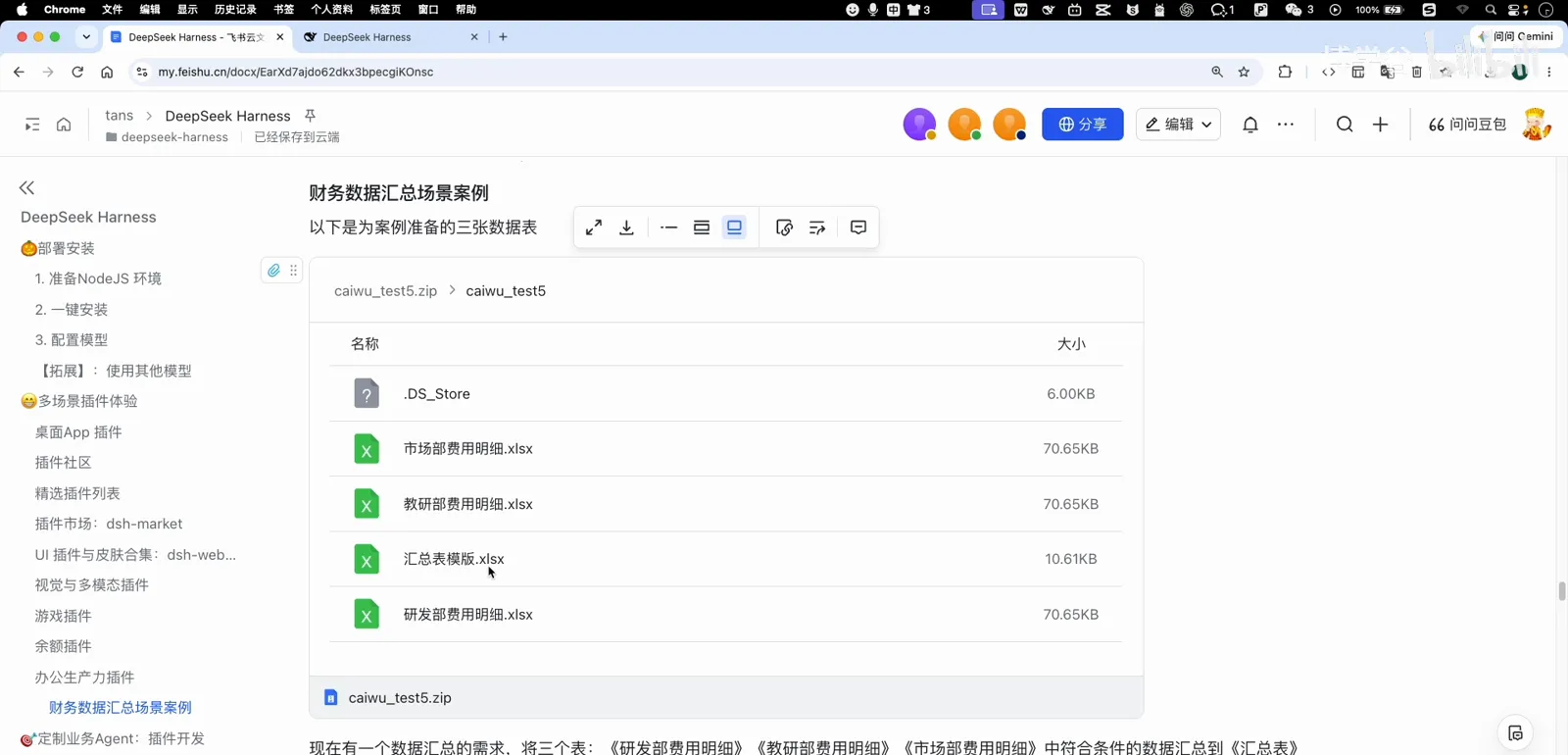
Three expense sheets plus a summary template sit in one folder. The template already has two sheets — detail rows and a stats dashboard — so the agent is given the shape of the answer, not just the raw data. Put the folder somewhere the harness workspace can reach.
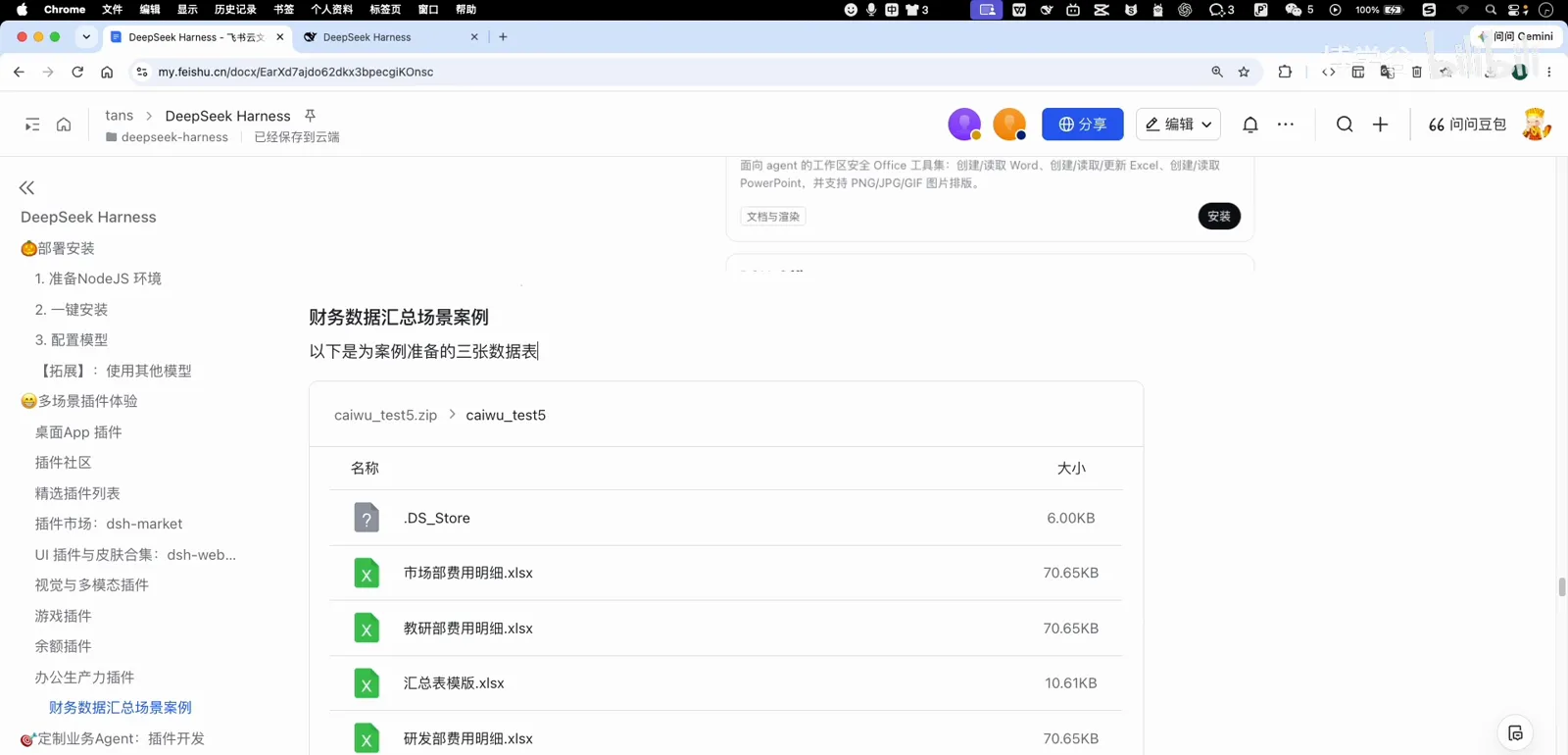
Files staged: three source sheets plus the summary template.Watch at 3:04 - 4
Know what the raw data looks like
Each source sheet holds around 600 expense rows: document numbers, dates, departments, applicants, amounts and a handful of status columns — 1,800 rows in total. Far past what you'd want to filter by hand, and routine work for the agent.
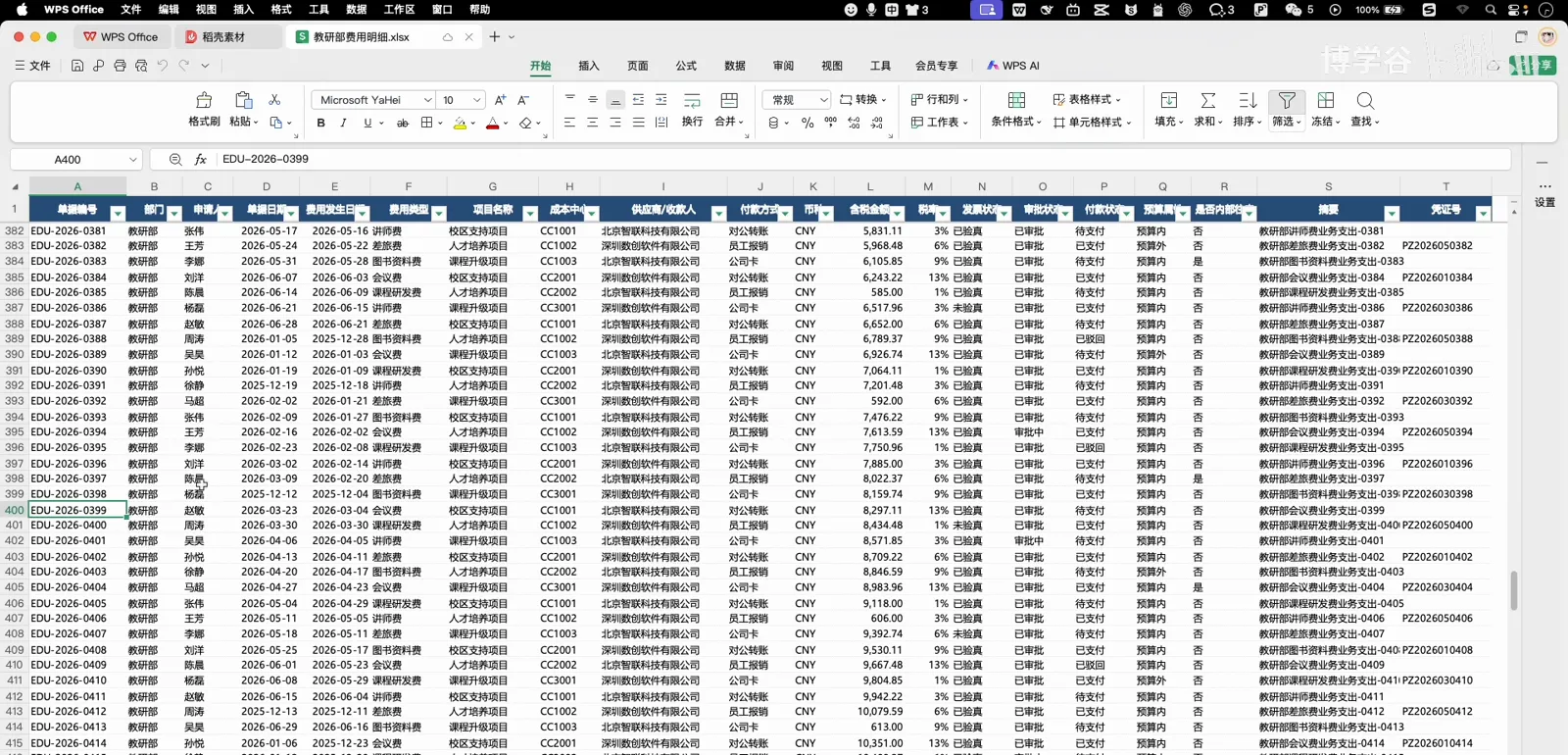
One of the three source sheets — around 600 rows each.Watch at 3:20 - 5
Show it the target: the summary template
The template fixes the columns of the merged output and the layout of the dashboard sheet. Pointing the agent at a concrete template turns a vague 'merge these files' into a checkable specification — this one step does more for accuracy than any clever wording.
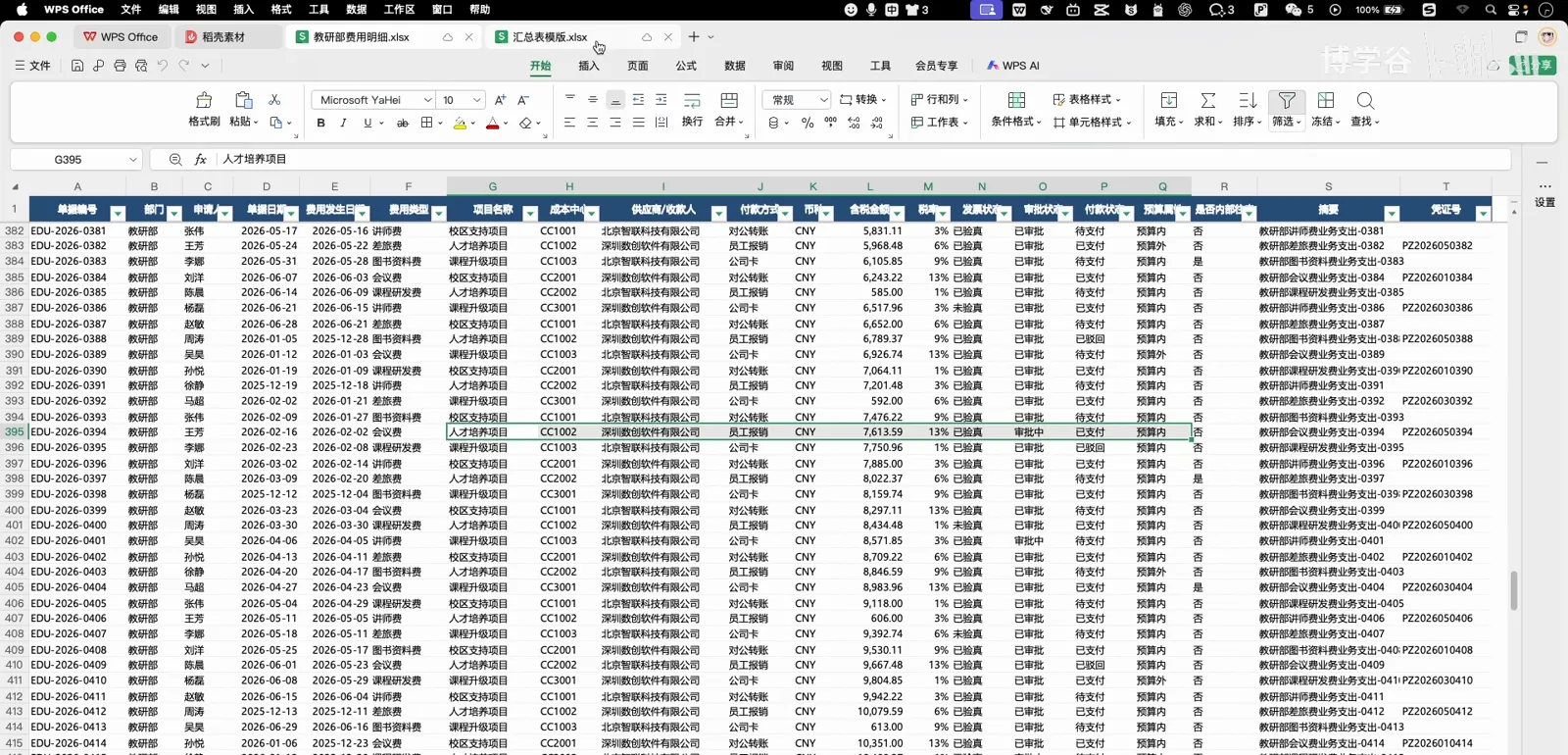
The template defines the output: a detail sheet and a dashboard.Watch at 3:44 - 6
Write one complete prompt
The handout's final prompt bundles everything in order: the background, the file paths, the row counts, the field definitions, the filter conditions, the field mapping, the calculation rules, the sort and dedup rules, the two-sheet requirement, the template reference, the acceptance criteria, and exactly where the output file should be written.
One prompt carries the whole spec — copy it as-is.Watch at 5:00 - 7
Paste it into a fresh session
Open a new conversation in the same workspace, paste the prompt, press enter. The agent explores the workspace, reads all three source sheets and drafts its plan — nothing to upload, nothing to configure.
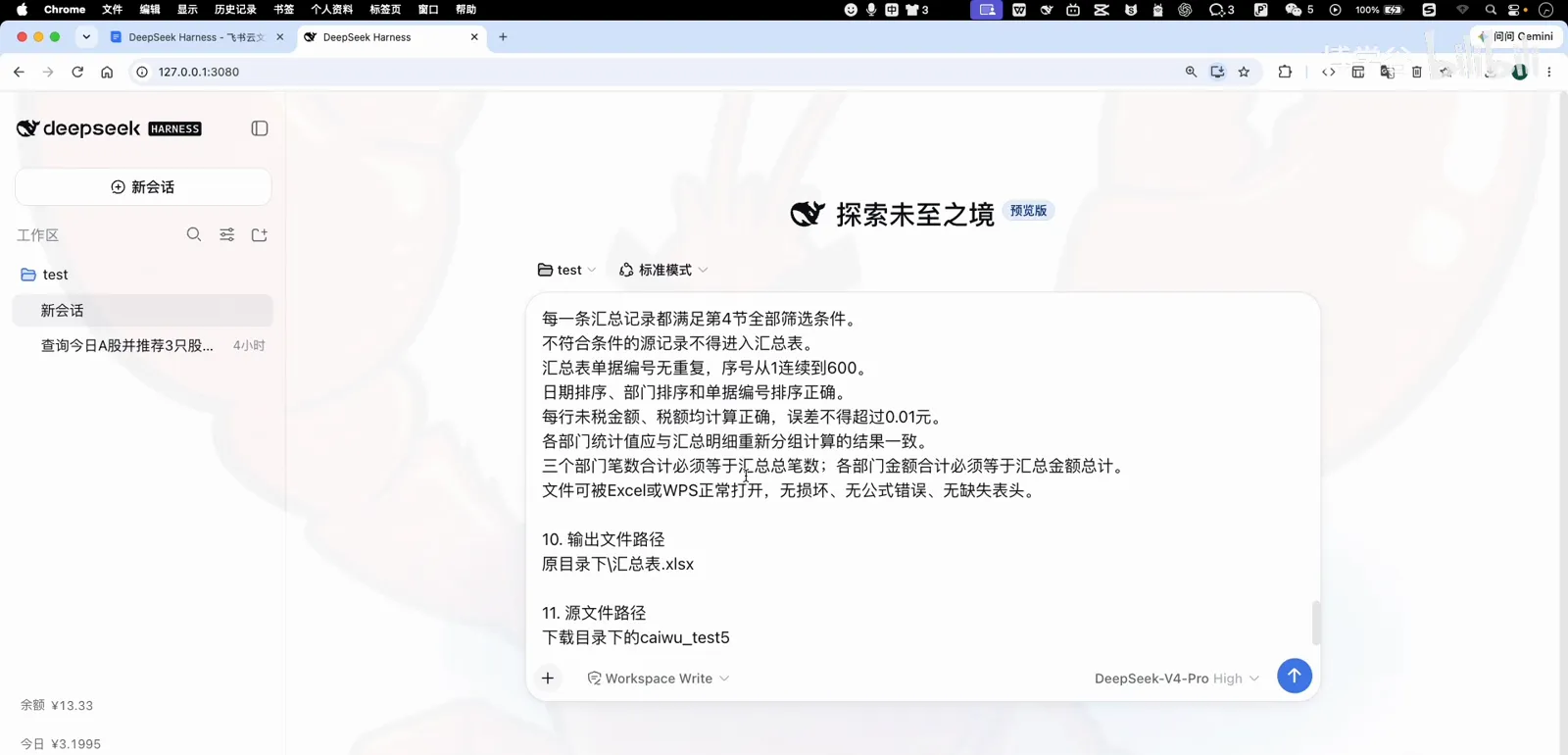
New session, same workspace, paste, enter.Watch at 5:15 - 8
Long task? Play a round while it works
A merge this size takes a while. The course author keeps a mini-games plugin installed and plays the dinosaur runner while waiting. One thing to expect: because the finished workbook goes to your Downloads folder — outside the workspace — the agent pauses and asks for write permission first. Approve once and it continues.

Long task — the course author plays the dino game while waiting.Watch at 5:30 - 9
Read the result summary
The agent closes with a receipt rather than silence: 1,800 raw rows across three sheets, 600 rows extracted into the summary after the filters, per-department and per-category totals, and notes on any rows that failed validation.
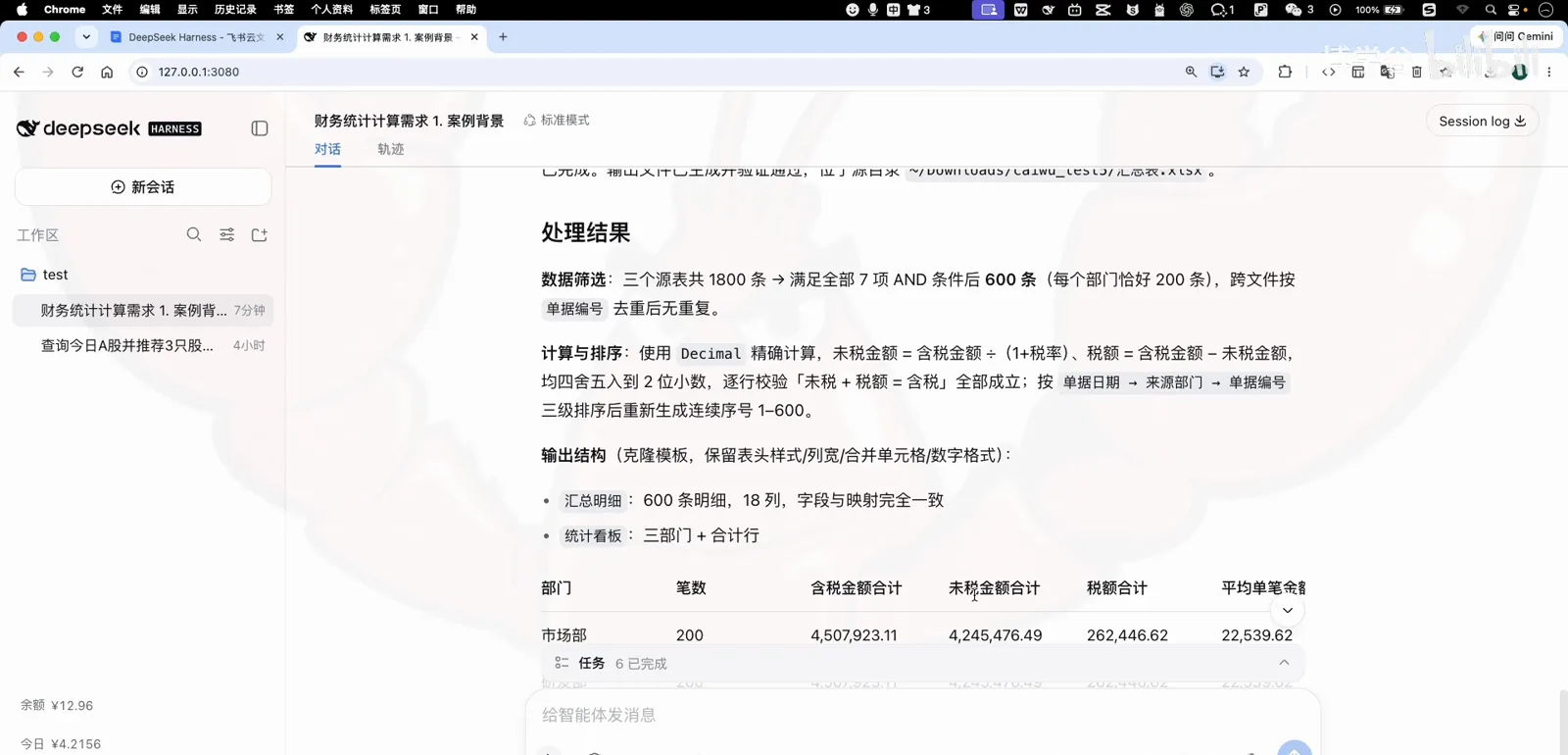
The receipt: rows in, rows out, per-department totals.Watch at 6:10 - 10
Check the acceptance notes
The report ends with the acceptance checklist from the prompt re-checked against the output — every rule passing. The finished workbook opens with the detail sheet filled and the stats dashboard populated, ready for review.

Acceptance checklist: all rules re-checked, all passing.Watch at 6:20
FAQ
What people ask before their first spreadsheet merge in DSH.
Do I need an Excel plugin to merge sheets in DeepSeek Harness?
No. The harness reads .xlsx files and writes its own calculation code — this case ran in standard mode with no extra plugin. Office suites such as dsh-univer-office are optional and mainly useful for previewing and editing documents inside the web UI.
Does my spreadsheet data leave my computer?
The files stay where they are; the agent reads them from the workspace and writes the merge code itself. What reaches the model are the text excerpts it chooses to reason about. Writing the result outside the workspace, for example into Downloads, triggers a one-time write-permission prompt.
My rules are more complex — multi-level approvals, multiple currencies. Will it still work?
Complexity is fine; ambiguity is not. Write the conditions as an explicit AND/OR list with exact field names, the way the handout does. Clearer rules mean a more stable result, and the acceptance checklist tells you when the output has drifted.
What else is this workflow good for besides finance?
Any 'merge many rows by rules' job: sales pipelines, attendance logs, inventory counts, survey results. The pattern stays the same — rules list, source files, target template, acceptance criteria.
Related guides
Keep going: office workflows, project delivery and fixes.
Office work in DSH: one prompt to PPT
Install dsh-univer-office and watch a one-sentence request become a six-slide reviewed deck.
Read the guideOffice & docs plugin collection
18 curated plugins for PDF, Word, Excel and PowerPoint work in DeepSeek Harness.
Read the guideProject workflow: idea to delivery
The full requirement-to-delivery loop in DSH, with ADRs, task lists and TDD.
Read the guideTroubleshooting encyclopedia
Six symptom families and their fixes when DSH misbehaves.
Read the guideSource & credits
Screenshots in this guide come from the course episode below and are used with attribution to explain the workflow; every step deep-links back to the exact timestamp.