
dsh Automation Tasks: the Built-in Scheduler, Step by Step
What the official Automation tasks package does, where the toggle lives, how creation works in chat, and what a fired reminder actually delivered — all from a 2026-10-04 desktop recording.
Last updated: 2026-10-06
![DeepSeek Harness settings list showing the Automation tasks [Experimental] built-in plugin with the description Run tasks in your sessions at a set time or on a repeating schedule and the toggle switched on](/images/guides/automation-tasks/automation-row-toggle.webp "DeepSeek Harness settings list showing the Automation tasks [Experimental] built-in plugin with the description Run tasks in your sessions at a set time or on a repeating schedule and the toggle switched on")
DeepSeek Harness can run things on a schedule without you typing anything twice. The feature is the official Automation tasks package: 0.2.0-rc.1 (2026-09-28) moved scheduled tasks out of core into an optional plugin bundle, and 0.2.1-alpha.1 (2026-10-03) made Automation tasks part of Web again — reminder tools in Standard, Creator, and PTC modes, none in Minimal mode or subagents, existing tasks preserved. The desktop recording this page screenshots was made one day after that release, so its Settings still show the row as Automation tasks [Experimental] — the exact string this page keeps.
There is no form-style New Task screen to hunt for: enabling is one toggle, creating is a conversation, and the panel only manages what your chats created. If you want the general plugin mechanics around it — install methods, scopes, troubleshooting — the general manual covers them: Plugin installation, the general manual
TL;DR
- ▸Automation tasks is an official built-in package: flip one toggle in Settings (or the Plugins page's Official list) and sessions gain the reminder tooling — the row still reads Automation tasks [Experimental] in the 2026-10-04 recording.
- ▸Creation is conversational: + New opens a task conversation, you describe what to run and when, and the assistant confirms the schedule — there is no form-style New Task UI to screenshot.
- ▸The demo's one-time reminder proved the whole loop: created with the built-in scheduling tool, confirmed at 12:58:47 EDT (America/New_York), fired once after 90 seconds, and wrote tutorial-reminder.md with verified numbers — $662.00 net revenue and 41 net units.
- ▸Management lives in the Automation tasks panel (All / Enabled / Inactive): delivery records keep the newest 20 saved records per task, active tasks stay editable, and the demo left nothing running — the task read Inactive · Once.
The 10-step walkthrough
First, what a finished automation run delivers
- 1
See the destination: a chat-created reminder with its receipt
Before touching any setting, look at what the workflow produces. The frame is the moment the demo closes its loop: the assistant explains that the one-time reminder was created with the built-in scheduling tool only — no sleep, no background job, no shell timer — confirmed at 12:58:47 EDT (America/New_York), fired once after 90 seconds, and produced tutorial-reminder.md with the verified $662.00 net revenue and 41 net units, every other file byte-identical. The task card reads Tutorial sales reminder · Once with an Open button.
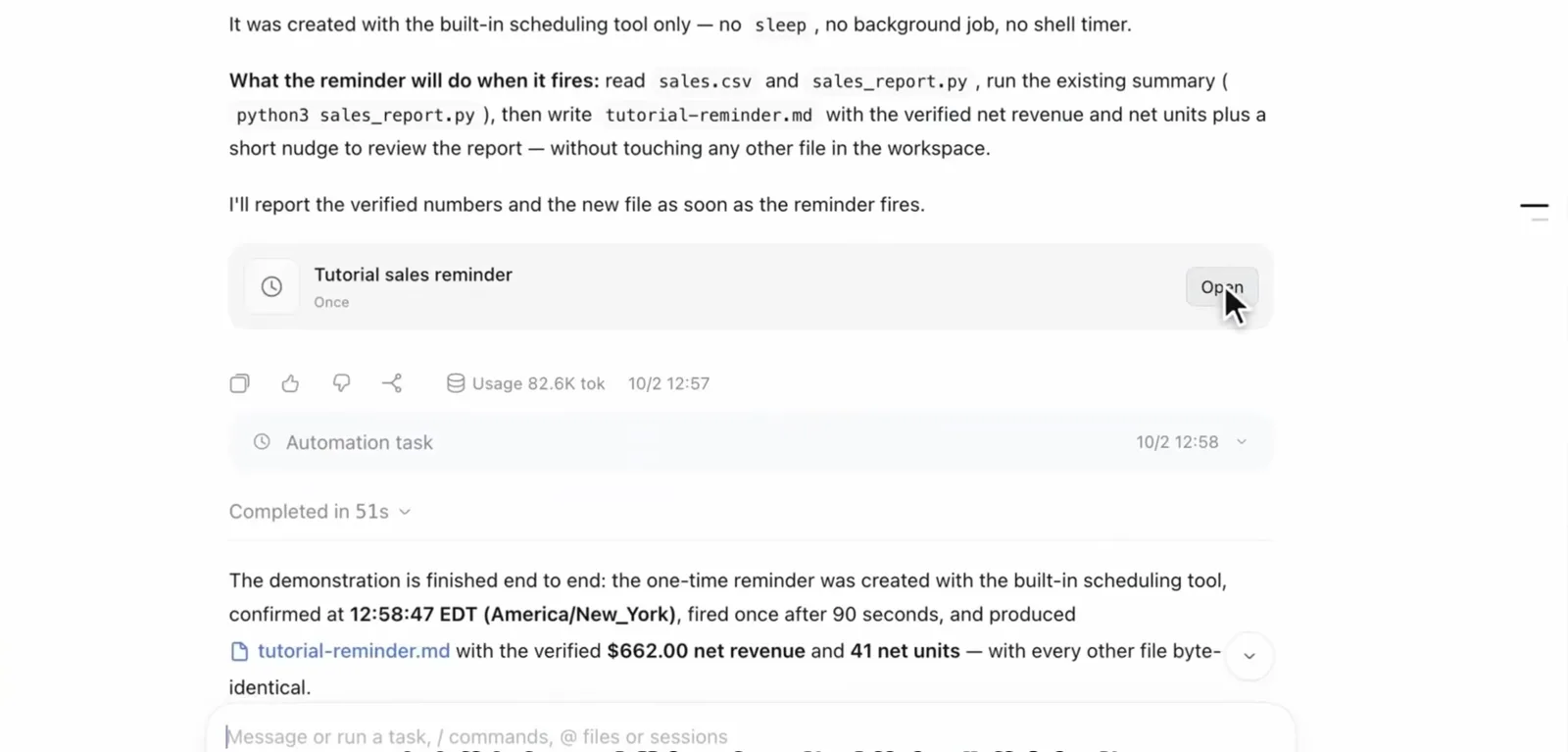
The full loop in one frame: created in chat, fired on schedule, numbers verified.Watch at 11:45 - 2
Open the delivered file: verified numbers, not just a claim
Click Open and the delivered tutorial-reminder.md renders beside the chat: it is fired by the one-time scheduled reminder with its schedule id (schedule-8209ae26-…) at 2026-10-02 12:58:47 EDT. The Verified numbers table recomputes the source of truth — net revenue $662.00 (66,200 cents), net units 41, 14 counted orders with cancelled ones excluded, gross $803.00 minus refunds $141.00 — plus a per-product split. The delivery is a report with an audit trail, not a chat line.
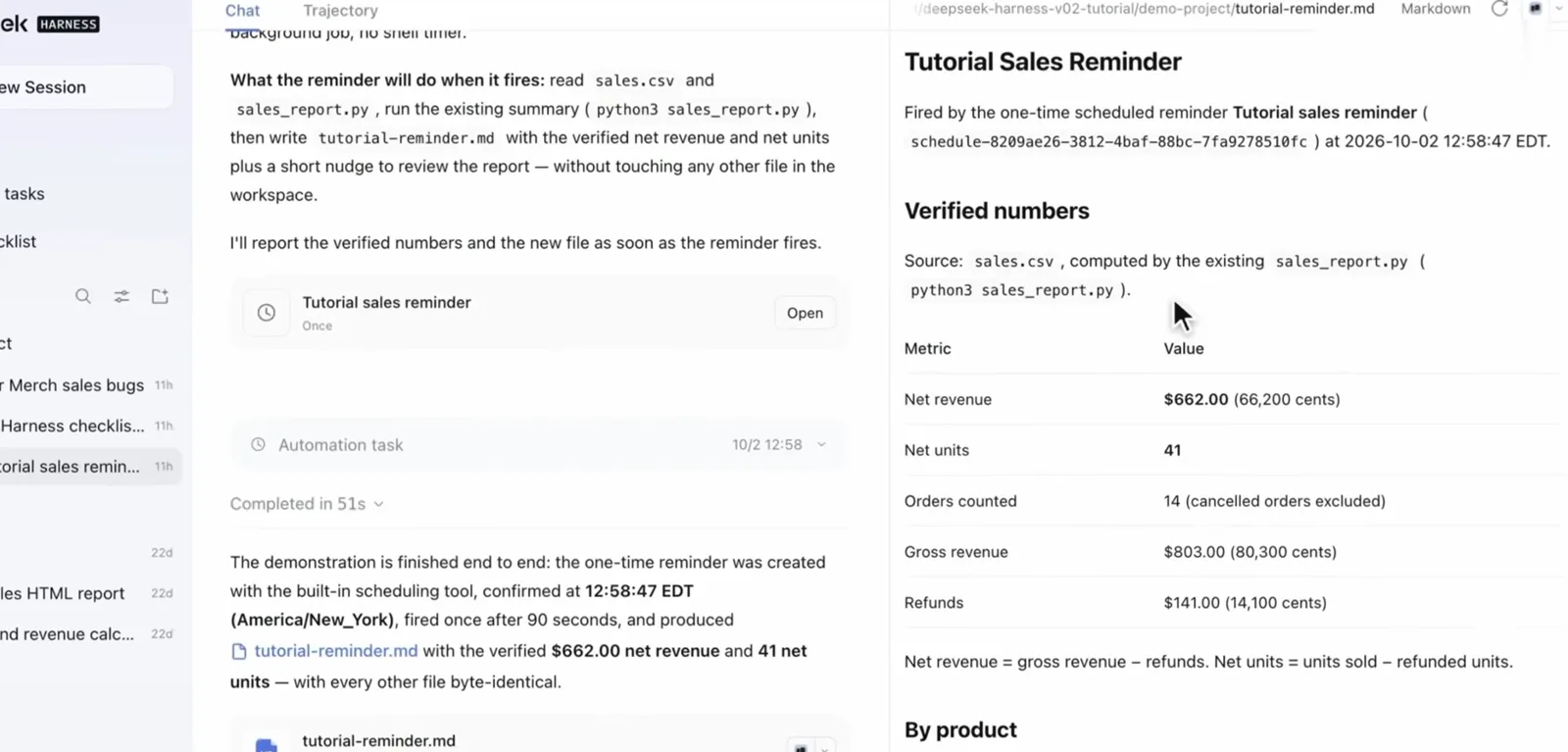
The delivery is a file with an audit trail — schedule id, timestamp, and recomputed figures.Watch at 12:00 - 3
Read the built-in picture of what a task is
dsh illustrates its own scheduler inside the app: a weekly grid (M-T-W-T-F-S-S) with marked days feeds a spreadsheet and produces the weekly report, annotated with the four things a task must state — input, output, schedule, and time zone. The recording's narration stresses the time zone: never assume the app treats your local wall clock as the task's clock — a US demo pins 09:00 America/New_York explicitly.
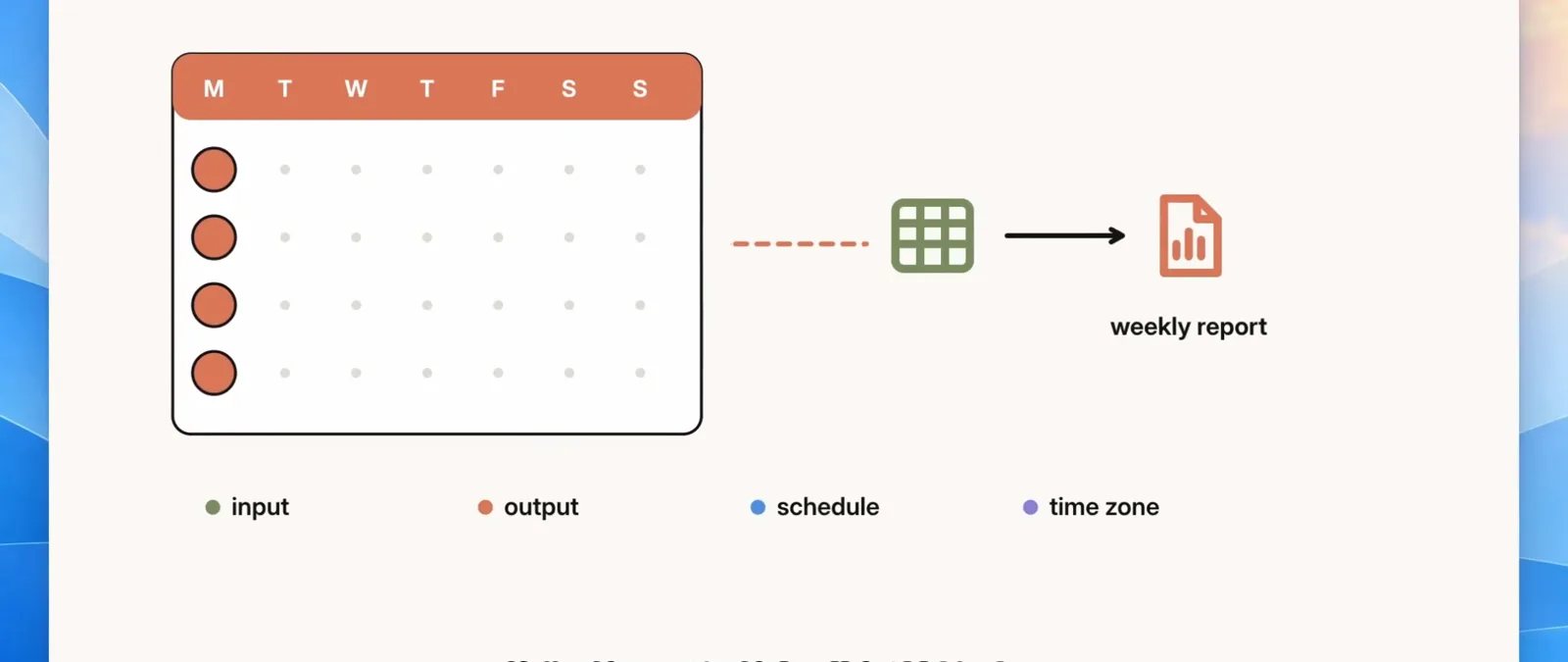
The app's own picture of a task: four things to state before it can fire.Watch at 11:13
Enable the official built-in package and find the panel
- 4
Flip the built-in toggle in Settings
In the desktop app's settings, the built-in plugin list carries the row this page is about: Automation tasks [Experimental] — Run tasks in your sessions at a set time or on a repeating schedule. The toggle is already on in the frame; flipping it is the whole install. One row down sits Voice input, also Experimental; Shell, Agent loop, Subagent, and Web search round out the built-ins.
One toggle is the whole install — no package to download.Watch at 10:25 - 5
Or enable it from the Plugins page's Official list
The same package appears in the Plugins screen under Official — eight rows from Agent Teams to Web search, with Automation tasks highlighted and its toggle on. The narration's point: enable the bundle from the official plugin list, not by sideloading anything. Release 0.2.1-alpha.1 also retires old experimental-bundle selections automatically while keeping existing tasks, so upgrades don't strand schedules.
![Plugins page in DeepSeek Harness listing eight official plugins with the Automation tasks [Experimental] row highlighted and its toggle on](/images/guides/automation-tasks/plugins-list-official.webp "Plugins page in DeepSeek Harness listing eight official plugins with the Automation tasks [Experimental] row highlighted and its toggle on")
The same bundle from the Official list — the enablement path the walkthrough recommends.Watch at 11:00 - 6
Find the tasks in the Automation tasks panel
The sidebar's Automation tasks entry opens the management panel: All / Enabled / Inactive tabs, a search box, and a + New button. In the demo it lists exactly one task — Tutorial sales reminder, marked Inactive · Once. This panel is where tasks created anywhere in your sessions converge; you never manage schedules by editing files.
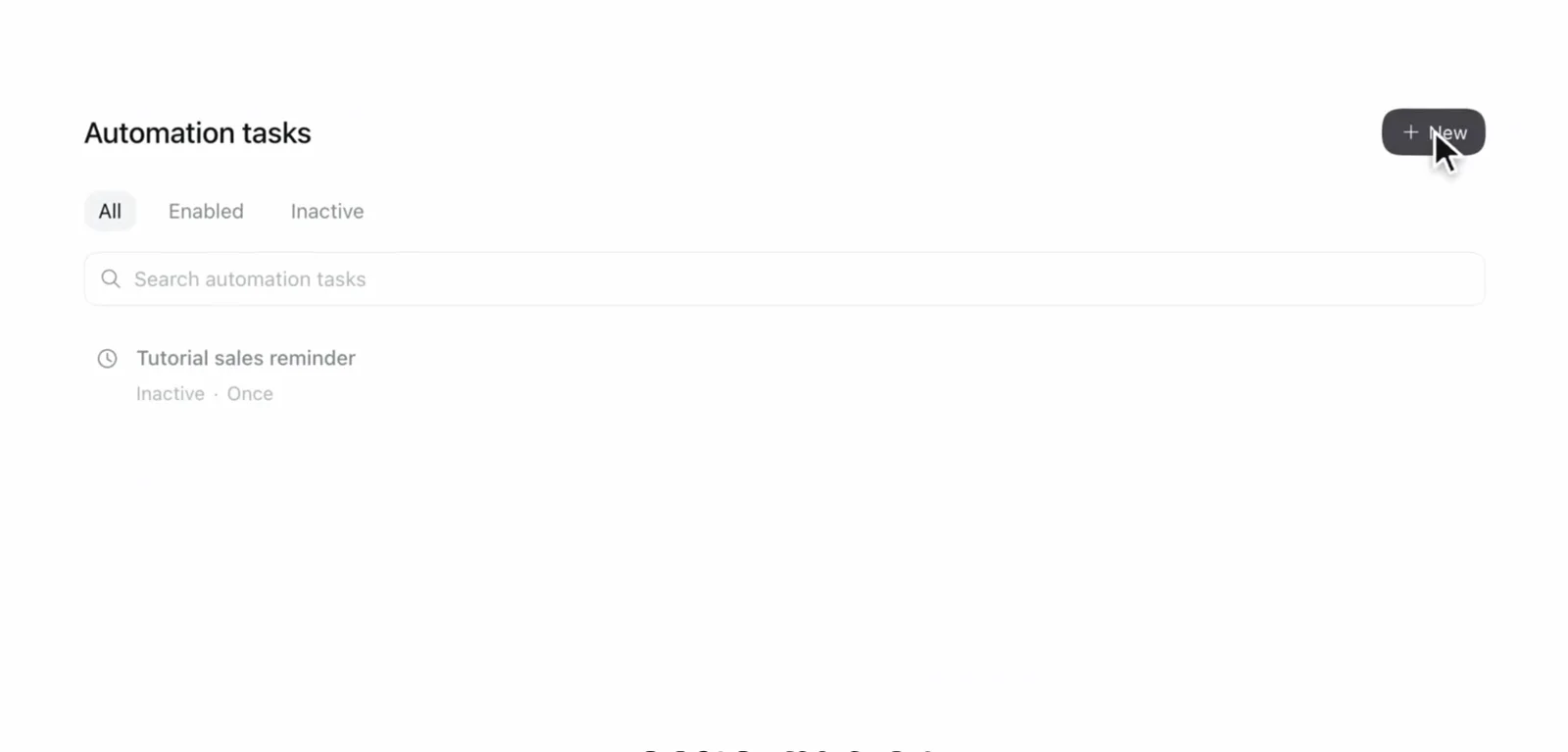
Every task created in any session converges on this panel.Watch at 11:30
Create by chat, then verify and manage
- 7
Notice where tasks live: inside ordinary sessions
Zoom out one level and the demo's sidebar shows the structure: Plugins and Automation tasks as navigation, and a Schedule tutorial sales reminder session sitting between the sales-bugs fix and the workspace's older reports, with tutorial-reminder.md already in the file tree. The built-in docs spell out the linkage: a session row with at least one active task shows a clock mark, and hovering lists up to two tasks with their frequency and next run. Tasks belong to conversations — that's why the results come back there.
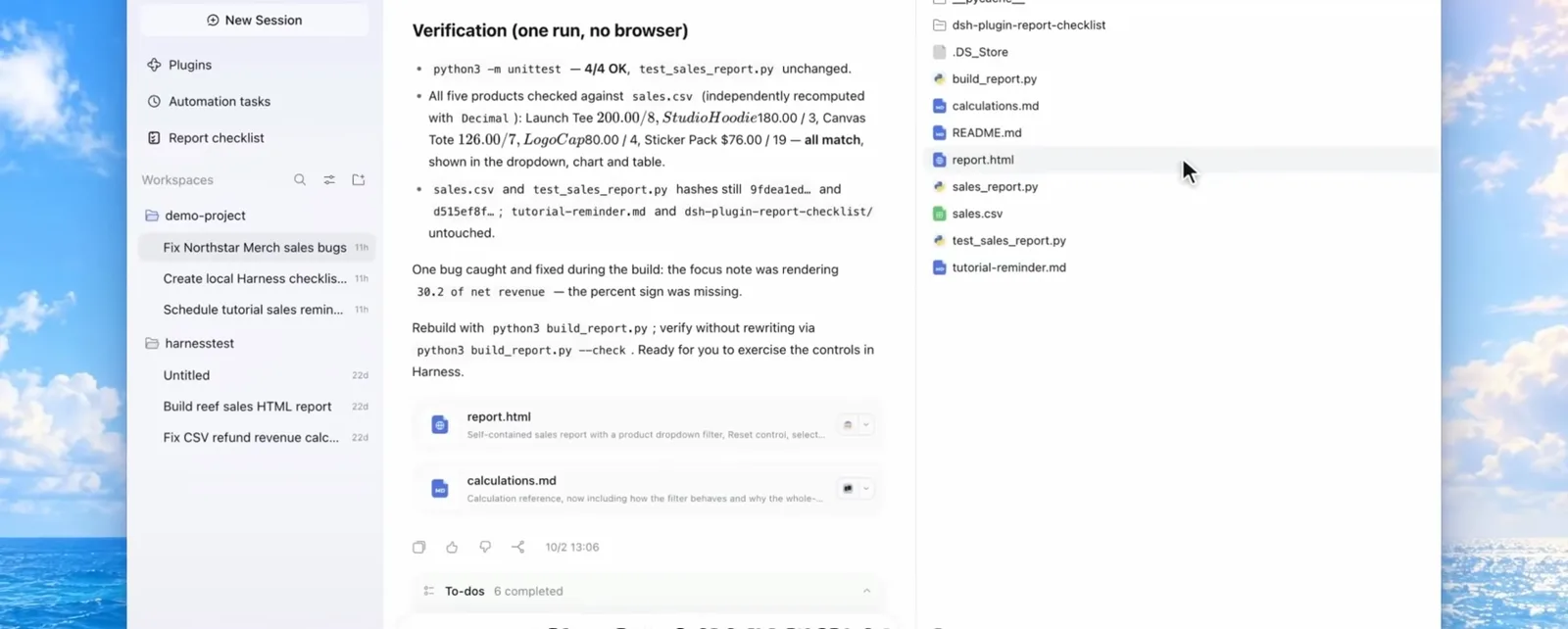
Tasks live inside ordinary conversations — the sidebar marks them with a clock.Watch at 7:00 - 8
After a one-shot fires, the task goes Inactive
Back in the panel after the reminder fired, the same row now reads Inactive · Once, selected and labeled by the walkthrough as nothing left running. The recording's advice for real usage: choose a repeat plan and confirm the time and time zone before relying on a task. A finished one-shot doesn't keep polling anything — the state is visible in the tab you'd check first.
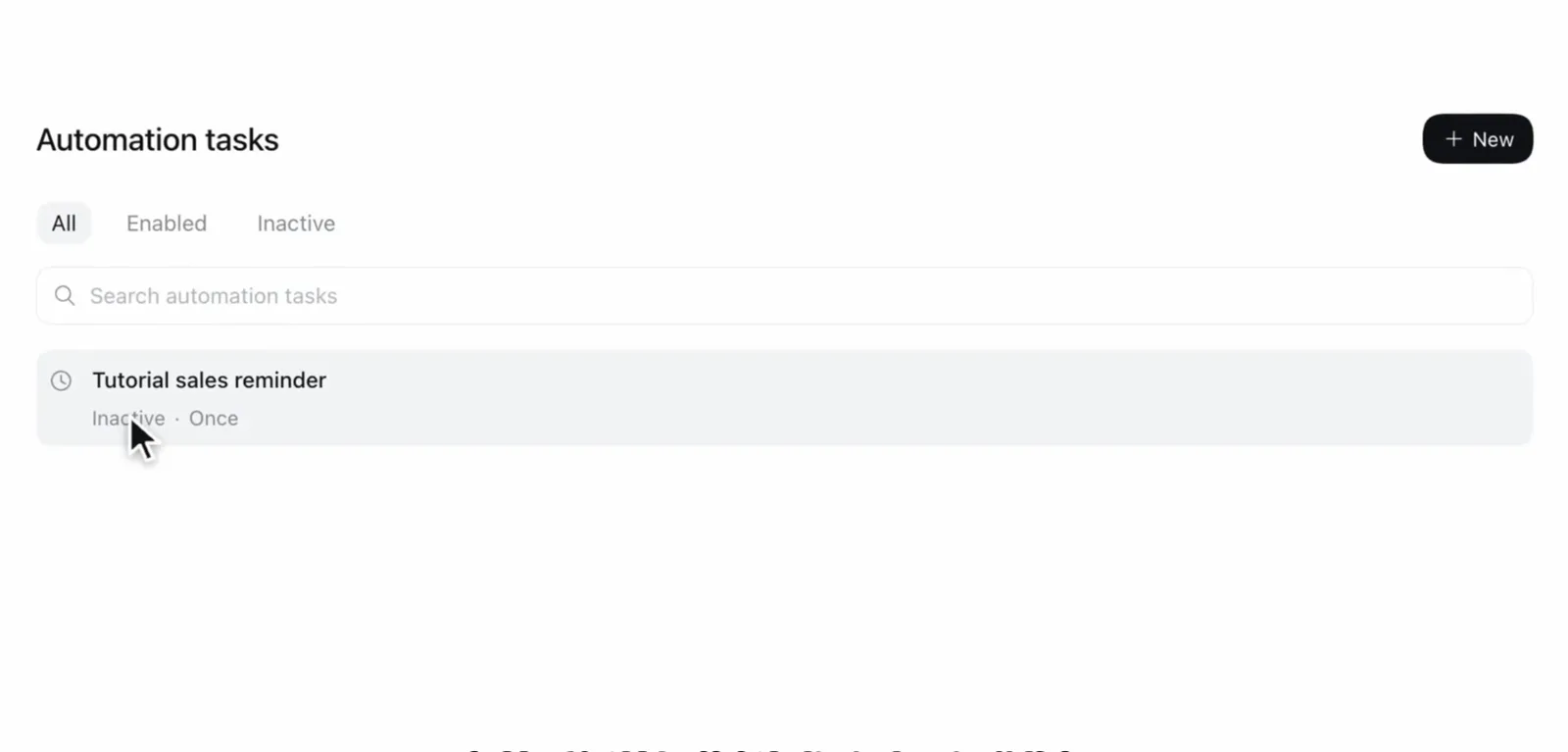
One-shot done, nothing left running — the state is visible at a glance.Watch at 12:10 - 9
Audit deliveries in the built-in records view
dsh's in-app documentation describes the audit path: select a task to open Rules, then choose Delivery records to load the newest 20 saved records — one compact row each with a clock glyph, the occurrence time in the task's saved zone, and the stored instruction when one was kept. Records load older pages on demand, follow newest-first order, and deliberately do not describe model execution results. You can also edit an active task's instruction and time.
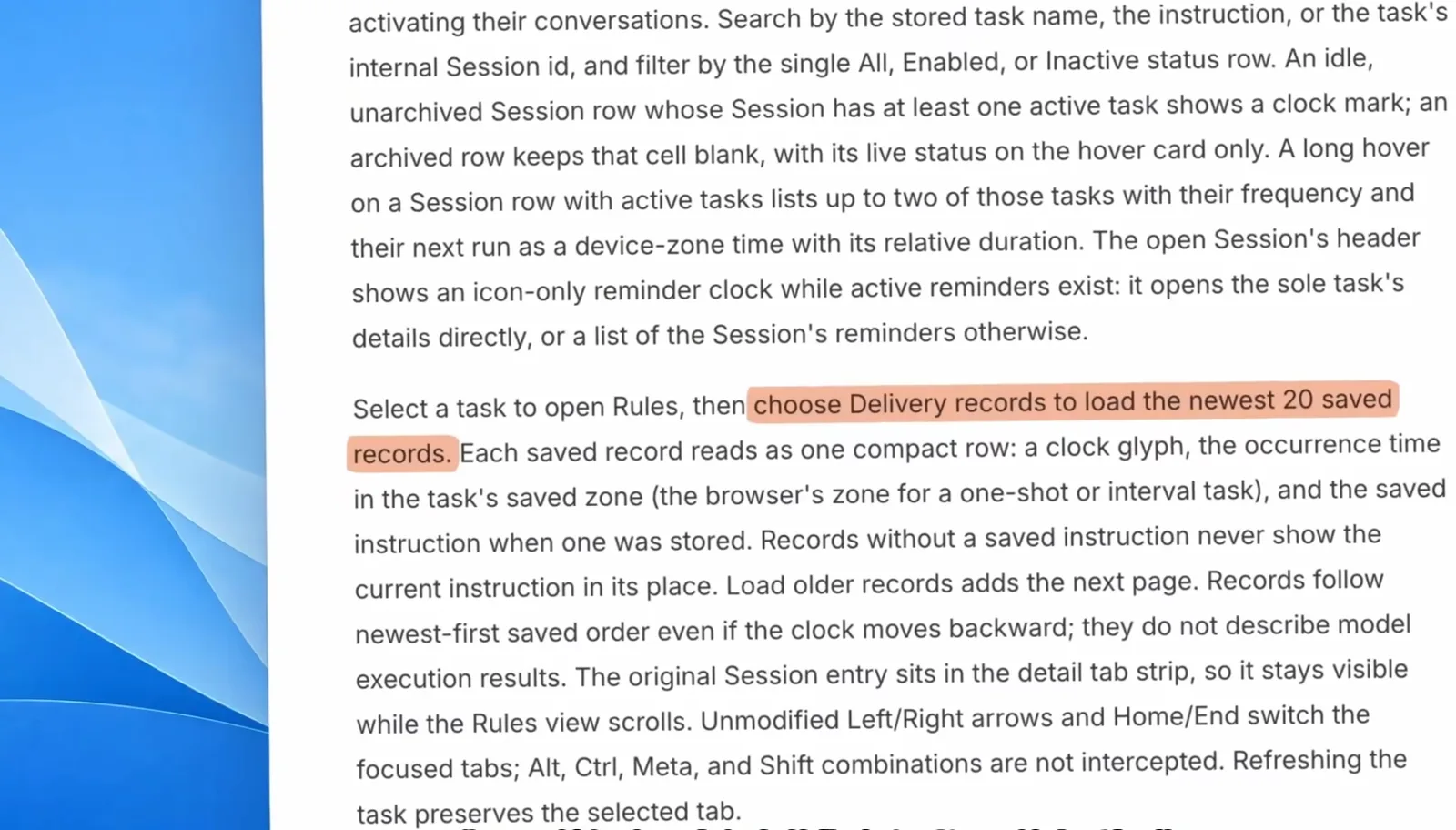
The audit path: Rules, then Delivery records — newest first, one row per firing.Watch at 12:25 - 10
Know the runtime deal: app running vs window closed
The app's own illustration draws the line: app running — tasks fire; window closed — backend may keep running; and instructions return to their original conversation either way. That is the honest caveat under everything above: scheduling is built into the app's runtime, not into an external cron daemon. If you need unattended host-level firing, that's the community cron route — different tools, different guarantees.
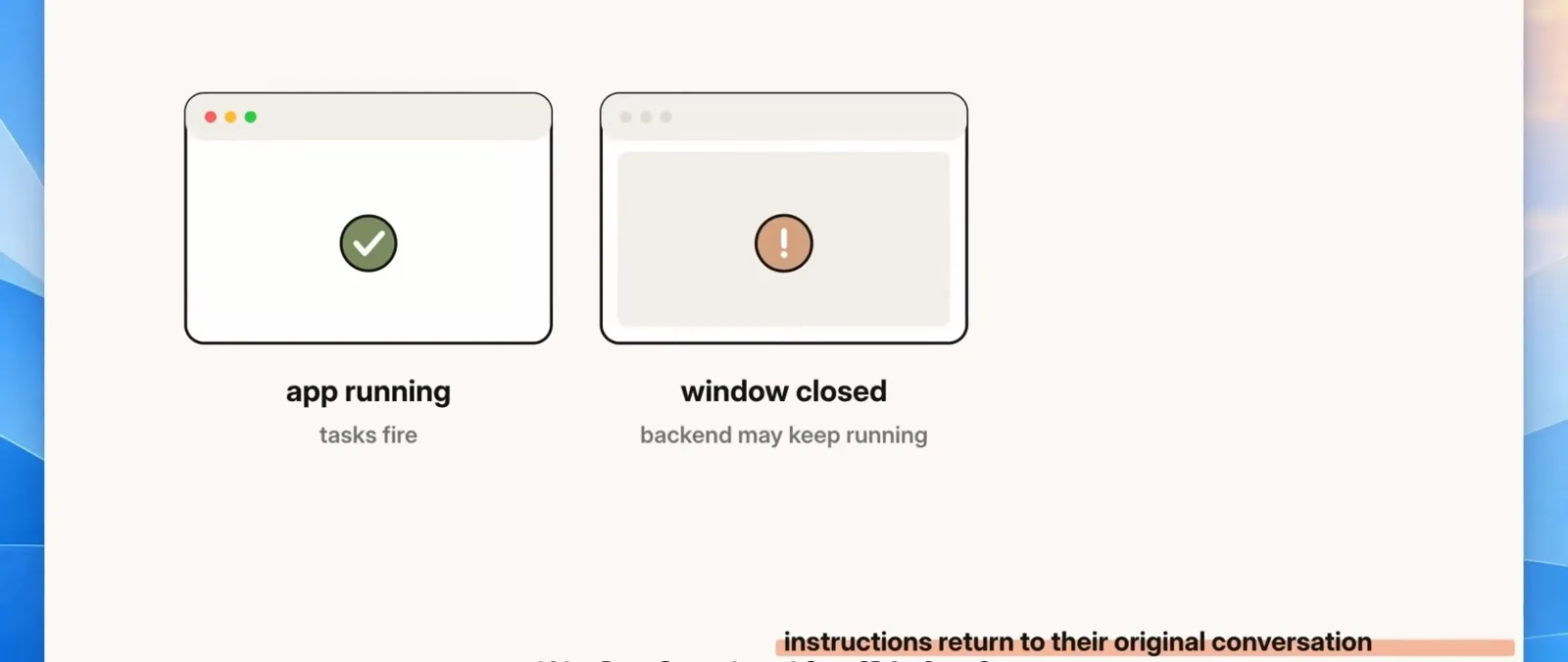
The runtime deal, drawn by the app itself: keep it running to keep it firing.Watch at 12:20
FAQ
Quick answers about dsh automation tasks, schedules, and the cron boundary.
How do I set up scheduled tasks in dsh?
Three moves, all shown above: enable the Automation tasks built-in (Settings toggle or the Plugins page's Official list), click + New in the Automation tasks panel to open a task conversation, and describe in plain language what to run, when, and in which time zone. No cron expression and no form required — 0.2.1-alpha.1 made the feature part of Web, with reminder tools in Standard, Creator, and PTC modes.
What exactly is the dsh automation tasks feature?
An official built-in plugin bundle that runs instructions in your sessions at a set time or on a repeating schedule. The timeline: 0.2.0-rc.1 (2026-09-28) turned scheduled tasks into an optional plugin bundle, and 0.2.1-alpha.1 (2026-10-03) made Automation tasks part of Web again while preserving existing tasks. The 2026-10-04 recording still labels the row Automation tasks [Experimental].
Where do I manage tasks and check what fired?
In the Automation tasks panel: filter by All, Enabled, or Inactive, search by task name, instruction, or session id, and open a task to see Rules and Delivery records — the newest 20 saved records per task, each with the occurrence time in the task's saved zone. Sessions with active tasks show a clock mark in the sidebar.
Will it misfire or fire without my input?
Fires are scheduled, not random: the demo's reminder fired exactly once, 90 seconds after confirmation, and 0.2.0-rc.2 explicitly frames delivered reminders as scheduled user messages. The two real risks are timezone ambiguity and stale schedules — the walkthrough's own advice is to pick a repeat plan and confirm time and time zone before relying on a task, and finished one-shots flip to Inactive rather than lingering.
Does dsh have to stay running for tasks to fire?
Yes for normal use — the app's own illustration says app running: tasks fire, and window closed: backend may keep running. Scheduling lives in the app's runtime (the demo stresses: no sleep, no background job, no shell timer), so a machine that's off fires nothing. Keeping a machine alive for dsh is the remote-access topic, not part of this feature.
Is this the same as cron? Are there community cron plugins?
Different layer. The built-in package schedules work inside dsh sessions; system-level polling with crontabs is the community route — LouisHaoL/dsh-timer-agent (★13, MIT) fires real agent sessions from a 60-second ticker, weibaohui/dsh-tasks (★9) manages cron items in a full-screen manager, and three dsh-cron repos sit at ★6 each (all re-checked via the GitHub API, 2026-10-05). Install those through the normal plugin flow; they complement, not replace, the built-in scheduler.
Related guides
Where to go next on the scheduling, plugins, and delivery tracks.
Plugin installation, the general manual
Every install method for community plugins — the route the cron plugins in this page's FAQ take.
Read the guideDeepSeek Harness subagents, hands-on
Subagents power parallel work — and per 0.2.1-alpha.1 they don't receive reminder tools. Here's what they do get.
Read the guidePlug dsh into QQ
The notification axis: push results to a QQ bot when a task (or anything else) finishes.
Read the guidedsh configuration guide
Settings surfaces, config precedence, and where built-in plugin state lives.
Read the guideSources & credits
All 10 frames come from 星小脉's DeepSeek Harness 2.0 desktop-app recording on Bilibili (published 2026-10-04; automation-tasks segment t≈420-745), credited per frame with a deep link to the exact second — the video's burned-in subtitles were read as the transcript and never reused as page text. Official wording comes from the deepseek-ai/deepseek-harness release notes, re-checked on 2026-10-05; community plugin stars come from the GitHub API the same day. 星小脉 is a third-party creator — nothing on this page is official DeepSeek material except where quoted from the release notes.