
dsh Creator Mode: Build a Custom Agent Preset by Chat
Nine frame-verified screenshots through the whole creator-mode flow: meet the four built-in modes, chat the coffee-operations-analyst preset into existence, approve one sandbox escalation, pass the mount check, then watch it run a full coffee-shop analysis and catch an Excel formula error.
Last updated: 2026-09-28
In DeepSeek Harness (dsh), a session runs with whatever tools and prompts its agent preset defines. The built-in Standard, PTC and Minimal modes are for doing work; the fourth — creator mode — exists to build presets: describe what you want in one chat, and dsh copies a fresh preset from Standard, writes in your capabilities, lands it on disk after a single sandbox approval, and seats it in the preset picker once the mount check passes. This walkthrough replays a 10-minute recording by 畅的科技工坊: the author chats a business analysis and reporting assistant (preset id coffee-operations-analyst) into place, then lets it run a complete coffee-shop pilot analysis. The video has no caption track, so every interface string below was read off the frames.
Division of labor with the site's other guides: Agent Presets walks you through a first setup and the saved files, while this page goes deeper on what only creator mode shows — the sandbox approval, the mount-validation receipt and the Excel audit. For a full-cycle single-agent customization in a different domain, see the related guides at the end. Agent presets: a first custom preset, hands-on
The short version
- ▸Creator mode is one of dsh's four built-in presets: you chat a custom agent preset into place, and the artifacts are just two files — agent.cordis.yaml and preset.yml.
- ▸One approval is all it takes: the preset folder lives outside the session workspace, so the first write needs a one-time danger-full-access sandbox escalation ("Allow once").
- ▸Verify before you trust: a mount-check conversation runs standingKeyFor and answers three questions — real path, mounted OK, no unresolved packages.
- ▸The payoff: the analysis preset digests seven demo files, delivers a 25-step report run, and still catches an M17 formula error in the demo Excel.
Build a custom agent preset with dsh creator mode in 8 steps
Know the modes and the entry points
- 1
Read the preset dropdown first
The home-screen preset dropdown is the entry to every mode. Standard is a fully capable coding agent — file editing, Shell, file and web search, Skills, plans, goals, subagents and workflows. PTC keeps all of that and exposes the tools through the Code Mode SDK, so the model can combine multiple steps into one TypeScript program. Minimal strips it down to persistent bash plus str_replace_editor. Creator mode "creates custom agent presets": everything Standard has, plus runtime checks, plugin experiments and preset-authoring guidance. The bottom entry, a business analysis and reporting assistant, is the custom preset this video ends up building — by the end of this page you'll have one too.
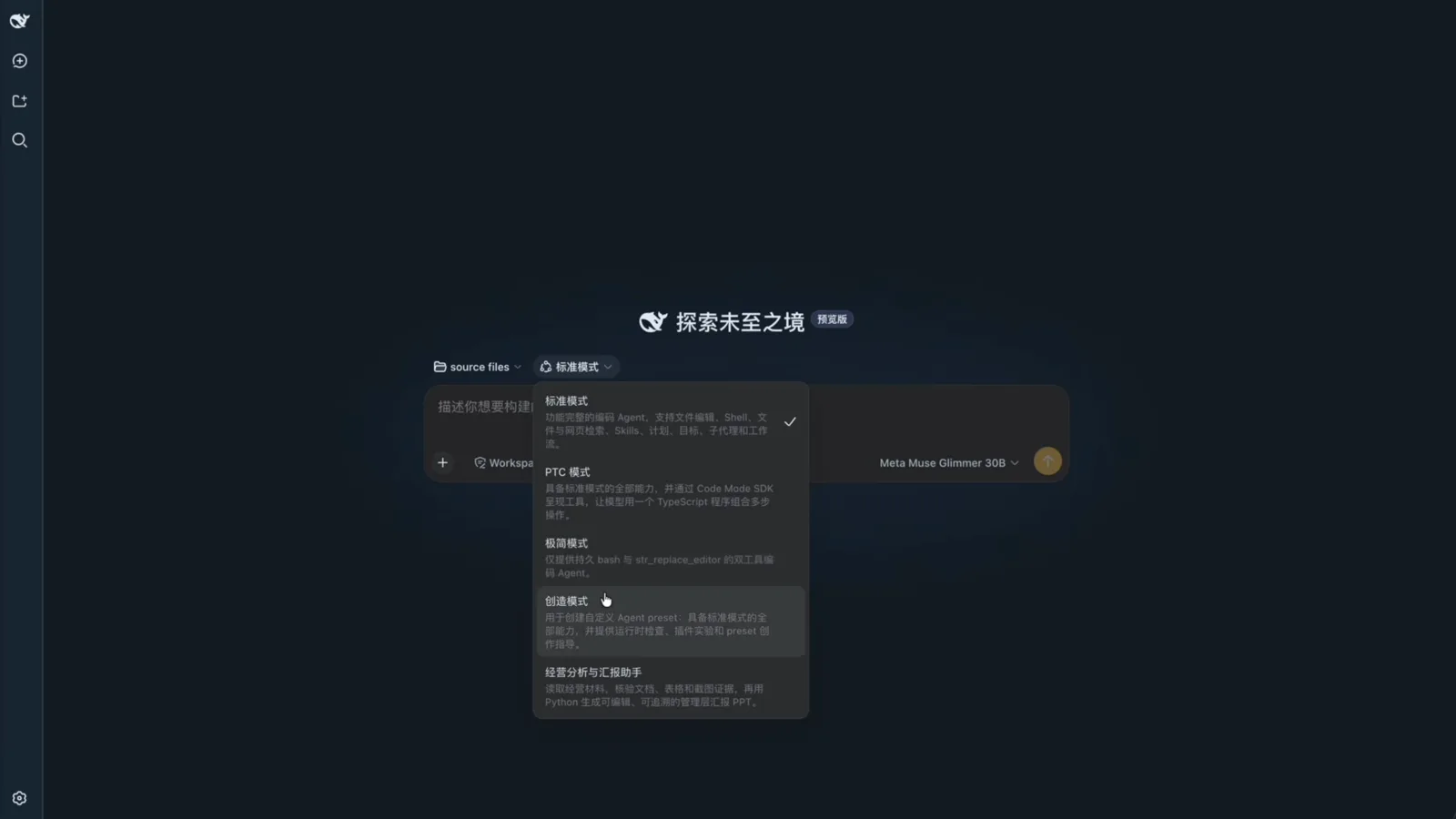
The home dropdown: four built-in modes plus one custom presetWatch at 1:00 - 2
Flip "current" to creator mode in Settings
Settings → Agent Presets states the concept in one line: "A preset is the set of plugins a session's agent runs on — its tools, prompts and capabilities." The four built-in cards each carry a full description, and the "current" badge follows your click: the video starts with PTC current, and clicking the creator-mode card moves the badge while a "+ create a custom preset with creator mode" button appears at the bottom of the list. You can skip Settings entirely and pick creator mode straight from the home dropdown — same effect. The copy icon on each card duplicates an existing preset as a starting point, and "Open config file" jumps straight to the folder where presets live.
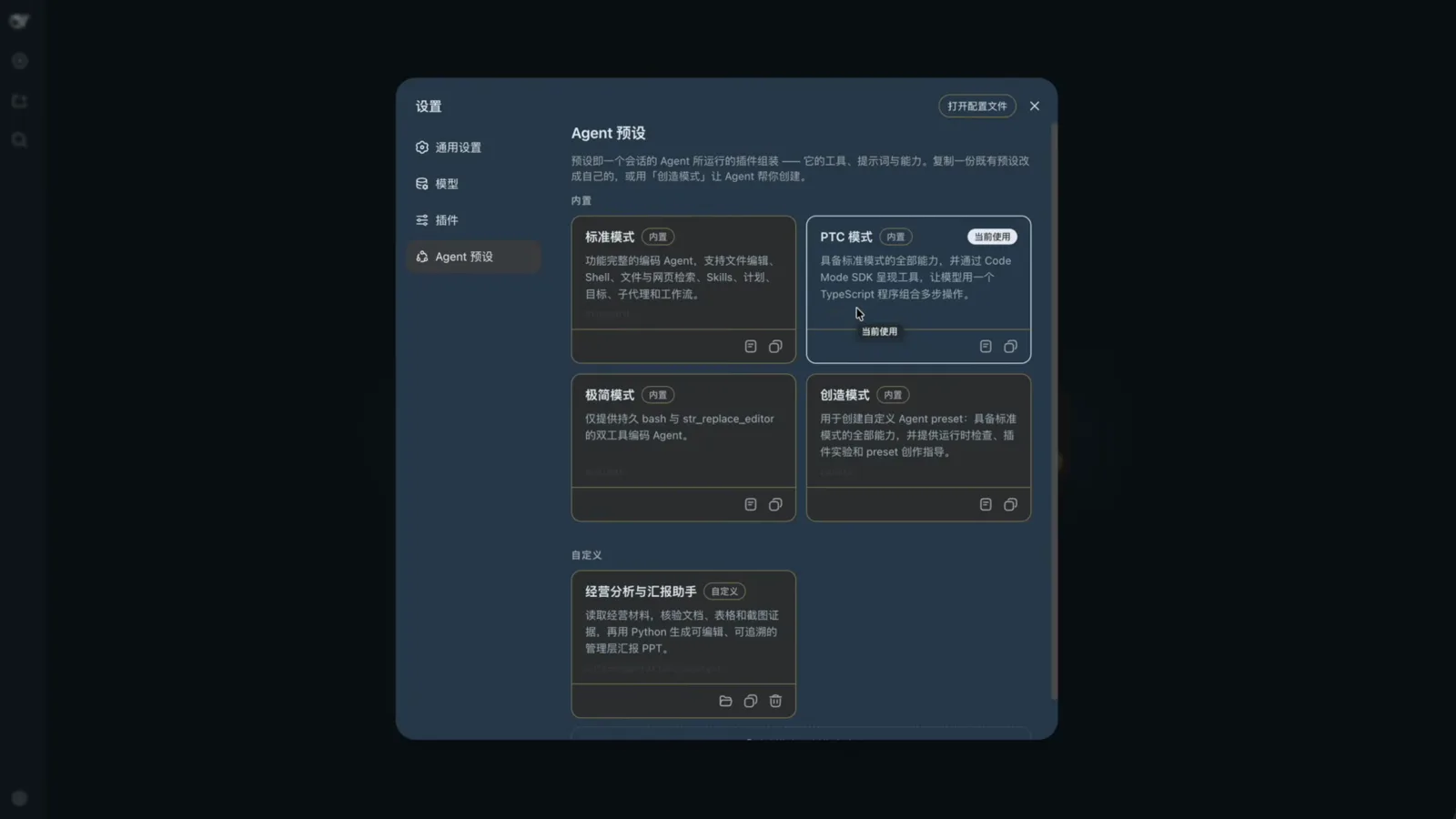
Settings → Agent Presets: the "current" badge follows your clickWatch at 1:40
Chat the preset into place, then verify the mount
- 3
One chat, four tools: copy → read → write → escalate
With the session on creator mode, describe the agent you want in plain language. The recording captures the whole chain: preset_list confirms coffee-operations-analyst doesn't exist yet and is safe to create, preset_copy clones the skeleton from standard, and preset_resolve locates the real path so both files are read before anything is overwritten — agent.cordis.yml still holds the standard text, while preset.yml already carries the display name. Then the agent writes the finished pair into ~/.dsh/.agent-presets/coffee-operations-analyst/. That folder sits outside the session workspace, so both writes are rejected by the workspace-write sandbox (two red Write · Error rows), and the agent immediately requests an escalation: a "waiting for approval" card explains that danger-full-access is needed to land the preset files. Click "Allow once" — no global sandbox changes required.
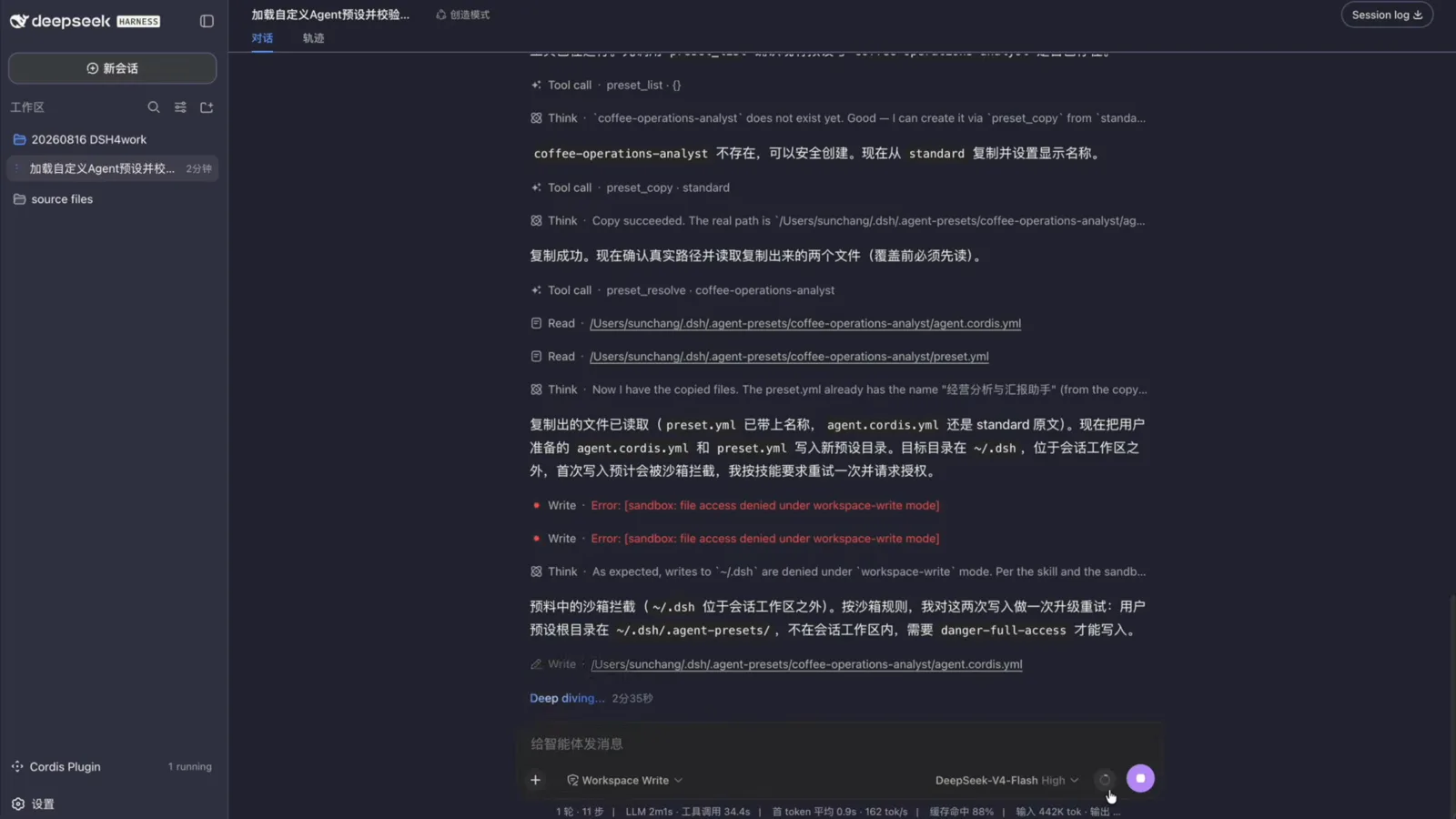
Copy from standard, read before writing, escalate when blockedWatch at 5:38 - 4
After the mount check, pick the preset and start working
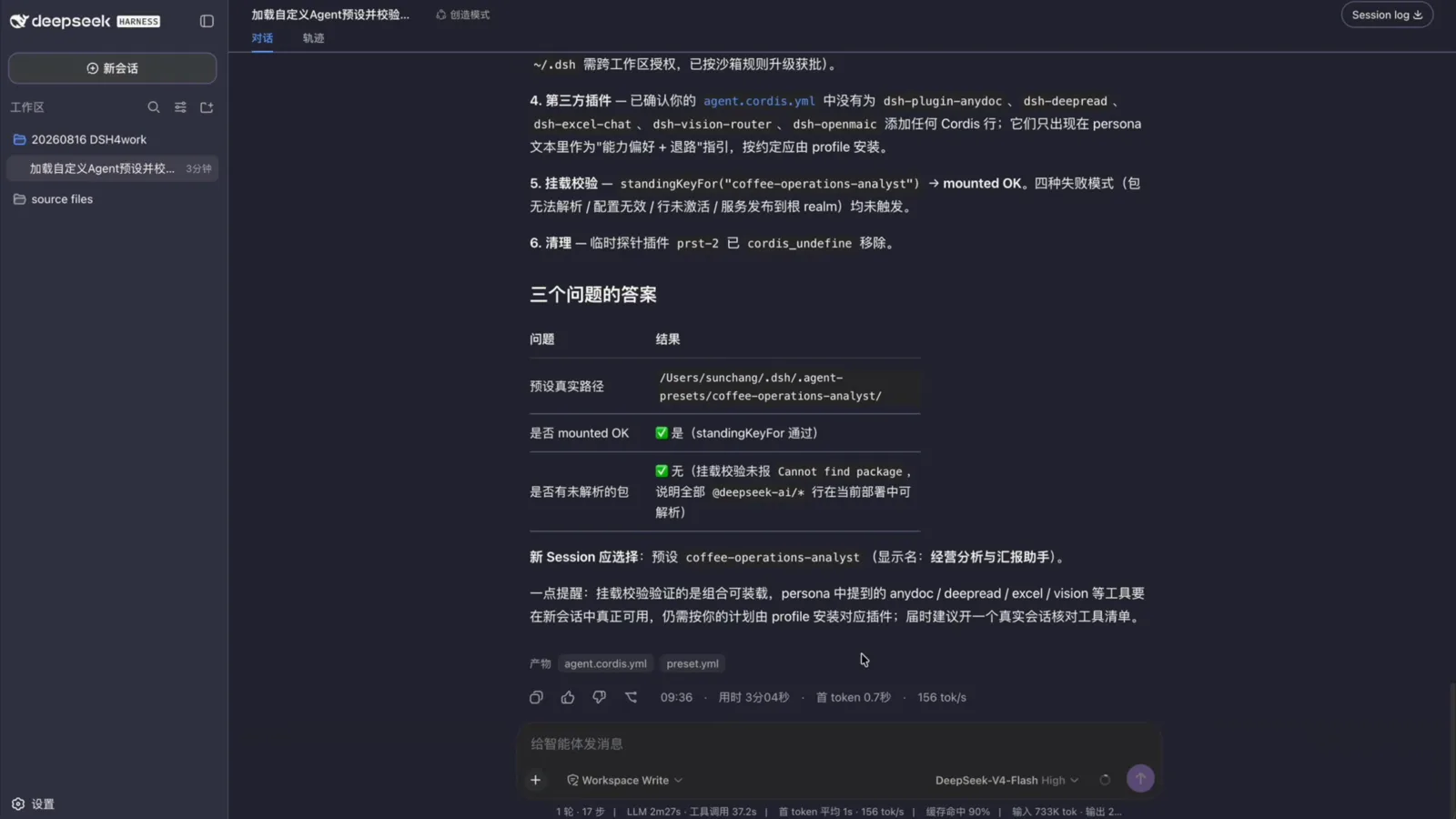
Right after the approval, the author runs a "load custom agent preset and verify" conversation — the big screenshot at the top of this page. The agent validates the mount with standingKeyFor("coffee-operations-analyst"), gets mounted OK with none of the four failure modes triggered (unresolvable package, invalid config, inactive line, service published to the wrong realm), and answers three questions in a table: the preset's real path is ~/.dsh/.agent-presets/coffee-operations-analyst/, mounted OK, no unresolved packages; the artifact chips list agent.cordis.yaml and preset.yaml. One caveat from the same receipt: the anydoc / deepread / excel / vision abilities named in the persona are hints and fallbacks only — they become usable in a session only after the corresponding plugins are installed via the profile. With that done, the custom preset shows up in the new-session picker: select it and start.
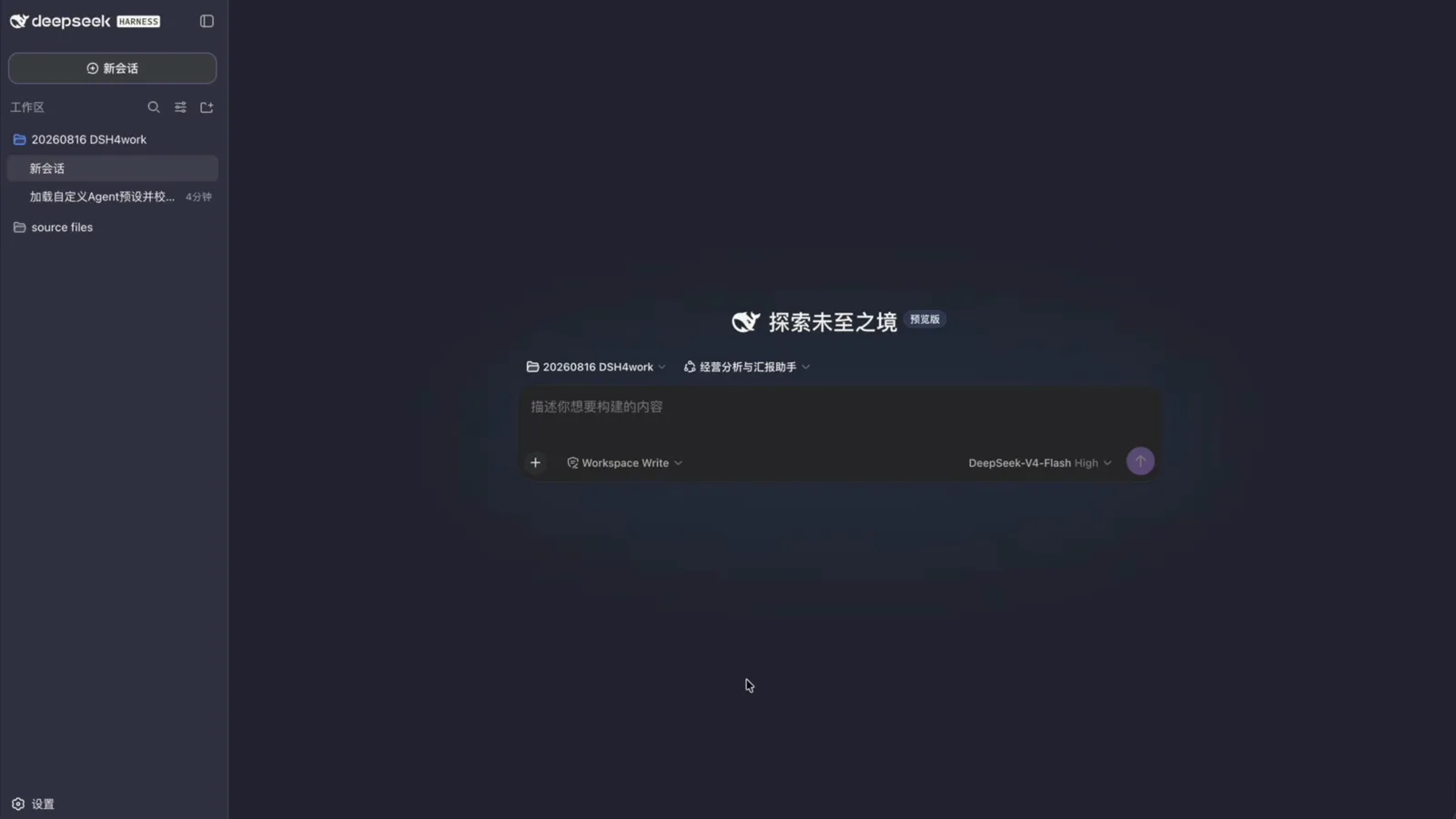
Verified and seated: the custom preset joins the session pickerWatch at 6:20
The real run: coffee-shop analysis and an Excel audit
- 5
Stage the materials: seven files, all demo data
The analysis materials sit in the source files workspace: a community-store pilot report PDF, a boss_request.txt brief, a six-week sales xlsx, a June business-review pptx template, plus three competitor mockups (Xiaohongshu and Luckin app screenshots) — seven files in total. The PDF's own notes, an Excel Dashboard remark and the screenshots themselves all state that everything is fictional demo material, so don't read the numbers that follow as a real case. The flow doesn't care: swap in your own business files and every step runs the same way.
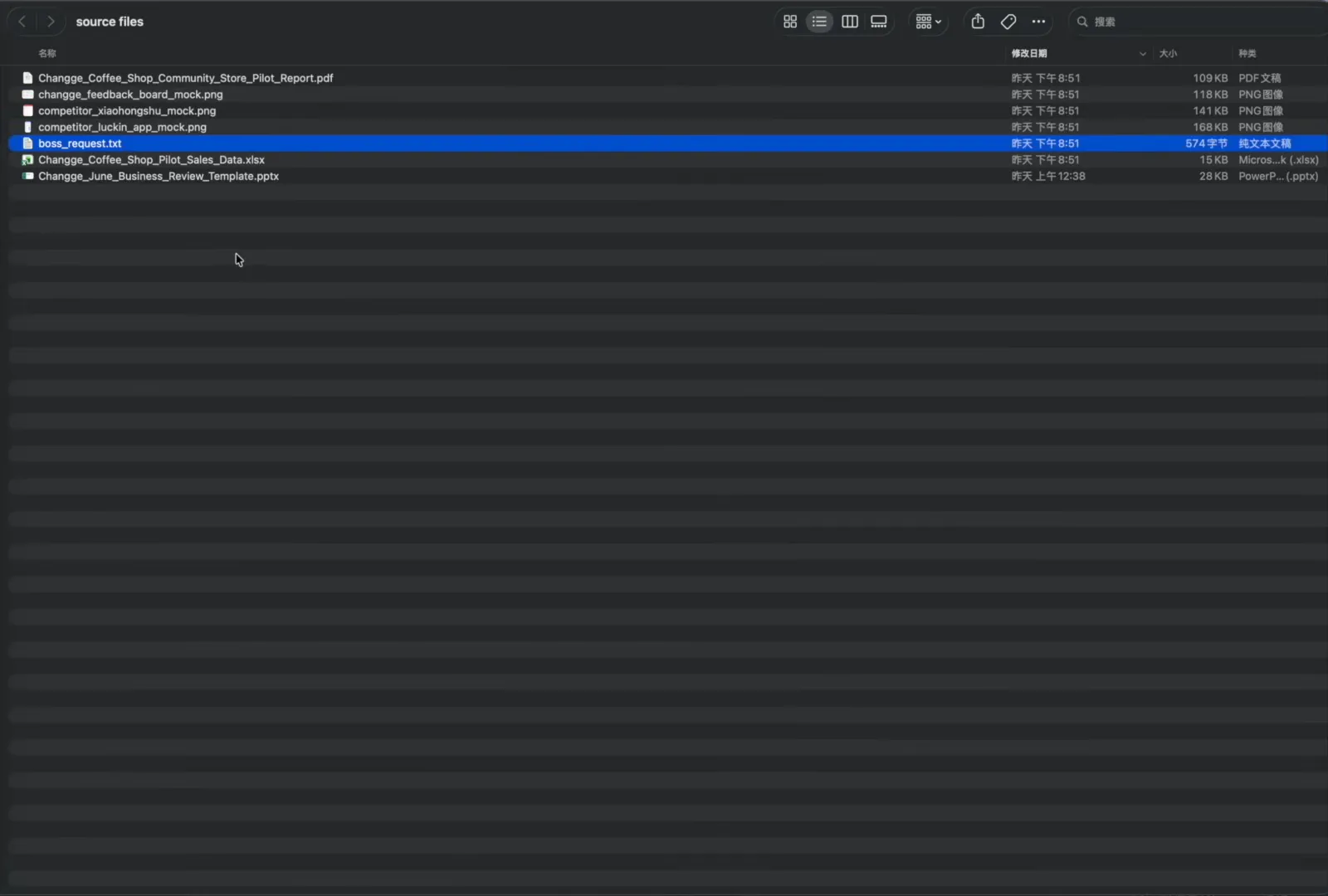
Seven files: report, brief, sales sheet, template and three mockupsWatch at 7:00 - 6
Put the acceptance criteria in the task brief
The coffee-shop pilot analysis task is issued with its acceptance rules baked in: every key figure must cite its file, page, sheet and cell range; material facts, inferences and recommended actions stay separated; no final report page before data verification completes; original files are never modified; and when a dedicated plugin is missing, the preset's fallback applies with the gap recorded. Two deliverables are named up front — outputs/coffee_pilot_analysis.md for the report and outputs/coffee_pilot_evidence_register.md for the evidence register — plus an honesty clause: openmaic_slide may render visual drafts only, and an editable PowerPoint may not be claimed unless a tool truly returns a .pptx. The session auto-injects the @deepseek-ai/dsh-system-prompt and skill-catalog context, and the agent opens with "Let me start by performing the startup checks as requested."
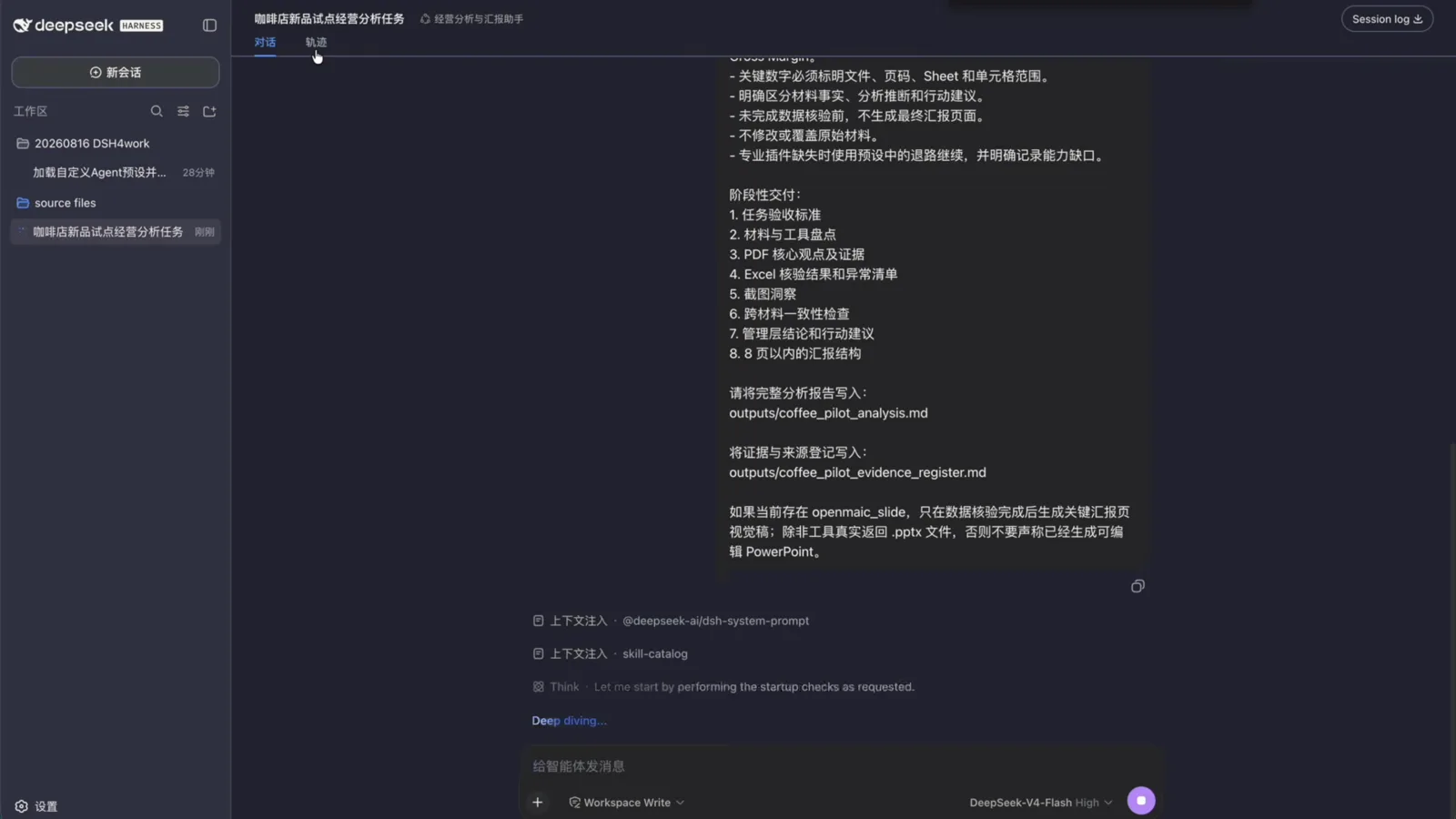
Acceptance ships with the task: eight deliverables, verify before reportingWatch at 7:40 - 7
Replay the whole run in the trajectory view: 25 steps
The trajectory tab records everything: two vision_describe calls read the competitor screenshots, todo_write lays out nine tasks, mkdir creates the outputs folder, and two writes land the analysis and evidence files. anydoc converts the PDF and parses the PPTX template; the Excel is read through Python's zipfile+xml read-only (openpyxl isn't installed, source files untouched, fallback path taken). Then the openmaic-slide skill loads and renders two report slides — "核心指标:试点有效,但不能低估继续放大" (pilot works, but scale with care) and "渠道表现决定下月预算怎么调" (channel performance drives next month's budget) — before wc -c double-checks file sizes. The closing line: six-week orders 898→1,258 (+40.1%), blended gross margin 56.78%, repurchase rate 28.17%. Status bar: 1 turn · 25 steps, LLM 5m57s · tool calls 11m30s, 140 tok/s, 91% cache hit, 1.2M input tokens.
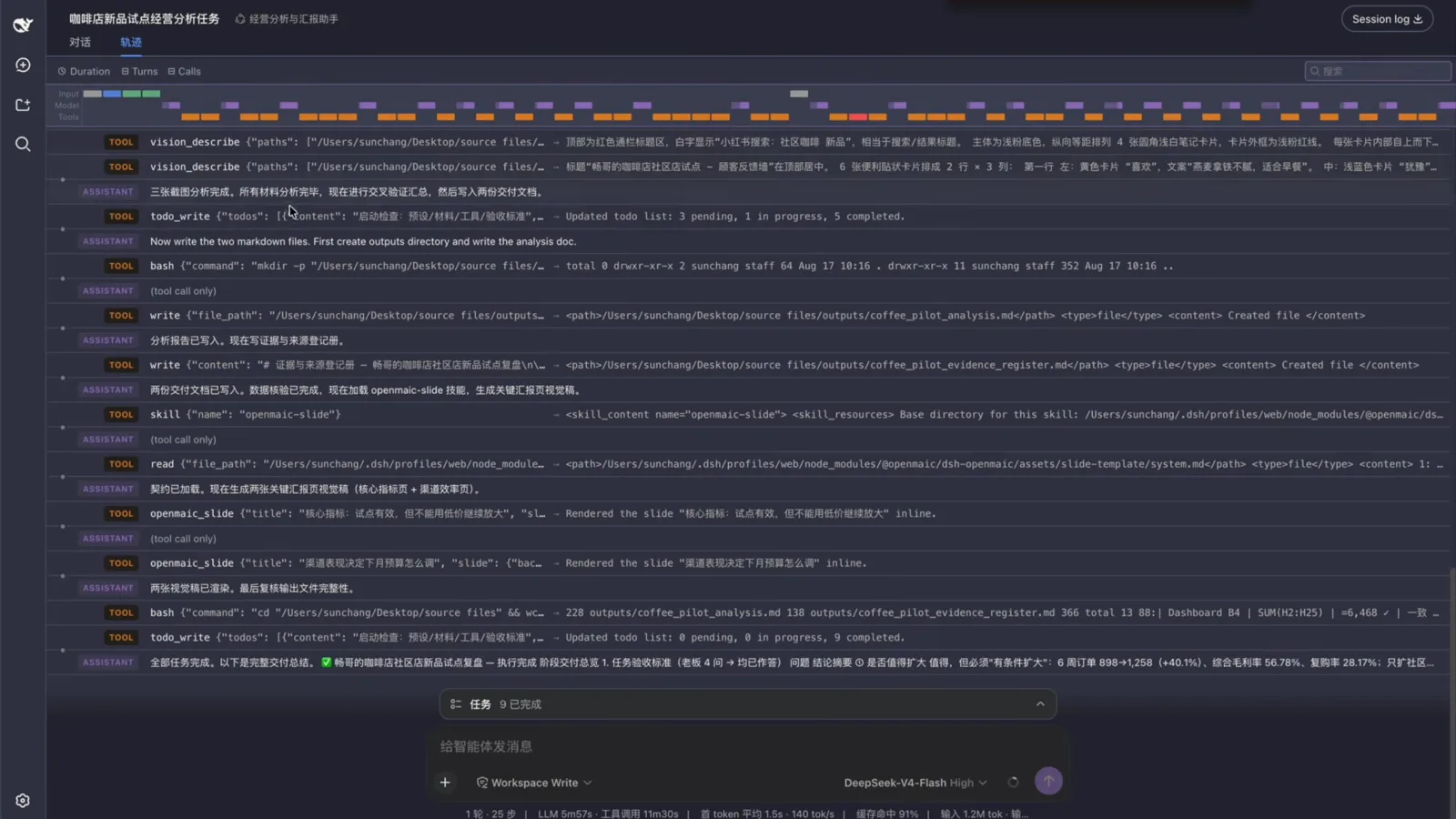
25 steps: screenshots read, reports written, slides renderedWatch at 9:00 - 8
The most valuable deliverable: the Excel audit
Section three of the report is the highlight. Recomputing formulas, the agent confirms Source Data!M17 was written as I17−J16 (should be J17), inflating one row's gross profit by ¥32.79, which propagates to Channel Analysis!I06 and Dashboard!F4 (56.8049%→56.7843%); eight more PDF-versus-Excel discrepancies are listed, like margin 52.9% vs 56.78% and weekly orders 2,410 vs 1,078. The workbook's own Dashboard!A15 admits this is a "known demo artifact". A tools section adds the receipts: all seven files parsed successfully — anydoc, read-only zip parsing, vision_ocr/vision_describe (attachment mode timed out, file-path mode succeeded) and openmaic_slide (visual drafts only) each did their part. If the audit can catch a formula error in demo data, imagine its value on your real books.
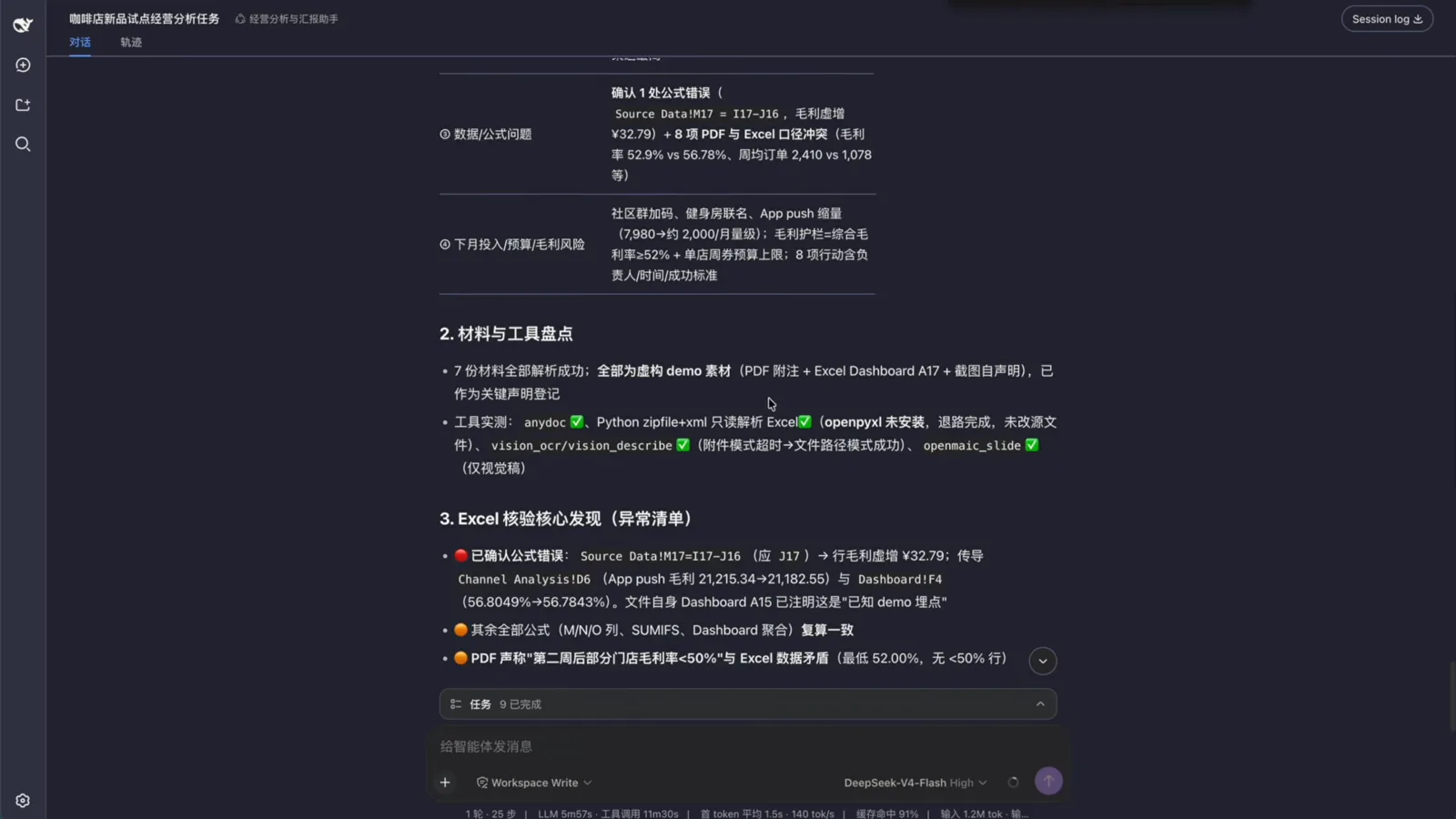
One formula error, eight discrepancies — demo data gets audited tooWatch at 9:40
FAQ
Four questions that come up around dsh creator mode and custom presets.
How is creator mode different from Standard or PTC?
Standard is a fully capable coding agent. PTC keeps everything Standard has and exposes the tools through the Code Mode SDK, letting the model combine multi-step tool calls into one TypeScript program. Minimal keeps only persistent bash and str_replace_editor. Creator mode is the preset-building mode: all of Standard plus runtime checks, plugin experiments and preset-authoring guidance. Pick Standard for daily work; switch to creator mode when you want to define your own agent.
Where do custom presets live, and how do I back them up?
In ~/.dsh/.agent-presets/<preset-name>/ — one folder, two files: agent.cordis.yaml (the plugin bundle and capability declarations) and preset.yml (the name and prompt settings). "Open config file" in Settings → Agent Presets jumps straight there. Backing up is copying the folder; restore it to the same path and new sessions will pick it up. The mount-check conversation in the video confirmed exactly this path as mounted OK.
Is the coffee-shop data real? Can I use my own business data?
It's not a real case — the PDF notes, an Excel Dashboard remark and the screenshots themselves all declare fictional demo material (the workbook even plants a "known demo artifact" formula error for the audit to find). The flow is data-agnostic: drop your own PDF reports, sales spreadsheets, pptx templates and screenshots into the workspace and the same preset runs the same verify-then-report pipeline — and on real books, the step-8 formula audit matters even more.
Is creator mode an official capability? Anything to know about versions?
Yes — the official release notes from 0.2.0 onward call out creator mode as a headline capability. The version strings and model names in the video (like DeepSeek-V4-Flash High) are a point-in-time snapshot; trust your local dsh version and available models. If the preset folder layout ever changes, the "Open config file" button in Settings → Agent Presets always points at the current location.
Related guides
The rest of the preset puzzle.
Agent presets: a first custom preset, hands-on
The on-ramp to the same preset system: the four built-ins, plugin installs, the saved files and one-click workbench switching.
Read the guideCustomize a business agent, full cycle
A different business line end to end: from a plain-language requirement to plugin packaging, restart checks and acceptance.
Read the guidedsh's four running modes, compared
Standard, PTC, Minimal and creator mode — what each is for, on one page.
Read the guideInstalling plugins
The vision and document-conversion abilities named in a persona only become real once the matching plugins are installed — start here.
Read the guideSource & credits
All nine screenshots on this page come from the video below (YouTube, 1080p, no caption track; on-screen text verified frame by frame), each deep-linked to its original timestamp. The business data in the video is fictional demo material. For the preset-system background, read Agent presets, hands-on