
DeepSeek Harness Plan Mode: Plan First, Approve, Then Execute
The /plan command turns any session into a reviewable drafting round — the agent researches, proposes a plan card, and only touches files after you approve.
Last updated: 2026-09-12
In DeepSeek Harness, a normal request starts editing right away. Prefix it with /plan and the session flips into plan mode: an orange marker flags the request as review-before-implementation, the agent investigates and writes a plan instead of changing files, and a review card asks for your approval before any edit lands.
This guide follows a real run recorded in the dsh web UI — from typing /plan in a fresh session to the terminal decoder proving plan mode switched on and off — plus a second demo where an approved plan adds a store endpoint to a Golang service.
Plan mode, step by step
- 1
Start from a normal session
Open a new session in your workspace — the demo uses harbor-log in Standard mode with Workspace Write and DeepSeek-V4-Flash. Plan mode is a per-session switch, not a preset: you turn it on inside the conversation whenever a change is big enough to deserve a review first.
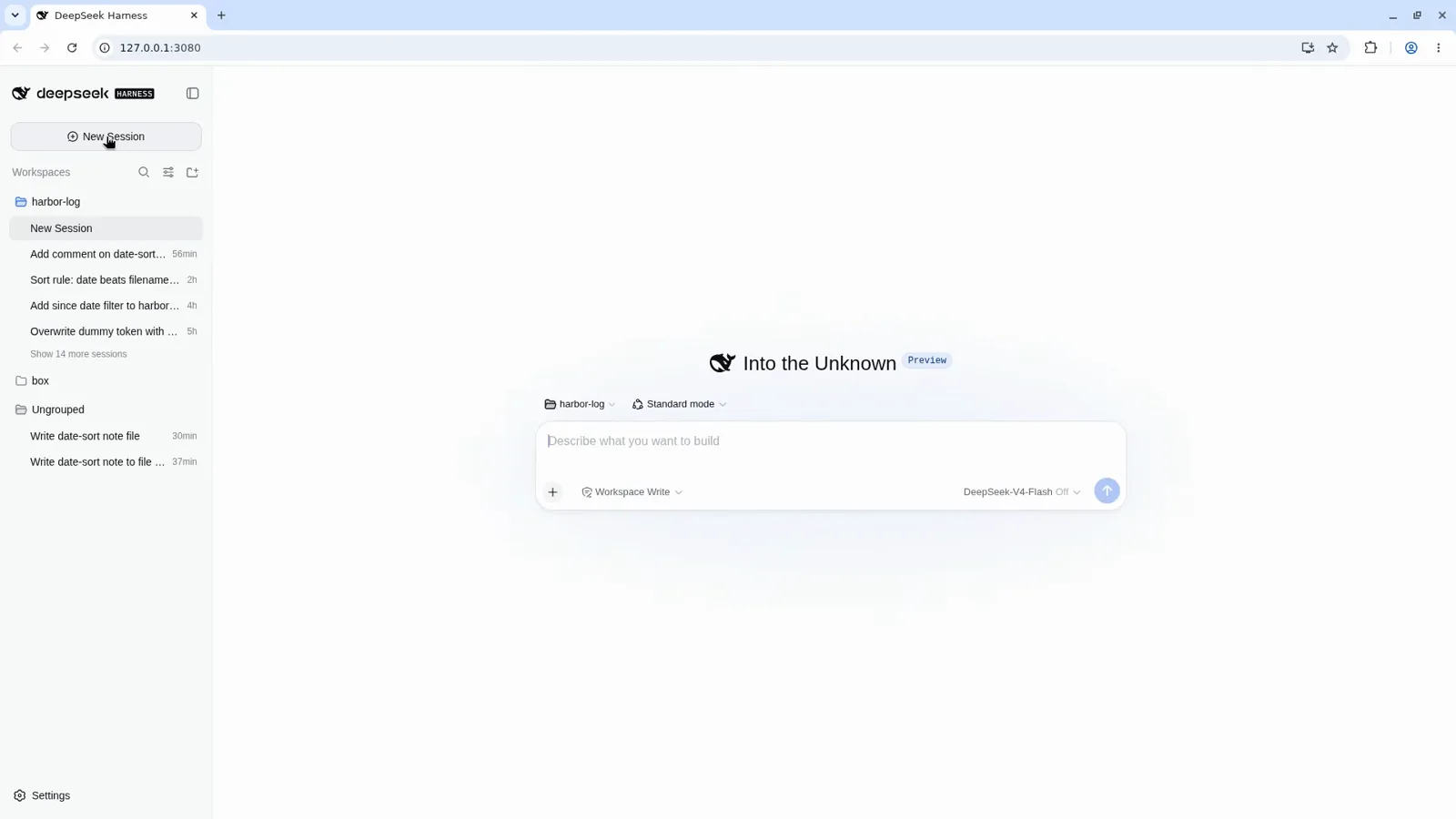
A clean session — the usual starting point before /plan.Watch at 36:30 - 2
Type /plan in the composer
Click into the message box and type a slash. The command menu pops up with plan — Enter or leave plan mode — highlighted. This is the same composer you use for every request, so nothing needs to be installed or configured first.
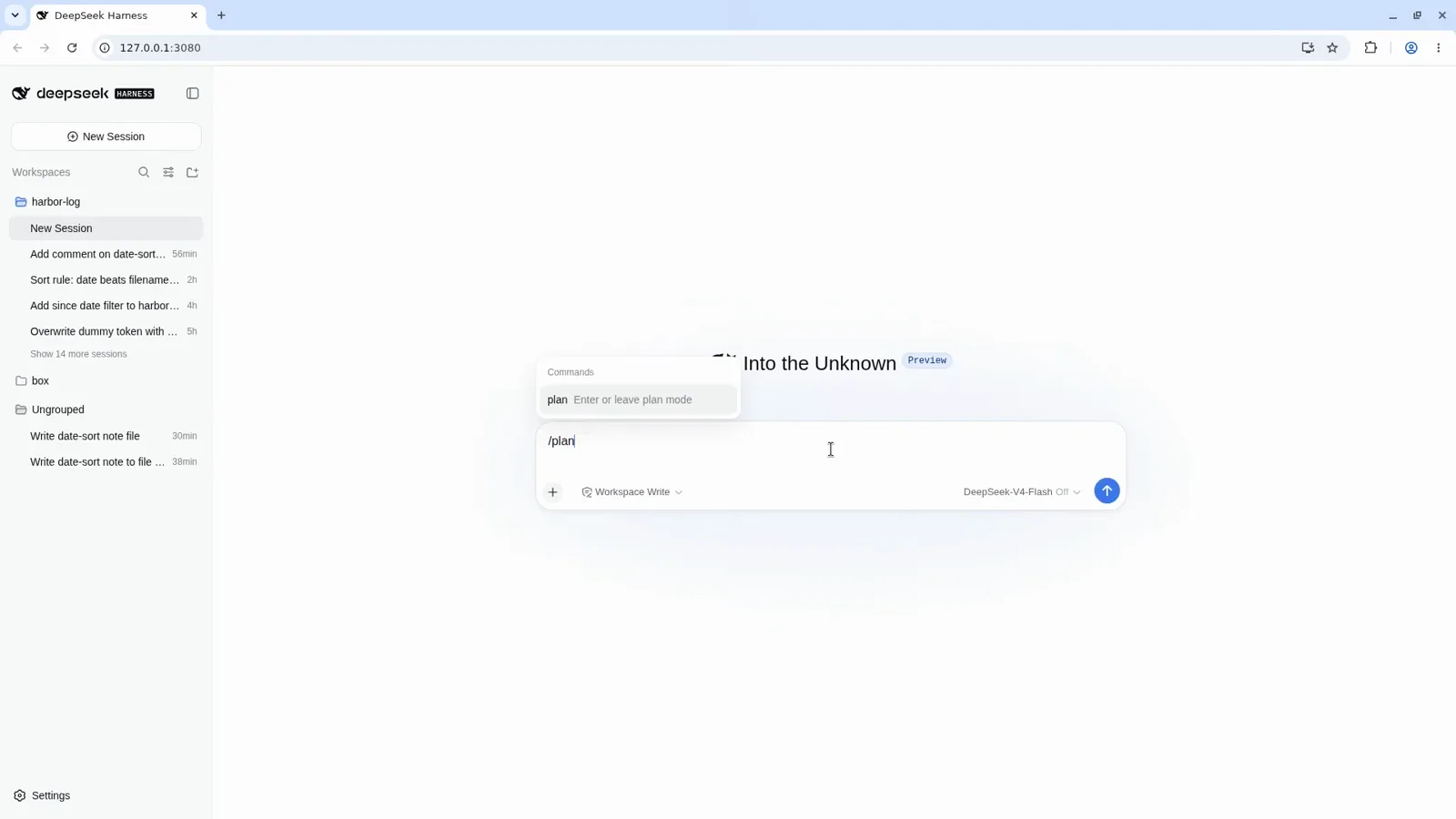
The command menu appears as soon as you type the slash.Watch at 36:32 - 3
Describe the task after /plan, then send
After /plan, write the task in plain language and pin down the constraints. The demo asks for a list command and a test, and explicitly forbids changing latest, implementing repo_health or touching secrets. The /plan prefix turns orange — that marker means this request must be reviewed before implementation. Pause on the complete request, then send.
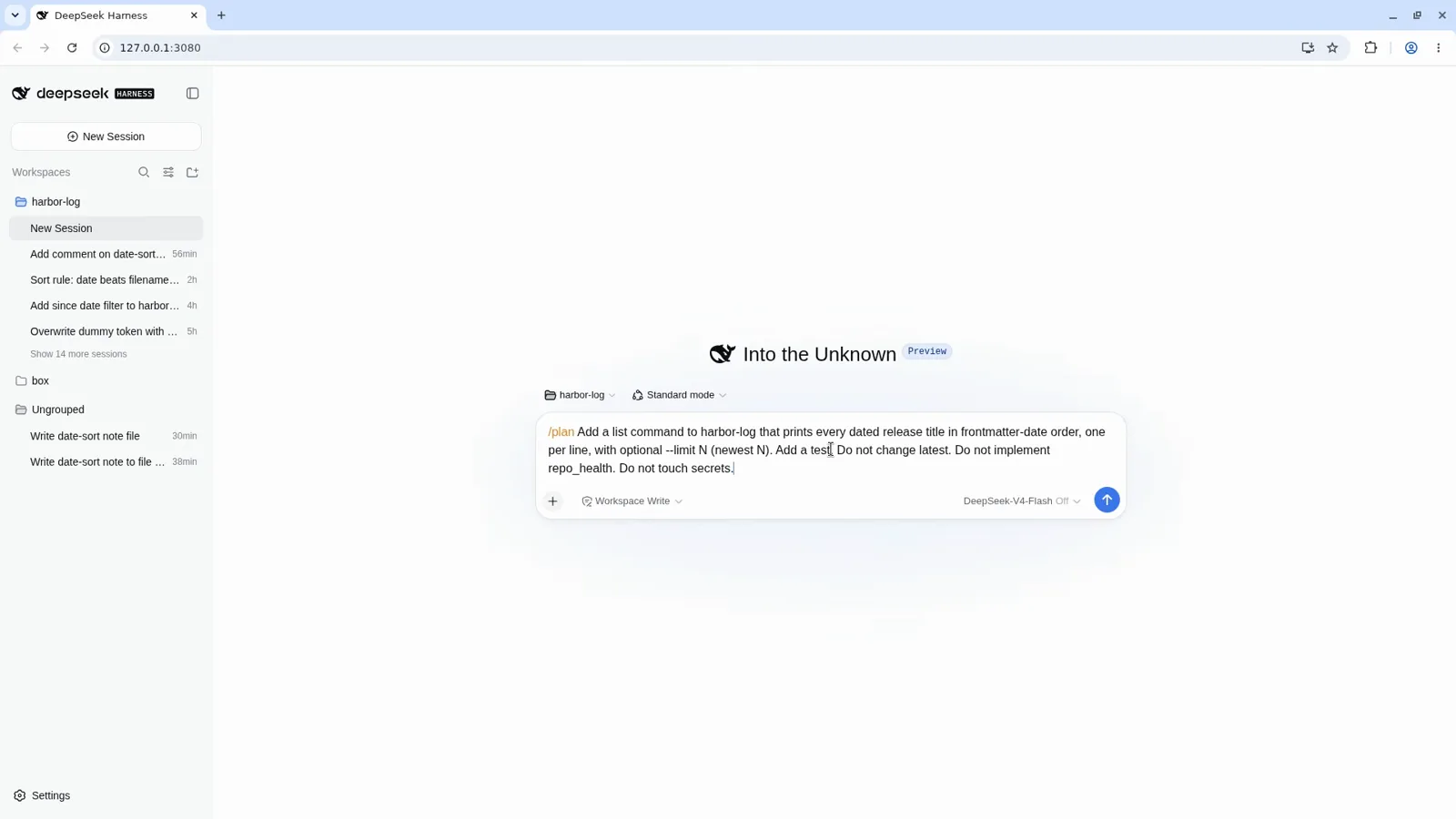
The complete brief: one orange /plan, clear deliverables, hard limits.Watch at 36:43 - 4
The session enters plan mode
Once sent, the session banner reads: plan · Plan mode on. Use /plan off to leave. The user message carries the task itself — not a stray /command — and the composer now shows an orange Plan pill you can click to leave plan mode at any time.
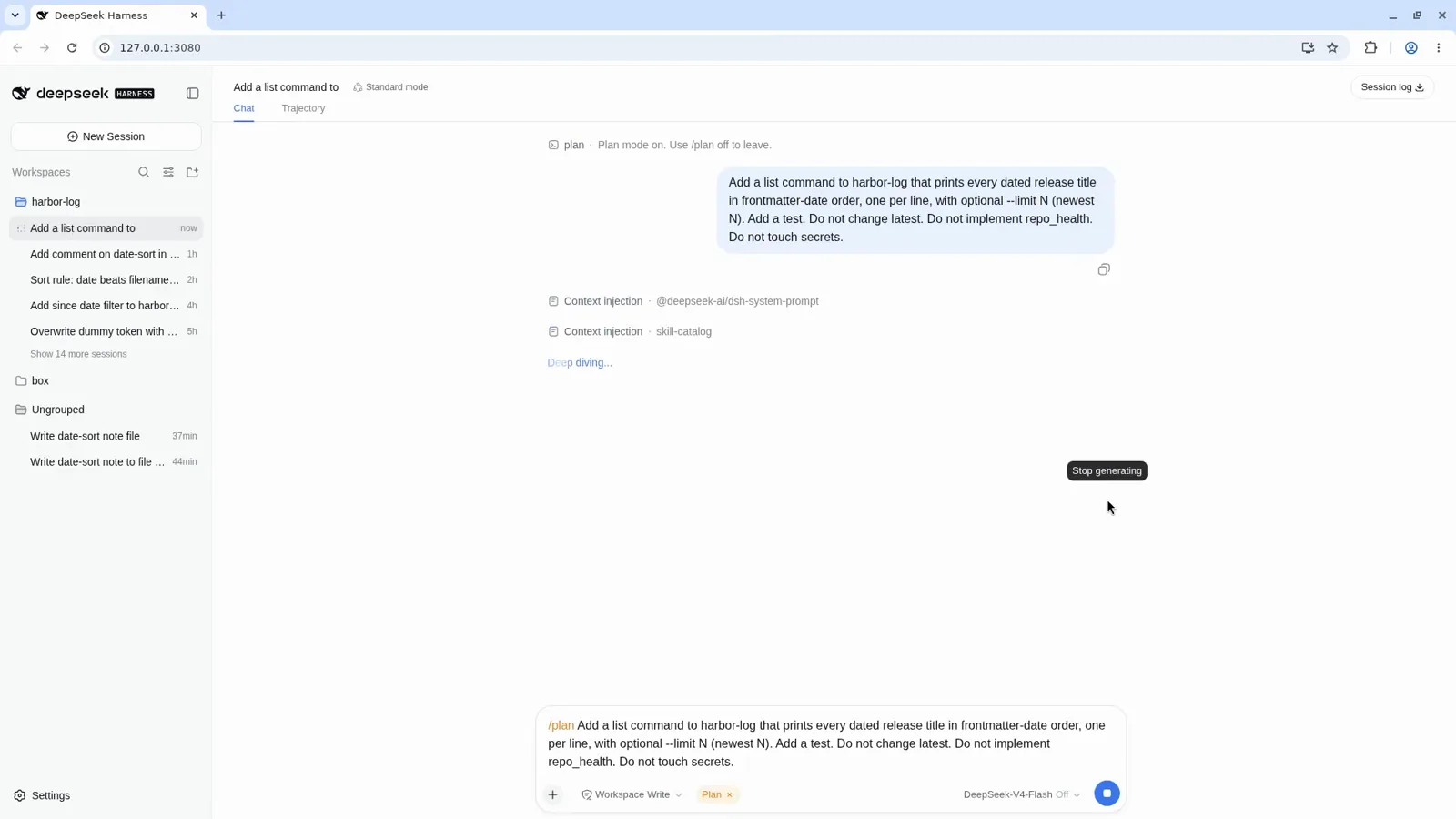
Plan mode is on for this session — /plan off leaves it.Watch at 36:49 - 5
The agent drafts the plan — no files edited
In plan mode the agent reads the project, weighs design decisions in the open, and writes the plan. No Edit cards appear in this phase; the composer placeholder even changes to "describe your task to generate plan". When the plan is ready, the agent calls exit_plan_mode with it instead of starting to code.
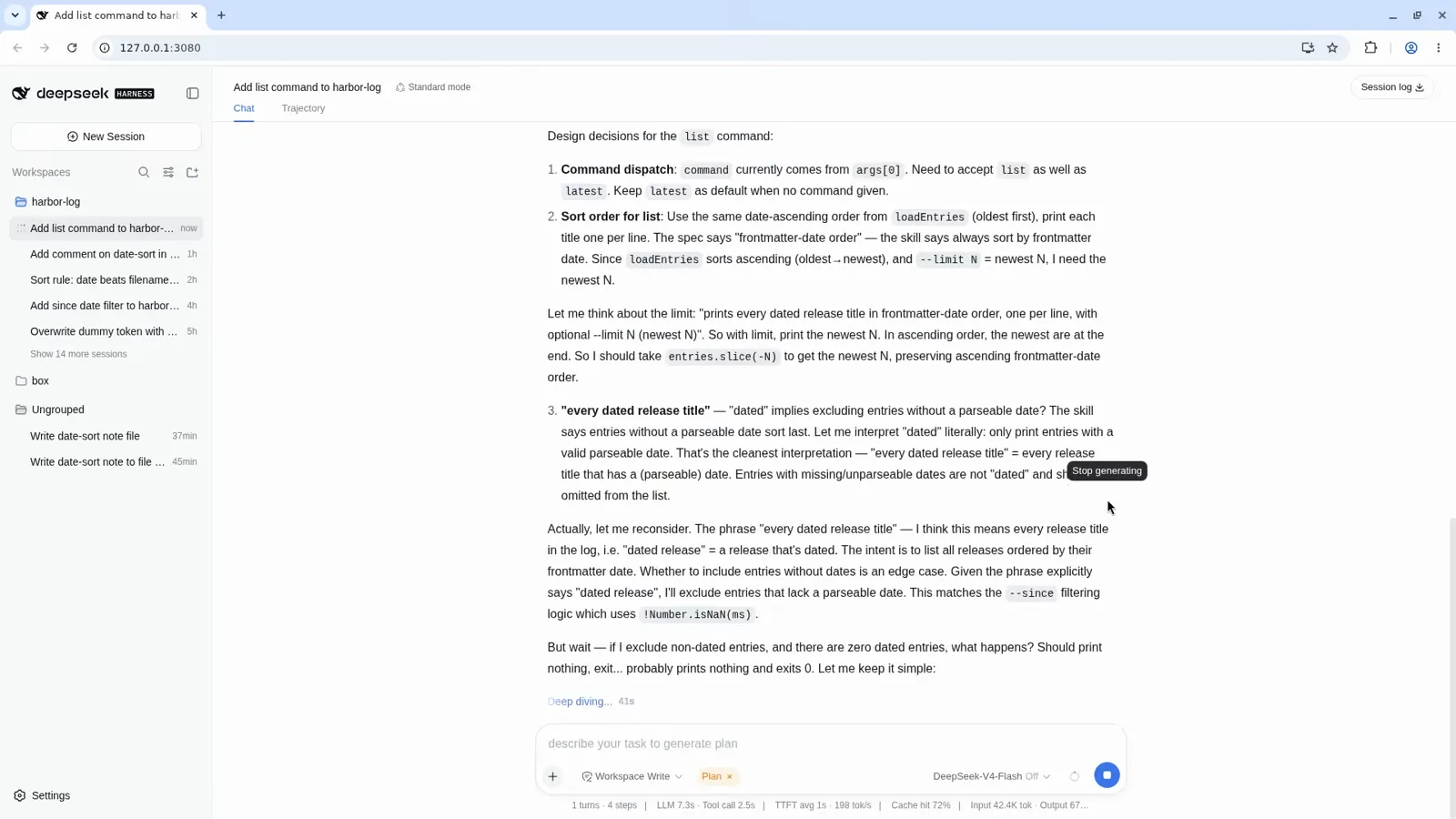
Reasoning is on the record; files are not touched yet.Watch at 36:53 - 6
Review the plan card, then approve
The finished plan arrives as an orange review card — goal and success criteria, the file changes it will make, and how each will be verified. Approve it and the same run continues into implementation: "Plan approved", the agent says, and records the to-do list. Don't agree? Don't approve — send your corrections in chat instead.
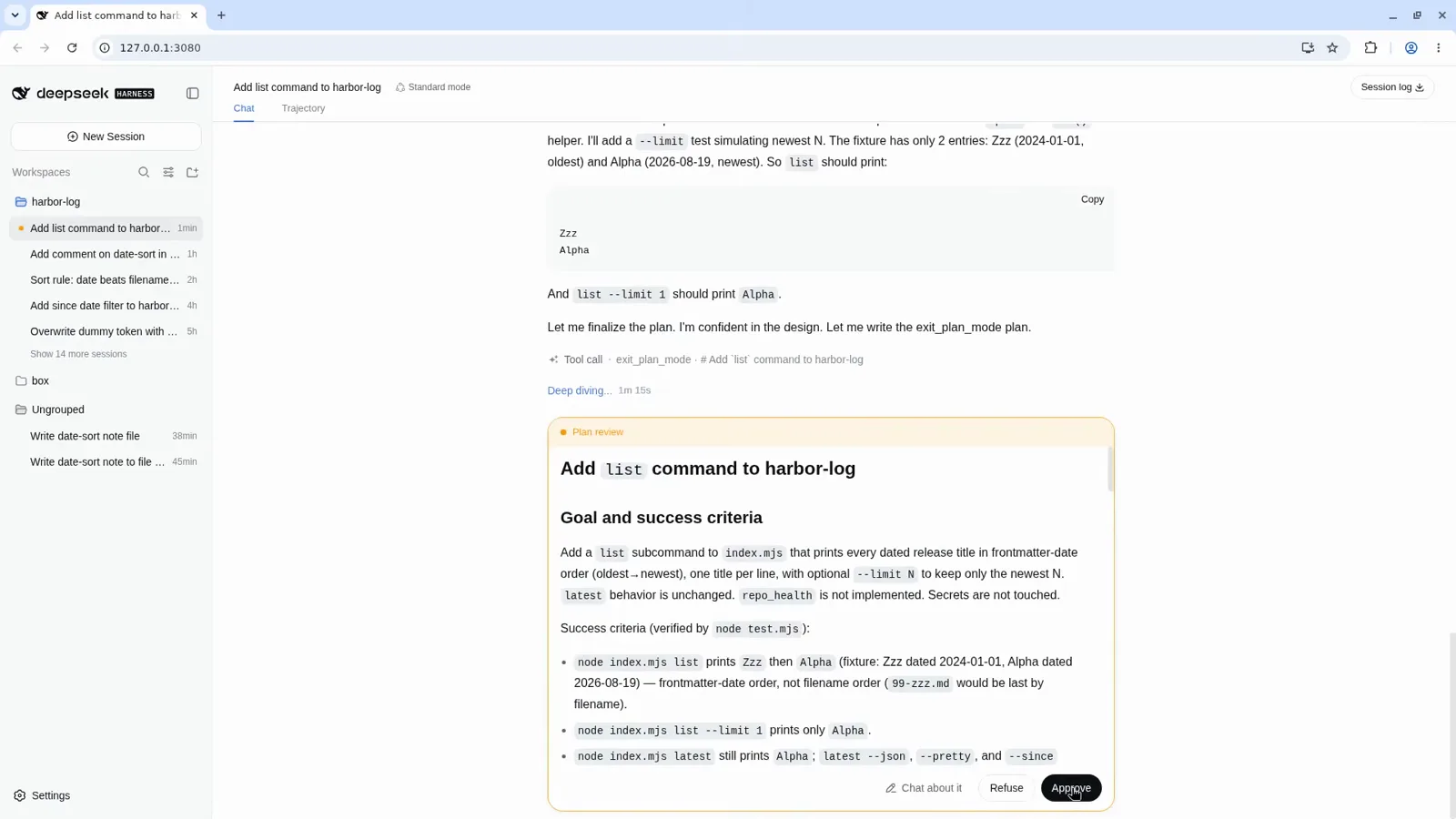
The plan card states the goal, the changes, and the checks.Watch at 36:56 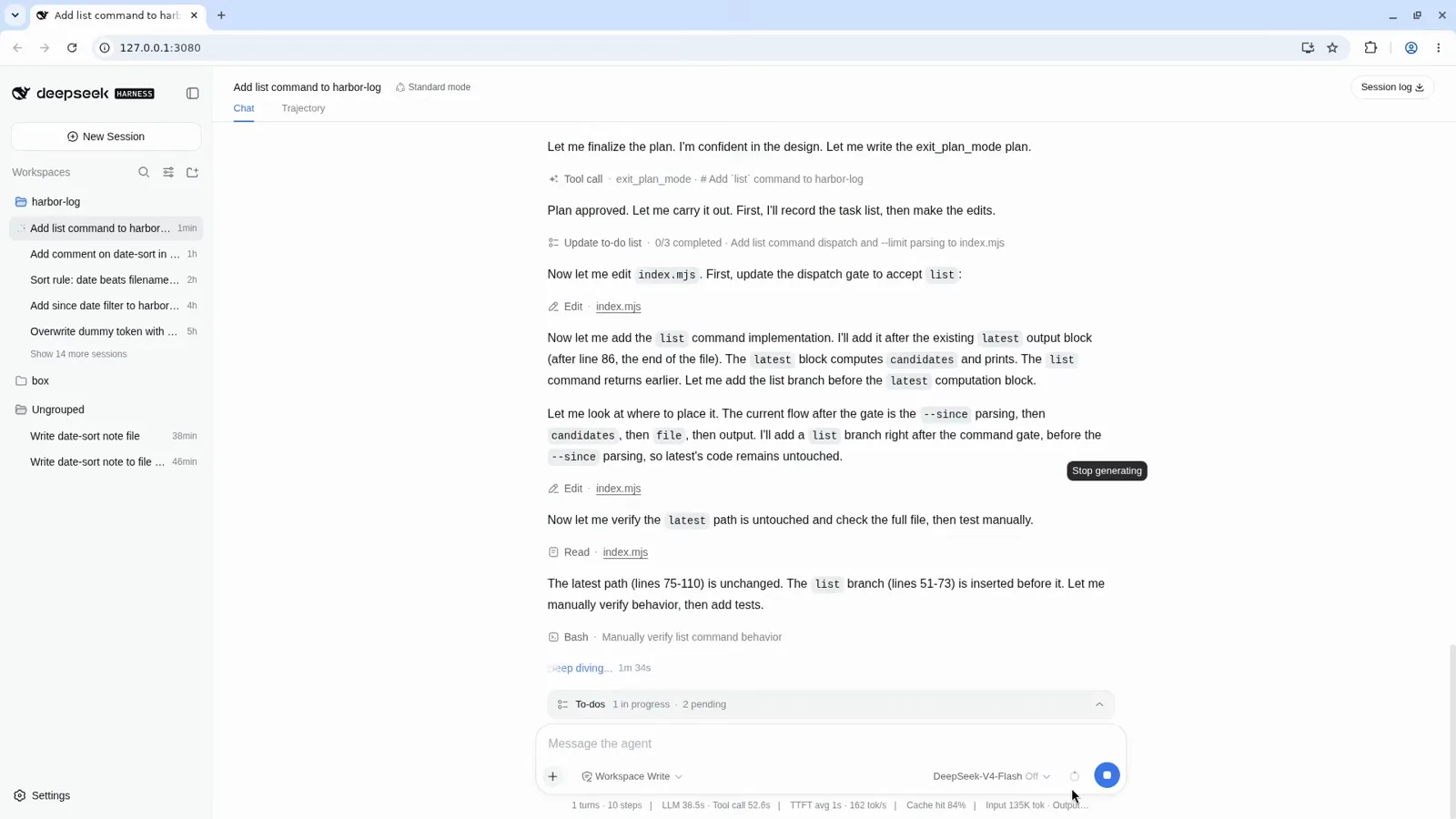
Approval hands the plan straight back to the same run.Watch at 36:59 - 7
The approved plan becomes a checklist run
Implementation now proceeds exactly as planned: Edit cards for index.mjs, shell checks, and a to-do tracker that moves from 1 of 3 to 3 of 3. The run ends with a What changed summary, a Verification section, and the produced files listed — both source files updated and the full test suite passing.
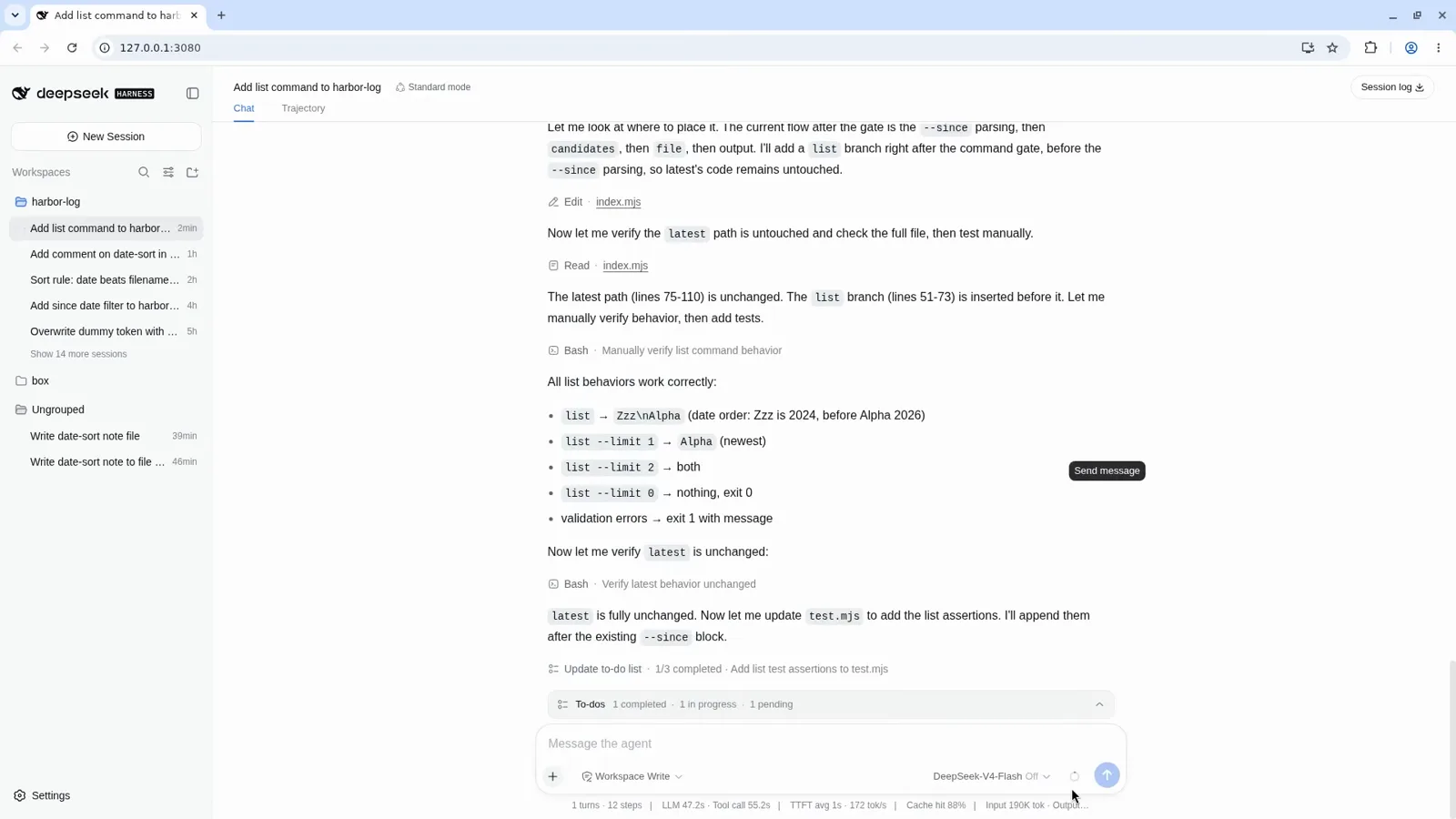
Edits, shell checks and to-dos — the plan, executed in order.Watch at 37:01 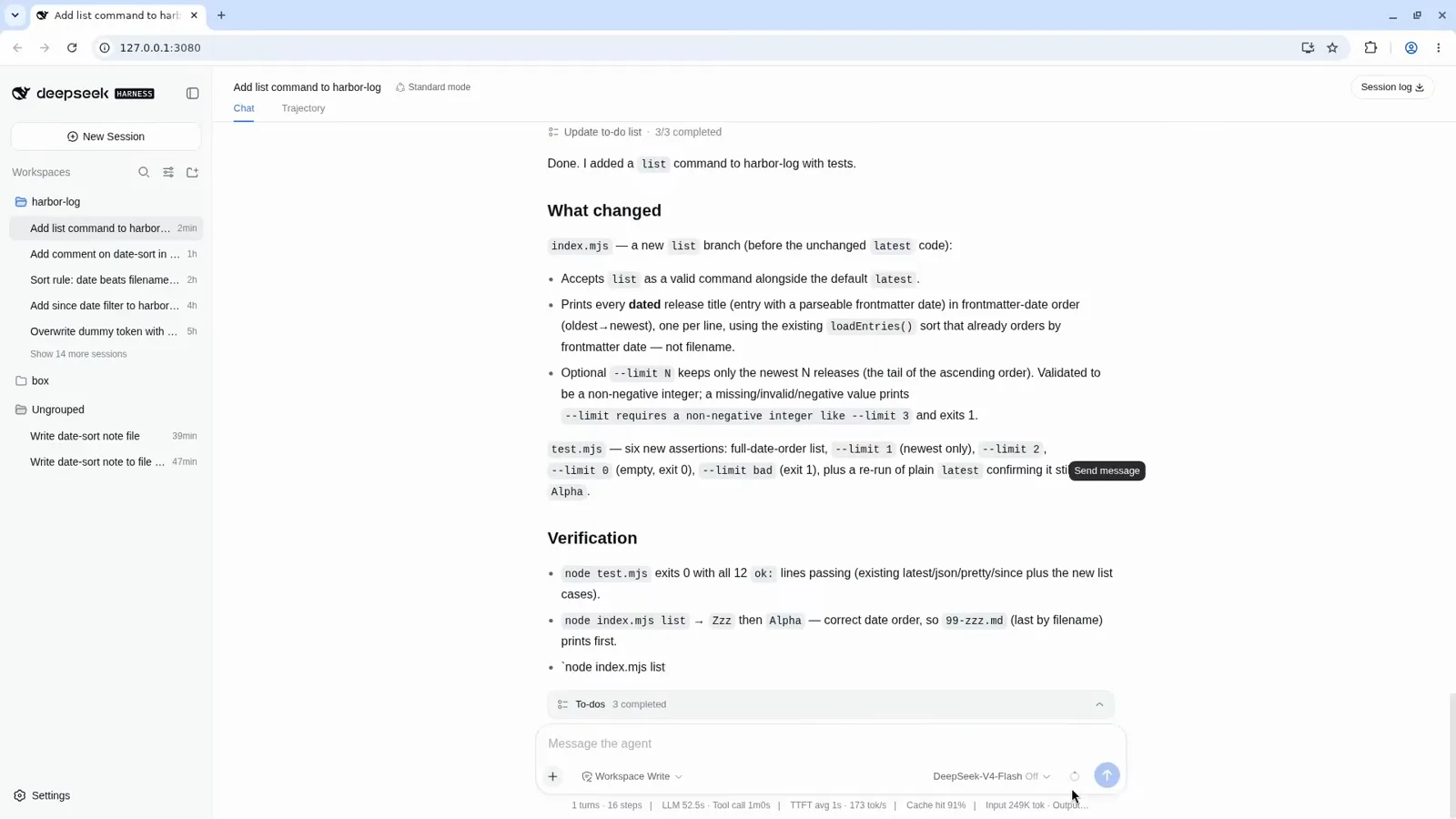
It ends with proof: what changed and how it was verified.Watch at 37:05 - 8
Plan mode flips off; the record proves it
Back in the terminal, the course decodes the saved session: a plan/mode record turning on and then off, the exit_plan_mode call with the plan text, approvals at 0, and a note that the trajectory has no separate PLAN event kind. Plan mode left no file behind — only the session record.
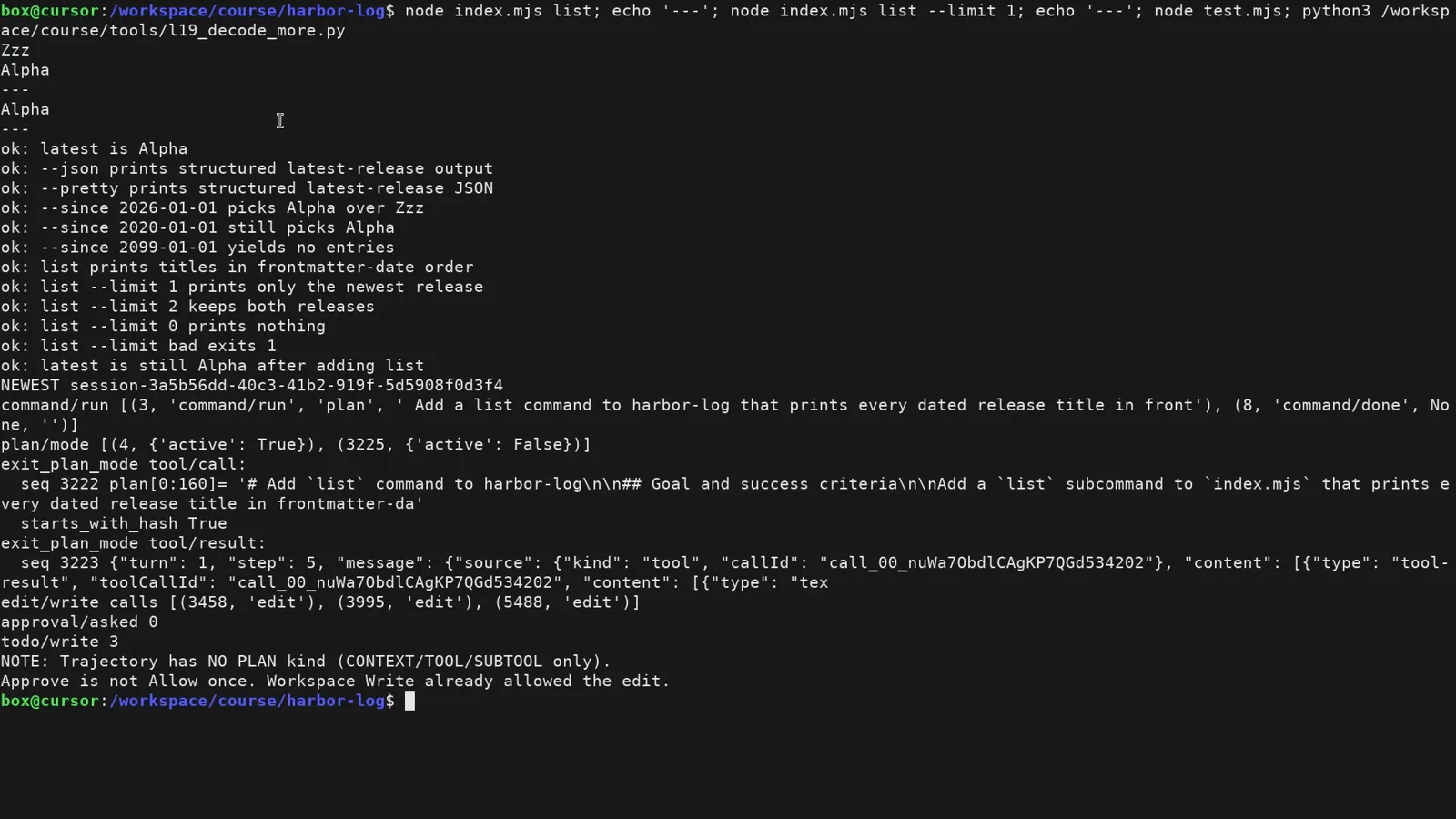
The decoder's verdict: plan on, plan off, exit_plan_mode recorded.Watch at 38:03
Plan mode FAQ
The questions people actually ask about /plan, answered from the recorded runs.
Does plan mode use fewer tokens?
Treat it as a control feature, not a token saver. Planning adds its own reasoning pass — in the recorded run the model spent over a minute investigating before the plan appeared. What you save is rework: implementation starts only after you have read the plan, so a wrong direction costs a message instead of a broken build.
Can I edit the plan before approving?
The review card is approve-or-not — it has no text field. If the plan misses something, don't approve: reply in chat with what to change and let the agent produce a corrected plan. That is also how the second demo treats disagreement — agree, approve; disagree, send it back.
How do I leave plan mode without executing anything?
Type /plan off in the composer — the session banner spells it out: "Plan mode on. Use /plan off to leave." The orange Plan pill next to the permission selector also has an × that toggles plan mode off on the spot.
What does exit_plan_mode do?
It is the tool call the agent makes when the plan is finished. Instead of editing files, the agent submits the plan through exit_plan_mode, which raises the review card you approve. Approving ends plan mode and the same run continues into implementation — a session decoder shows the plan/mode record flipping from active to off with the exit_plan_mode call stored alongside it.
Does plan mode create a plan file?
No. The plan lives in the conversation as a review card and is saved with the session record — the decoder note in the video says the trajectory has no separate PLAN event kind. If you want the plan as a file, ask the agent to write one after approval; that becomes an ordinary edit.
How is /plan different from just asking for a plan first?
Asking politely relies on the model remembering. /plan makes the harness enforce it: the composer switches to plan mode, the agent works without touching files, and implementation is blocked behind the exit_plan_mode approval card. In the direct-run demos elsewhere in the same course the agent starts editing on the first turn — plan mode is the difference.
Keep exploring DeepSeek Harness
More verified guides from the same screencast-to-text pipeline.
The four modes: Standard, PTC, Minimal, Creator
What each agent preset includes, when it wins, and how to build a preset of your own in Creator mode.
Read the guidePlugins vs Skills: the Difference
One swaps harness capabilities, the other teaches the agent. Side-by-side comparison with real screenshots and two worked examples.
Read the guideQuickstart: run dsh in 5 minutes
Install DeepSeek Harness, start the Web UI, run your first task, and pick the right mode.
Read the guideSwitch models & custom providers
Change models mid-session, add NVIDIA NIM or Ollama as a custom provider, and verify what you're really talking to.
Read the guideTroubleshooting & error encyclopedia
Symptom → cause → fix: install failures, pnpm workspace allowlist errors, cordis.patch.yml conflicts, bundle format errors, and profiles that won't apply.
Read the guideSources and credits
All screenshots on this page come from these two walkthroughs — every image deep-links back to the exact second it was captured from. The explanations above are our own.